Your game has an overlay on your stream: Active, with Show on stream turned on. See Set up a stream overlay.
Sponsor pop-ups use your active sponsors, from Sponsors.
Steps
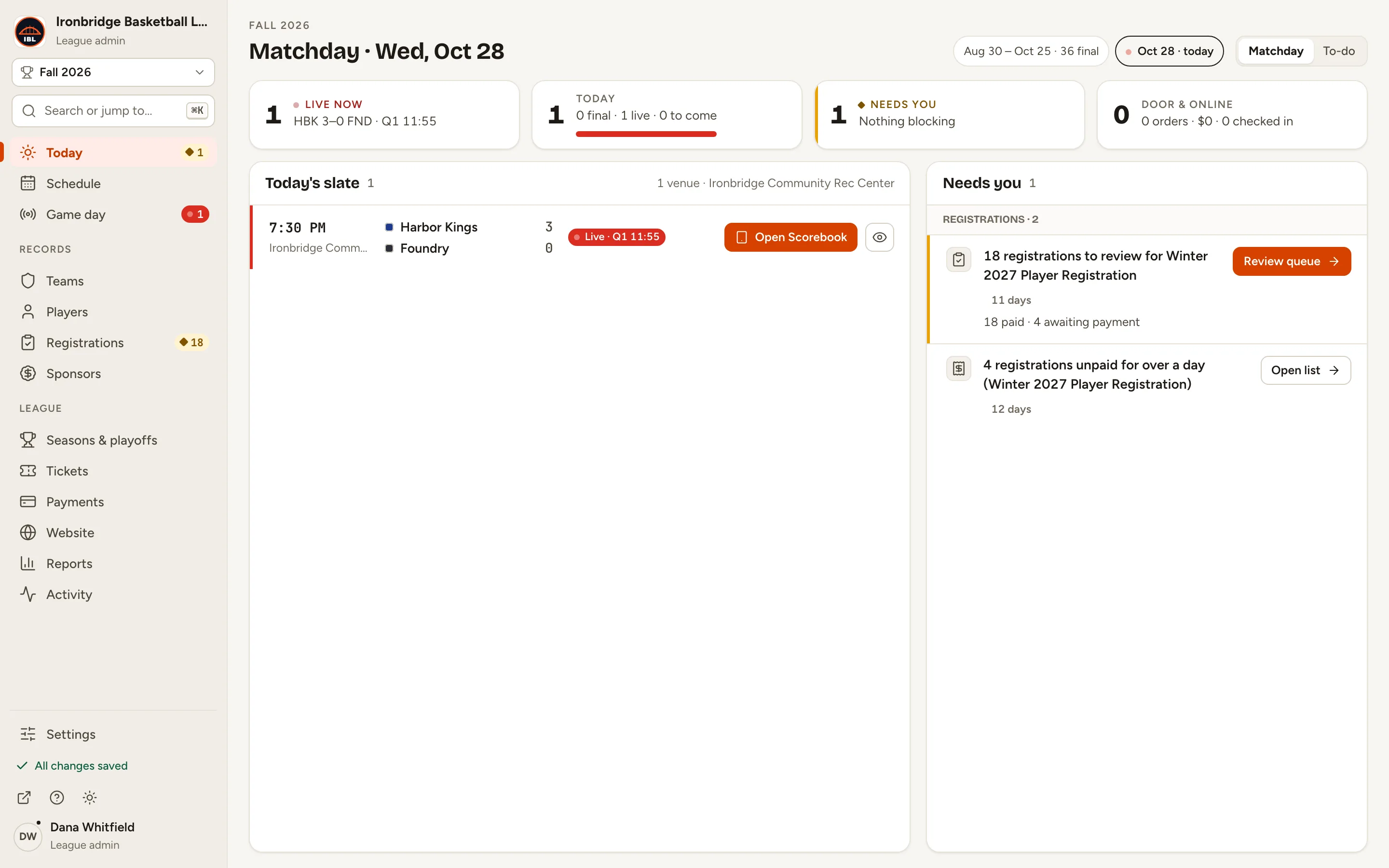
1
Step 1: In the left menu, click Game day.
Game day opens on its Games tab.
Fig. 1Game day, in the left menu.
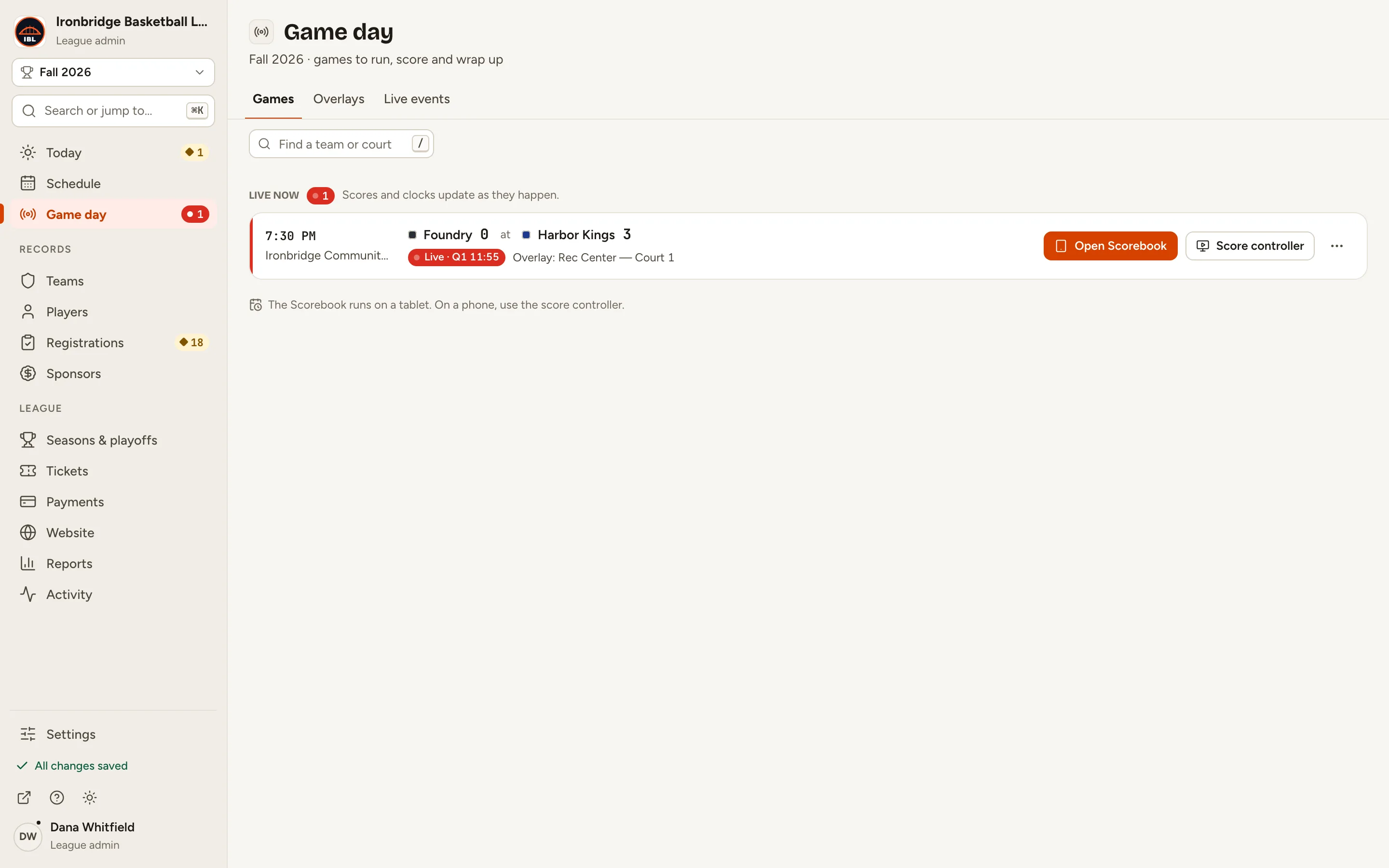
2
Step 2: At the top of Game day, click Overlays.
Your overlays are listed. The one on your stream reads On air.
Fig. 2Overlays, at the top of Game day.
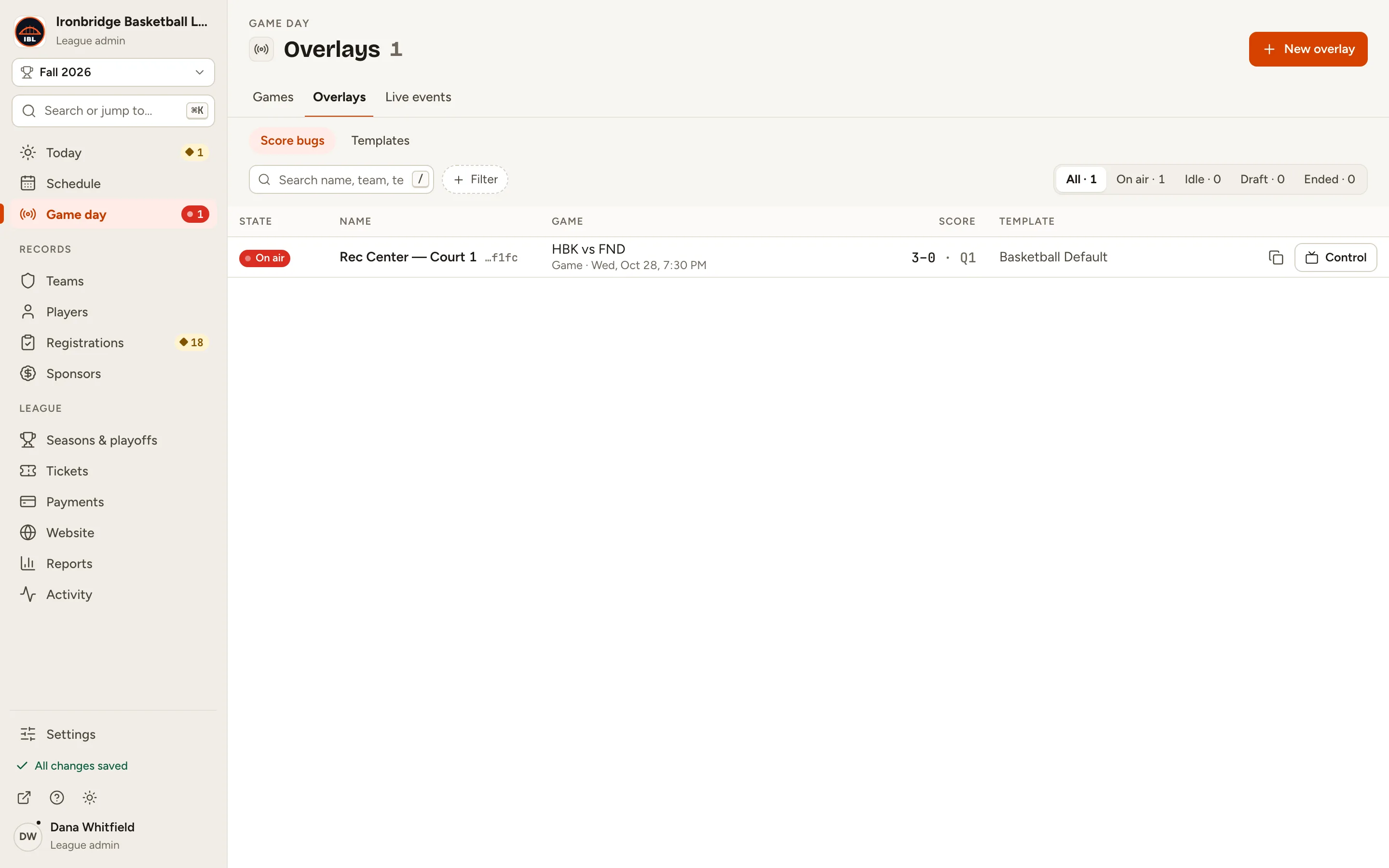
3
Step 3: Click Control on your overlay.
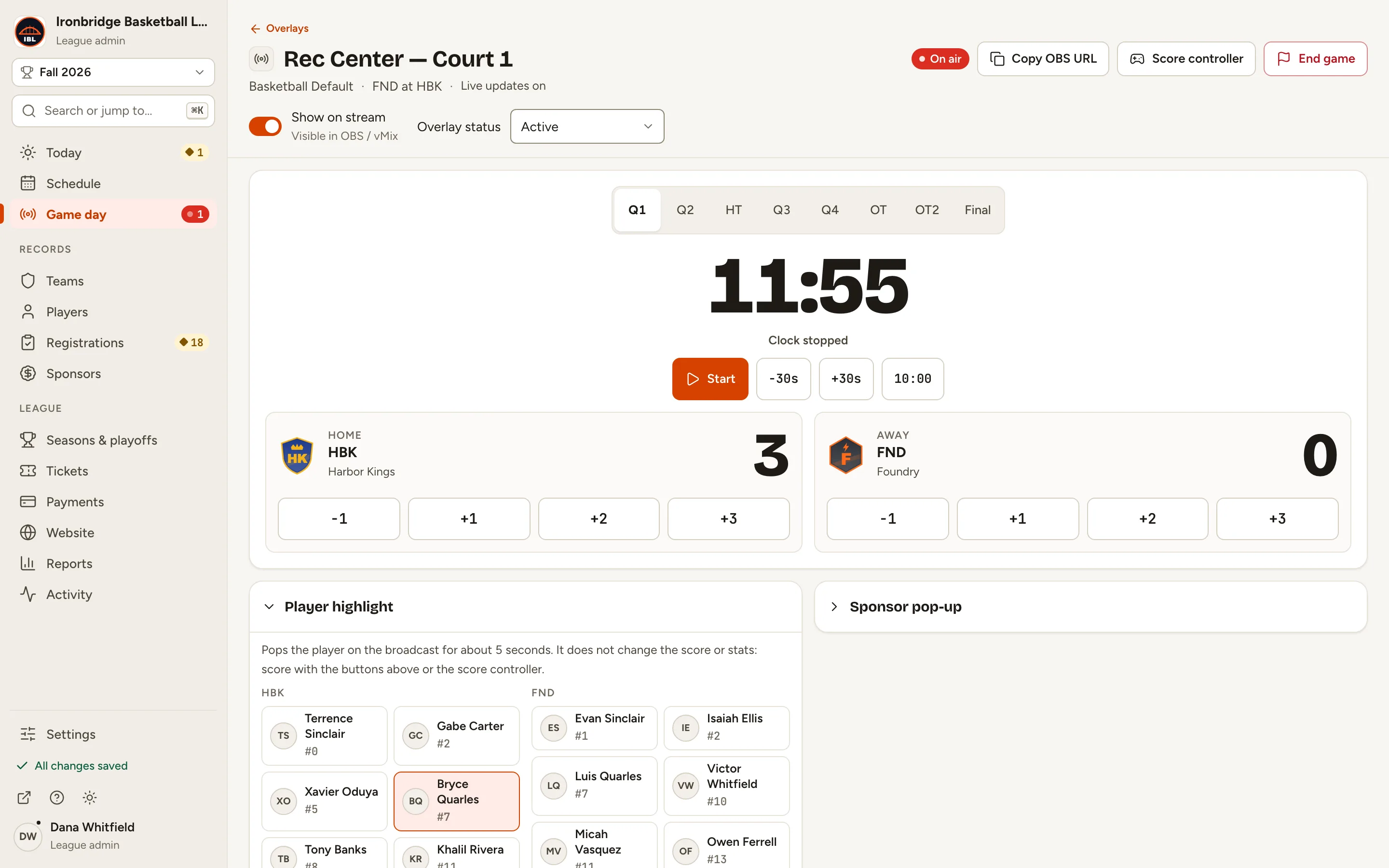
The overlay’s control page opens: the scoreboard, with Player highlight and Sponsor pop-up below it.
Fig. 3Control, on the overlay’s row.
4
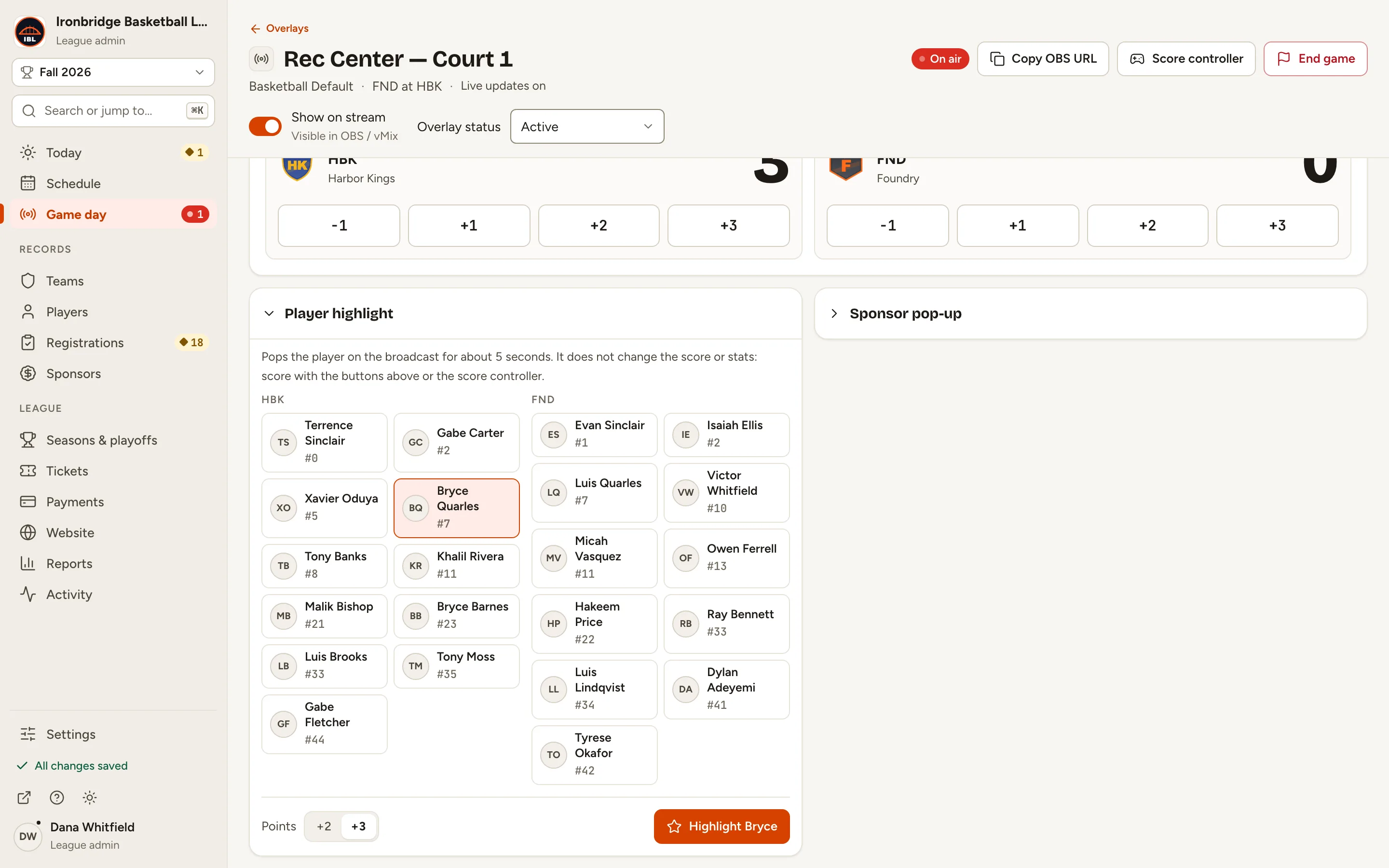
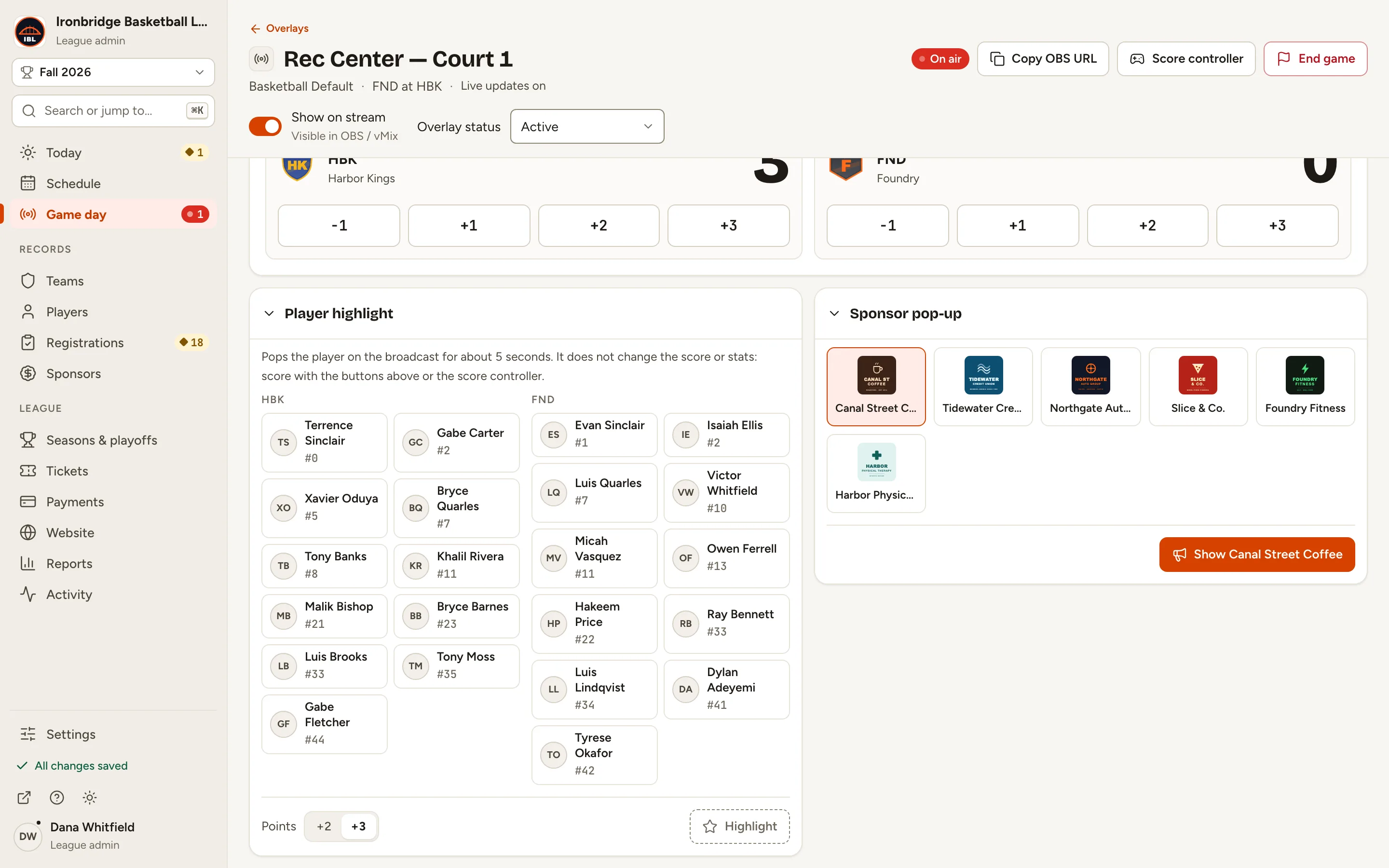
Step 4: Under Player highlight, click the player who scored, like Bryce Quarles.
The player is picked, and the button at the bottom reads Highlight Bryce.
Fig. 4Pick the player.
5
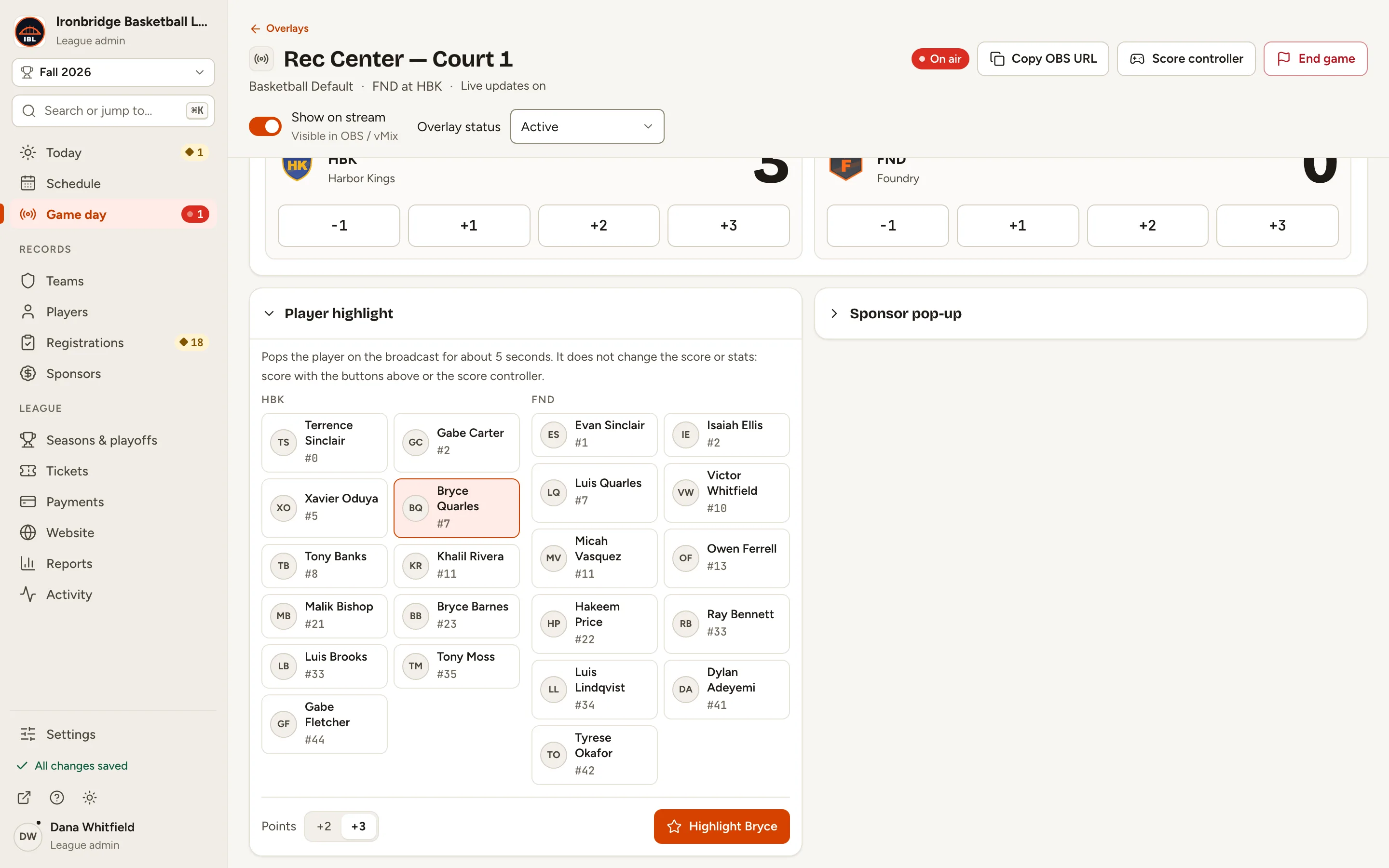
Step 5: Next to Points, click +2 or +3.
The pop-up shows the points you pick. It doesn’t add them to the score.
Fig. 5Pick +2 or +3.
6
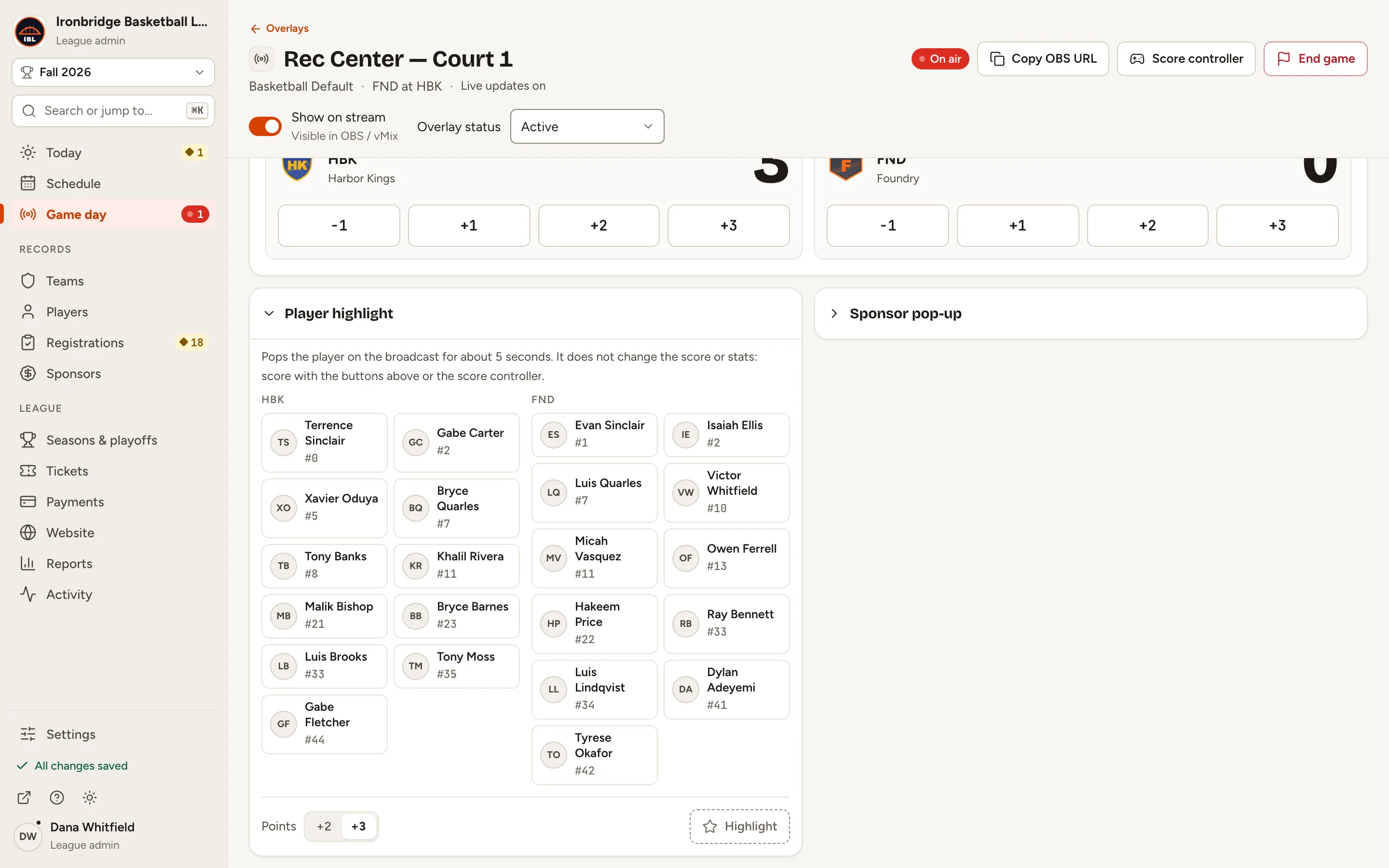
Step 6: Click Highlight Bryce.
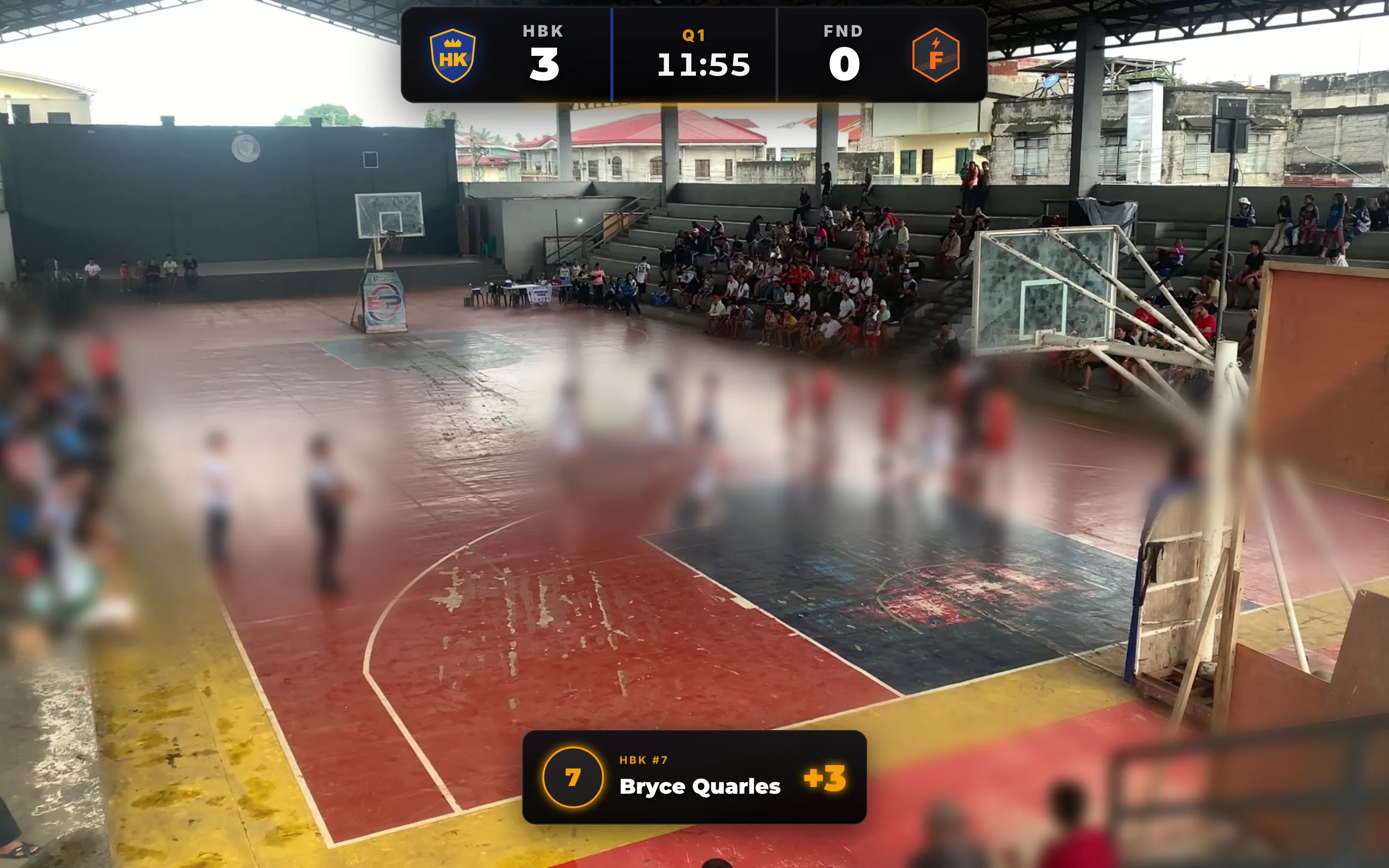
The player pops up on your stream for about 5 seconds, with their photo (or jersey number), team, name and points.
Fig. 6Highlight sends the pop-up.
Fig. 6bThe highlight on your stream.
7
Step 7: Click Sponsor pop-up to open it.
Your active sponsors are listed, with their logos.
Fig. 7Sponsor pop-up, beside Player highlight.
8
Step 8: Click a sponsor, like Canal Street Coffee.
The sponsor is picked, and the button reads Show Canal Street Coffee.
Fig. 8Pick the sponsor.
9
Step 9: Click Show Canal Street Coffee.
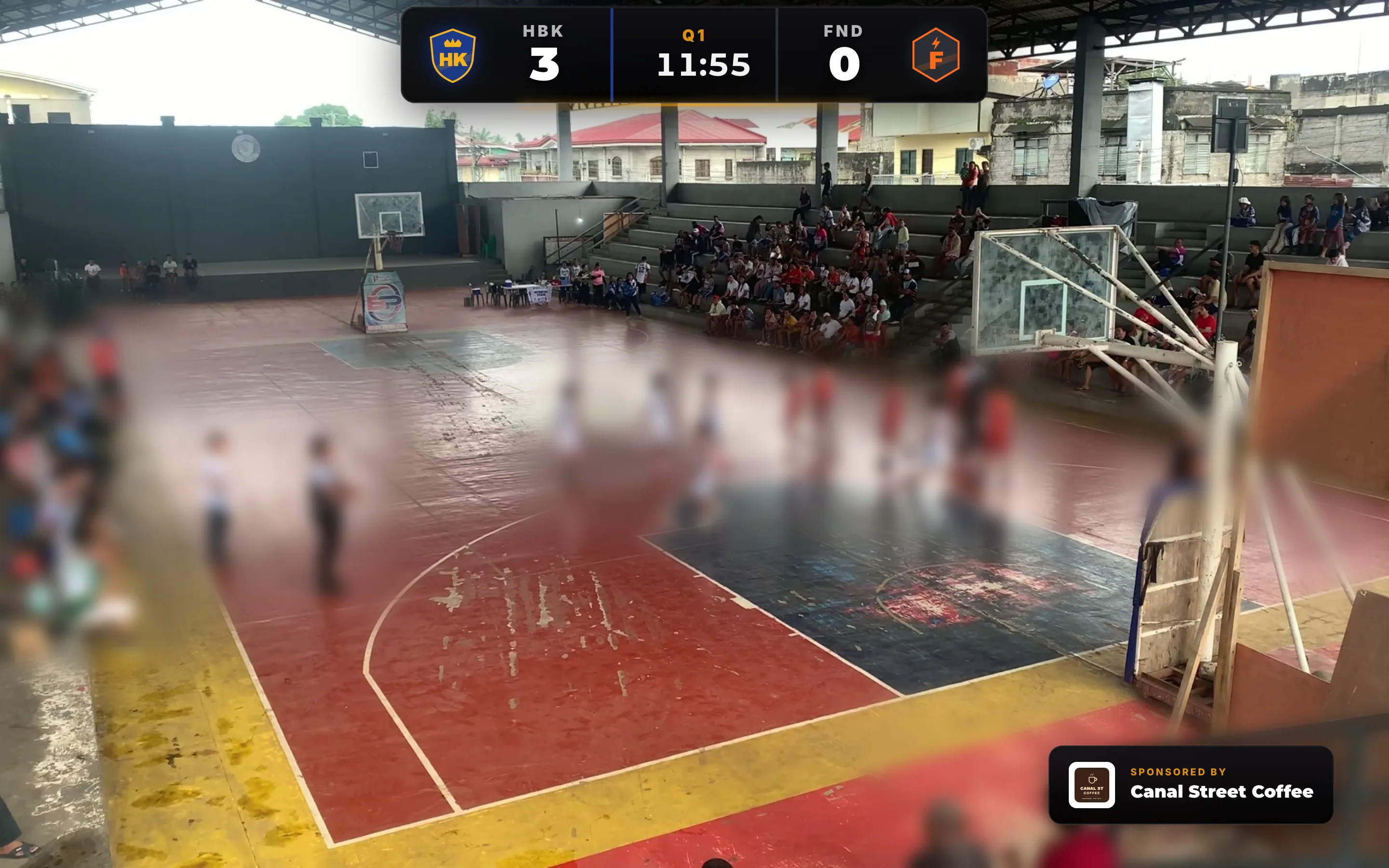
The sponsor pops up on your stream for about 5 seconds: its logo and name, under Sponsored by.
Fig. 9Show sends the sponsor pop-up.
What you’ll see
Send a pop-up whenever the overlay is on your stream. Pop-ups never change the score or stats, and the panels stay ready for the next one.
1 of 2
2 of 2
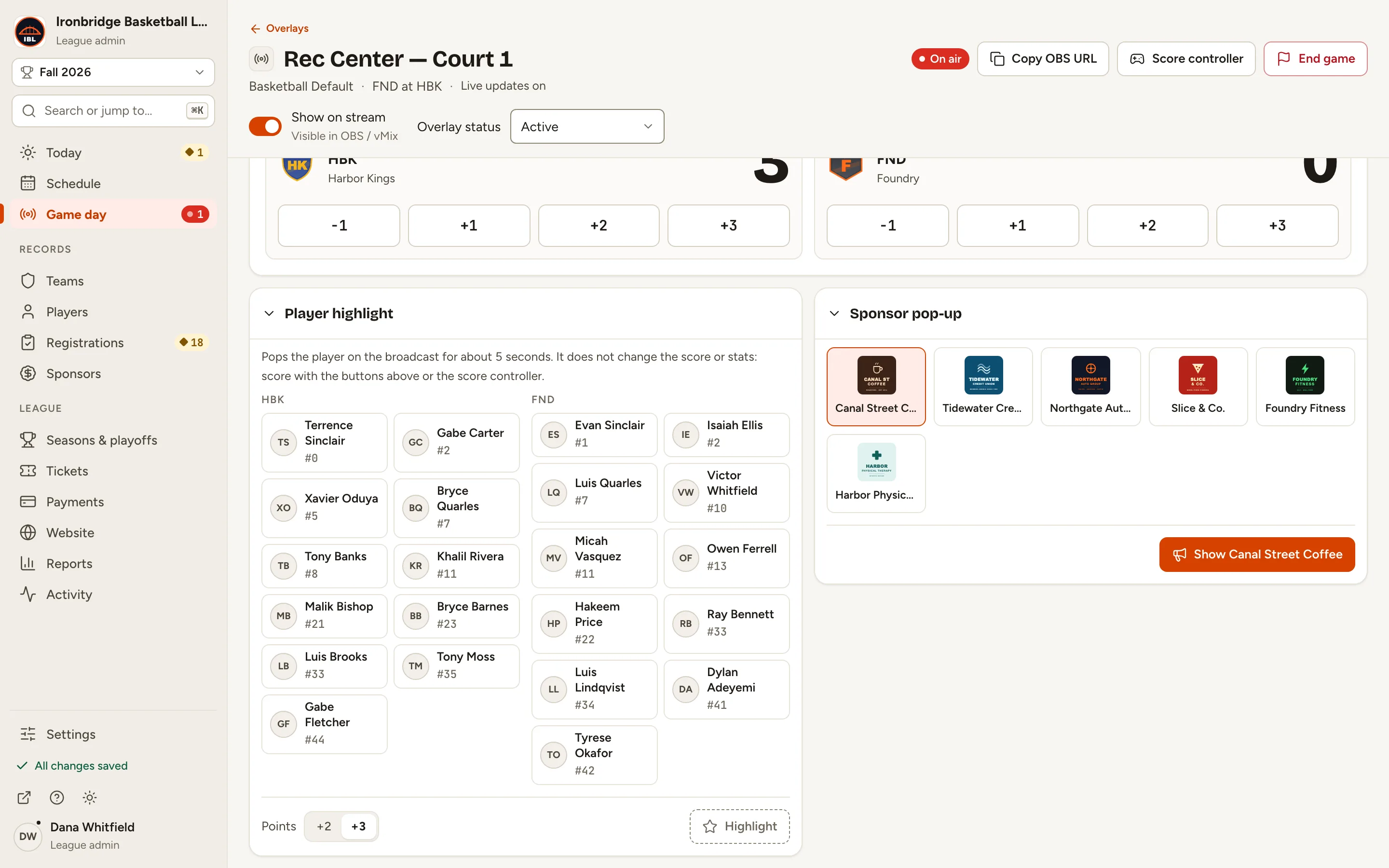
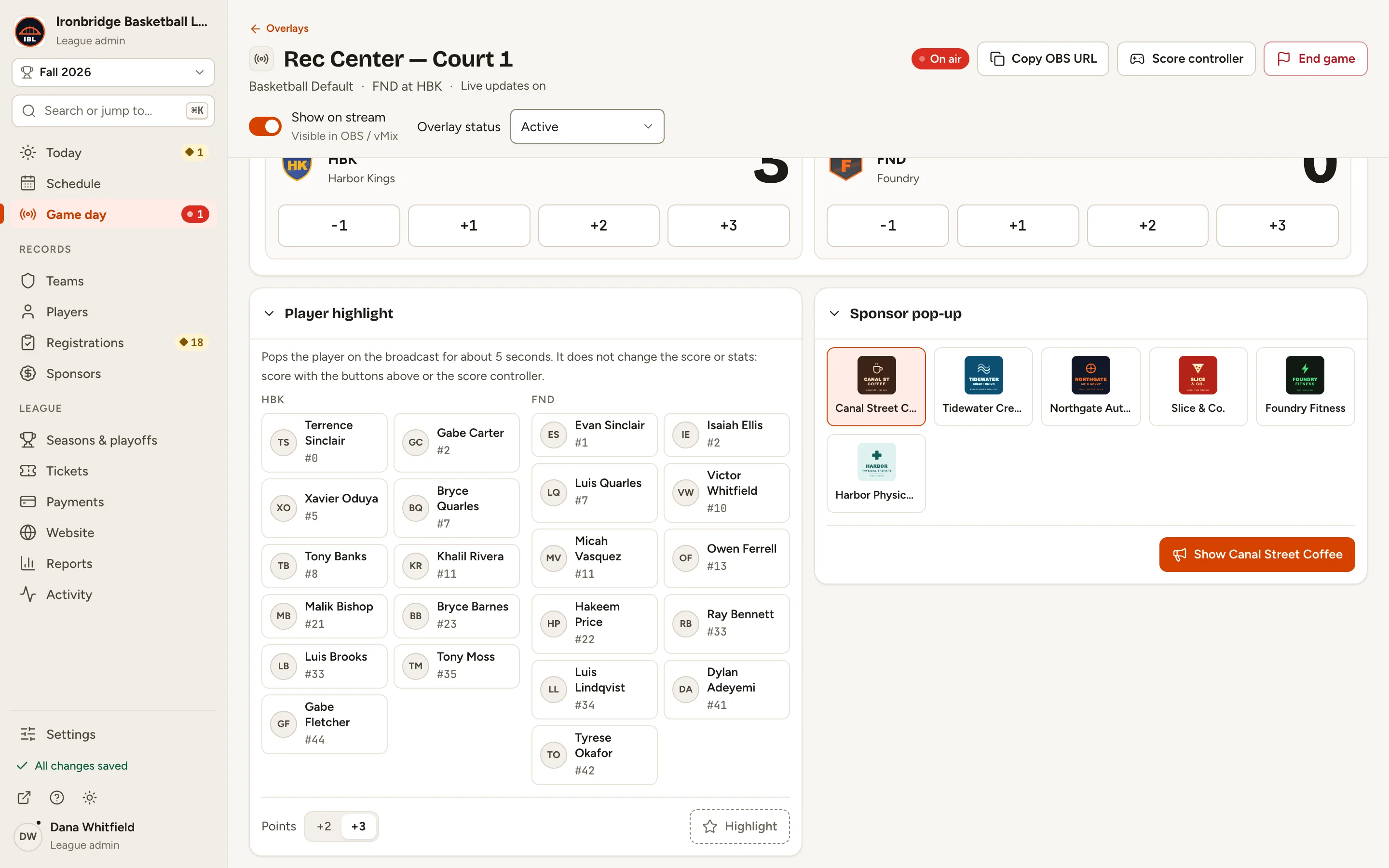
Fig. 10Both pop-ups, on the control page.
Fig. 11The sponsor pop-up on your stream.
Common questions
Does a highlight add the points to the score?
No. It only shows them. Score with the +1, +2 and +3 buttons on the control page, or in the score controller.
I sent a pop-up, but nothing showed on the stream.
Pop-ups only show while the overlay is on the stream. On the control page, check that Overlay status is Active and Show on stream is on.
A player isn’t in the list.
The list shows each team’s active players for the game’s season; benched players don’t show. Make the player active on the team’s roster, then reload the control page.
A sponsor isn’t in the list.
Only sponsors whose Status is Active show. Set it in Sponsors, then reload the control page. With no active sponsors, the panel says so.
Can I change how the pop-ups look?
They use your overlay template’s colours and fonts. Change the template in Game day › Overlays › Templates and click Publish, then refresh the browser source in your streaming tool.