
ScoreLM Guides
scorelm.com

Approve teams and roster changes

By the end you’ll have a new team and its first roster approved, captains’ roster changes approved or turned down with a reason, and the rosters on your website.

  • Who: League admin
  • Time: 4 min
  • Steps: 7
Video · 1:17 · Voiceover · every step is also written on screen Prefer to read? Steps below

Before you start

Steps

  1. Step 1: On Today, click Review changes next to Winter 2027 team registration: 9 changes waiting for approval.

    The registration’s Review tab opens. Changes wait here grouped by team, a new team first, and the first one opens on the right.
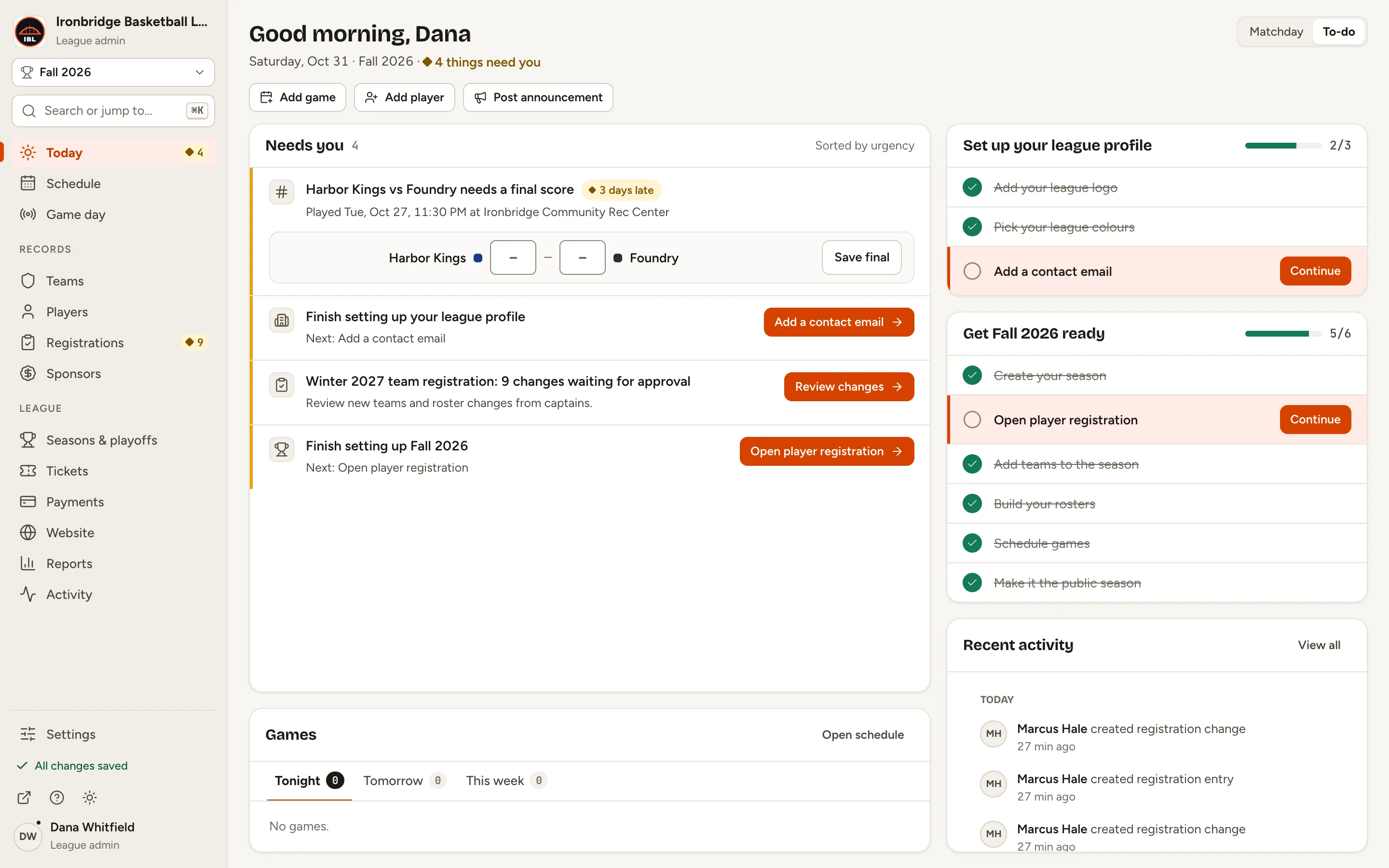
    Fig. 1

    Scroll sideways to see the whole screen.

    The Winter 2027 team registration: 9 changes waiting for approval item on Today with its Review changes button.
    Fig. 1Changes waiting, on Today.
  2. Step 2: Check the new team, like Mill Row Mavericks: its captain and its First roster.

    Its captain named it and paid the team fee, so it’s Waiting for approval. Its four players wait with it, marked Can’t approve yet until the team is approved.
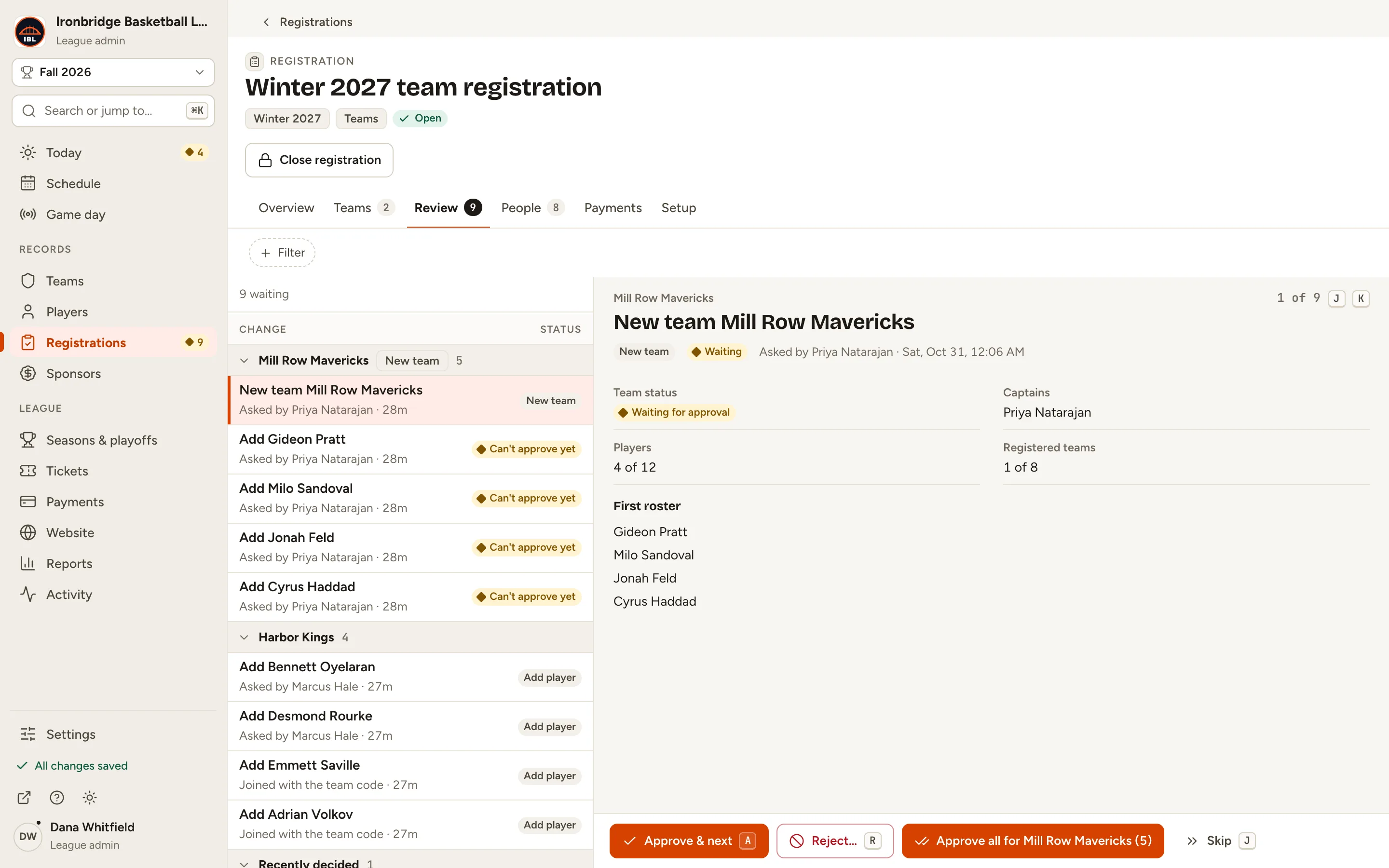
    Fig. 2

    Scroll sideways to see the whole screen.

    The new team Mill Row Mavericks on the right: Waiting for approval, captain Priya Natarajan, 4 of 12 players and its first roster.
    Fig. 2A new team and its first roster.
  3. Step 3: Click Approve all for Mill Row Mavericks (5).

    The team is registered for Winter 2027 with its four players on the roster, and its captain is emailed. The next change opens.
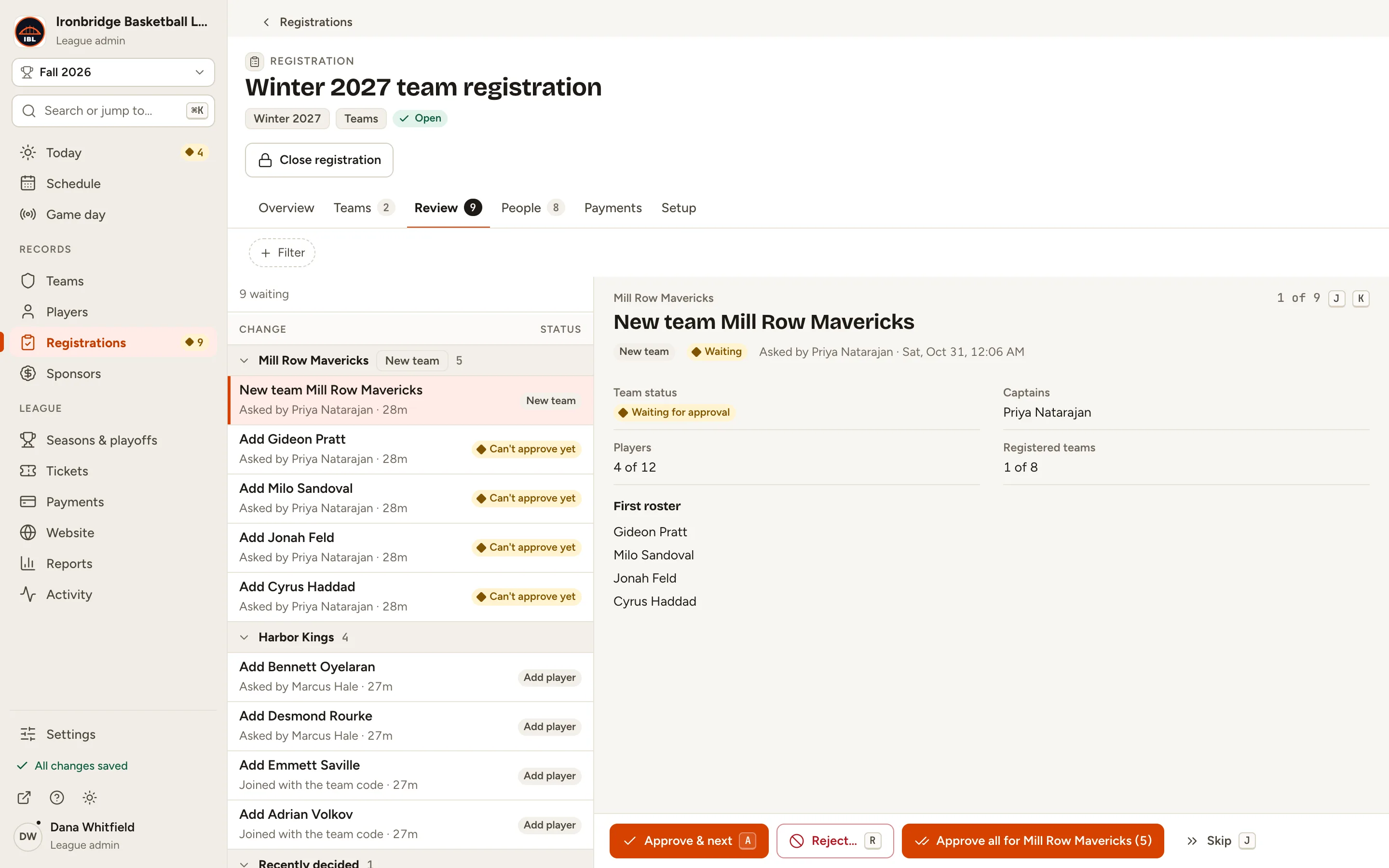
    Fig. 3

    Scroll sideways to see the whole screen.

    The Approve all for Mill Row Mavericks (5) button.
    Fig. 3Approve the team and its roster in one go.
  4. Step 4: Click Approve & next to add Bennett Oyelaran to Harbor Kings.

    He’s on Harbor Kings’ roster, and the next change opens. The right side shows how each person joined, like Asked by Marcus Hale (the captain).
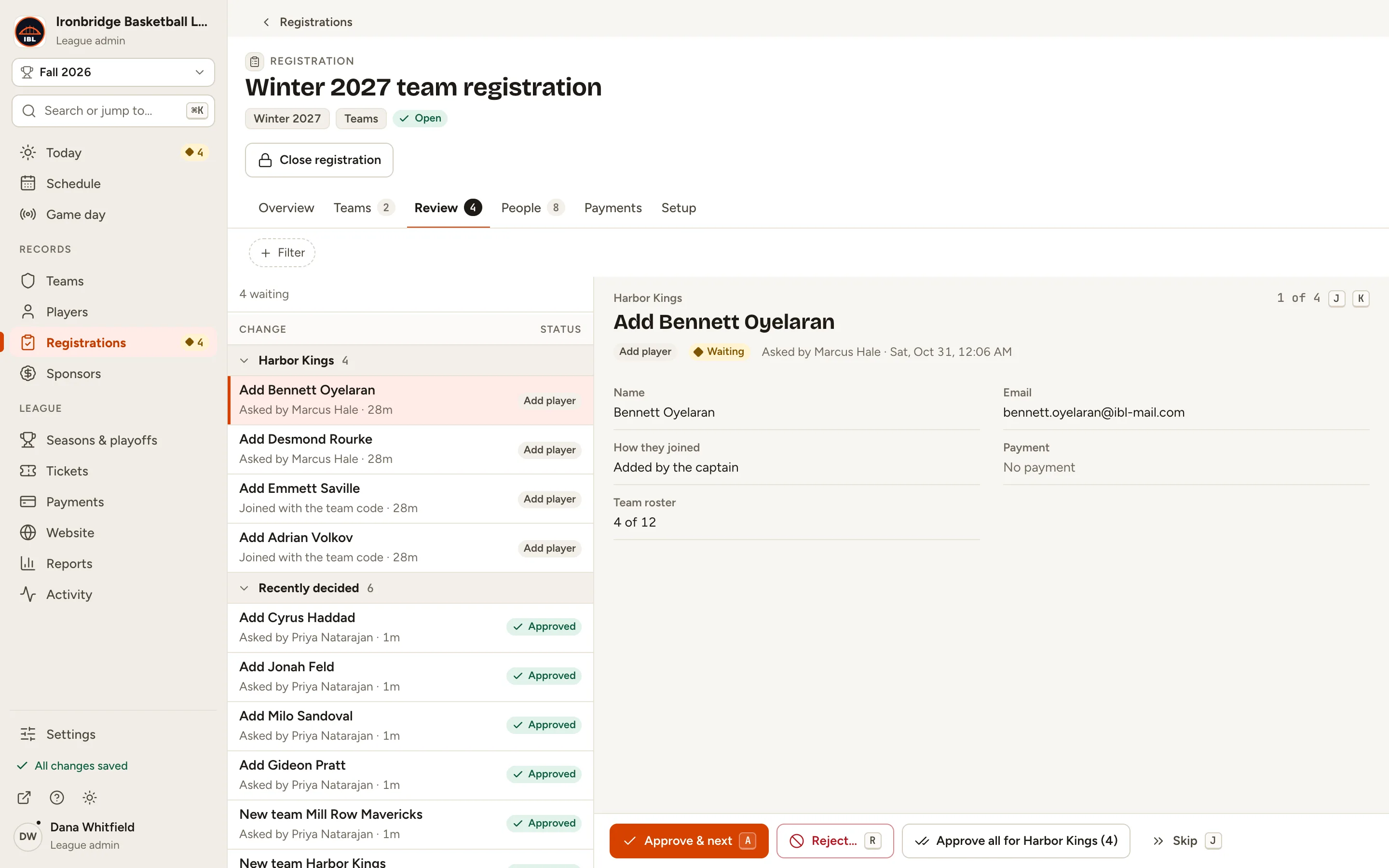
    Fig. 4

    Scroll sideways to see the whole screen.

    The change Add Bennett Oyelaran, asked by Marcus Hale, with the Approve & next button.
    Fig. 4One player at a time.
  5. Step 5: For Desmond Rourke, click Reject…, type a Reason (the captain sees it) and click Reject.

    He isn’t added. The captains are emailed your reason, and the change moves to Recently decided.
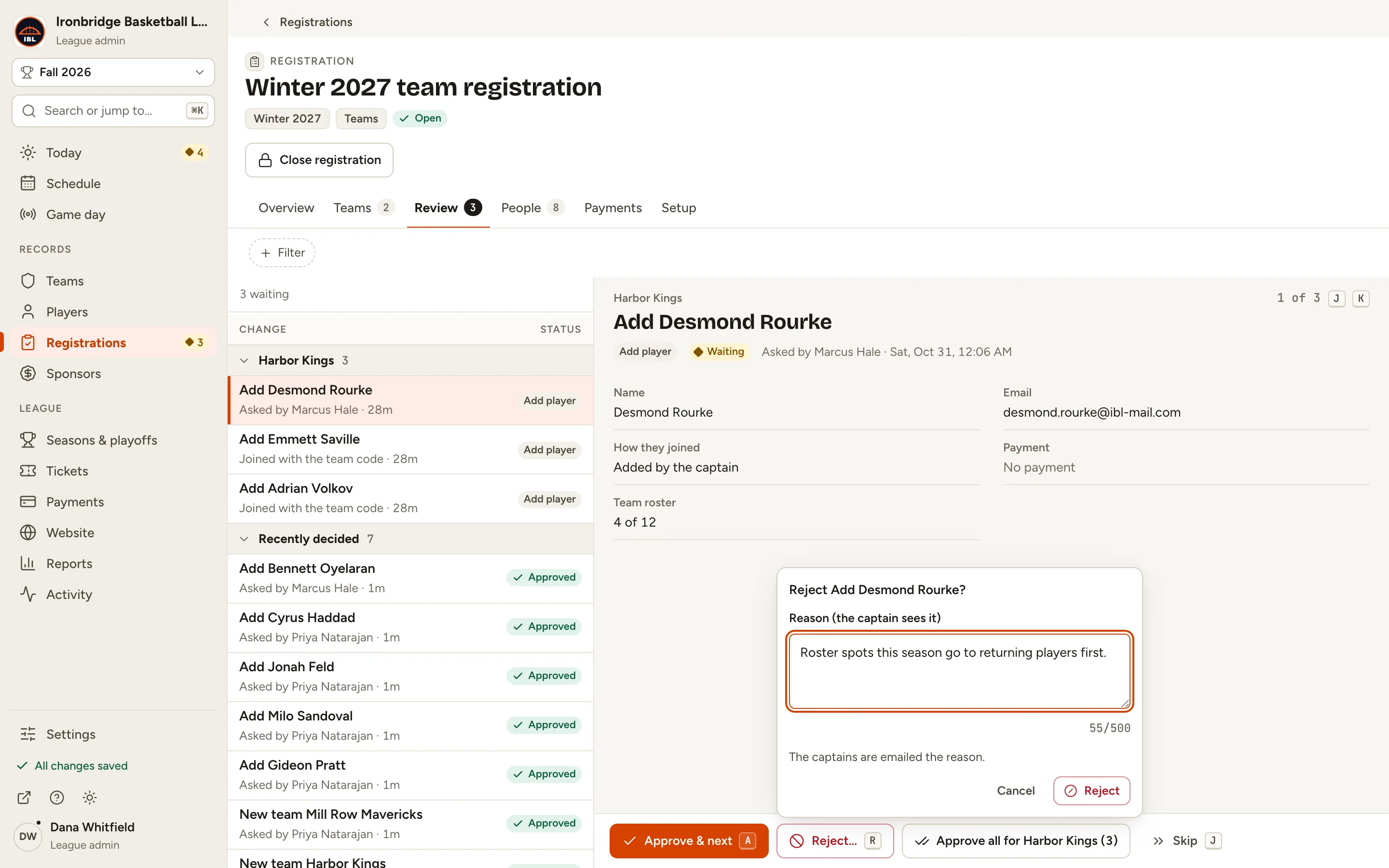
    Fig. 5

    Scroll sideways to see the whole screen.

    The Reject Add Desmond Rourke? box with a reason typed and its Reject button.
    Fig. 5Turn a change down with a reason.
  6. Step 6: Press A to approve each of the last two changes.

    Emmett Saville and Adrian Volkov joined with Harbor Kings’ team code. A approves, R rejects and J skips to the next change.
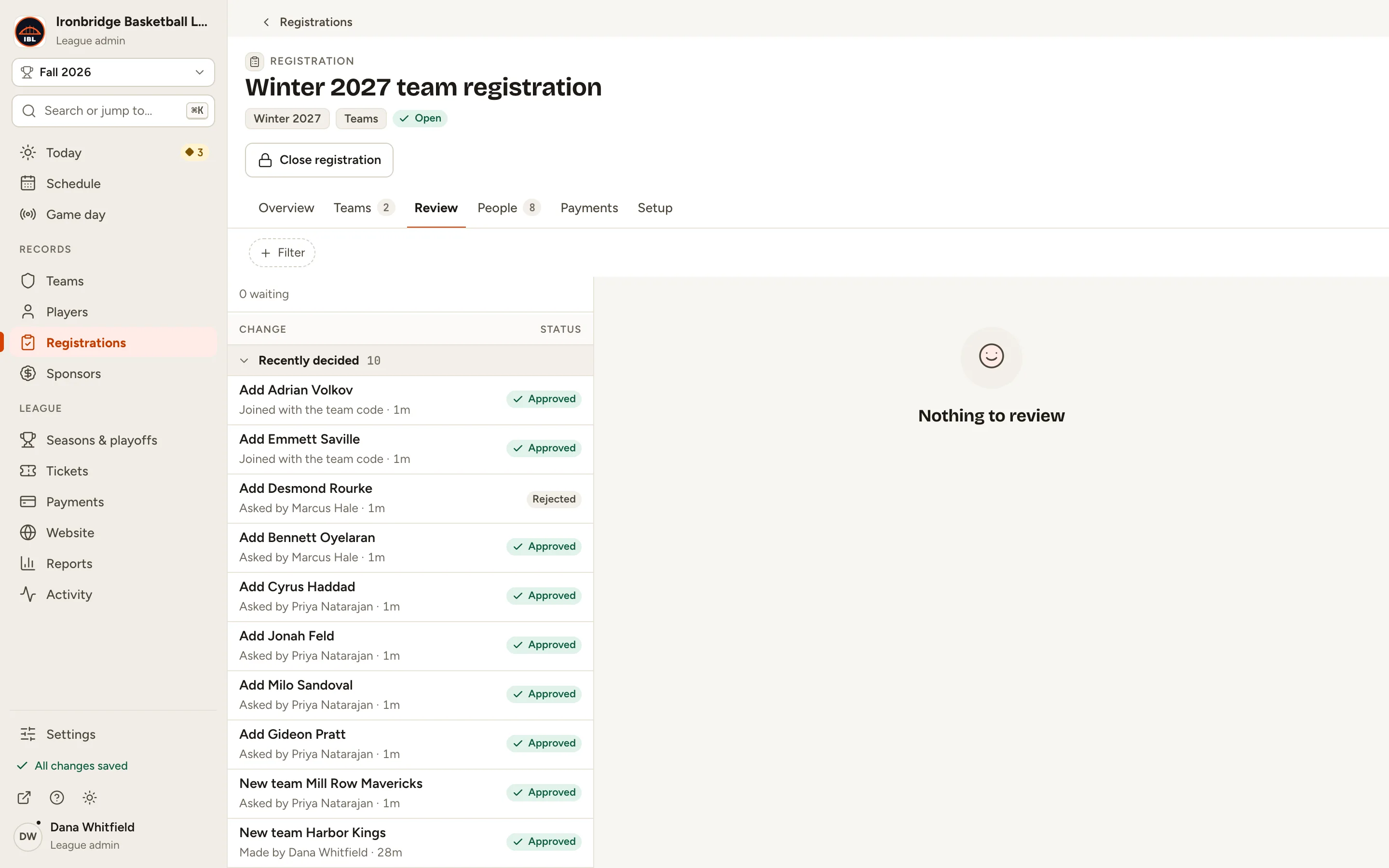
    Fig. 6

    Scroll sideways to see the whole screen.

    The Review tab with Nothing to review and the decisions under Recently decided.
    Fig. 6Nothing left to approve.
  7. Step 7: Open your website and click Teams, then Mill Row Mavericks.

    From the admin, click ↗ (View public site) at the bottom of the sidebar; your website opens in a new tab. The team’s page lists its approved roster.
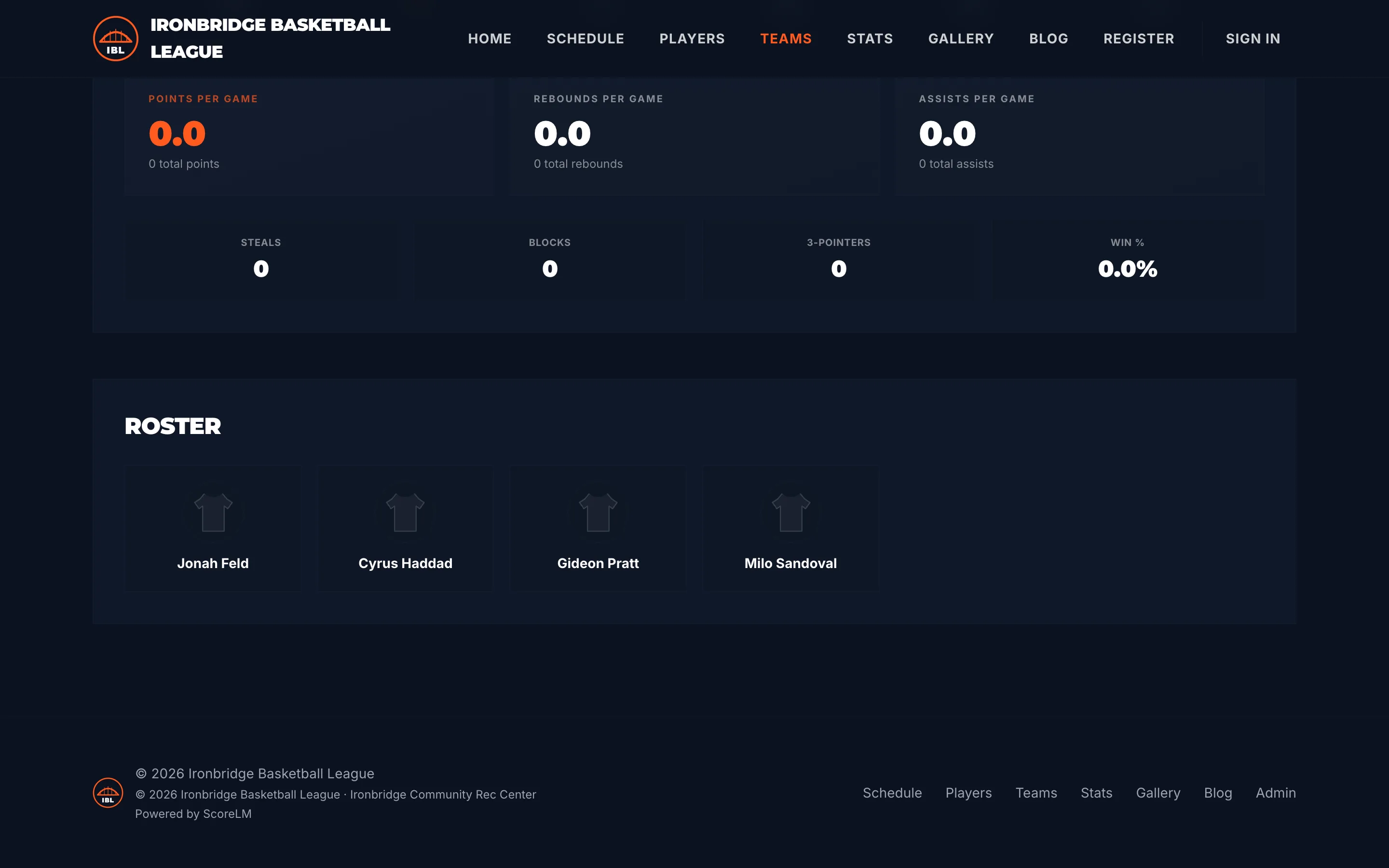
    Fig. 7

    Scroll sideways to see the whole screen.

    The Mill Row Mavericks page on the website with its roster: Jonah Feld, Cyrus Haddad, Gideon Pratt and Milo Sandoval.
    Fig. 7The approved roster on your website.

What you’ll see

Mill Row Mavericks is registered with its first roster, and Harbor Kings has three new players. Everything you approve goes straight onto the season’s rosters and your website; anything you turn down never does. New changes from captains and players wait on the Review tab, and Today tells you when there are some.

Fig. 8

Scroll sideways to see the whole screen.

The Review tab’s Recently decided list with the approved team, the approved players and the rejected change.
Fig. 8Recently decided.

Common questions

Who has to be approved?
In a team registration: every new team, its first roster, and every change a captain asks for (adding, removing or editing a player, or renaming a team they named). Players who join with an invitation or the team code wait too. Changes you make yourself apply at once.
Why does a player say Can’t approve yet?
Their team isn’t approved yet, so approve the team first (Approve all does both), or a fee hasn’t been paid yet: the team’s, or the player’s own when each player pays. The right side says which.
What happens to a payment when I reject?
A player who paid for their place is refunded, except the service fee, and Reject becomes Reject and refund. Rejecting a new team rejects its waiting players too, and anyone who paid is refunded.
I approved the wrong change.
Click Undo in the message that appears, or find it under Recently decided and click Undo. You can undo a decision for a while after you make it.
Who can approve?
League admins only. Captains see their own changes as waiting, and they’re emailed when you approve or reject one.