
ScoreLM Guides
scorelm.com

Track payments, refunds and the waitlist

By the end you’ll have your registration’s payments in one list, a refund made with the place given up, and the freed spot offered to the first person on the waitlist.

  • Who: League admin
  • Time: 4 min
  • Steps: 7
Video · 1:14 · Voiceover · every step is also written on screen Prefer to read? Steps below

Before you start

  • You need a registration with a price and people who have paid. See Open a player registration.
  • For a waitlist, turn on Waitlist under Dates and capacity on the registration’s Setup tab. It works once the registration has a capacity.

Steps

  1. Step 1: In Registrations, open your registration, like Winter 2027 player registration, and click the Payments tab.

    Revenue is what registrants paid, service fees included, less refunds; You receive (est.) is what reaches you. Every payment is listed below.
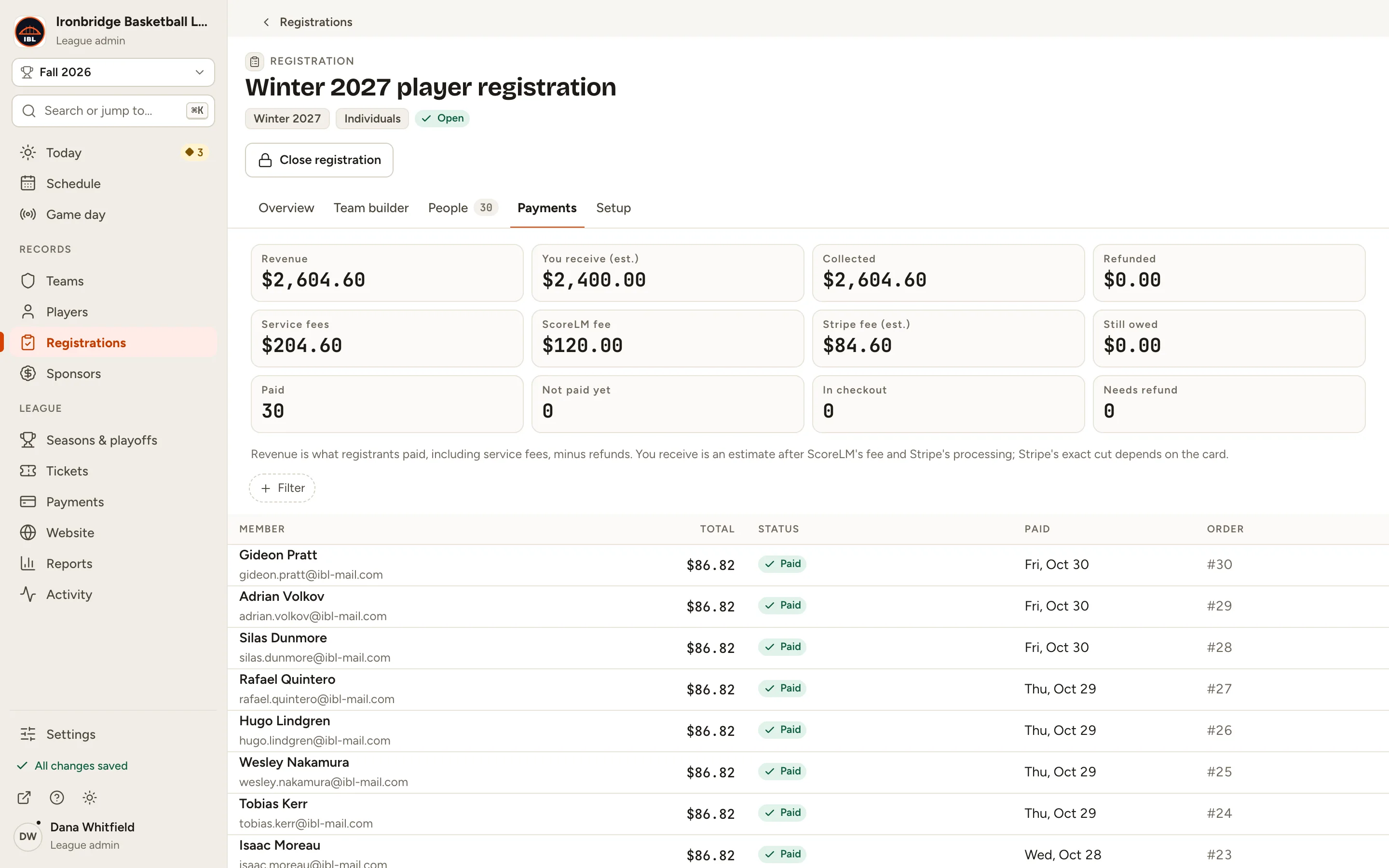
    Fig. 1

    Scroll sideways to see the whole screen.

    The Payments tab with Revenue $2,604.60, You receive (est.) $2,400.00, 30 paid, and the list of payments.
    Fig. 1The Payments tab.
  2. Step 2: Click a payment, like Avery Collins.

    Their sign-up opens on the right, with their status, payment and answers.
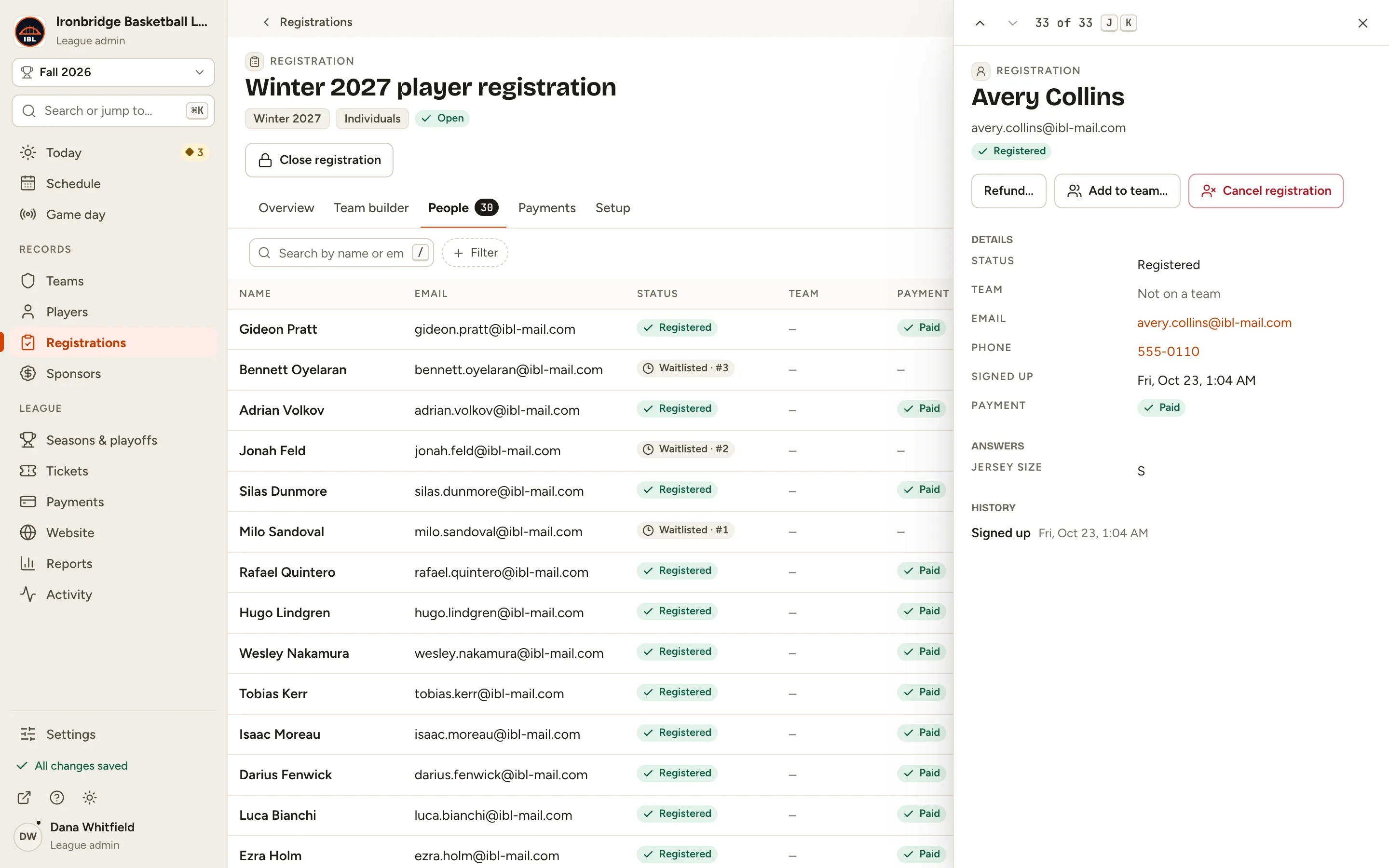
    Fig. 2

    Scroll sideways to see the whole screen.

    The Avery Collins sign-up sheet, Registered and Paid, with its Refund… button.
    Fig. 2One person’s sign-up.
  3. Step 3: Click Refund….

    The refund form shows what they paid and how much can be refunded: the registration price, $80.00. The service fee isn’t refunded.
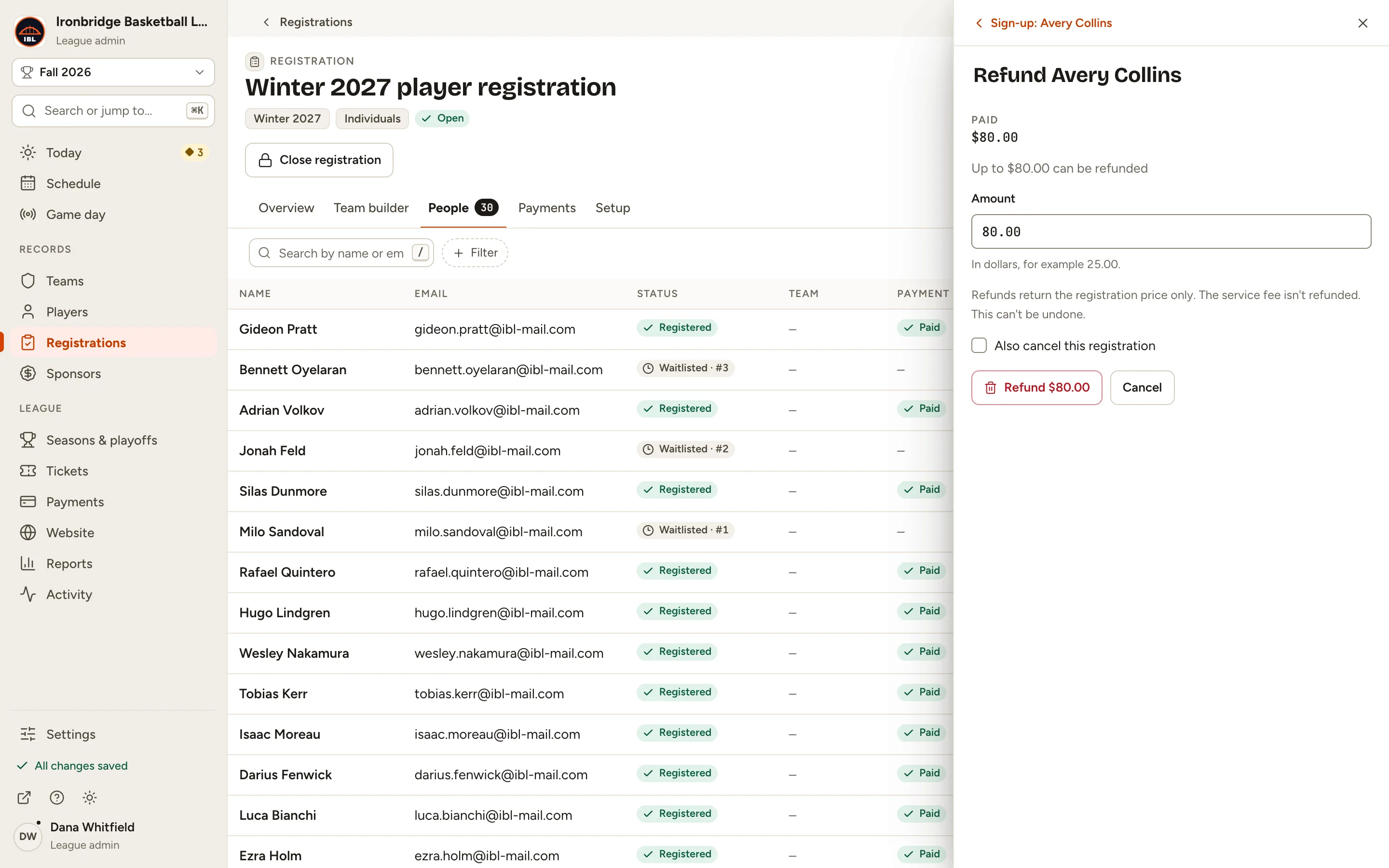
    Fig. 3

    Scroll sideways to see the whole screen.

    The Refund Avery Collins form with Paid $80.00, Up to $80.00 can be refunded and the Amount field.
    Fig. 3The refund form.
  4. Step 4: Tick Also cancel this registration.

    Their place is given up too, so the whole price is refunded. Leave it unticked to refund part of the price and keep them registered.
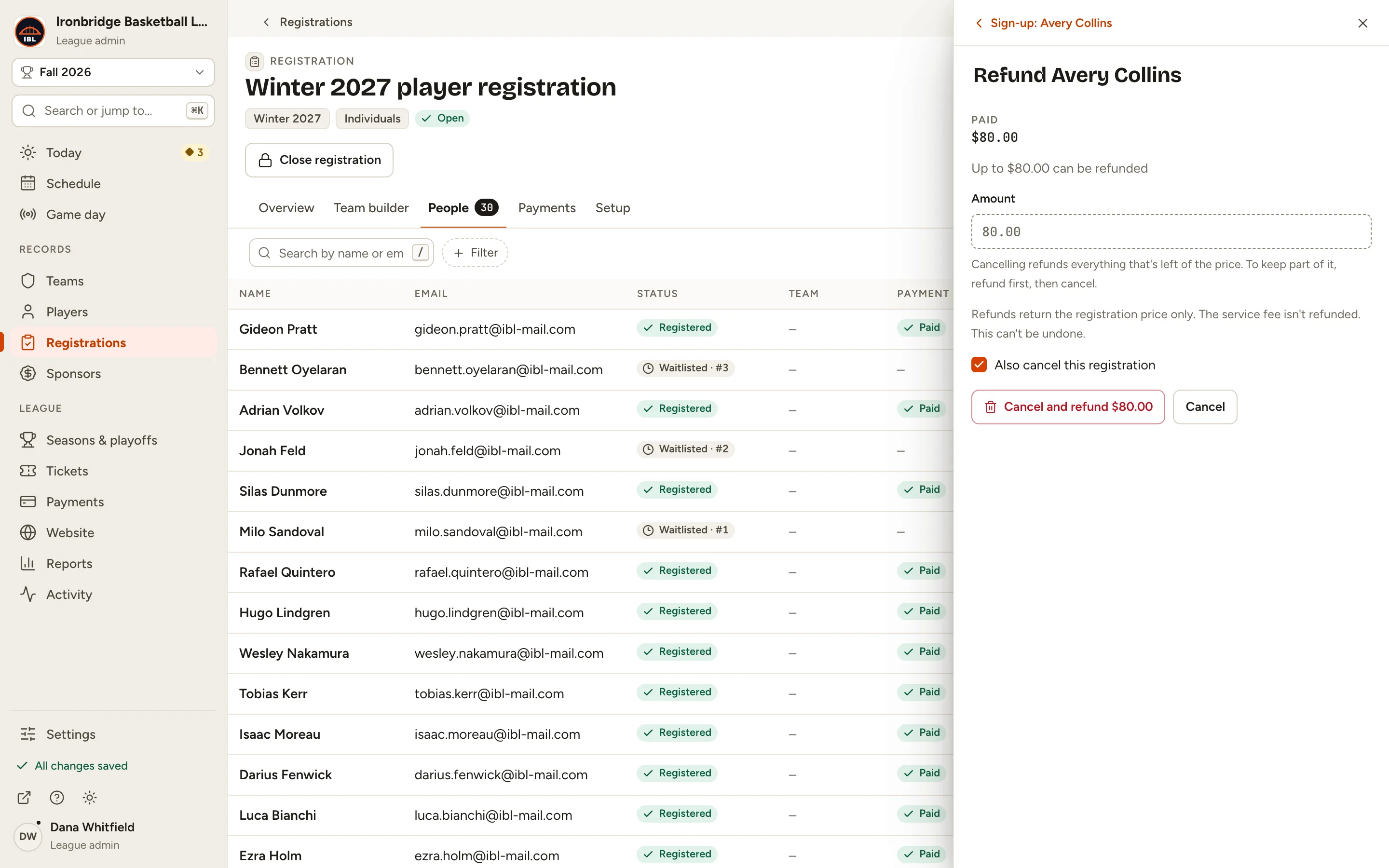
    Fig. 4

    Scroll sideways to see the whole screen.

    The Also cancel this registration box, ticked, and the Cancel and refund $80.00 button.
    Fig. 4Refund and cancel together.
  5. Step 5: Click Cancel and refund $80.00.

    Avery is Cancelled and the payment shows Refunded. The refund goes back to their card through Stripe, and it can’t be undone.
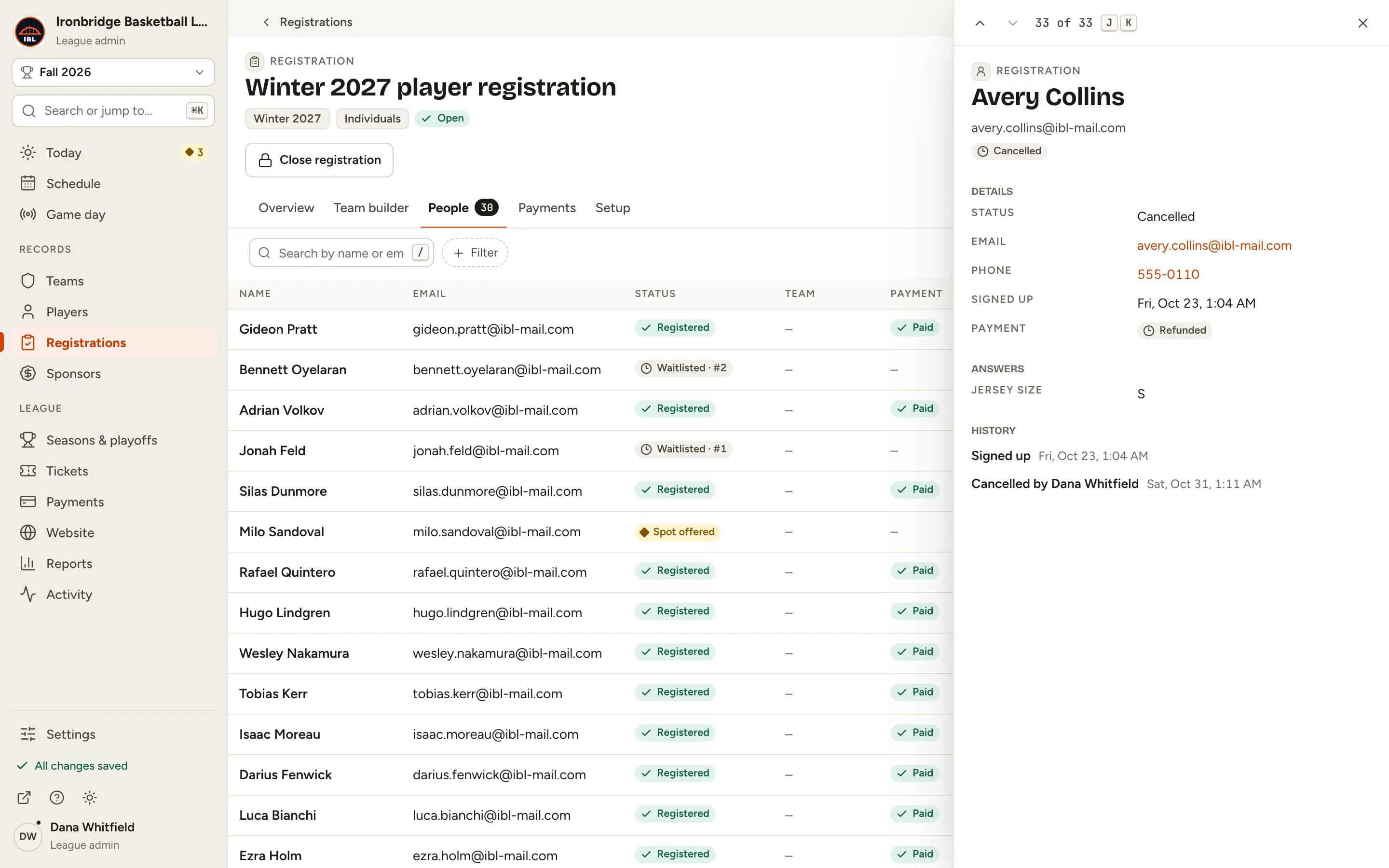
    Fig. 5

    Scroll sideways to see the whole screen.

    Avery Collins’s sign-up with Status Cancelled and Payment Refunded.
    Fig. 5Refunded and cancelled.
  6. Step 6: Click the Overview tab, then View waitlist.

    The spot went straight to the first person in line: Milo Sandoval shows Spot offered. The others keep their place, Waitlisted · #1 and #2.
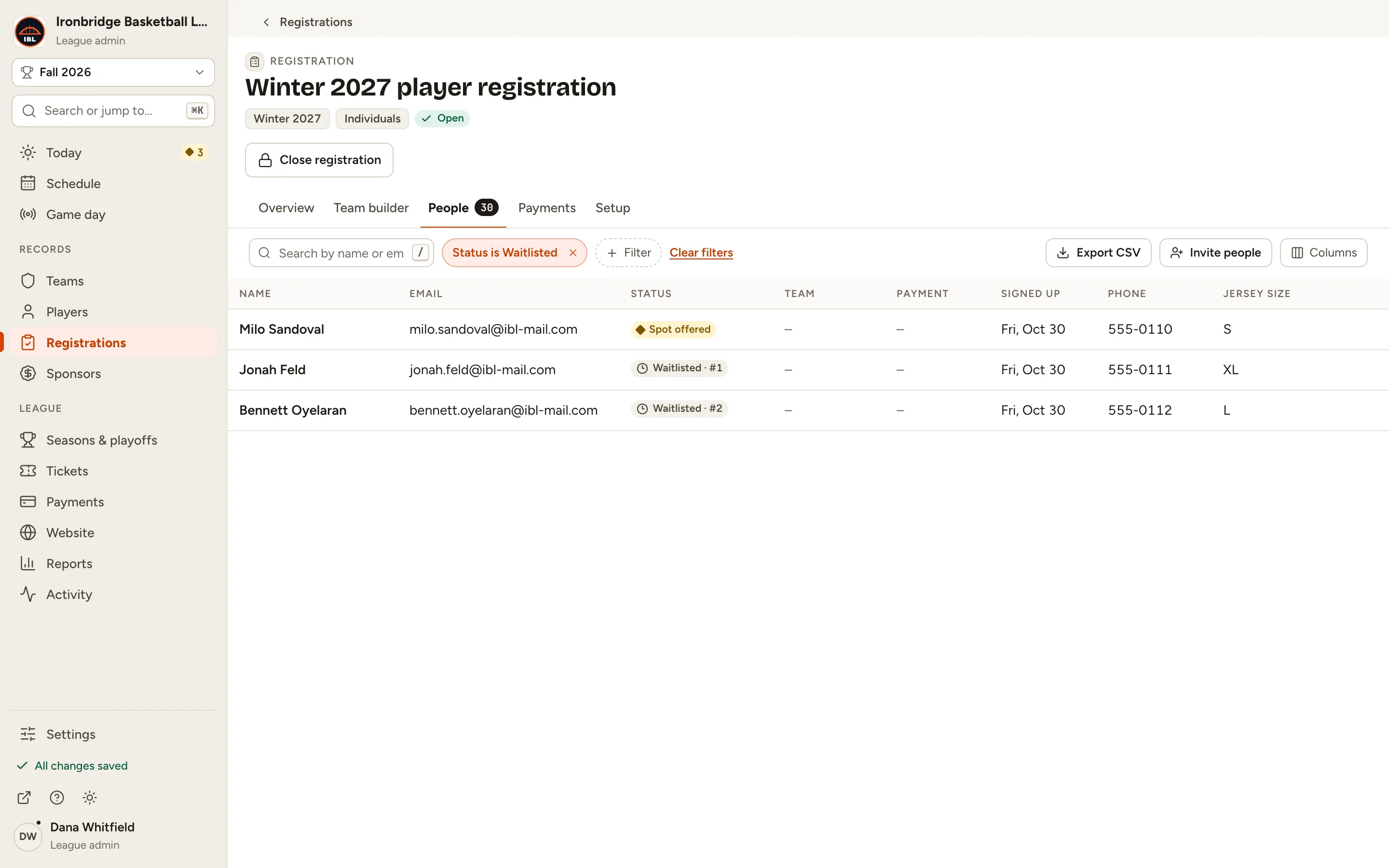
    Fig. 6

    Scroll sideways to see the whole screen.

    The People tab filtered to Waitlisted: Milo Sandoval with Spot offered, then Jonah Feld Waitlisted · #1 and Bennett Oyelaran Waitlisted · #2.
    Fig. 6The waitlist, with the spot offered.
  7. Step 7: Open your website and click Register, then the registration.

    From the admin, click ↗ (View public site) at the bottom of the sidebar; your website opens in a new tab. When Milo signs in, the page says A spot is open for you, with the date to accept by and Accept your spot; then he pays to finish registering.
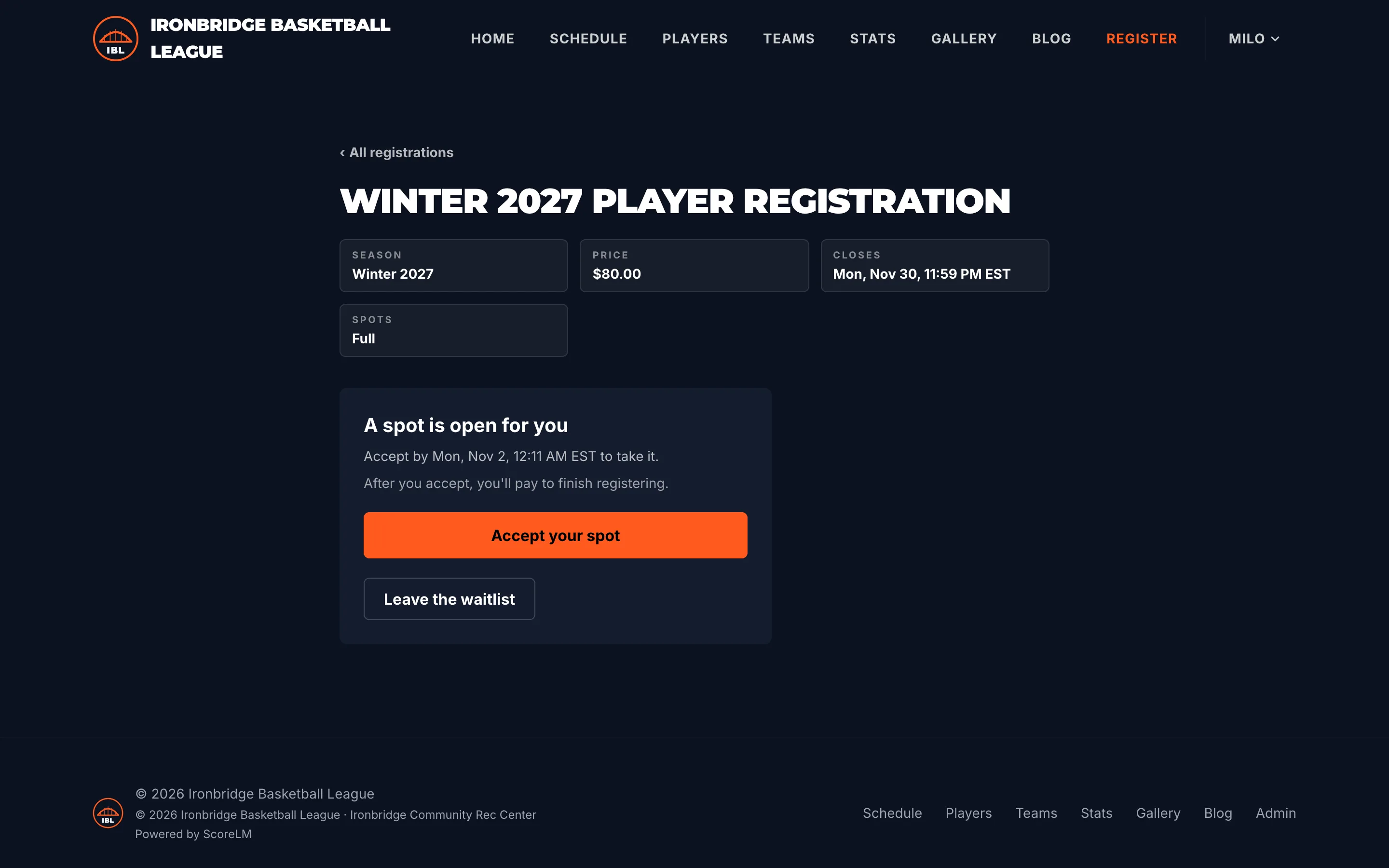
    Fig. 7

    Scroll sideways to see the whole screen.

    The registration page Milo Sandoval sees: A spot is open for you, Accept by a date, Accept your spot and Leave the waitlist.
    Fig. 7What the first person in line sees.

What you’ll see

You’ve refunded and cancelled one place, and the waitlist filled it. The Payments tab keeps every payment and refund, and the Overview shows how many are waiting and offered.

Fig. 8

Scroll sideways to see the whole screen.

The Overview tab with Registered 29, Spots left 0 of 30, Cancelled 1, Waitlist 2 waiting · 1 offered and View waitlist.
Fig. 8The Overview with the waitlist.

Common questions

Can I refund part of a payment?
Yes. Leave Also cancel this registration unticked and type the Amount. They stay registered. You can refund the rest later, up to the price they paid.
Is the service fee refunded?
No. Refunds return the registration price only. The service fee covers card processing and ScoreLM’s fee.
The refund says Refund in progress.
Stripe hasn’t confirmed it yet. It shows as refunded once Stripe does; click Check refund to look again. If a refund fails, the person’s sign-up says why, with Retry.
How does the waitlist work?
Once the registration is full, new sign-ups join the waitlist and nobody on it is charged. While registration is open, each freed spot is offered to the next person automatically, and they have until the date shown to accept. If they don’t, it goes to the next person.
Can I offer a spot myself?
Yes. On the People tab, open the person’s menu and choose Offer spot…, or Register now… to register them straight away, even over the limit. After registration closes, offers are made this way only.
Can I download the list?
Yes. On the People tab, click Export CSV for everyone who signed up, with their status, payment, amounts and answers.