Choose the stats a season tracks
By the end you’ll have a season that tracks the stats you want, with them in its box score form.
Before you start
- You need the season, before any of its games has player stats: once one does, the set is locked. Here: Winter 2027, whose games haven’t been played yet.
- Track only what your scorekeepers can record at every game. Each tracked stat is a column they fill in.
- Basketball only. Soccer seasons track every stat, so their Stat tracking tab has nothing to change.
Steps
-
Step 1: In the left menu, click Seasons & playoffs.
Your seasons are listed, each with its status.
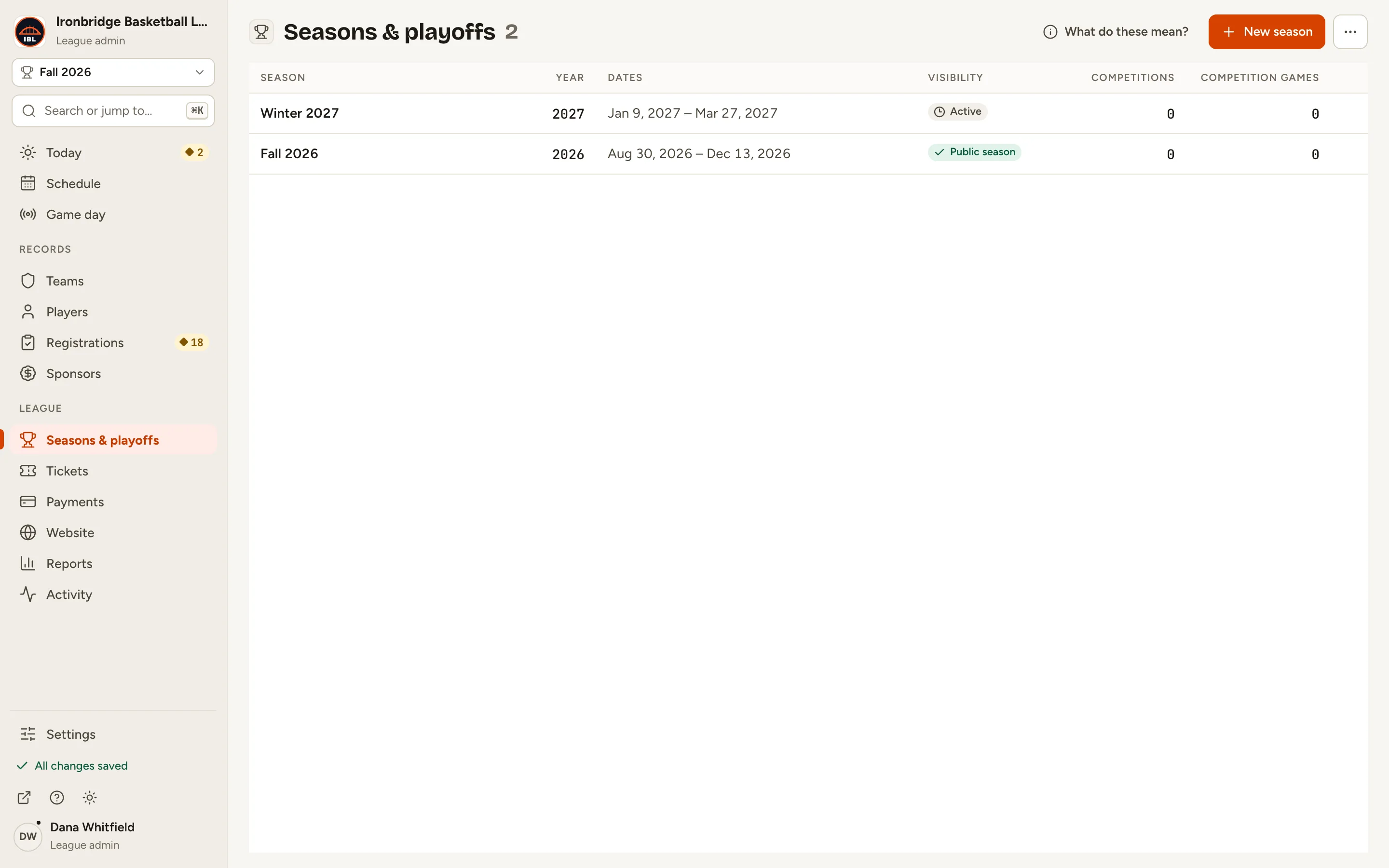
Fig. 1Seasons & playoffs lists your seasons. -
Step 2: Click the season, like Winter 2027.
Its record opens on Setup.
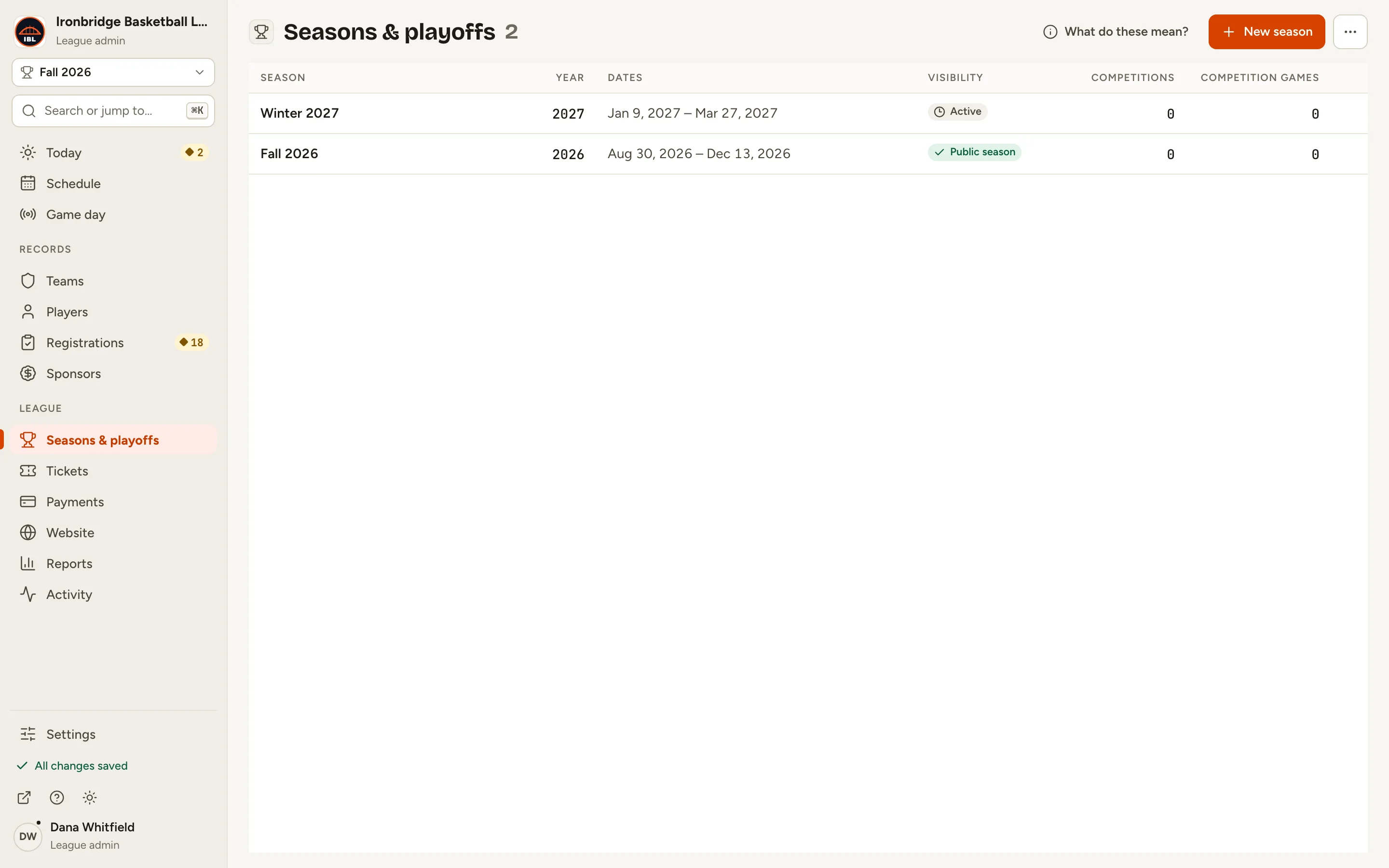
Fig. 2Open the season. -
Step 3: Click the Stat tracking tab.
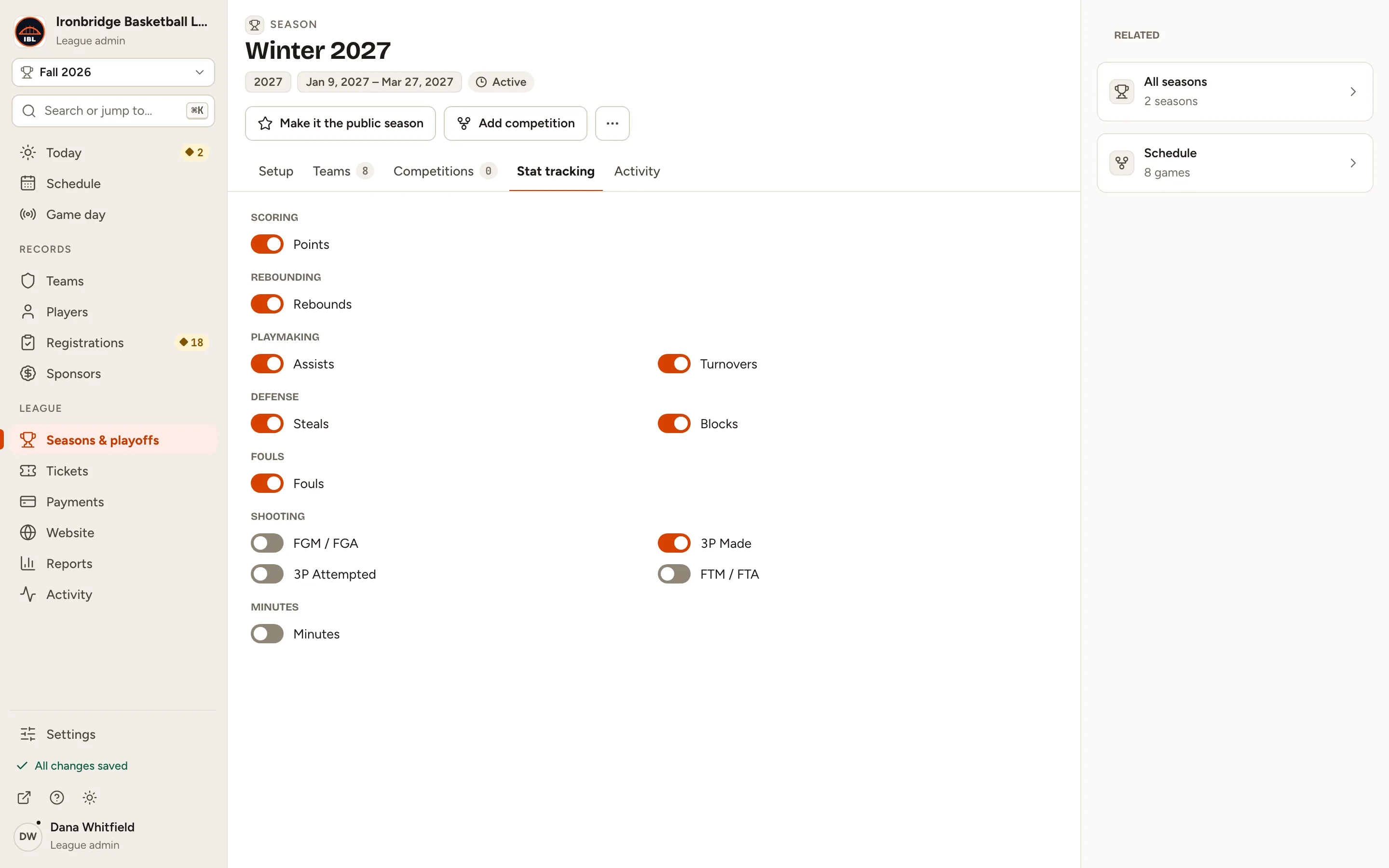
Each stat has a switch, grouped like Scoring, Playmaking and Shooting. On means the season tracks it.
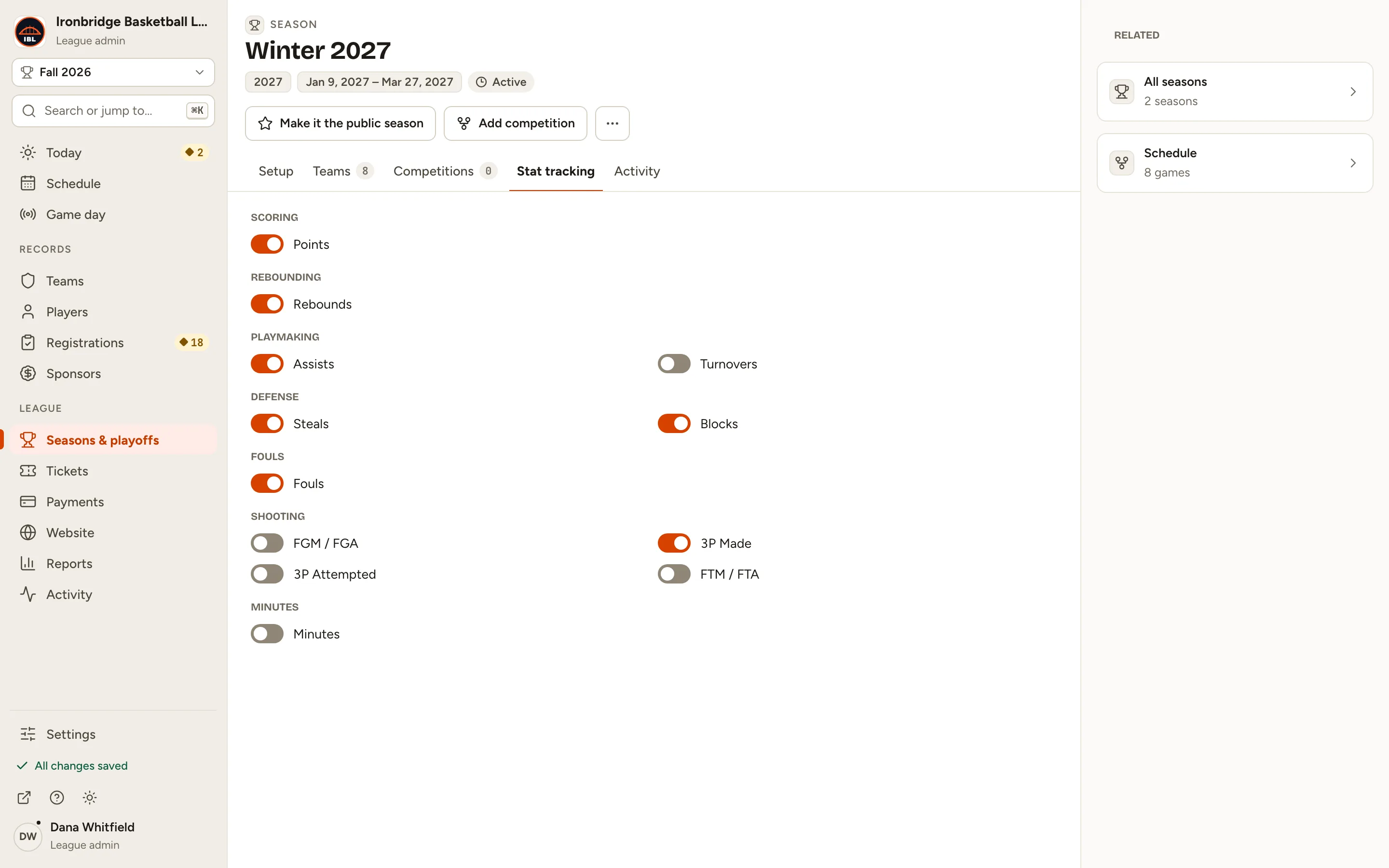
Fig. 3The season’s stats, each with a switch. -
Step 4: Turn on Turnovers.
It saves at once, with Undo. Turn a stat off the same way.
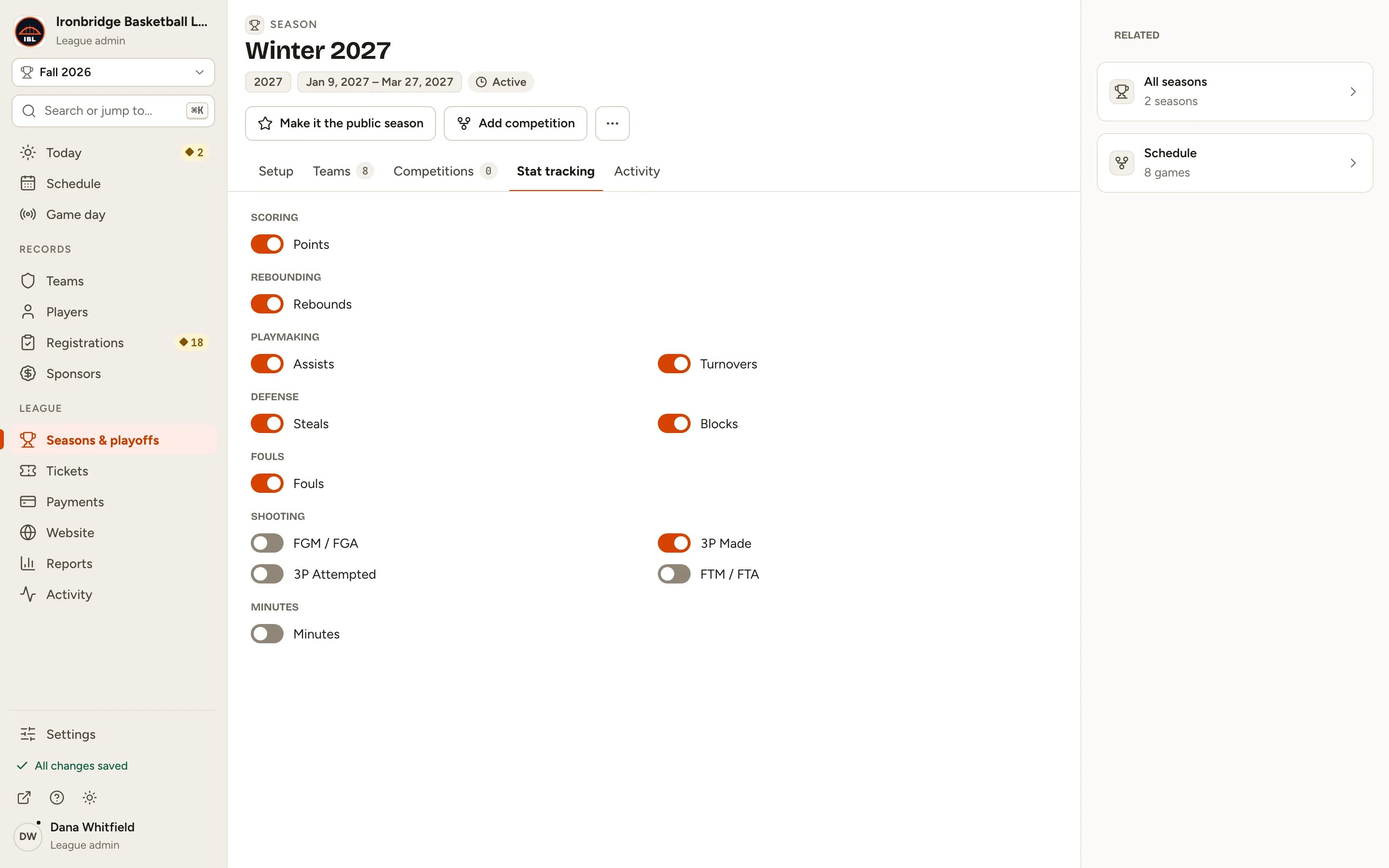
Fig. 4Turnovers, now tracked. -
Step 5: Under Related on the right, click Schedule.
The Schedule opens on Winter 2027’s games.
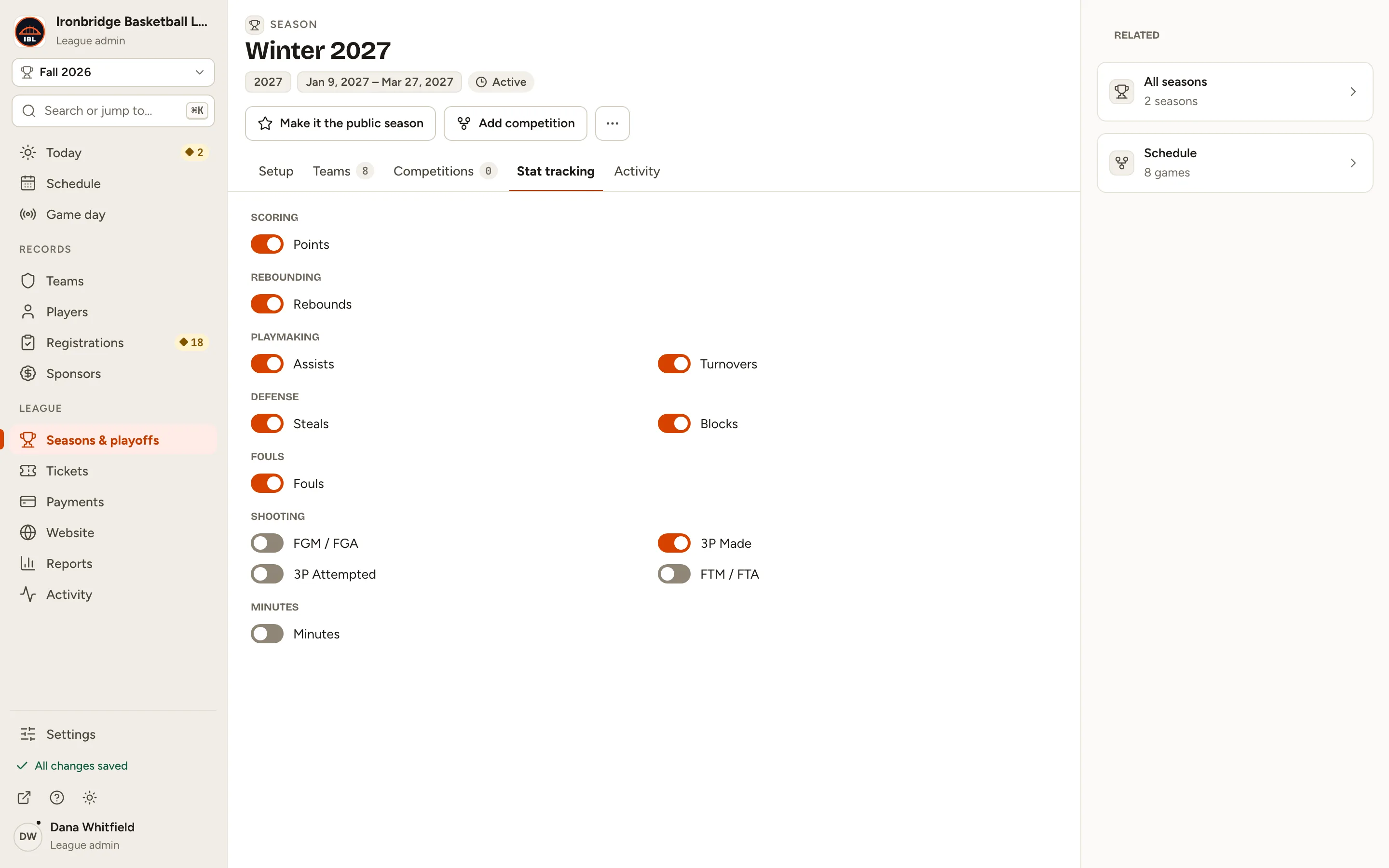
Fig. 5The season’s games, one click away. -
Step 6: Click a game, like Harbor Kings vs Foundry on Saturday, Jan 9.
The game’s record opens beside the list.
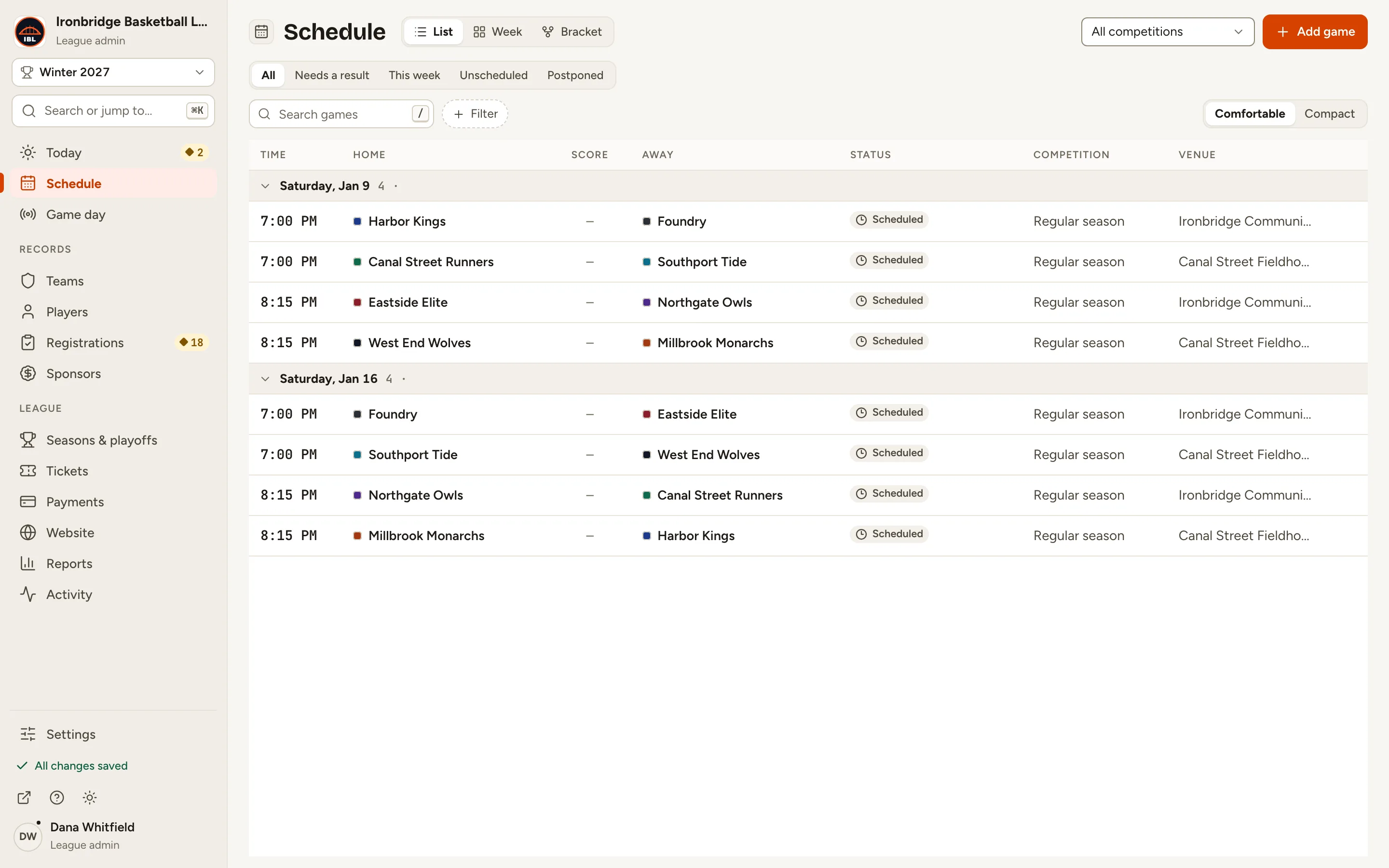
Fig. 6Open one of the season’s games. -
Step 7: Click Box score, then Enter box score.
The form’s columns are the stats the season tracks, and TO (turnovers) is now one of them.
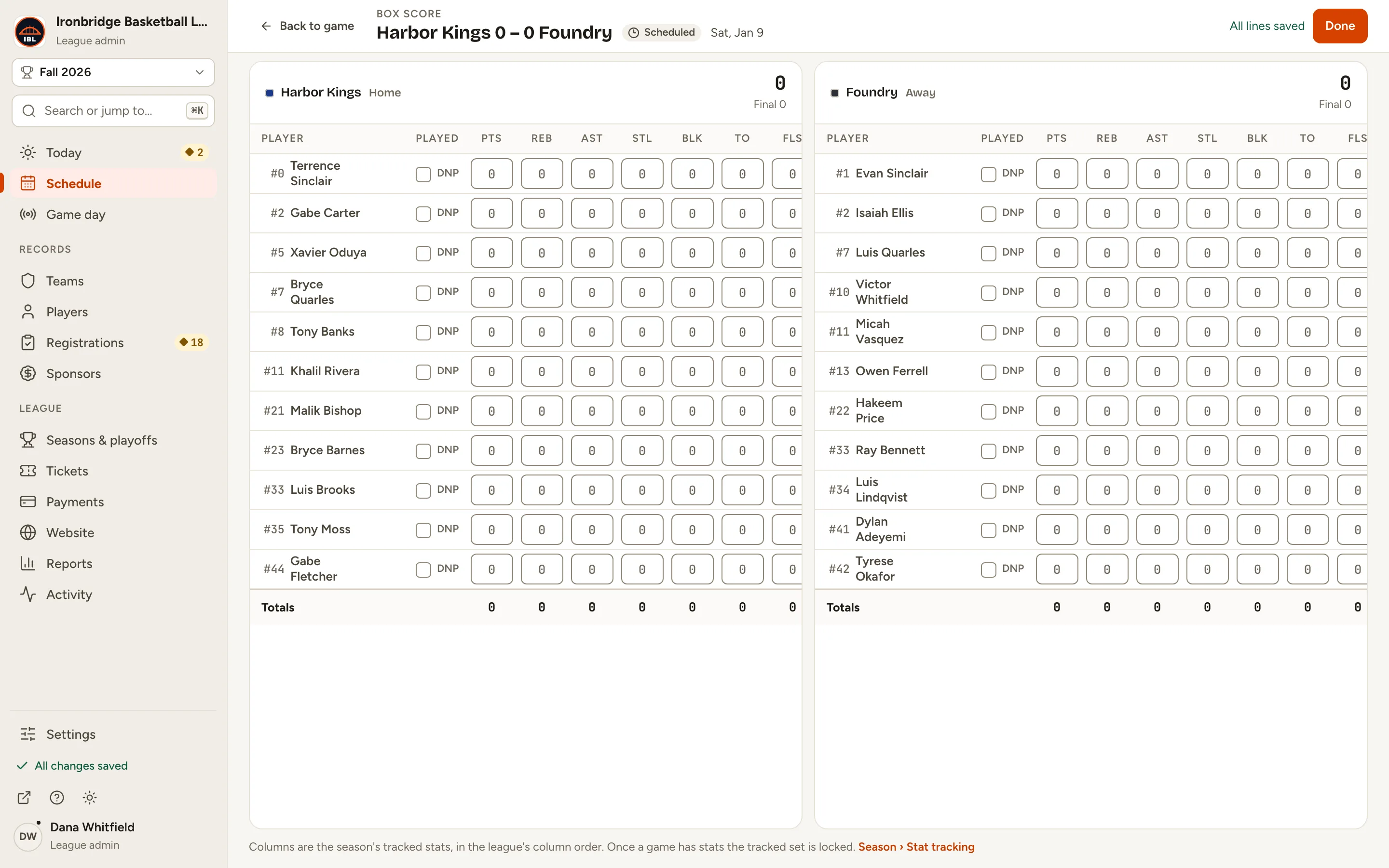
Fig. 7TO is now a column in the box score form.
What you’ll see
Winter 2027 tracks turnovers. Scorekeepers fill in a TO column for each player. On your website’s Stats page, picking Winter 2027 shows the stats it tracks, once its games have stats.