Find your way around the admin
By the end you’ll have a feel for where everything is: the menu, records, the season you’re working in, search, your account and your website.
Before you start
- You need an account on your league’s admin. A league admin can add you: see Add an admin, editor or stat keeper.
Steps
-
Step 1: Go to your league’s website address with /admin at the end, and sign in.
The admin opens on Today: tonight’s games, and the things that need you. It’s the first item in the menu on the left.
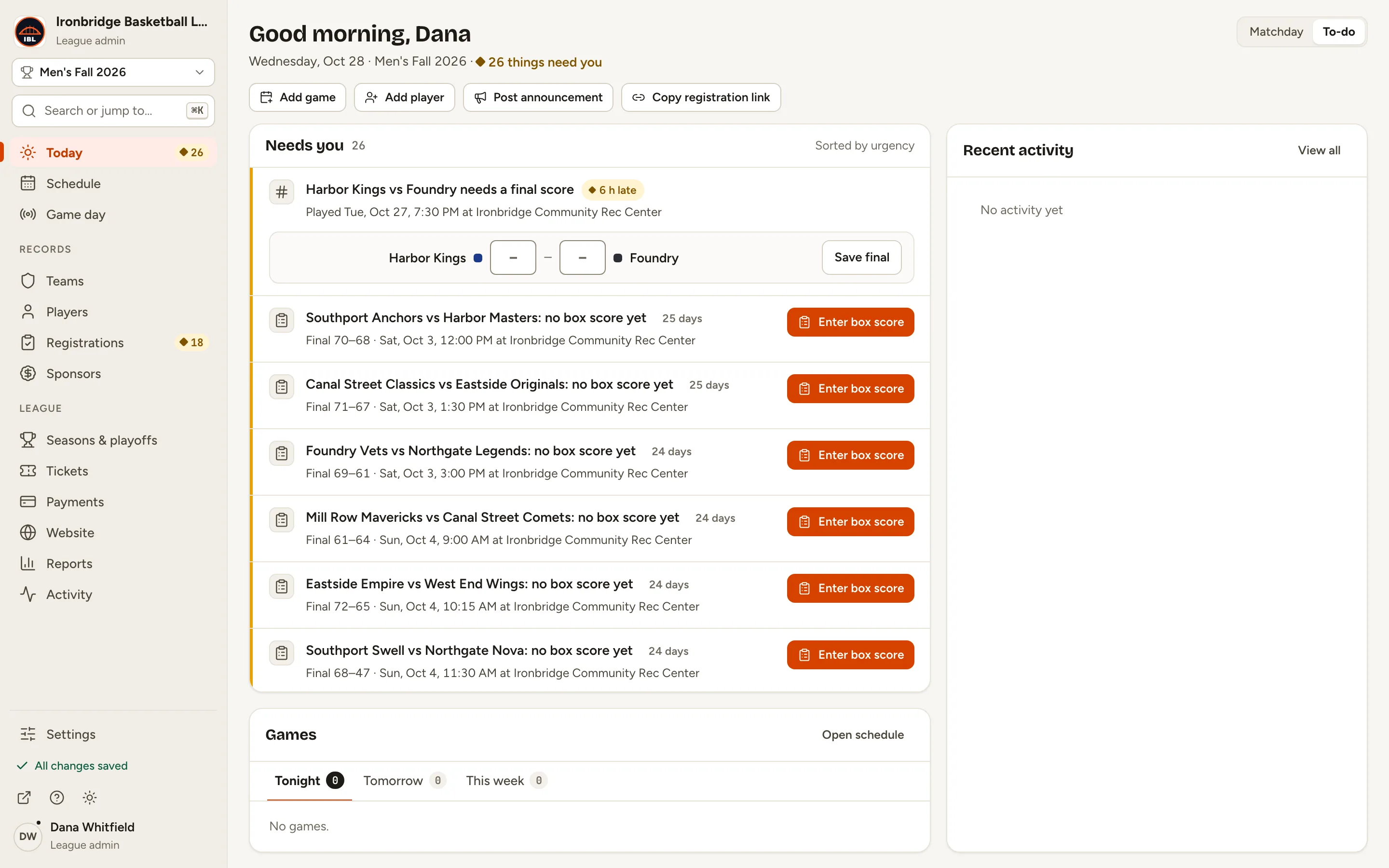
Fig. 1The admin opens on Today. -
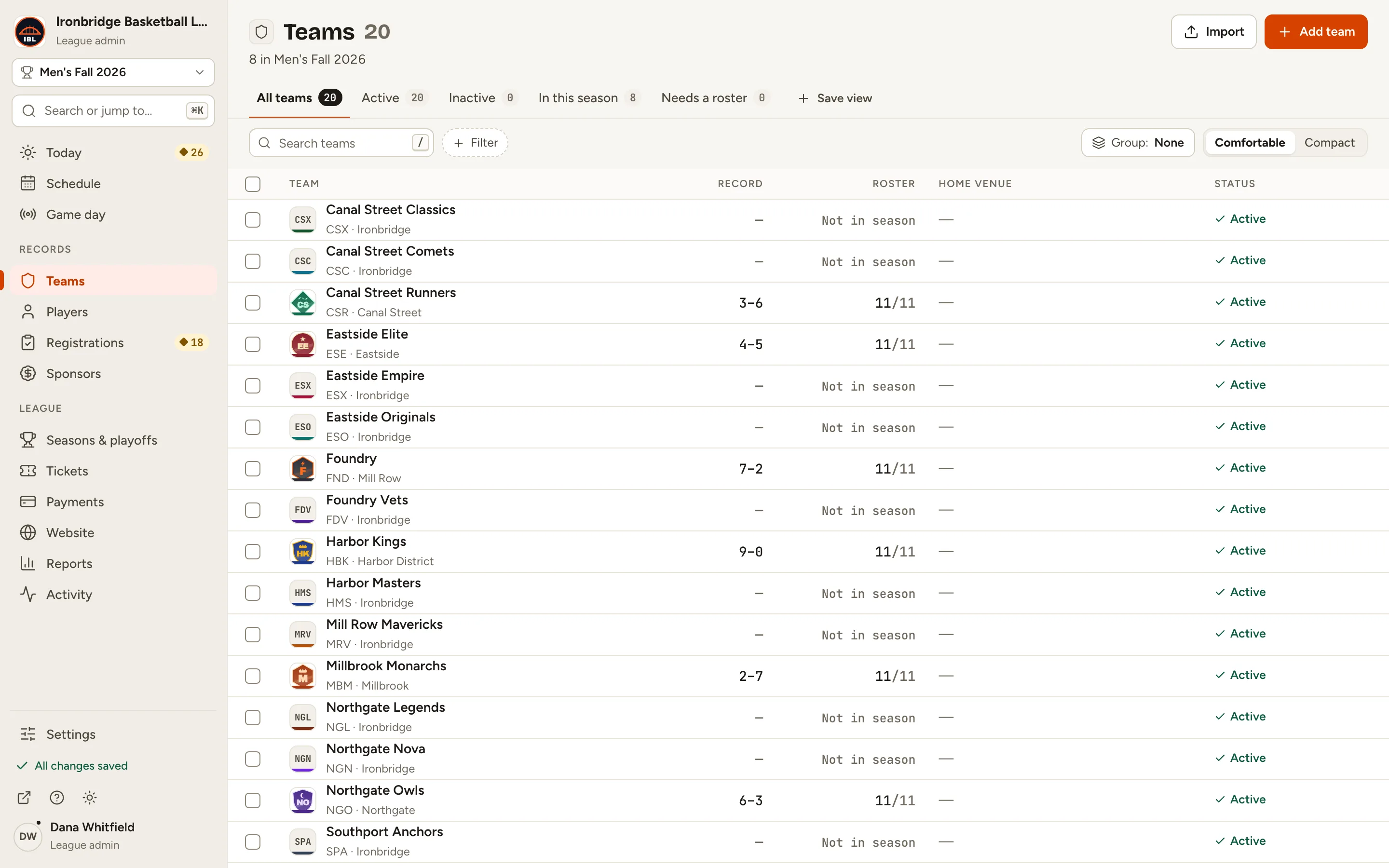
Step 2: In the left menu, click Teams.
The menu has three parts: game-day work at the top (Today, Schedule, Game day), your Records (Teams, Players, Sponsors) and League pages (Seasons & playoffs, Website, Reports and more). Settings is at the bottom. You only see what your role and your plan include.
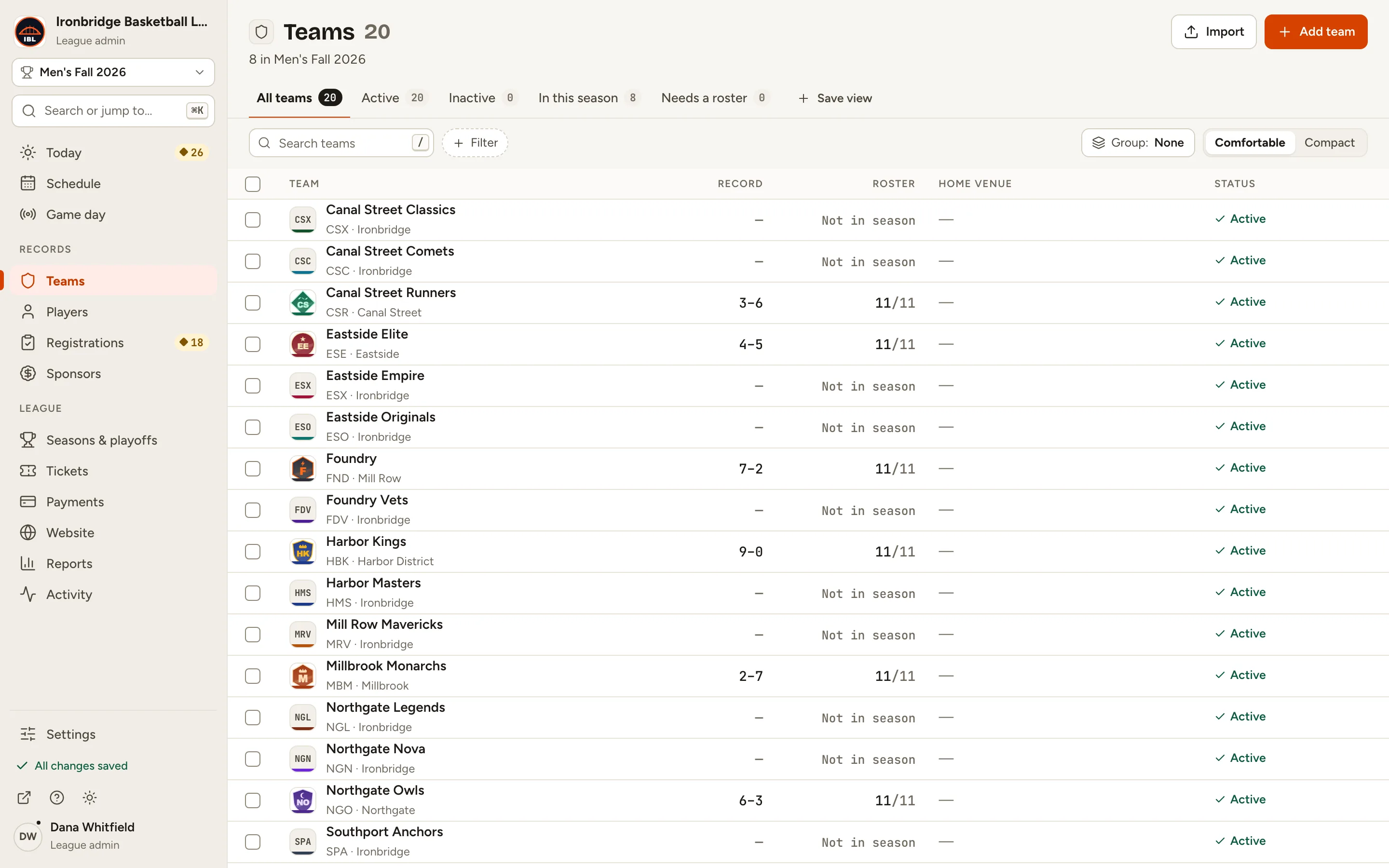
Fig. 2Teams, under Records in the left menu. -
Step 3: Click a team in the list.
Its record opens in a panel beside the list. Click a field to change it: changes save as you go, and the menu says All changes saved. Use the ∧ ∨ arrows (or J and K) to step through the list, Full page for more room, and × (Close) to go back.
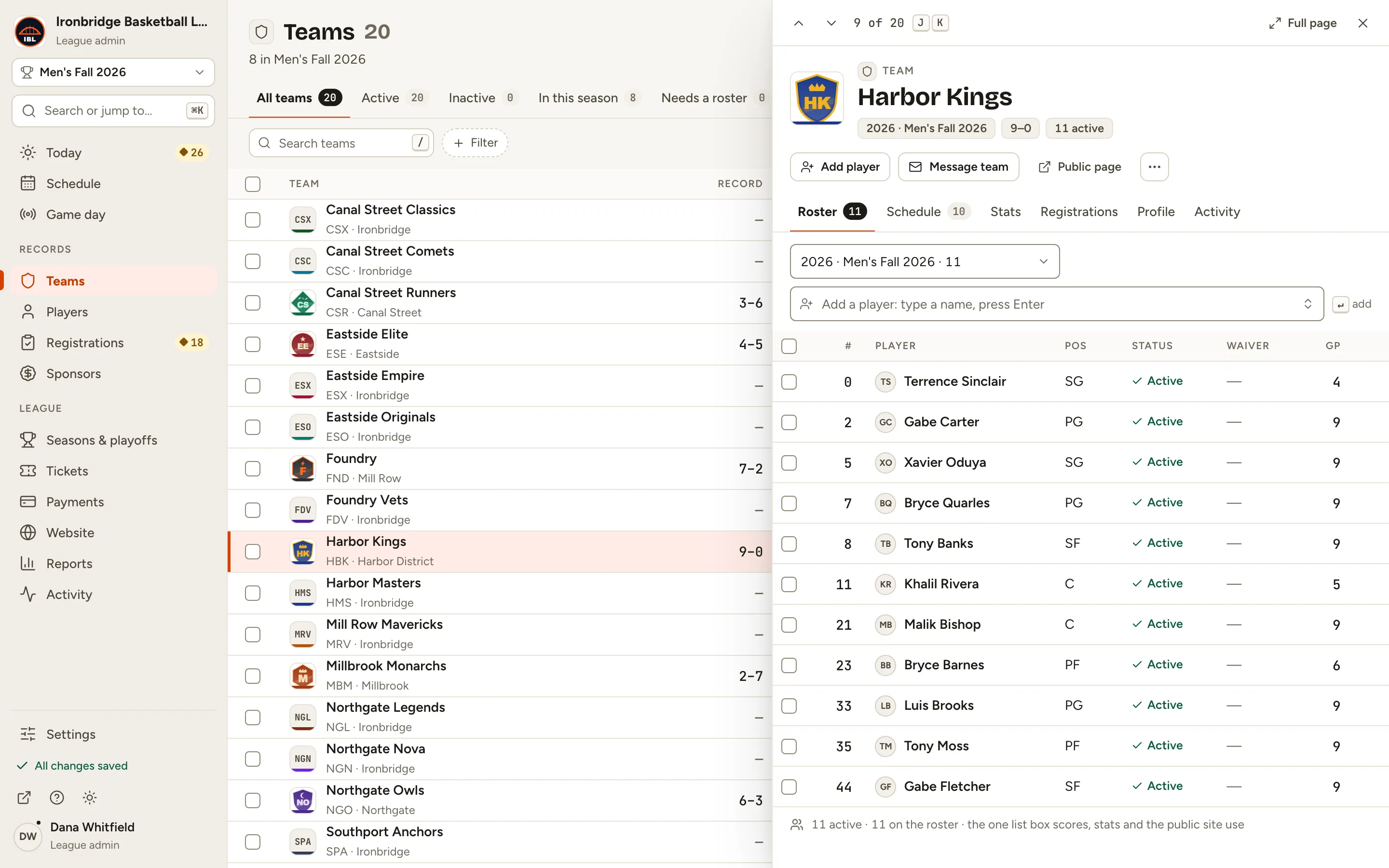
Fig. 3A team’s record opens beside the list. -
Step 4: At the top left, click the scope picker (here Men’s Fall 2026).
It shows the season you’re working in. Today, the schedule and your lists follow it; pick another season to switch. If your league has divisions or more than one sport, you choose those here too.
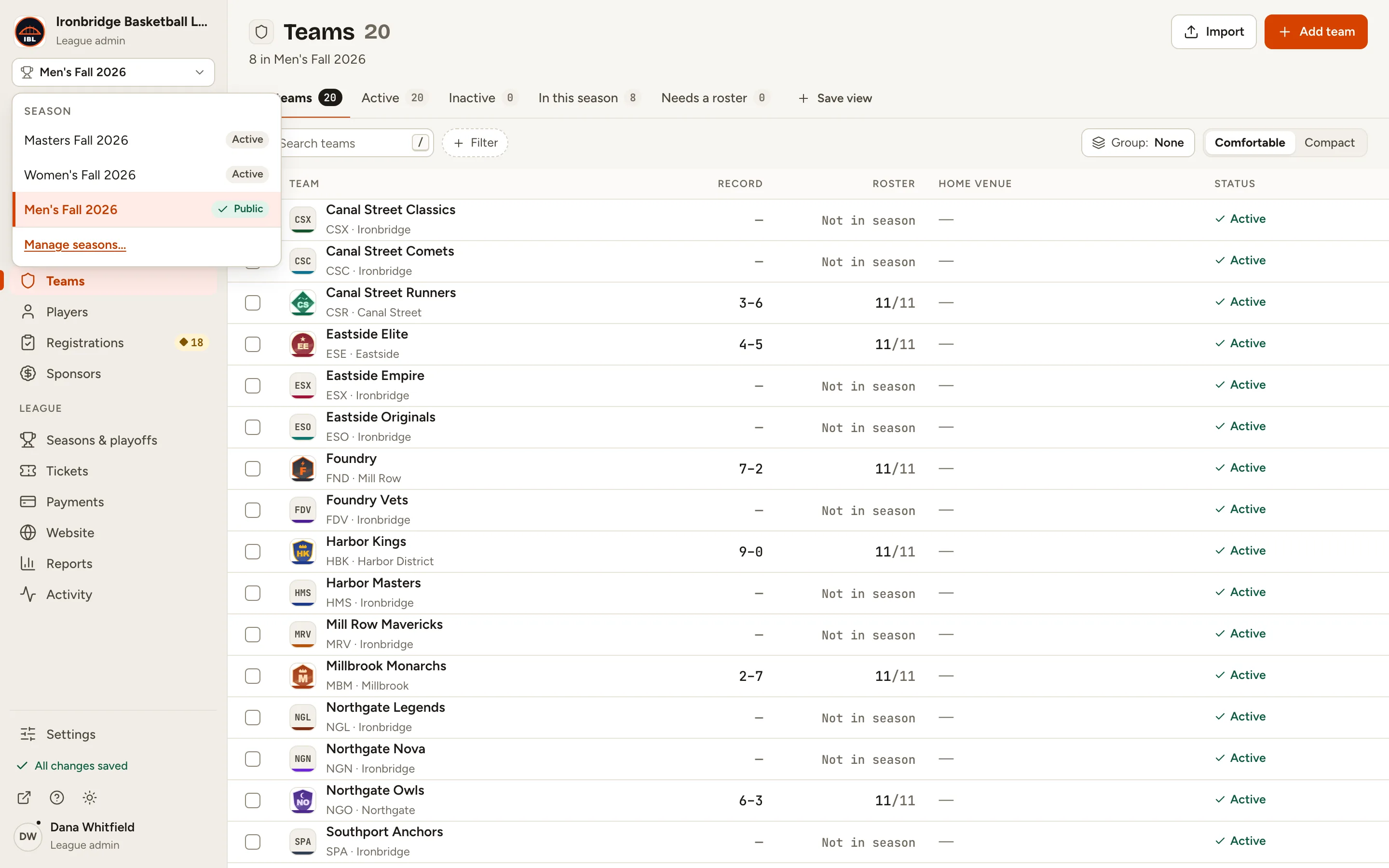
Fig. 4The scope picker: the season you’re working in. -
Step 5: Click Search or jump to…, or press ⌘K (Ctrl K on Windows).
Type to find any team, player, game or page, or type > for commands. See Search and keyboard shortcuts.
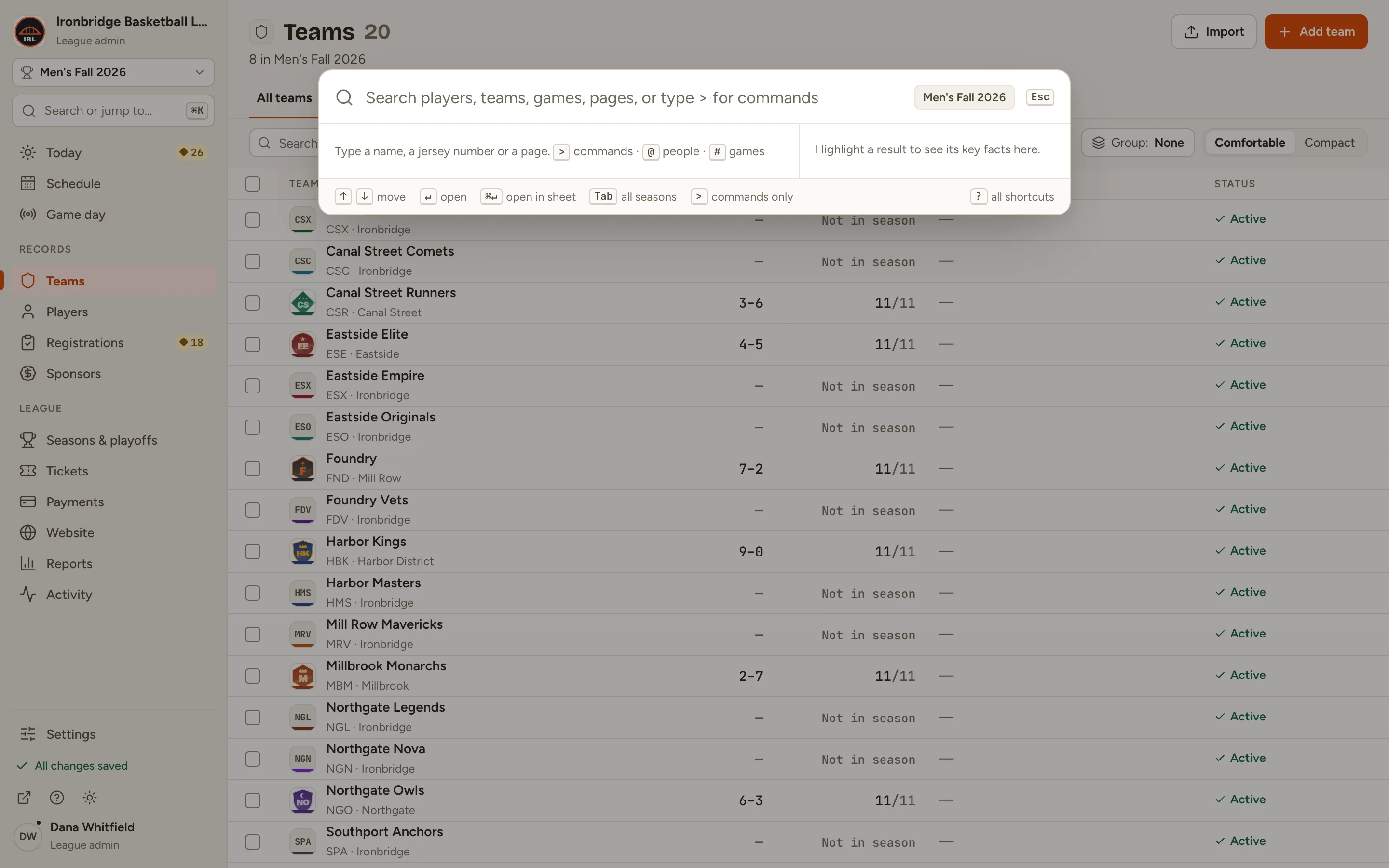
Fig. 5Search or jump to: find anything, or run a command. -
Step 6: At the bottom left, click your name.
Your account menu has Preferences (colour mode, density and shortcuts), What’s new, View public site, your Language and Sign out.
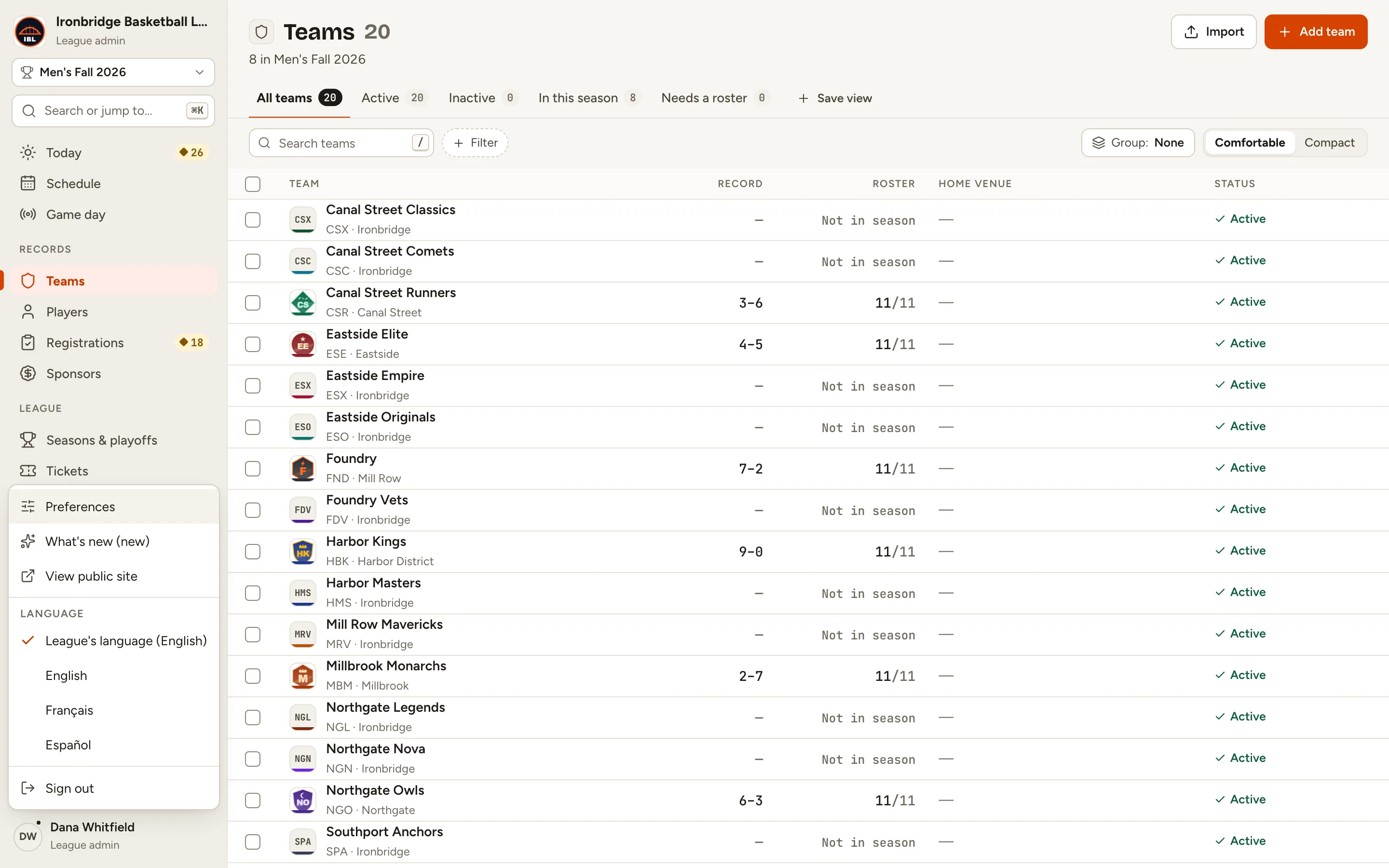
Fig. 6Your account menu, at the bottom left. -
Step 7: Click View public site.
Your league’s website opens in a new tab: what fans see. The ↗ button at the bottom of the menu does the same.
Fig. 7Your website, as fans see it.
What you’ll see
You know the lay of the land: the menu groups your work, records open beside their list, the scope picker sets the season, search finds anything, and your account menu holds your preferences and the way to your website.