Build team rosters
By the end you’ll have a team’s roster for the new season, with last season’s players carried over and a new player added.
Before you start
- You need the season and its teams: here Winter 2027, with Foundry and seven other teams in it. See Create your first season and teams.
- A roster belongs to one team in one season. It’s the list box scores, stats and your website use.
Steps
-
Step 1: In the left menu, click Teams.
Your teams are listed for the season in the scope picker, here Winter 2027. Needs a roster counts the teams with no one on their roster yet.
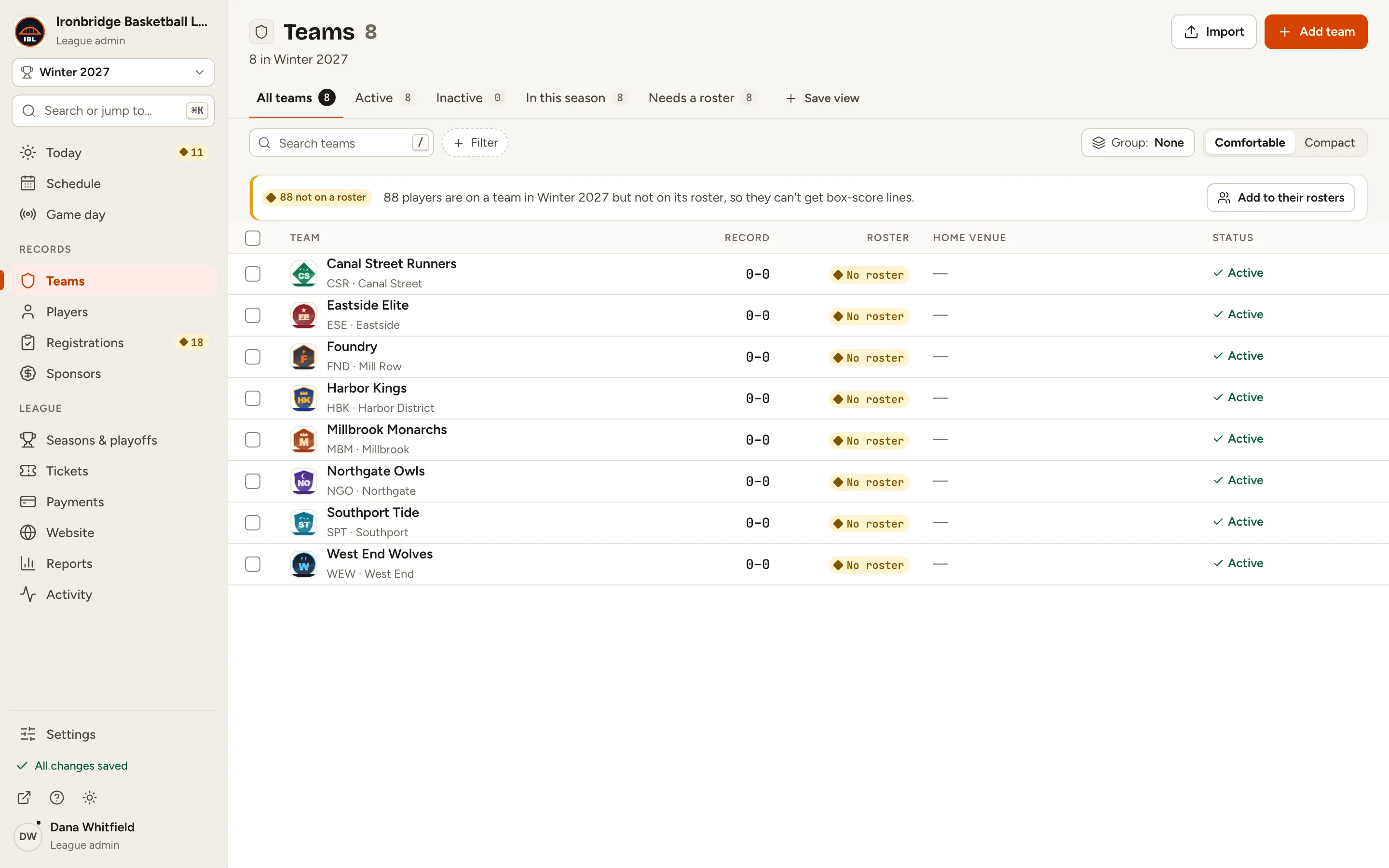
Fig. 1Teams in Winter 2027: every team still needs a roster. -
Step 2: Click a team, like Foundry.
Its record opens on Roster, for 2027 · Winter 2027. The roster is empty: each season starts its own.
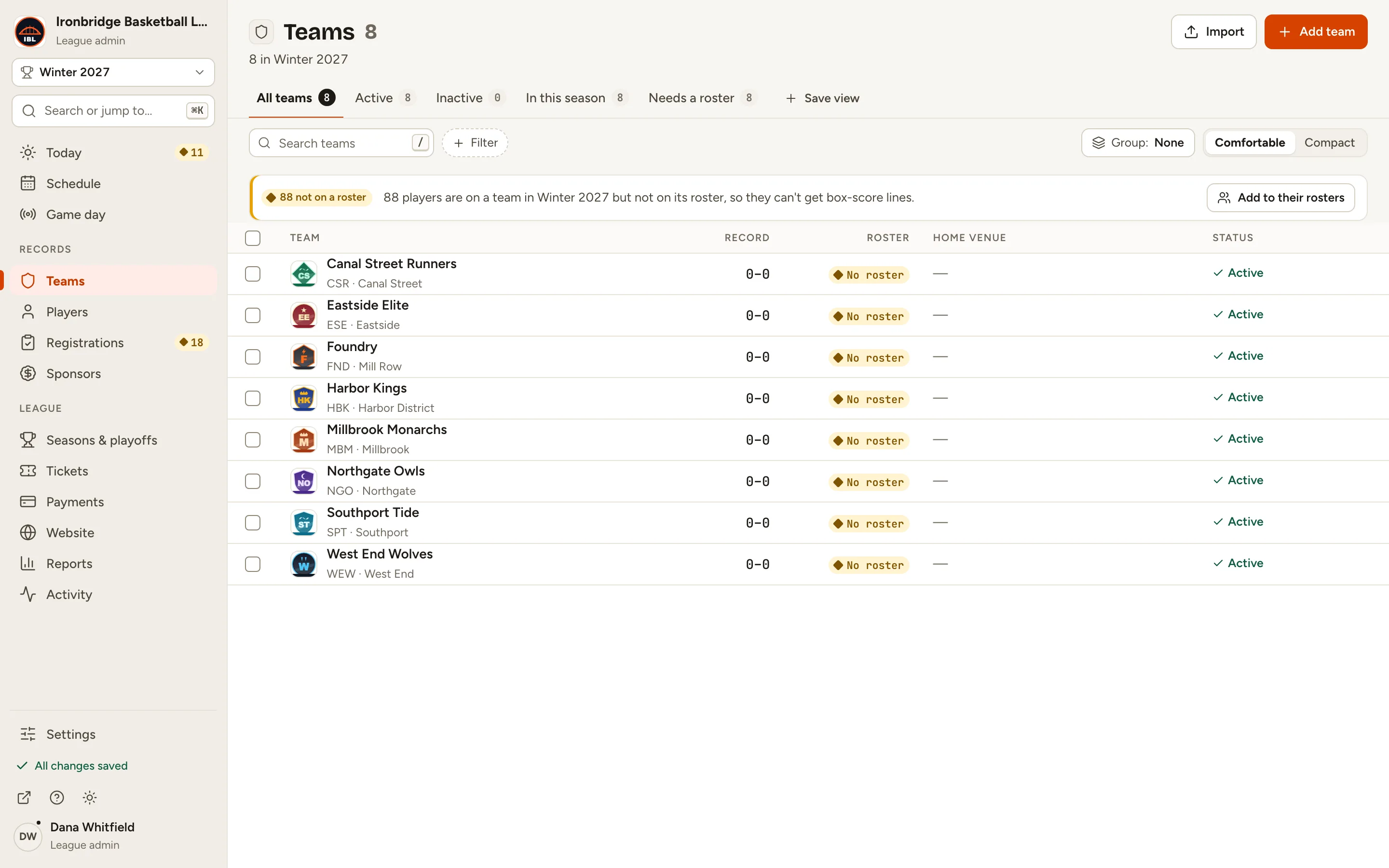
Fig. 2Foundry’s Winter 2027 roster is empty. -
Step 3: Click Copy from 2026 · Fall 2026.
Last season’s active players join the roster with their numbers and positions (benched players aren’t copied). A player who’s already on another team this season stays there.
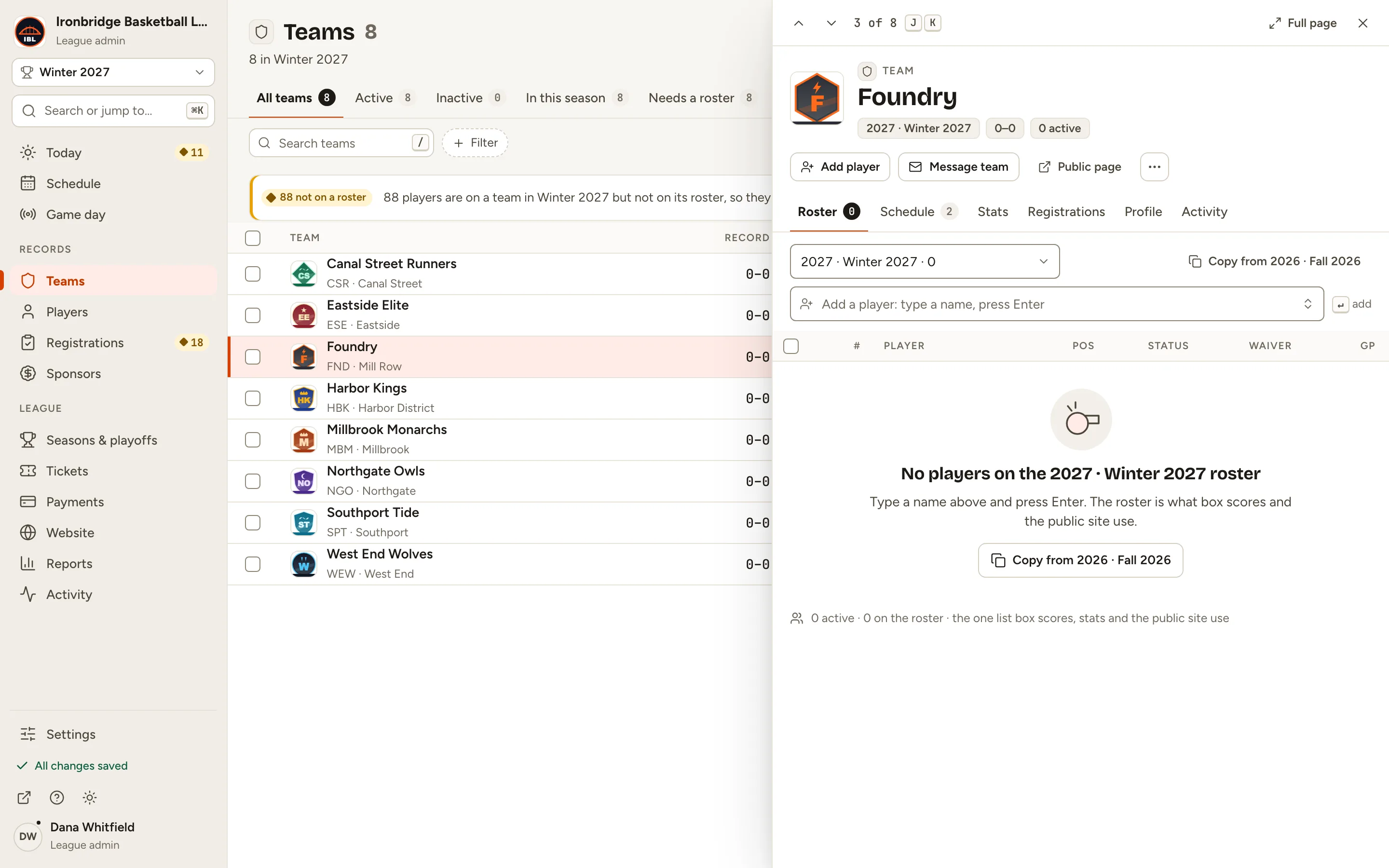
Fig. 3Copy last season’s players in one click. -
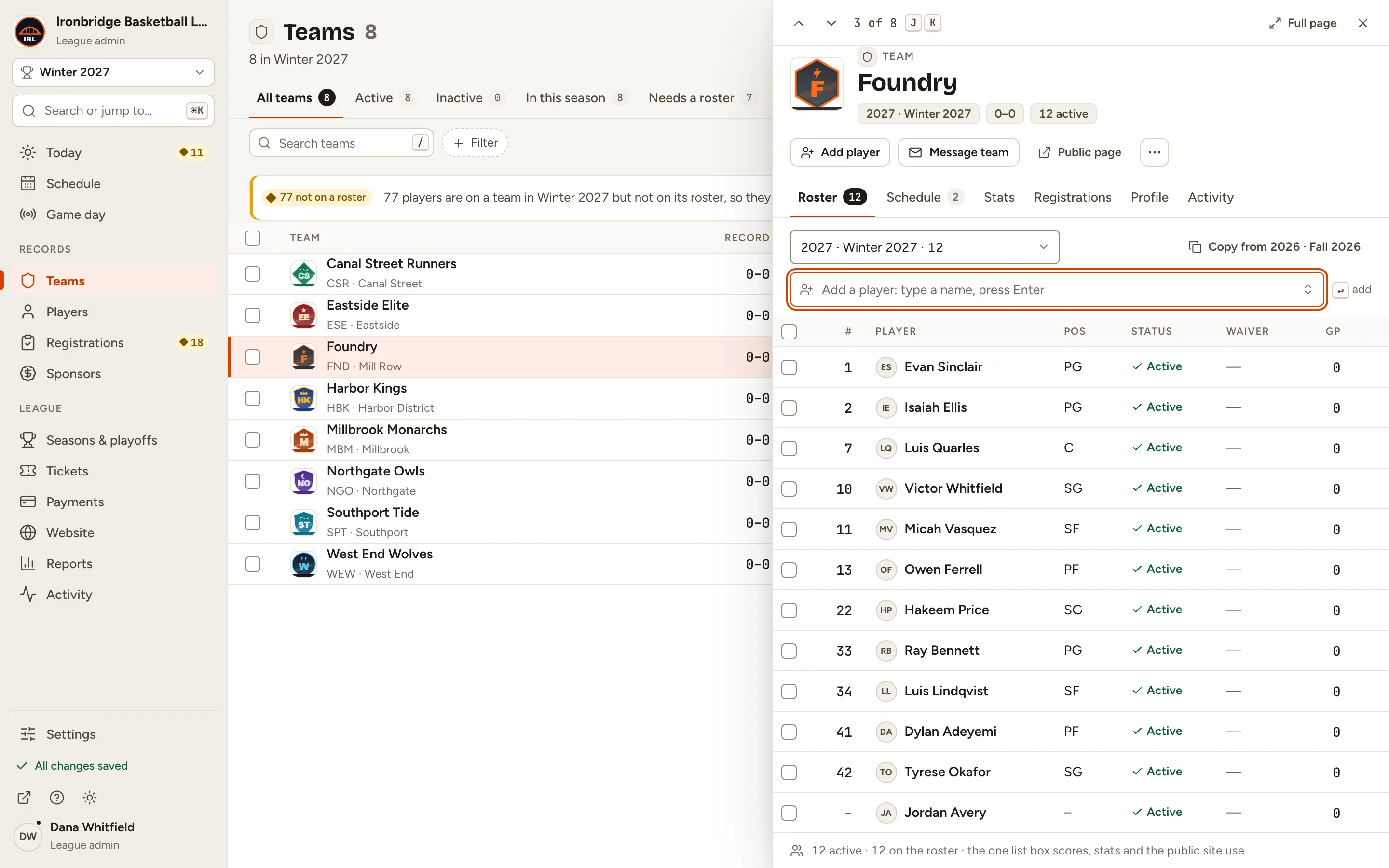
Step 4: Click Add a player: type a name, press Enter, type a name like Jordan Avery, and press Enter.
If no player has that name, the first choice is Create “Jordan Avery” as a new player, so Enter creates them and adds them here. To add someone you already have, pick them from the list instead.
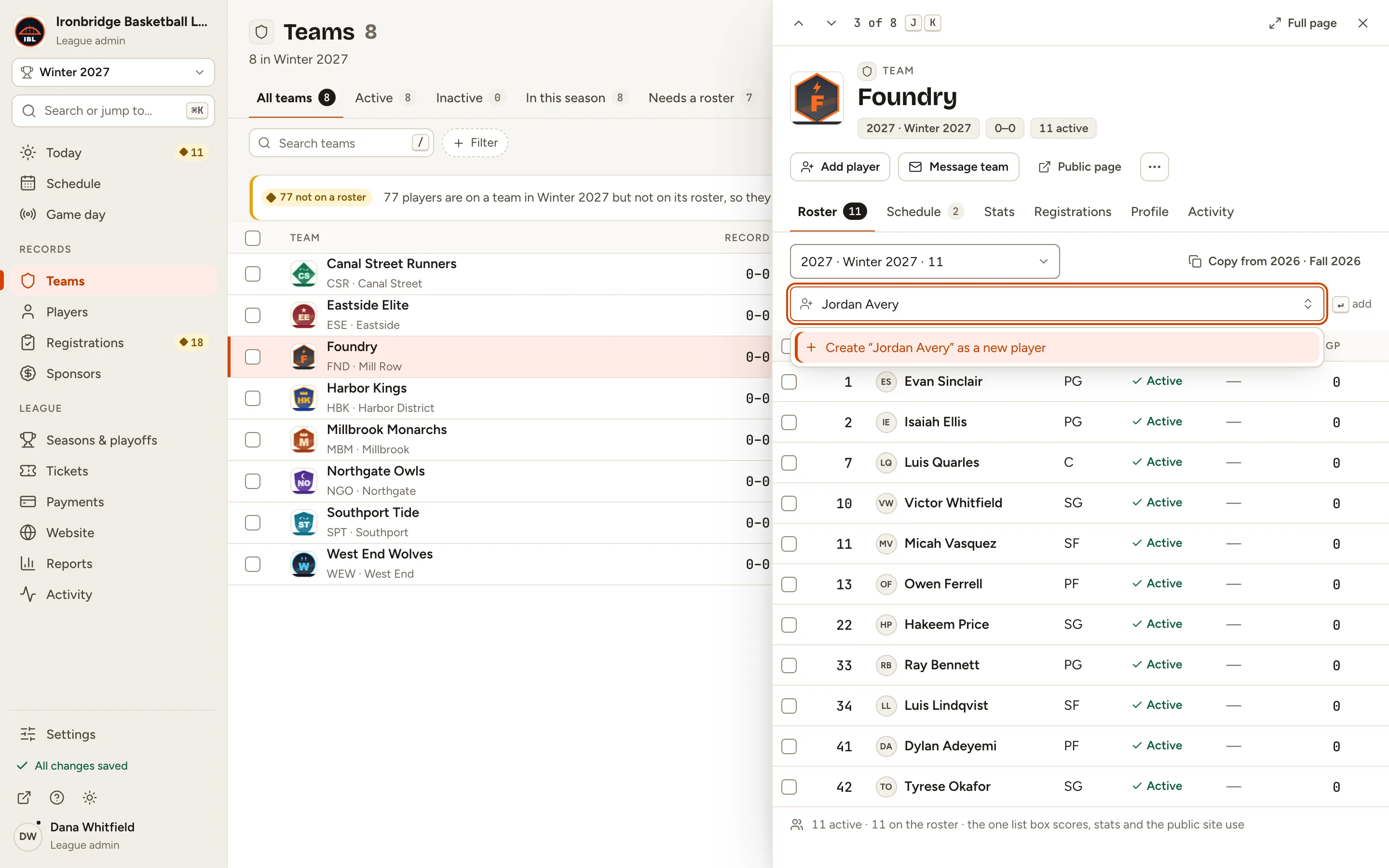
Fig. 4A new player, created and added in one go. -
Step 5: On your website, open Teams and click Foundry.
From the admin, click ↗ (View public site) at the bottom of the sidebar; your website opens in a new tab. Foundry’s page lists its players, Jordan Avery included.
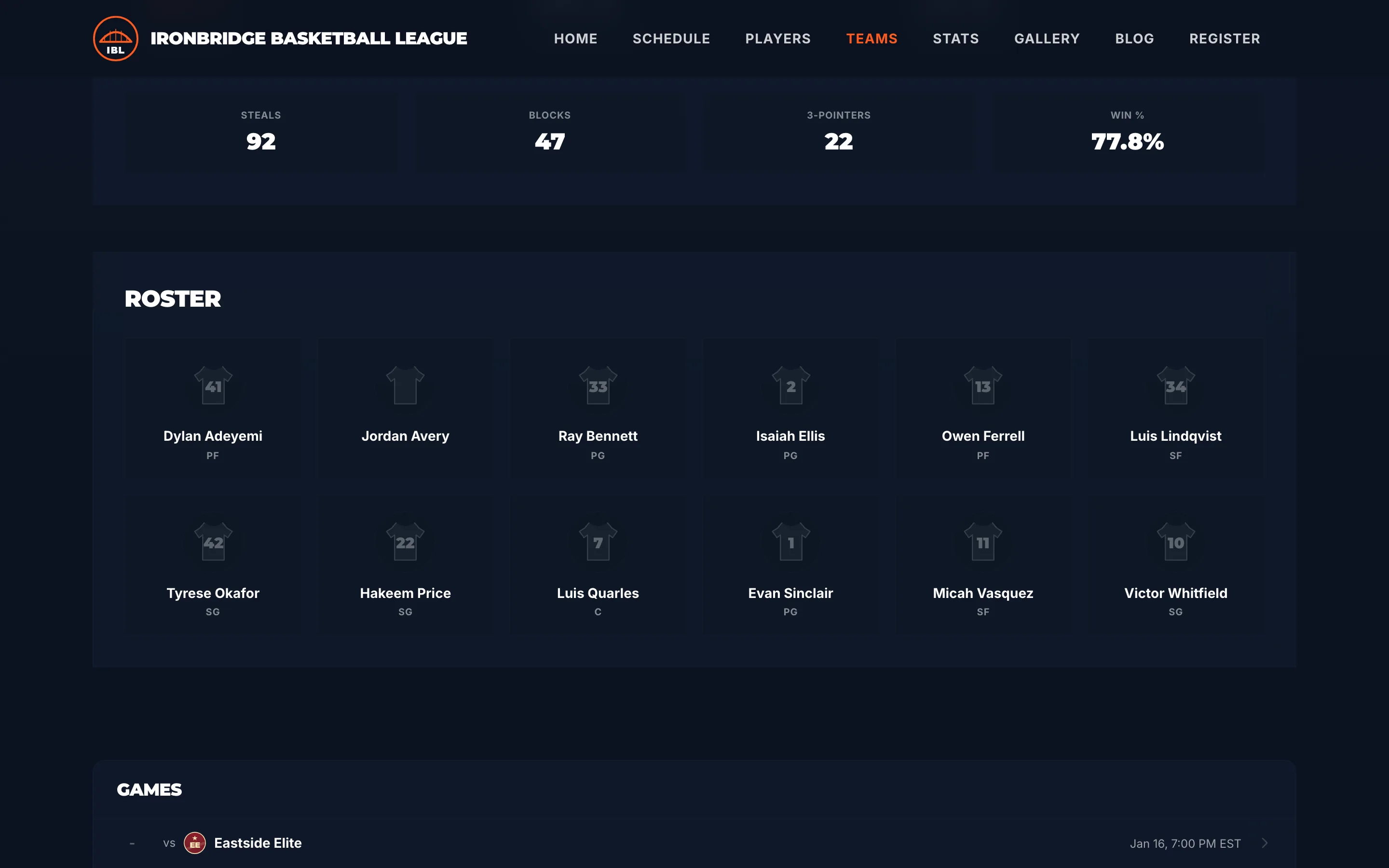
Fig. 5Foundry’s page on your website, with Jordan Avery on the roster.
What you’ll see
Foundry has its Winter 2027 roster: last season’s players plus Jordan Avery. Box scores and stats for Foundry’s Winter games can now pick from it. Repeat for each team, or add everyone at once (see below).