
ScoreLM Guides
scorelm.com

Search and keyboard shortcuts

By the end you’ll have a quick way to open any team, player, game or page, run commands, and get around with the keyboard.

  • Who: League admin, Editor or Stat keeper
  • Time: 3 min
  • Steps: 6
Video · 0:48 · Voiceover · every step is also written on screen Prefer to read? Steps below

Before you start

Steps

  1. Step 1: Click Search or jump to… at the top of the menu, or press ⌘K (Ctrl K on Windows).

    The search window opens. It searches the season you’re working in, shown at its top right (here Men’s Fall 2026).
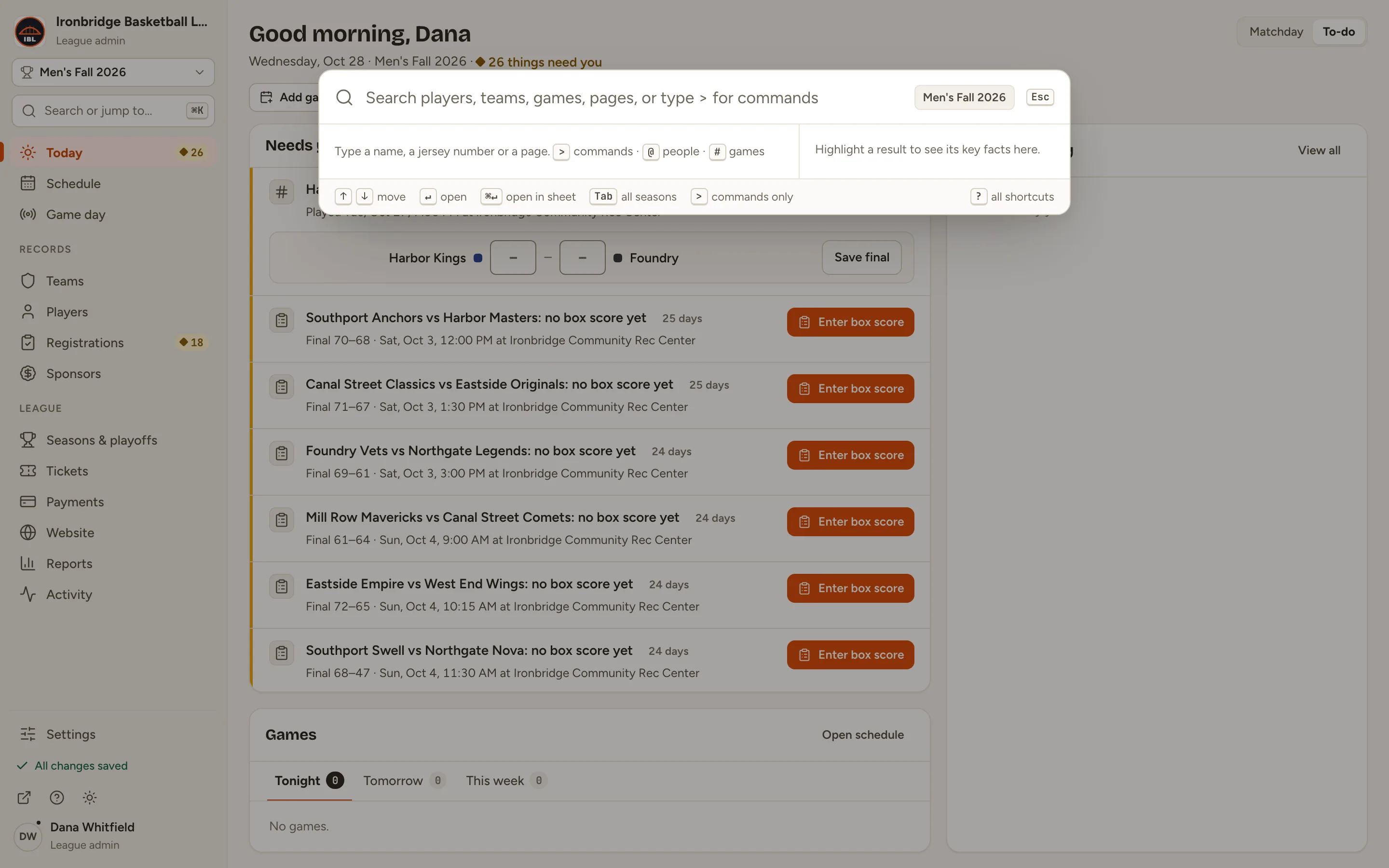
    Fig. 1

    Scroll sideways to see the whole screen.

    The search window open over the admin, with an empty search box and the season Men’s Fall 2026 at its top right.
    Fig. 1Search or jump to opens the search window.
  2. Step 2: Type part of a name, like harbor.

    Results appear as you type: the Top hit, then other Records, and any Actions or Pages & settings that match. The panel on the right shows the highlighted result’s key facts. Use ↑ and ↓ to move.
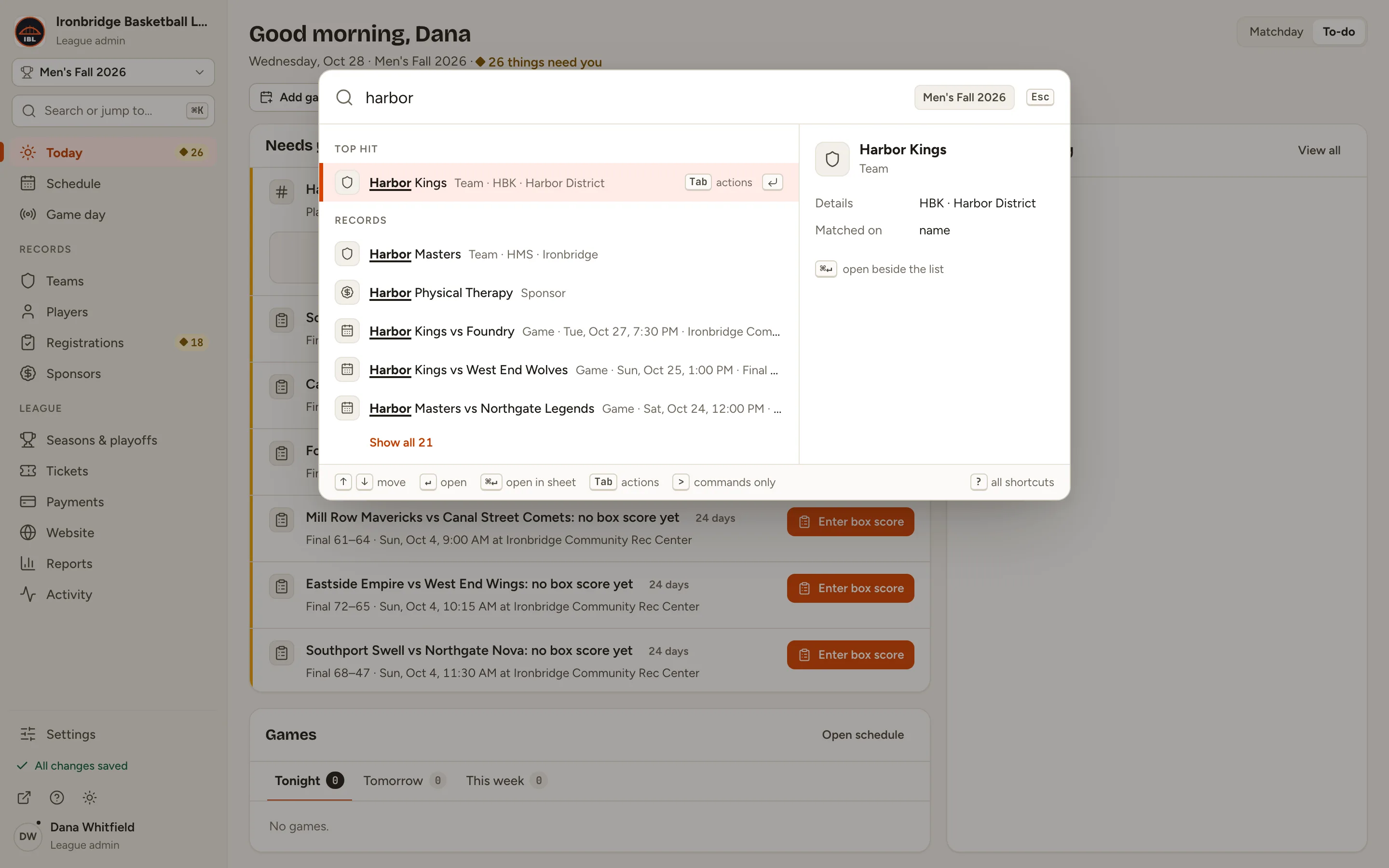
    Fig. 2

    Scroll sideways to see the whole screen.

    The search window with harbor typed: Harbor Kings as the top hit, other records, and a preview of Harbor Kings on the right.
    Fig. 2Results as you type, with the top hit’s facts on the right.
  3. Step 3: Press Enter to open the top hit.

    The team’s record opens. To run one of a result’s actions instead, press Tab on it.
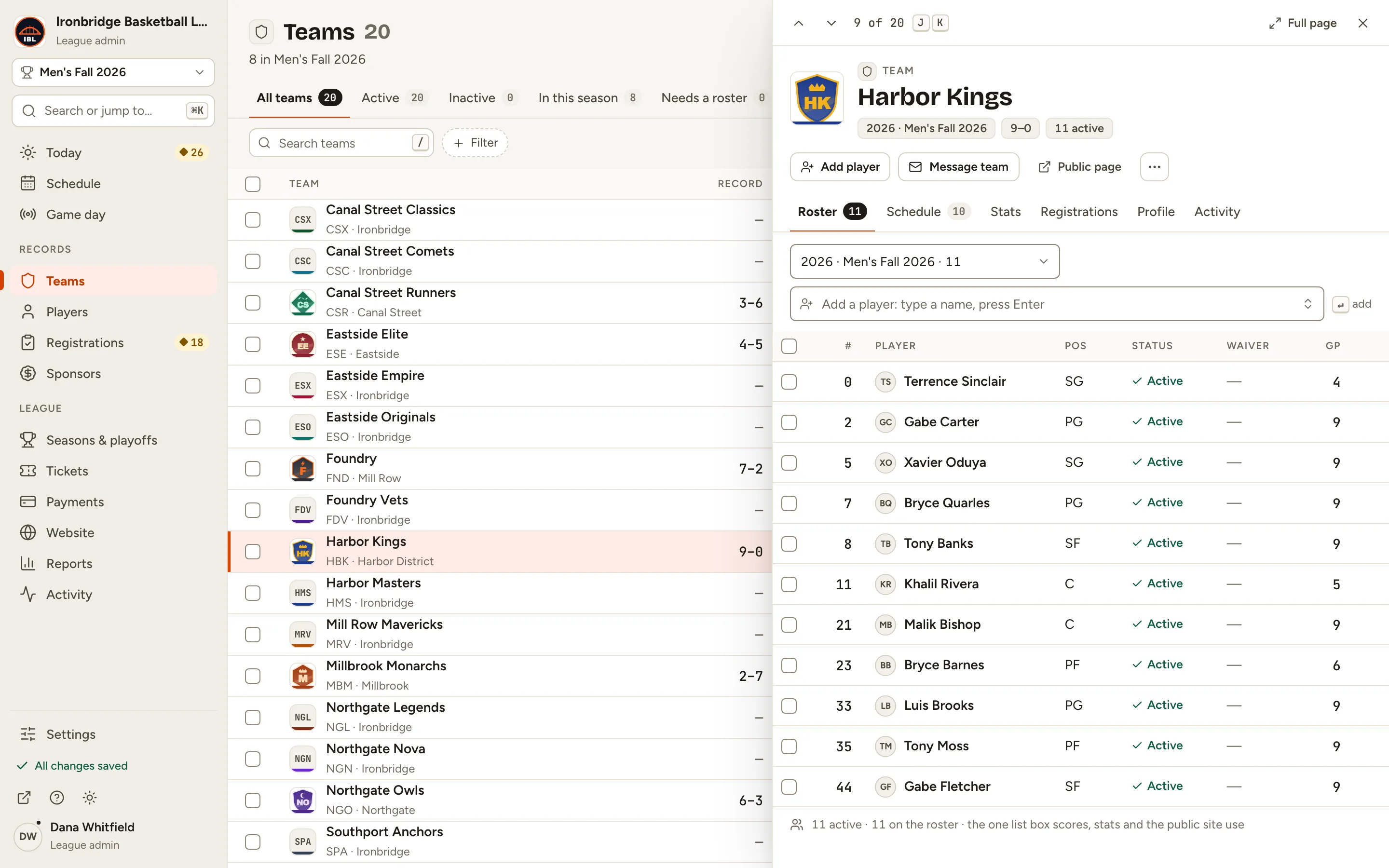
    Fig. 3

    Scroll sideways to see the whole screen.

    The Harbor Kings team record open beside the Teams list.
    Fig. 3Enter opens the result.
  4. Step 4: Press ⌘K again, clear the box, and type >.

    Only commands are listed: add a game, player, season or sponsor, switch season, dark mode, copy a link to the page, undo your last change, sign out and more. Keep typing to narrow the list.
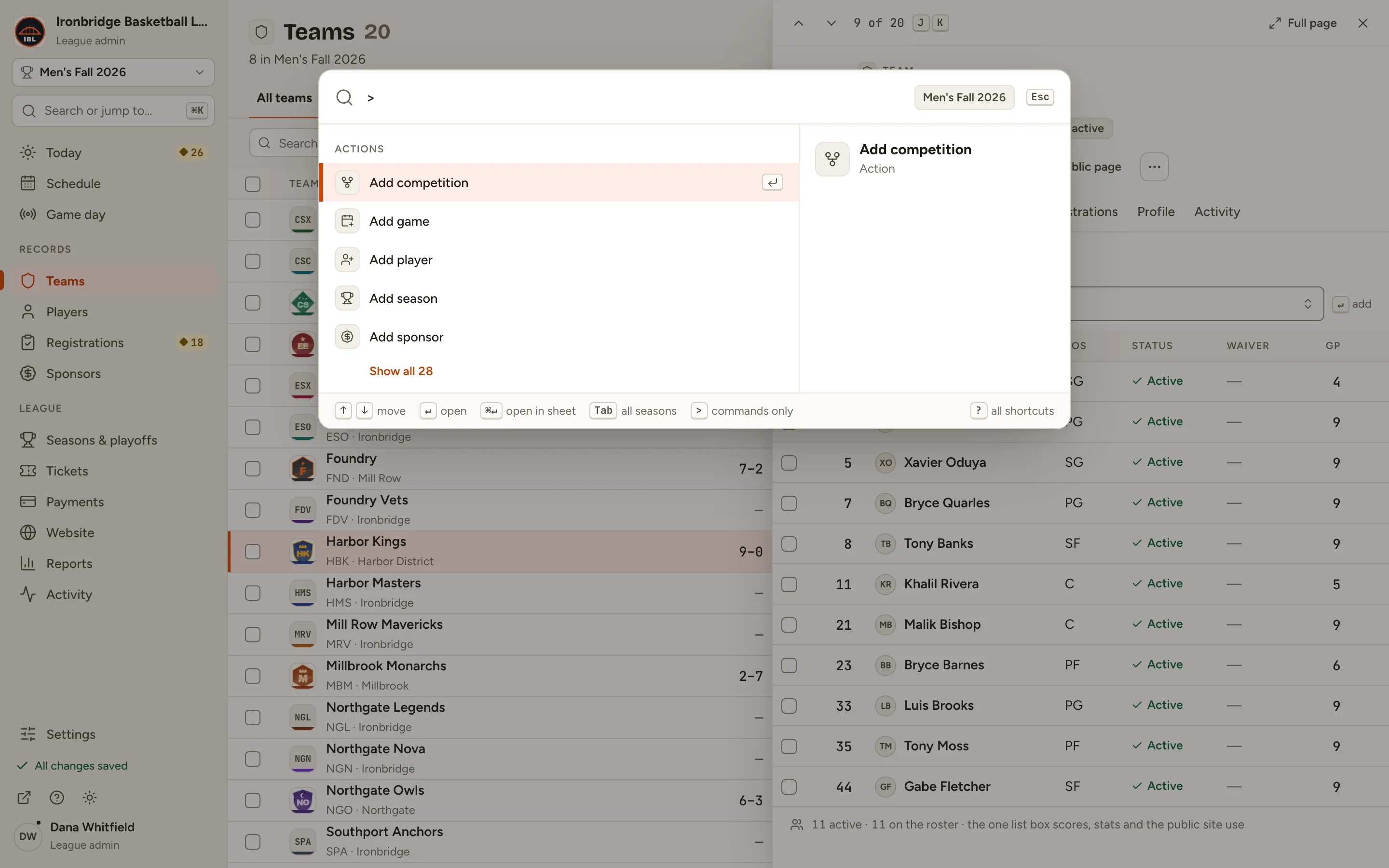
    Fig. 4

    Scroll sideways to see the whole screen.

    The search window with > typed, listing actions such as Add competition, Add game, Add player, Add season and Add sponsor.
    Fig. 4Type > for commands.
  5. Step 5: Press Esc to close the search, then press ?.

    The Keyboard shortcuts panel lists every shortcut, the ones for the page you’re on first. Untick Single-key shortcuts to turn off the one-letter keys; shortcuts with ⌘ always work.
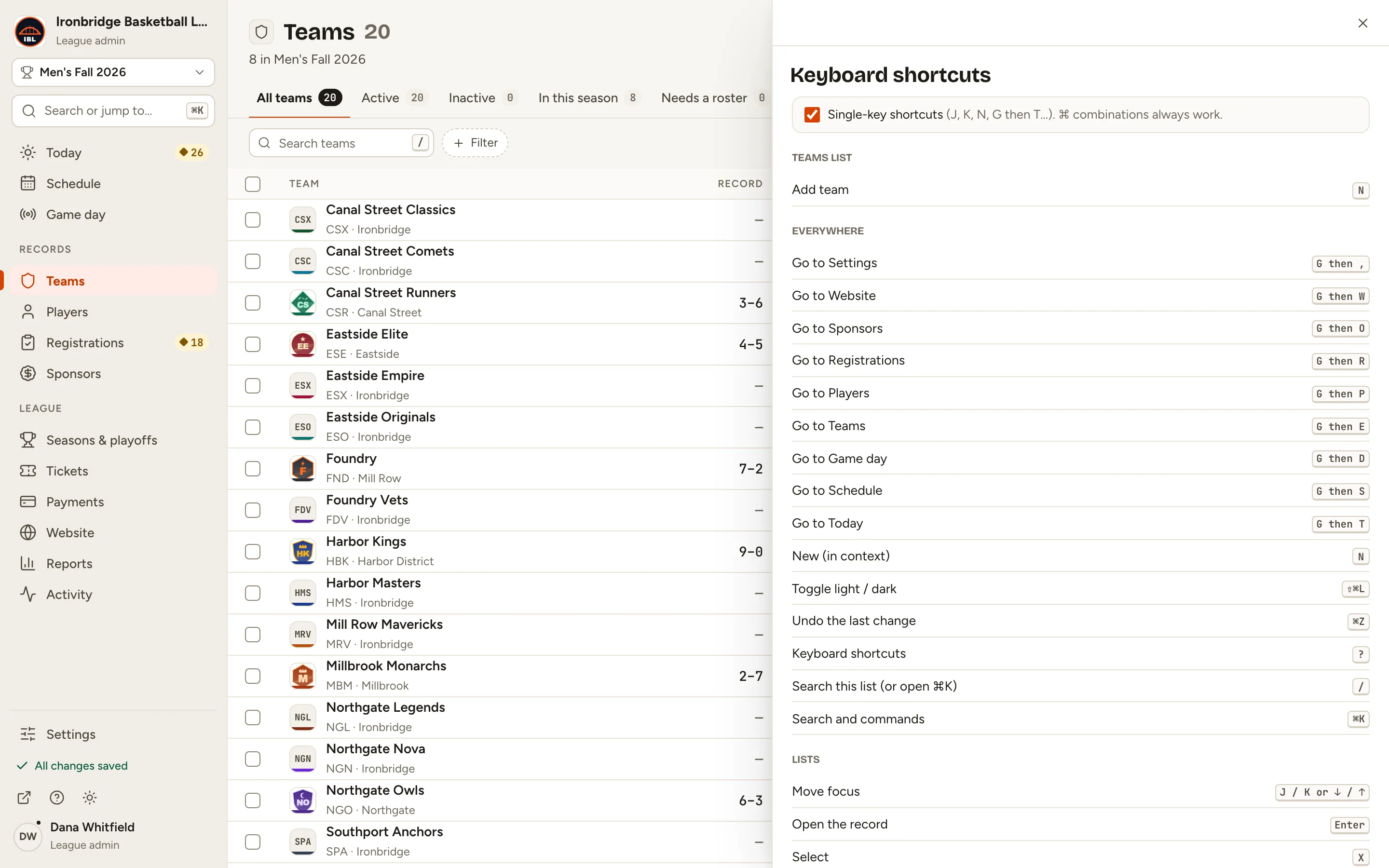
    Fig. 5

    Scroll sideways to see the whole screen.

    The Keyboard shortcuts panel with the Single-key shortcuts option, then shortcuts for this page and for everywhere.
    Fig. 5Every shortcut, the current page’s first.
  6. Step 6: Press Esc, then press G and then S.

    You jump to Schedule. G then T goes to Today, G then E to Teams, G then P to Players, G then O to Sponsors, G then W to Website, and G then , (comma) to Settings.
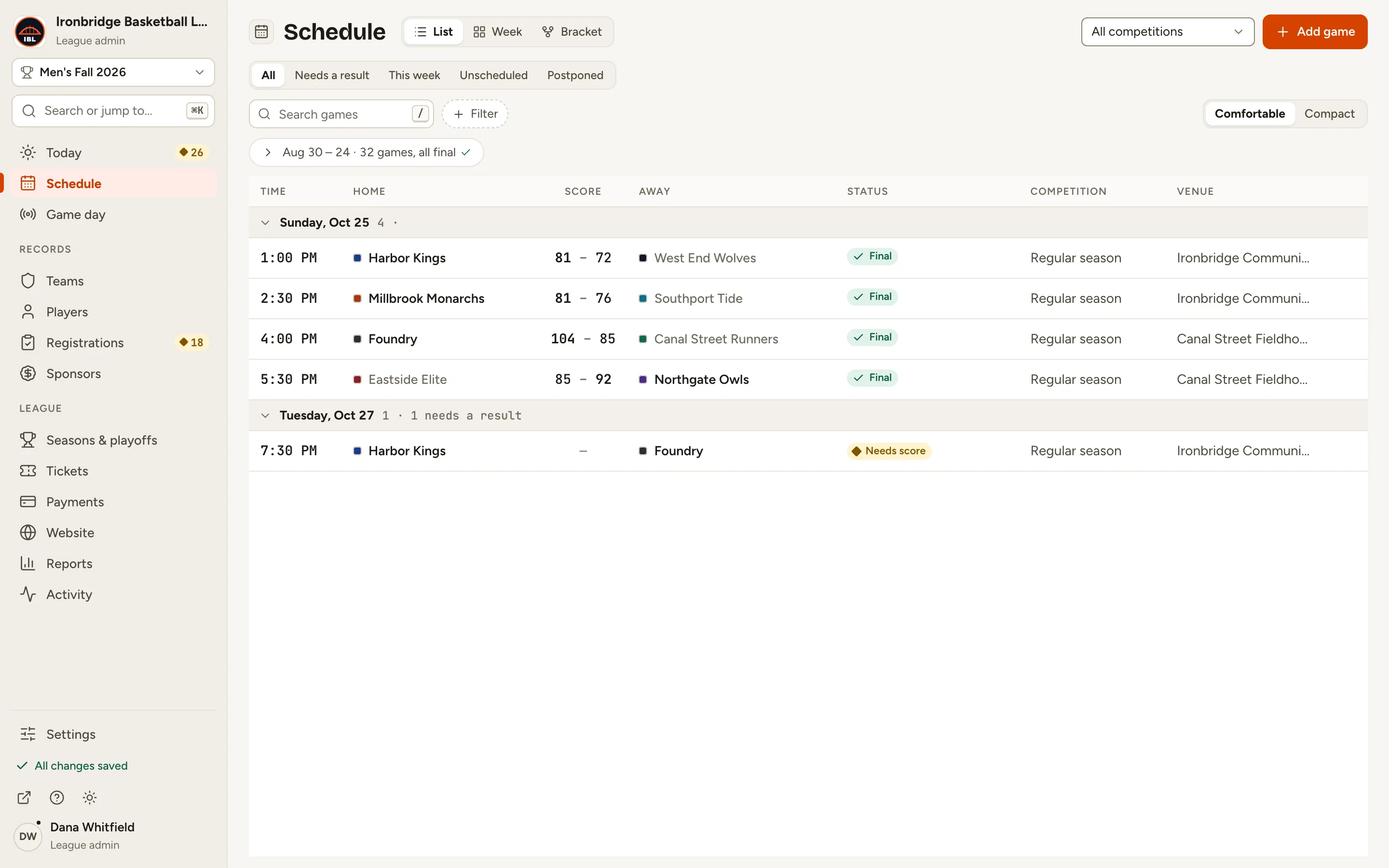
    Fig. 6

    Scroll sideways to see the whole screen.

    The Schedule page, opened with the keyboard, with Schedule selected in the left menu.
    Fig. 6G then S jumps to the Schedule.

What you’ll see

You can find anything with ⌘K, run commands with >, and move around with the keyboard. Press ? whenever you want the full list.
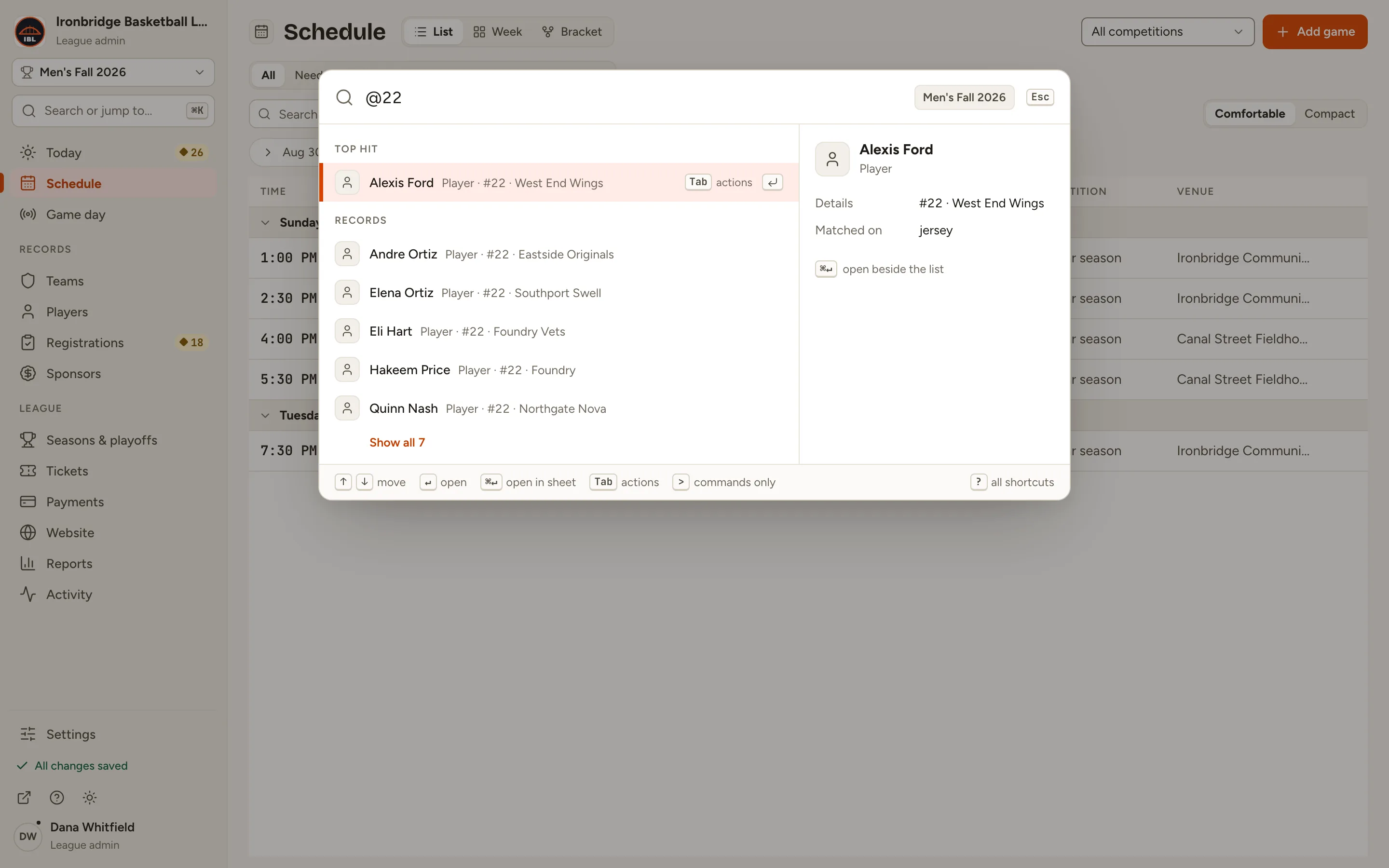
Fig. 7

Scroll sideways to see the whole screen.

The search window with @22 typed, listing every player who wears number 22.
Fig. 7Search also finds people by jersey number: @22.

Common questions

Can I search every season, not just the current one?
Yes. Open the search and press Tab before you type: the season at the top right changes to All seasons. Press Tab again to go back.
What do @ and # do?
Start with @ to search only people, by name or jersey number (@22), and # to search only games.
Is there a quick way to add something?
Press N on a list to add a new one there, like a team on Teams. Or type > in the search and pick Add game, Add player and so on.
The one-letter shortcuts get in my way. Can I turn them off?
Yes. Untick Single-key shortcuts in the shortcuts panel (press ?) or in Preferences. They never fire while you’re typing in a box anyway, and shortcuts with ⌘ (Ctrl) always work.
Which other shortcuts are worth knowing?
/ searches the list you’re on, ⌘Z undoes your last change, ⇧⌘L switches between light and dark, and in a record J and K step to the next and previous one.