ScoreLM Guides
scorelm.com

Connect Stripe to take payments

By the end you’ll have your league’s Stripe account connected, so fans can pay registration fees and buy tickets online.

  • Who: League admin
  • Time: 5 min
  • Steps: 6
Video · 1:02 · Voiceover · every step is also written on screen Prefer to read? Steps below

Before you start

  • You don’t need a Stripe account yet: you can create one on Stripe’s site while you connect. Have your business and bank details ready.
  • This guide starts from a paid registration that’s set up but not open. See Open a player registration.

Steps

  1. Step 1: In Registrations, open your paid registration, like Winter 2027 player registration.

    Its checklist says Next: Connect Stripe, and Open registration stays off: a paid registration can’t open until Stripe is connected.
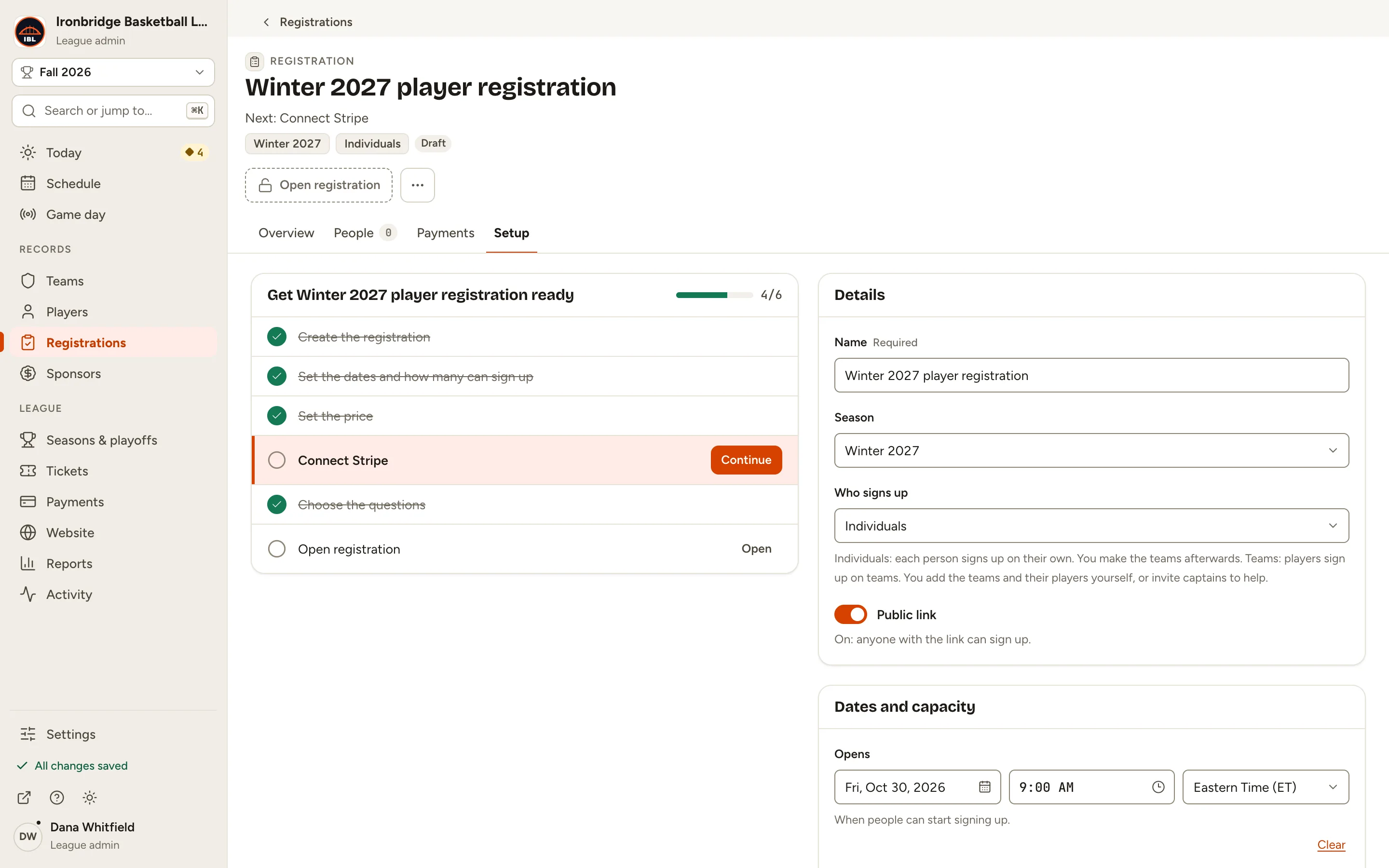
    Fig. 1

    Scroll sideways to see the whole screen.

    The registration’s Setup tab with Next: Connect Stripe and the Connect Stripe step in its checklist.
    Fig. 1A paid registration waiting for Stripe.
  2. Step 2: Under Price, click Connect Stripe.

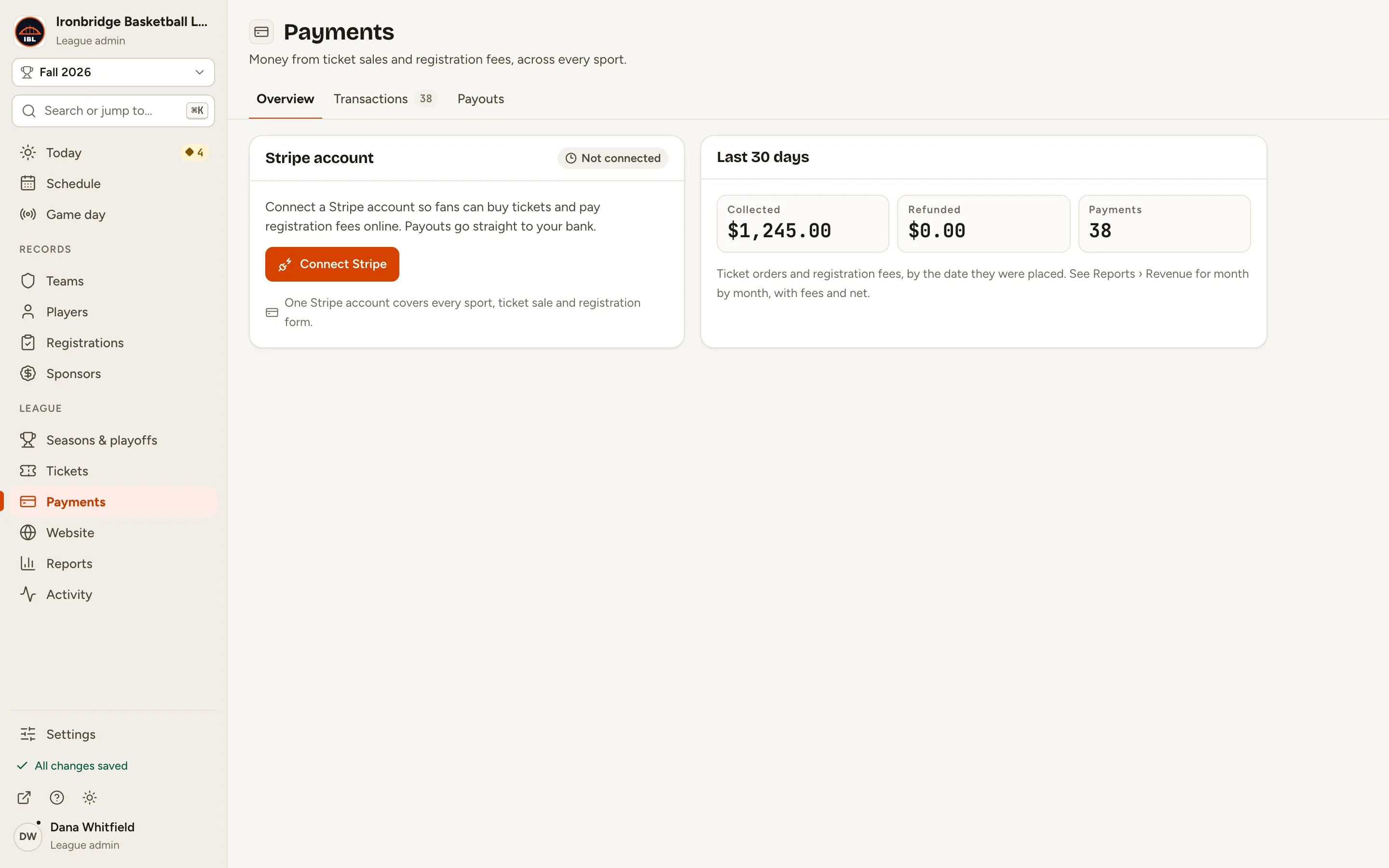
    Payments opens. Stripe account says Not connected.
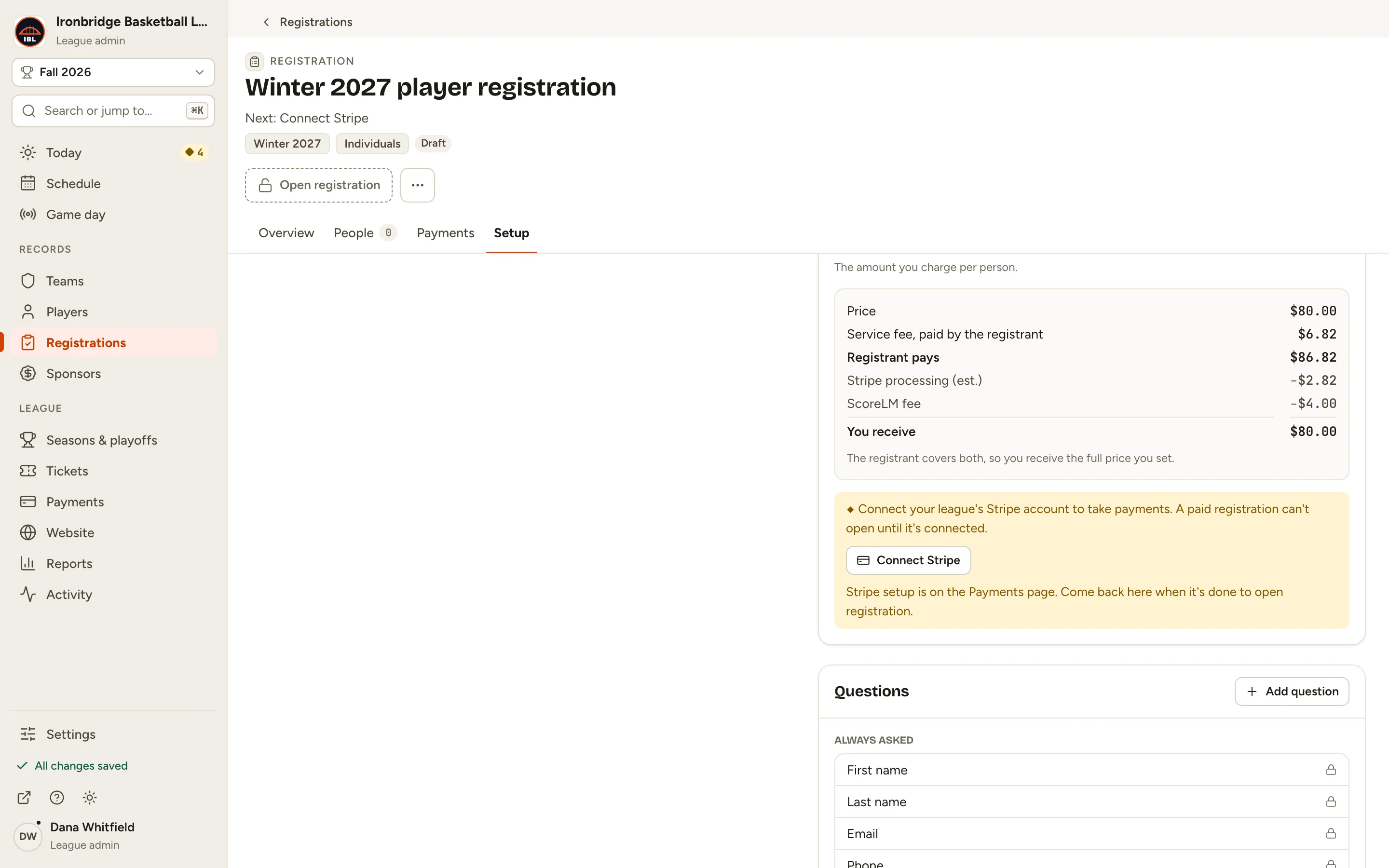
    Fig. 2

    Scroll sideways to see the whole screen.

    The Price card’s notice, Connect your league’s Stripe account to take payments, with its Connect Stripe link.
    Fig. 2Connect Stripe, under Price.
    Fig. 2b

    Scroll sideways to see the whole screen.

    The Payments page with the Stripe account card saying Not connected and a Connect Stripe button.
    Fig. 2bPayments, with Stripe not connected yet.
  3. Step 3: Click Connect Stripe, then finish on Stripe’s site.

    Stripe’s site opens. Sign in to Stripe or create an account, add your business and bank details, and confirm. Stripe then brings you back to Payments.
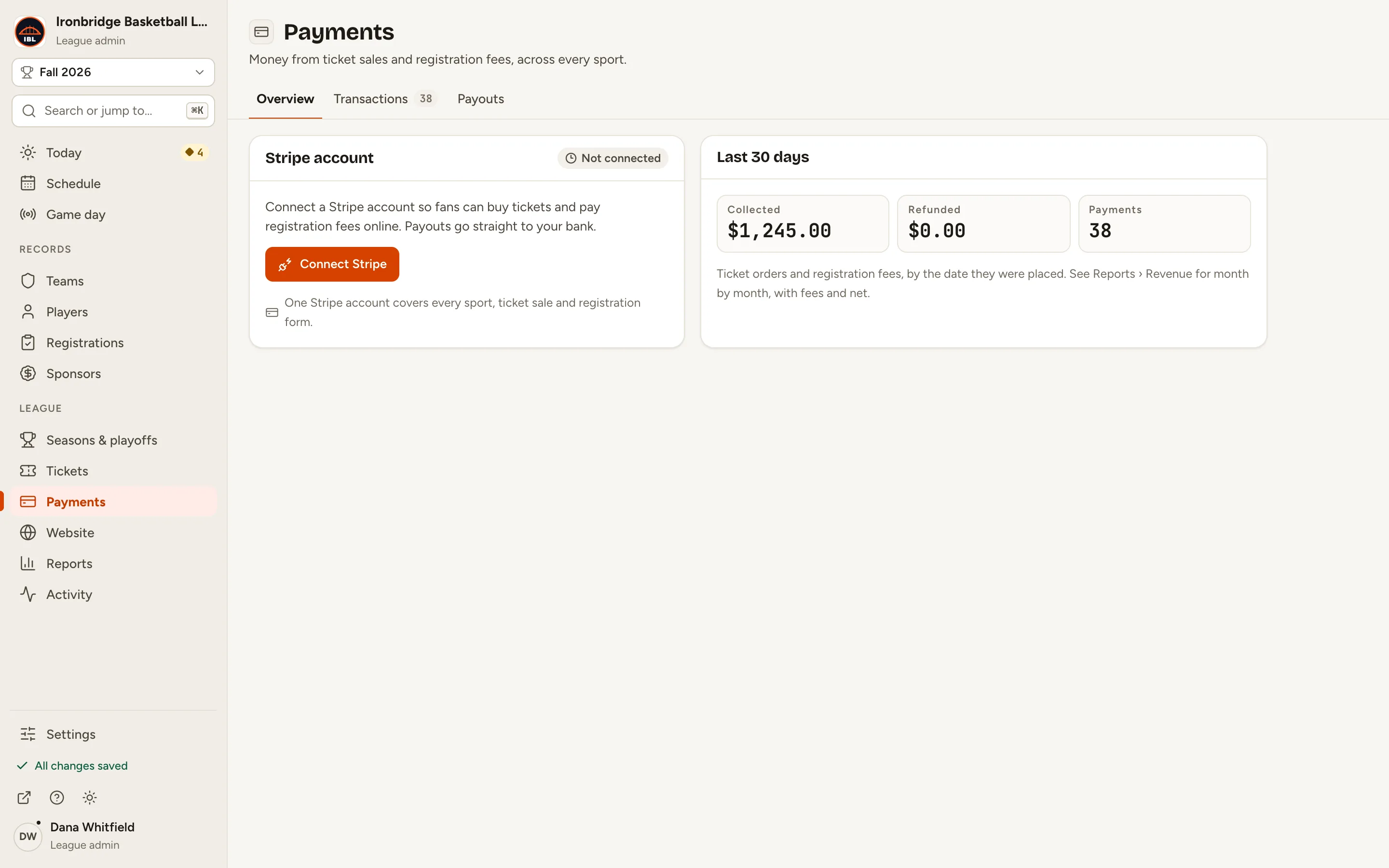
    Fig. 3

    Scroll sideways to see the whole screen.

    The Connect Stripe button on the Stripe account card.
    Fig. 3Connect Stripe.
  4. Step 4: Back on Payments, check that Stripe account says Connected.

    Your Stripe account and the day you connected it are shown. Online ticket sales and registration fees are paid into it. Pending means Stripe is still checking your details.
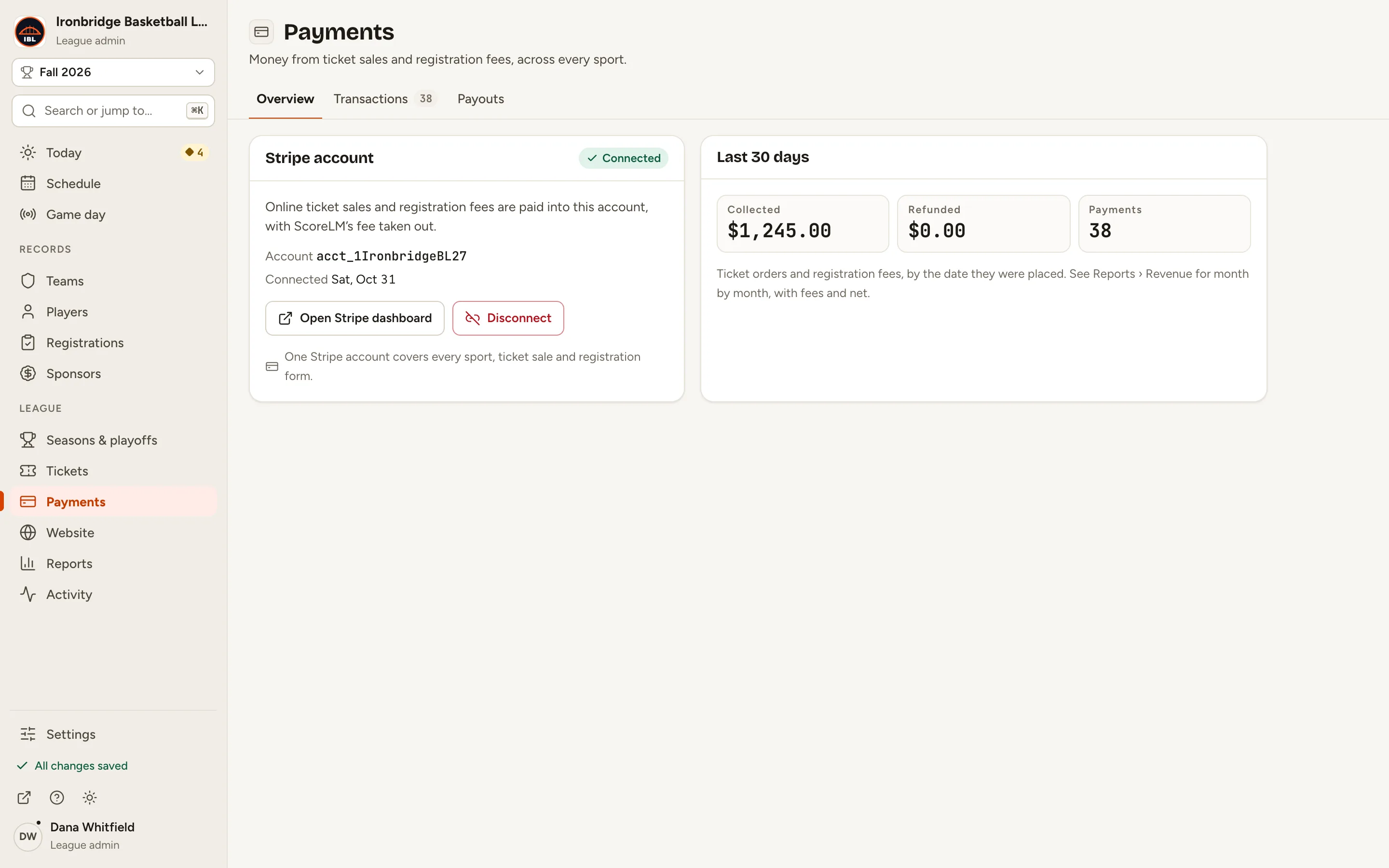
    Fig. 4

    Scroll sideways to see the whole screen.

    The Stripe account card saying Connected, with the account, the date, and the Open Stripe dashboard and Disconnect buttons.
    Fig. 4Connected, with the account and the date.
  5. Step 5: Go back to your registration and click Open registration.

    Connect Stripe is gone from the checklist, and the registration is Open: people can sign up and pay.
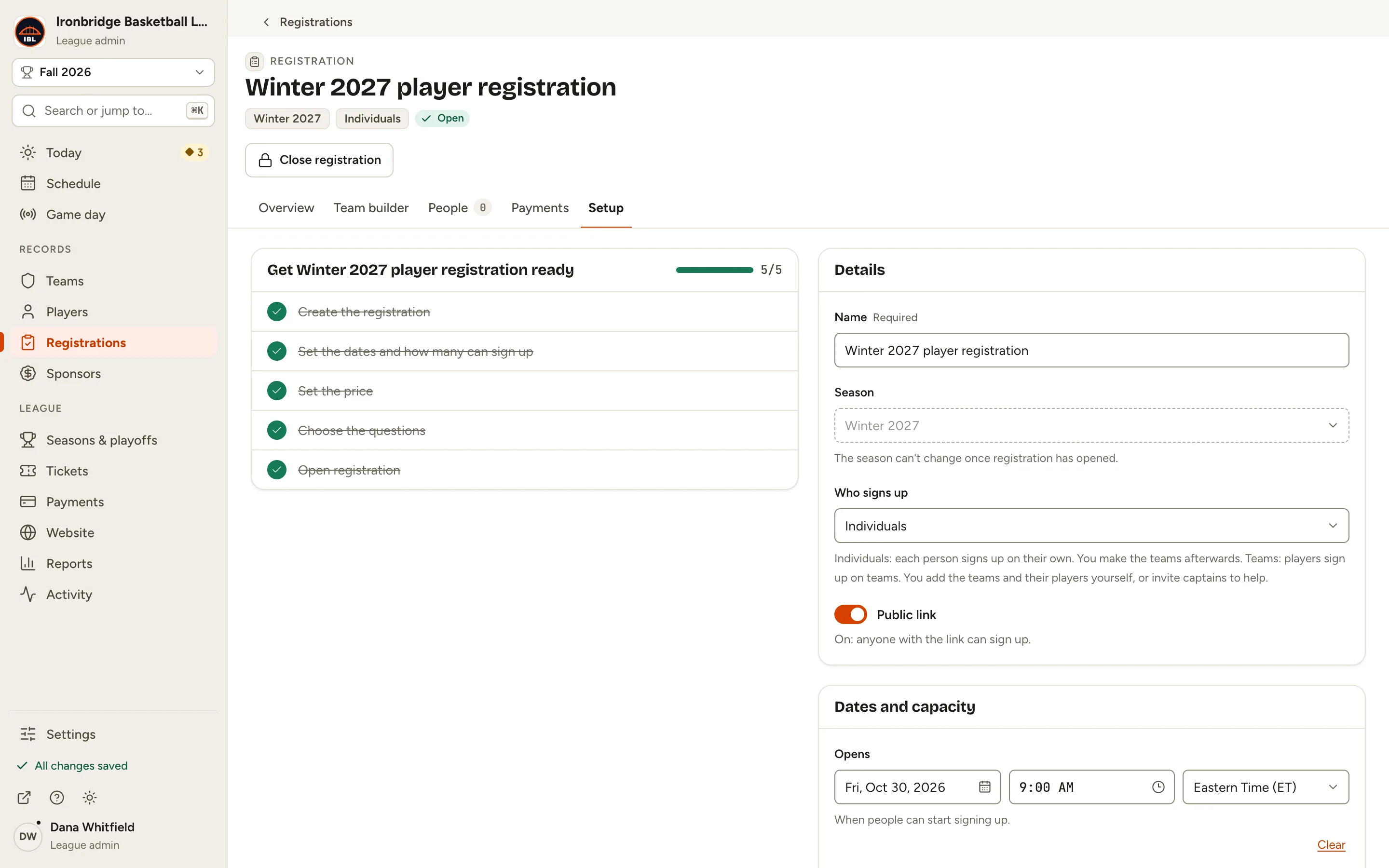
    Fig. 5

    Scroll sideways to see the whole screen.

    The Open status under the title and the Close registration button.
    Fig. 5The registration is Open.
  6. Step 6: Open your website and click Register, then the registration.

    From the admin, click ↗ (View public site) at the bottom of the sidebar; your website opens in a new tab. The page shows the price and a payment summary: people pay $86.82 on a secure checkout page, and the money goes to your Stripe account.
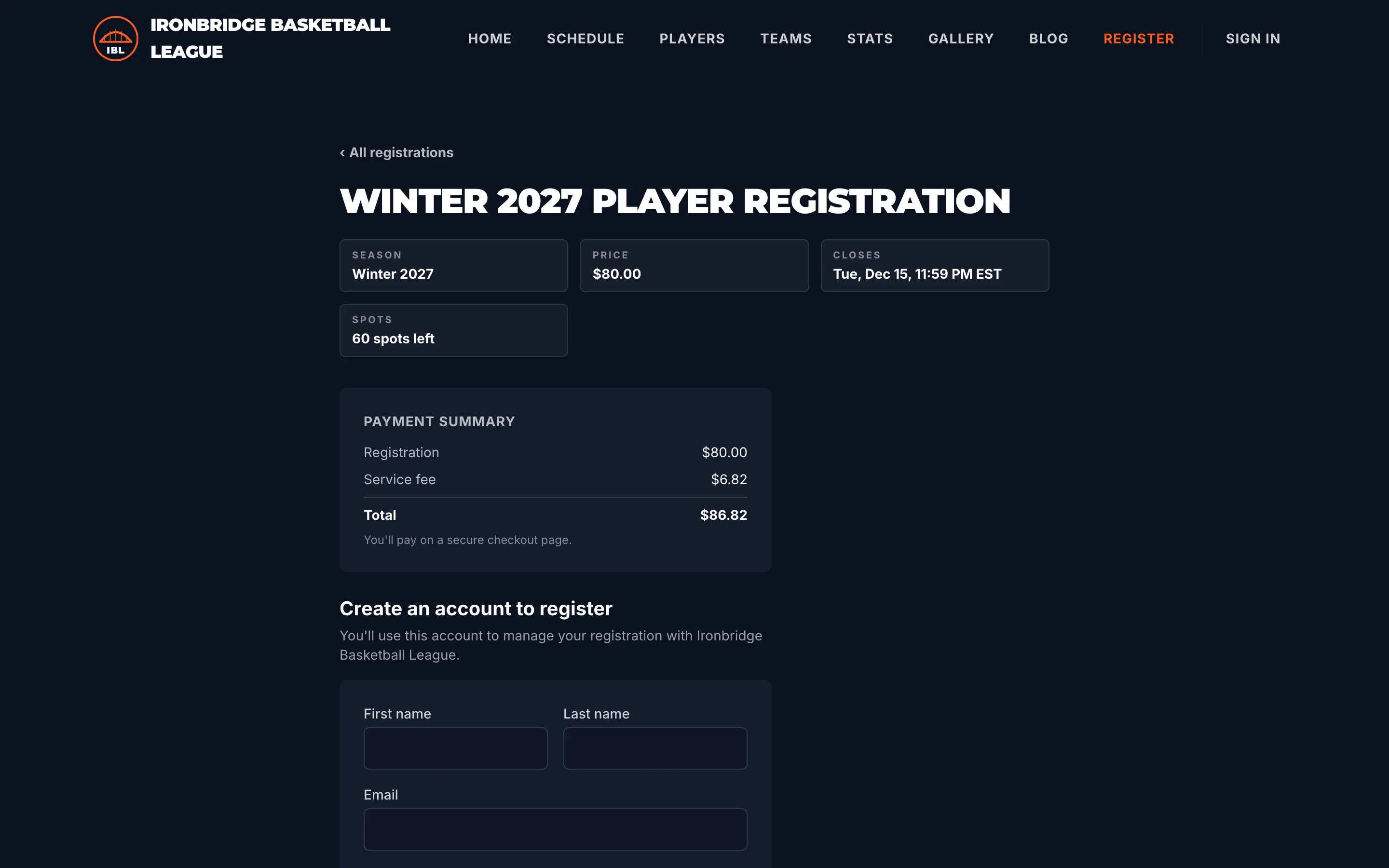
    Fig. 6

    Scroll sideways to see the whole screen.

    The public Winter 2027 player registration page with Price $80.00 and the payment summary: Registration $80.00, Service fee $6.82, Total $86.82.
    Fig. 6Ready to take payment online.

What you’ll see

Stripe is connected for your whole league: one account covers every sport, ticket sale and registration. Payments shows what you’ve collected, and Open Stripe dashboard takes you to your payouts.

Fig. 7

Scroll sideways to see the whole screen.

The Payments page with the Stripe account card saying Connected.
Fig. 7Payments, with Stripe connected.

Common questions

What if Payments says online payments aren’t switched on yet?
ScoreLM hasn’t turned on Stripe payments for your site. Email [email protected] to have them switched on. Cash and comp sales at the door work without it.
What does it cost?
Each online payment carries Stripe’s processing fee and ScoreLM’s fee. For a registration, the preview under Price on its Setup tab shows the breakdown and who pays it.
Where does the money go?
Into your Stripe account, and from there to your bank on Stripe’s payout schedule. Open Stripe dashboard on Payments takes you there. Refund a registration from its Payments or People tab. See Track payments, refunds and the waitlist.
What do Pending, Restricted and Rejected mean?
Pending: Stripe is still checking your details, and it updates on its own. Restricted: Stripe has paused payments; your Stripe dashboard says what it needs. Rejected: Stripe turned the account down; contact Stripe support, or connect a different account. Until Stripe can take payments, a paid registration can’t open.
Can I disconnect Stripe?
Yes, with Disconnect on Payments. Tickets already sold stay valid, but fans can’t buy tickets or pay registration fees online until you connect again, and card sales at the door stop too.