
ScoreLM Guides
scorelm.com

Enter a box score after the game

By the end you’ll have every player’s stats for a game, adding up to its final score, on your website.

  • Who: League admin or Editor
  • Time: 5 min
  • Steps: 7
Video · 1:04 · Voiceover · every step is also written on screen Prefer to read? Steps below

Before you start

  • The game should have its final score. See Enter a final score.
  • The players must be on each team’s roster for the season.

Steps

  1. Step 1: On Today, find the game under Needs you and click Enter box score.

    The box score editor opens: one grid per team, with a row for each player on the roster and a column for each stat the season tracks.
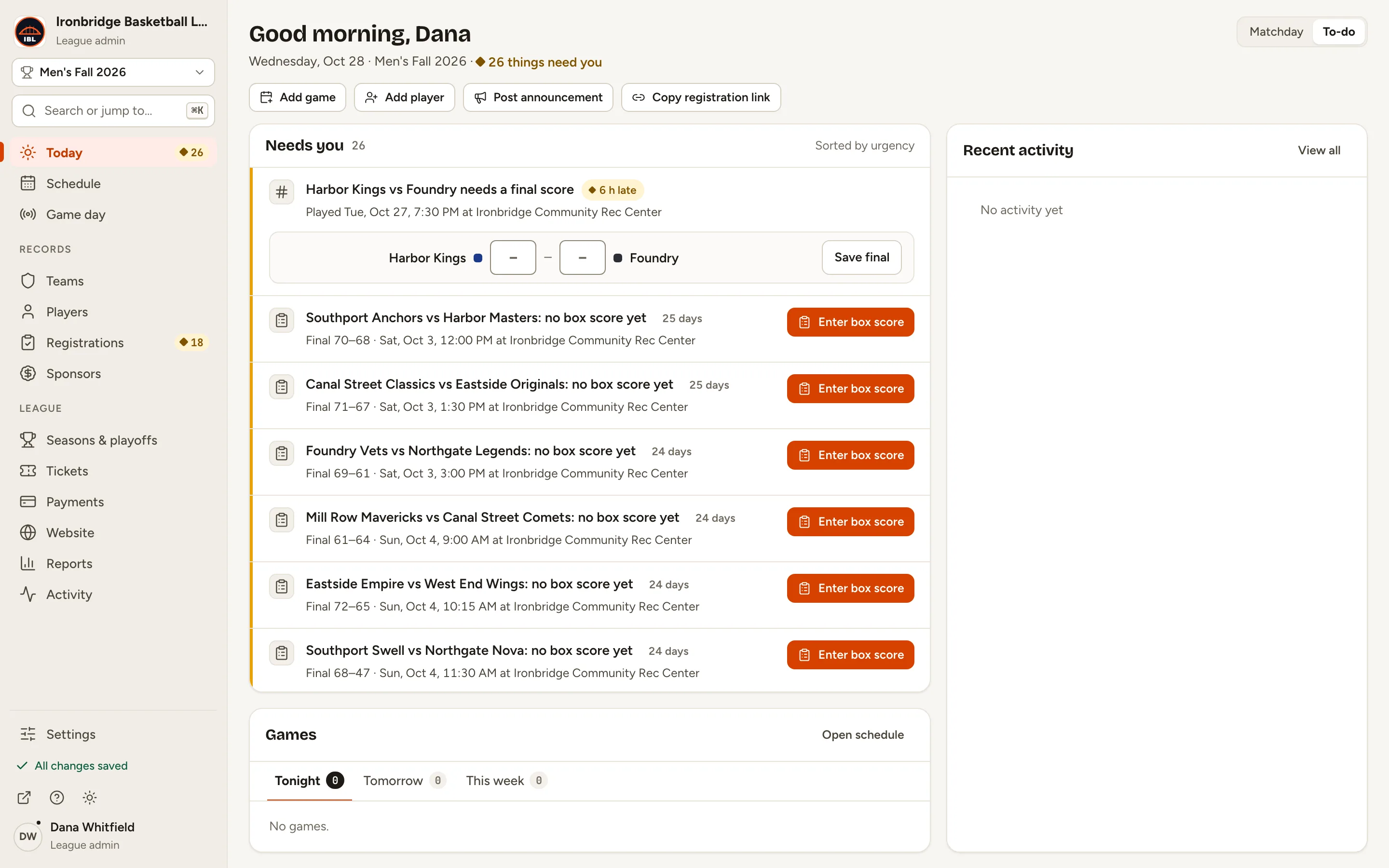
    Fig. 1

    Scroll sideways to see the whole screen.

    Today’s Needs you list with Southport Anchors vs Harbor Masters: no box score yet, and its Enter box score button.
    Fig. 1Needs you lists games without a box score.
  2. Step 2: In the first player’s row, click the PTS box and type their points.

    Entering a stat ticks Played for that player.
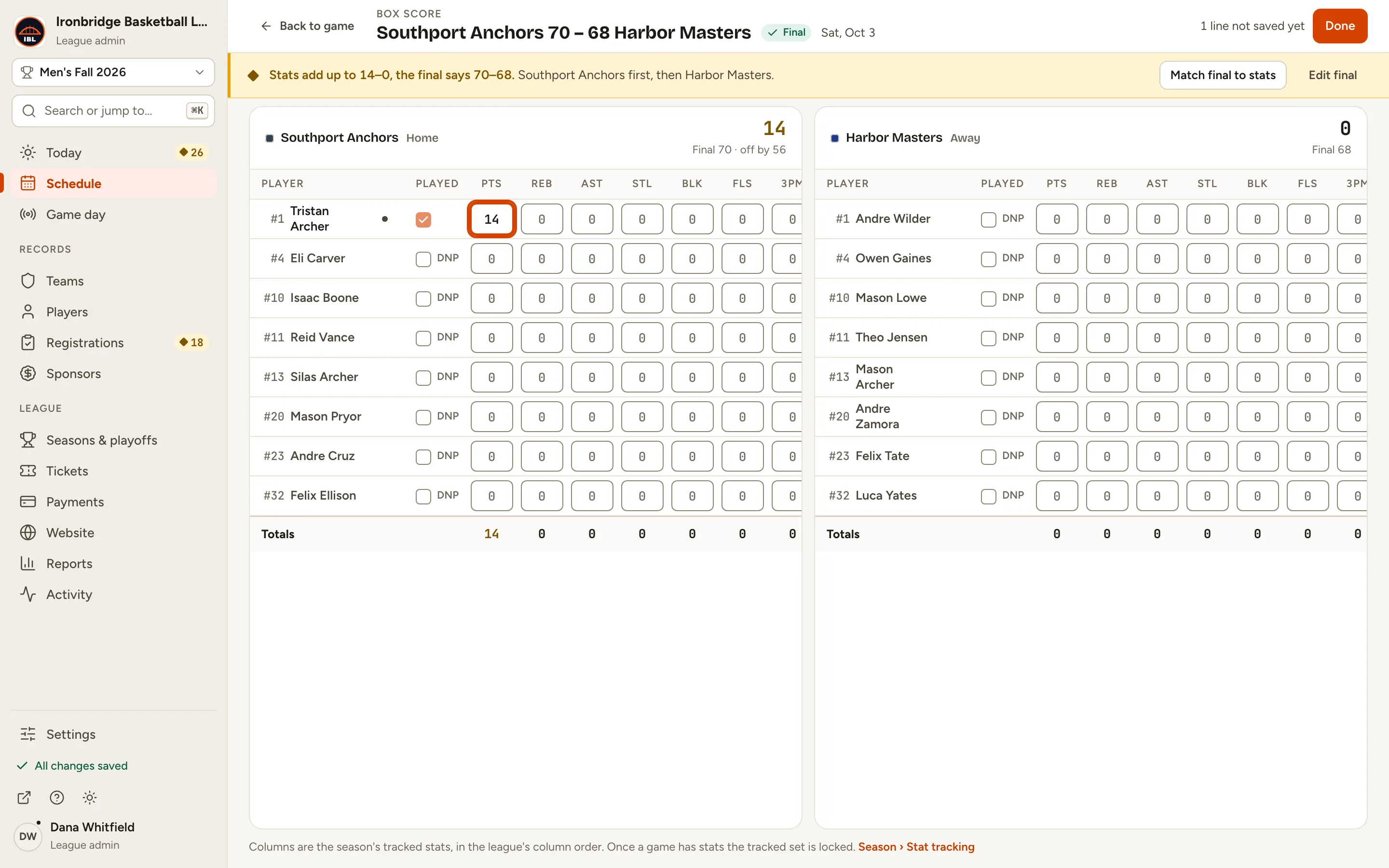
    Fig. 2

    Scroll sideways to see the whole screen.

    The box score editor with 14 points typed for the first Southport Anchors player and Played ticked.
    Fig. 2Type a stat; the player is marked as played.
  3. Step 3: Press → to move to the next stat and type it. Fill in the rest of the row the same way.

    Arrow keys move between boxes, Enter moves down a row, and + and − change a number by one. The row saves when you leave it.
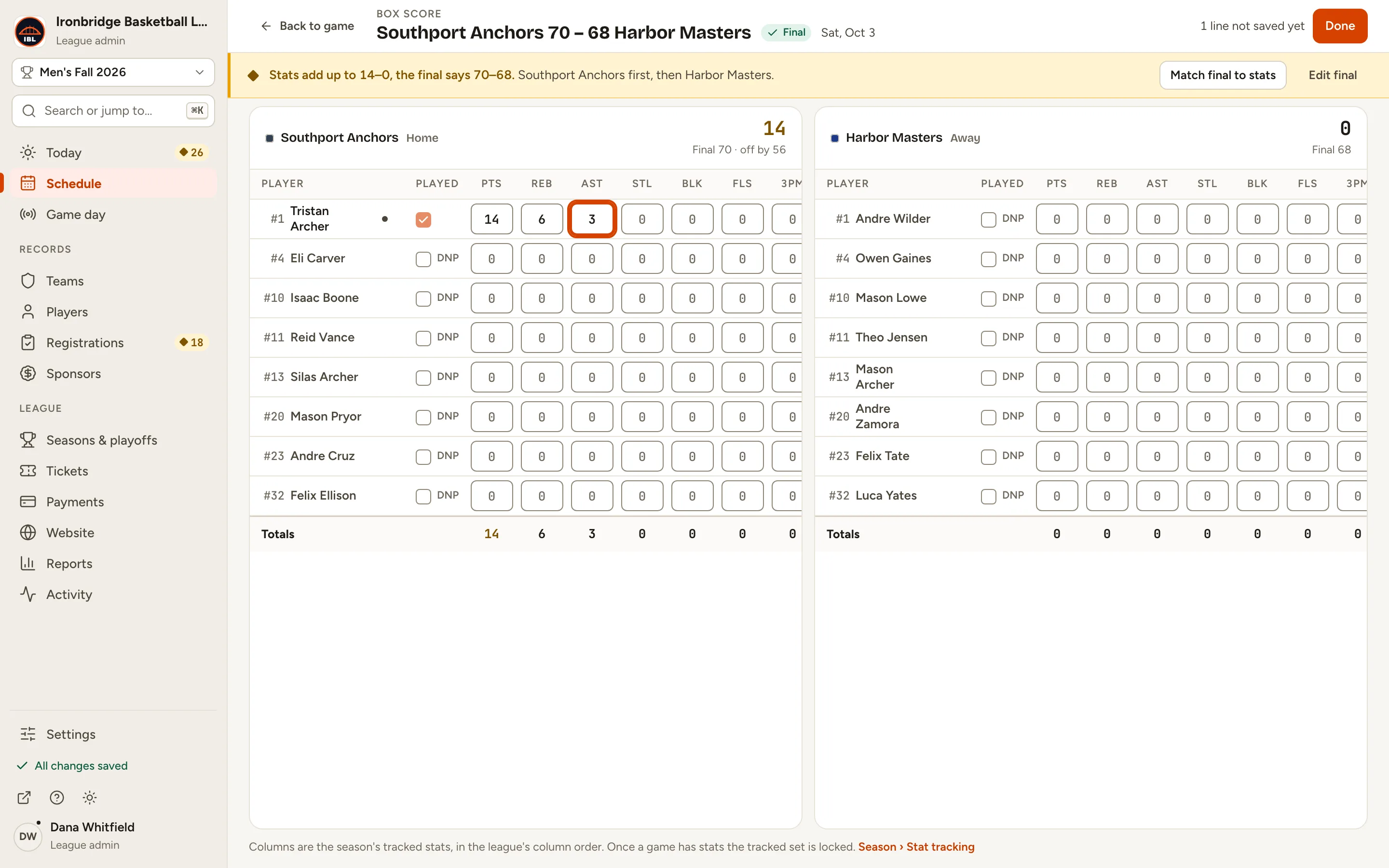
    Fig. 3

    Scroll sideways to see the whole screen.

    The first player’s row with points, rebounds and assists filled in.
    Fig. 3One player’s line, filled in.
  4. Step 4: Fill in every player the same way, for both teams.

    Leave a player who didn’t play with every stat at 0: they stay DNP. The top right says All lines saved once everything is in.
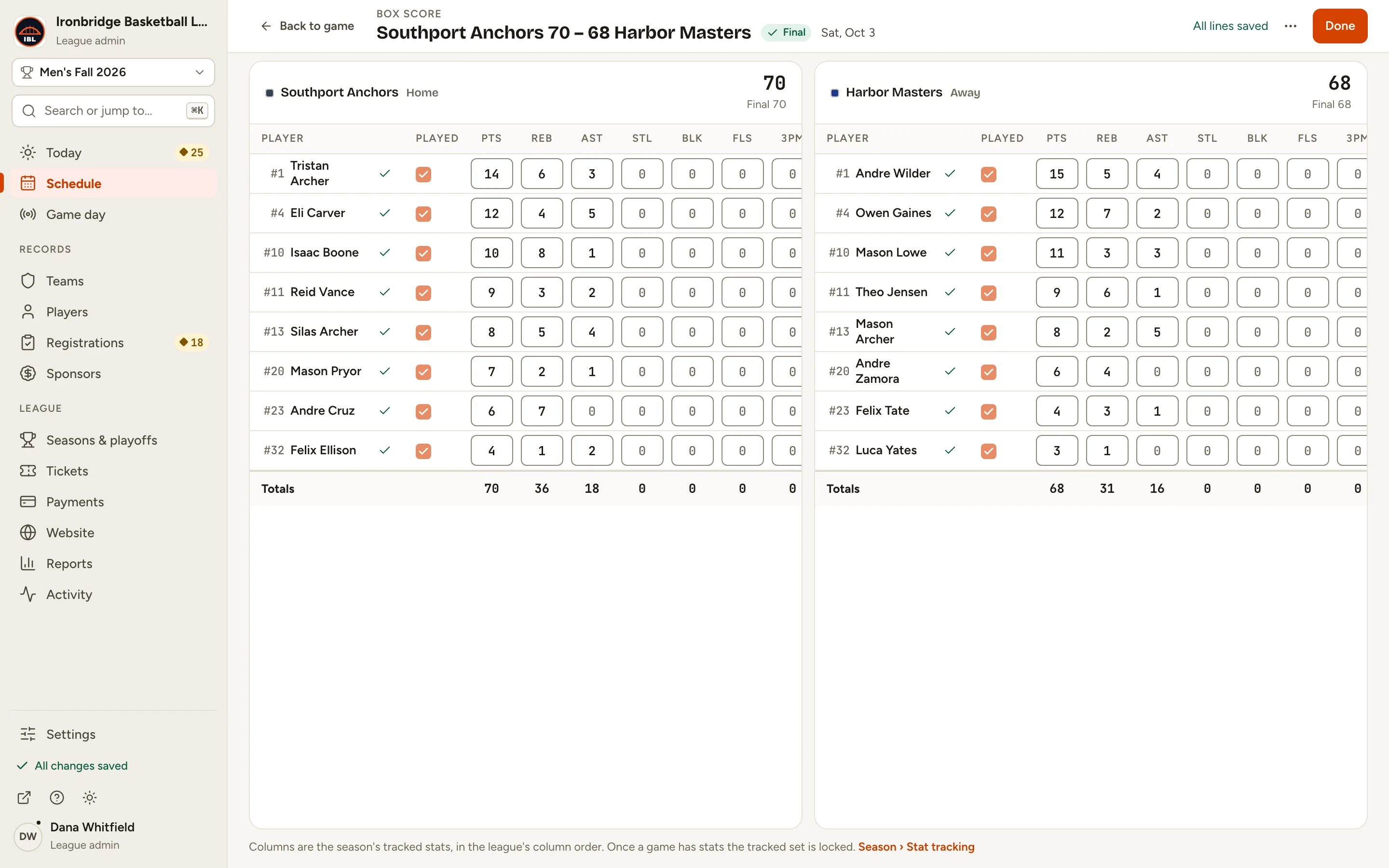
    Fig. 4

    Scroll sideways to see the whole screen.

    The box score editor with both teams’ grids filled in and All lines saved at the top right.
    Fig. 4Both teams filled in, all lines saved.
  5. Step 5: Check each team’s points at the top of its grid against its Final.

    The big number is the points your stats add up to; under it is the final score. If they differ, it says how far off you are, so you can find the missing points.
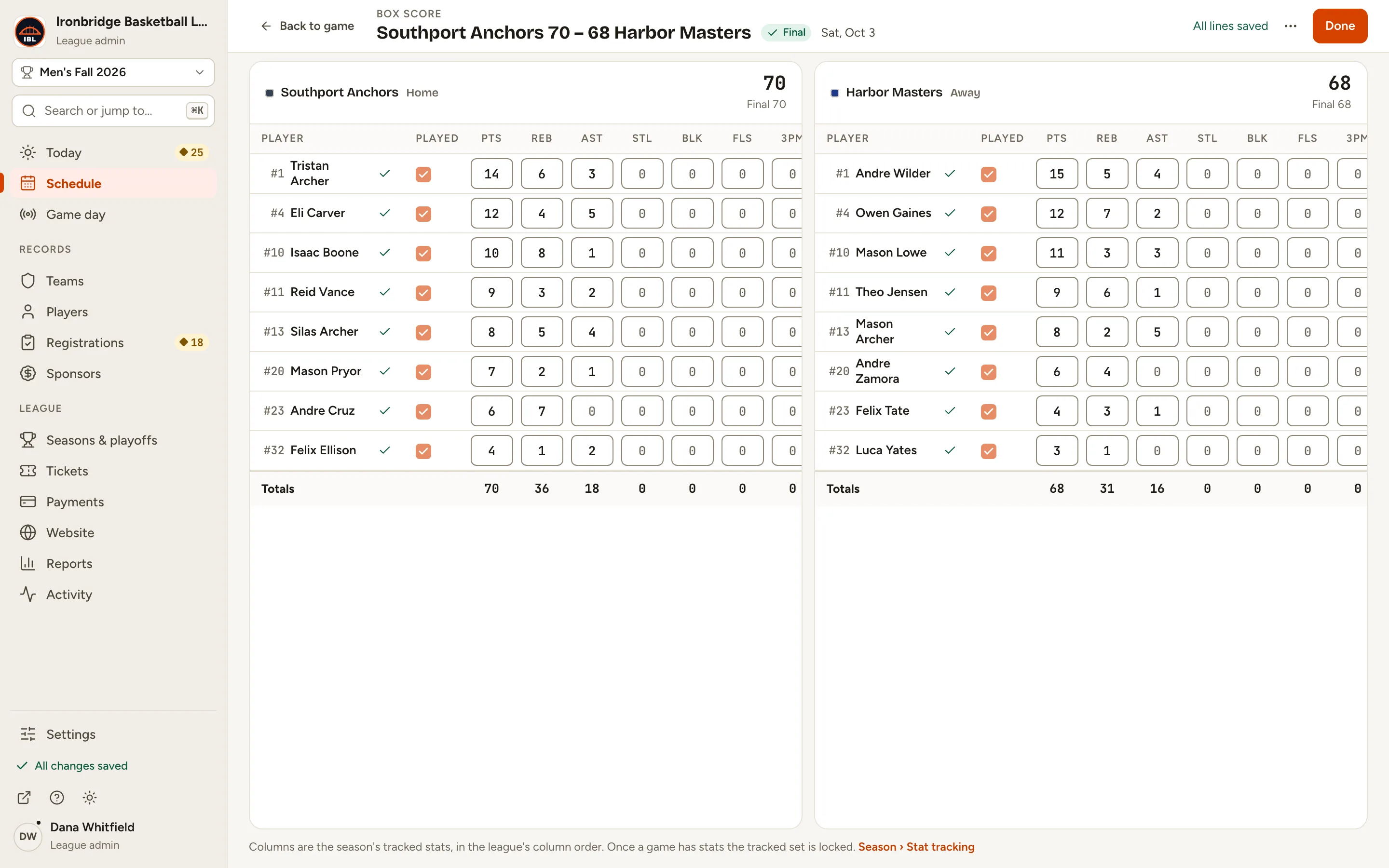
    Fig. 5

    Scroll sideways to see the whole screen.

    The two grid headers: Southport Anchors 70 with Final 70, and Harbor Masters 68 with Final 68.
    Fig. 5The points add up to the final.
  6. Step 6: Click Done.

    You’re back on the game. Player stats, season leaders and the stats pages on your website now include this game.
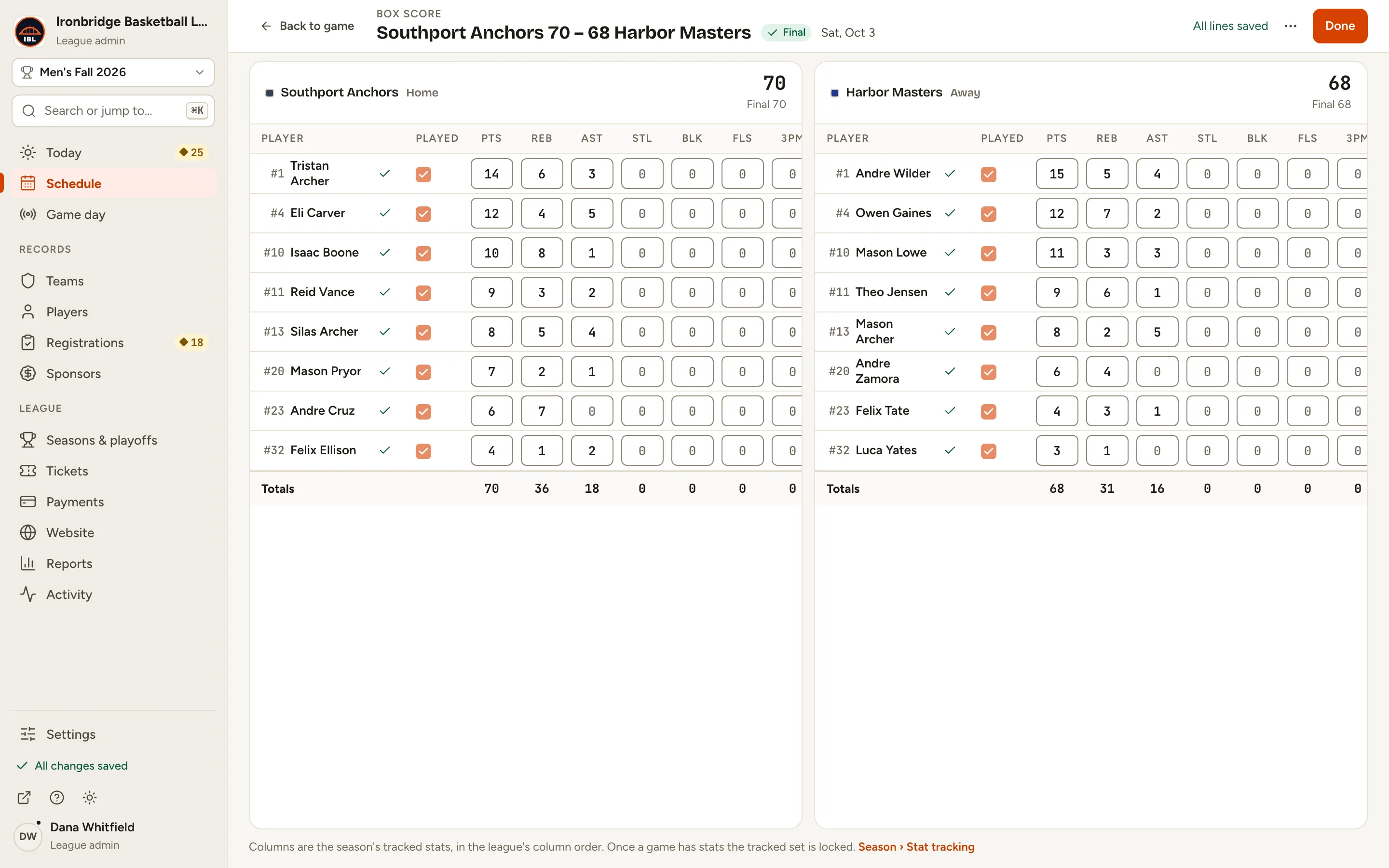
    Fig. 6

    Scroll sideways to see the whole screen.

    The box score editor’s Done button, top right.
    Fig. 6Done takes you back to the game.
  7. Step 7: Open your website, click Schedule, and click the game.

    From the admin, click ↗ (View public site) at the bottom of the menu; your website opens in a new tab. The game’s page shows the box score for both teams.

    Fig. 7

    Scroll sideways to see the whole screen.

    The public game page for Southport Anchors vs Harbor Masters with both teams’ box scores.
    Fig. 7The box score on your website.

What you’ll see

The game has a full box score that adds up to its final score. It’s on the game’s page on your website, and in players’ stats and the season leaders.
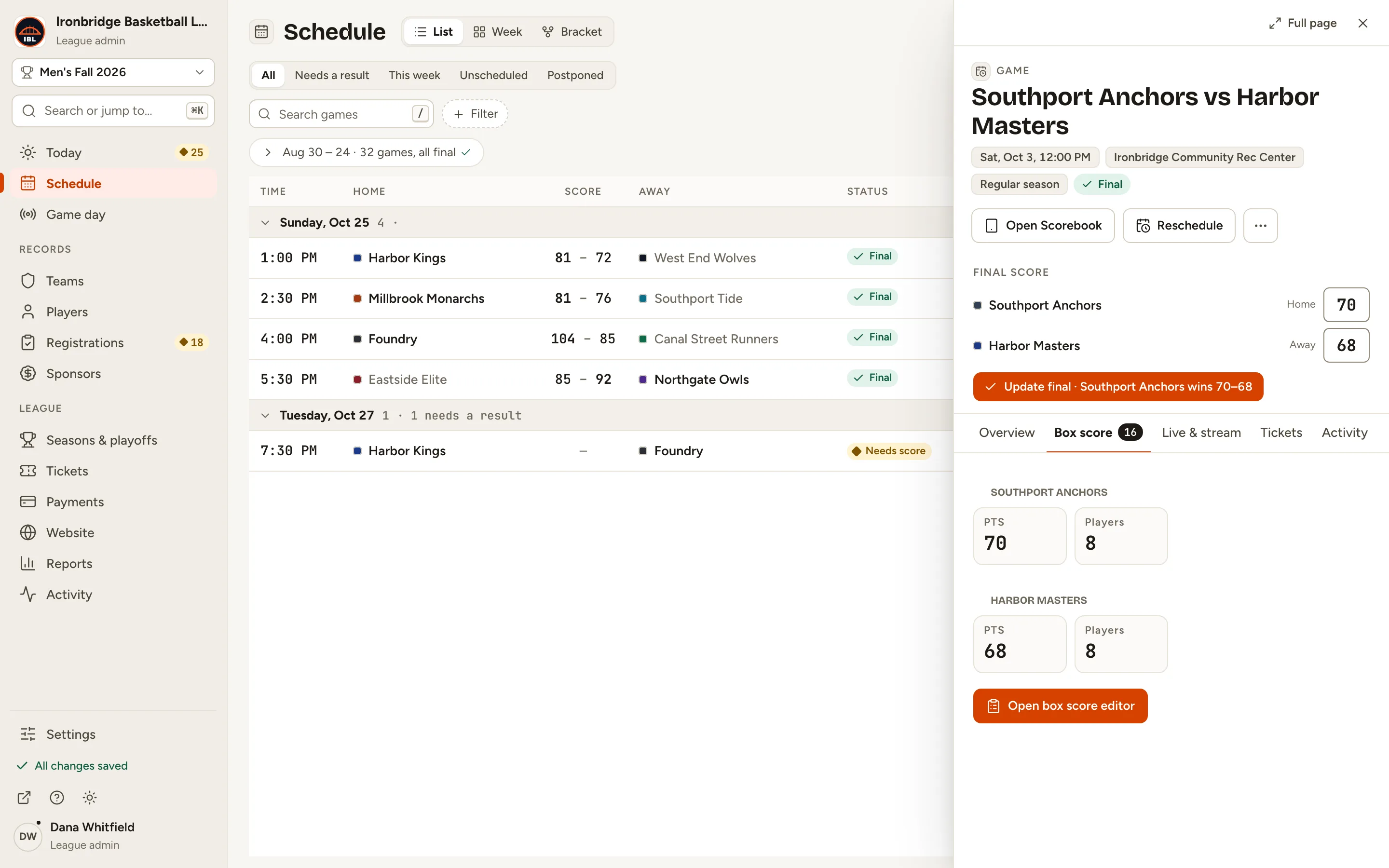
Fig. 8

Scroll sideways to see the whole screen.

The game record’s Box score tab with points and players for each team.
Fig. 8The game’s Box score tab shows the totals.

Common questions

Can I open the box score from the Schedule?
Yes. Click the game, open its Box score tab and click Open box score editor (or Enter box score when there’s none yet).
The points don’t add up to the final. What now?
Check the players with points first. If the box score is right and the final was wrong, the editor offers Match final to stats.
A player is missing from the grid.
Only players on the team’s roster for this season appear. Add them on the team’s Roster tab, then come back.
Can I start over?
Click ··· at the top right, then Clear all stats…. It deletes every stat line for the game, and can’t be undone.
The game was scored live in the Scorebook.
Then its box score fills in from the plays. You can still correct numbers here after the game; that changes the totals, not the play-by-play.