Scan tickets at the door
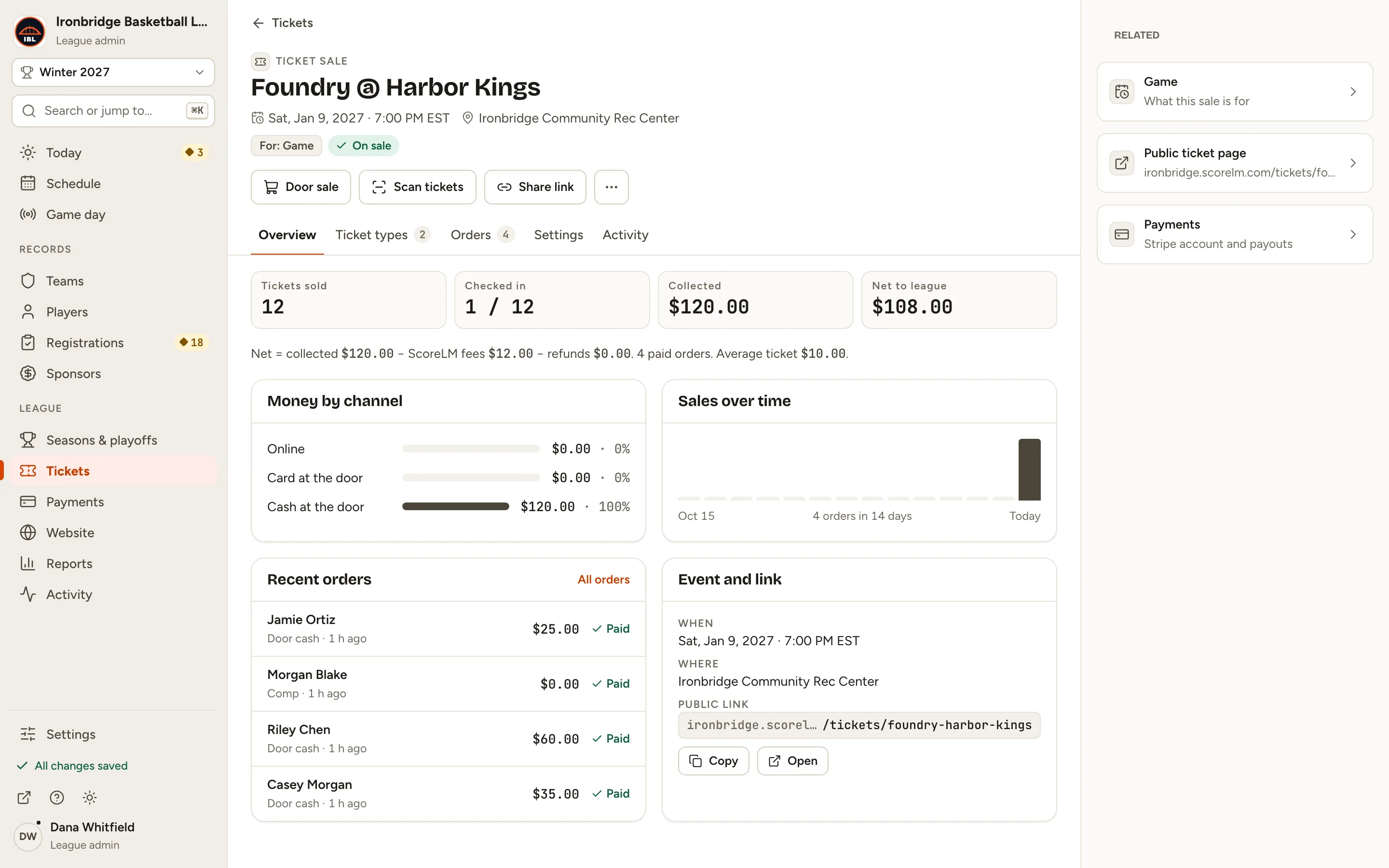
By the end you’ll have fans checked in at the gate, each ticket good for one entry.
Before you start
- You need a sale that’s on sale, with tickets sold: here Foundry @ Harbor Kings. See Sell tickets for a game.
- At the gate, use a phone or tablet signed in to your admin. Stat keepers can scan too; it’s the only part of Tickets they can use.
Steps
-
Step 1: In the left menu, click Tickets.
League admins and editors see the list of sales. Stat keepers go straight to the list of sales to scan (step 3).
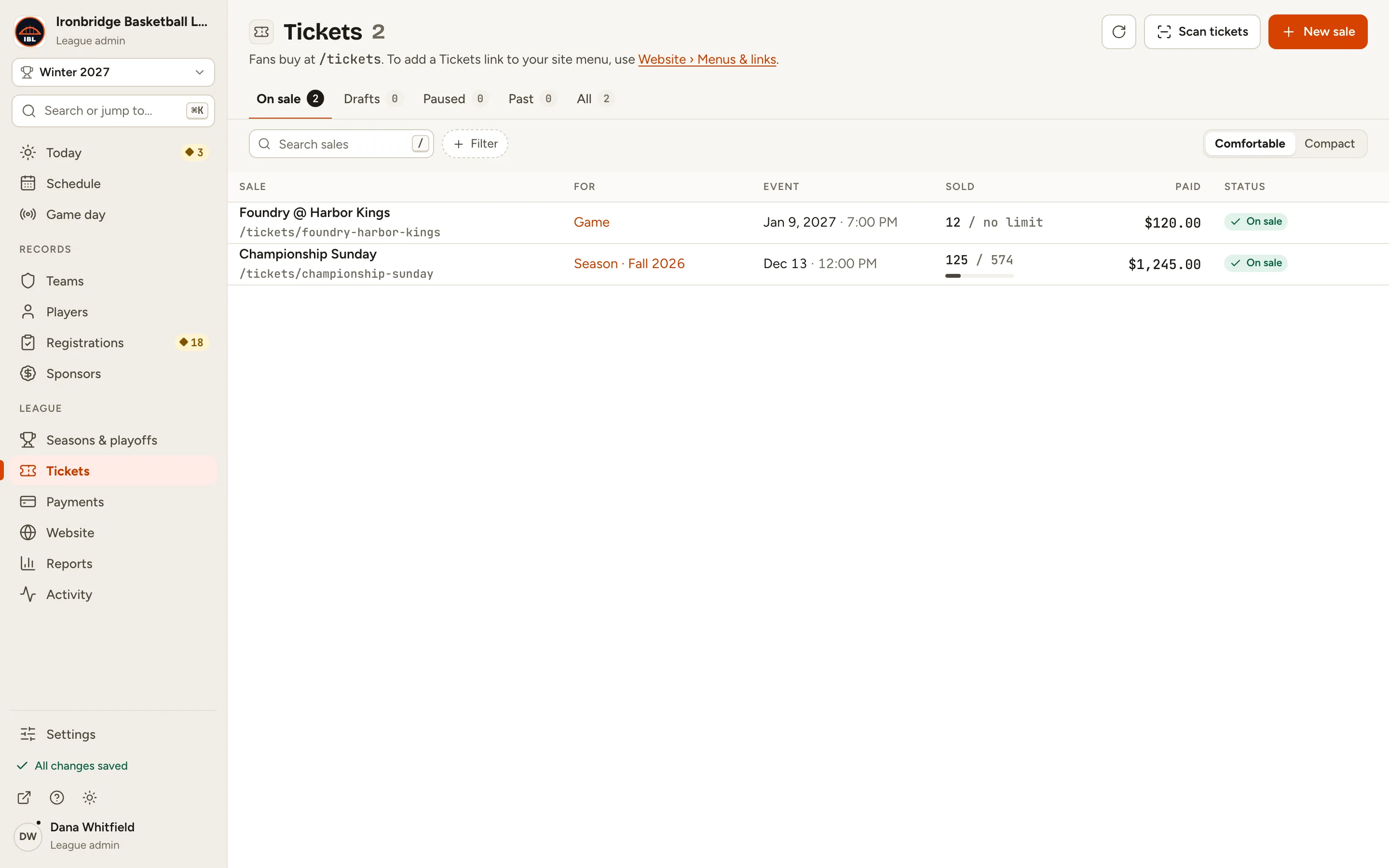
Fig. 1Tickets. -
Step 2: Click Scan tickets at the top right.
Every sale that’s on sale is listed, with how many of its tickets are checked in.
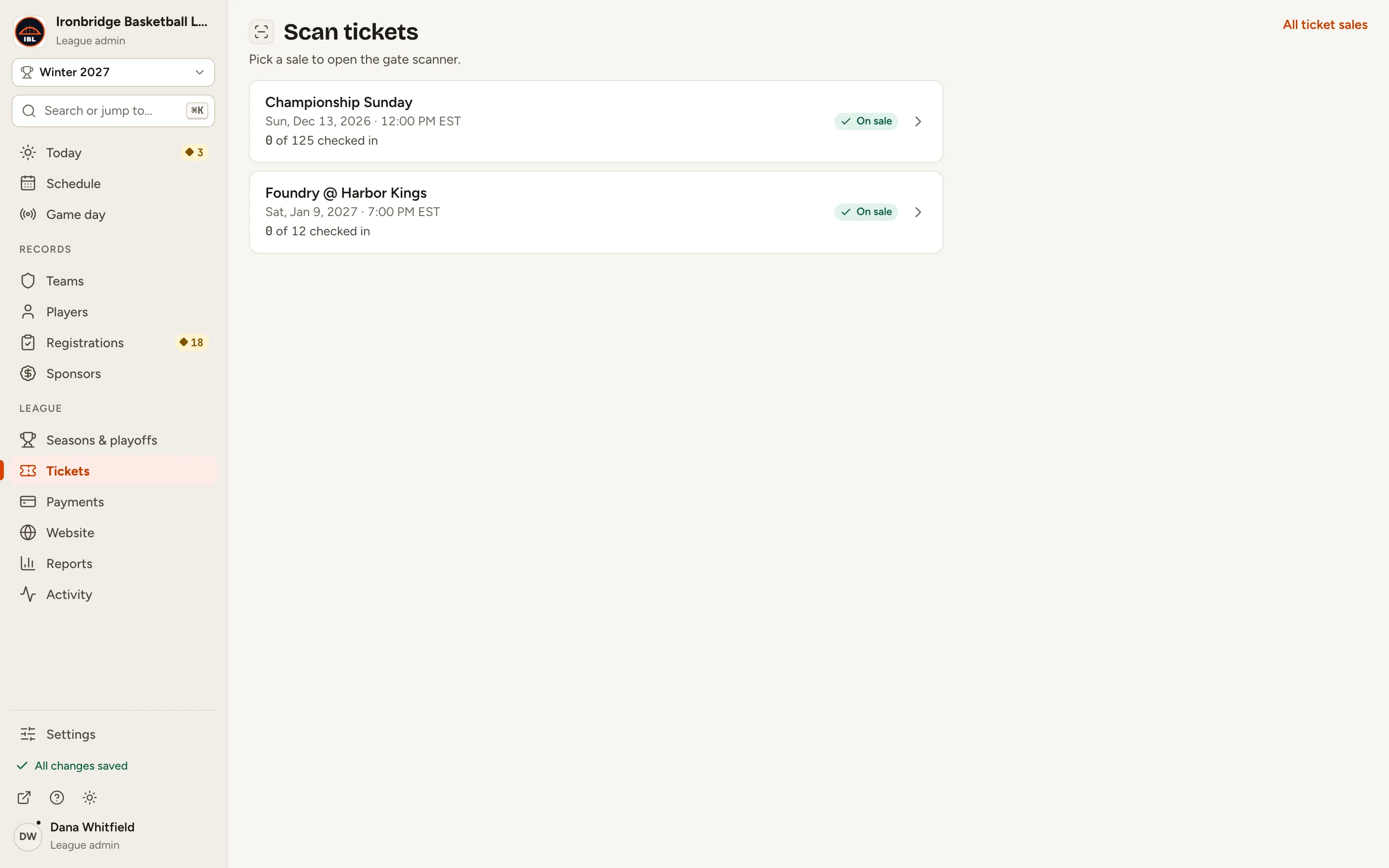
Fig. 2Pick the sale you’re scanning for. -
Step 3: Click the sale, like Foundry @ Harbor Kings.
The gate scanner opens, full screen. The top right shows how many have checked in so far.
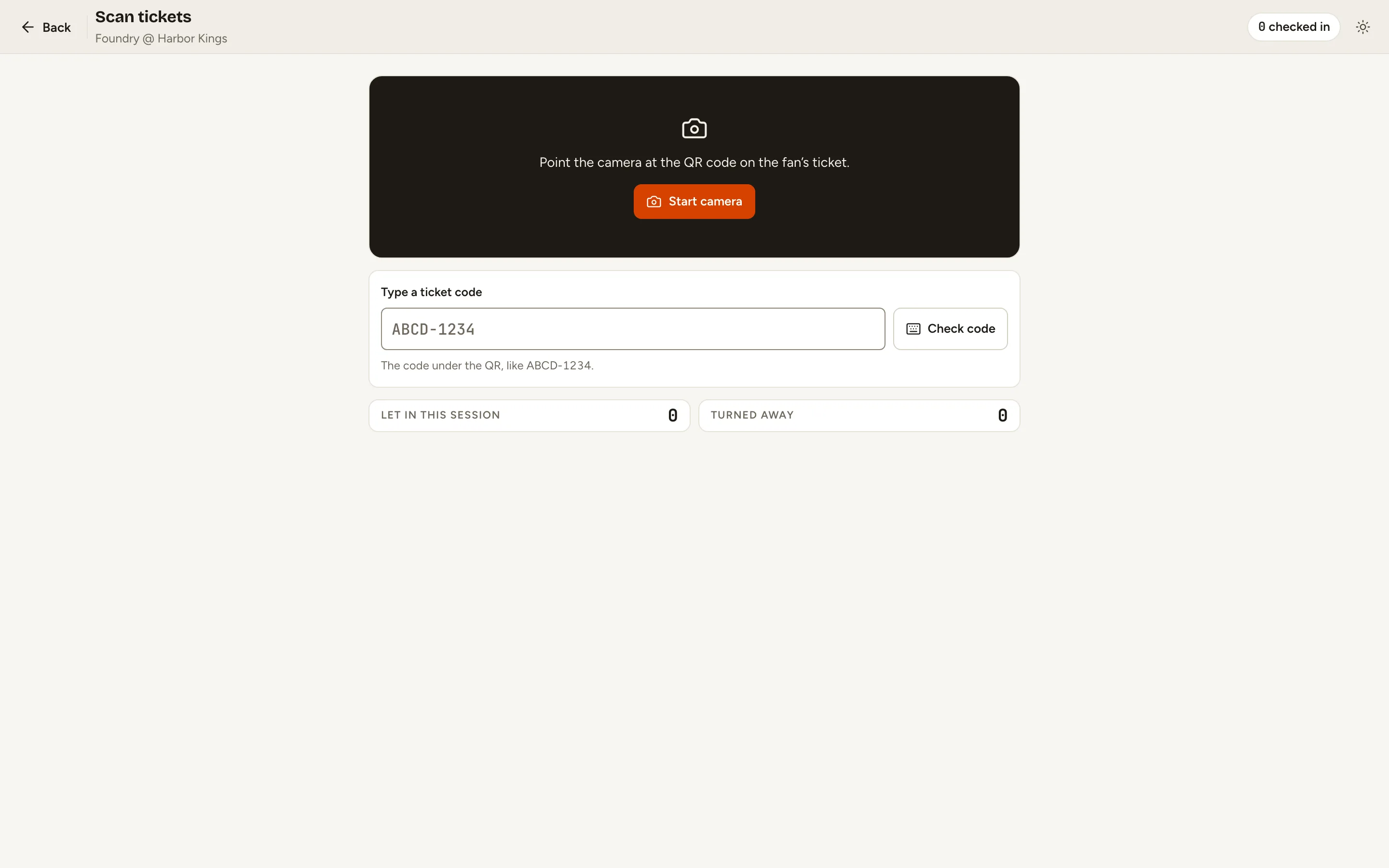
Fig. 3The gate scanner. -
Step 4: Click Start camera and point it at the QR code on the fan’s ticket, or type the code under the QR, like KVMU-9942, and click Check code.
A green Valid card means let them in. The ticket is now checked in, and the counts go up.
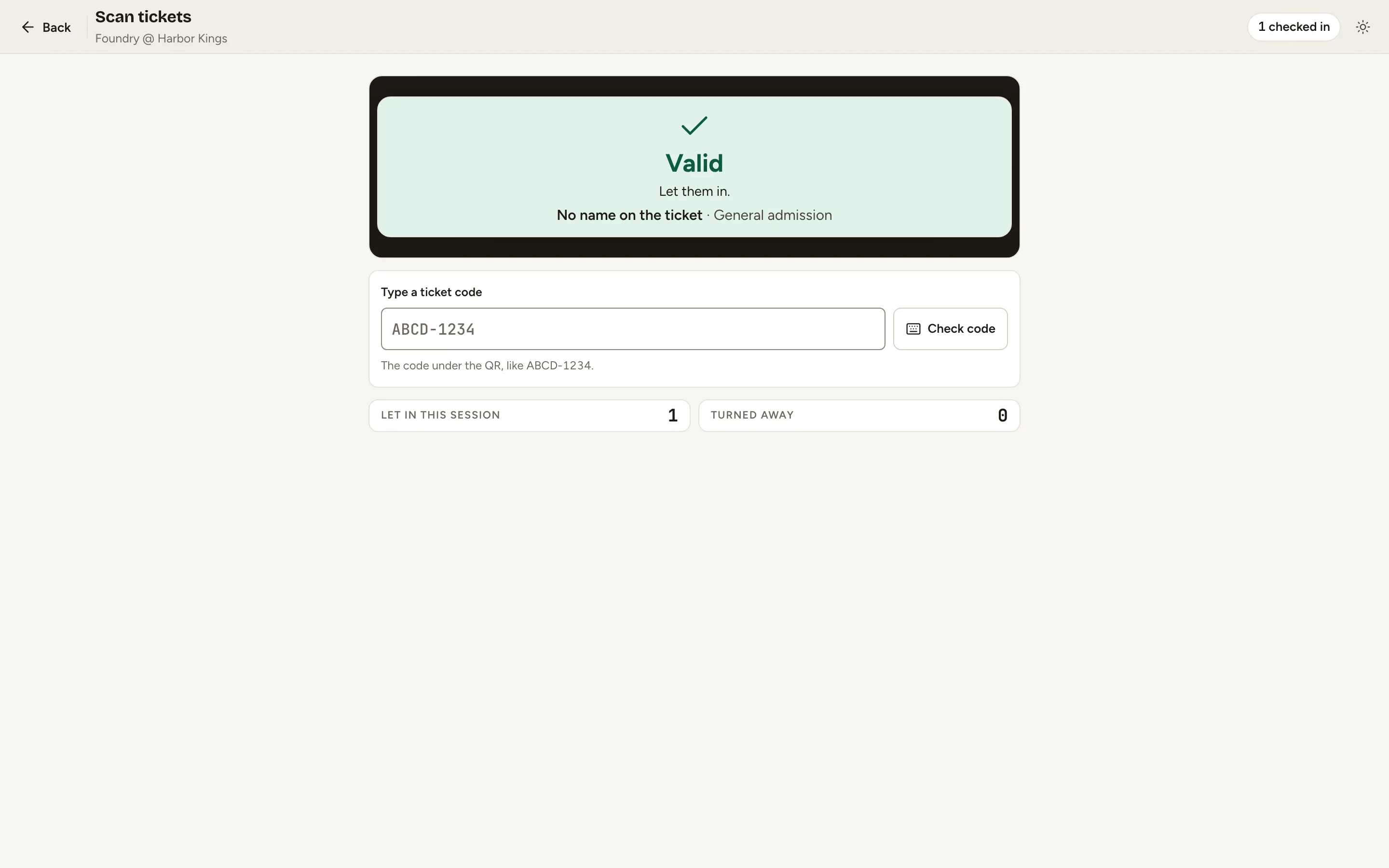
Fig. 4Valid: let them in. -
Step 5: Check the same ticket again.
This time it’s Already scanned, with the time it was first used. Each ticket gets one entry, and Turned away counts the refusals.
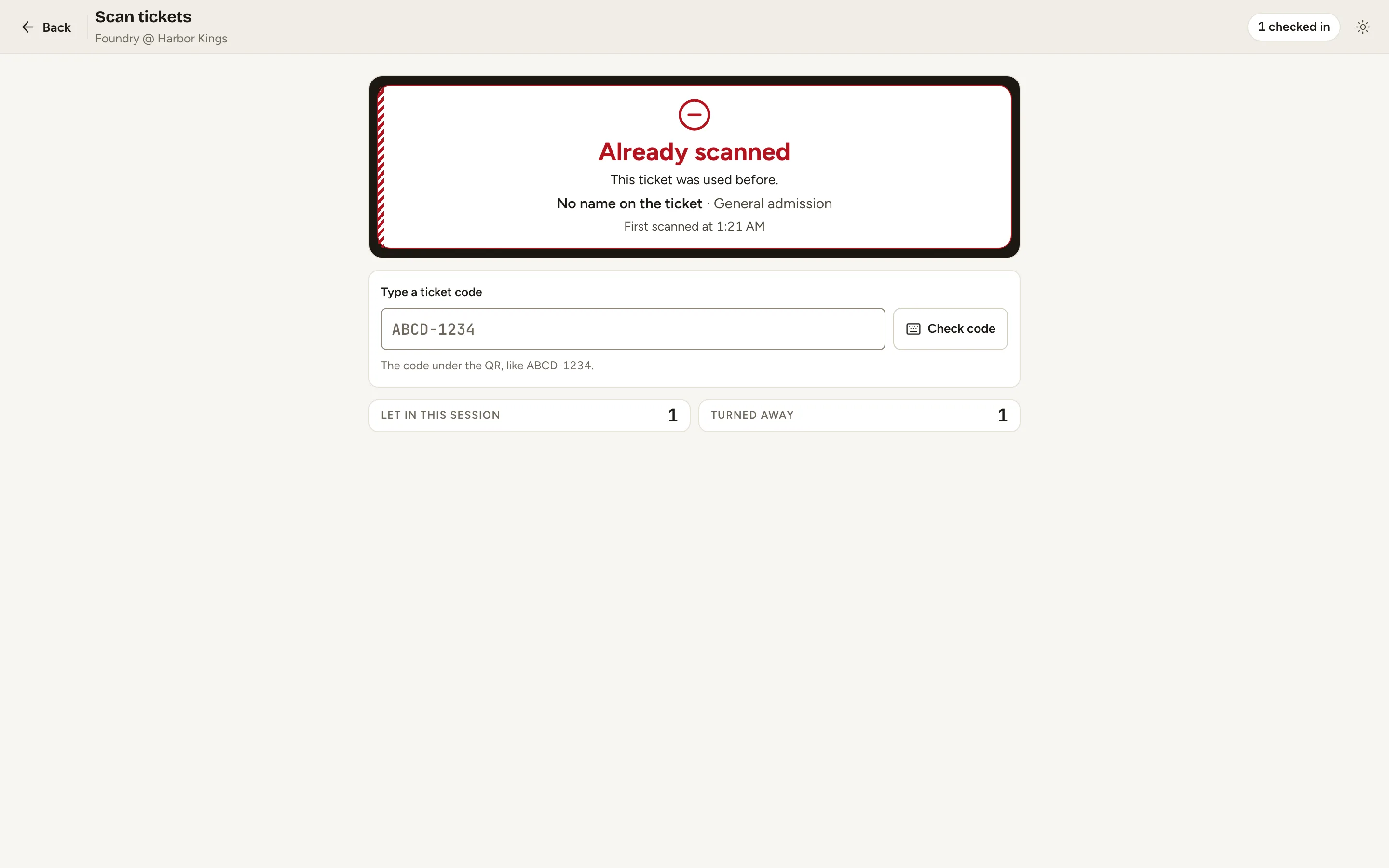
Fig. 5A ticket works once.
What you’ll see
Fans are checked in as they arrive. The sale’s Overview shows Checked in against tickets sold, and each order’s Scans tab shows when its tickets were used.