
Manage your team as a captain
By the end you’ll have your team set up in your league’s ScoreLM: your players added, your team code shared and the team fee paid.
Before you start
- You need the captain invitation your league emailed you. Leagues invite captains in one of two ways: for a team registration, when teams sign up for a season, or straight from your team’s page, for a season without a registration. Either way the email and the steps to accept it are the same. Can’t find it? Check your spam folder, or ask the league to send it again.
- Without a registration, Your team shows your roster and its changes only, with no team code, invitations or team fee, so skip steps 4 and 10.
- Your league approves the players you add or remove, every player who joins with your invitation or your team code, and a new team name. Until it does, they show as Waiting for approval.
Steps
-
Step 1: Open the email from your league and click Accept invitation.
A page opens saying which team you’ll captain, like Harbor Kings, with your email under it.
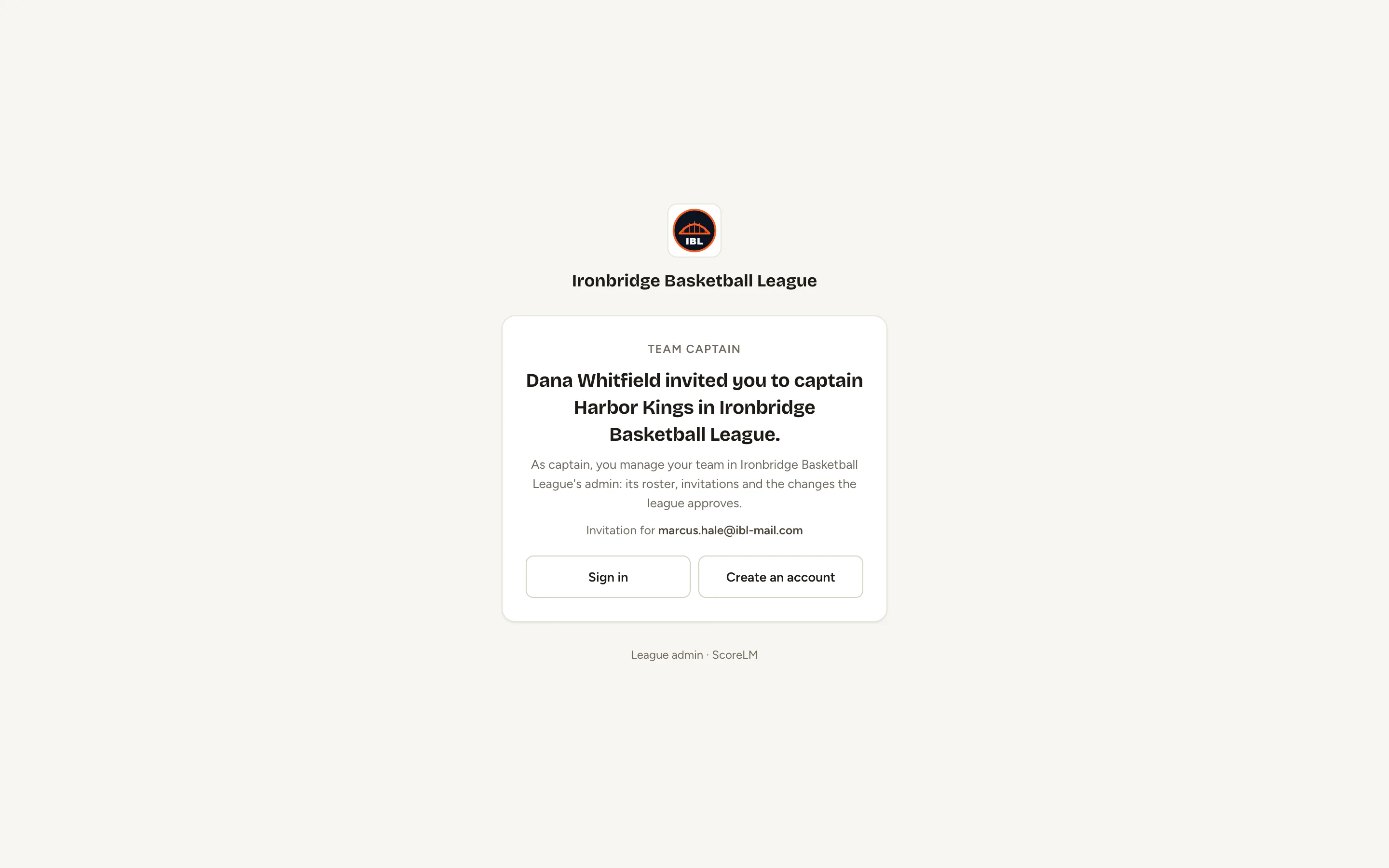
Fig. 1The captain invitation. -
Step 2: Click Create an account.
Your email is already filled in. Already have a sign-in for this league? Click Sign in instead.
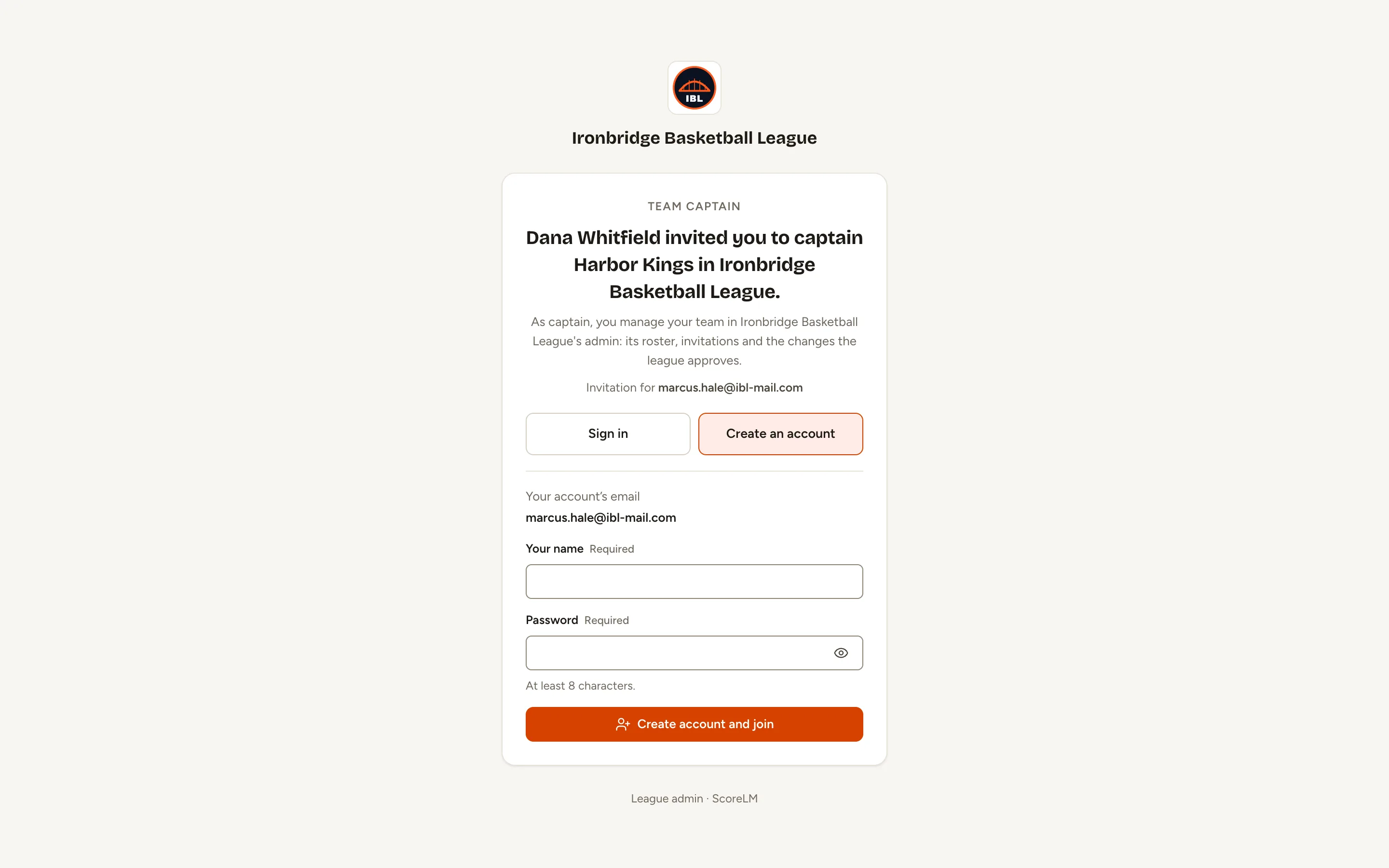
Fig. 2Create an account. -
Step 3: Type Your name and a Password, then click Create account and join.
You’re signed in, and Your team opens: your team, your roster, and on the right your Team code.
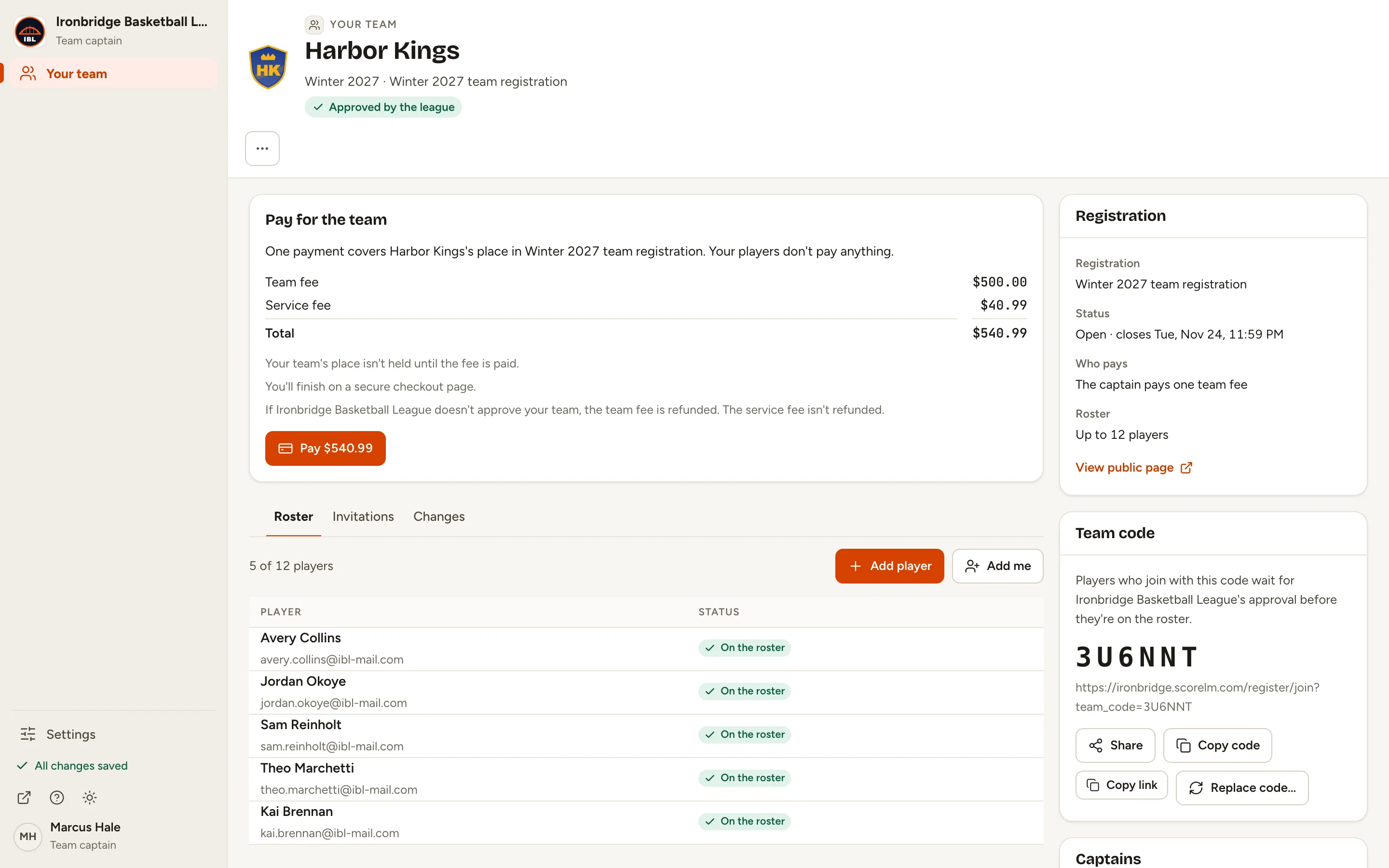
Fig. 3Your team. -
Step 4: Under Team code, click Copy code, then send the code to your players.
Players type the code on the league’s website to join your team. Copy link copies a link that fills it in for them. Each player who joins waits for the league to approve them.
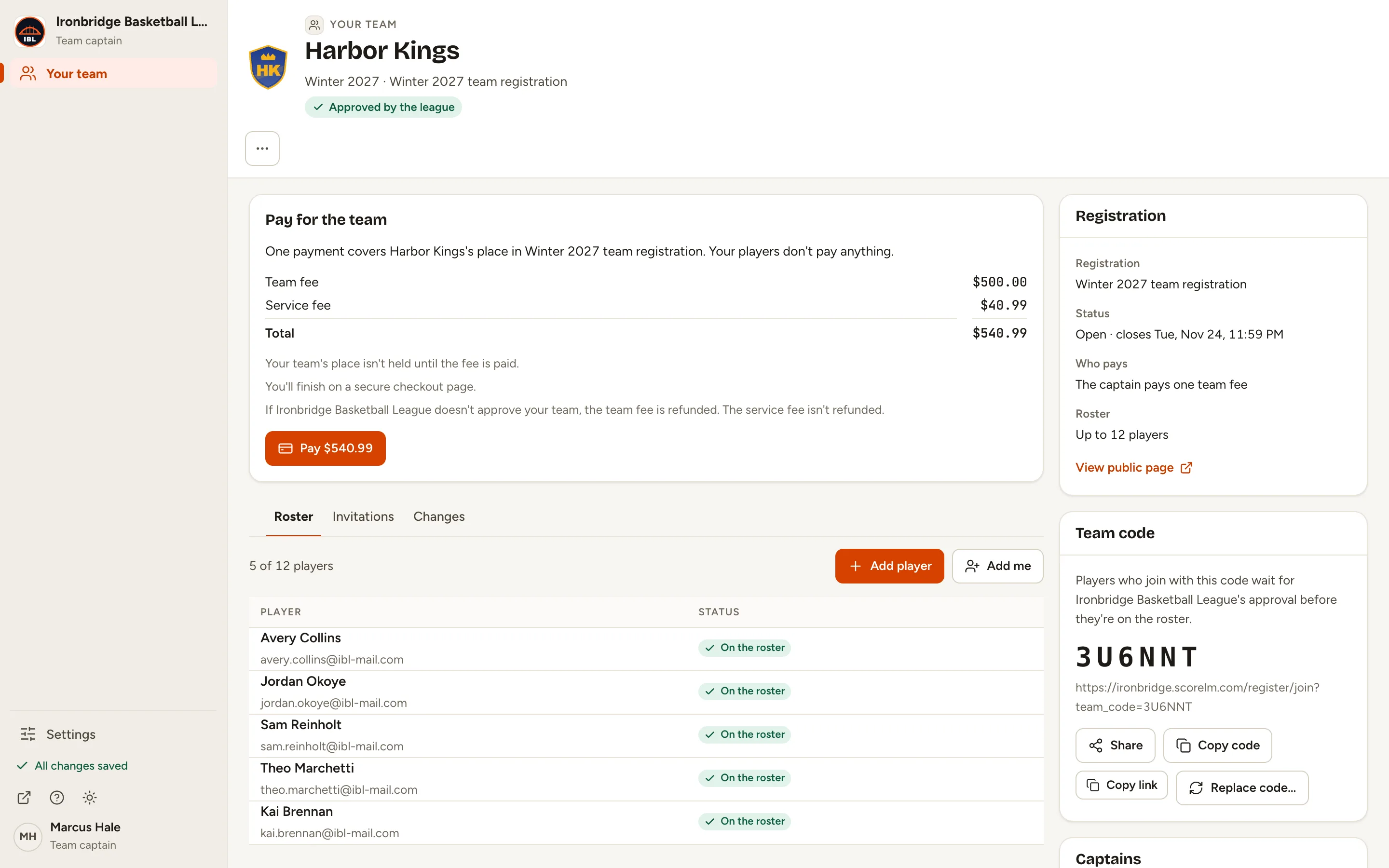
Fig. 4Copy code. -
Step 5: On the Roster tab, click Add player.
The Add a player panel opens on the right.
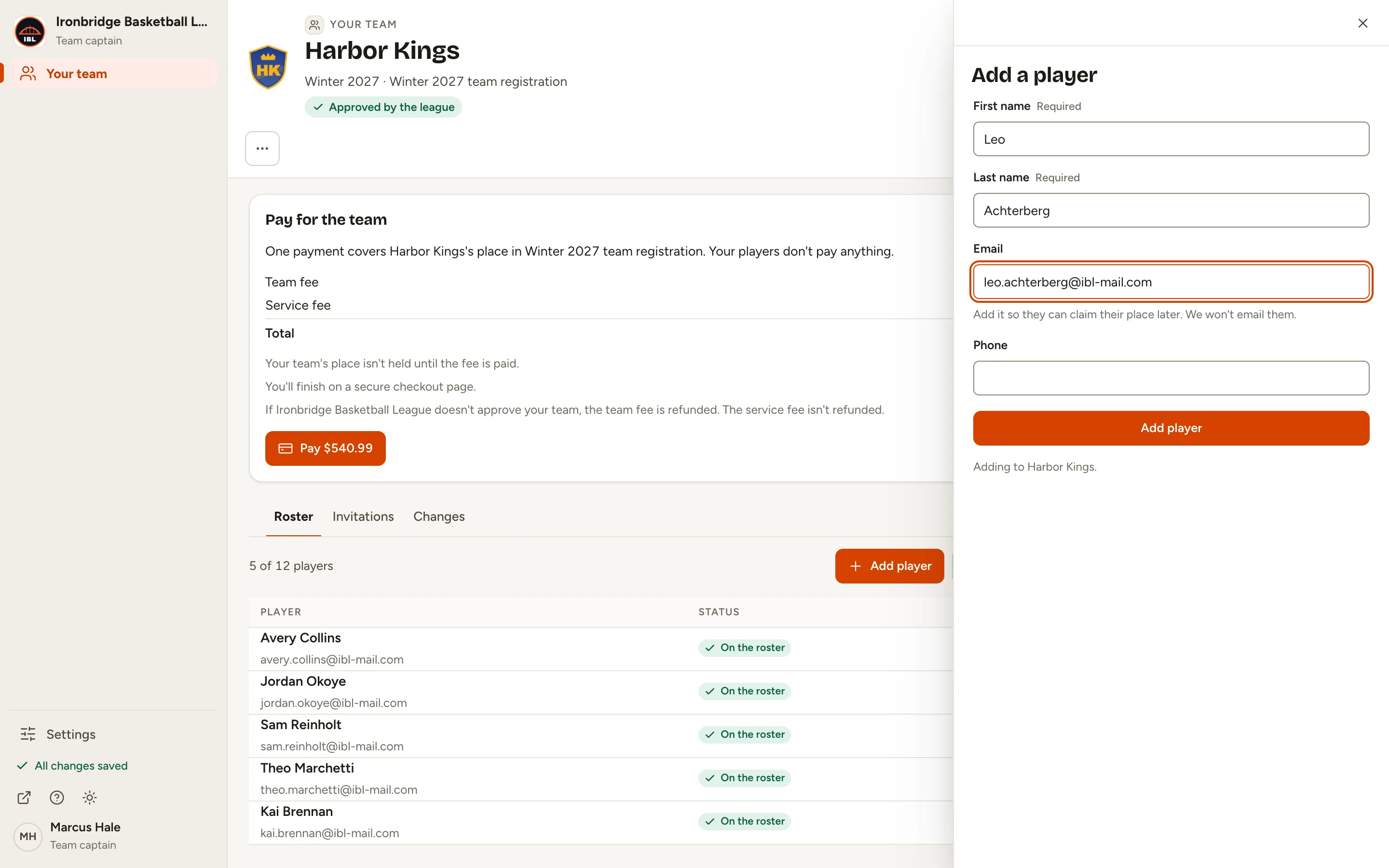
Fig. 5Add player. -
Step 6: Type the player’s First name, Last name and Email, then click Add player.
They’re on your roster list as Waiting for approval. They join the team once the league approves them.
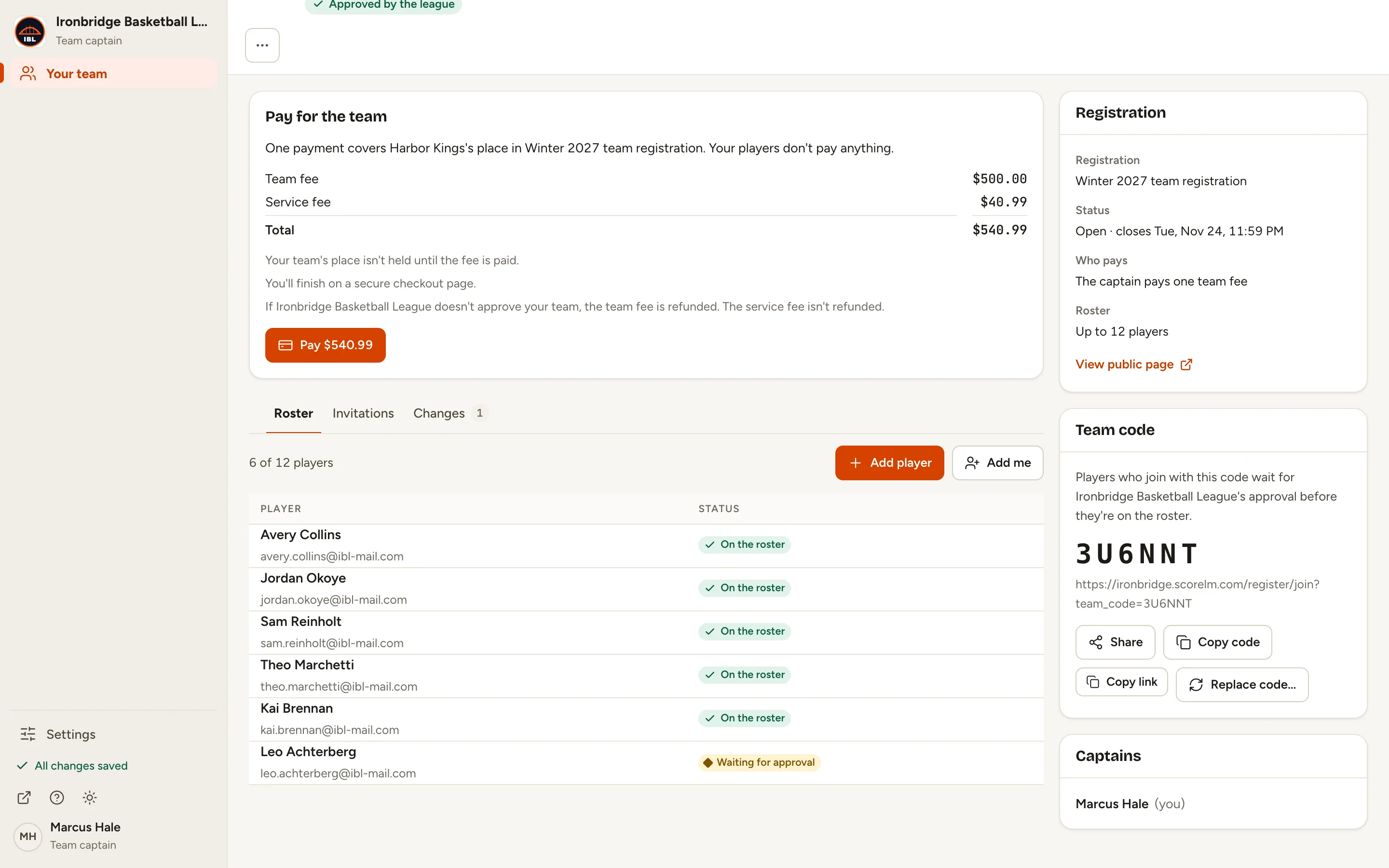
Fig. 6Waiting for approval. -
Step 7: To remove a player, point to their row, click ⋯ at its right end, then Remove from team….
A box asks you to confirm.
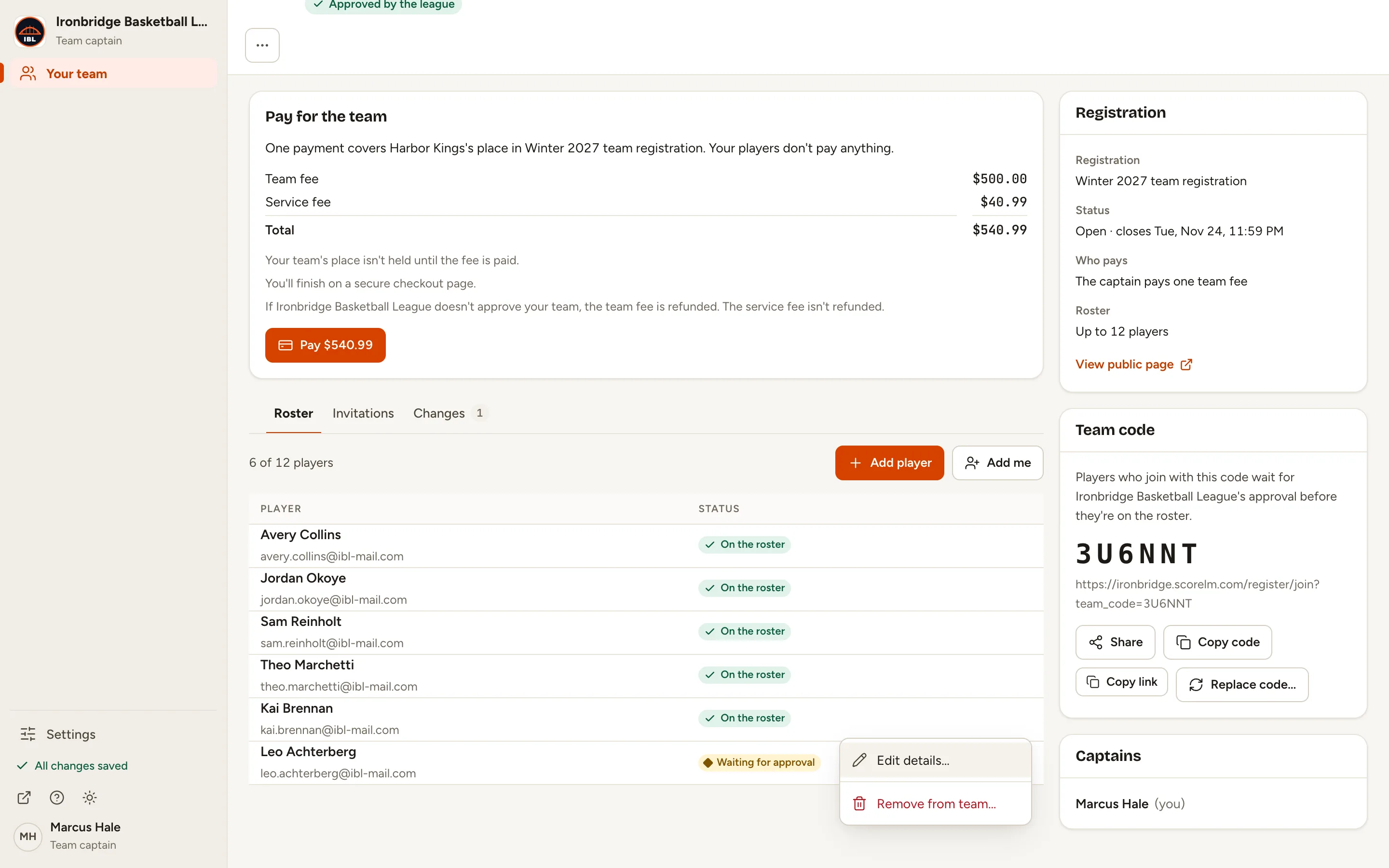
Fig. 7Remove from team. -
Step 8: Click Ask to remove.
They stay on the roster, marked Removal waiting for approval, until the league approves it.
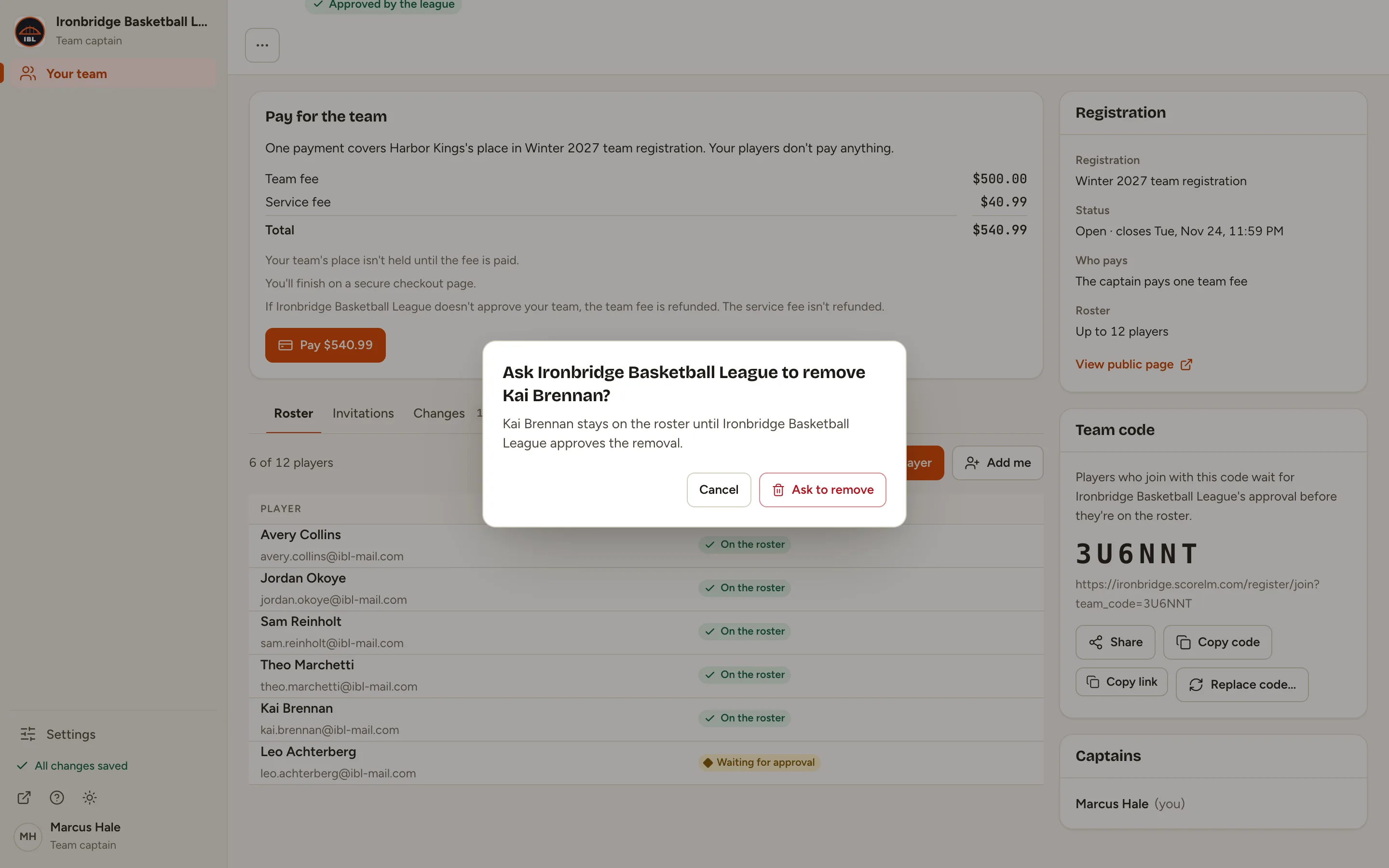
Fig. 8Ask to remove. -
Step 9: Click the Changes tab.
Every add and removal you ask for is listed here, with what the league decided.
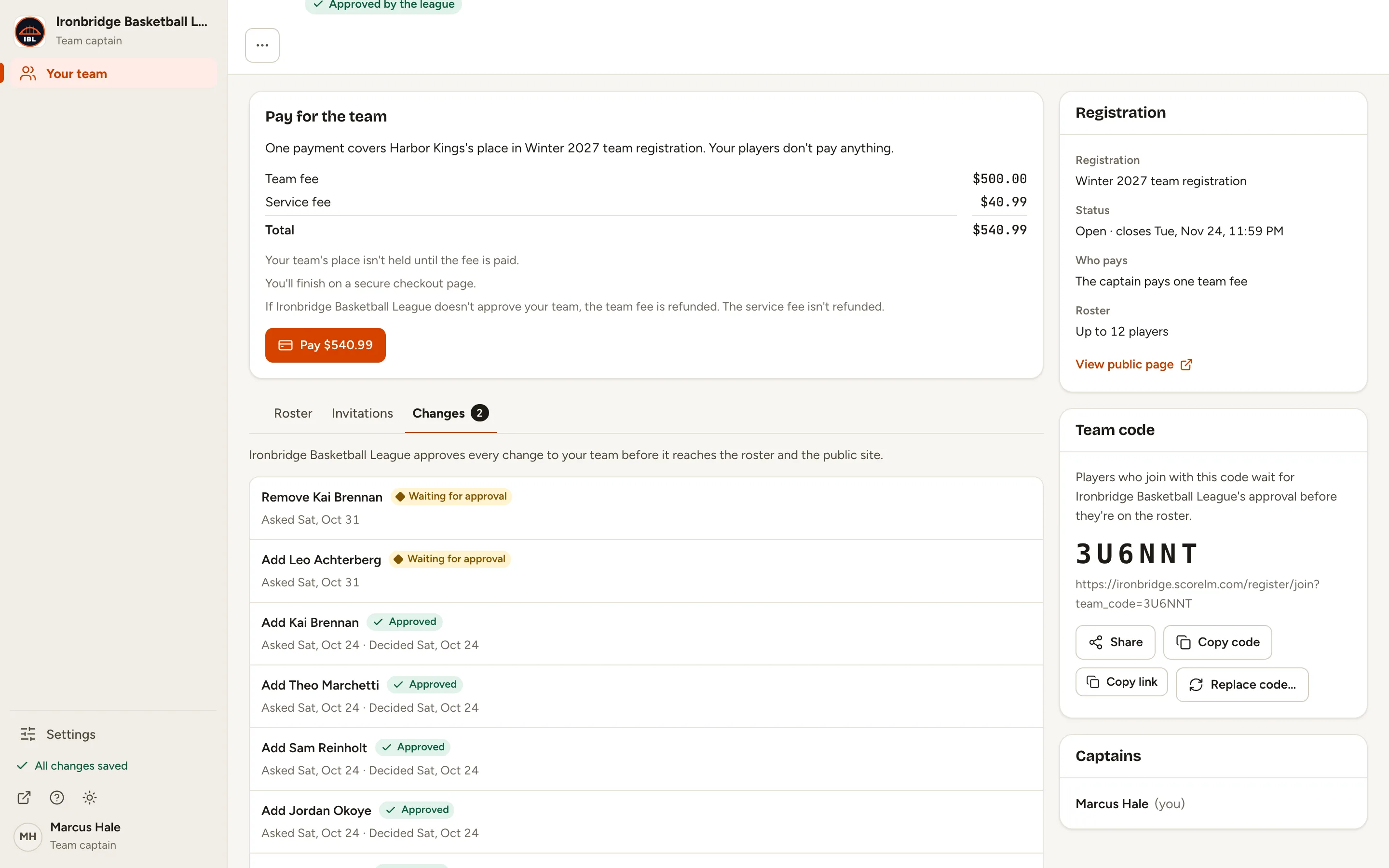
Fig. 9Changes. -
Step 10: If your league asks you to pay the team fee, click the Pay button under Pay for the team, and pay on the secure checkout page.
You come back to Your team, and the team fee shows Paid.
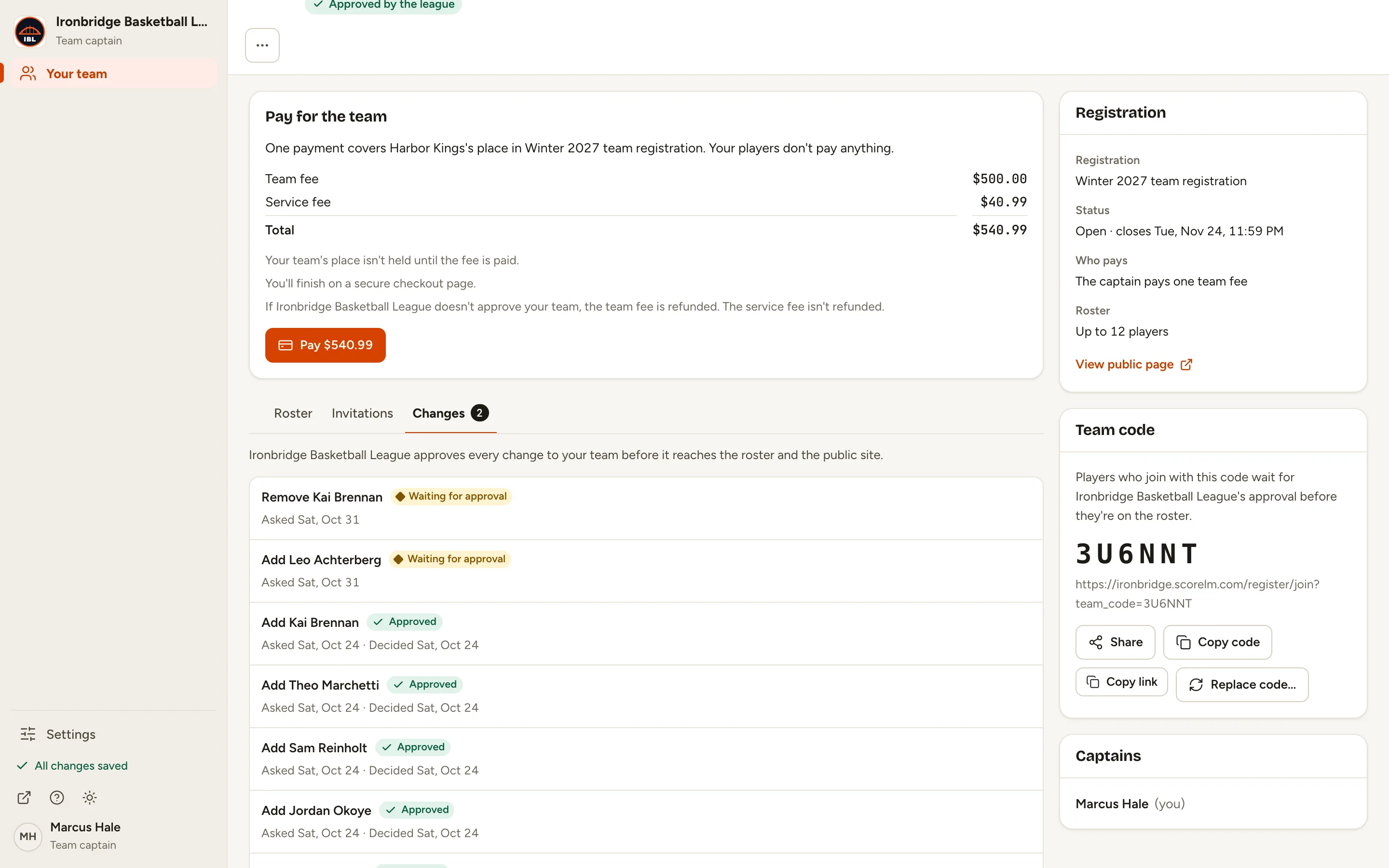
Fig. 10Pay for the team. 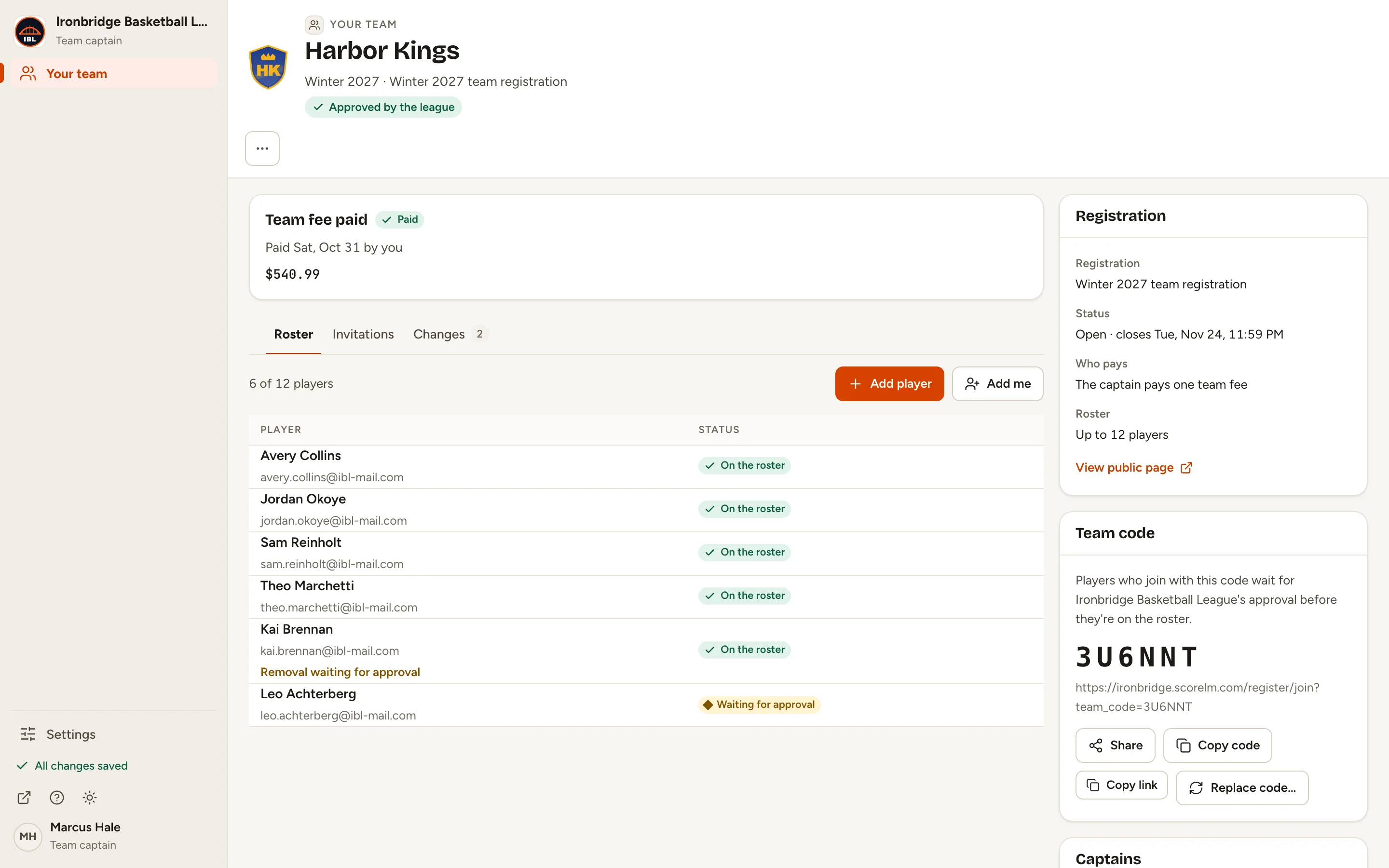
Fig. 10bTeam fee paid.
What you’ll see
Your team is set up. Your players are added or invited, your team code is shared, and the team fee is paid. Each roster change you ask for waits for the league, and the Changes tab shows what it decided.