
ScoreLM Guides
scorelm.com

Schedule your first games

By the end you’ll have your first games on the schedule, and on your website.

  • Who: League admin or Editor
  • Time: 4 min
  • Steps: 8
Video · 1:06 · Voiceover · every step is also written on screen Prefer to read? Steps below

Before you start

  • You need a season with teams in it. See Create your first season and teams.
  • Courts are optional. To pick one for each game, add your venues and courts first in Settings › Venues.

Steps

  1. Step 1: In the left menu, click Schedule.

    The Schedule opens on its List view. With no games yet, it says No games yet.
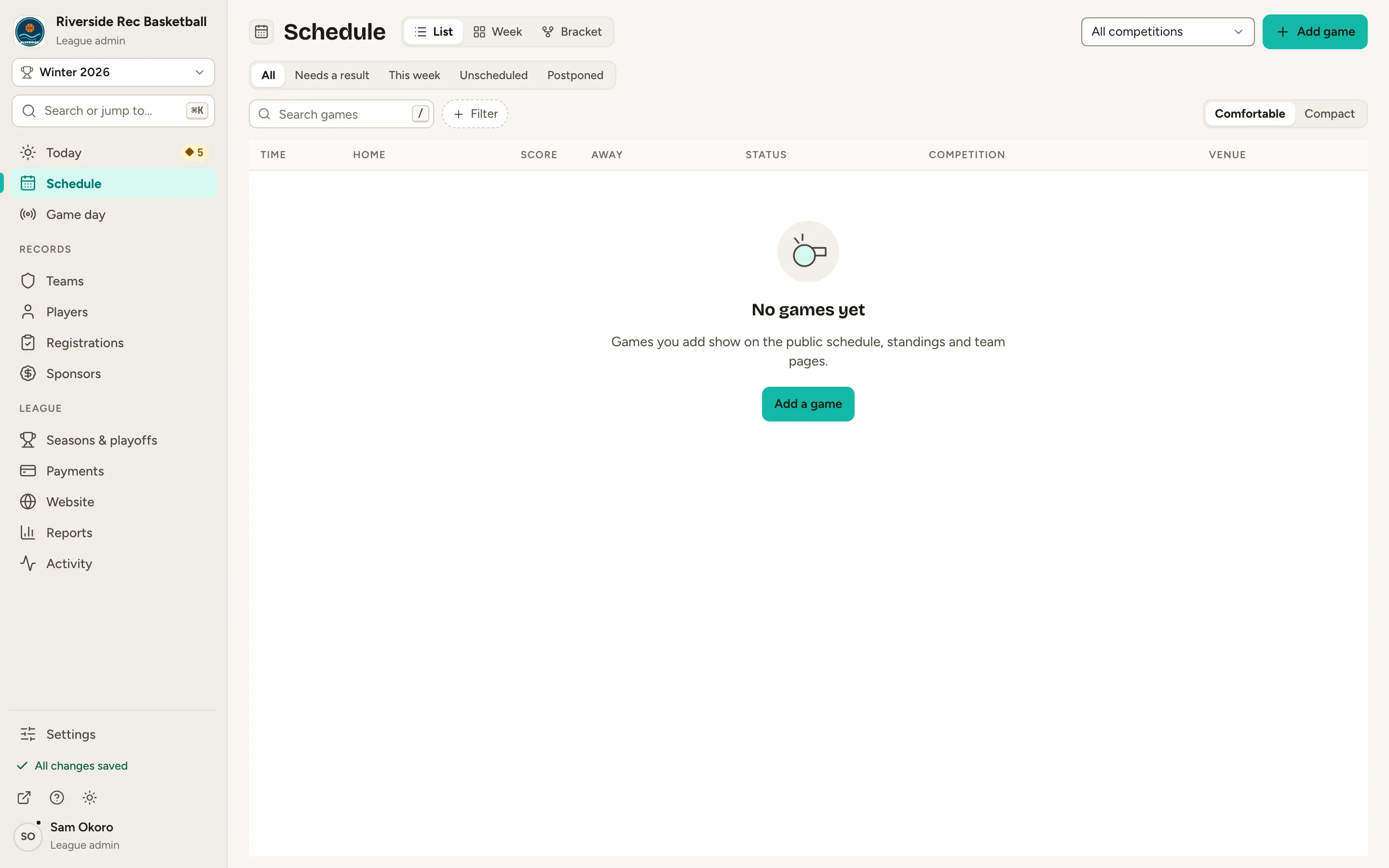
    Fig. 1

    Scroll sideways to see the whole screen.

    The Schedule page in List view showing No games yet.
    Fig. 1The Schedule with no games yet.
  2. Step 2: Click Add game at the top right.

    The New game form opens. It adds one game unless you ask for more.
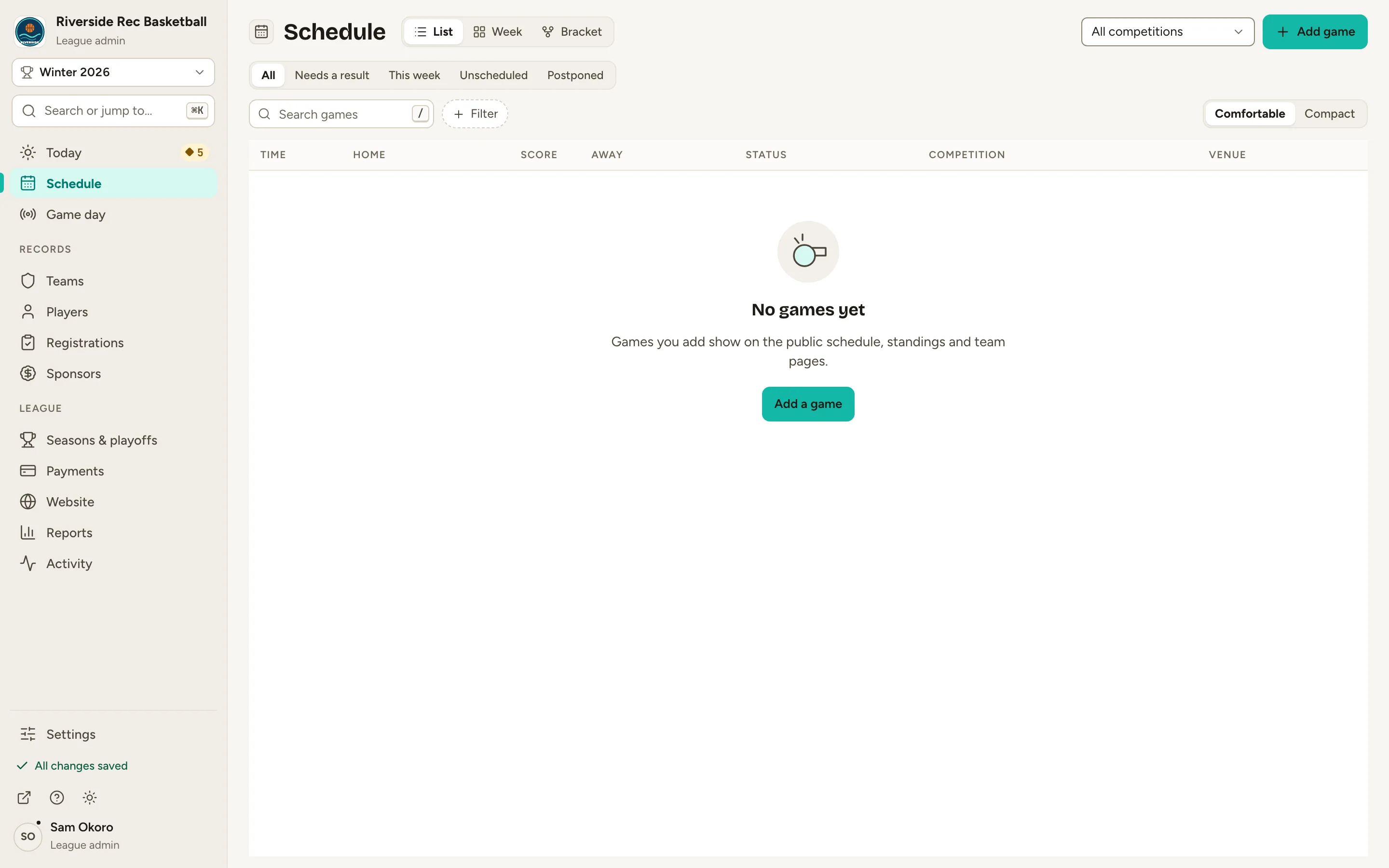
    Fig. 2

    Scroll sideways to see the whole screen.

    The Schedule header with the Add game button.
    Fig. 2Add game, at the top right of the Schedule.
  3. Step 3: At the top of the form, click Several (next to One game).

    You get a grid with one row per game, so you can add a whole game night at once.
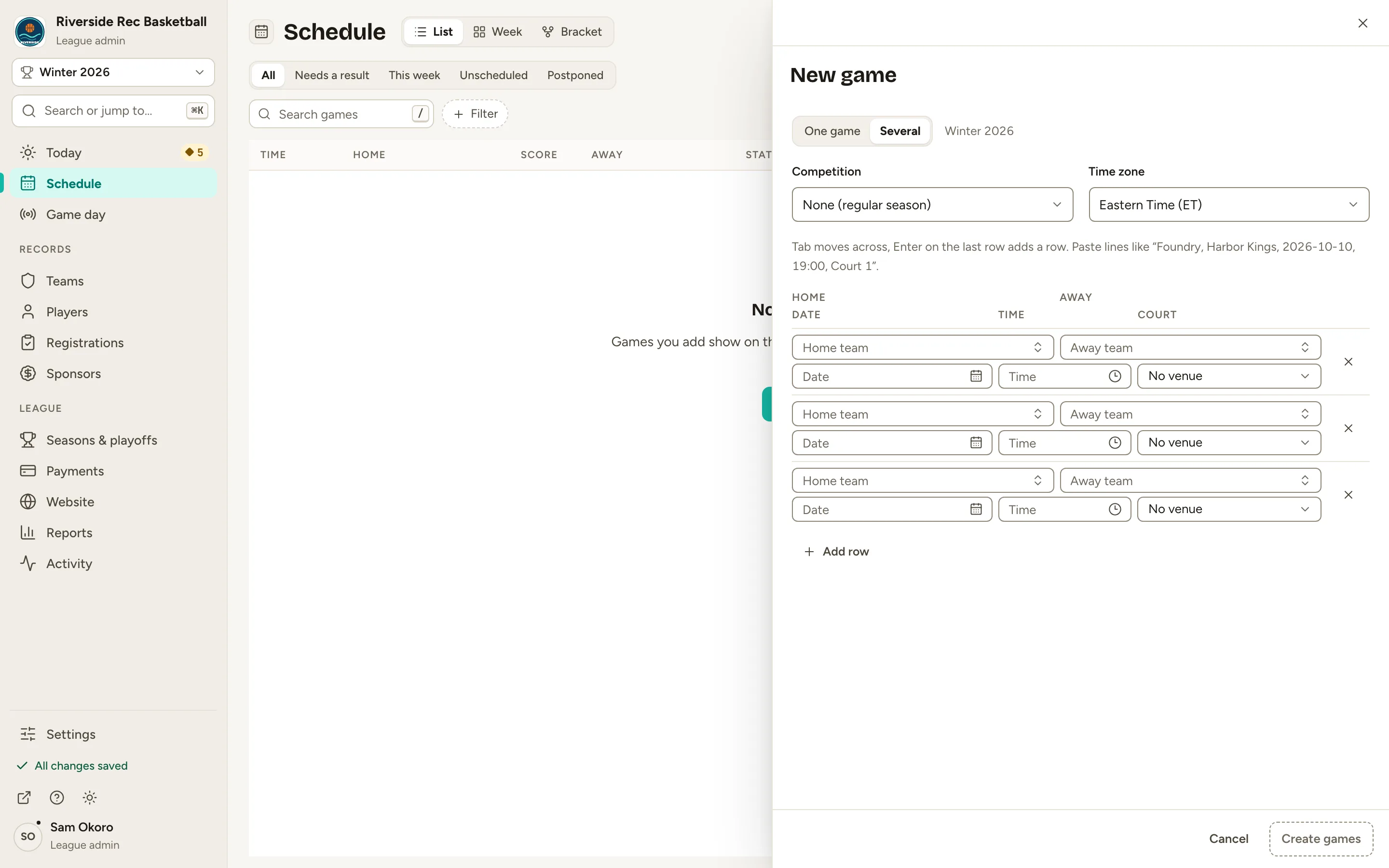
    Fig. 3

    Scroll sideways to see the whole screen.

    The New game form with Several selected and a grid of rows with Home, Away, Date, Time and Court columns.
    Fig. 3Several turns the form into a grid: one row per game.
  4. Step 4: In row 1, pick the Home team, then the Away team.

    Type the first letters of a team and press Enter to pick it. A team can’t play itself.
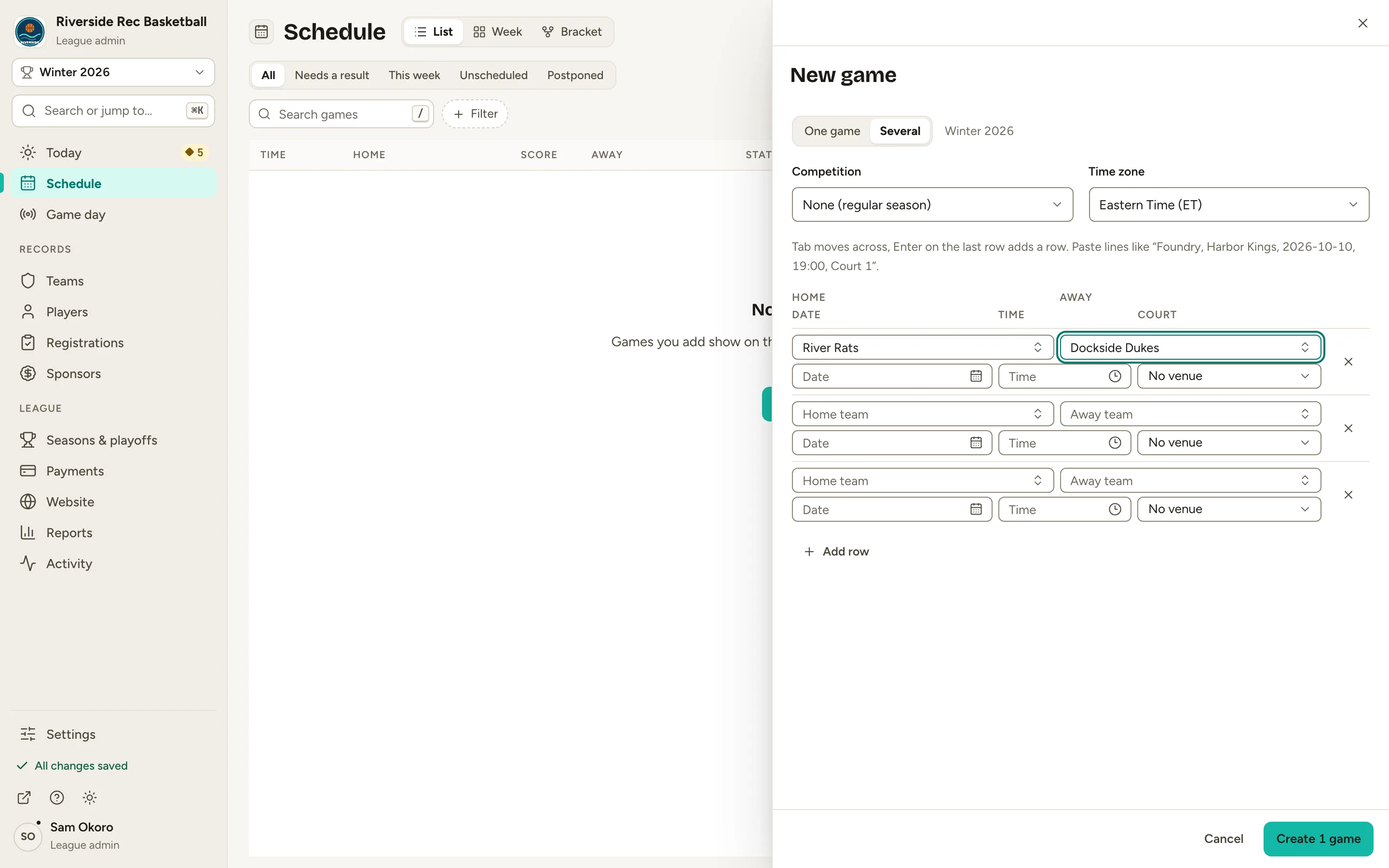
    Fig. 4

    Scroll sideways to see the whole screen.

    Row 1 of the grid with River Rats at home and Dockside Dukes away.
    Fig. 4Row 1 with its home and away teams.
  5. Step 5: Type the Date and Time, then choose the Court.

    Give a game both a date and a time, or leave both empty to add it unscheduled. The court is optional.
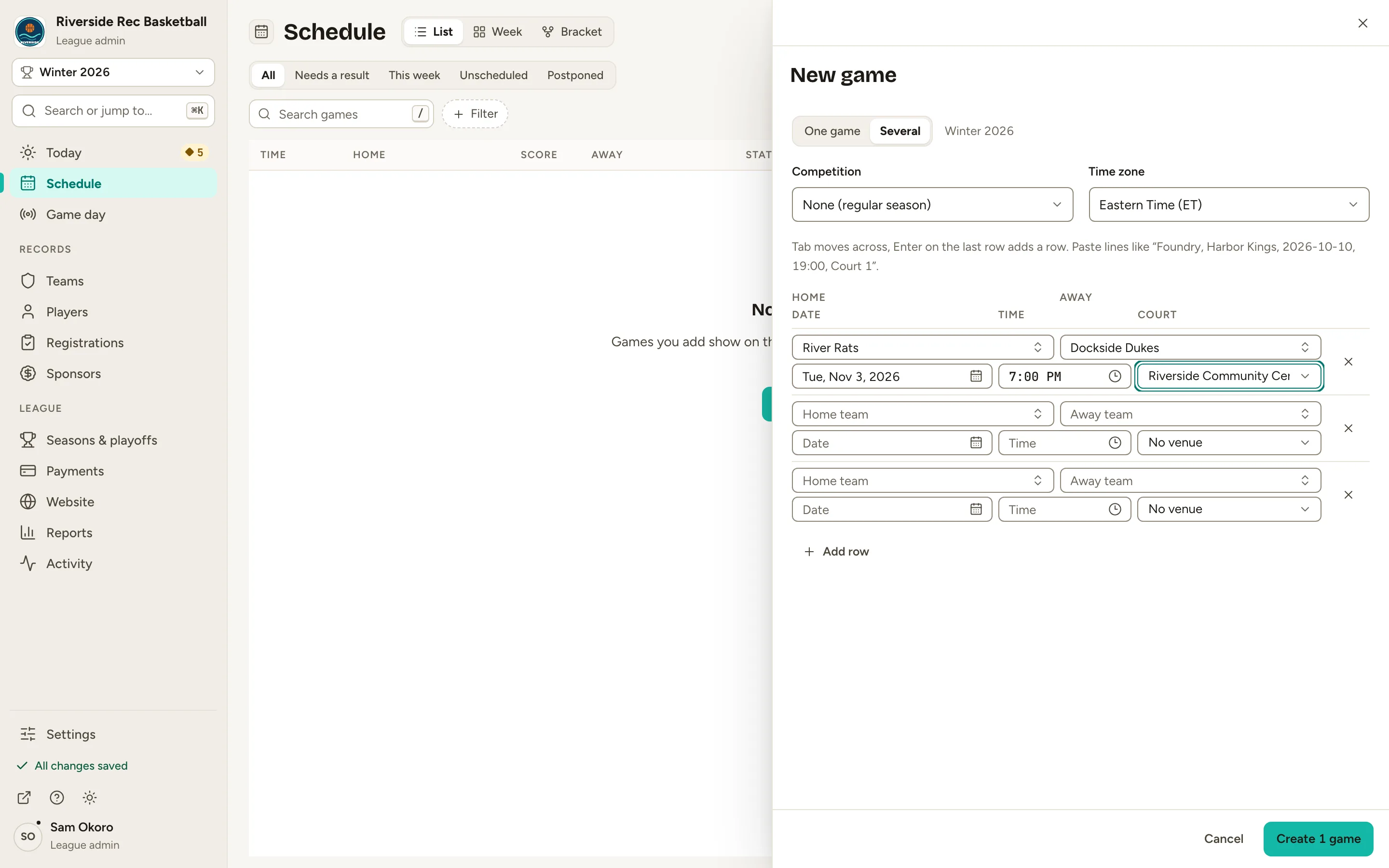
    Fig. 5

    Scroll sideways to see the whole screen.

    Row 1 of the grid with a date, a 7:00 PM time and a court filled in.
    Fig. 5Row 1 complete: teams, date, time and court.
  6. Step 6: Fill in row 2 the same way. Press Enter in the last row, or click Add row, for more games.

    Tab moves across a row. You can also paste lines from a spreadsheet straight into the grid.
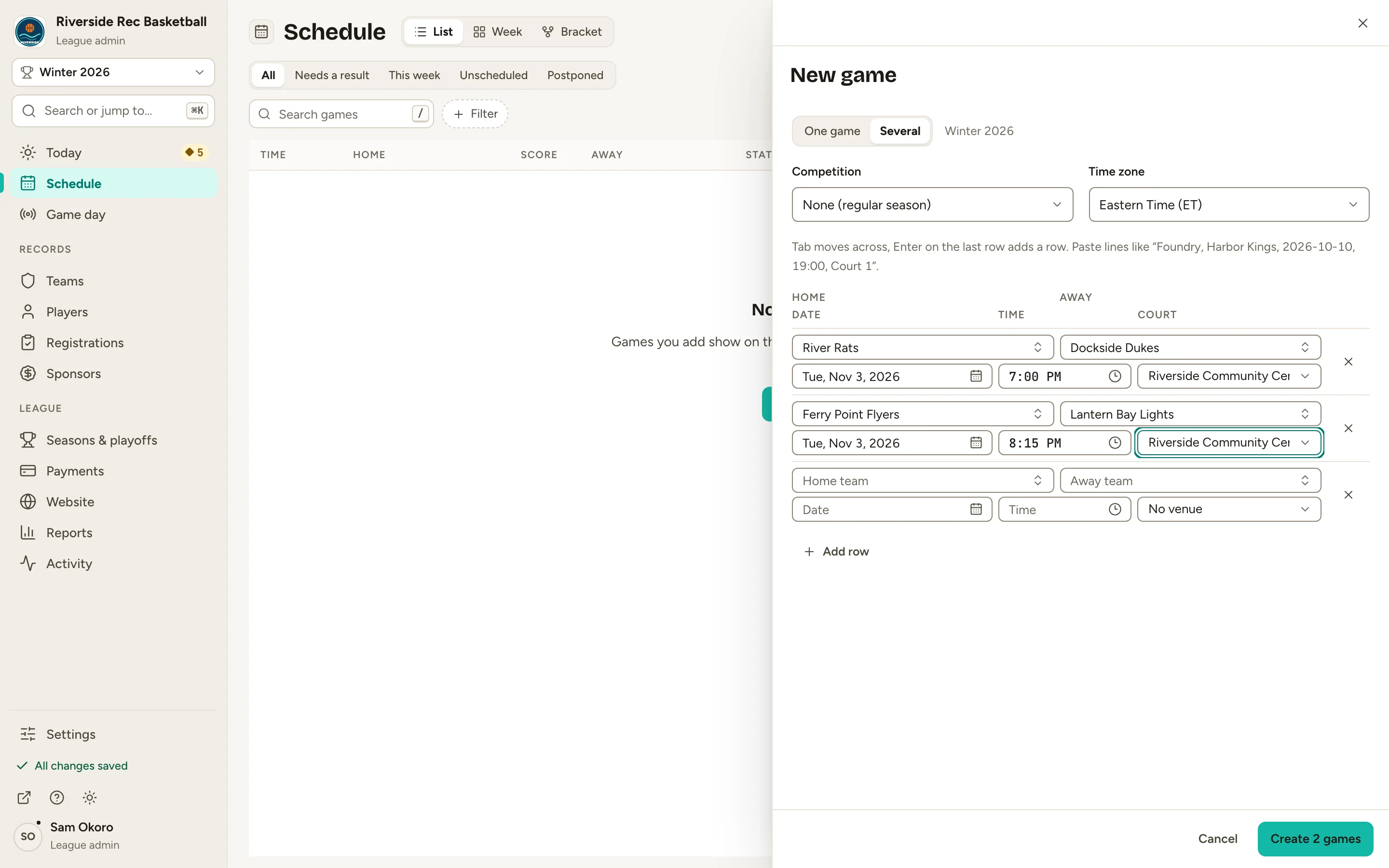
    Fig. 6

    Scroll sideways to see the whole screen.

    The grid with two complete rows of games.
    Fig. 6Two rows filled in.
  7. Step 7: Click Create 2 games at the bottom.

    The button counts your rows, so it reads Create 3 games for three rows, and so on. Each game is saved in turn, and the form closes once every game has saved. Your games are listed on the Schedule under their date. If a court is already booked at that time, that game isn’t created: it stays in the grid with the reason, so you can change it and click Create again.
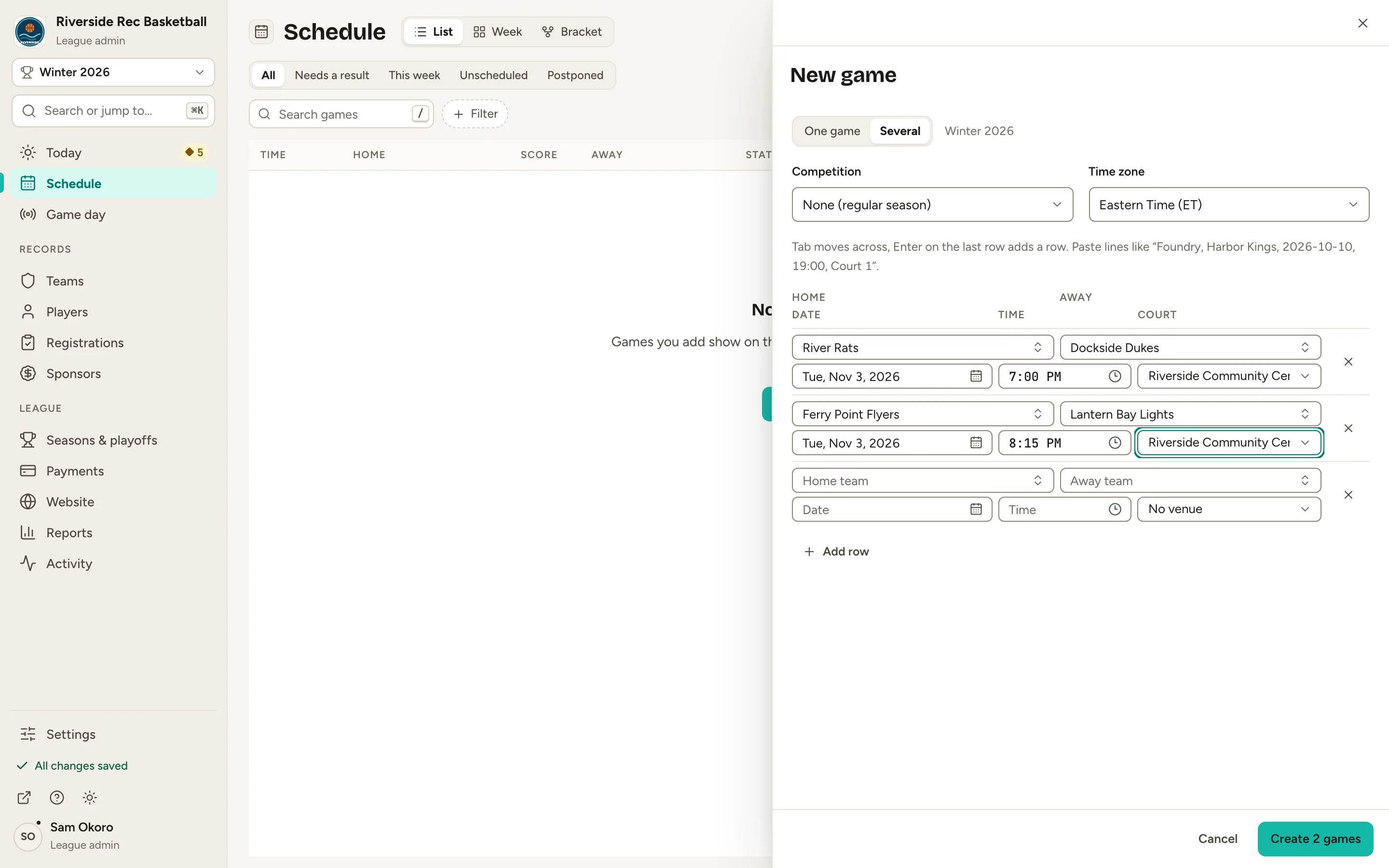
    Fig. 7

    Scroll sideways to see the whole screen.

    The bottom of the New game form with the Create 2 games button.
    Fig. 7The button counts the games you’re adding.
  8. Step 8: Open your website and click Schedule.

    From the admin, click ↗ (View public site) at the bottom of the sidebar; your website opens in a new tab. Your games are there for fans, and scores and standings fill in as you enter results.
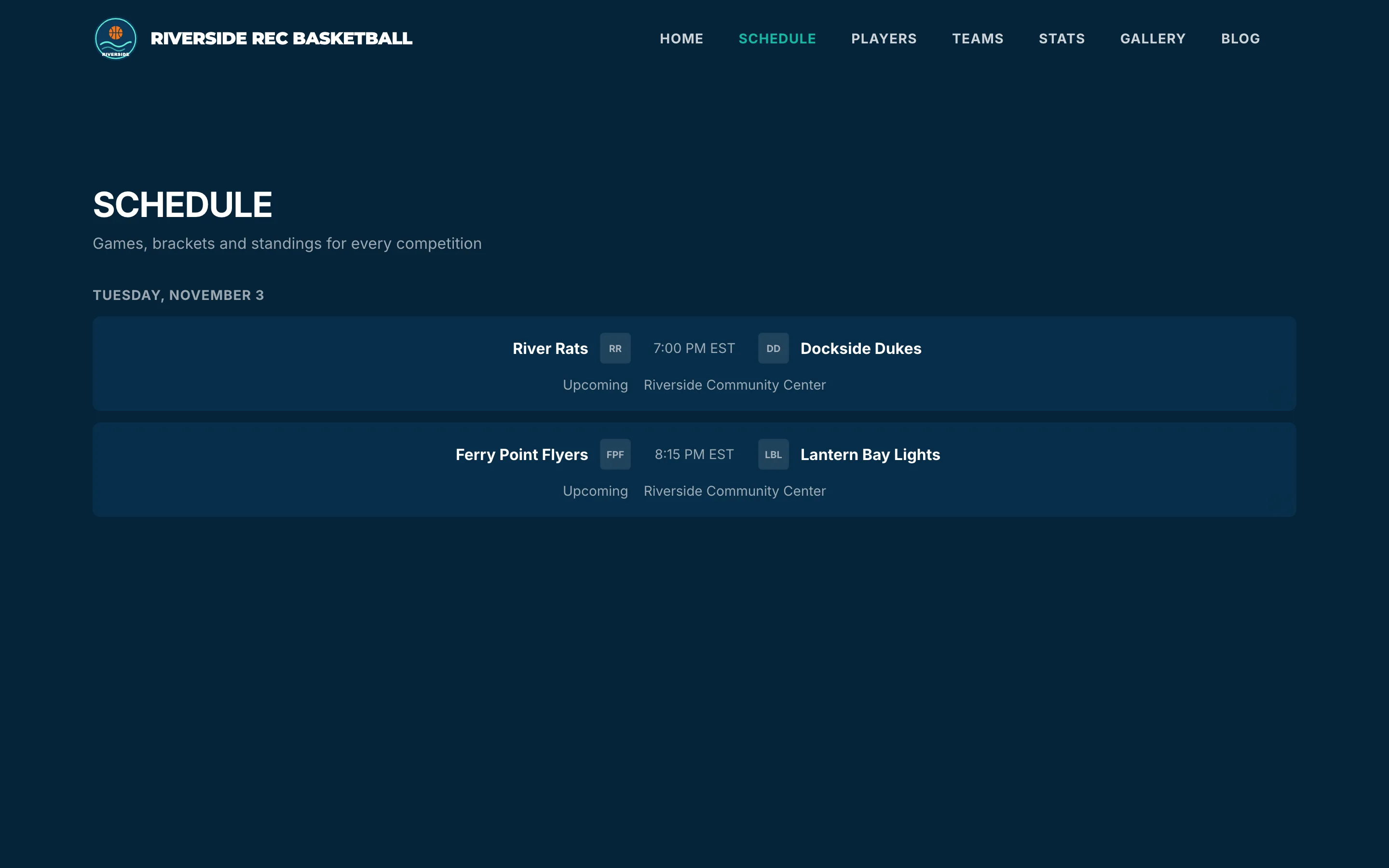
    Fig. 8

    Scroll sideways to see the whole screen.

    The public website’s Schedule page with the two upcoming games on Tuesday, November 3.
    Fig. 8Your website’s Schedule page shows the same games.

What you’ll see

Your first games are scheduled: they’re on the Schedule in the admin and on your website. To change a game, click it in the list.
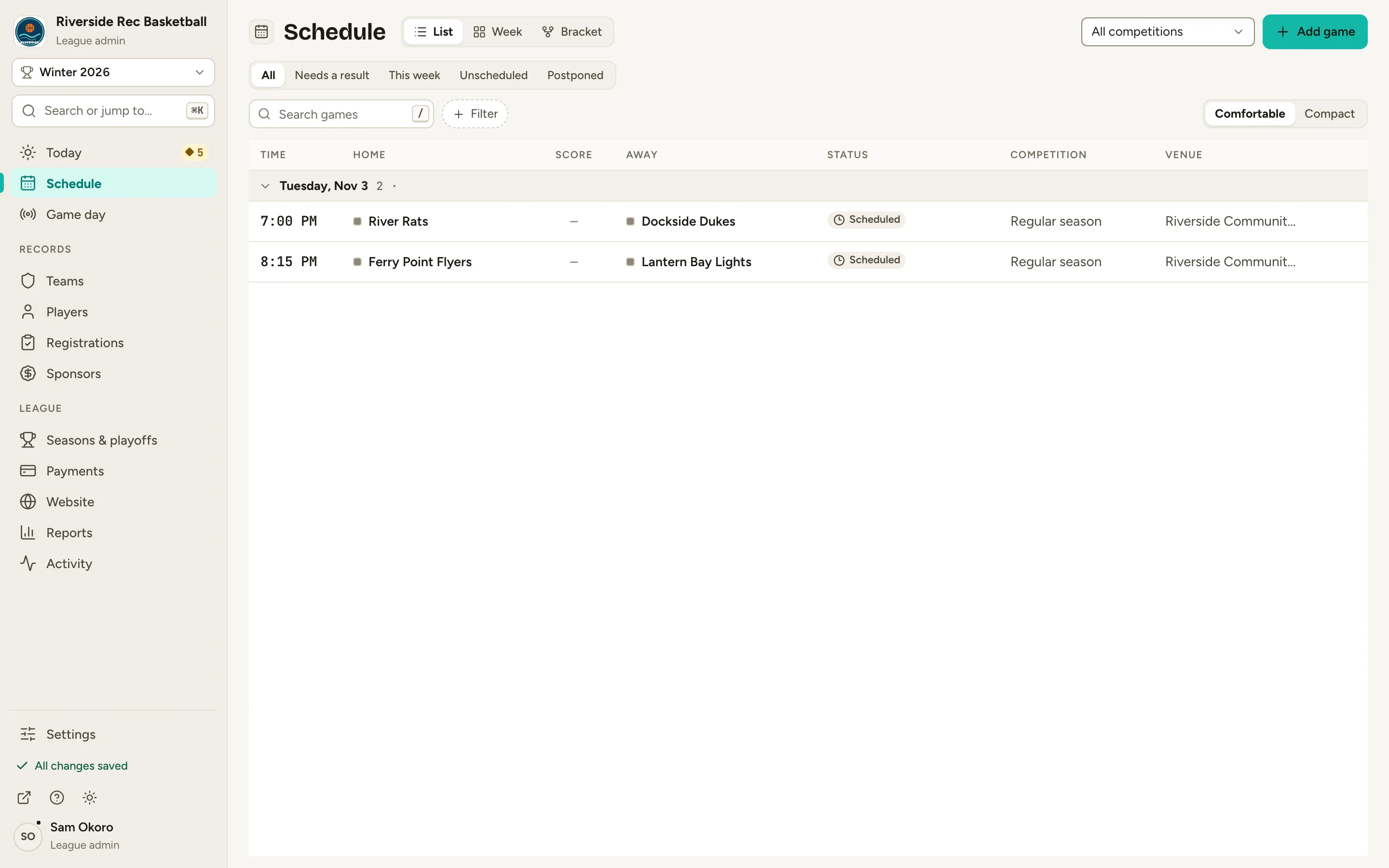
Fig. 9

Scroll sideways to see the whole screen.

The admin Schedule list showing the two new games.
Fig. 9The Schedule list with your first games.

Common questions

Can I add a game before I know the date?
Yes. Leave the date and time empty and the game is added unscheduled. Give it a date later by opening it from the Schedule.
What if two games are on the same court at the same time?
They can’t be. When you click Create, a game whose court is already booked at that time isn’t created. It stays in the grid with the reason, and the other games are saved. Change its time or court and click Create again.
Can I paste a schedule from a spreadsheet?
Yes. In the Several grid, paste lines like “Foundry, Harbor Kings, 2026-10-10, 19:00, Court 1”. For a whole season, the import wizard takes a CSV of games too.
A team isn’t in this season. Can I still schedule it?
Yes. Creating the game adds the team to the season. (When you add One game, the form tells you first.)
Prefer a calendar?
Click Week at the top of the Schedule to see the week board, with each game on its day and time. Use the › arrow (Next week) to move between weeks.
How do I move a game to another day?
On the week board, drag the game to another day or time. The move is checked for clashes first.