
ScoreLM Guides
scorelm.com

Run a round-robin competition

By the end you’ll have a round-robin competition where every team plays every other team, with its games and matchdays generated and on your website’s Schedule.

  • Who: League admin or Editor
  • Time: 4 min
  • Steps: 11
Video · 1:29 · Voiceover · every step is also written on screen Prefer to read? Steps below

Before you start

  • You need the season and its teams: here Winter 2027, with eight teams in it. See Create your first season and teams.
  • A competition is a set of games inside a season: a round robin, where standings decide, or a bracket, where winners move on. A season can have several.

Steps

  1. Step 1: In the left menu, click Seasons & playoffs.

    Your seasons are listed, each with its status.
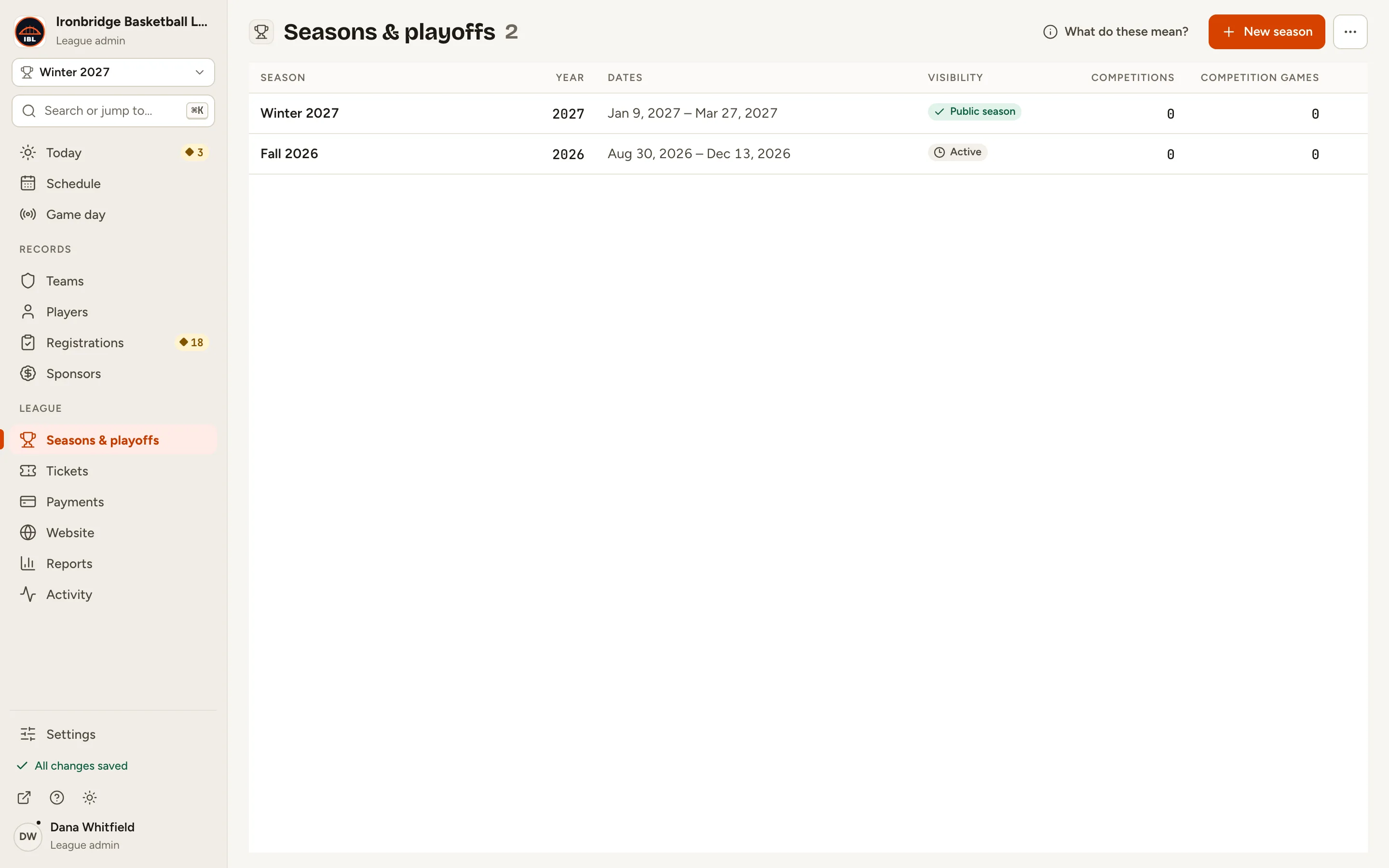
    Fig. 1

    Scroll sideways to see the whole screen.

    The Seasons & playoffs list with Winter 2027 and Fall 2026.
    Fig. 1Seasons & playoffs lists your seasons.
  2. Step 2: Click the season, like Winter 2027.

    Its record opens. The buttons under the season name act on this season.
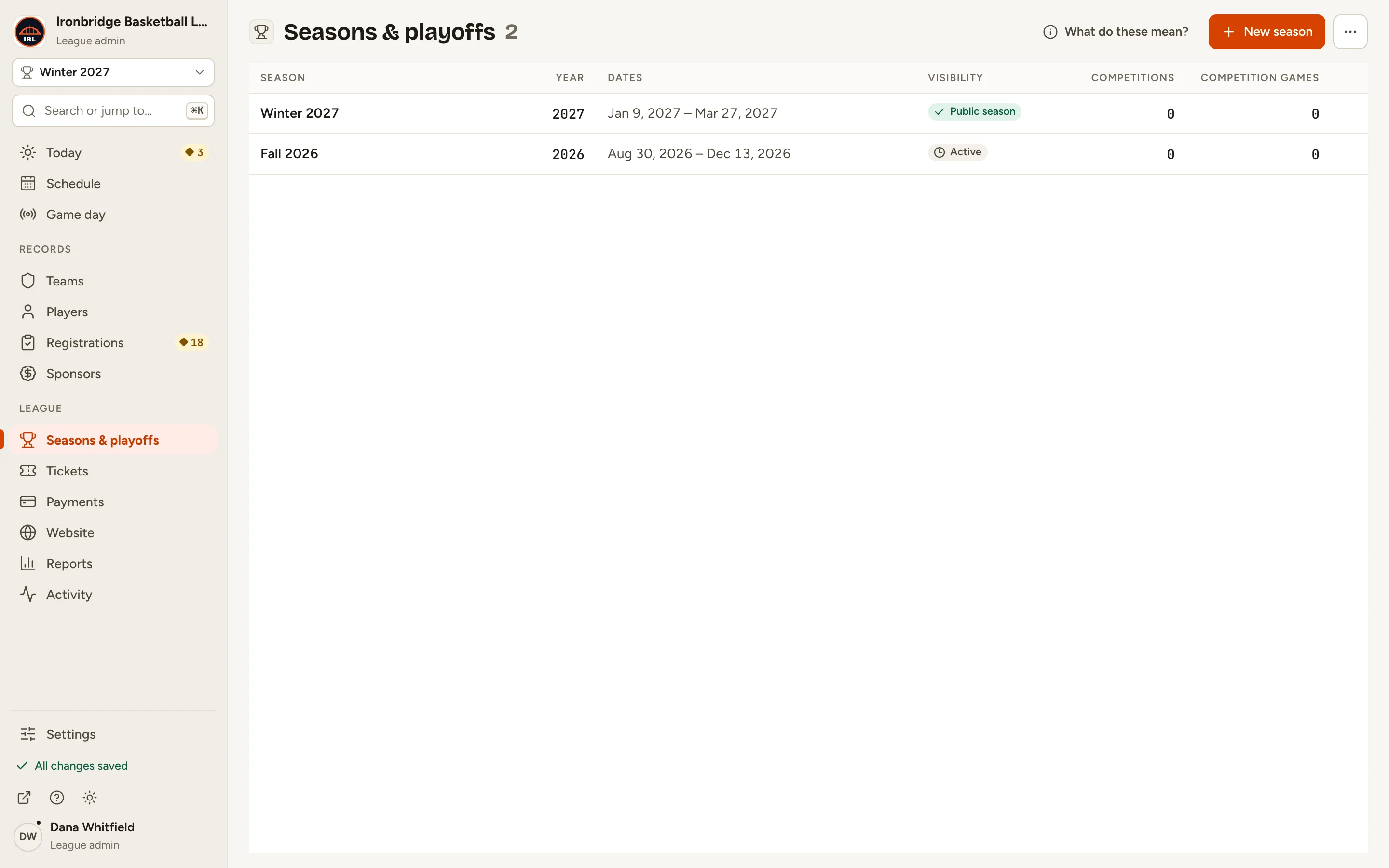
    Fig. 2

    Scroll sideways to see the whole screen.

    The Winter 2027 row in the Seasons & playoffs list.
    Fig. 2Open the season the competition belongs to.
  3. Step 3: Click Add competition under the season name.

    The New competition form opens, with Season already set to Winter 2027.
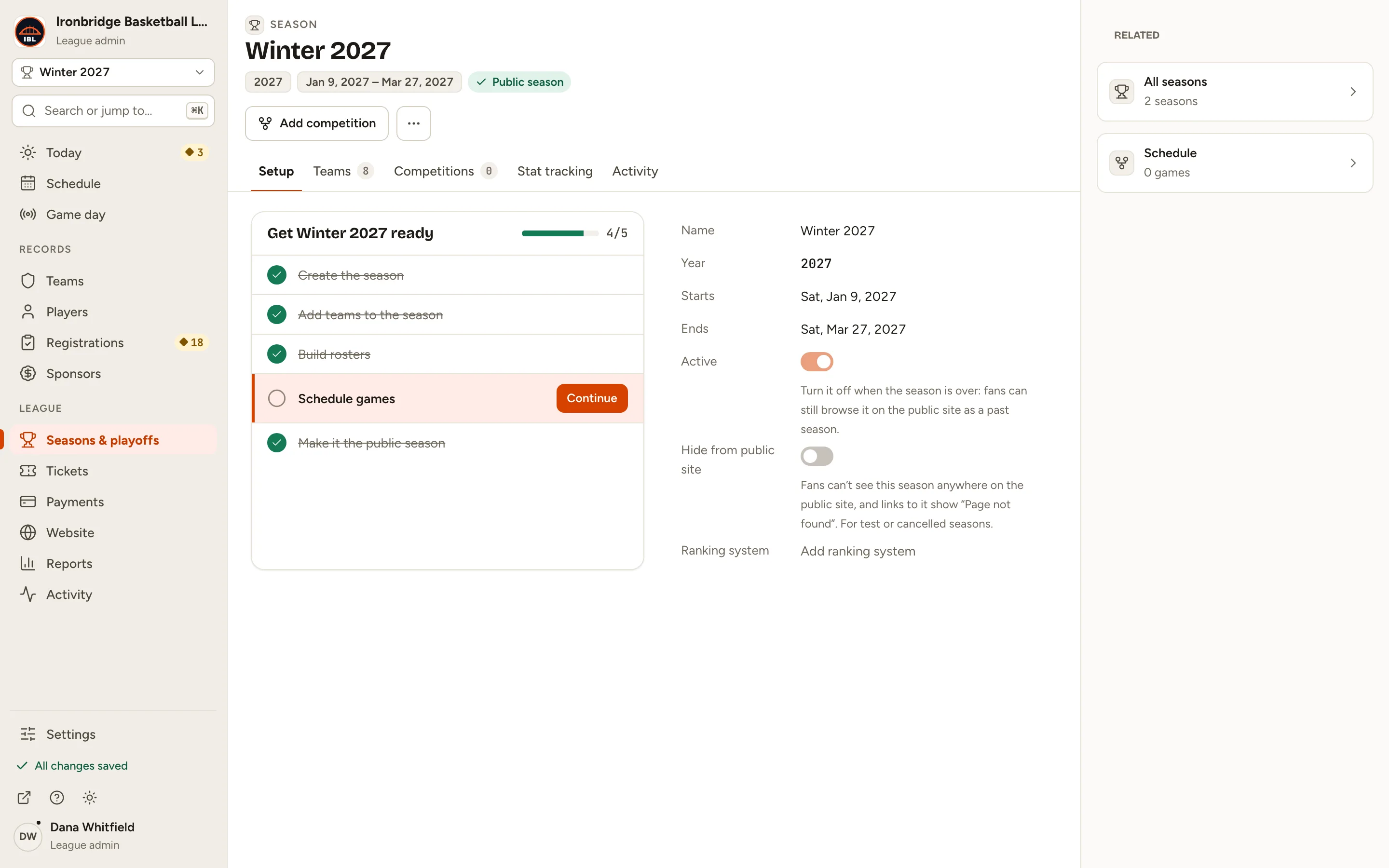
    Fig. 3

    Scroll sideways to see the whole screen.

    The Add competition button under the Winter 2027 season name.
    Fig. 3Add competition, on the season’s record.
  4. Step 4: Type a Name, like Winter League. Keep Round robin and Single.

    Round robin means everyone plays everyone and standings decide. Single plays each pairing once; Double (home and away) plays it twice. The format can’t change after you create it.
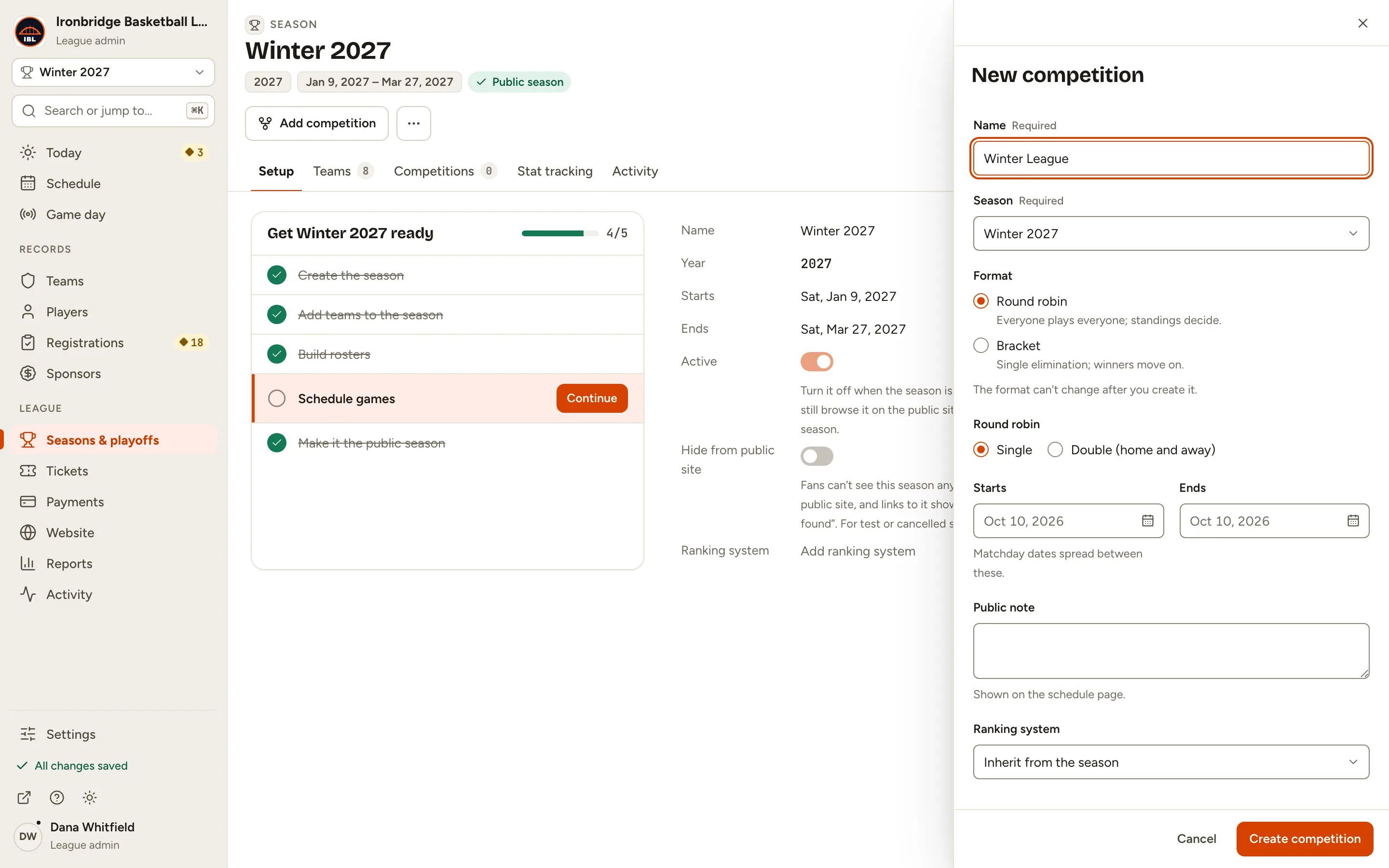
    Fig. 4

    Scroll sideways to see the whole screen.

    The New competition form with Winter League typed in Name, and Round robin and Single selected.
    Fig. 4Name it and keep Round robin, Single.
  5. Step 5: Set Starts and Ends, like Jan 9, 2027 and Mar 27, 2027.

    Matchday dates spread evenly between these. You can leave them empty and date each matchday later.
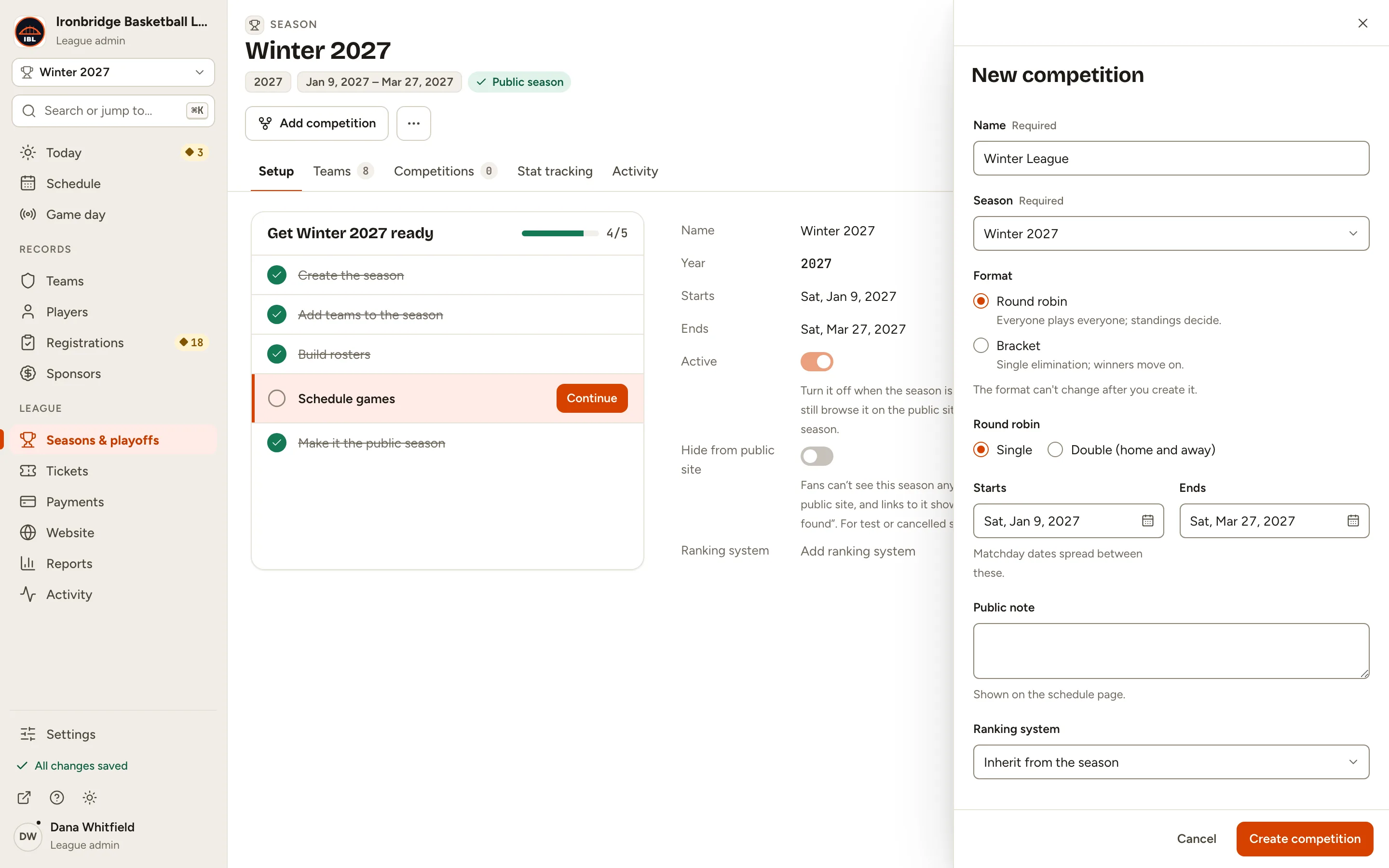
    Fig. 5

    Scroll sideways to see the whole screen.

    The Starts and Ends fields set to Sat, Jan 9, 2027 and Sat, Mar 27, 2027.
    Fig. 5Matchday dates spread between Starts and Ends.
  6. Step 6: Click Create competition.

    Winter League opens on its Teams tab. It starts Active, with no teams yet.
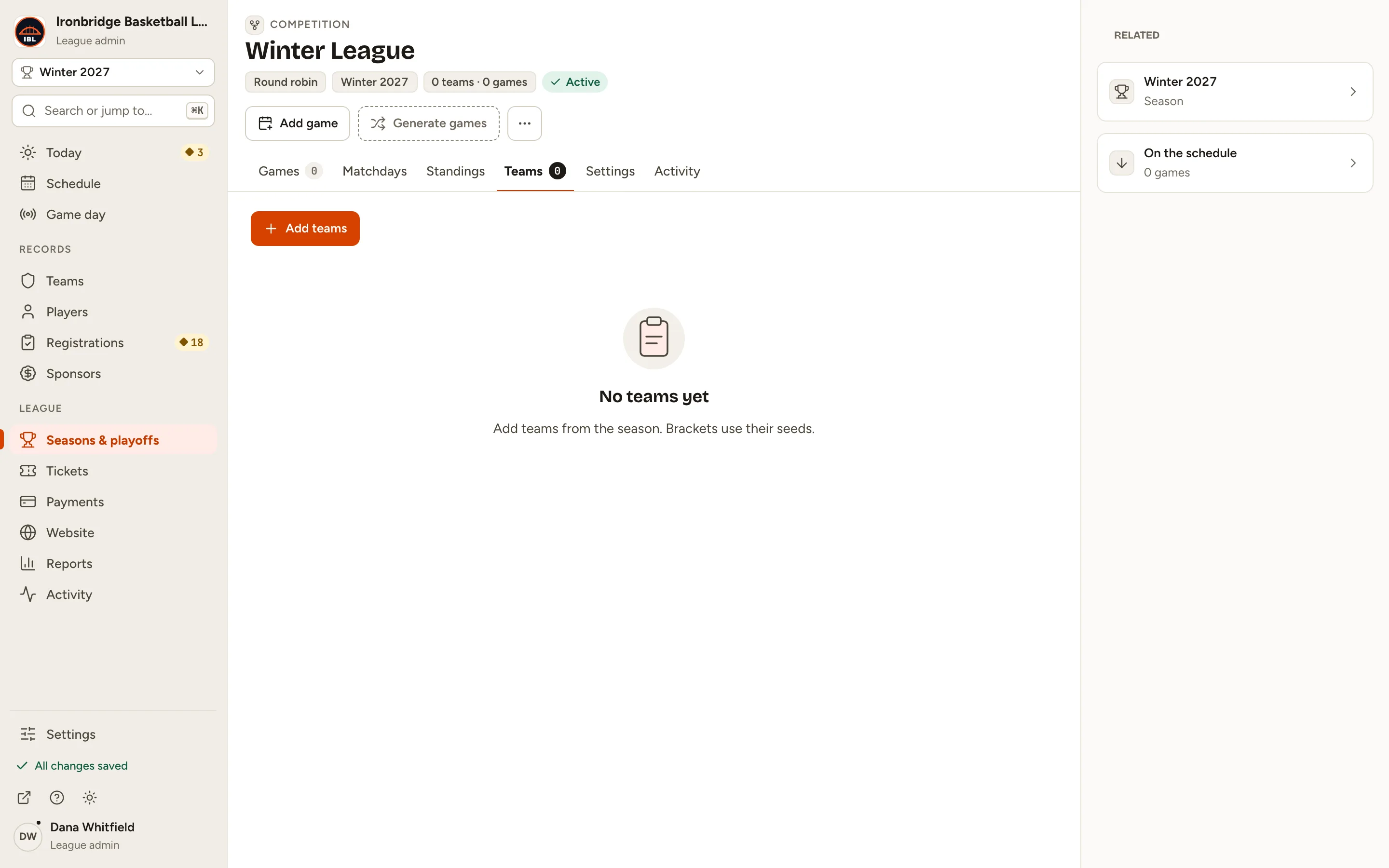
    Fig. 6

    Scroll sideways to see the whole screen.

    The Winter League record on its Teams tab, with Round robin, Winter 2027, 0 teams · 0 games and Active.
    Fig. 6The new competition, with no teams yet.
  7. Step 7: Click Add teams, then Select all 8.

    The list shows the season’s teams that aren’t in the competition yet. To leave a team out, untick it.
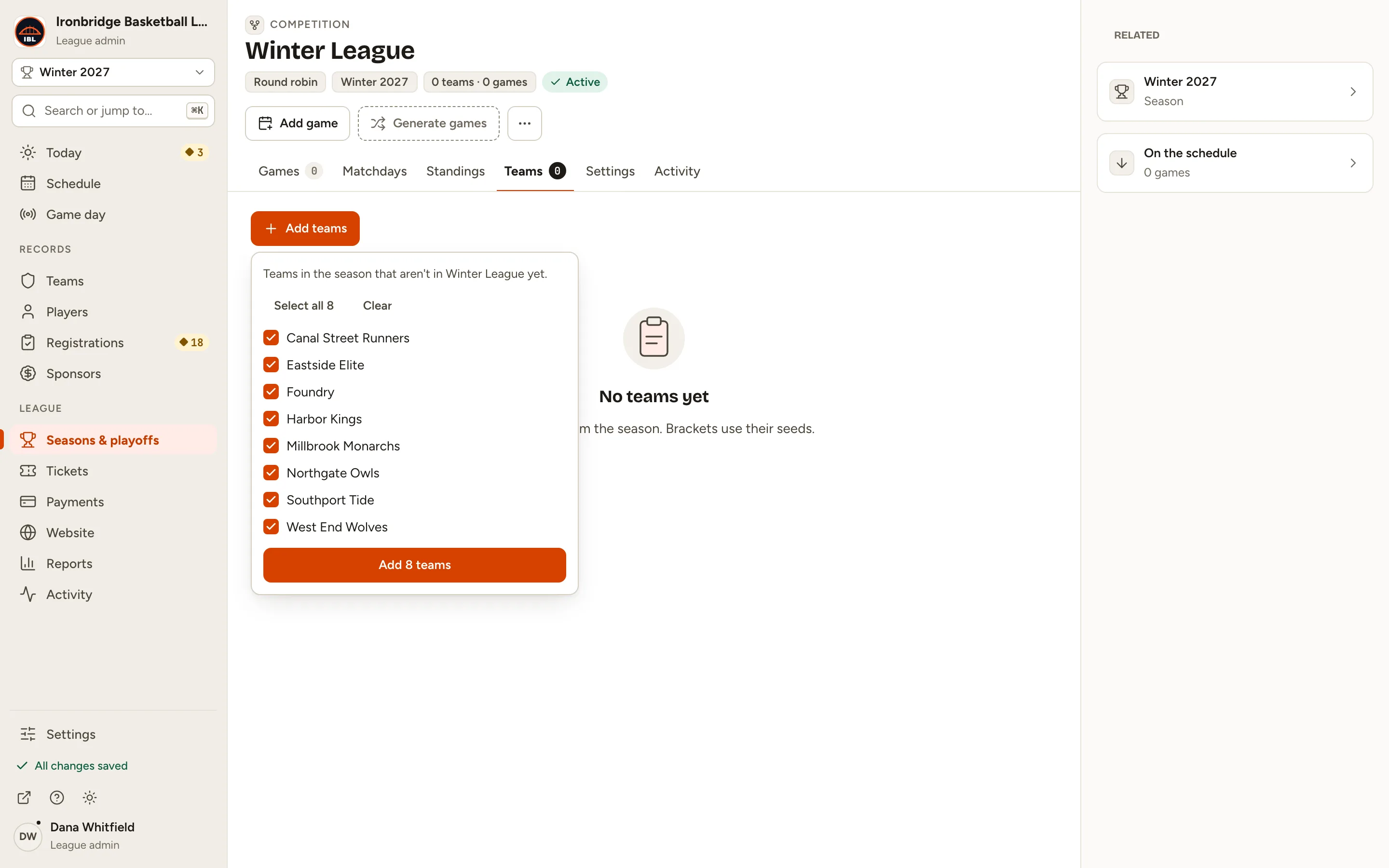
    Fig. 7

    Scroll sideways to see the whole screen.

    The Add teams list with Select all 8 and the eight Winter 2027 teams ticked.
    Fig. 7Pick the season’s teams.
  8. Step 8: Click Add 8 teams.

    The eight teams are in Winter League. Generate games is now ready.
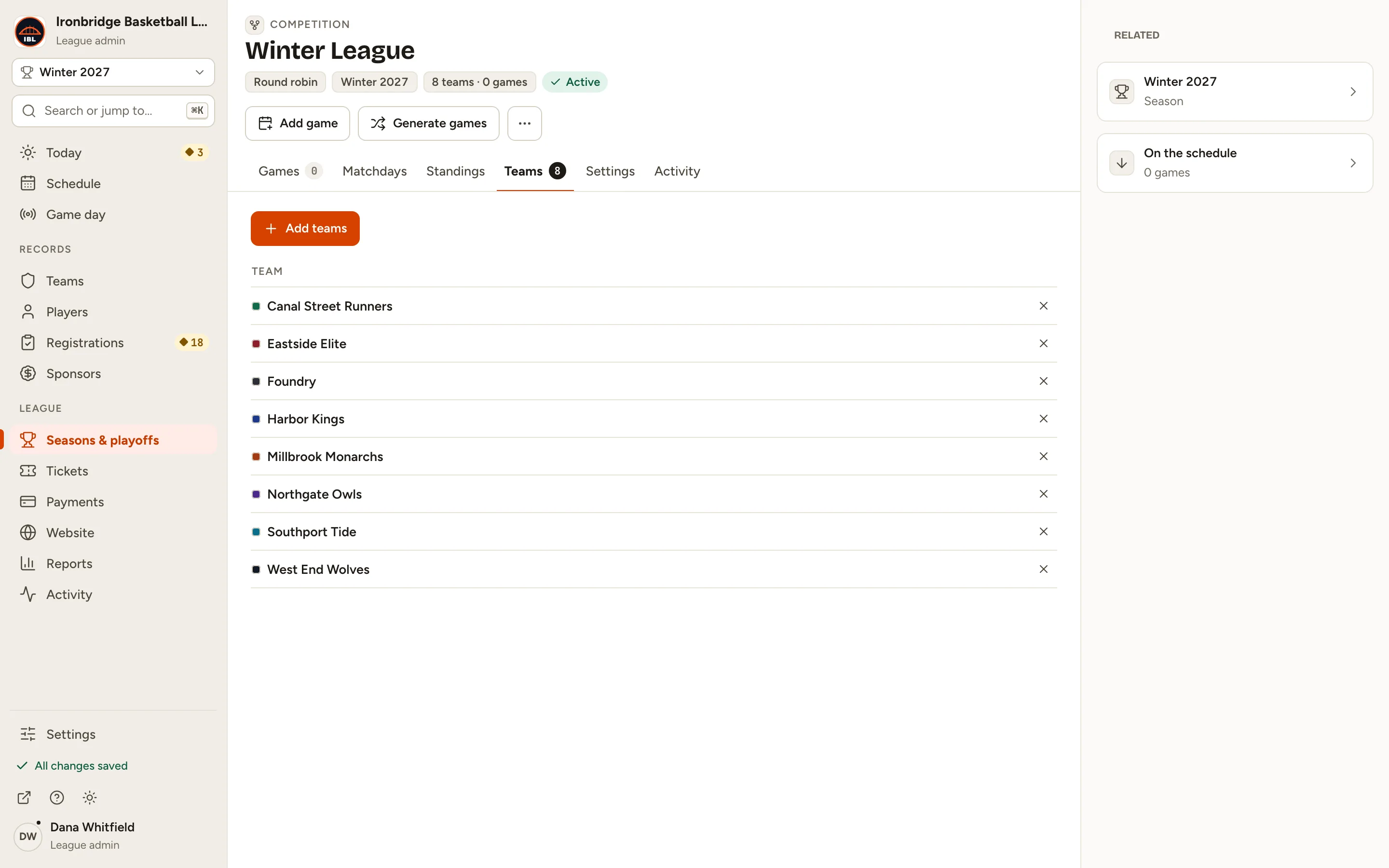
    Fig. 8

    Scroll sideways to see the whole screen.

    The Winter League Teams tab listing eight teams.
    Fig. 8All eight teams are in.
  9. Step 9: Click Generate games at the top.

    A preview shows what will be created: for 8 teams, 28 games over 7 matchdays of 4 games each, with the dates and venues they’ll get.
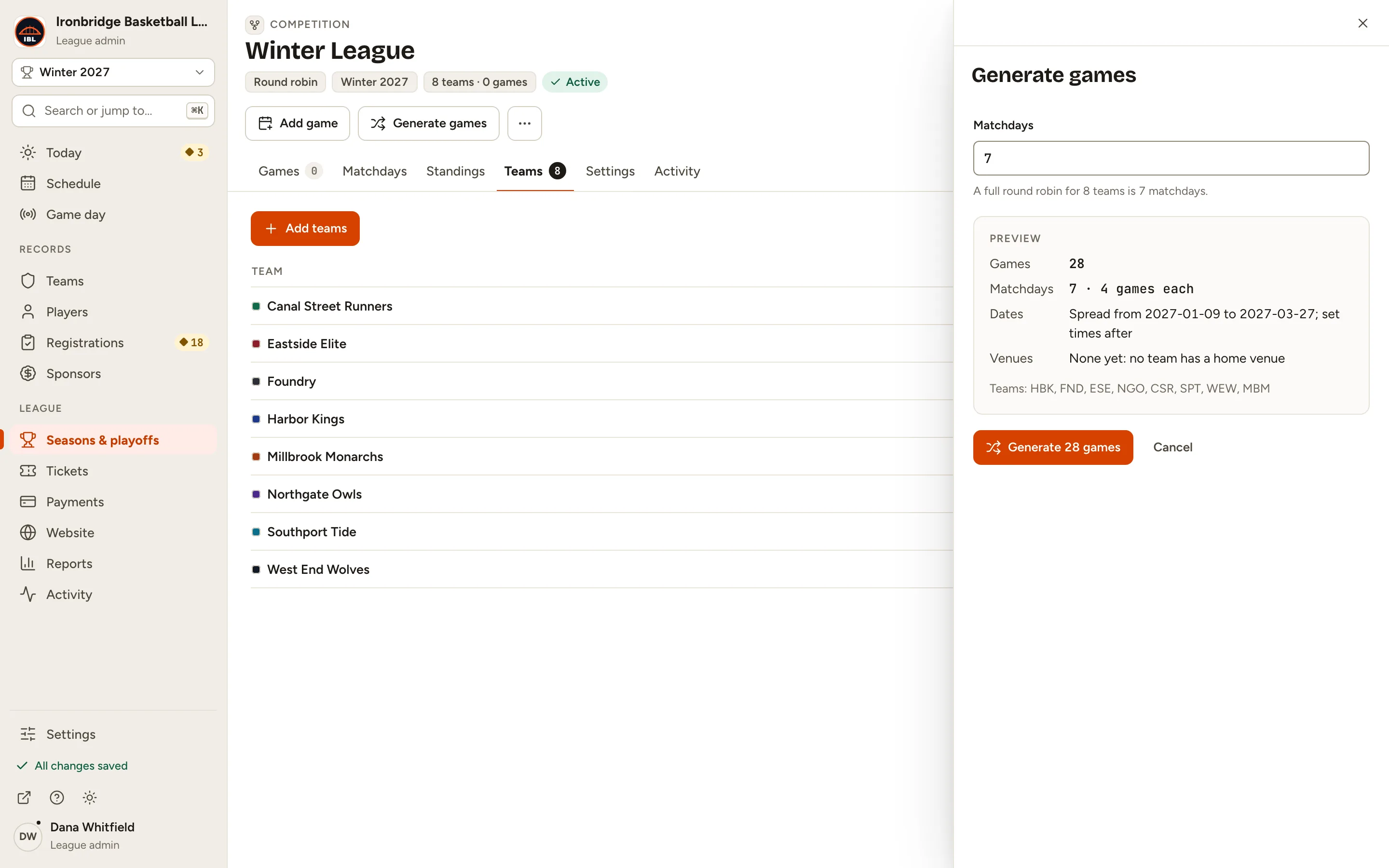
    Fig. 9

    Scroll sideways to see the whole screen.

    The Generate games form: Matchdays 7, and a preview of 28 games, 7 matchdays of 4 games each, dates from 2027-01-09 to 2027-03-27.
    Fig. 9The preview before anything is created.
  10. Step 10: Click Generate 28 games.

    Every team gets one game against every other team. The Games and Matchdays tabs fill in.
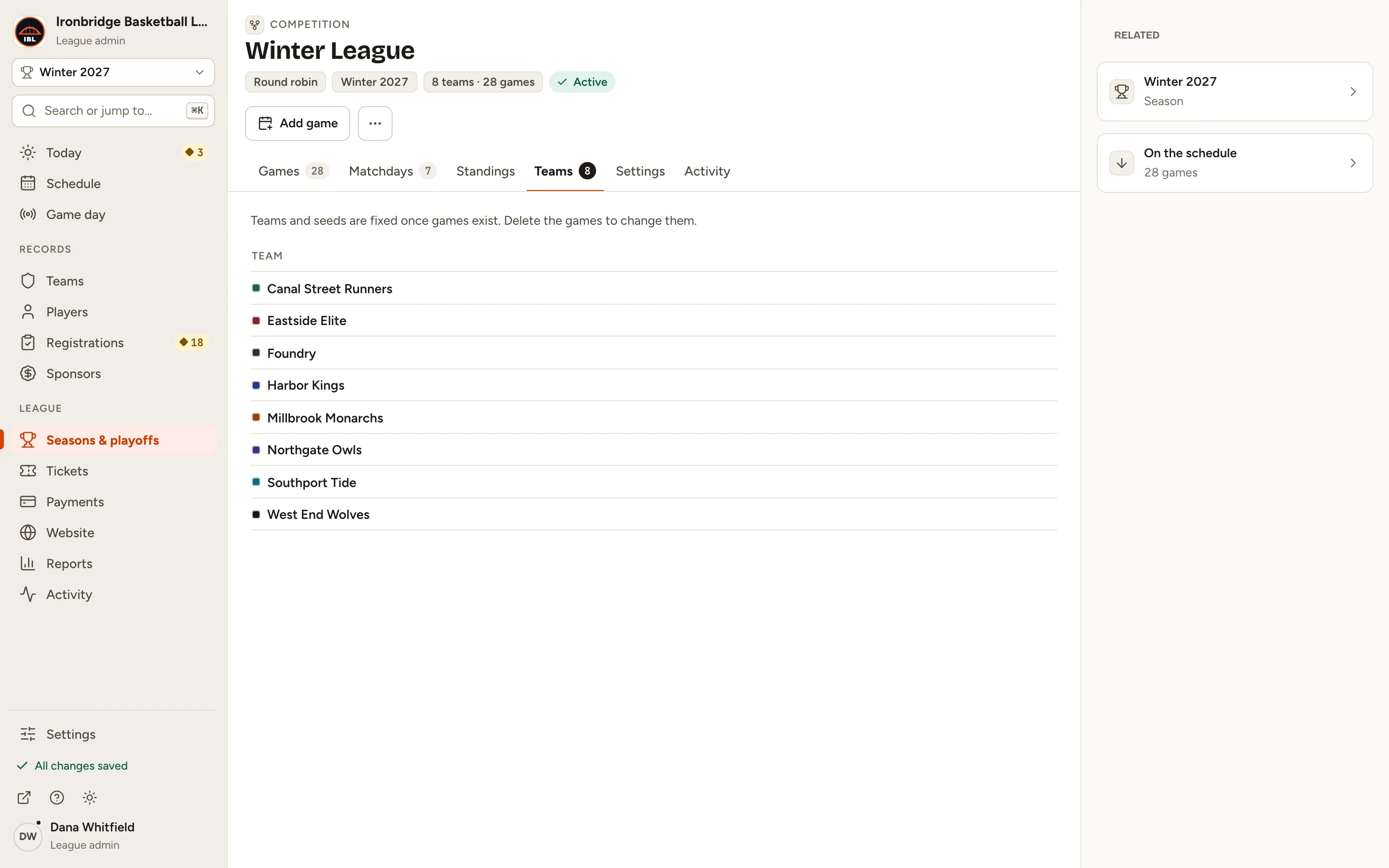
    Fig. 10

    Scroll sideways to see the whole screen.

    The Winter League record with 8 teams · 28 games in its header and the Games 28 and Matchdays 7 tabs.
    Fig. 1028 games on 7 matchdays.
  11. Step 11: Click ↗ (View public site) at the bottom of the sidebar; your website opens in a new tab. Then click Schedule.

    Winter League has a tab for each matchday, with its date and games.
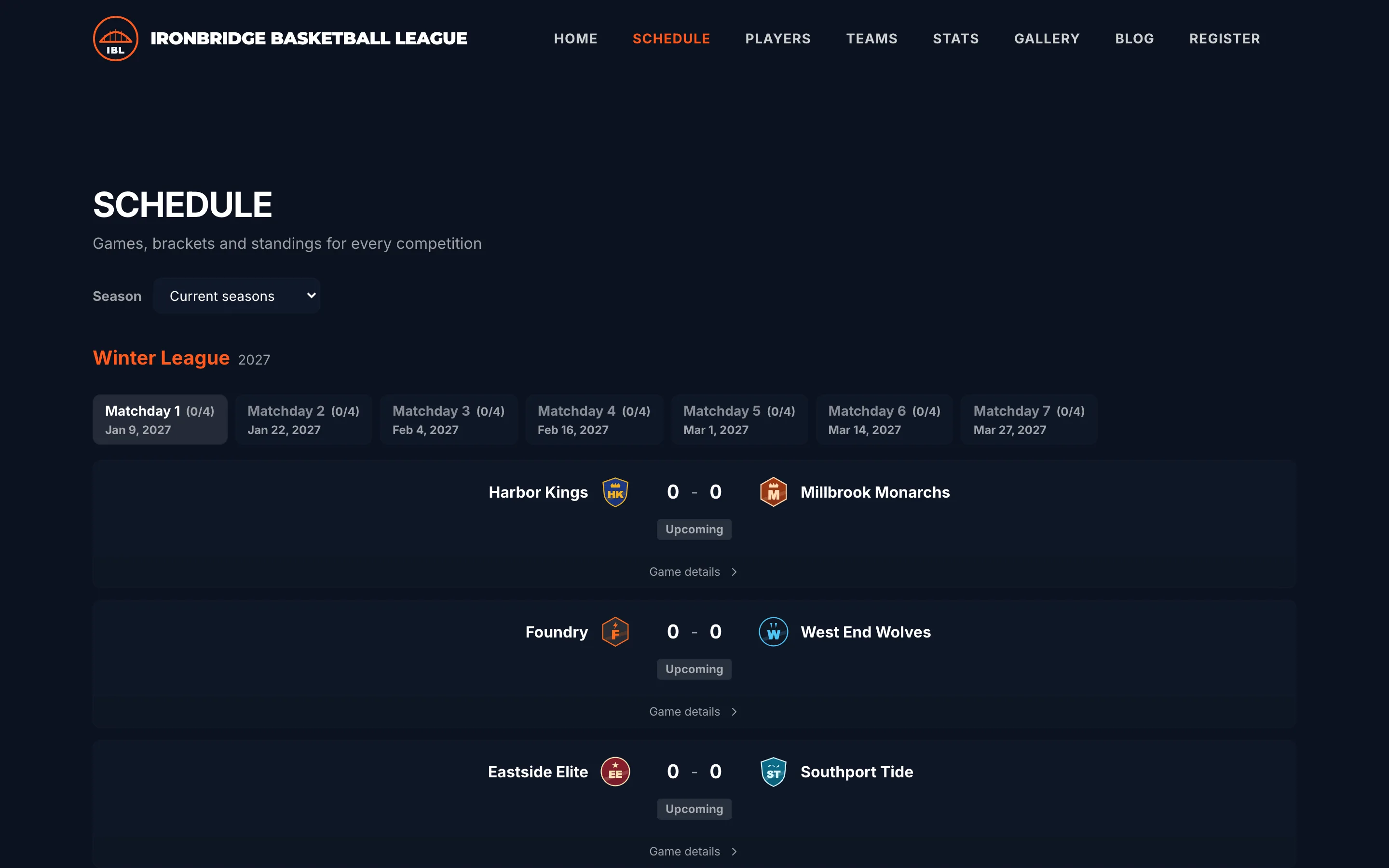
    Fig. 11

    Scroll sideways to see the whole screen.

    The public Schedule page with Winter League and its Matchday 1 to Matchday 7 tabs, and Matchday 1’s four games.
    Fig. 11Winter League on your website’s Schedule.

What you’ll see

Winter League has its 28 games on seven matchdays, and fans can follow it on your Schedule. As scores go final, its Standings tab ranks the teams.
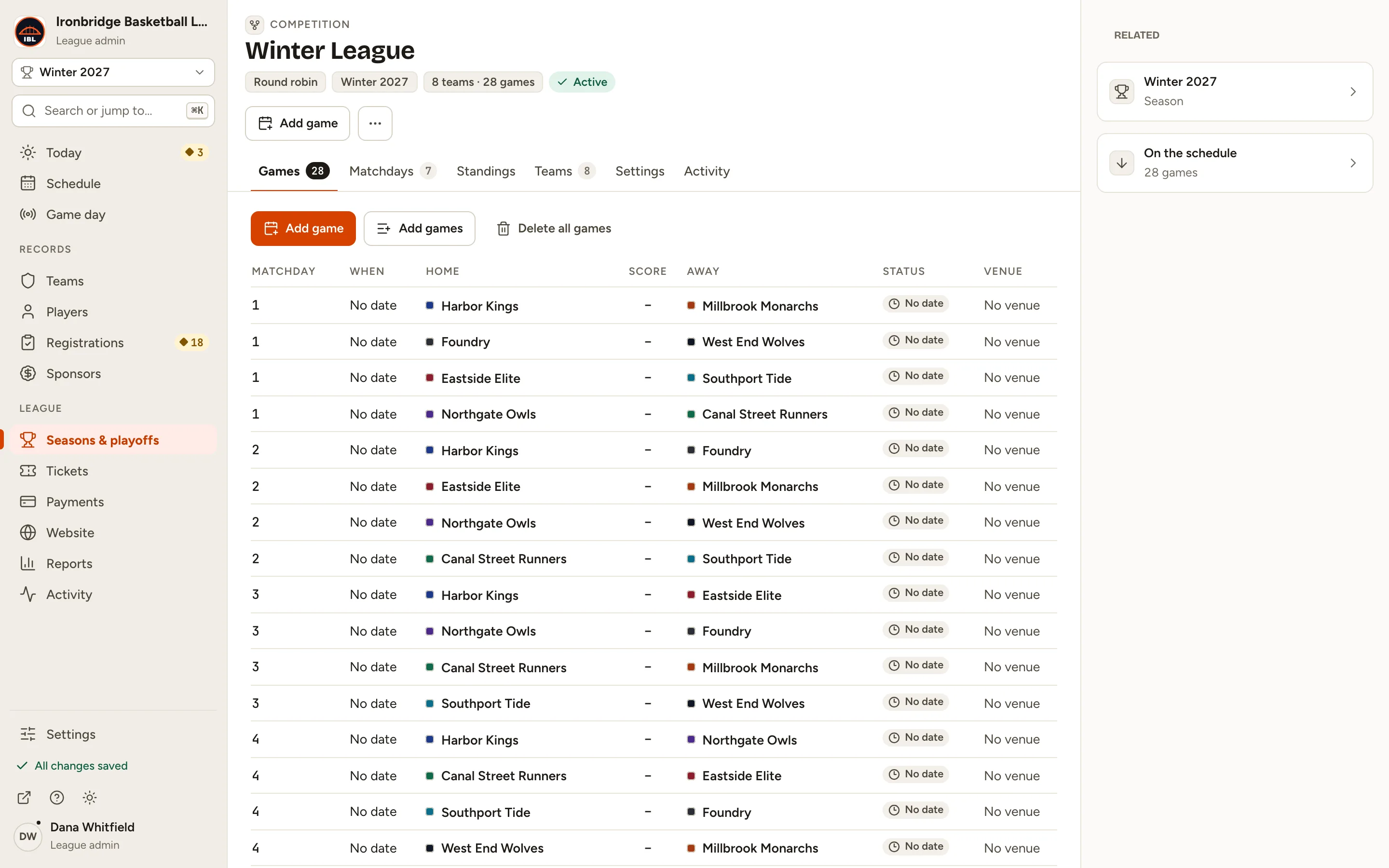
Fig. 12

Scroll sideways to see the whole screen.

The Winter League Games tab listing the generated games by matchday, with Home and Away teams.
Fig. 12Winter League’s 28 games, by matchday.

Common questions

When do the games get times?
Each game is placed on its matchday, and your site lists it under that matchday’s date. To give a game its own date, time and venue, click it on the Games tab and fill them in on its record. To move a whole matchday, change its date on the Matchdays tab.
What if I have an odd number of teams?
It still works: one team rests each matchday, and the preview says so. For 7 teams that’s 7 matchdays of 3 games.
Can I play fewer matchdays?
Yes. In Generate games, lower Matchdays before you generate. The preview shows the smaller number of games; not every pairing gets played.
How do venues get filled in?
If a team has a home venue, its home games use it. The preview says how many teams have one. Otherwise games have no venue until you set it on the game.
Can I add or remove a team after generating?
Not while games exist: teams are fixed once games are generated. Click Delete all games on the Games tab, change the teams, then generate again. Deleting also removes any scores and box scores already entered.
Can I keep it off my website while I set it up?
Yes. On its Settings tab, set Status to Upcoming. Upcoming competitions stay off your site until you set them to Active.
What does Featured on Schedule page do?
While no competition is featured, your Schedule lists every competition in your active seasons. Once you turn on Featured on Schedule page for one or more, it lists only those.