Add pages and blog posts
By the end you’ll have a post on your website’s Blog, with a cover photo, and you’ll know how to add a page like your rules.
Before you start
- Have the words ready: a title and a few sentences.
- A cover photo is optional: a JPG, PNG or WebP file.
Steps
-
Step 1: In the left menu, click Website.
Website opens on its Design tab. Your posts and pages have their own tab.
Fig. 1Website, in the left menu. -
Step 2: Click the Pages & posts tab.
It lists everything you’ve written, with views for Posts, Pages and Drafts.
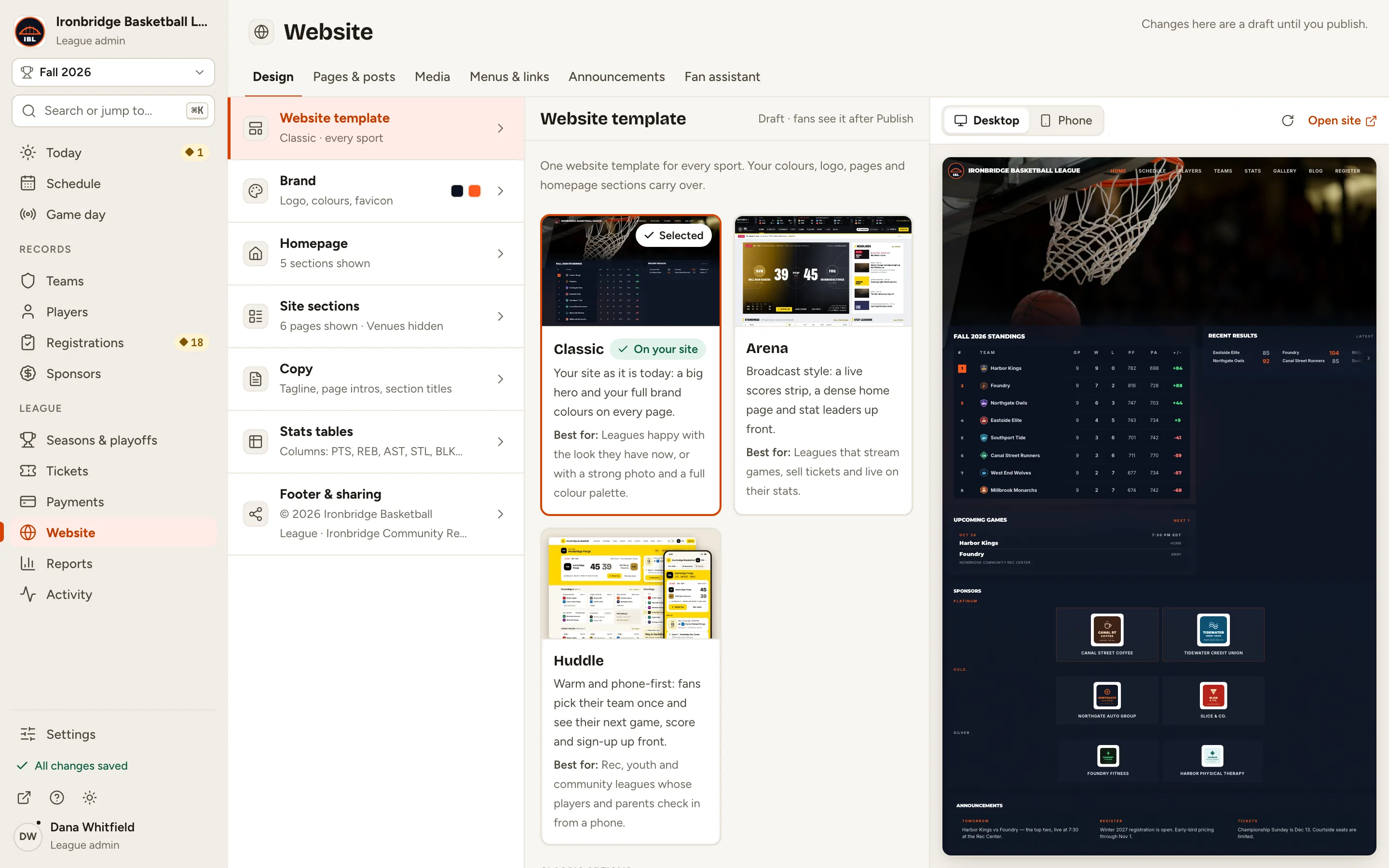
Fig. 2The Pages & posts tab, next to Design. -
Step 3: Click New page at the top right.
The editor opens: the title and body on the left, the page settings on the right.
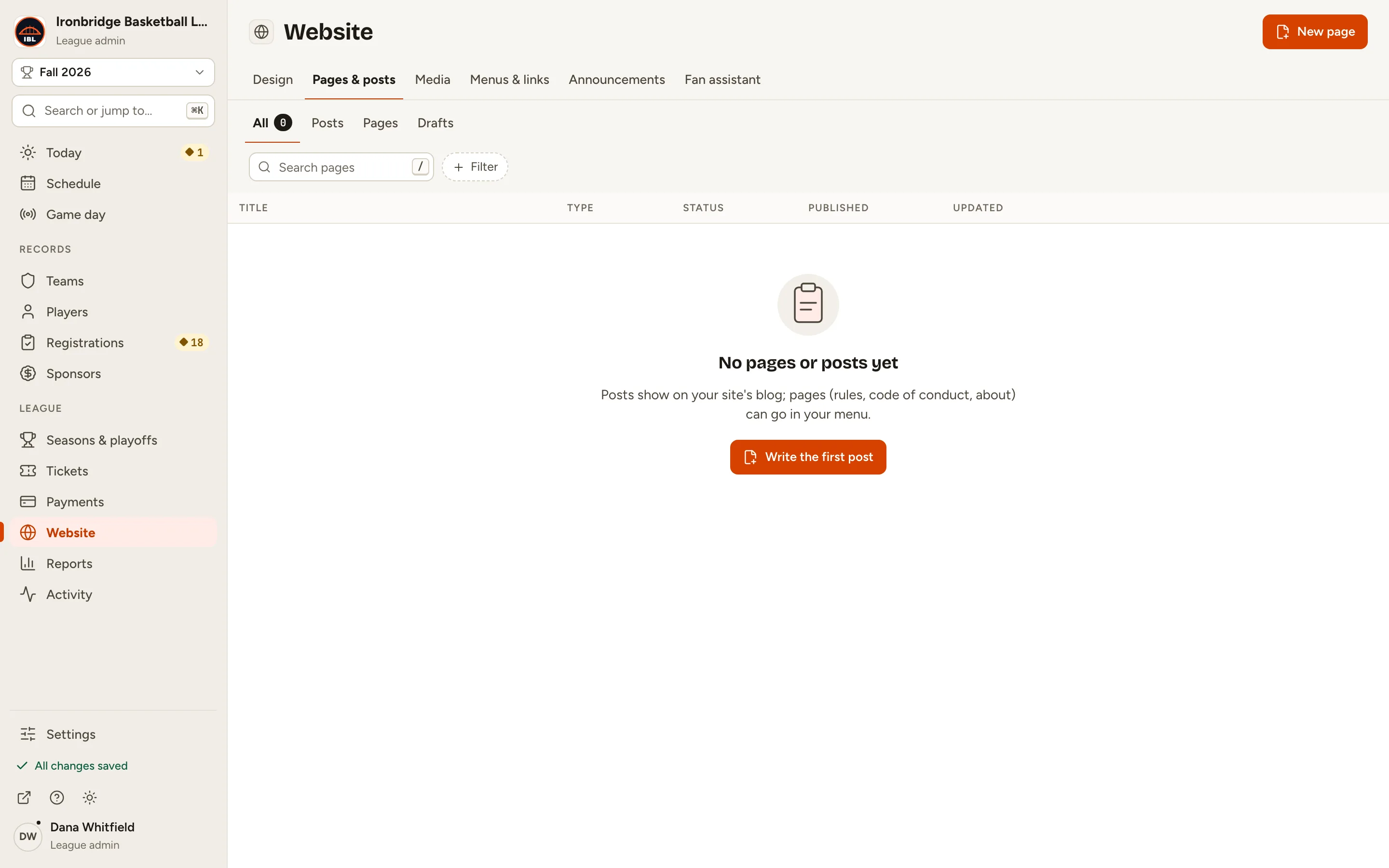
Fig. 3New page, at the top right. -
Step 4: Type a Title.
The Web address fills in from the title, so fans can read the post at /pages/ and that address. You can change it before you publish.
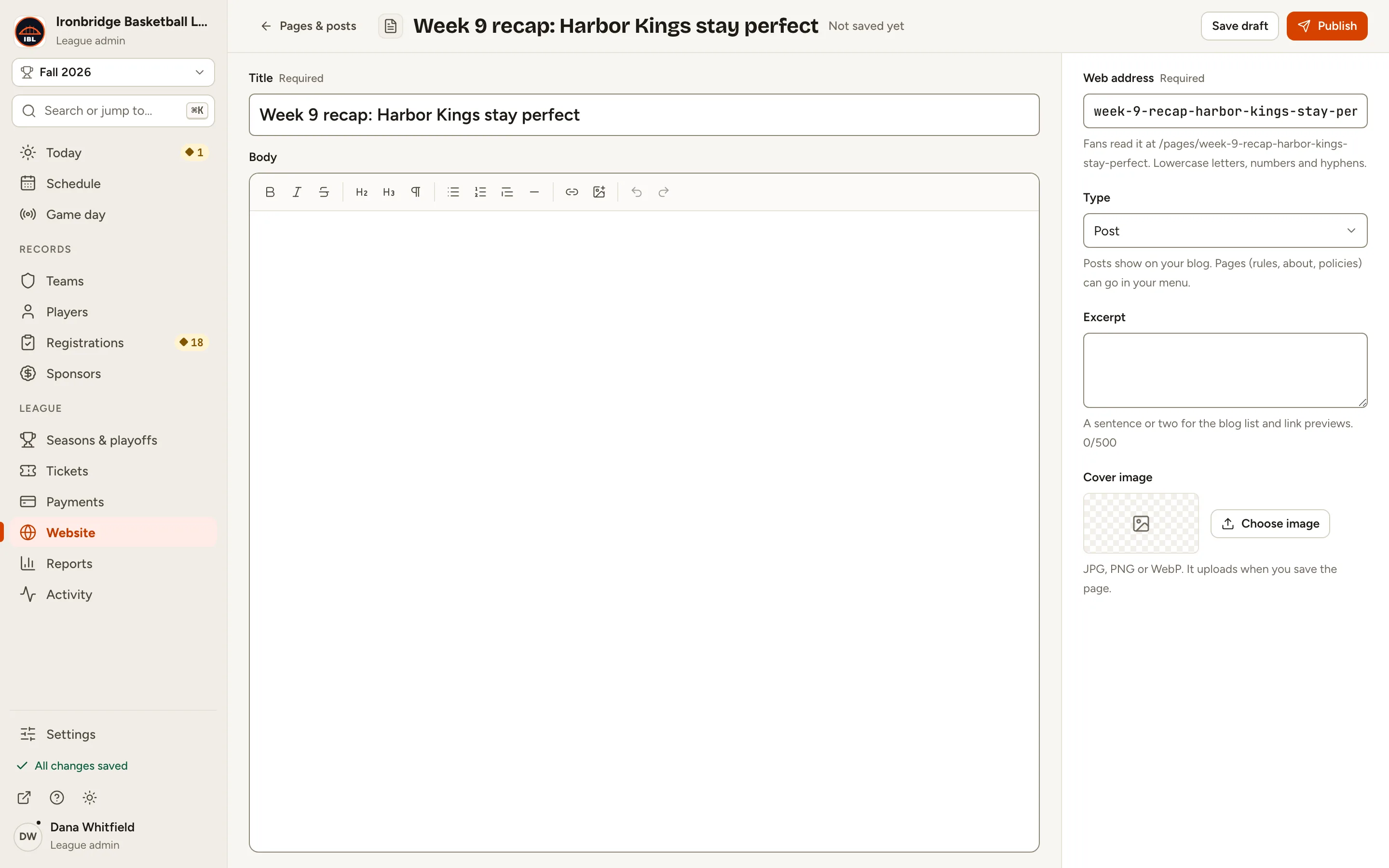
Fig. 4The title, and the web address made from it. -
Step 5: Click in Body and write your post.
The toolbar adds headings, lists, quotes, links and images. Nothing is saved until you click Save draft or Publish; after that, a draft saves as you type.
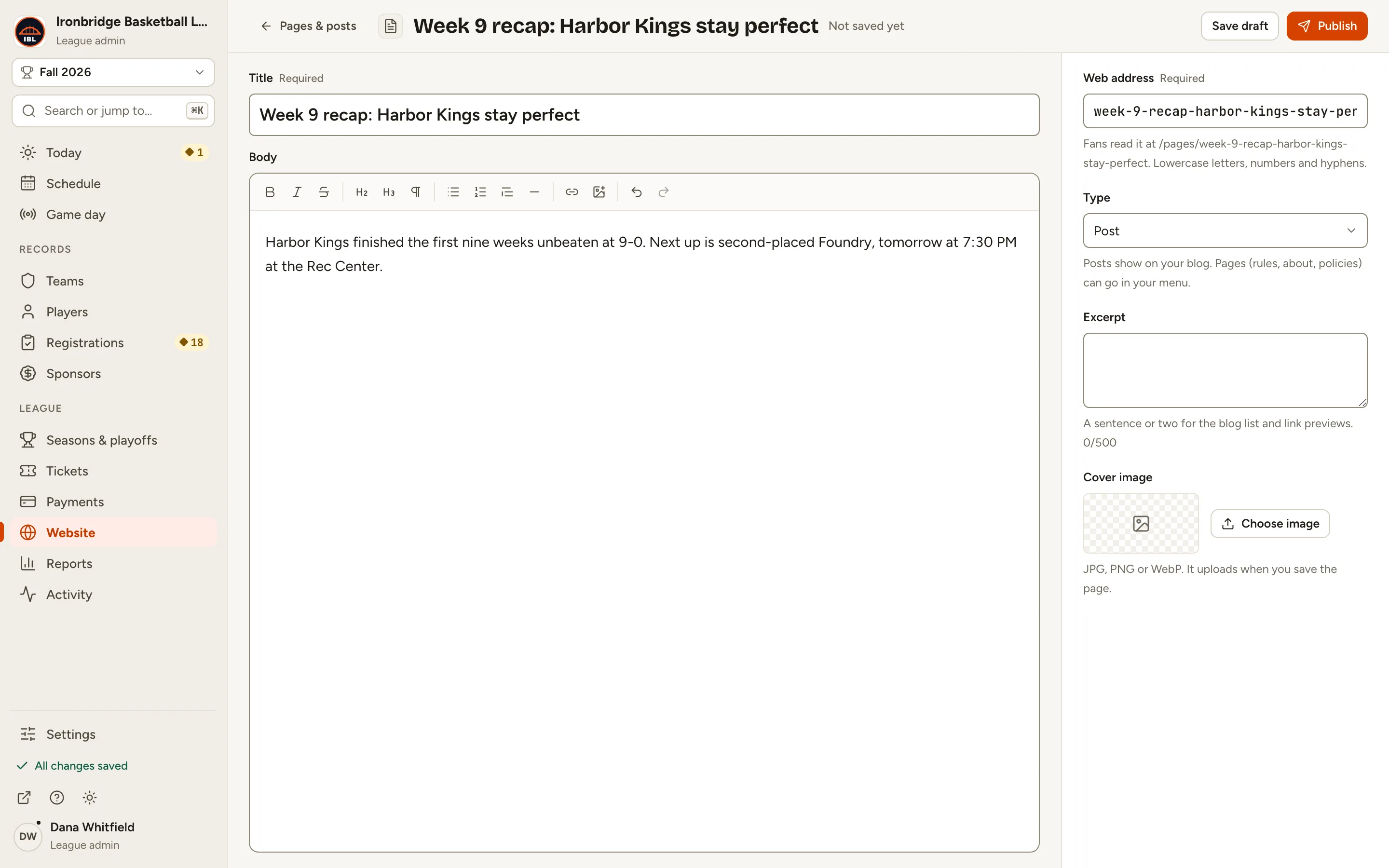
Fig. 5The body, with the formatting toolbar above it. -
Step 6: Under Excerpt, write a sentence or two.
It’s used in the blog list and in link previews. Type is already Post, so this goes on your blog.
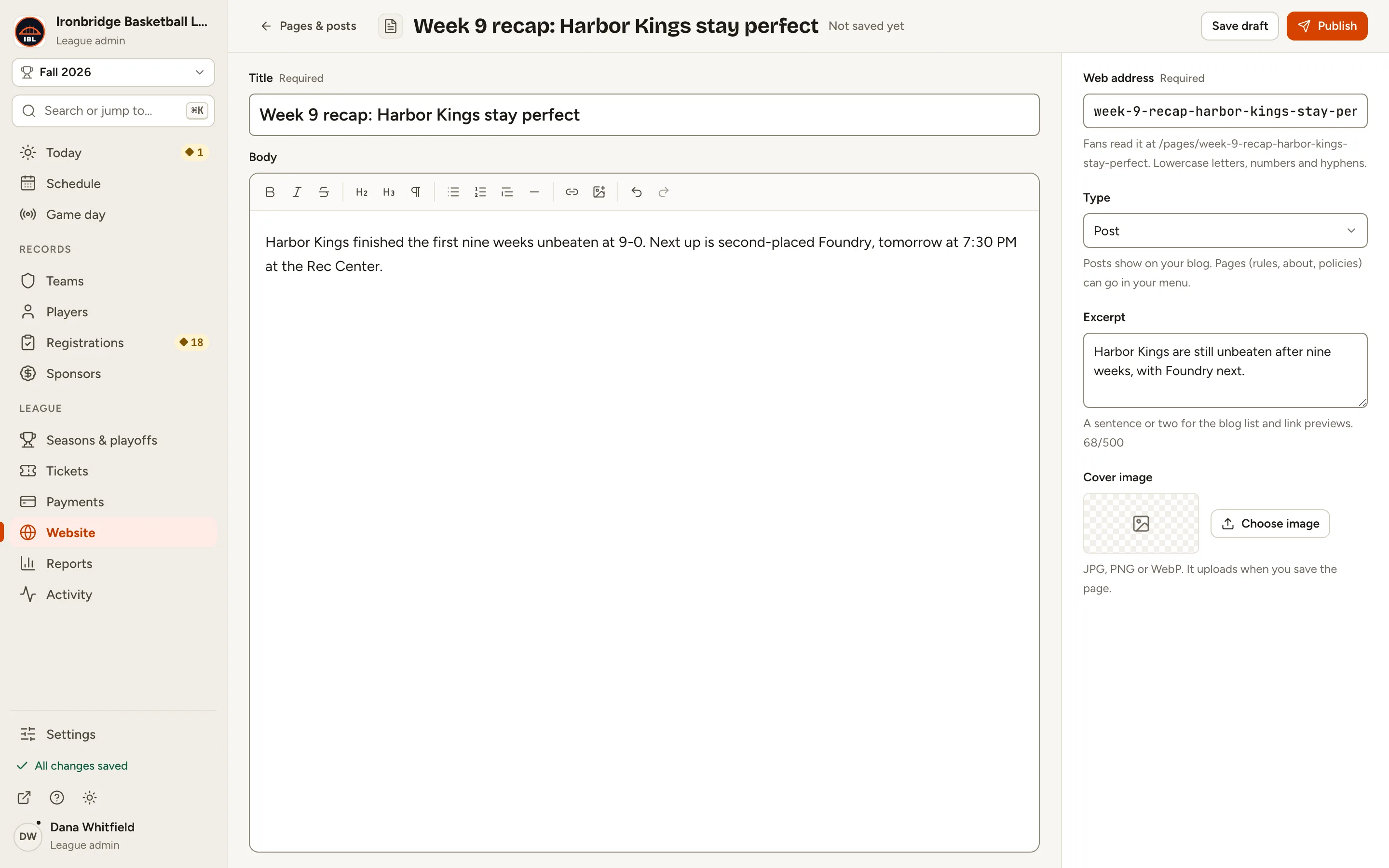
Fig. 6Type and Excerpt, in the page settings. -
Step 7: Under Cover image, click Choose image and pick a photo.
It’s the picture on your post’s card in the blog. A new page’s cover uploads when you save the page.
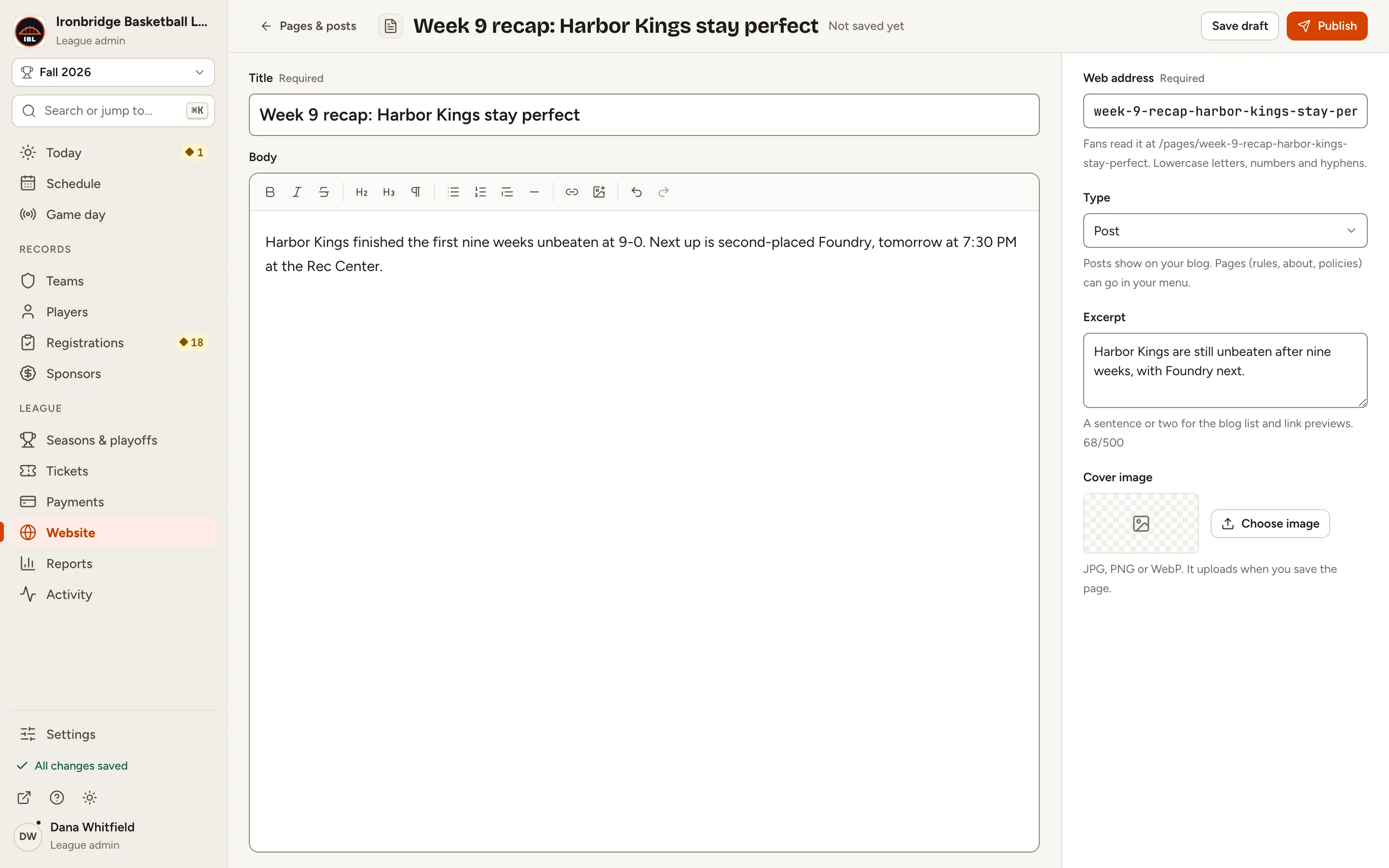
Fig. 7Choose image, under Cover image. -
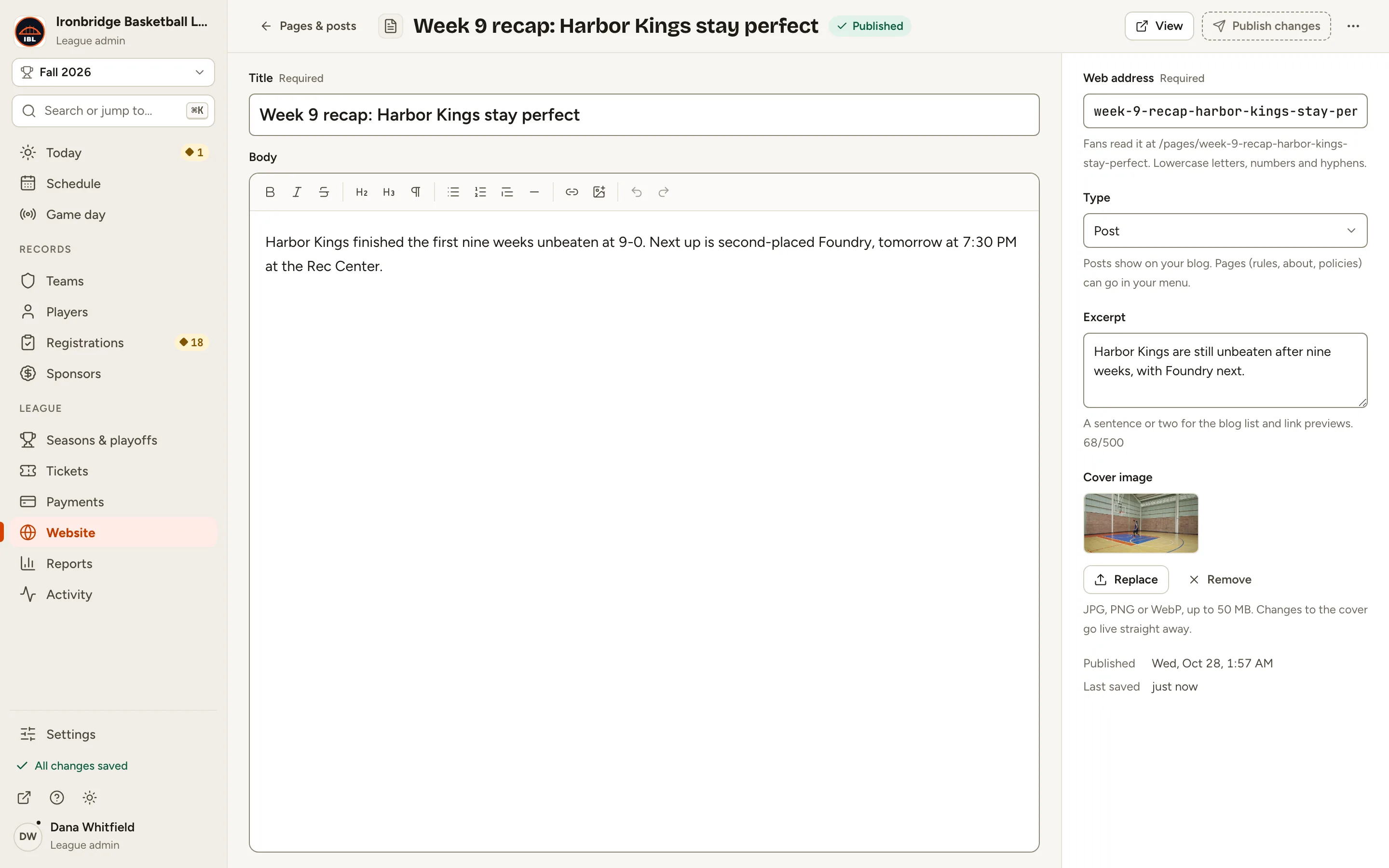
Step 8: Click Publish at the top right.
The post goes live: its status changes to Published, and View opens it on your website.
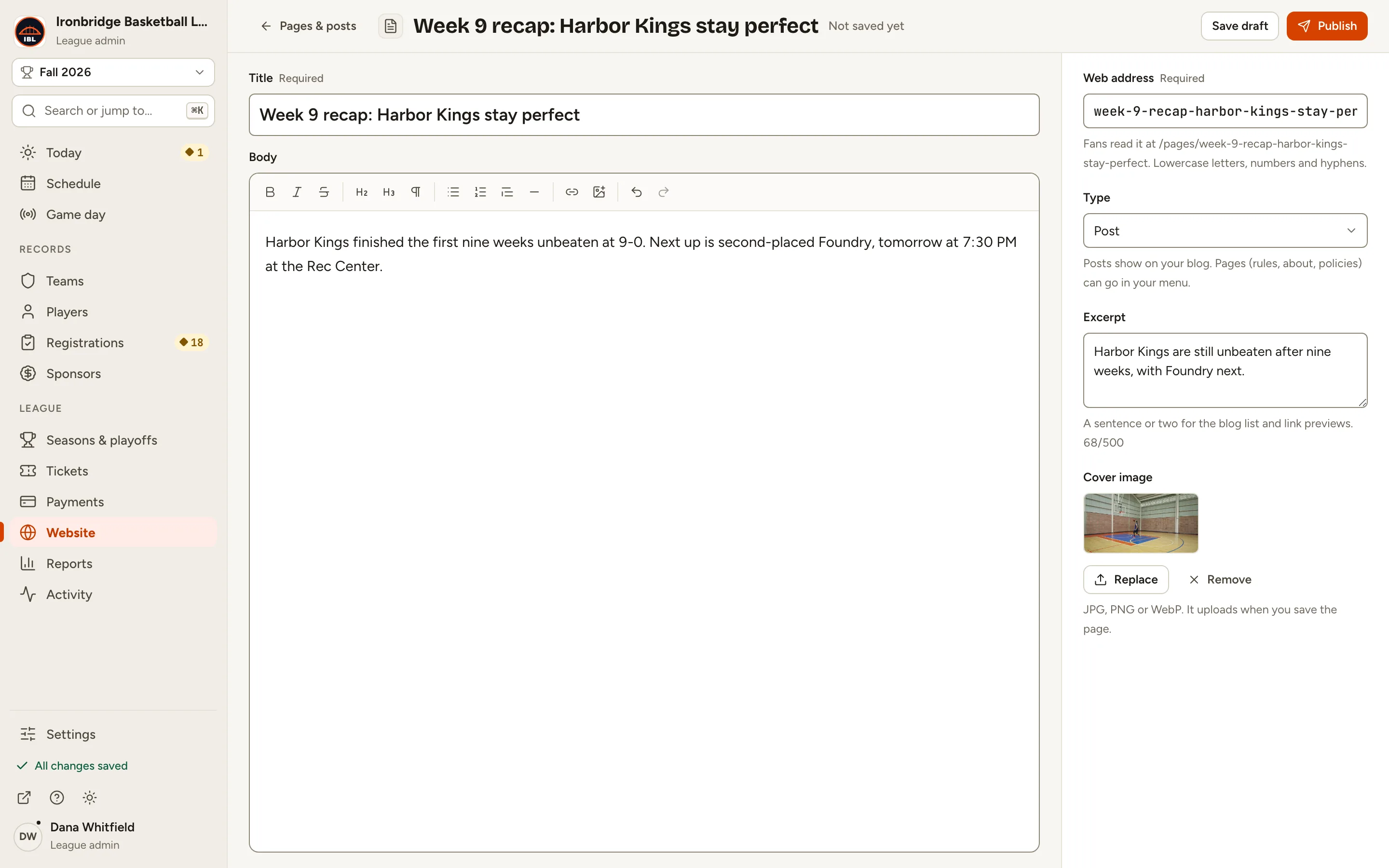
Fig. 8Publish, at the top right of the editor. -
Step 9: Open your website and click Blog.
From the admin, click ↗ (View public site) at the bottom of the sidebar; your website opens in a new tab. Your post is on the Blog, newest first.
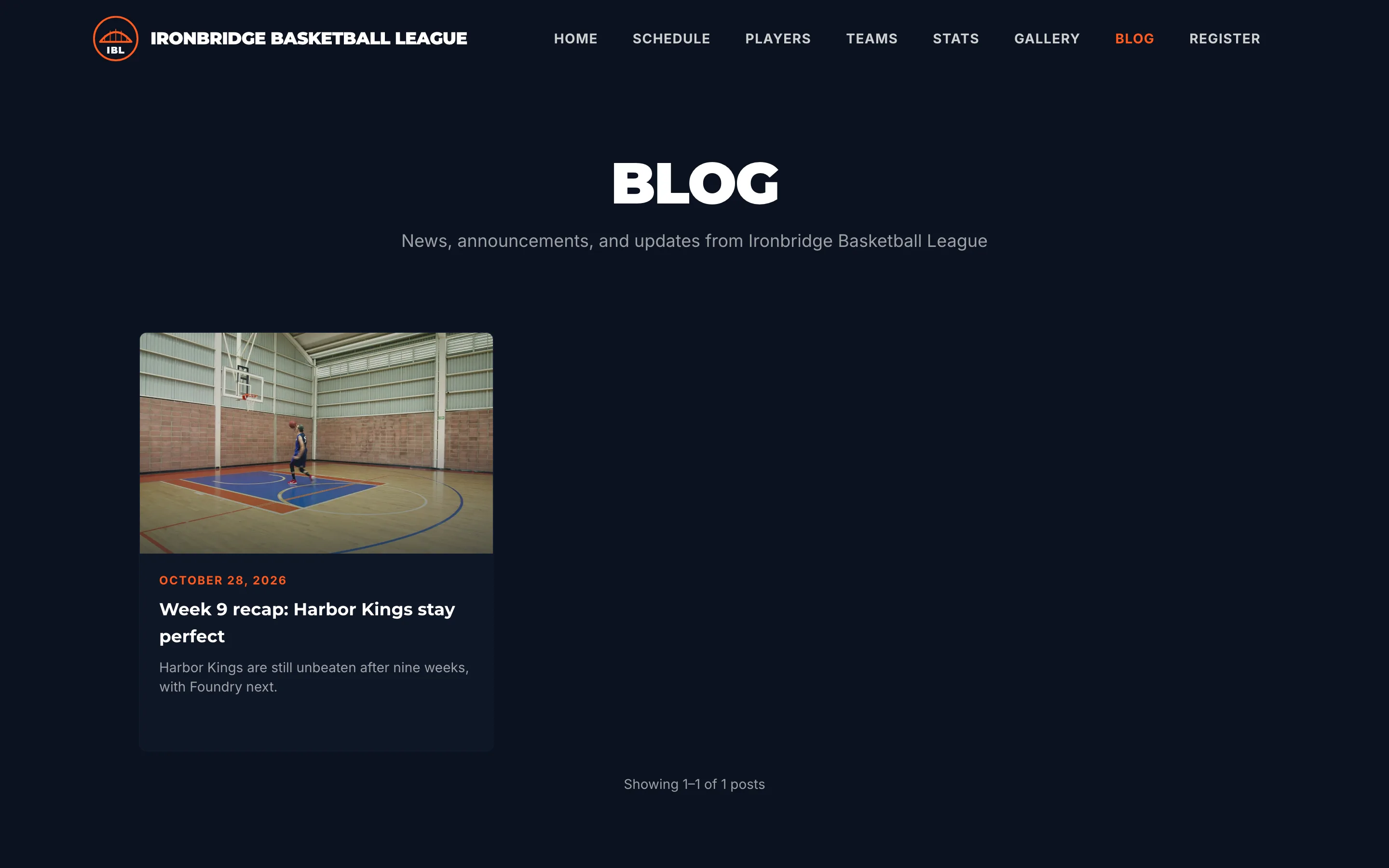
Fig. 9Your post on the Blog, with its cover photo.
What you’ll see
Your post is on your website’s Blog. It stays in Website › Pages & posts, where you can edit it, unpublish it or write the next one.