Any role can do this: league admins, editors and stat keepers each set their own.
Steps
1
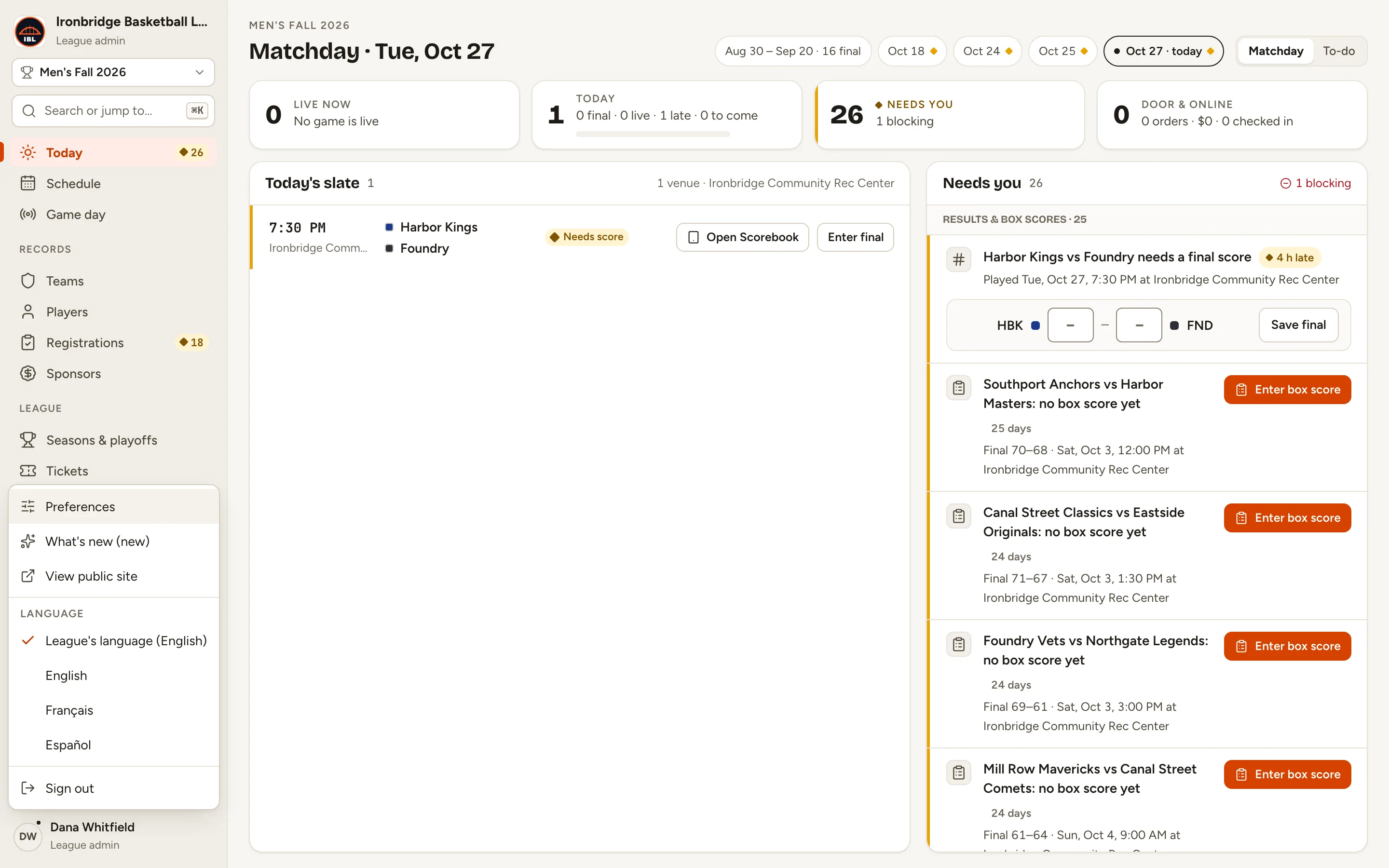
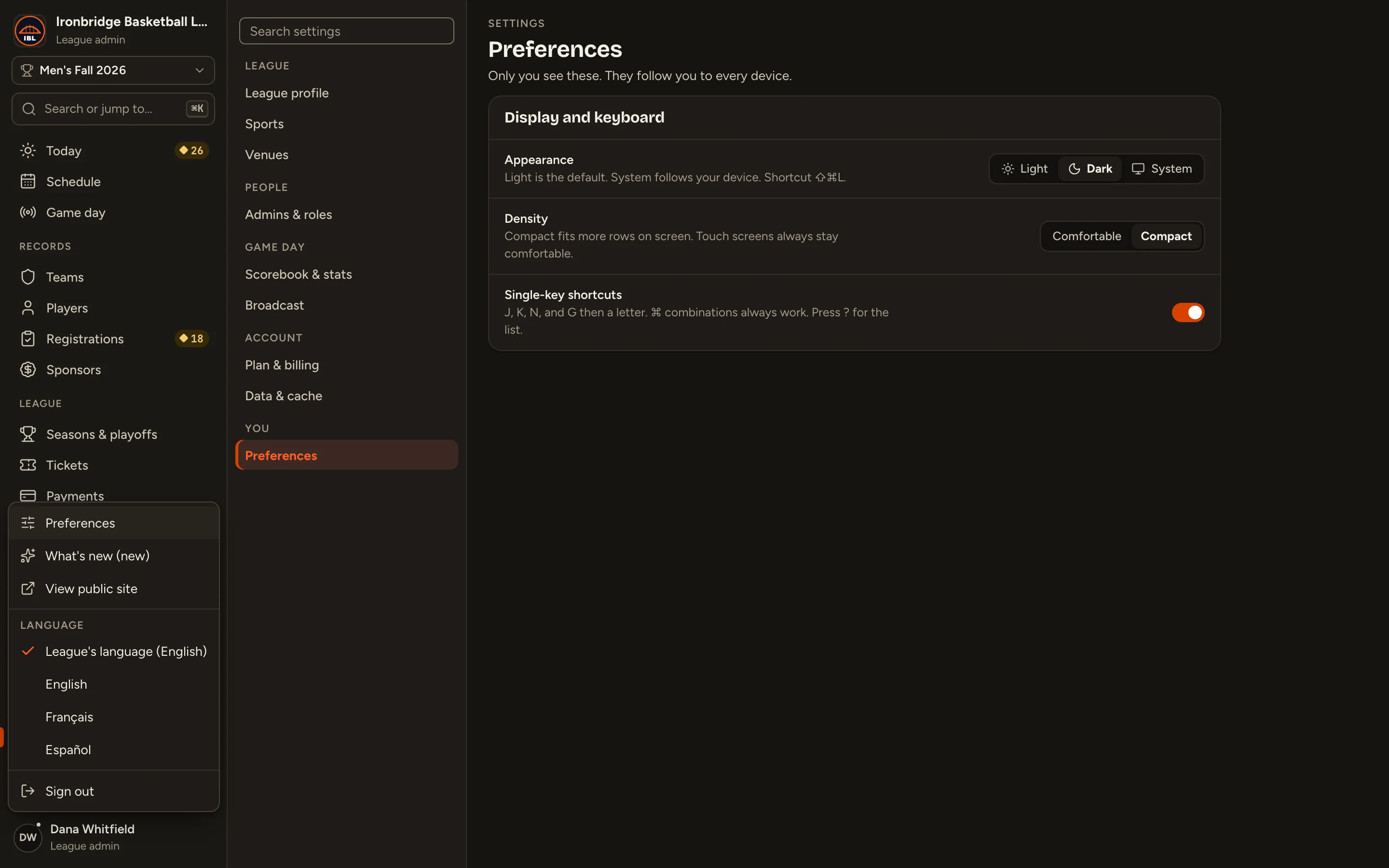
Step 1: At the bottom left, click your name.
Your account menu opens: Preferences, What’s new, View public site, your Language and Sign out.
Fig. 1Your account menu, at the bottom left.
2
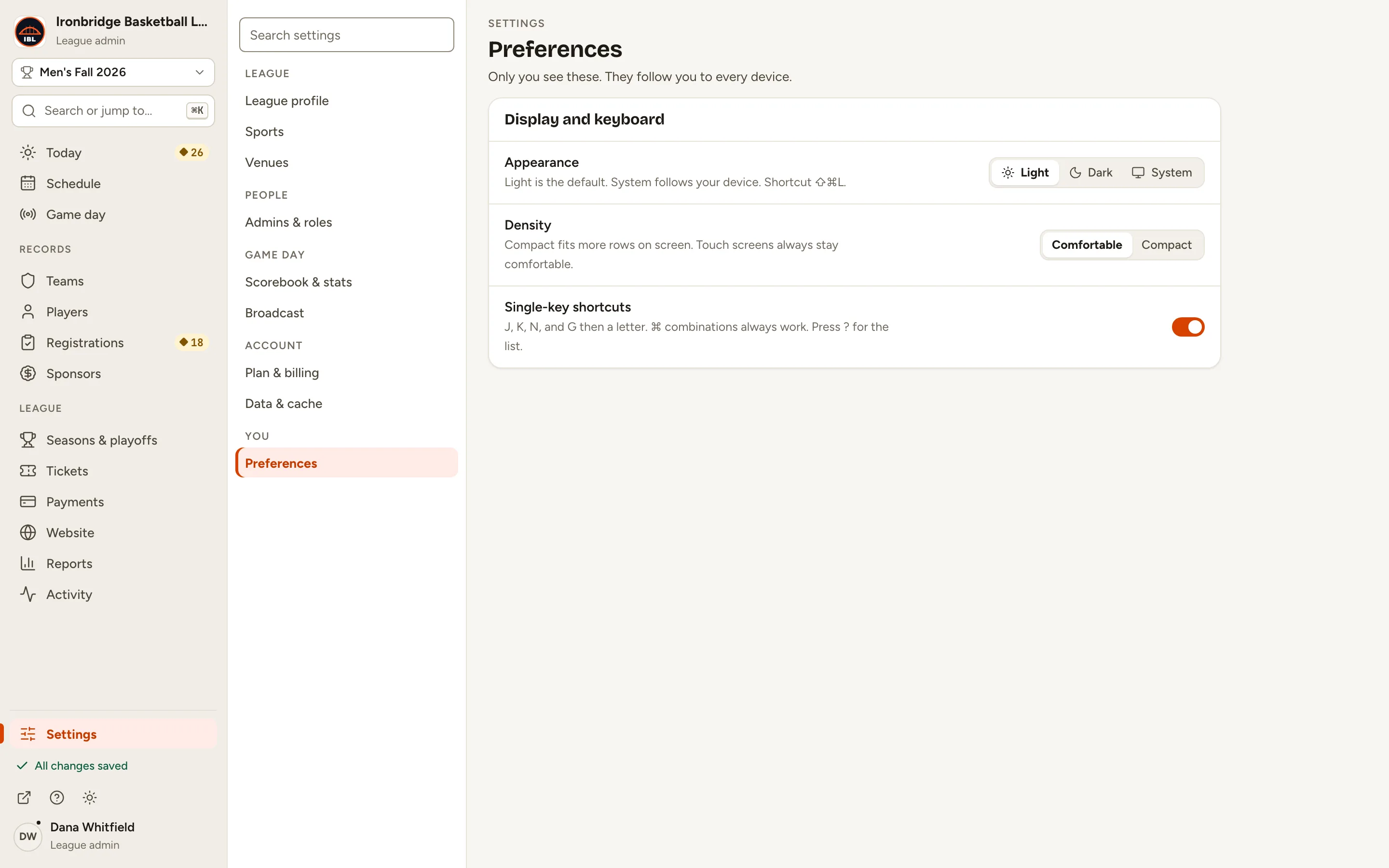
Step 2: Click Preferences.
Settings opens on Preferences. Only you see these, and they follow you to every device.
Fig. 2Preferences: how the admin looks and works for you.
3
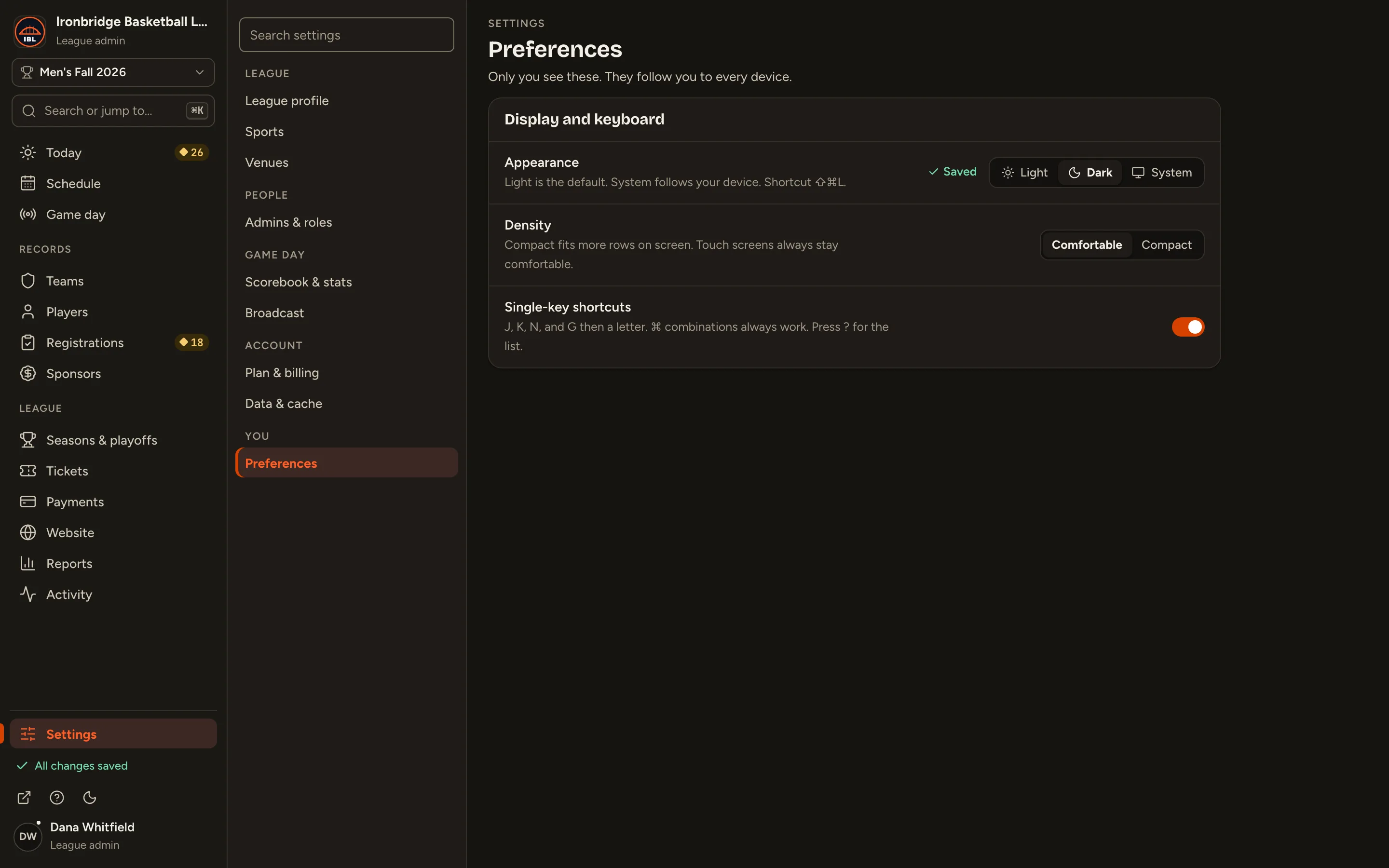
Step 3: Next to Appearance, click Dark.
The admin turns dark straight away, and Saved shows beside it. System follows your device. ⇧⌘L switches between light and dark from anywhere.
Fig. 3Dark, saved straight away.
4
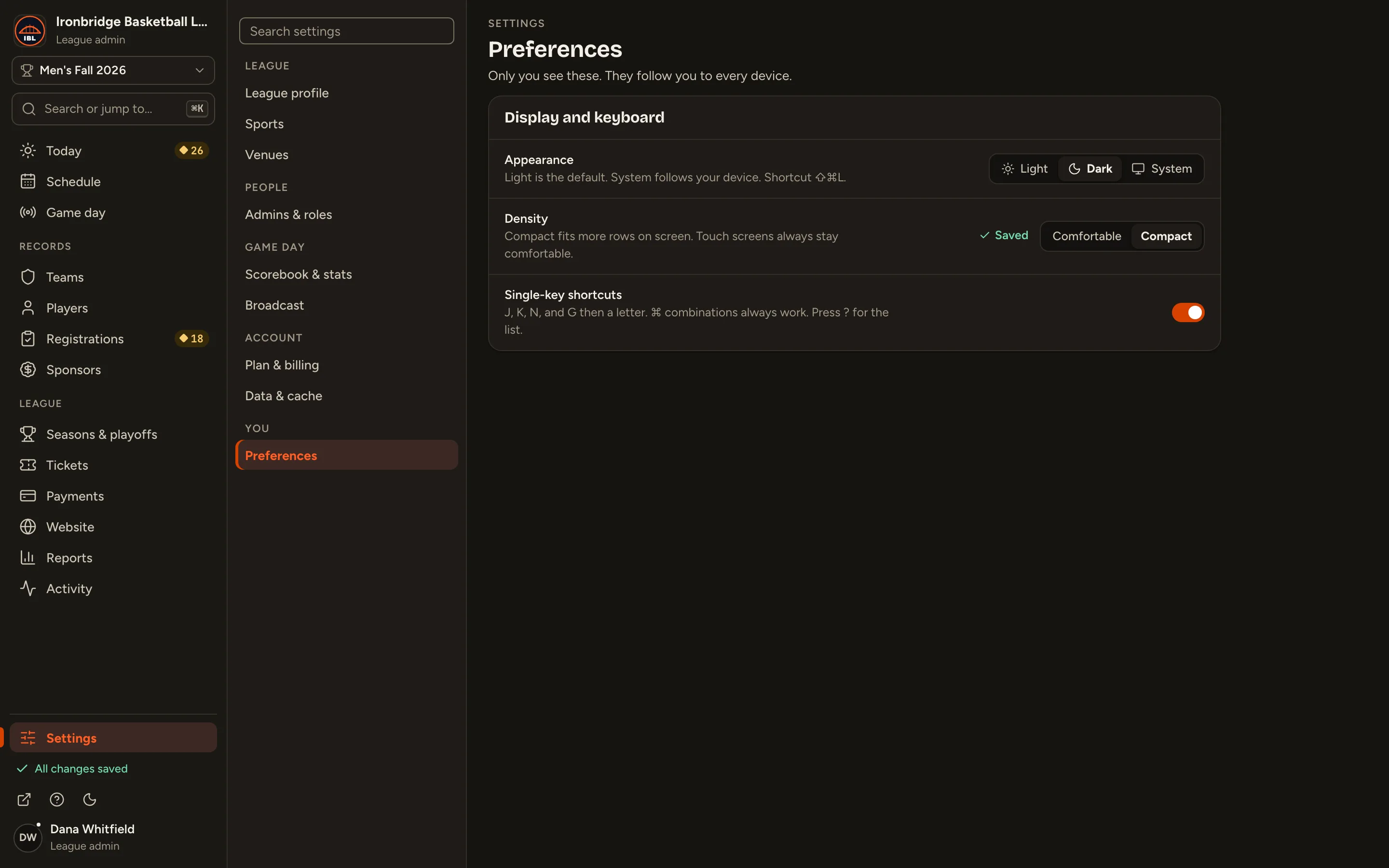
Step 4: Next to Density, click Compact.
Lists fit more rows on screen. On touch screens the admin always stays comfortable.
Fig. 4Compact fits more on screen.
5
Step 5: Click your name again, and under Language choose Français.
The admin switches to French at once. Your website isn’t affected: fans still see your league’s own language.
Fig. 5Pick your language in the account menu.
What you’ll see
The admin is dark, compact and in French, for you only. Everyone else who signs in keeps their own choices.
Fig. 6The admin, dark, compact and in French.
Common questions
Does this change the admin for anyone else?
No. Preferences and your language are yours alone. Everyone else who signs in sets their own.
How do I switch back to English?
Click your name. Under the language group (Langue in French, Idioma in Spanish), choose English, or the league’s language to follow whatever your league uses.
Does it change my website’s language?
No. Your website’s language is a league setting, in Settings › League profile › Languages (league admins only). Fans can switch to any language that’s turned on there.
I’m in more than one league. Do I set it again?
Yes. Your preferences are saved for each league you belong to, so set them once in each.
What are single-key shortcuts?
One-letter keys like J and K to move through a list, N to add, and G then a letter to jump to a page. If they get in your way, turn off Single-key shortcuts in Preferences. ⌘ combinations always work. See Search and keyboard shortcuts.