Choose your website template
By the end you’ll have your website in the template that suits your league, for every sport.
Before you start
- Use a computer or a tablet. On a phone, Website template can’t be changed.
- Set your logo and colours first if you haven’t yet. Every template uses them.
Steps
-
Step 1: In the left menu, click Website.
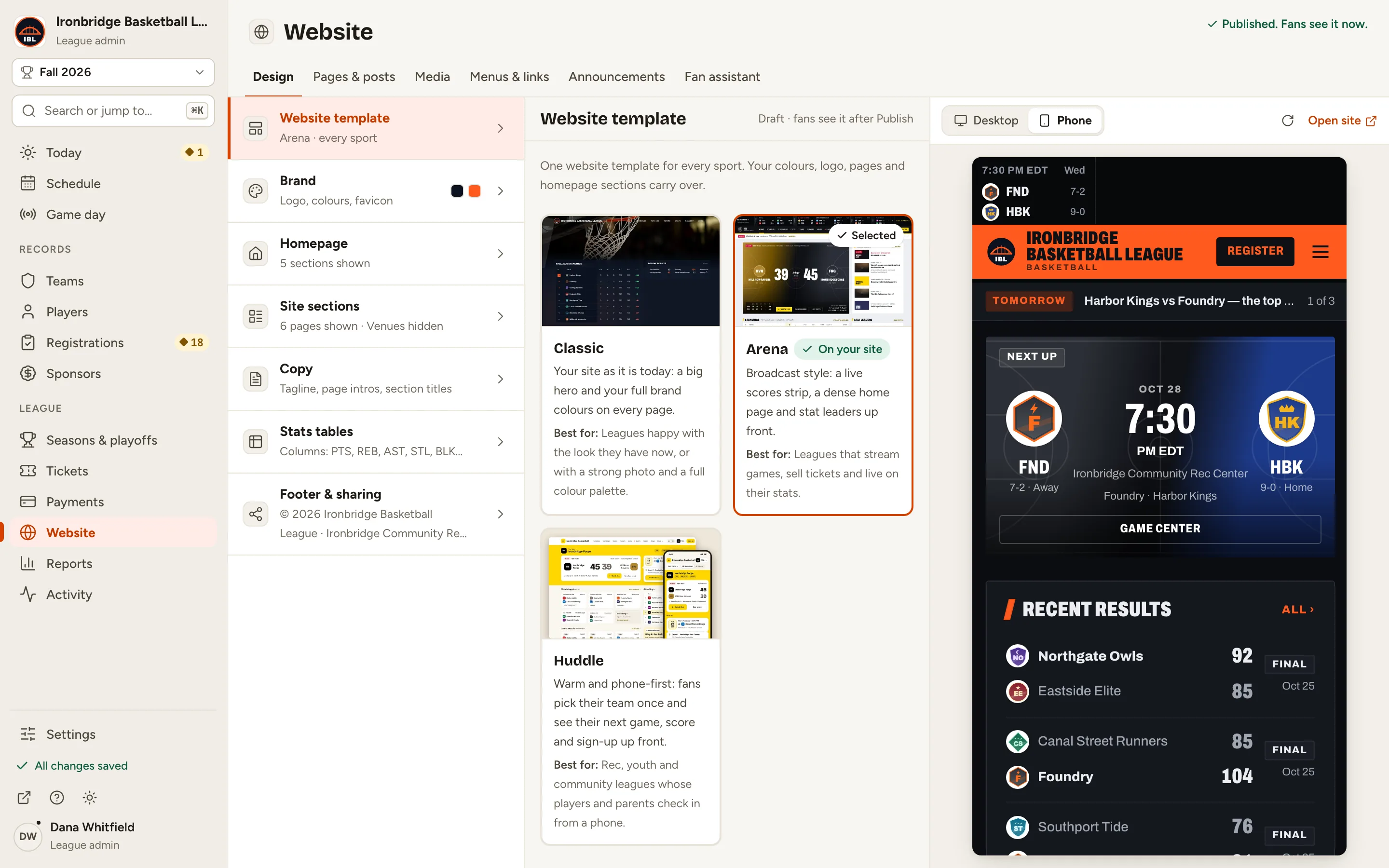
Website opens on Design, at Website template. There’s a card for each template: Classic, Arena and Huddle. The one fans see now says On your site.
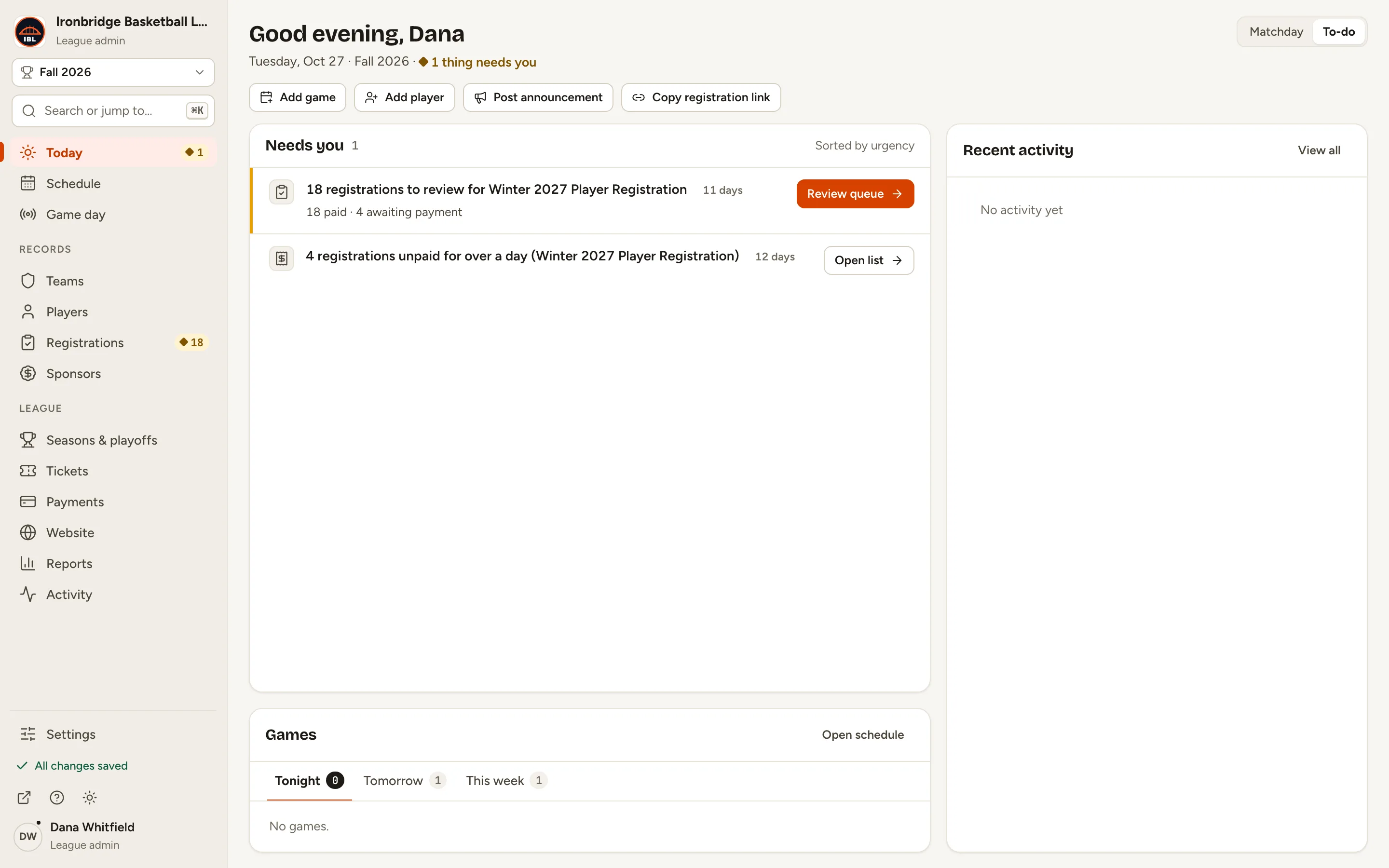
Fig. 1Website, in the left menu. -
Step 2: Click the Arena card.
Arena is now Selected and marked Unpublished. The preview on the right shows your own league in Arena, with your logo and colours. Fans still see your current template. To compare, click Classic or Huddle the same way.
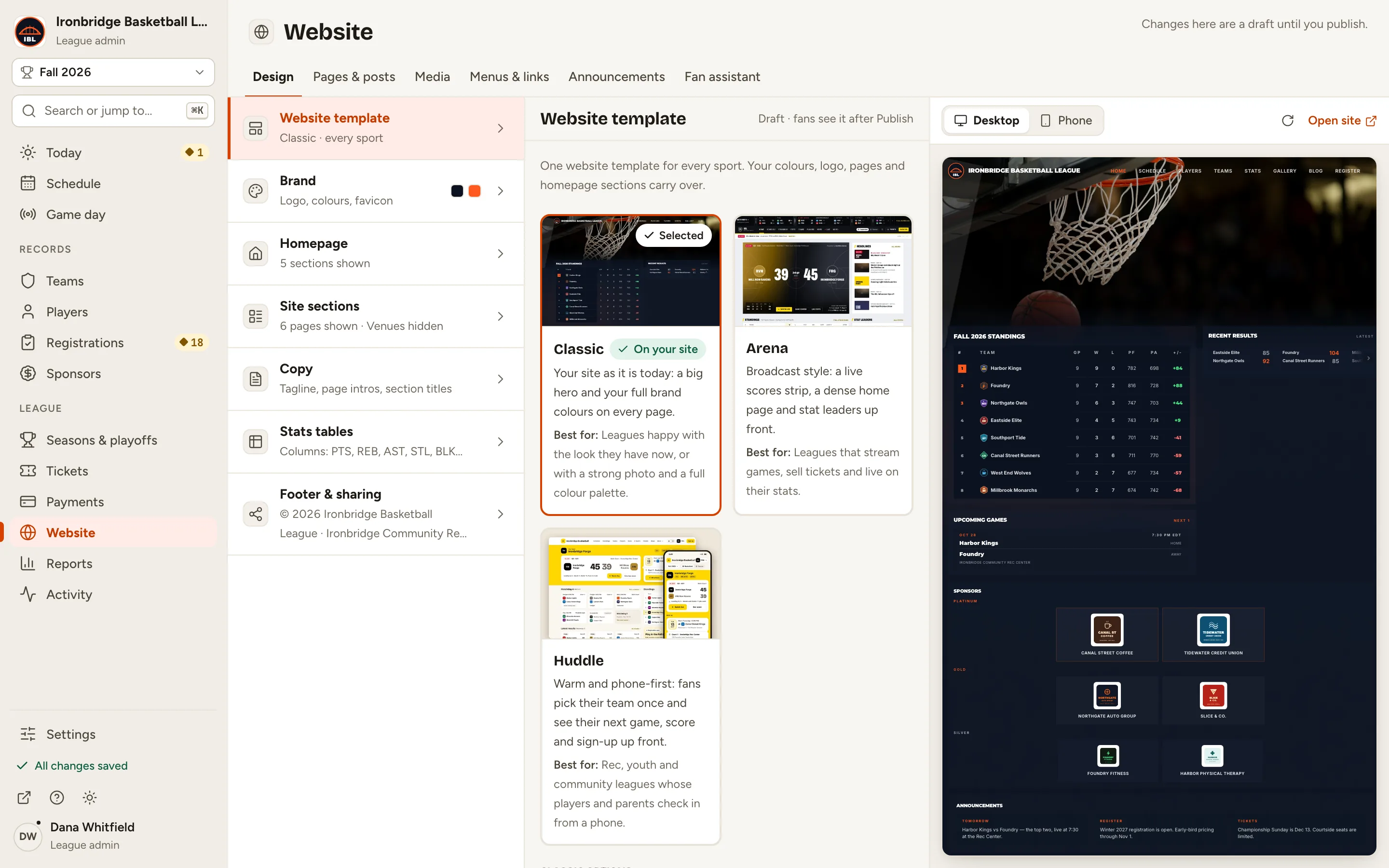
Fig. 2The three templates. Classic is on your site. -
Step 3: Under Arena options, set Nav colour to League colour.
Each template has its own options, and each option says what it changes. Nav colour paints the menu bar in your league colour instead of black. To go back to Arena’s defaults, click Reset to defaults.
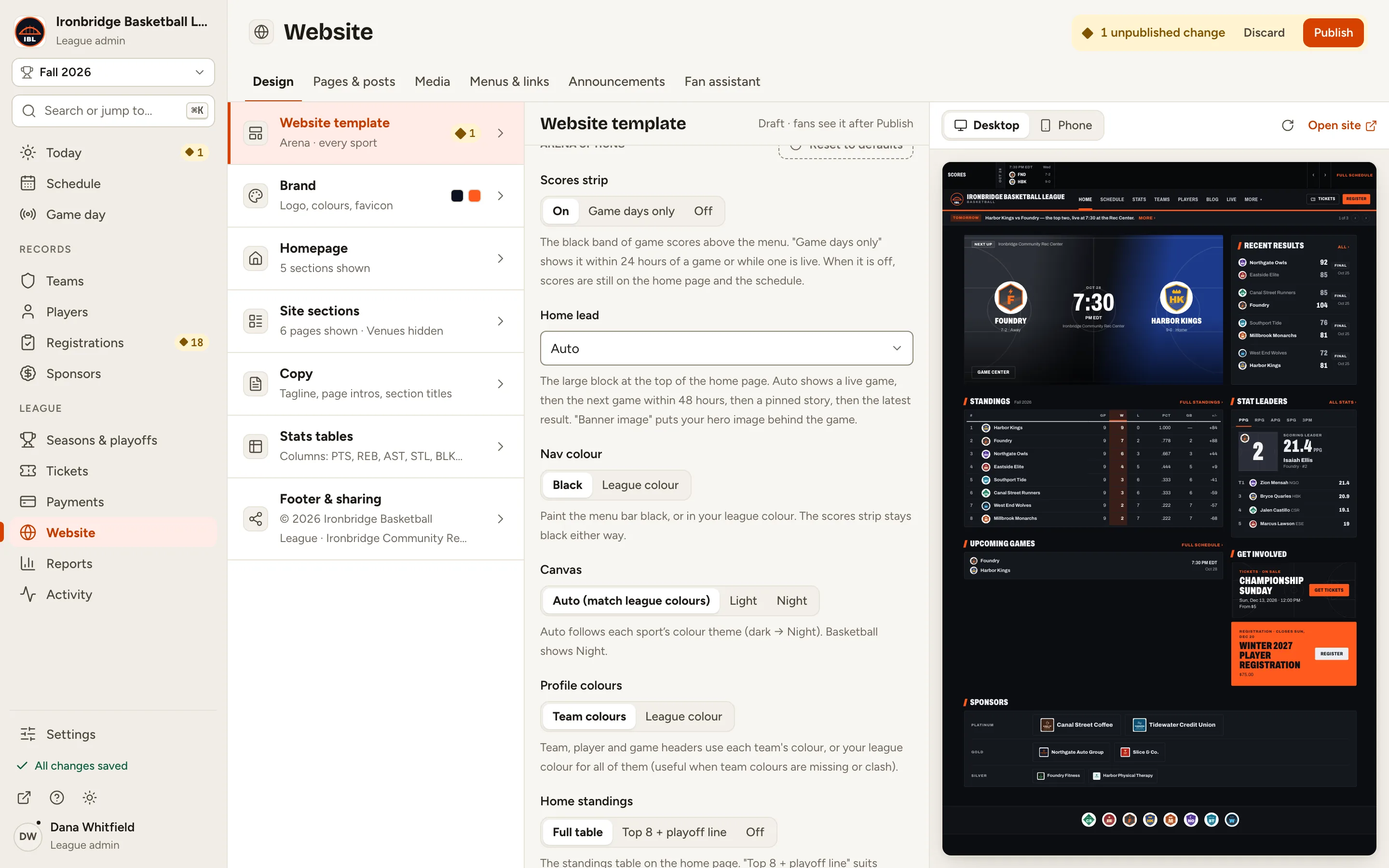
Fig. 3Nav colour, under Arena options. -
Step 4: Above the preview, click Phone.
The preview switches to a phone screen, where many fans see your site. Click Desktop to switch back.
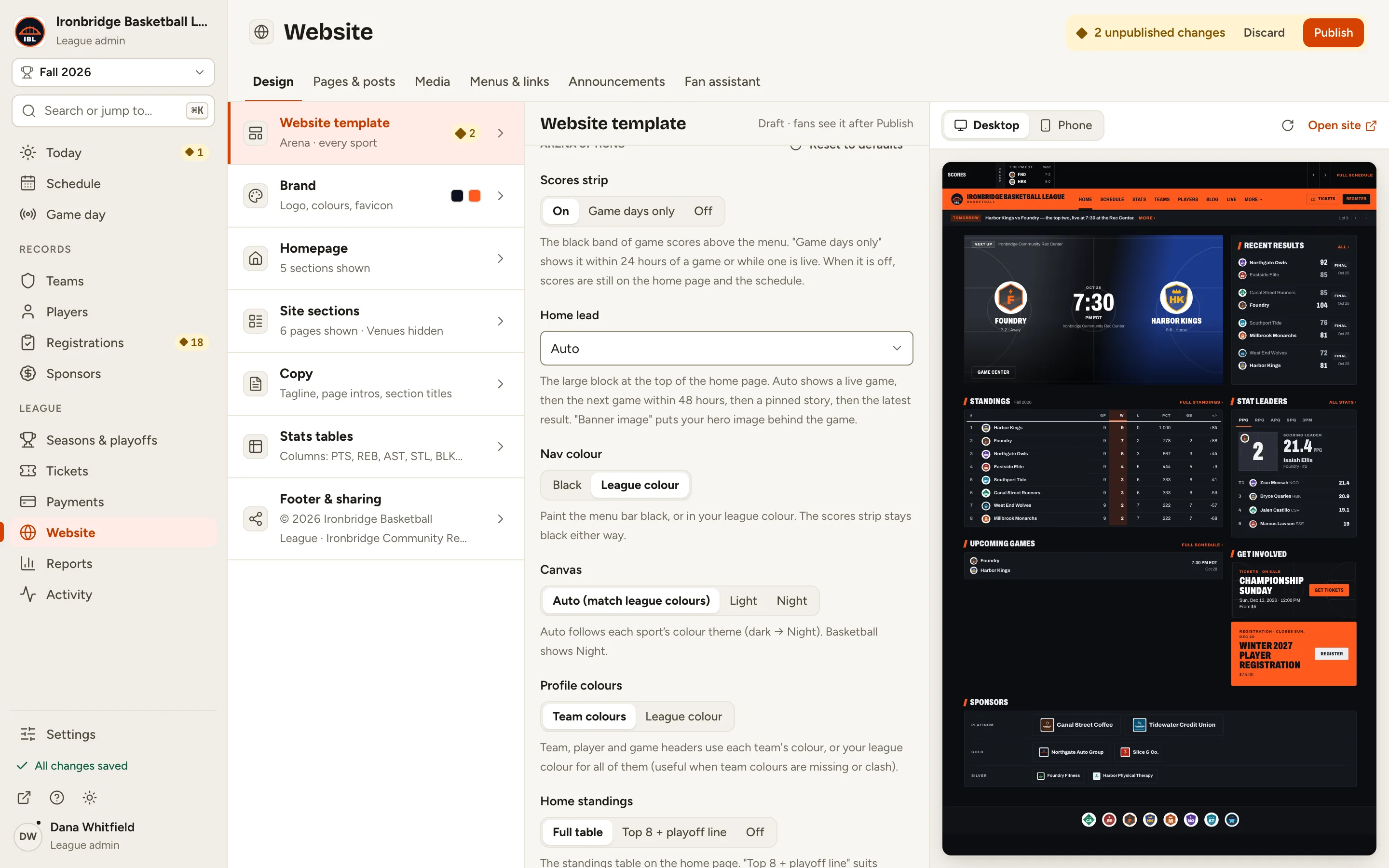
Fig. 4Phone, above the preview. -
Step 5: Click Publish at the top right.
A box asks you to confirm the switch: Your public site will switch to Arena for every sport.
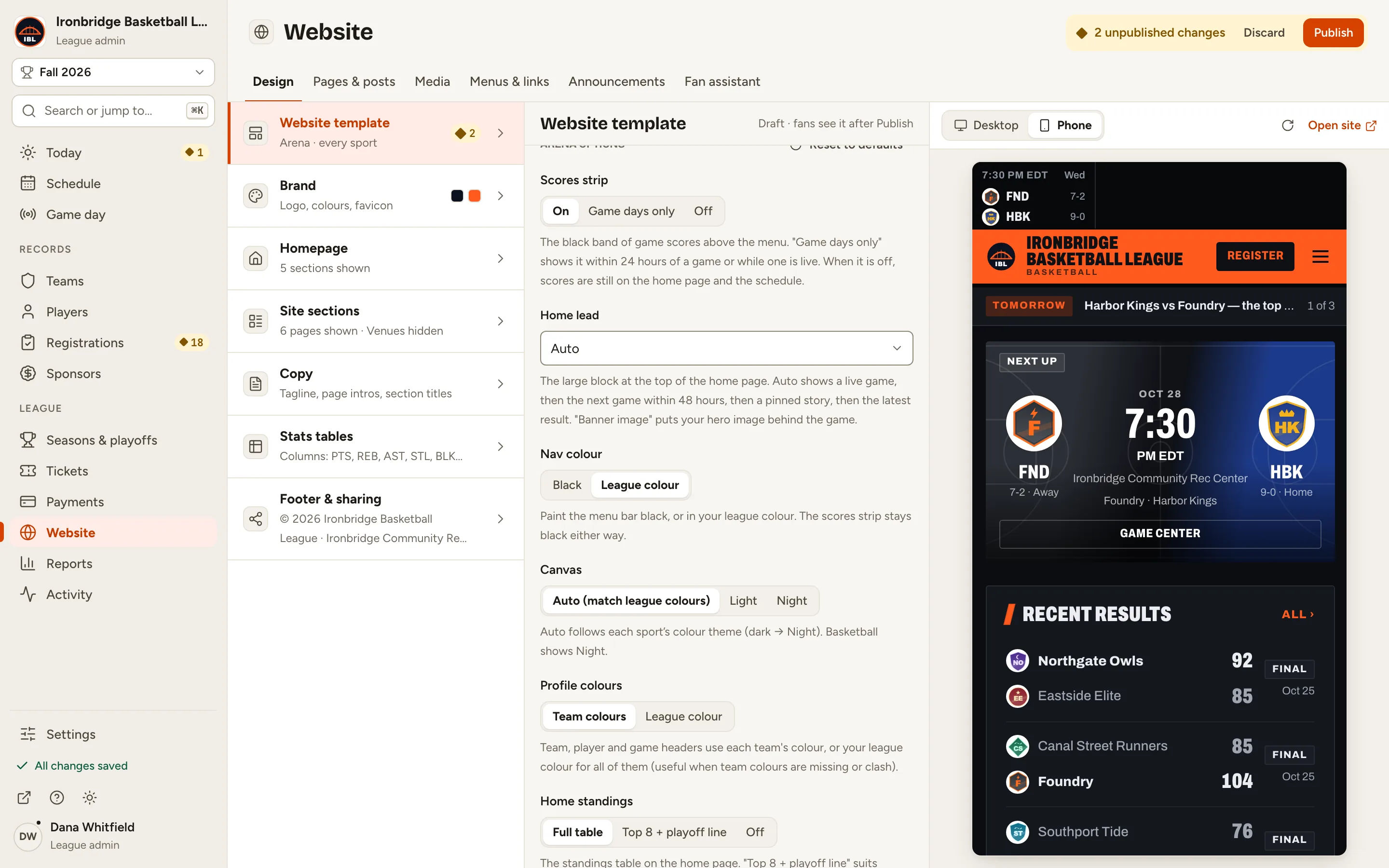
Fig. 5Publish, next to the count of unpublished changes. -
Step 6: Click Publish and switch.
After a moment the bar says Published. Fans see it now. Arena’s card now says On your site.
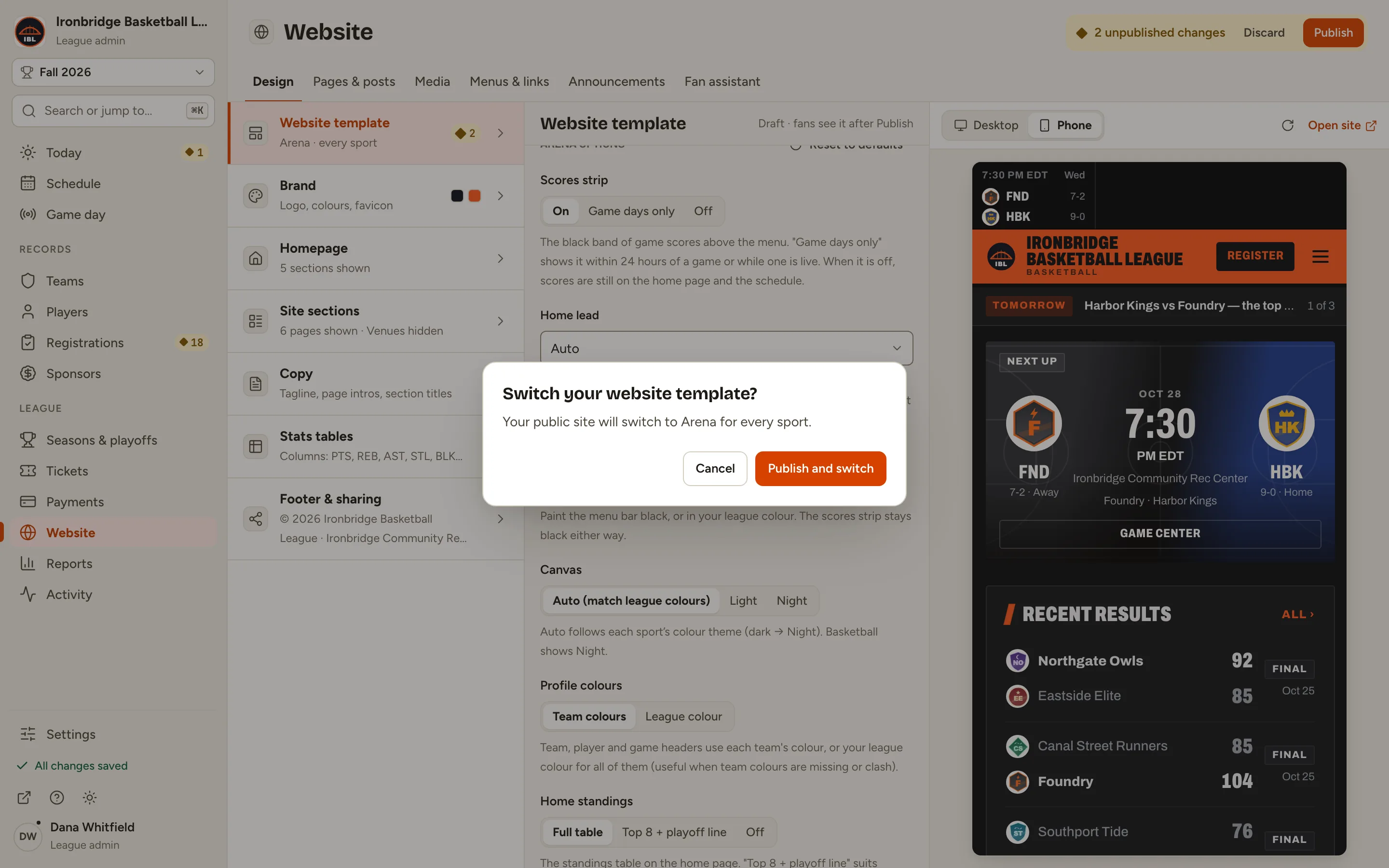
Fig. 6The Switch your website template? box. -
Step 7: Open your website.
From the admin, click ↗ (View public site) at the bottom of the sidebar; your website opens in a new tab. It’s in Arena now, with the menu bar in your league colour.
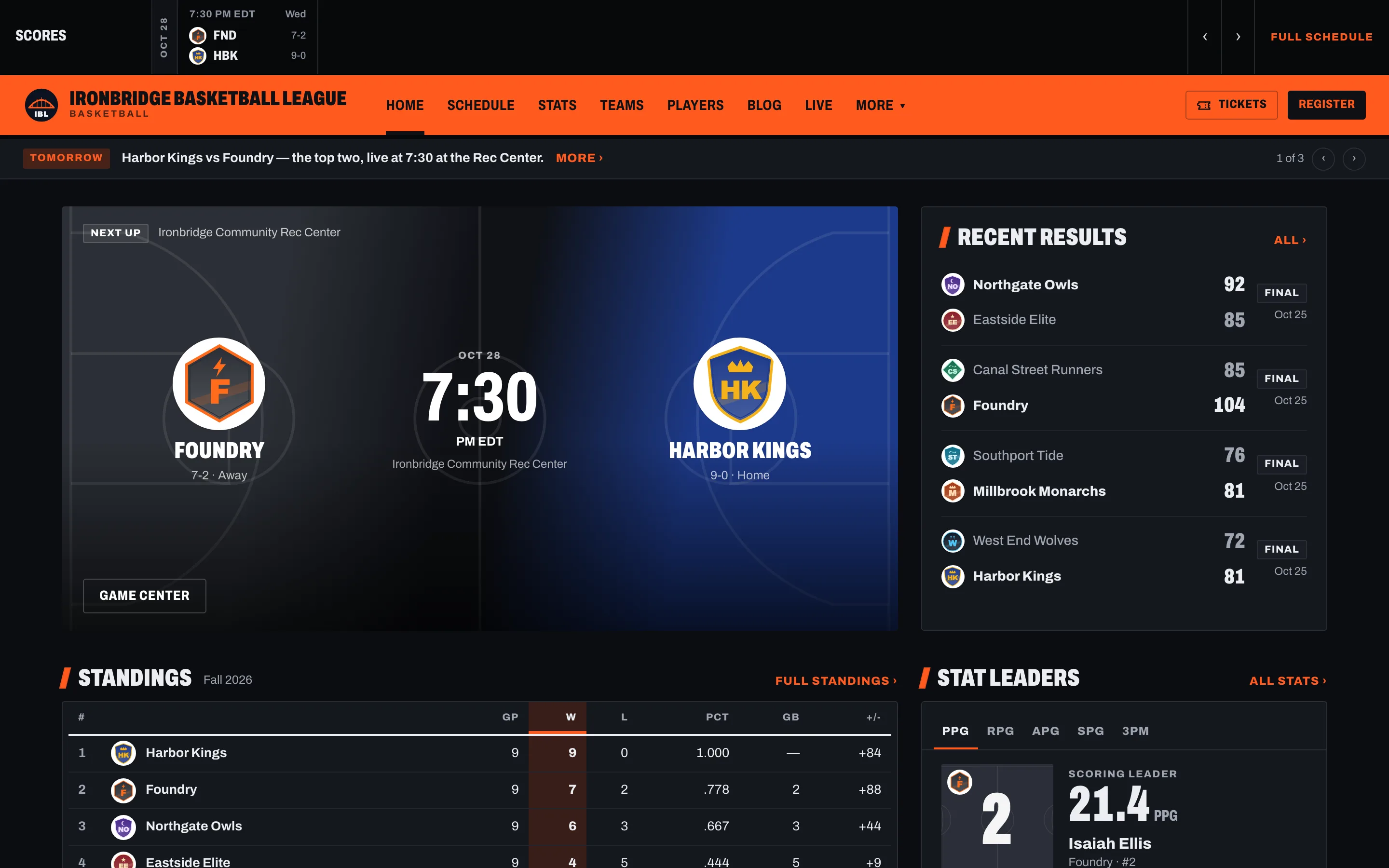
Fig. 7Your website in Arena.
What you’ll see
Your website uses Arena, for every sport, with your logo, colours, pages and homepage sections carried over. To change the template or its options, go back to Website › Design › Website template and publish again.