Import players, teams or games from a spreadsheet
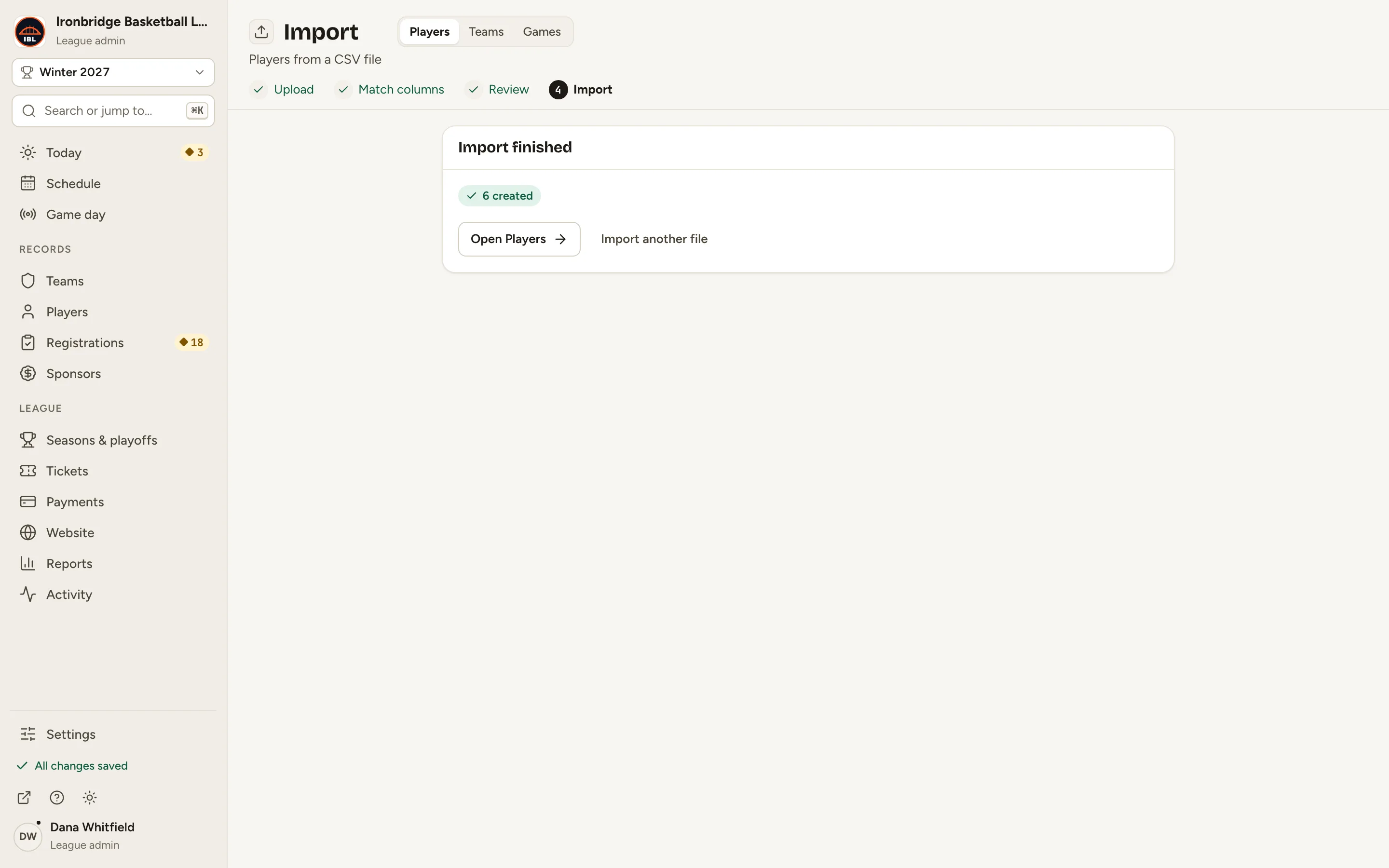
By the end you’ll have a batch of players imported from one CSV file, on their teams and on your website.
Before you start
- You need a CSV file with one player per row and the column names in the first row. In your spreadsheet app, download or save the sheet as CSV. Here: six new players for four teams.
- Players link to teams by short code, like FND for Foundry, so the teams have to exist first. To import teams too, do them first.
Steps
-
Step 1: In the left menu, click Players.
Your players are listed, grouped by team.
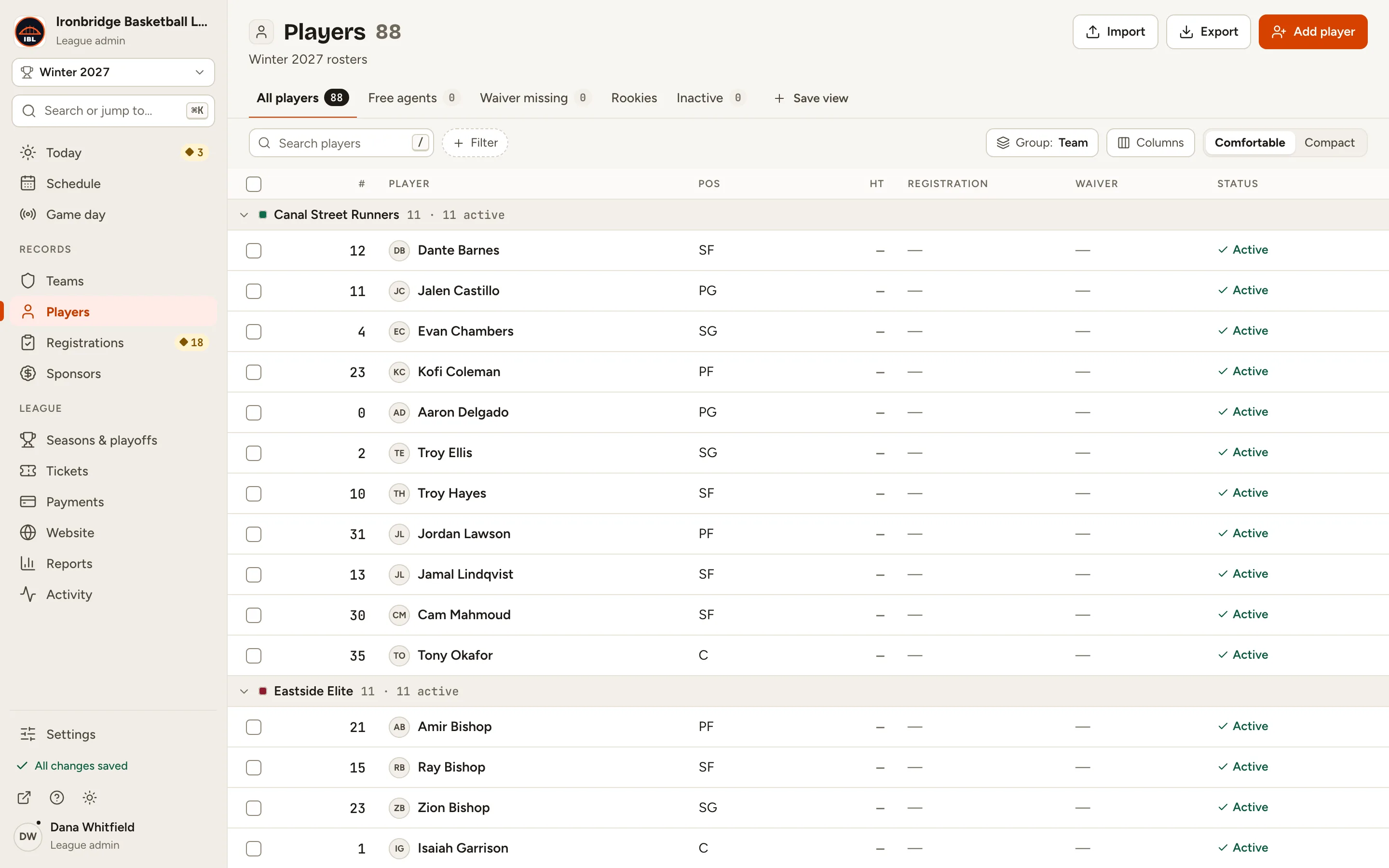
Fig. 1Start from Players. -
Step 2: Click Import at the top right.
Import opens on Players, in four steps: Upload, Match columns, Review and Import. Columns lists every column it can read.
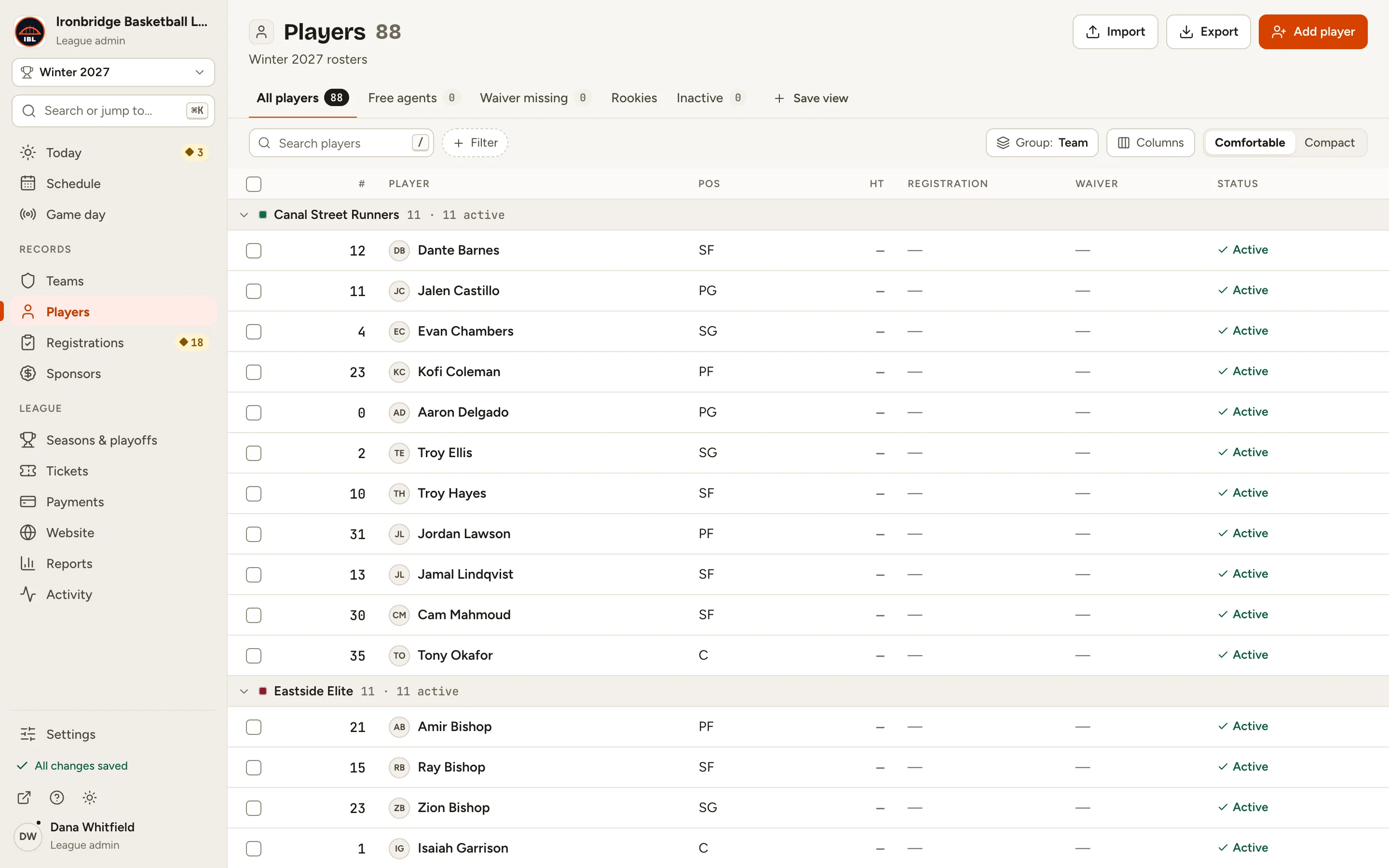
Fig. 2Import, at the top of Players. -
Step 3: Click Choose a file and pick your CSV, like new-players.csv.
Up to 1,000 rows at a time. You can also drop the file on the box, or paste the CSV text below it.
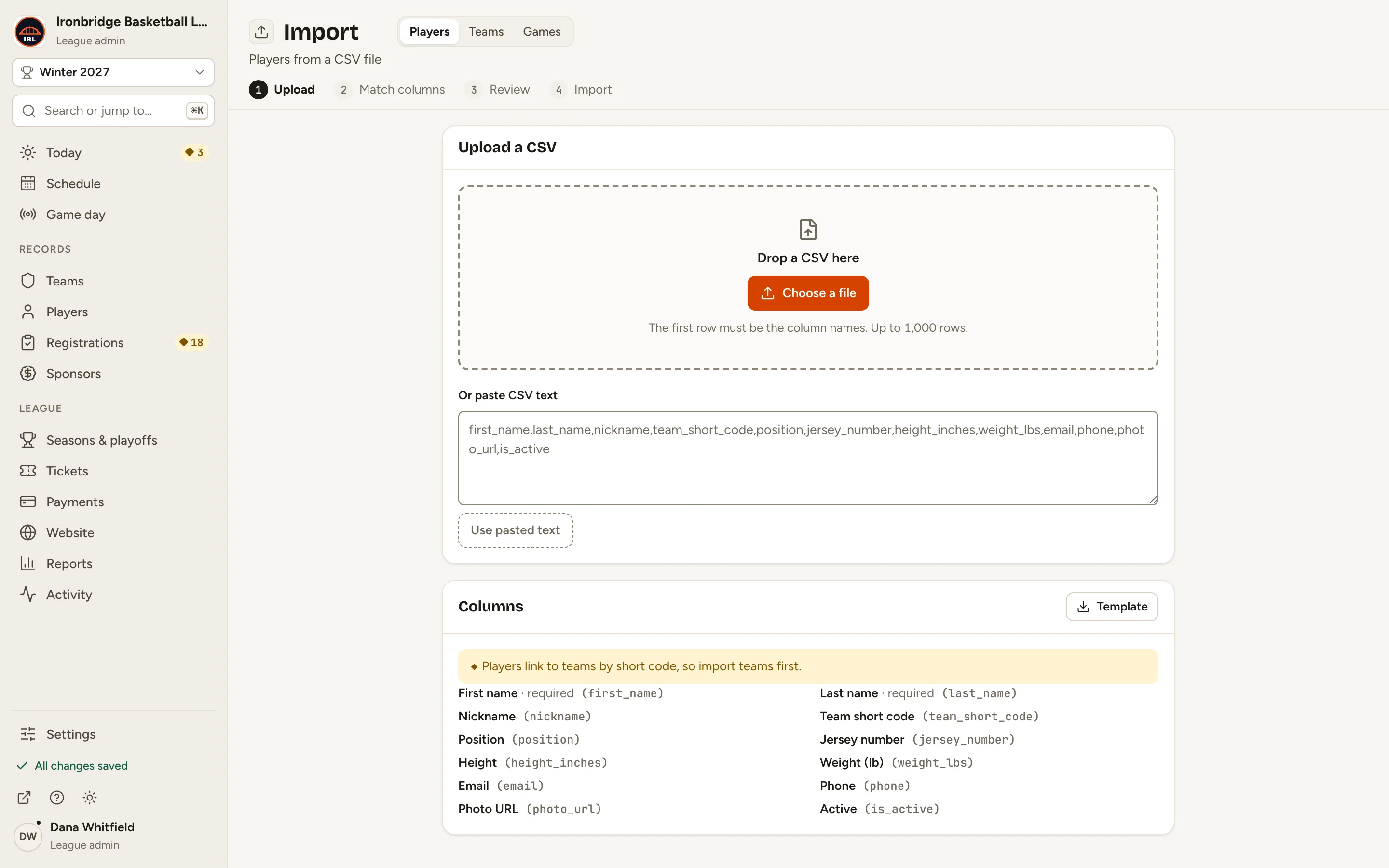
Fig. 3Upload a CSV. -
Step 4: Check the matches, then click Review 6 rows.
Each field shows the CSV column it reads from, with sample values beside it. Here Team went to Team short code and Number to Jersey number. To skip a field, choose Leave blank.
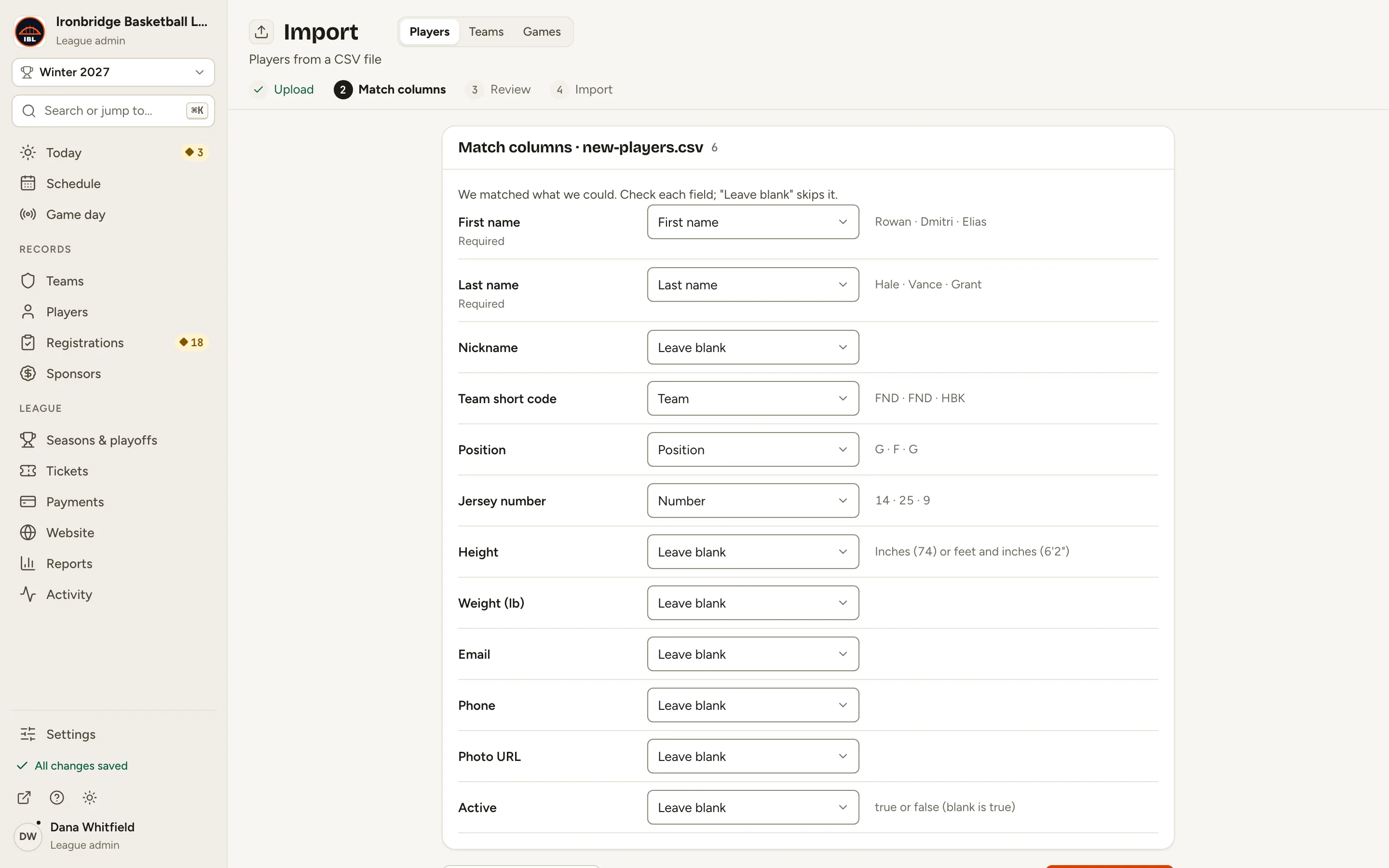
Fig. 4Each field matched to a CSV column. -
Step 5: Check the rows, then click Import 6 players.
Each row is checked first: New, Exists or Fix. Here all six are New.
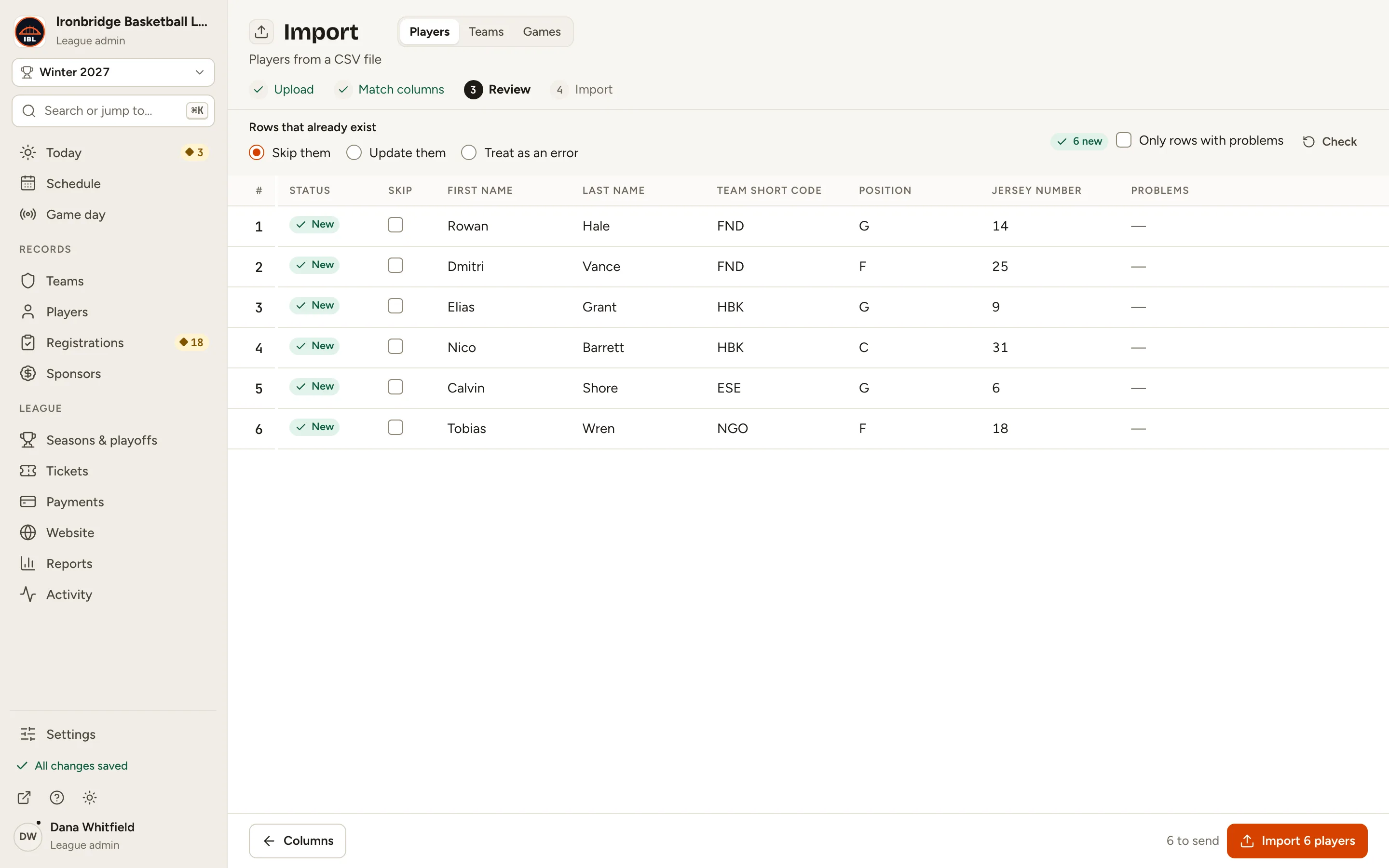
Fig. 5Six new players, ready to import. -
Step 6: Click ↗ (View public site) at the bottom of the sidebar; your website opens in a new tab. Then click Teams and Foundry.
Foundry’s roster now includes the two players from the file, Rowan Hale and Dmitri Vance.
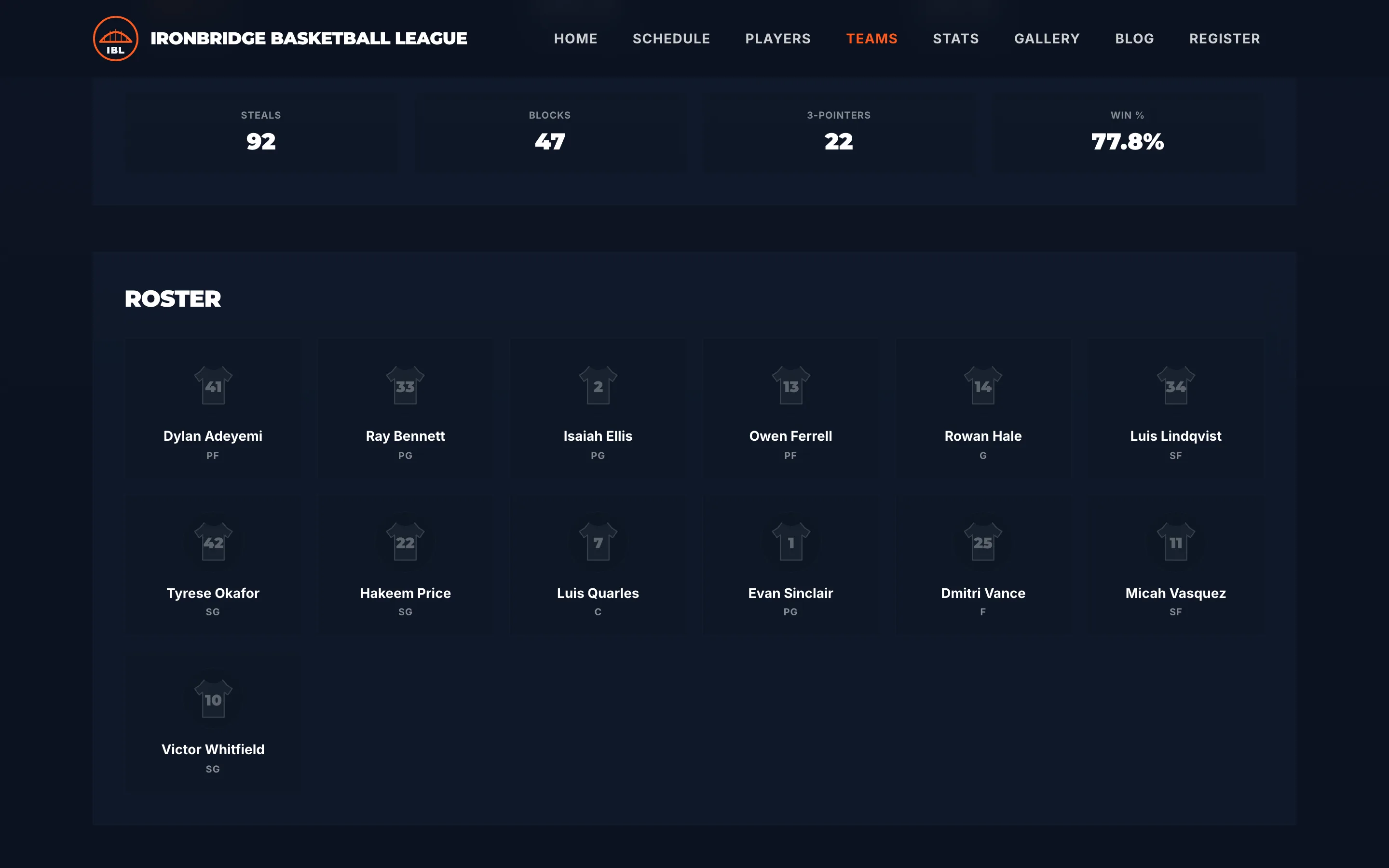
Fig. 6Imported players on Foundry’s page.
What you’ll see
Six players are in your directory, each on their team. A player with a team also joins that team’s roster in each active season the team is in, so you can pick them in box scores.