See who changed what
By the end you’ll have the change you’re looking for, with who made it, when, and what it was before.
Before you start
- Nothing to set up: every change an admin, editor or stat keeper makes (scores, rosters, settings, the website) is logged with who made it and when.
- Here a final score changed overnight, and you want to know who changed it and what it was before. Sam Ortega is one of your editors.
Steps
-
Step 1: In the left menu, click Activity.
Every change is listed, newest first: who made it, what changed, and when.
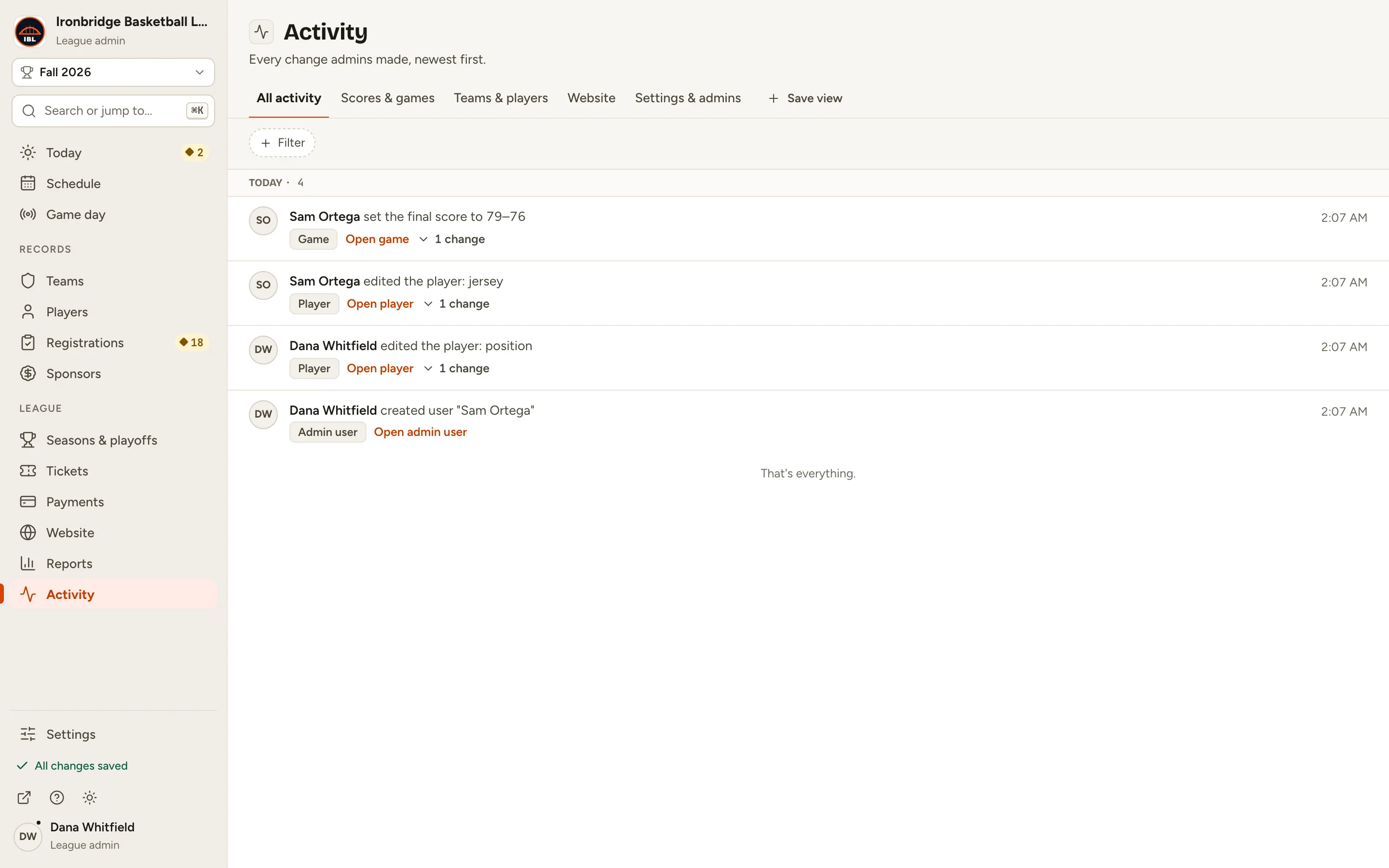
Fig. 1Every change, newest first. -
Step 2: Click Scores & games.
Only changes to games and box scores are left. The other views do the same for teams and players, the website, and settings and admins.
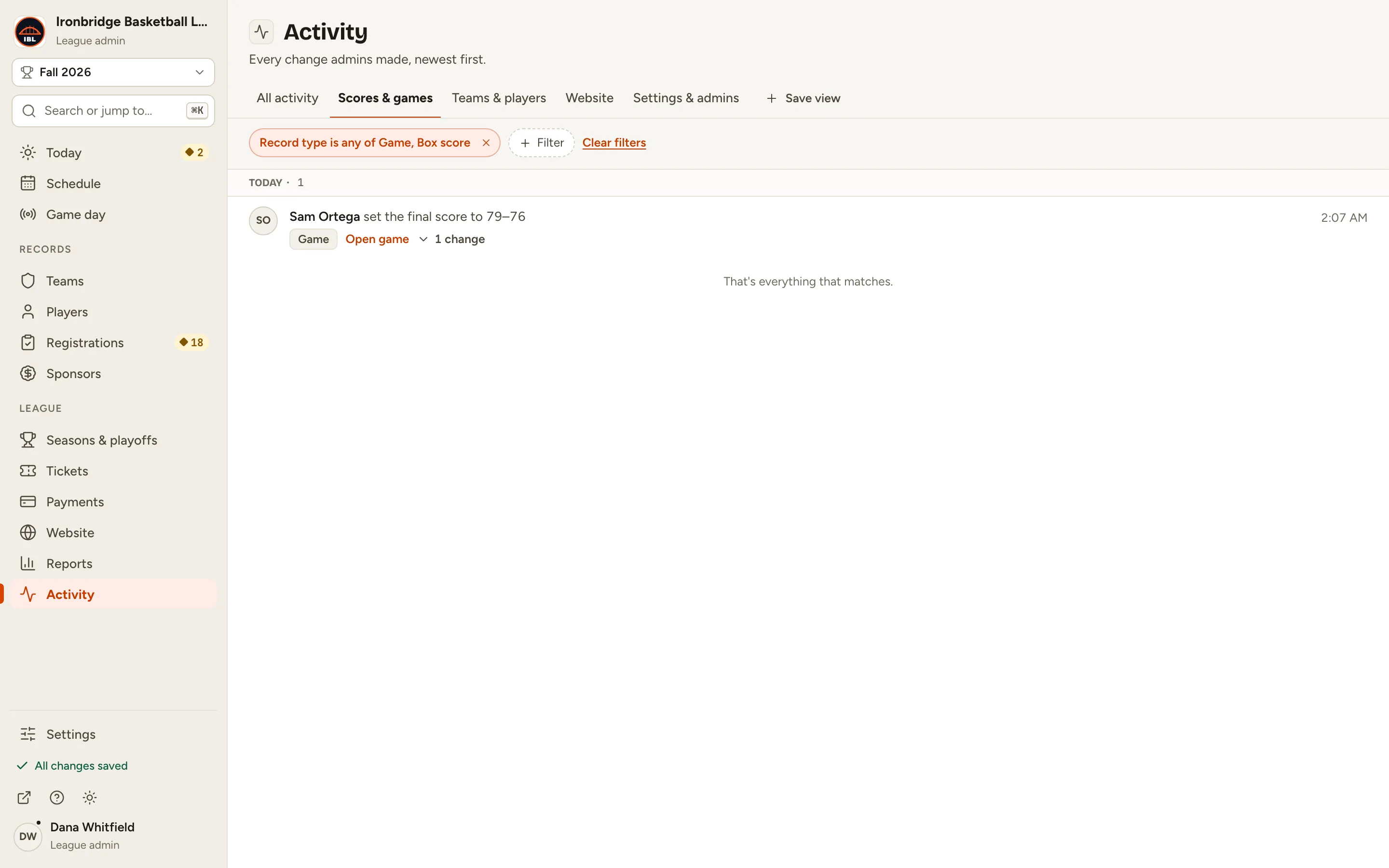
Fig. 2Just the score and game changes. -
Step 3: Click 1 change on the row, like Sam Ortega’s score.
The row opens to show each field’s old value and new one: here the home score went from 81 to 79.
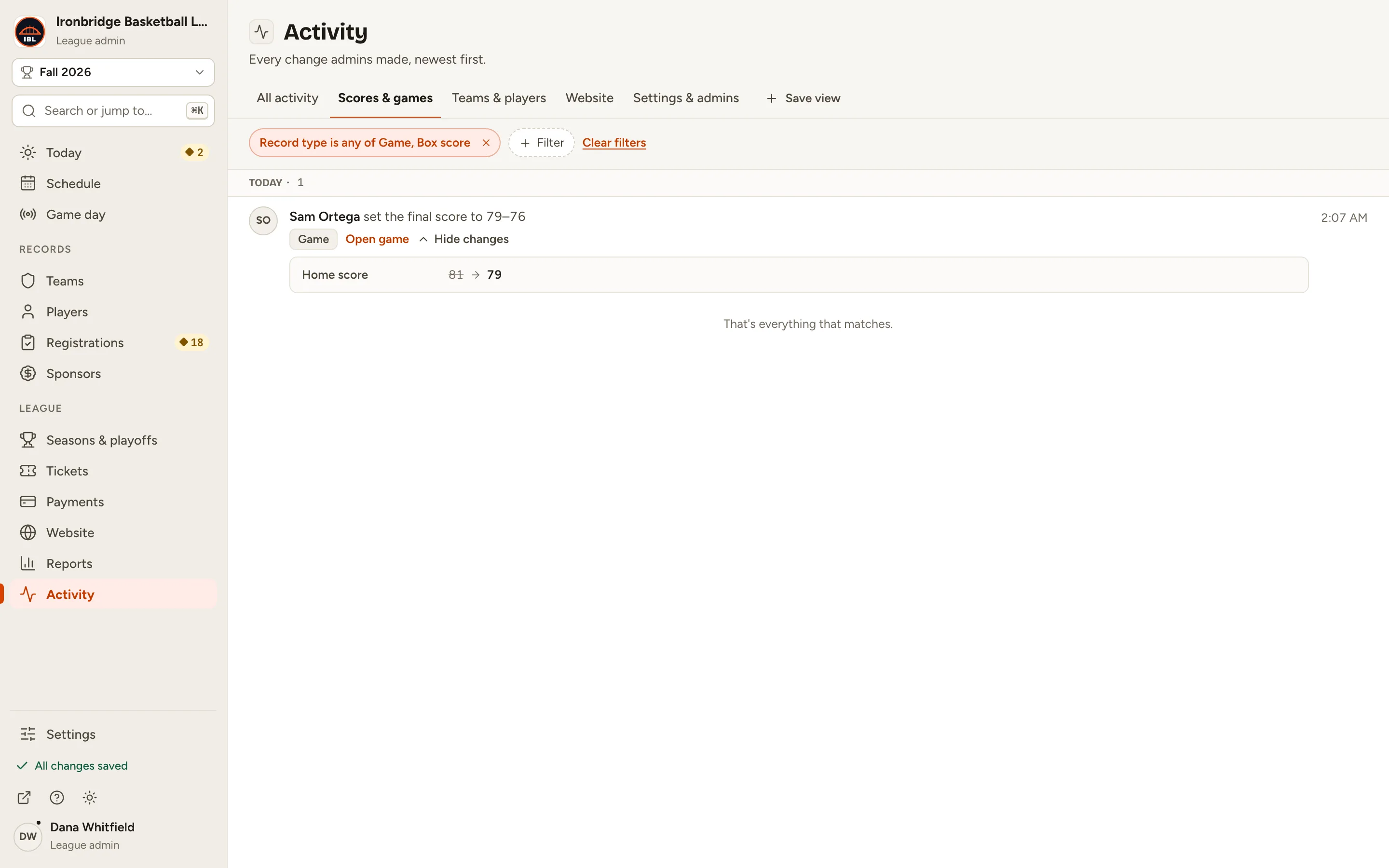
Fig. 3What it was, and what it is now. -
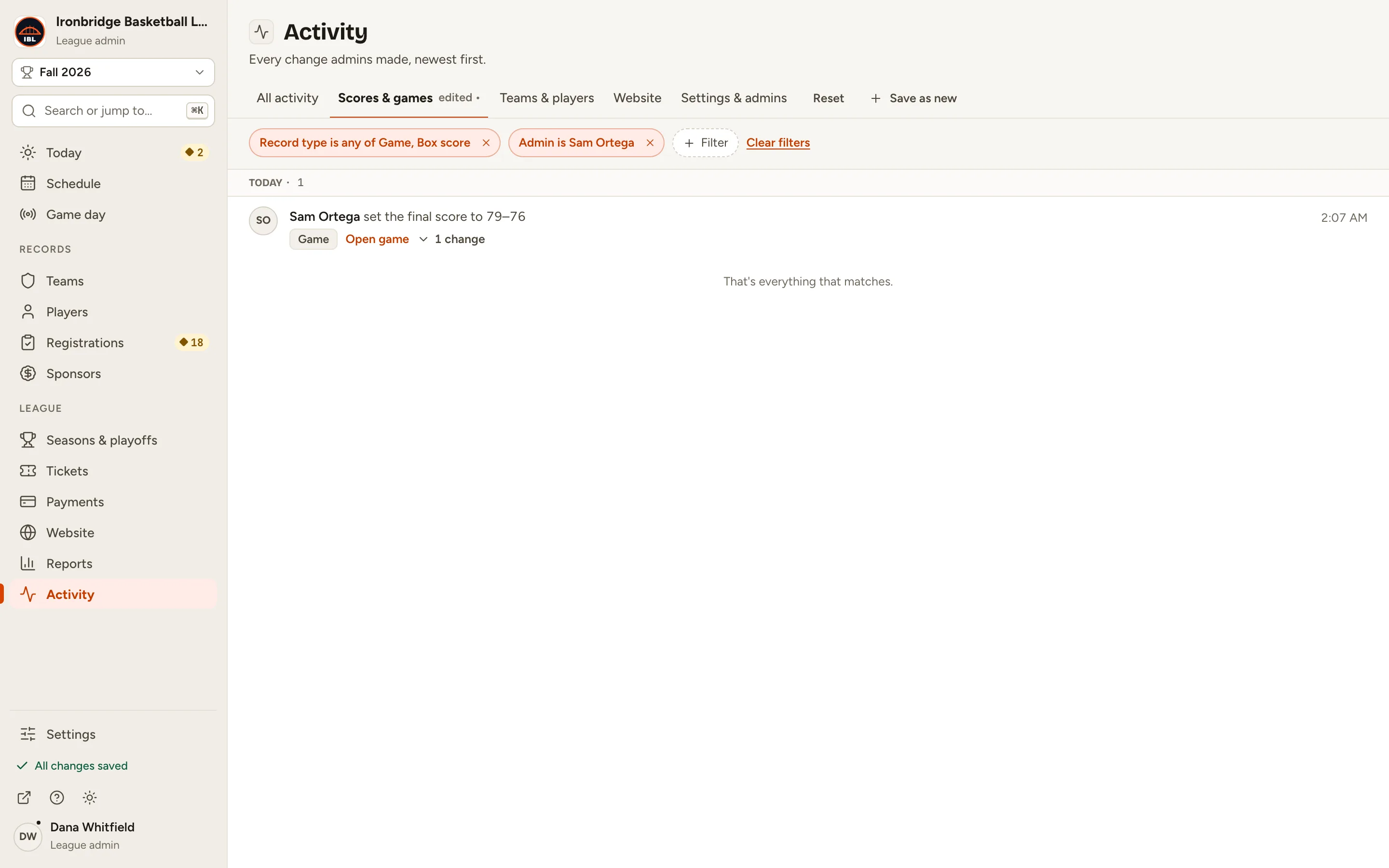
Step 4: Click Filter, choose Admin and a person, like Sam Ortega, then click Add filter.
Only that person’s changes are listed. You can also filter by Record type, Change or Date.
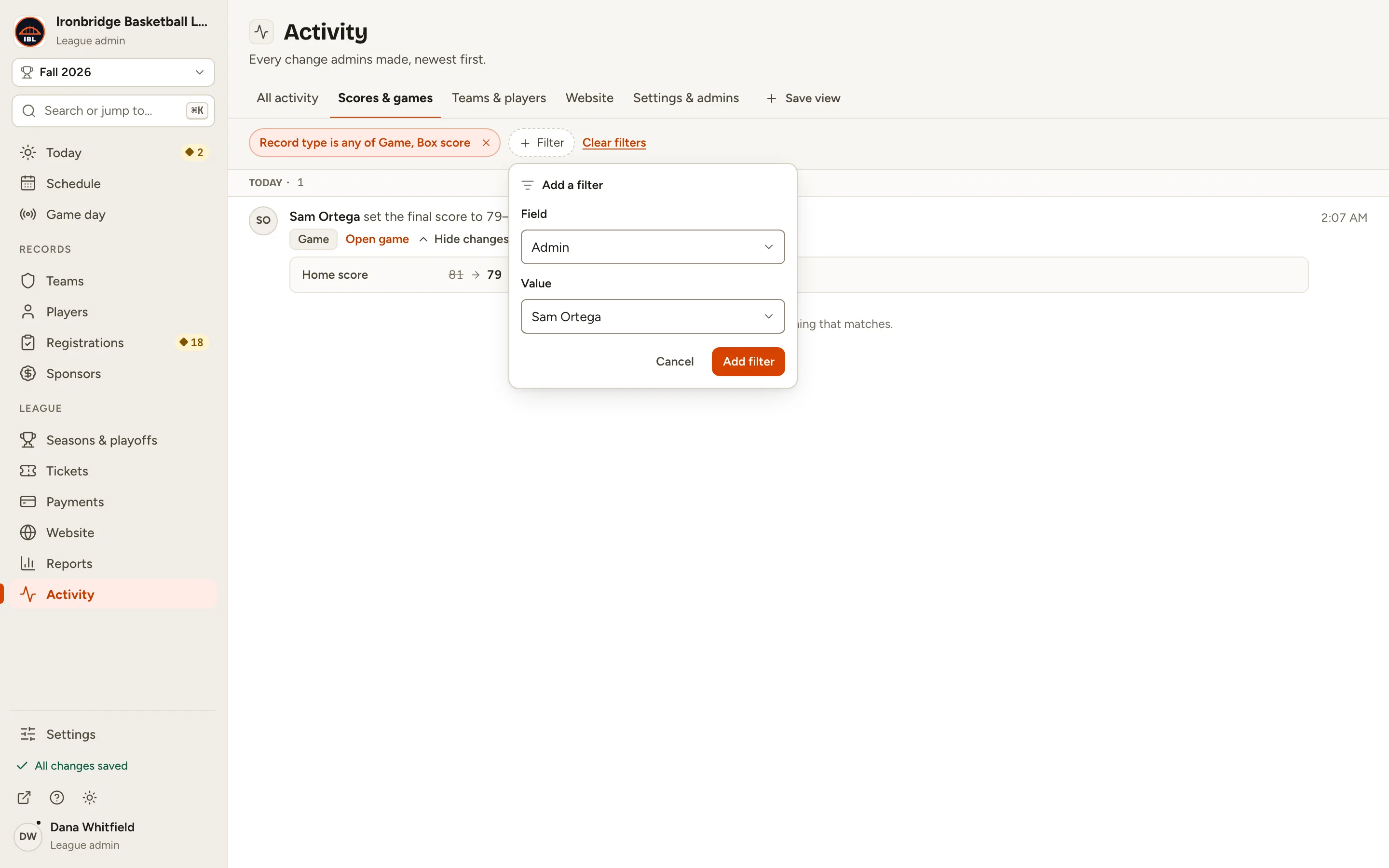
Fig. 4One person’s changes. -
Step 5: Click Open game on the row.
The game’s record opens, so you can check the score or put it back.
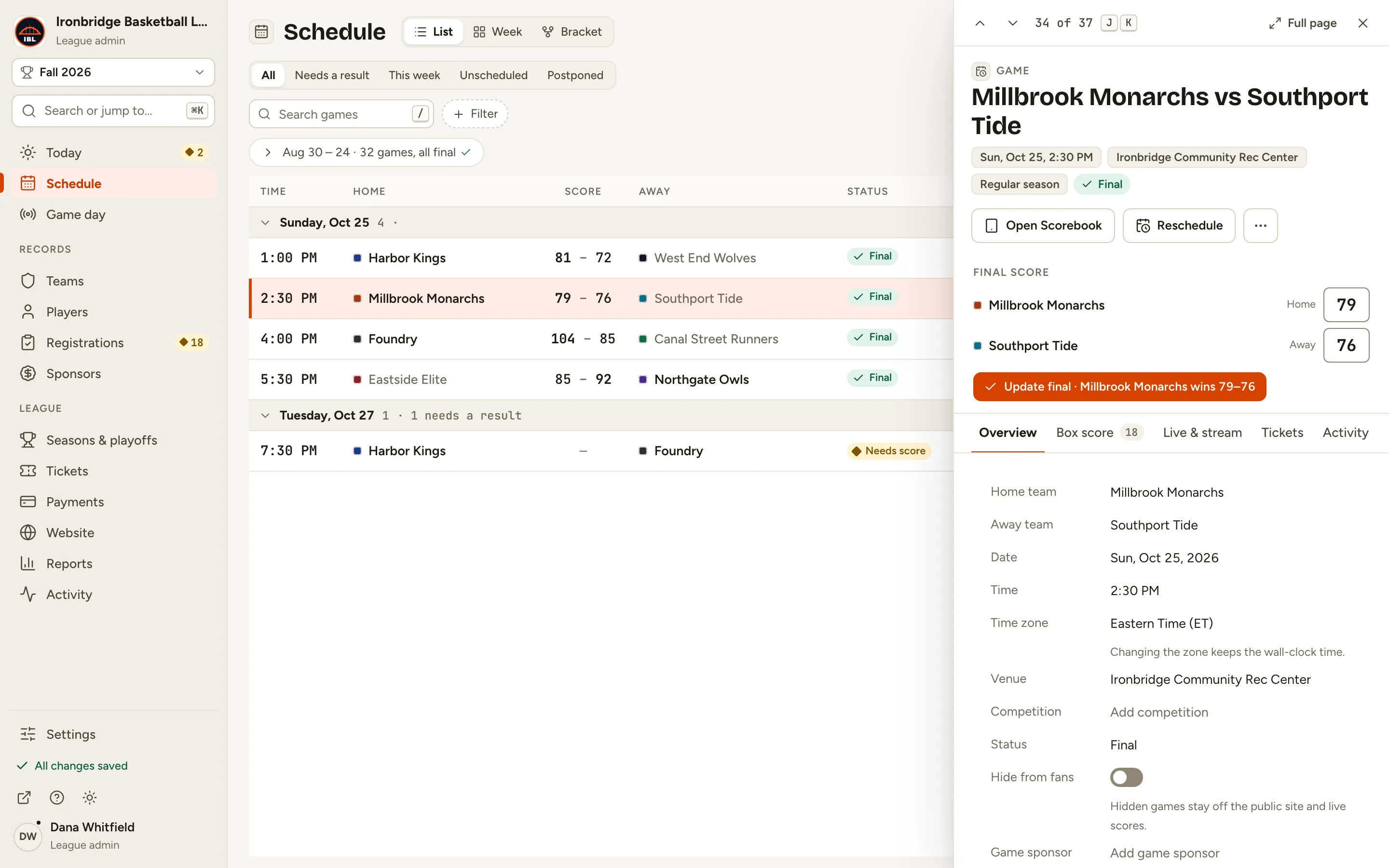
Fig. 5Straight to the record.
What you’ll see
You know Sam Ortega changed the final score from 81–76 to 79–76, and when. If it was a mistake, fix it on the game’s record; that change is logged too.