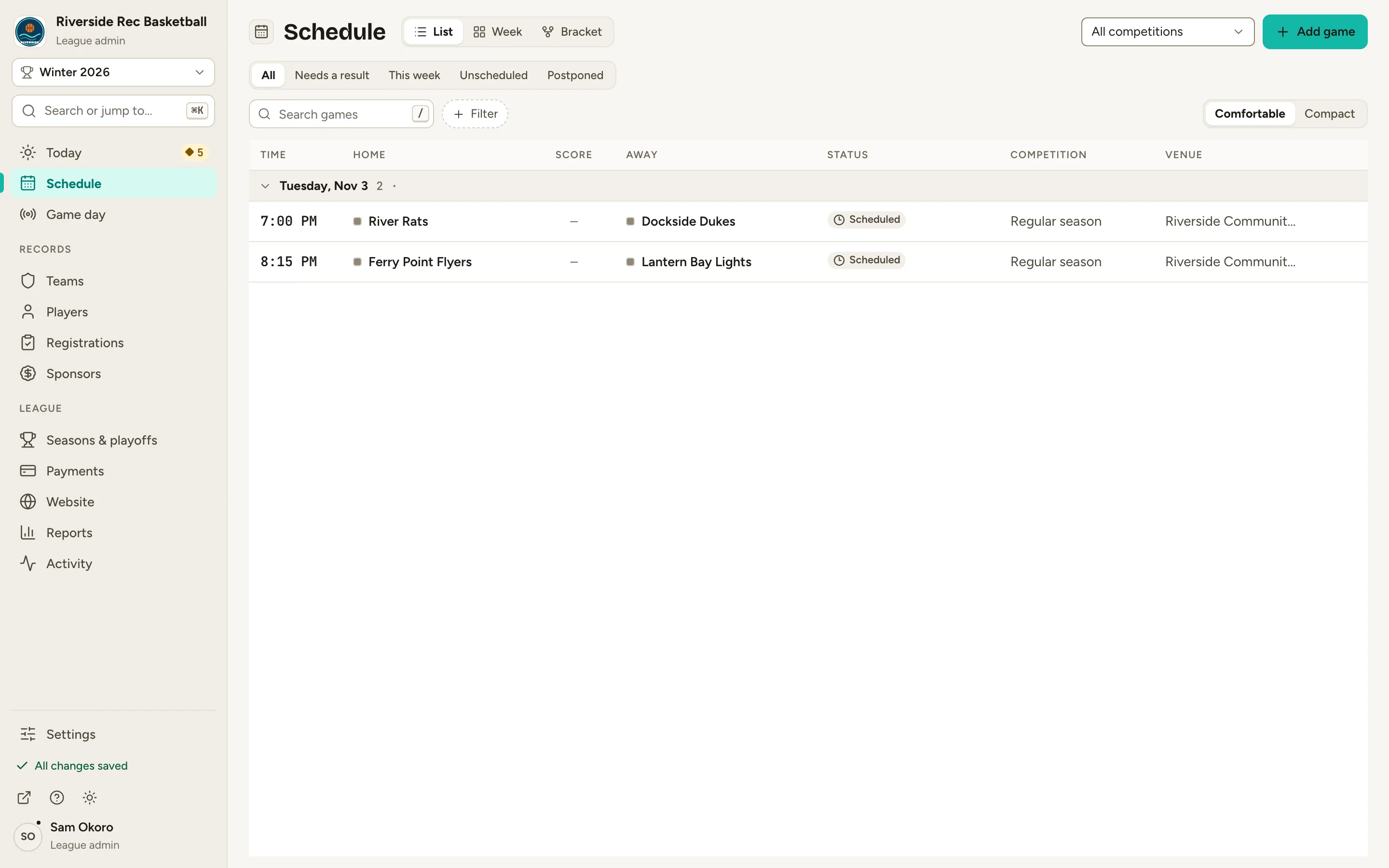
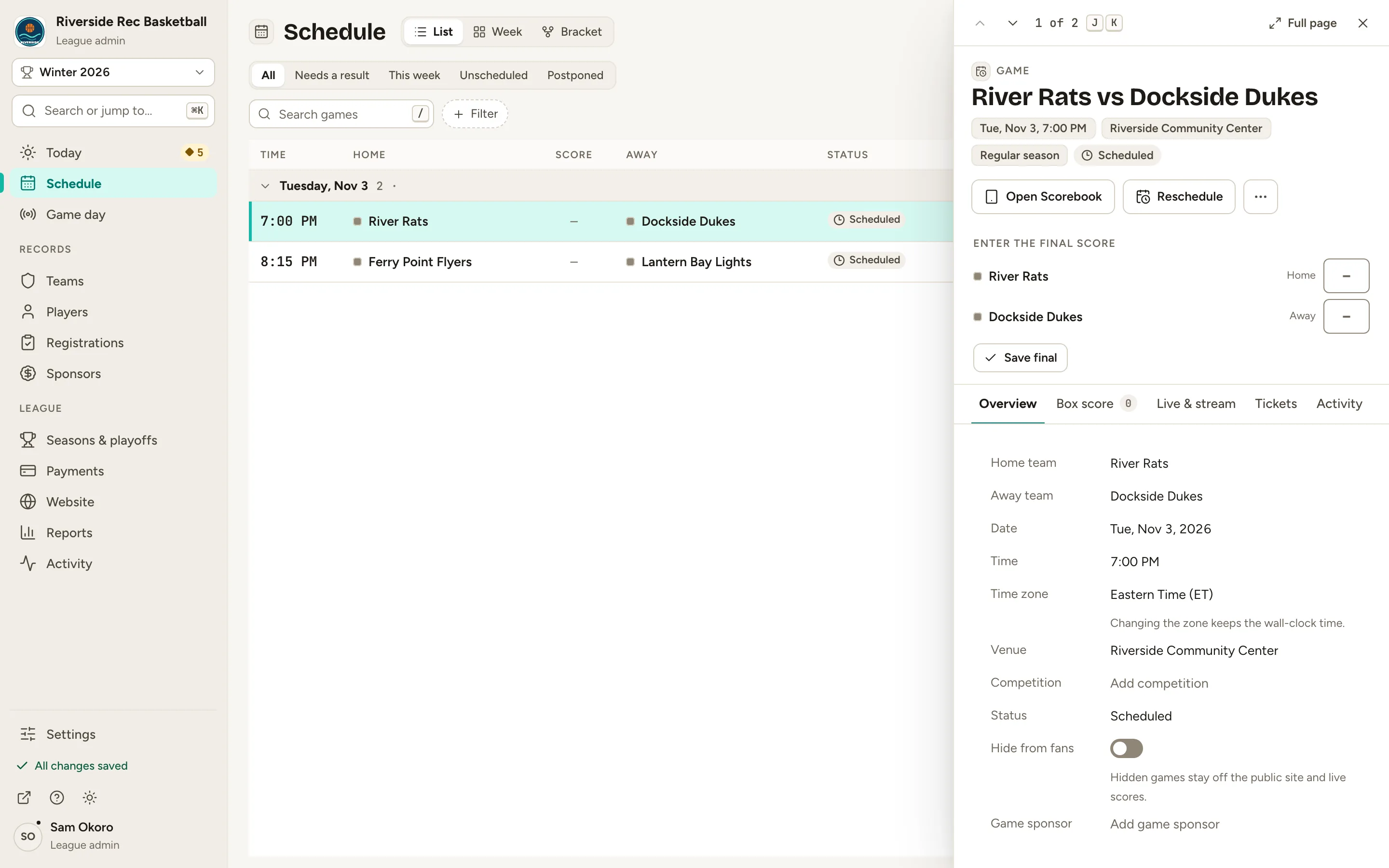
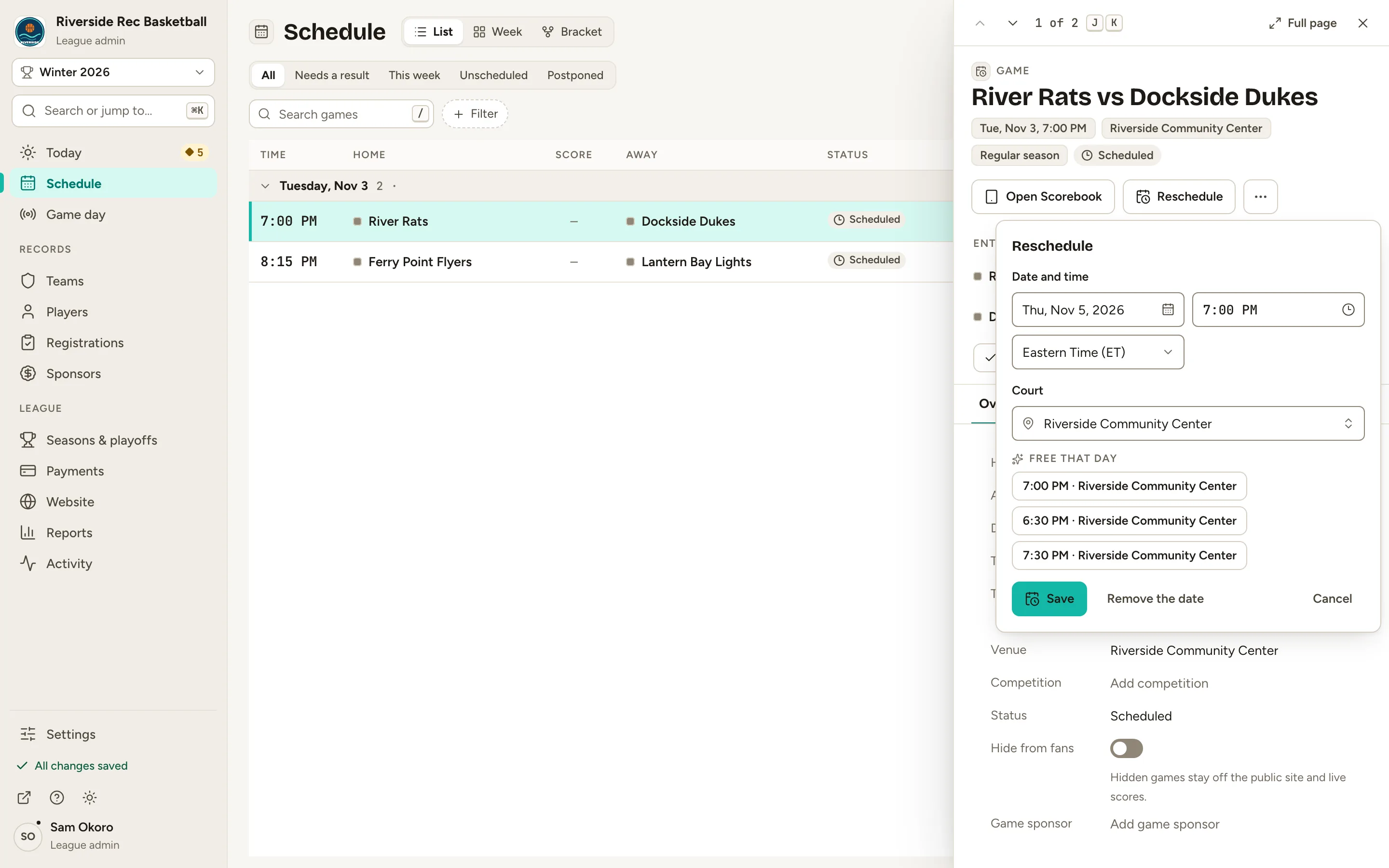
The game’s record opens beside the list, with its date, time and court at the top.
1 of 2
2 of 2
Fig. 2The game’s record opens beside the list.
3
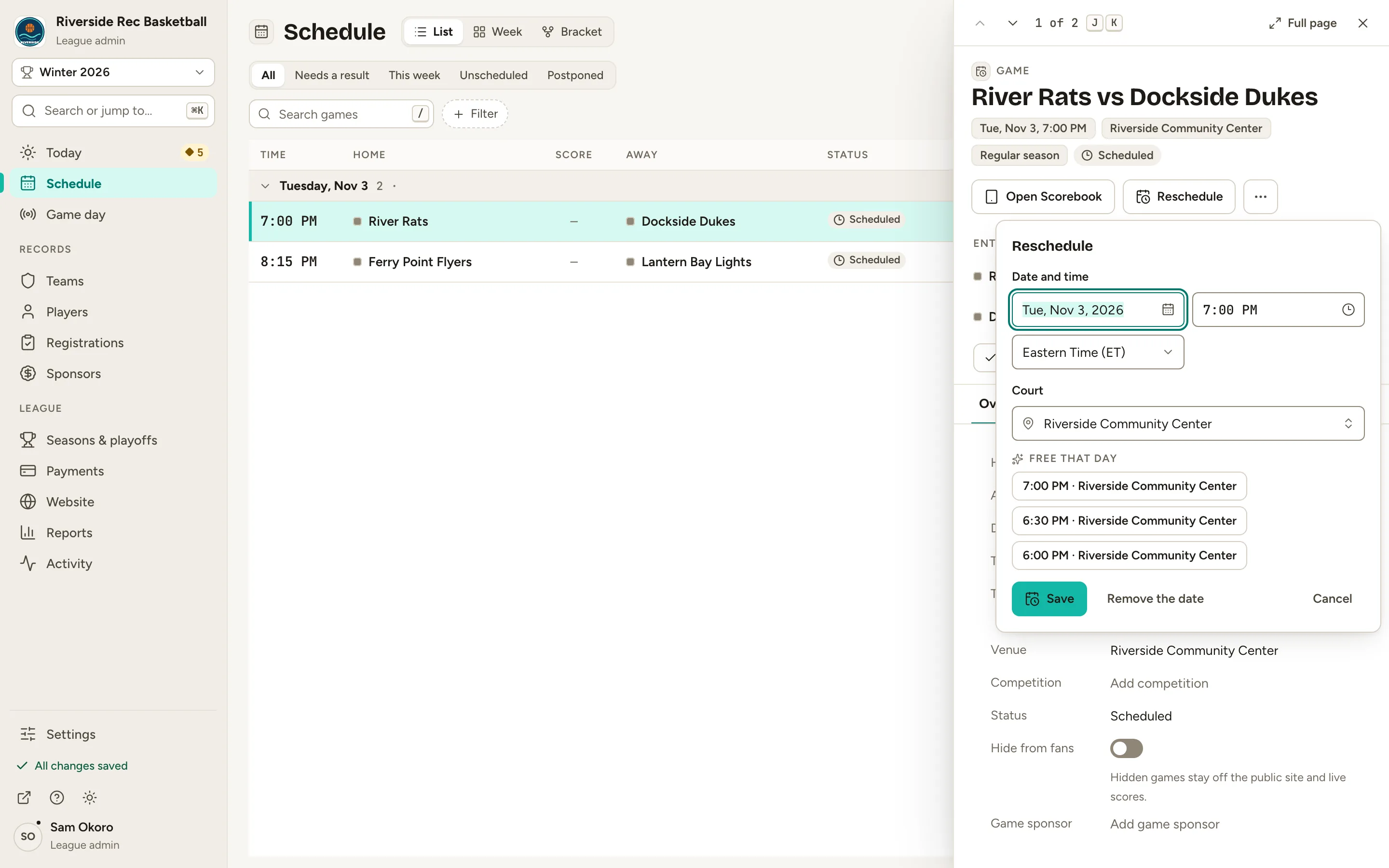
Step 3: Click Reschedule at the top of the game.
A small form opens with the game’s Date and time and Court. Under the court, Free that day lists times when that court is open.
1 of 2
2 of 2
Fig. 3Reschedule: date, time and court.
4
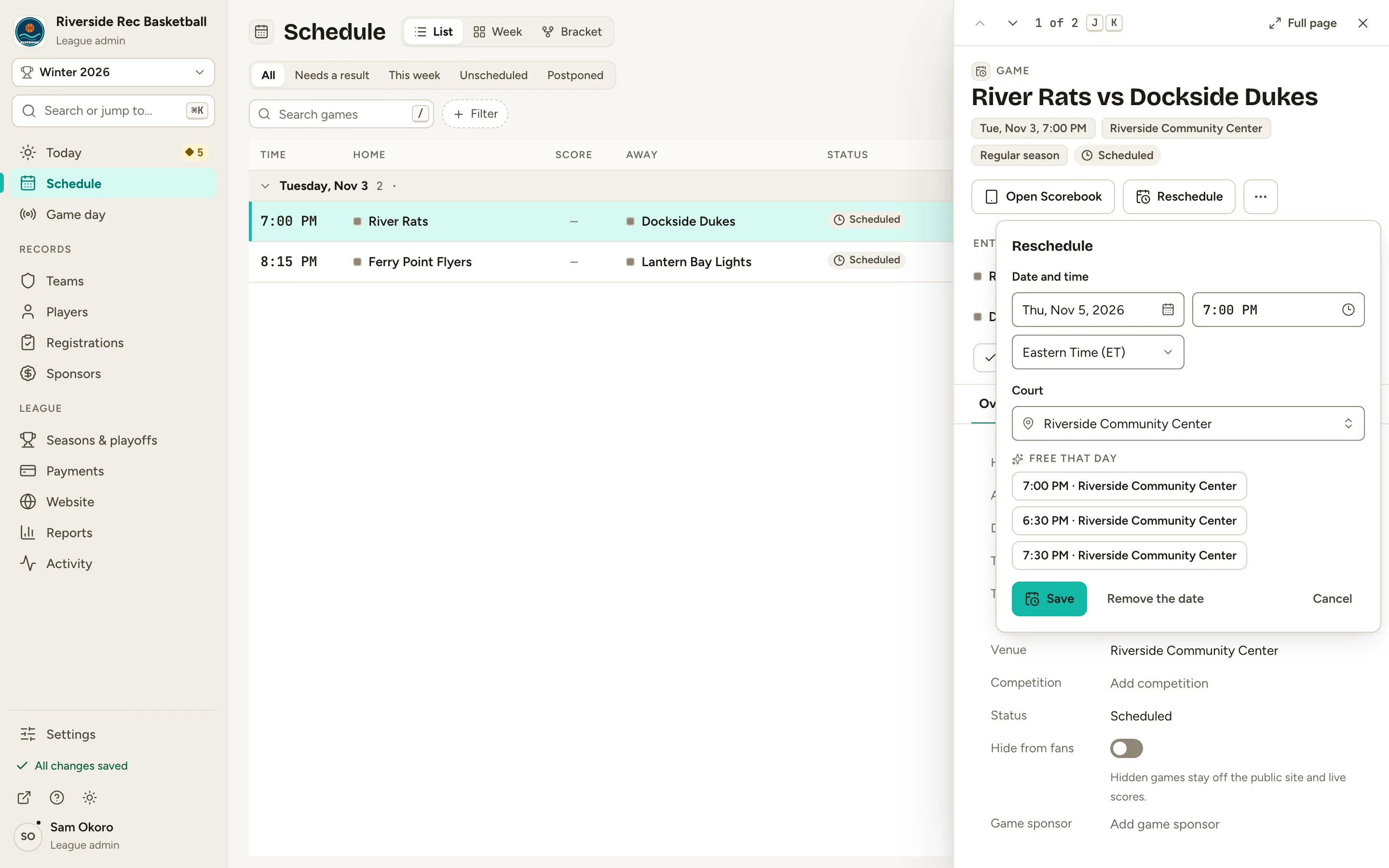
Step 4: Type the new date and time. To change courts too, pick another Court.
The form checks the court as you go. If another game already has it then, it says so; pick another time or court.
Fig. 4The new date and time.
5
Step 5: Click Save.
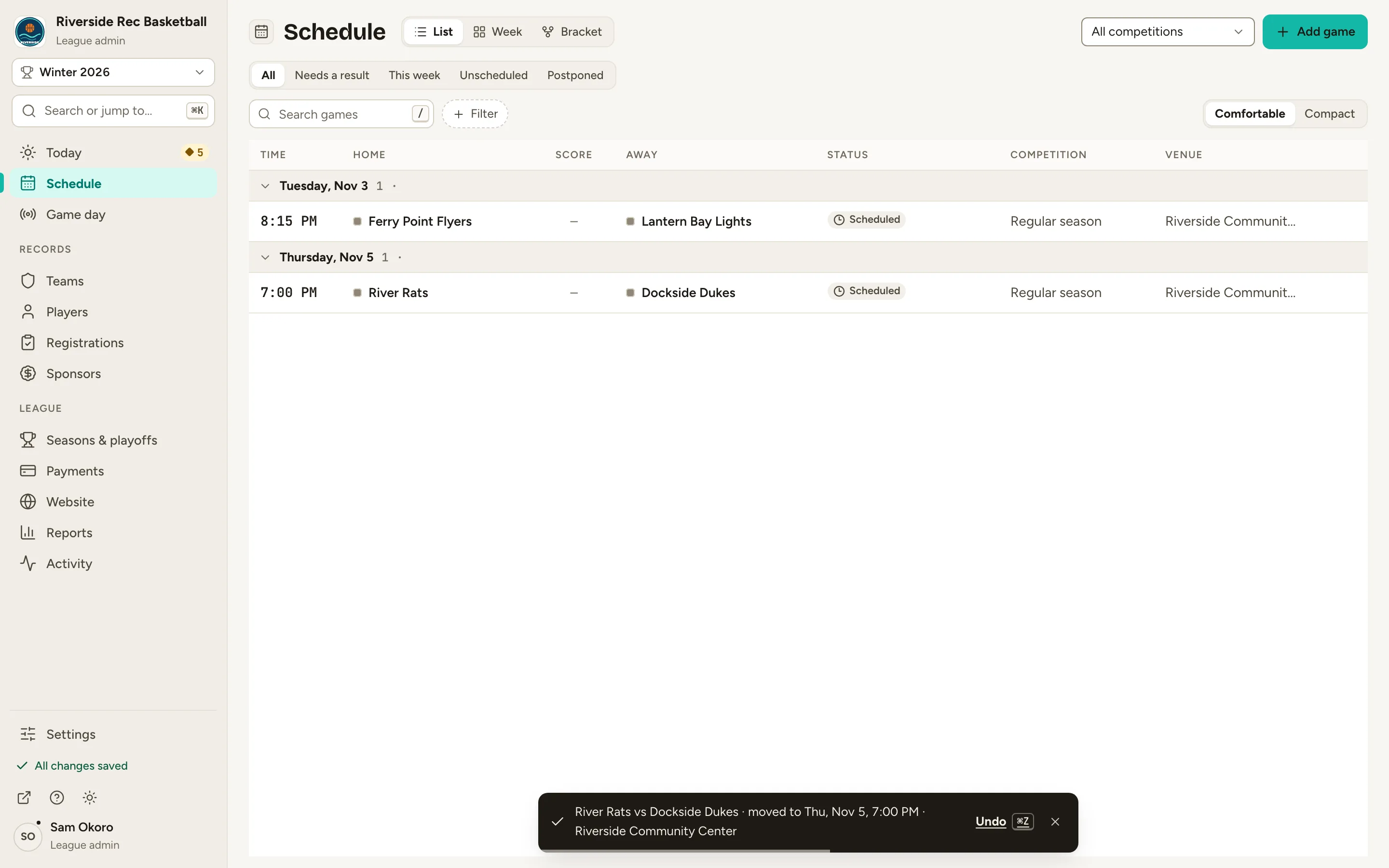
The game moves. The Schedule lists it under its new date, and Undo appears for a few seconds in case you change your mind.
Fig. 5Save moves the game.
6
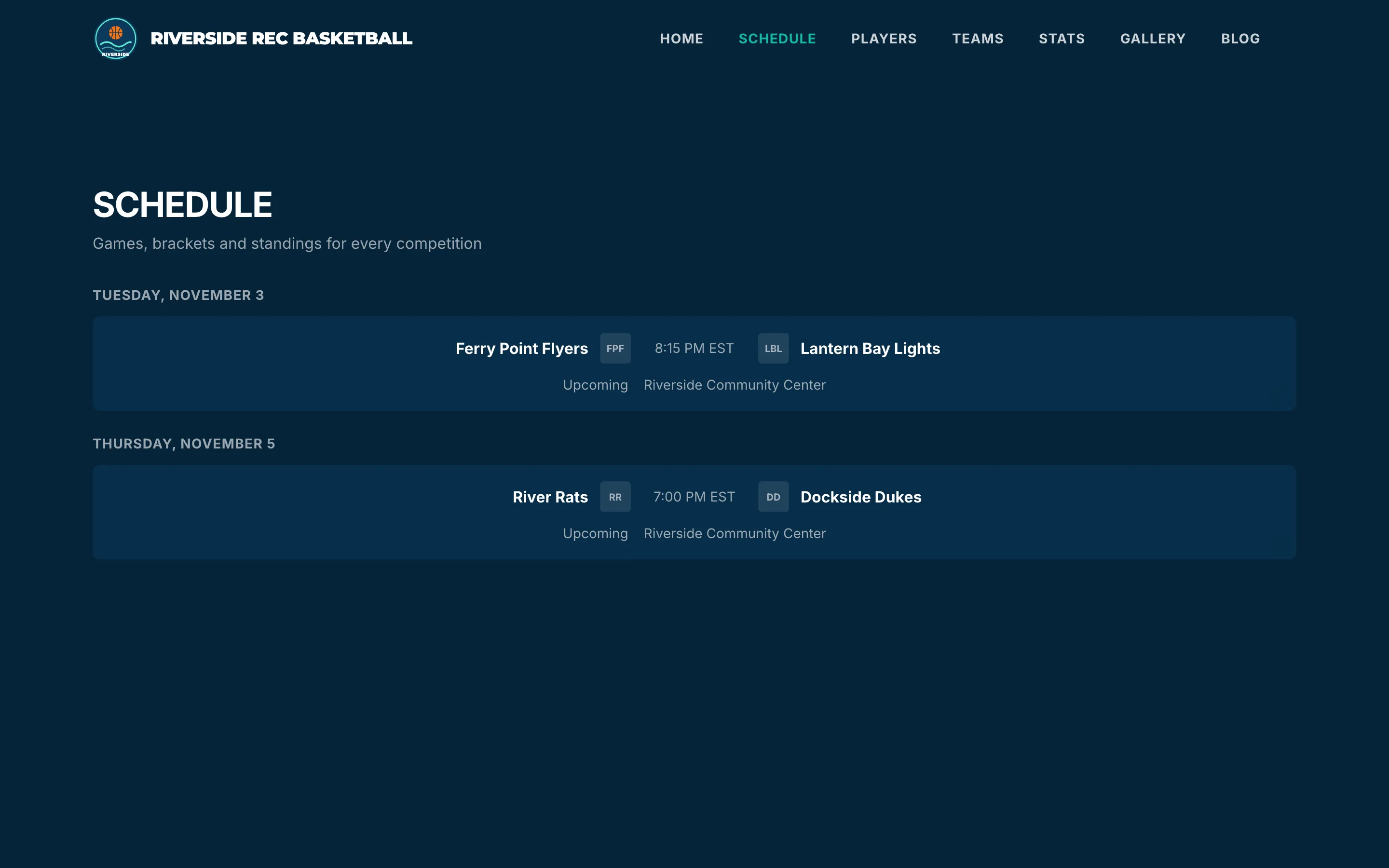
Step 6: Open your website and click Schedule.
From the admin, click ↗ (View public site) at the bottom of the menu; your website opens in a new tab. The game is already on its new date for fans.
1 of 2
2 of 2
Fig. 6Your website’s Schedule shows the new date.
What you’ll see
The game is on its new date, time and court, in the admin and on your website.
Fig. 7The Schedule lists the game under its new date.
Common questions
Can I drag a game to another day?
Yes. Click Week at the top of the Schedule and drag the game to another day. With the keyboard, focus the game, press M, use ← and → to pick the day, and Enter to drop it. Moves are checked for clashes first.
What if the court is already booked at the new time?
The form says the slot is double-booked (the court, or one of the teams, already has a game) and won’t save: pick another time or court (Free that day lists open slots). Two games can never share a court at the same time. If it only warns (for example, another game at the same venue on a different court), the button reads Save anyway.
The game is off, but we don’t have a new date yet.
Open the game, click ···, then Postpone. It shows as postponed, in the admin’s Postponed view and on your website. When it’s back on, Reschedule it to the new date: that puts it back on the schedule too. (Same date as before? Click ···, then Put back on the schedule.) To keep it on the schedule with no date at all, click Remove the date in the Reschedule form: it moves to Unscheduled.
And if the game is off for good?
Click ···, then Cancel game. Cancelled games stay in your records but don’t count in standings.