Sell tickets at the door
By the end you’ll have tickets sold at the gate, paid in cash, with the buyer’s tickets issued on the spot.
Before you start
- You need a sale that’s on sale or paused, with its ticket types: here Foundry @ Harbor Kings. See Sell tickets for a game.
- Use a laptop, tablet or phone signed in to your admin. The door sale fills the screen, with big buttons for a busy gate.
Steps
-
Step 1: In the left menu, click Tickets.
Your ticket sales are listed.
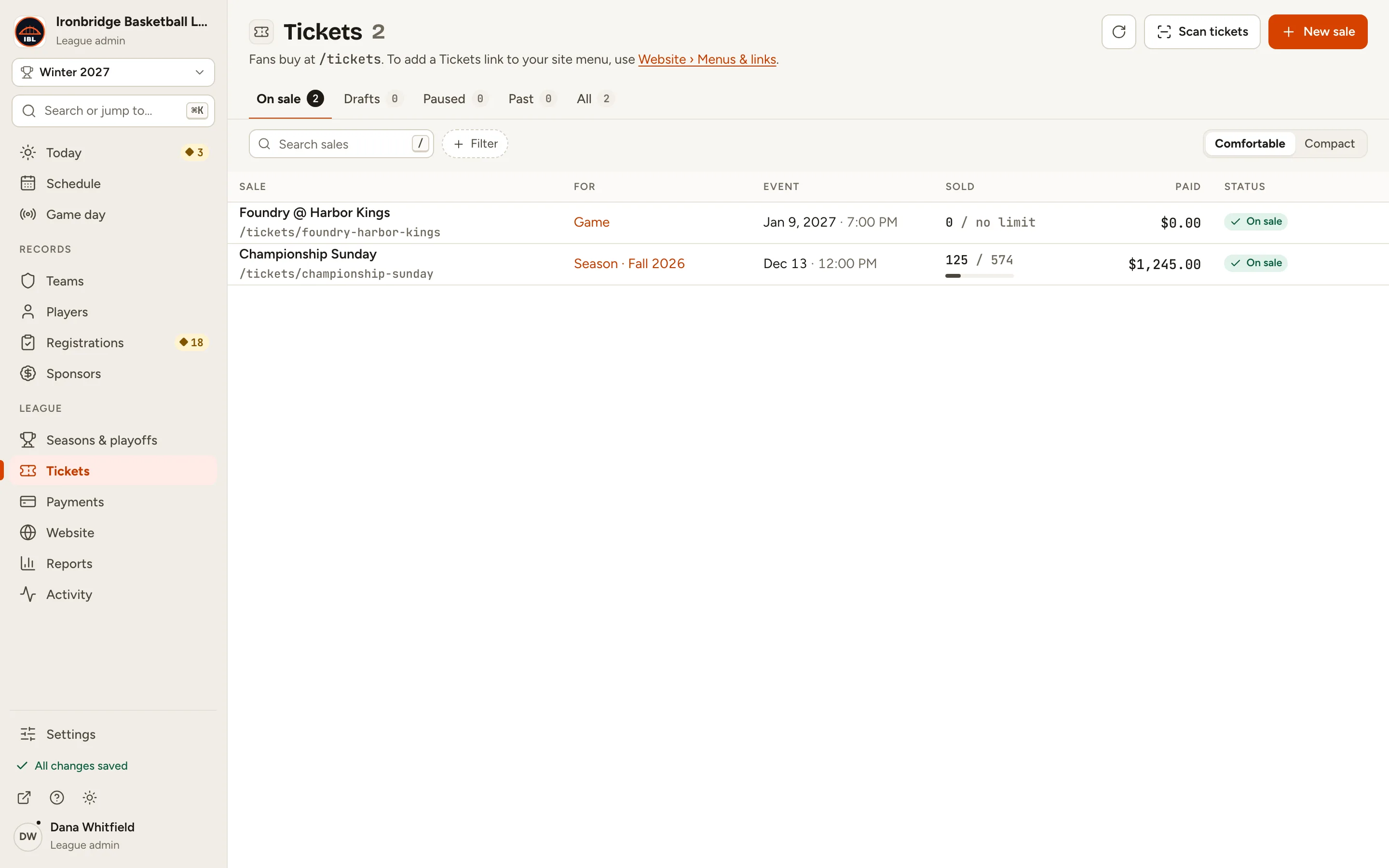
Fig. 1Your ticket sales. -
Step 2: Click the sale, like Foundry @ Harbor Kings.
The sale’s record opens.
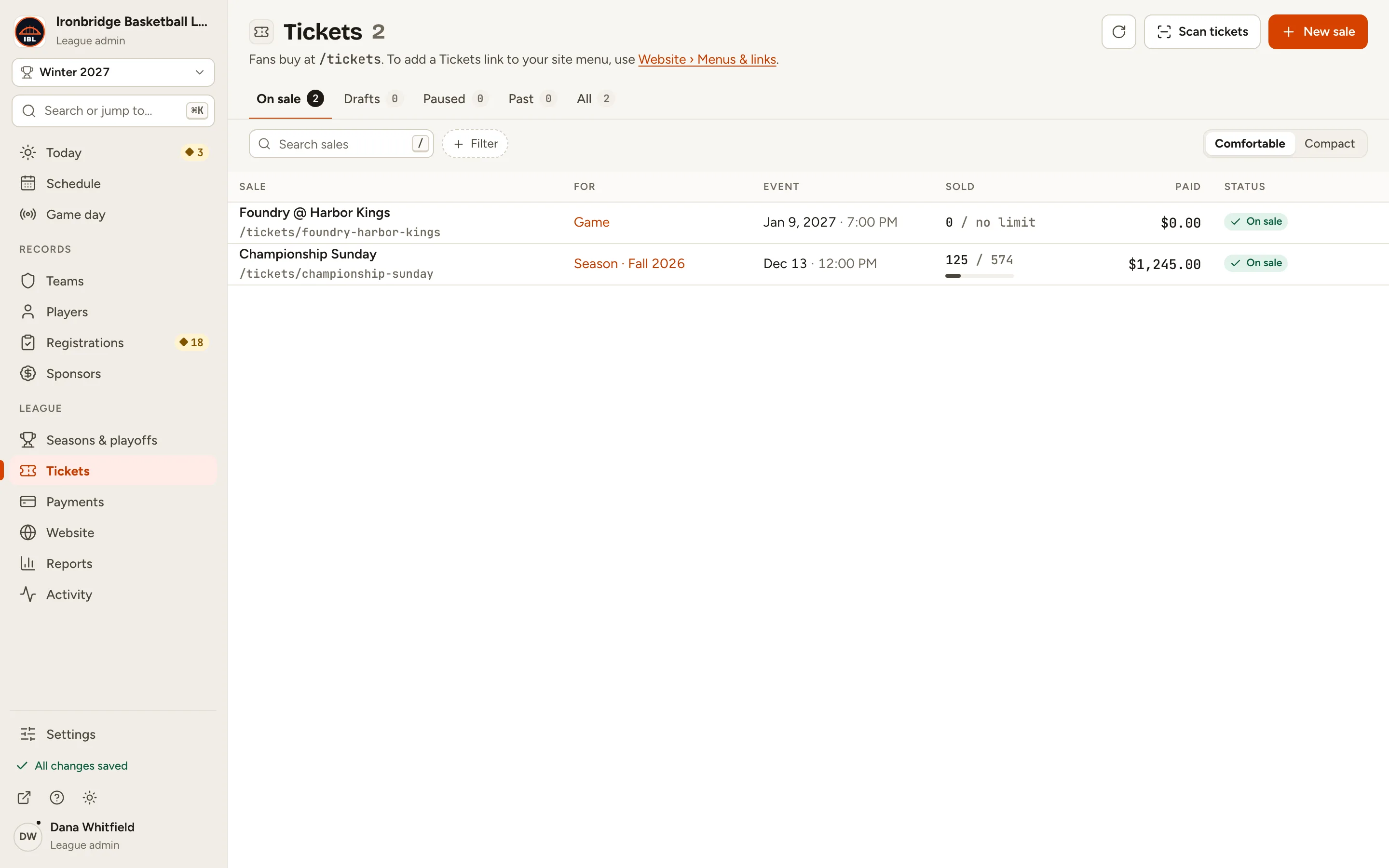
Fig. 2Open the sale. -
Step 3: Click Door sale at the top.
The door sale opens full screen: your ticket types with their door prices on the left, the buyer and payment on the right.
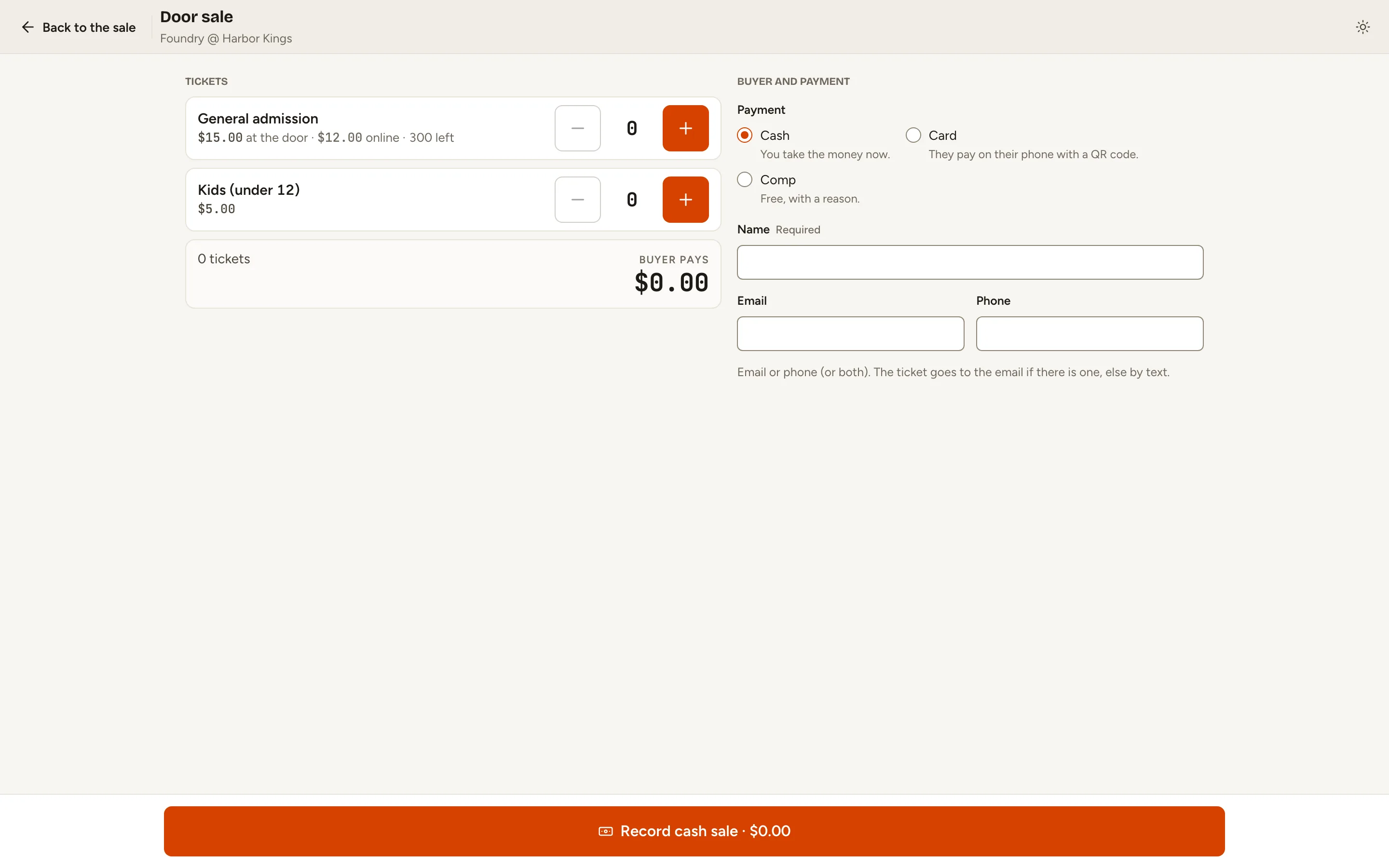
Fig. 3The door sale. -
Step 4: Click + once for each ticket, like twice for General admission.
Buyer pays adds up the door prices: here 2 tickets, $30.00. Use − to take one off.
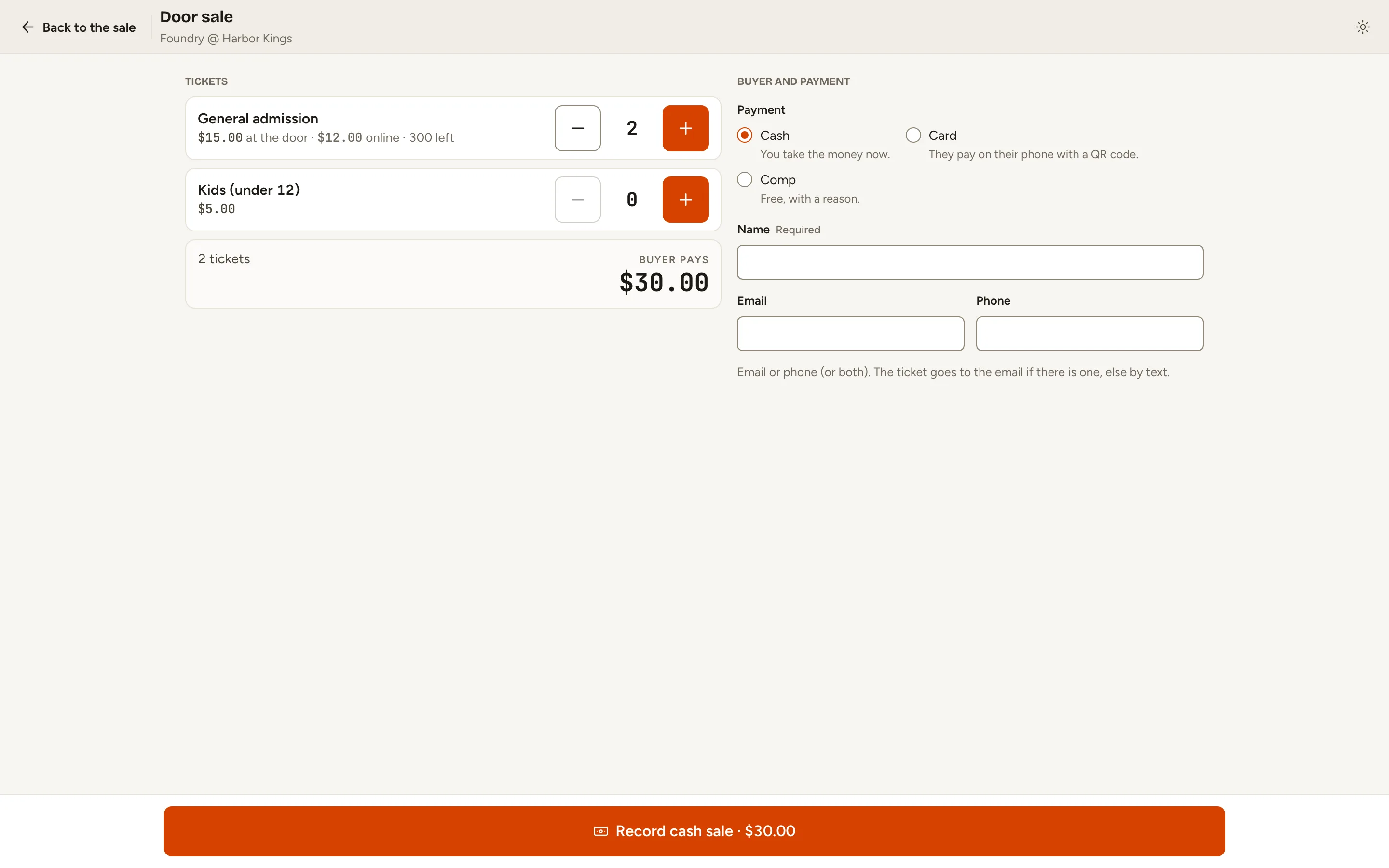
Fig. 4Two tickets, $30.00. -
Step 5: Keep Cash, and type the buyer’s Name and Email, like Casey Morgan.
The tickets go to the email, or by text if you give only a Phone. The name helps you find the order later.
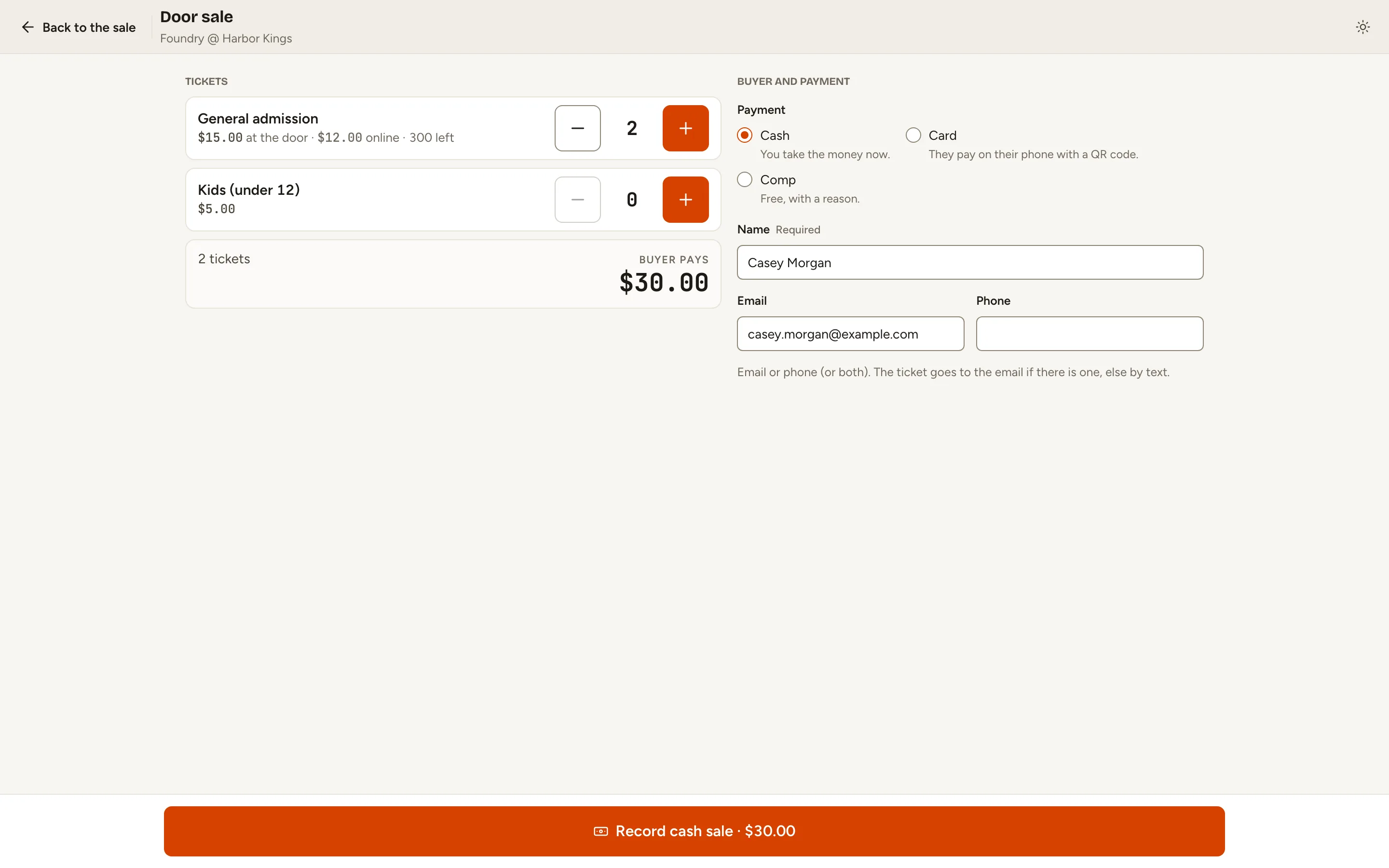
Fig. 5Cash, with the buyer’s details. -
Step 6: Click Record cash sale · $30.00 at the bottom.
A box asks you to confirm. Only confirm once the money is in your hand: this issues the tickets.
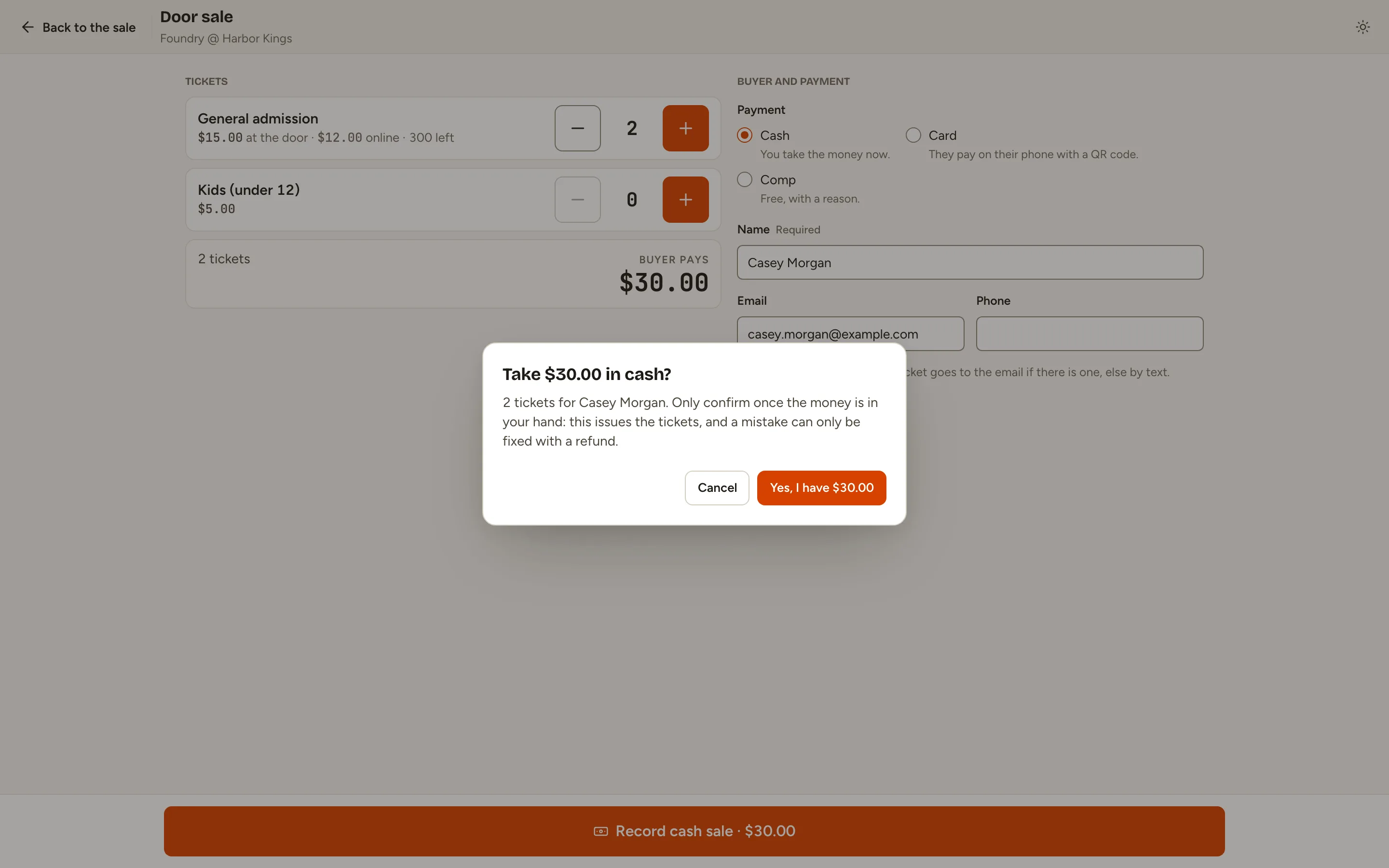
Fig. 6Confirm once you have the cash. -
Step 7: Click Yes, I have $30.00.
The sale shows Paid with the buyer’s backup codes. ScoreLM emails the tickets (or texts them when there’s only a phone). If nothing arrives in a minute, read them a backup code from the screen. Click New sale for the next buyer.
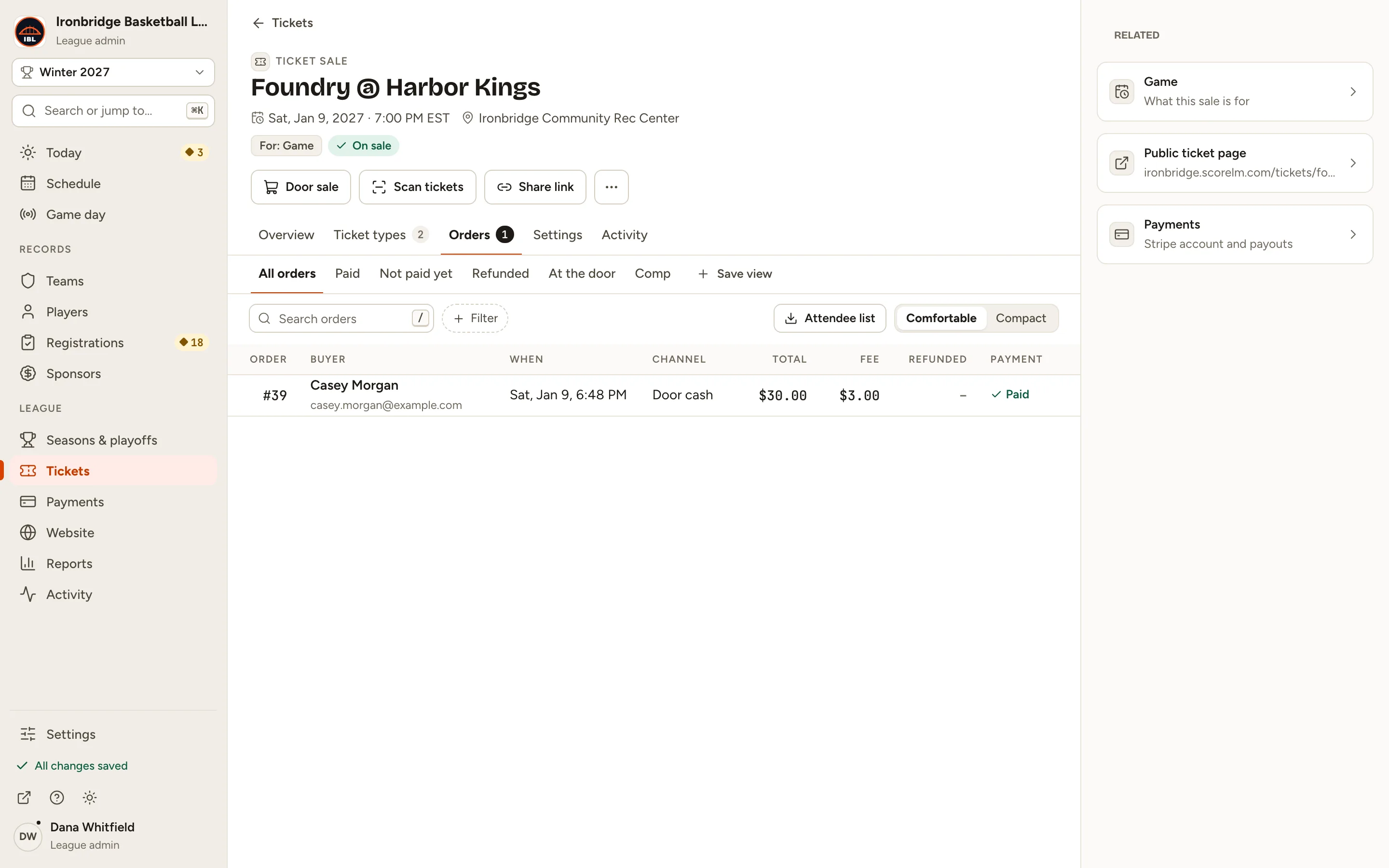
Fig. 7Paid at the door.
What you’ll see
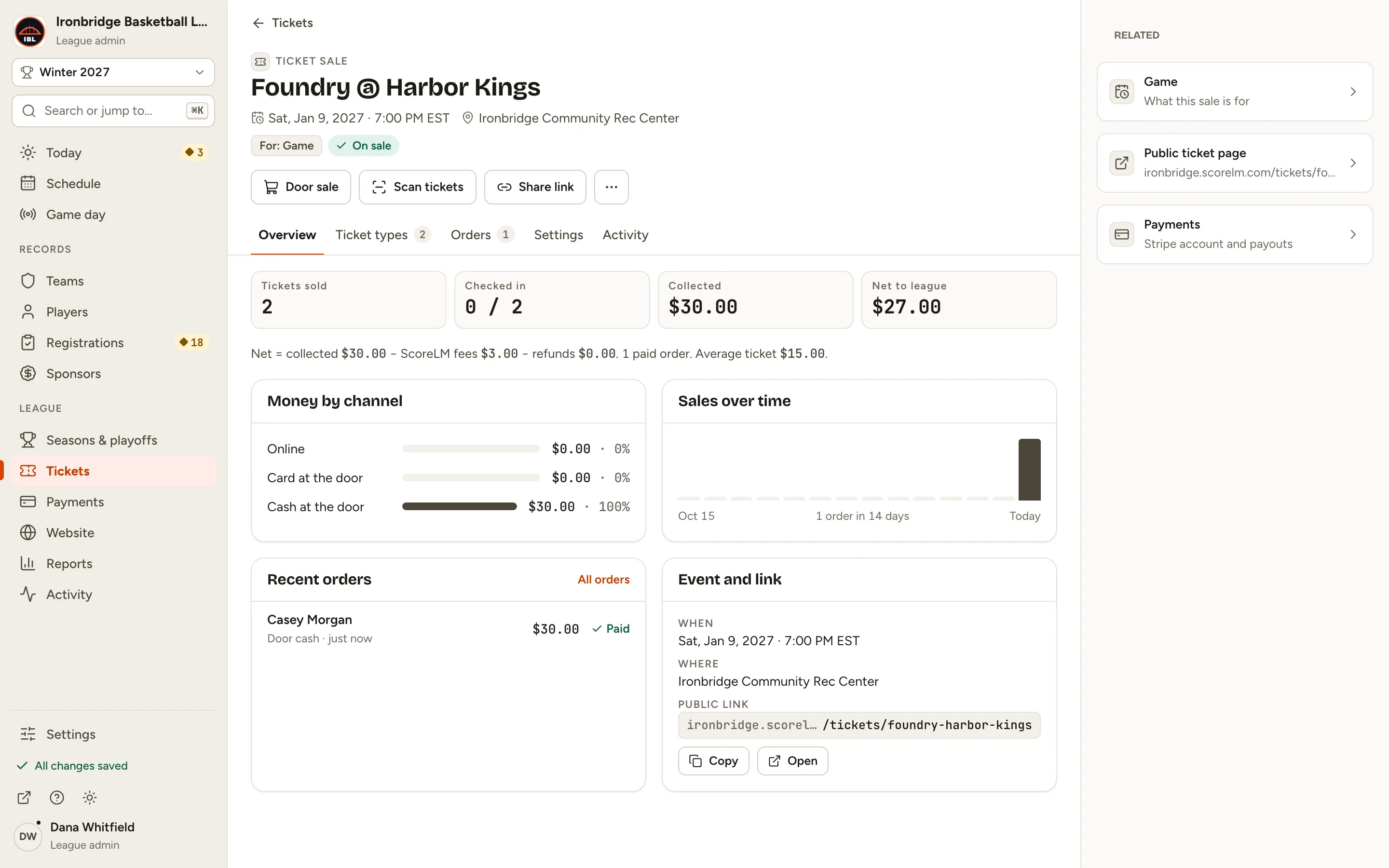
Casey Morgan has two tickets and you have $30.00 in the cash box. The order is on the sale’s Orders tab as Door cash, and their tickets scan at the gate like any other.