
ScoreLM Guides
scorelm.com

Arrange your homepage

By the end you’ll have your homepage’s sections in the order and columns you want, on desktop and on phones.

  • Who: League admin or Editor
  • Time: 5 min
  • Steps: 9
Video · 1:13 · Voiceover · every step is also written on screen Prefer to read? Steps below

Before you start

  • Use a computer or a tablet. On a phone you can only switch sections on or off.
  • To add a Gallery section with your own photos, upload them first. See Upload photos to the gallery.

Steps

  1. Step 1: In the left menu, click Website.

    Website opens on Design. Everything here is a draft until you publish, so fans see nothing until then.
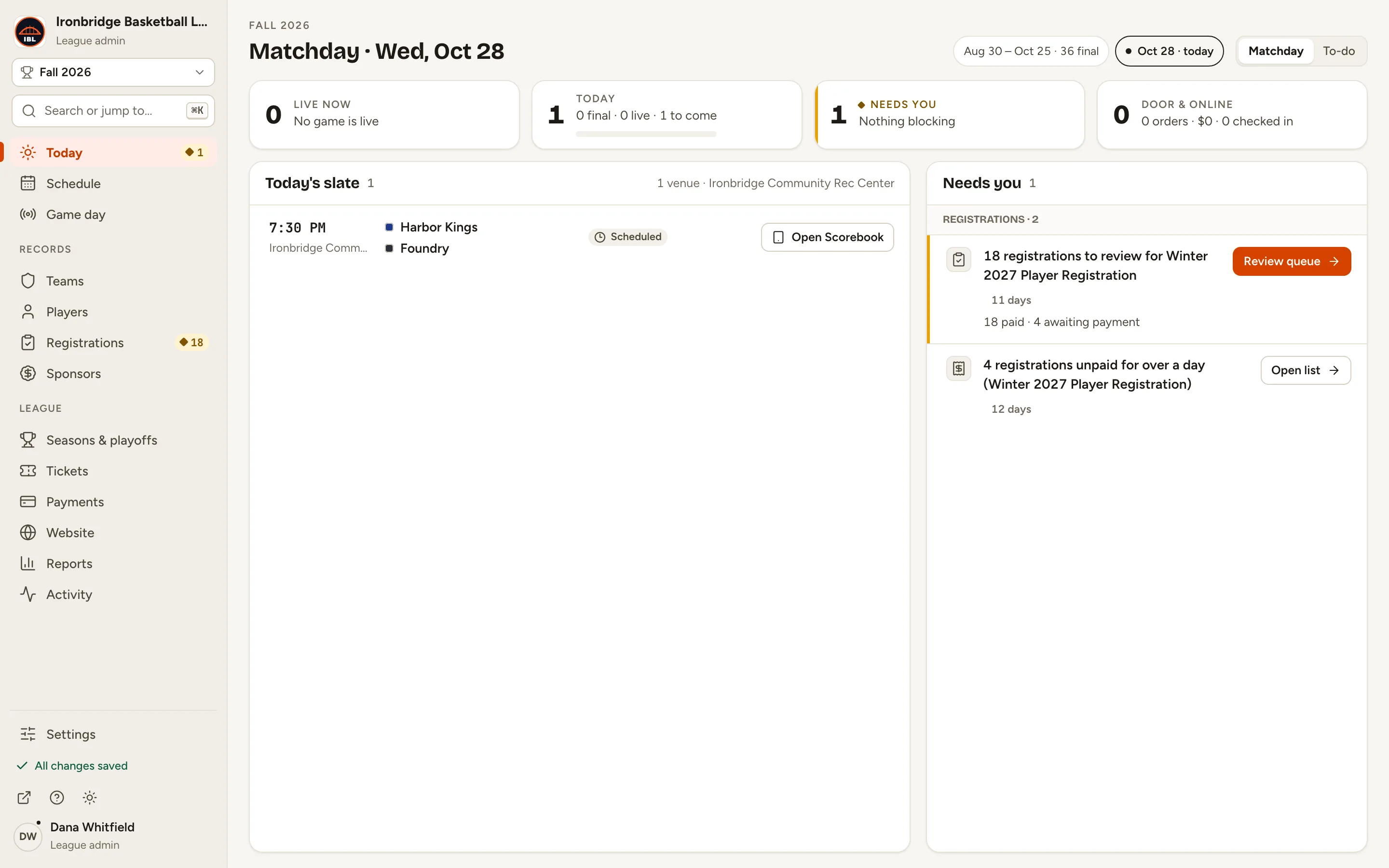
    Fig. 1

    Scroll sideways to see the whole screen.

    The admin with Website in the left menu.
    Fig. 1Website, in the left menu.
  2. Step 2: Click Homepage.

    The Homepage editor lists your sections by column: Left column, Right column and Full width. The preview on the right shows your homepage as you change it.
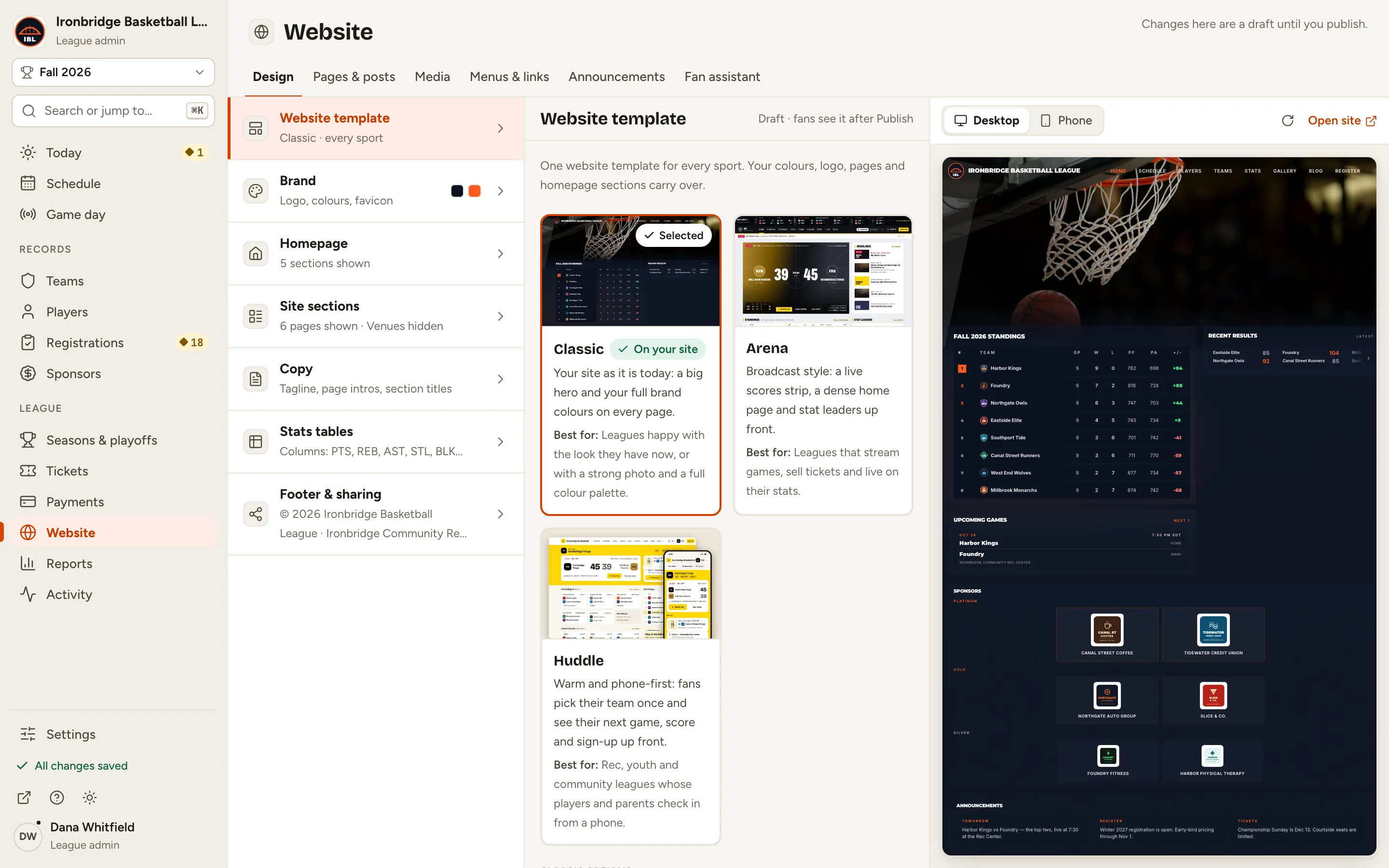
    Fig. 2

    Scroll sideways to see the whole screen.

    The Design sections list with the Homepage row.
    Fig. 2Homepage, in the list of Design sections.
  3. Step 3: Click ↑ next to Announcements to move it above Sponsors.

    Each section has an up and a down arrow. You can also drag a section by its handle, or select it and press Alt+↑ or Alt+↓.
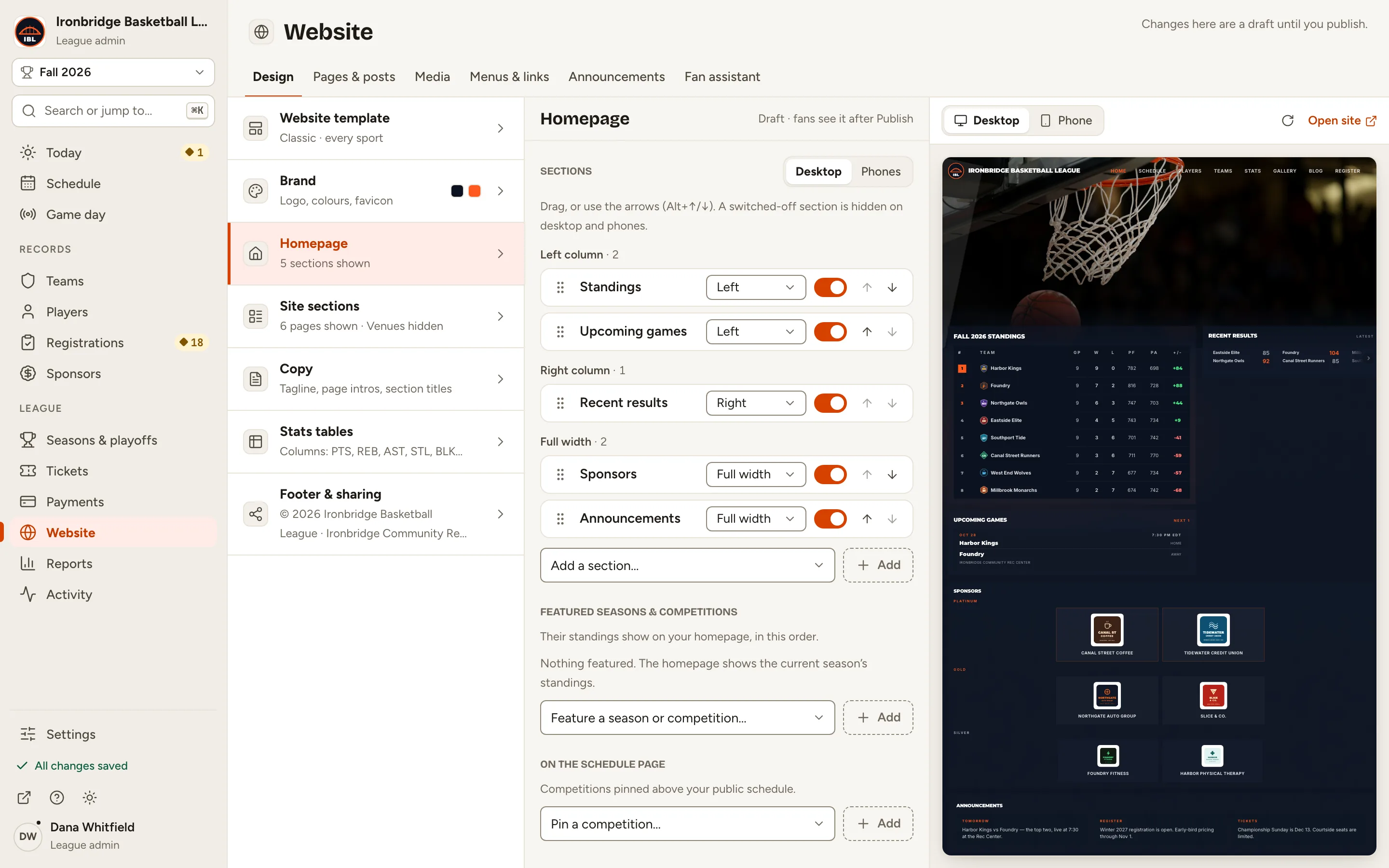
    Fig. 3

    Scroll sideways to see the whole screen.

    The Full width group of the Homepage editor, with the up arrow next to Announcements.
    Fig. 3The up arrow next to Announcements.
  4. Step 4: In the column menu next to Upcoming games, choose Right.

    The section moves to the right column. Full width sections run across the page, below the two columns.
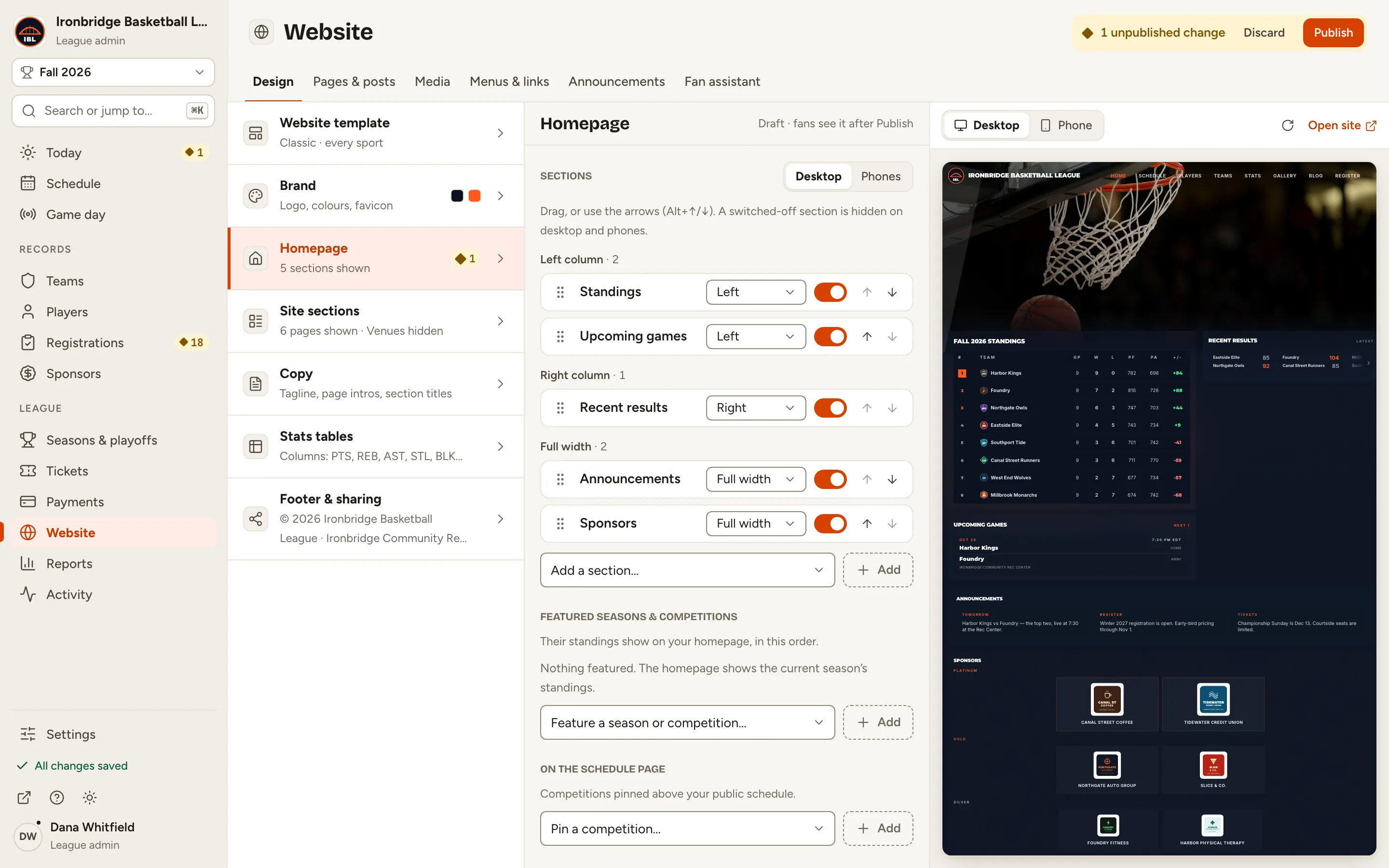
    Fig. 4

    Scroll sideways to see the whole screen.

    The Homepage editor with the column menu next to Upcoming games.
    Fig. 4Each section’s column menu: Left, Right or Full width.
  5. Step 5: Under the sections, choose Gallery in Add a section…, then click Add.

    A new section starts at the bottom of the left column; move it like any other. Gallery shows the photos you feature, in the next step.
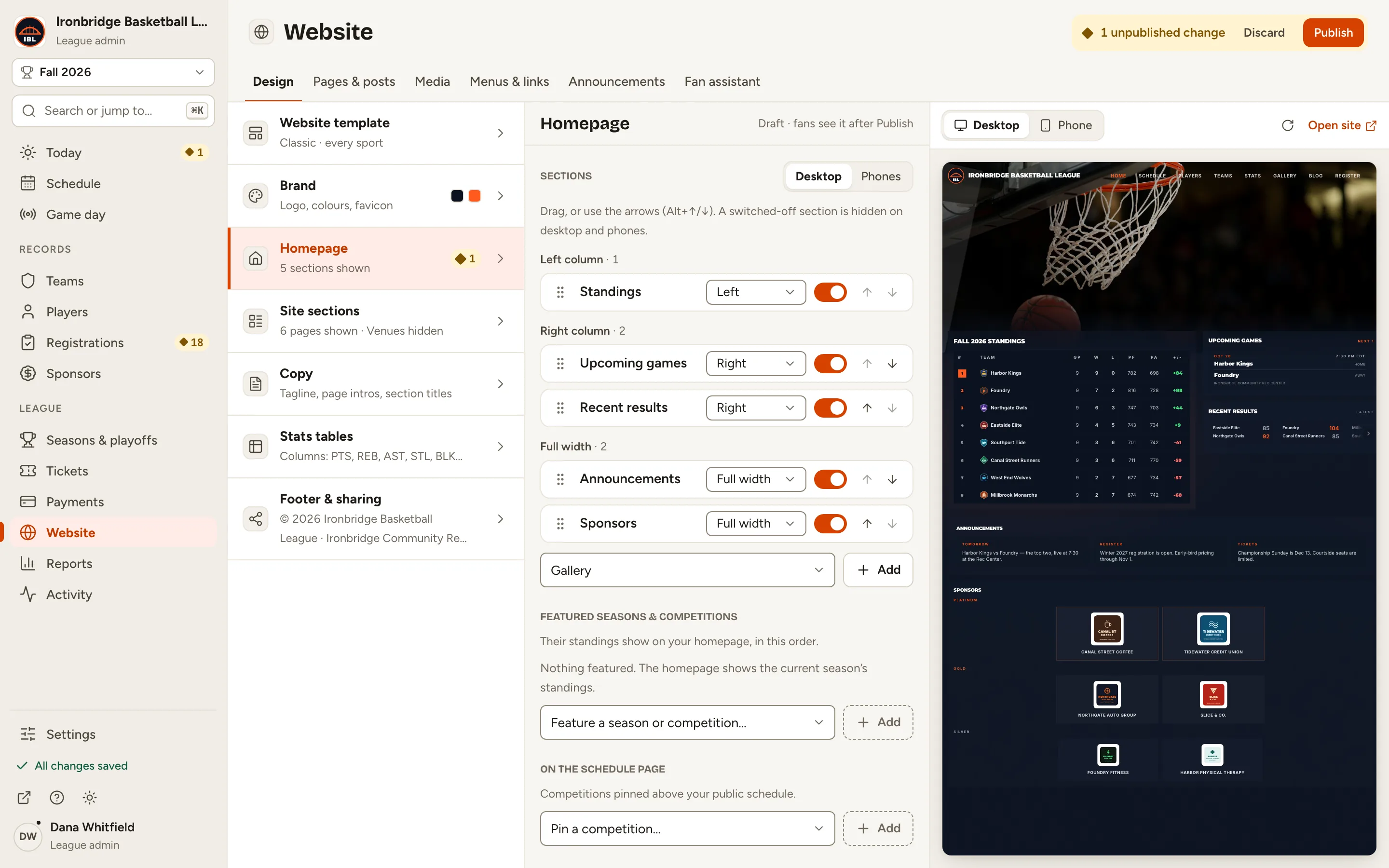
    Fig. 5

    Scroll sideways to see the whole screen.

    The Add a section menu set to Gallery, with the Add button.
    Fig. 5Add a section lists the sections your homepage doesn’t have yet.
  6. Step 6: Under Featured photos, click Choose photos, then click the photos to show, in order.

    Each photo you pick gets its number in the gallery, up to 10. Click Done when you’re finished. The Gallery section shows only the photos you feature.
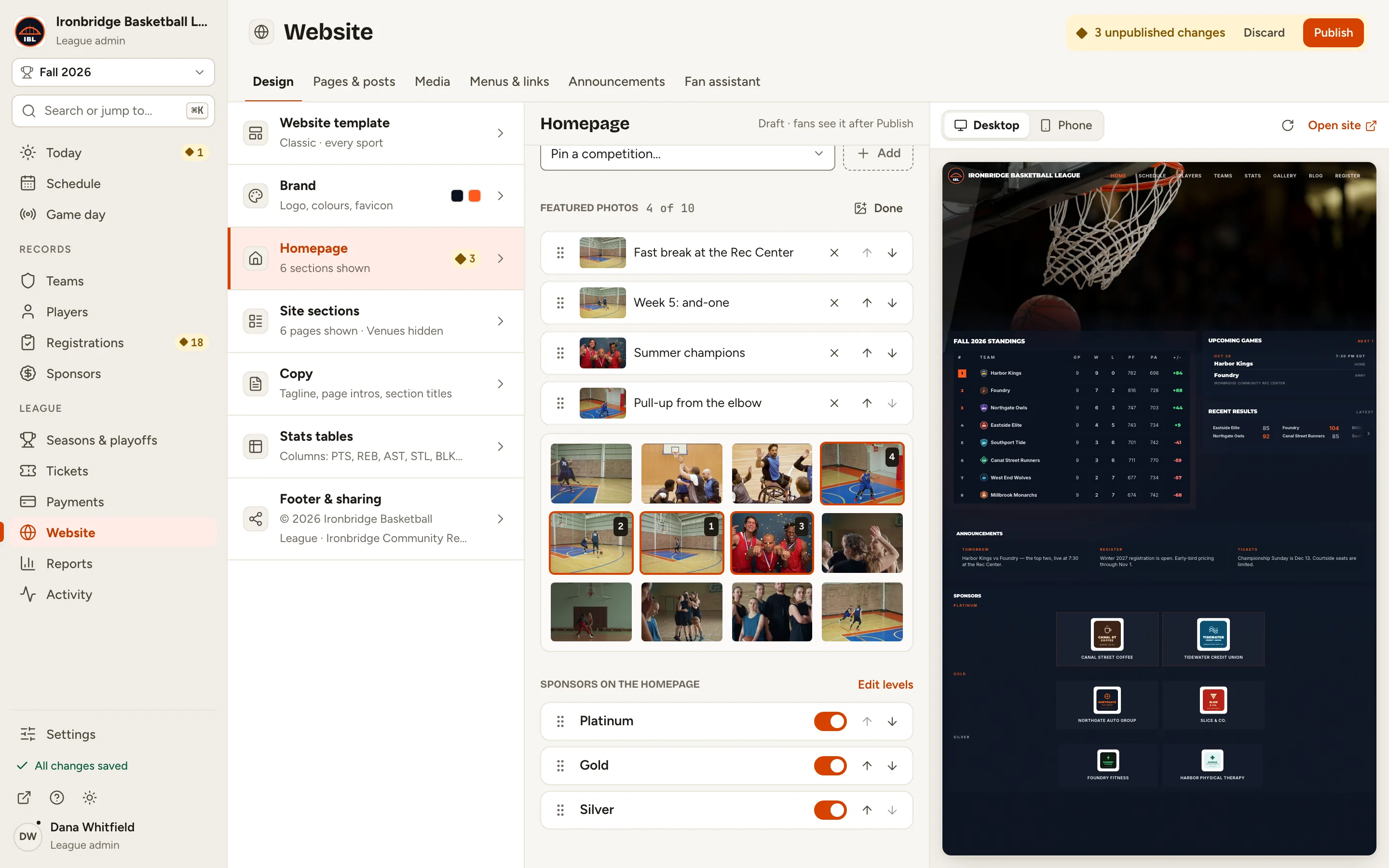
    Fig. 6

    Scroll sideways to see the whole screen.

    The Featured photos picker with a grid of gallery photos, four of them numbered 1 to 4.
    Fig. 6Choose photos opens your gallery; the numbers are the order on the homepage.
  7. Step 7: Next to Sections, click Phones.

    Phones show one column, in this order. Move sections with the arrows here too; it doesn’t change the desktop layout.
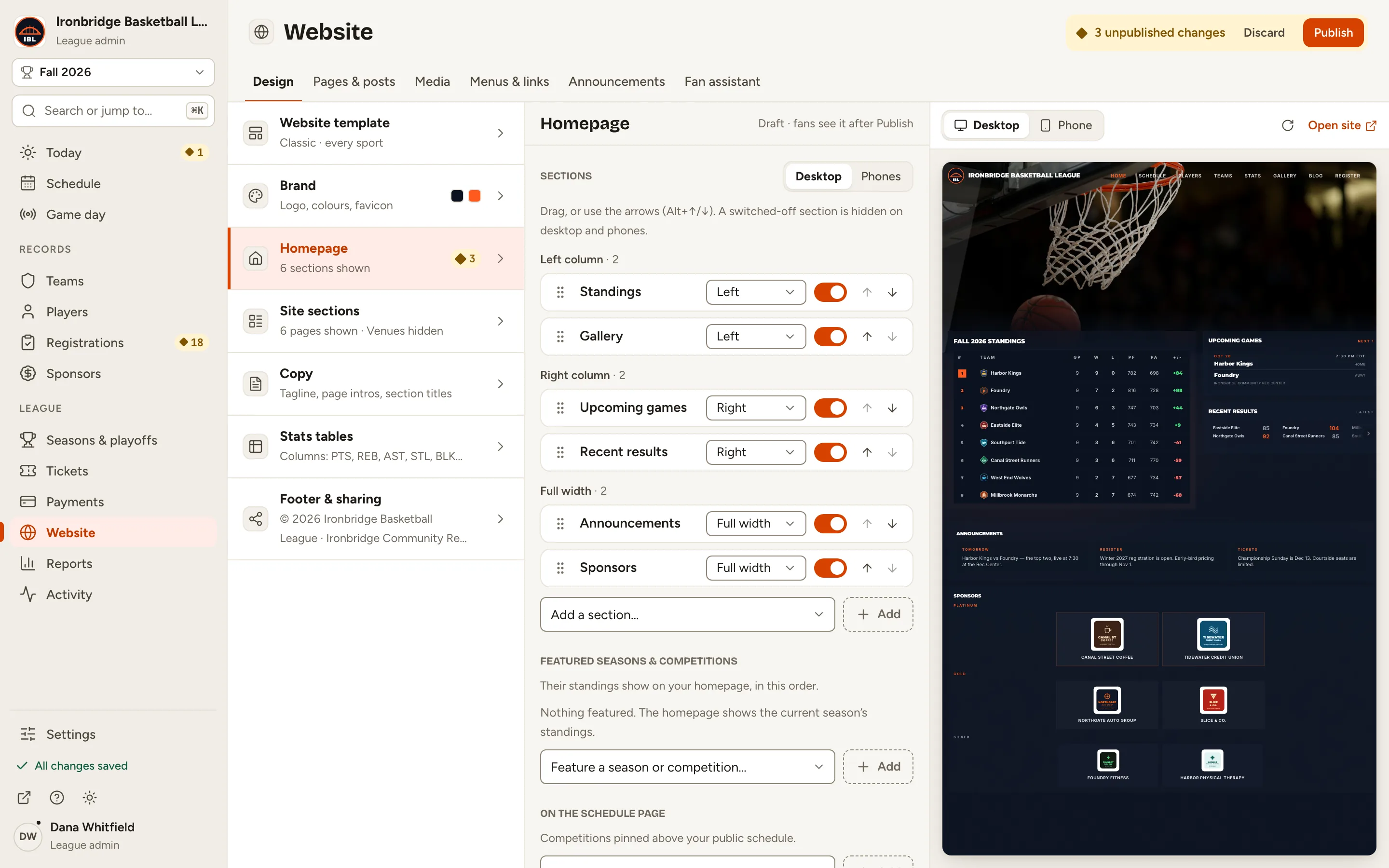
    Fig. 7

    Scroll sideways to see the whole screen.

    The Homepage editor with Phones selected and the sections in one list.
    Fig. 7Phones: one list, in the order phones show it.
  8. Step 8: Click Publish at the top right.

    The bar beside it counts your unpublished changes. After a moment it says Published. Fans see it now.
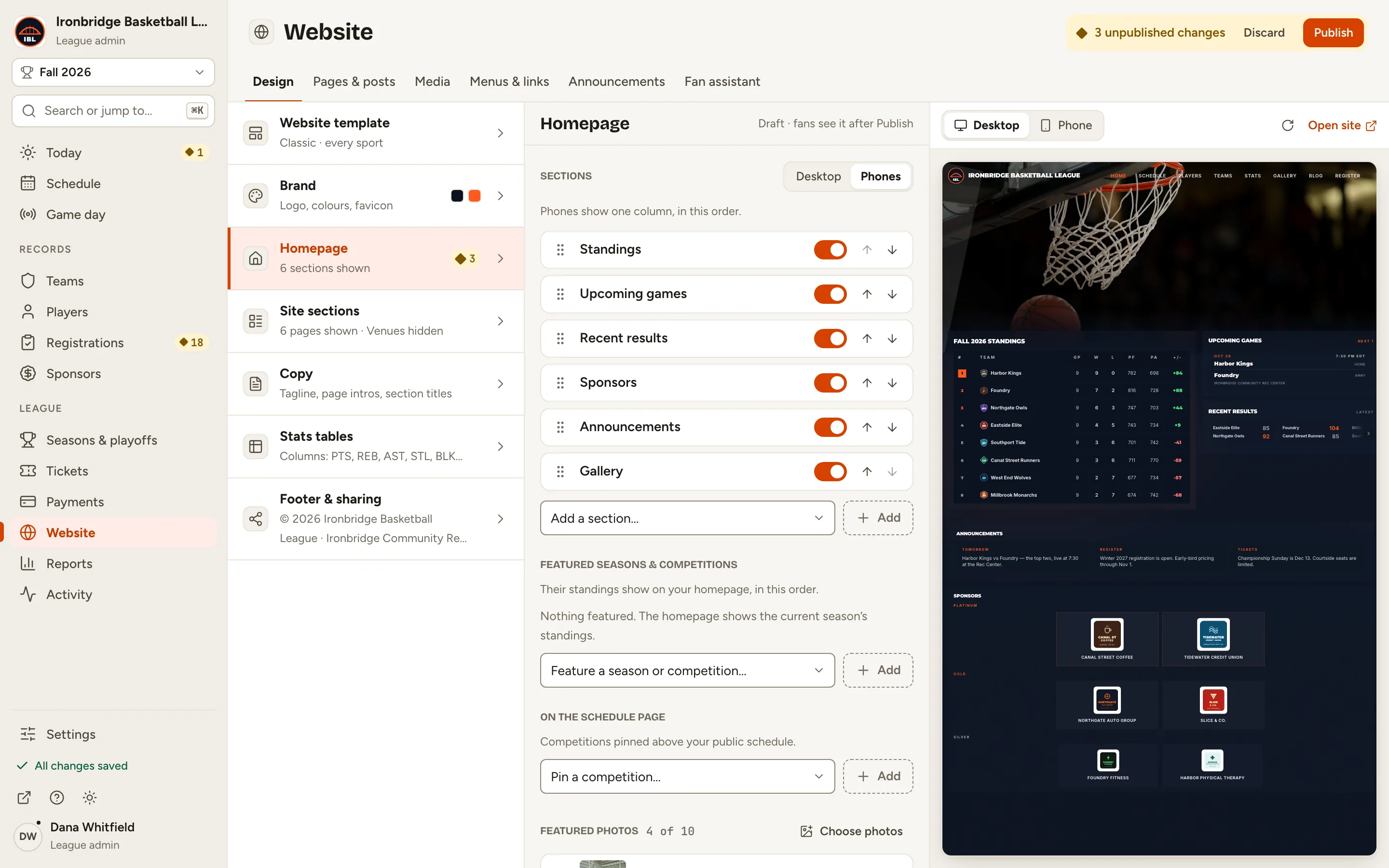
    Fig. 8

    Scroll sideways to see the whole screen.

    The top right of the Website page with the unpublished changes count, Discard and Publish.
    Fig. 8Publish, next to the count of unpublished changes.
  9. Step 9: Open your website.

    From the admin, click ↗ (View public site) at the bottom of the sidebar; your website opens in a new tab. Your homepage shows the sections in their new places.
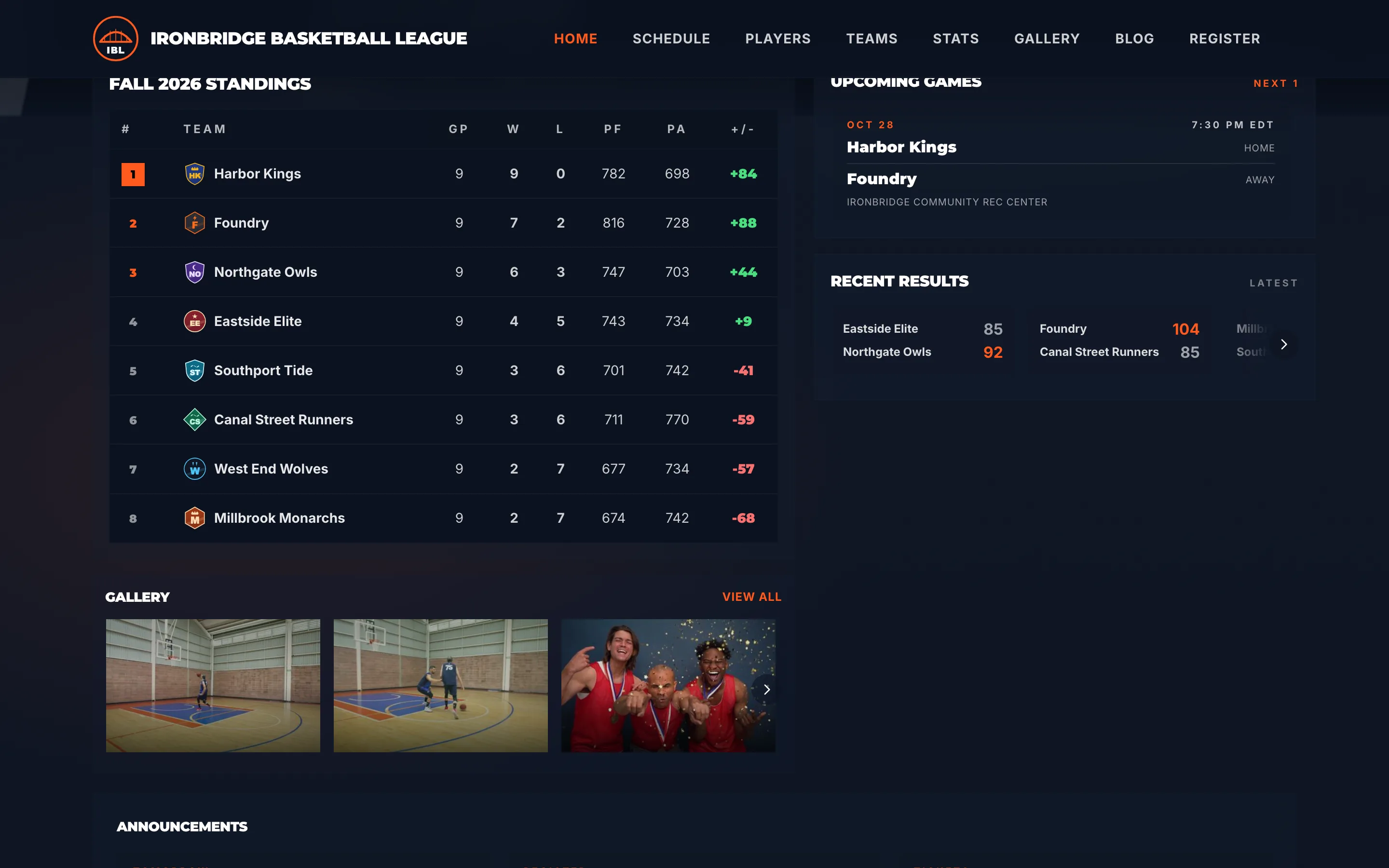
    Fig. 9

    Scroll sideways to see the whole screen.

    The public homepage with standings and the photo gallery on the left, upcoming games and recent results on the right, then announcements and sponsors.
    Fig. 9Your homepage with its new layout.

What you’ll see

Your homepage is arranged the way you want, with its own order for phones. To change it again, go back to Website › Design › Homepage and publish.
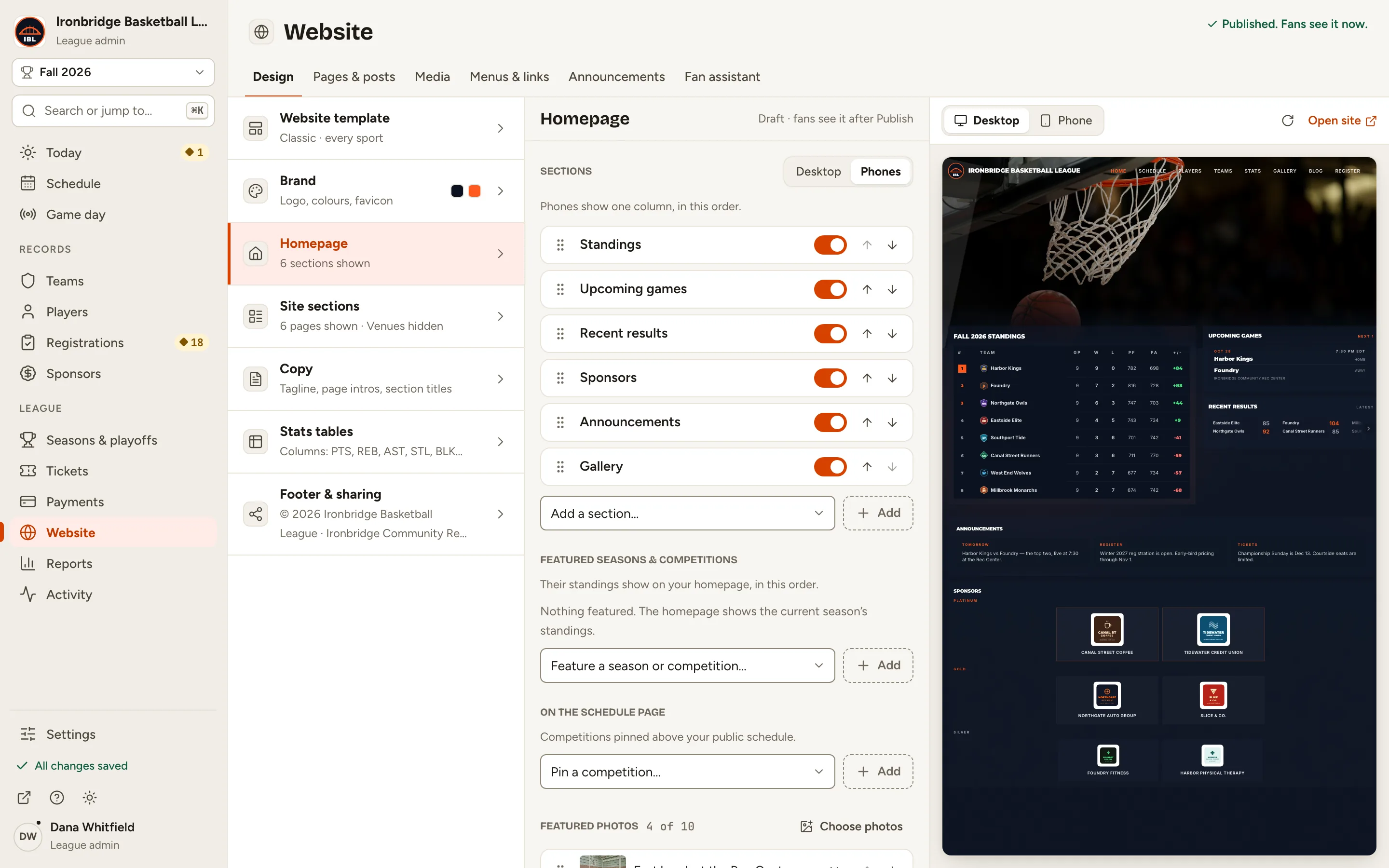
Fig. 10

Scroll sideways to see the whole screen.

The Homepage editor after publishing, with the header saying Published. Fans see it now.
Fig. 10The Homepage editor after publishing.

Common questions

How do I hide a section?
Switch off the toggle next to it. When you publish, you’re asked Hide this from fans? first; click Publish and hide. A switched-off section is hidden on desktop and phones, and you can switch it back on any time.
Can I choose which standings show?
Yes. Under Featured seasons & competitions, choose one in Feature a season or competition… and click Add. Their standings show on your homepage, in that order. With nothing featured, the homepage shows the current season’s standings.
Why is my Gallery section empty?
It shows only featured photos. Choose them under Featured photos here, or open a photo in Website › Media and switch on Featured on homepage. Up to 10 show.
Can I rename a section, like Upcoming games?
League admins can, in Website › Design › Copy: each homepage section has a title field. That’s also where the text for the About section goes.
My website still shows the old layout. Why?
It can take a minute or two. Your website may keep showing the version from before you published for that long. Wait, then reload.
I changed my mind. How do I undo?
Before you publish, click Discard at the top right; an Undo button appears for a few seconds in case you didn’t mean it. Your draft is kept in this browser until you publish or discard it.