
ScoreLM Guides
scorelm.com

Enter a final score

By the end you’ll have a game’s final score saved, so standings and your website update.

  • Who: League admin or Editor
  • Time: 2 min
  • Steps: 6
Video · 0:48 · Voiceover · every step is also written on screen Prefer to read? Steps below

Before you start

  • The game must be on the schedule. Scoring it live as it happens instead? See Keep score live.

Steps

  1. Step 1: In the left menu, click Schedule.

    Games whose time has passed without a score are marked Needs score.
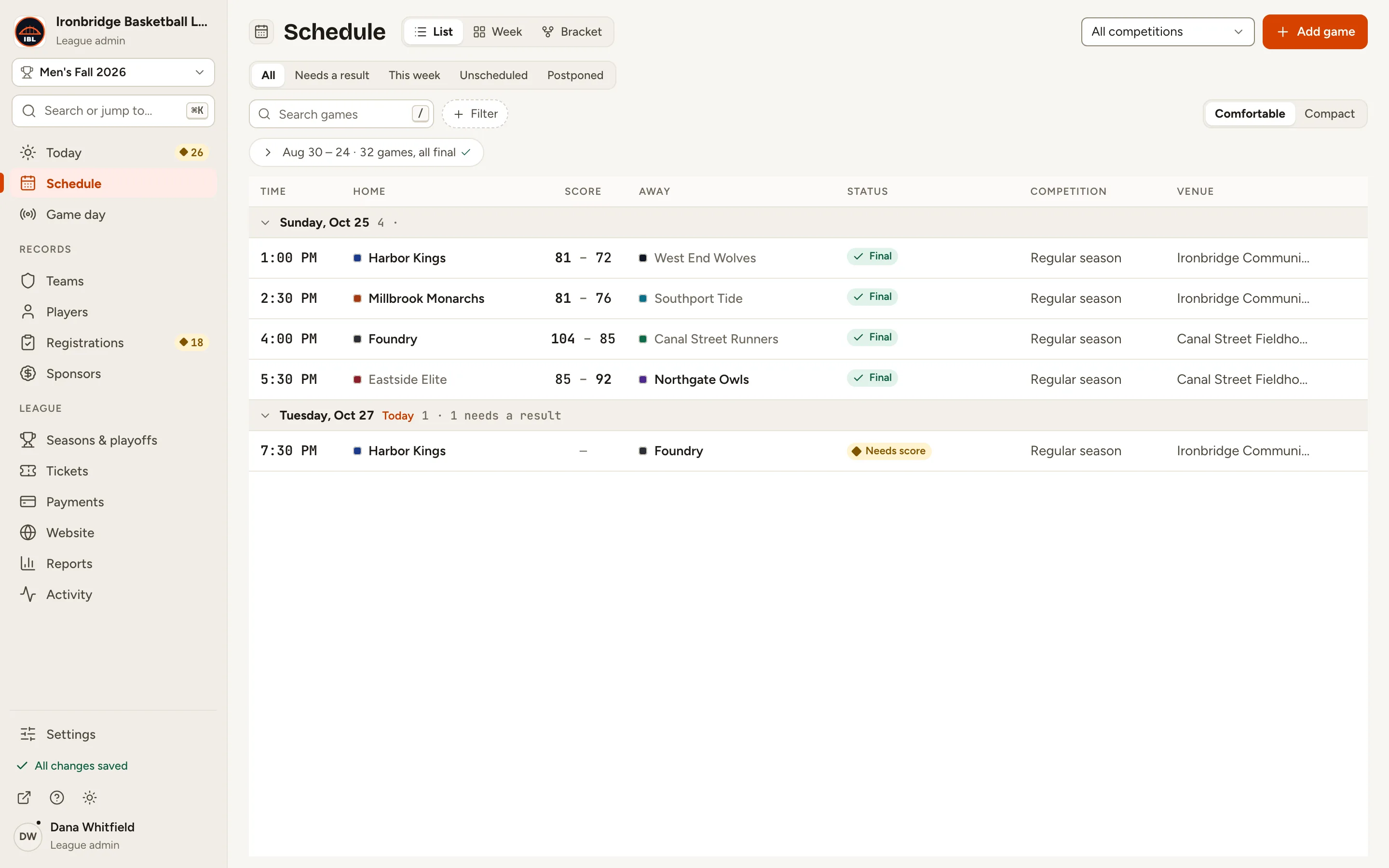
    Fig. 1

    Scroll sideways to see the whole screen.

    The Schedule list with a game marked Needs score.
    Fig. 1The Schedule marks games that need a score.
  2. Step 2: Click Needs a result at the top of the list.

    Only the games waiting for a final score are listed.
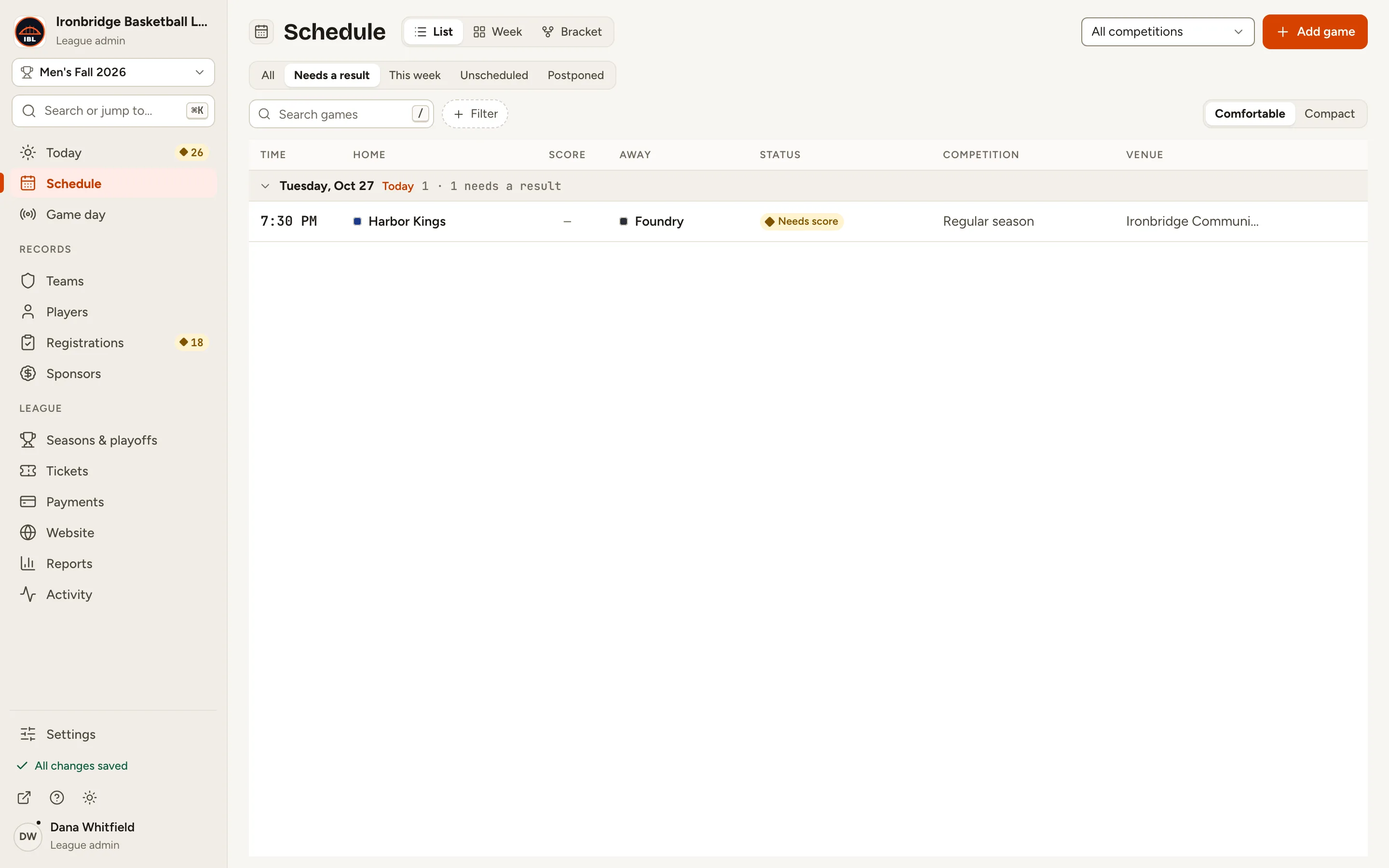
    Fig. 2

    Scroll sideways to see the whole screen.

    The Schedule list filtered to Needs a result, showing Harbor Kings vs Foundry.
    Fig. 2Needs a result: the games waiting for a score.
  3. Step 3: Click the game.

    Its record opens beside the list, with Enter the final score near the top.
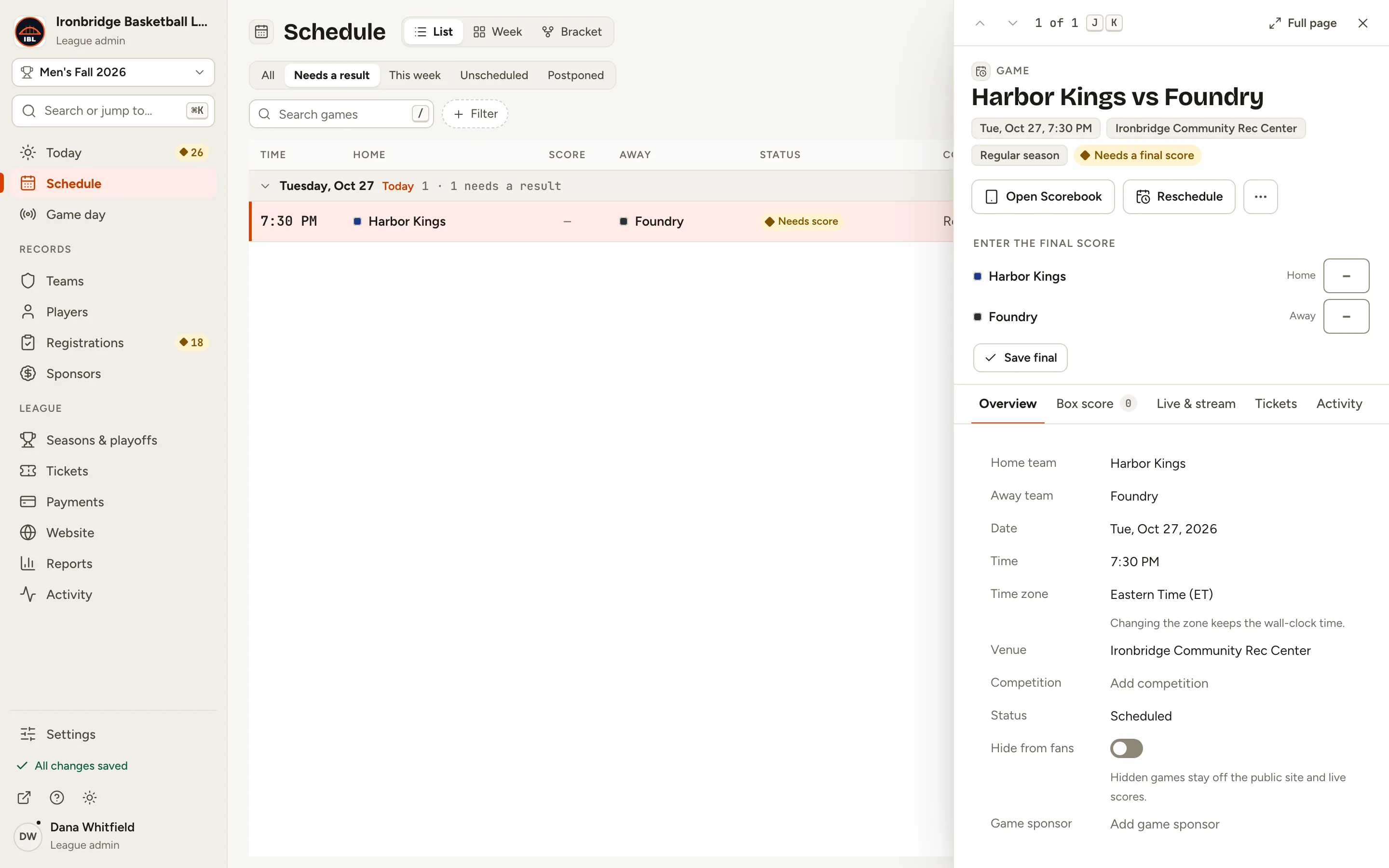
    Fig. 3

    Scroll sideways to see the whole screen.

    The Harbor Kings vs Foundry game record with empty score boxes under Enter the final score.
    Fig. 3Enter the final score, near the top of the game.
  4. Step 4: Type the home team’s score, press Tab, and type the away team’s score.

    The button below names the result as you type, like Harbor Kings wins 78–74.
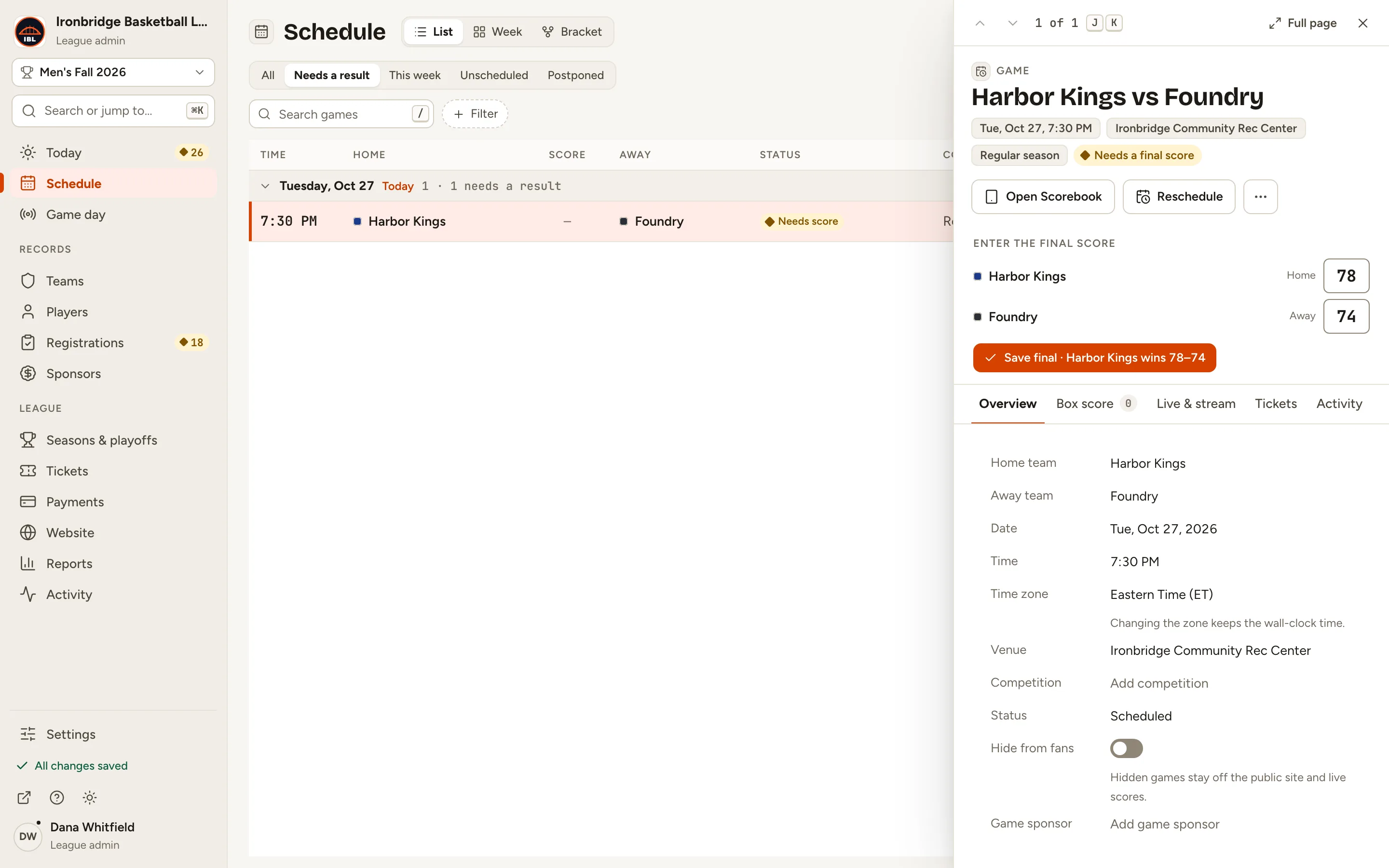
    Fig. 4

    Scroll sideways to see the whole screen.

    The score boxes with 78 for Harbor Kings and 74 for Foundry, and the Save final button naming the result.
    Fig. 4Both scores typed in.
  5. Step 5: Click Save final.

    The game is marked Final. Standings and records update straight away, and Undo appears for a few seconds in case of a typo.
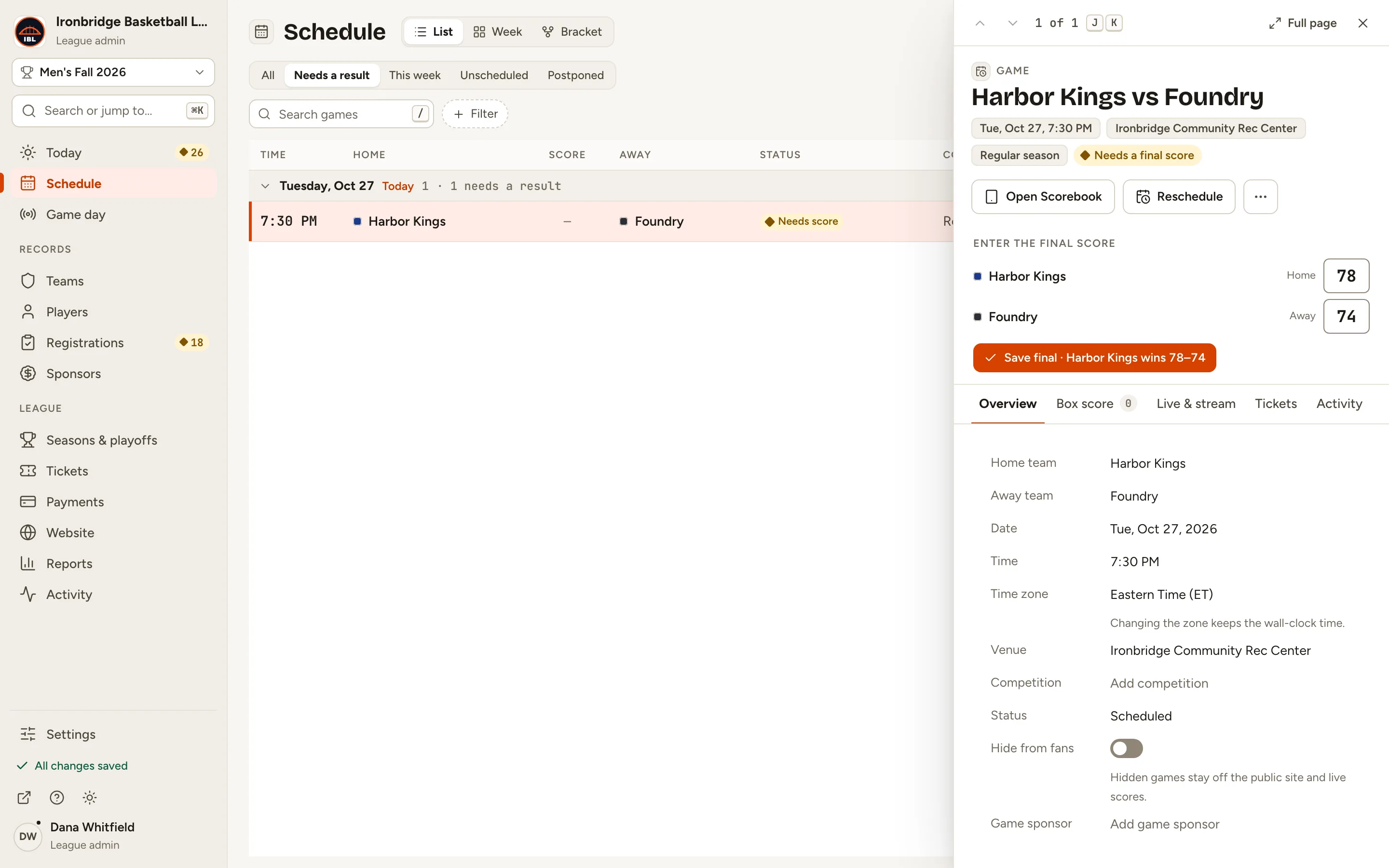
    Fig. 5

    Scroll sideways to see the whole screen.

    The Save final button under the two scores.
    Fig. 5Save final, and the game is final.
  6. Step 6: Open your website and click Schedule.

    From the admin, click ↗ (View public site) at the bottom of the menu; your website opens in a new tab. The final score is there for fans, and your standings include it.
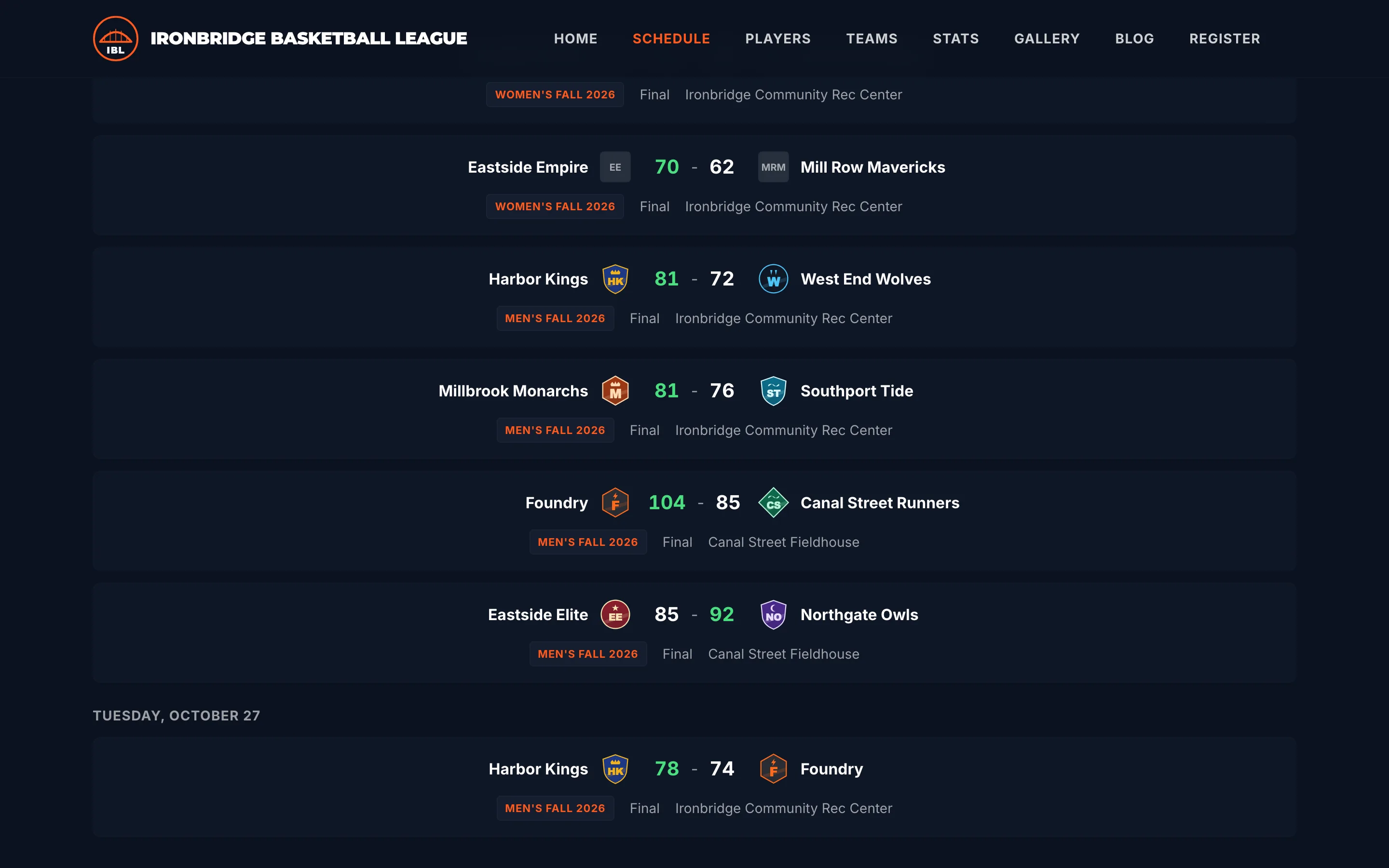
    Fig. 6

    Scroll sideways to see the whole screen.

    The public website’s Schedule with Harbor Kings 78, Foundry 74, Final.
    Fig. 6Your website shows the final score.

What you’ll see

The game is final, with its score in the admin, in your standings and on your website.
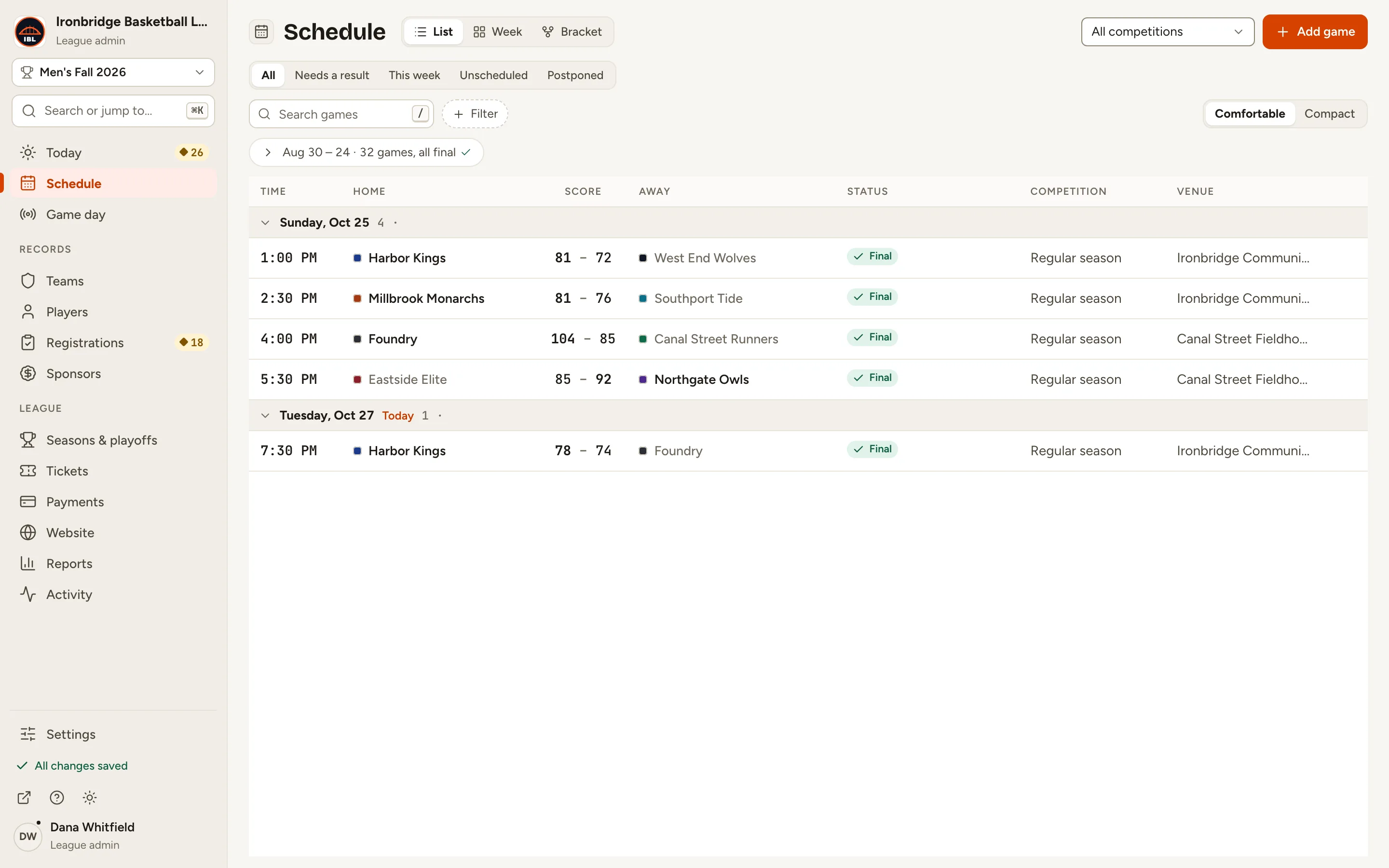
Fig. 7

Scroll sideways to see the whole screen.

The Schedule list with Harbor Kings 78–74 Foundry marked Final.
Fig. 7The game is final.

Common questions

Is there a quicker way on game night?
Yes. On Today, a game that needs a result has an Enter final button that opens the same score boxes.
I typed the wrong score. How do I fix it?
Click Undo straight away, or open the game again: the boxes show the saved score and the button reads Update final. Change a number and click it.
Can stat keepers enter final scores?
Not here: final scores in the Schedule are for league admins and editors. Stat keepers keep score live from Game day. See Keep score live.
Do I also need a box score?
No, the final score is enough for results and standings. Player stats need a box score: see Enter a box score after the game.