Create a live event
By the end you’ll have a live event page for a stream that isn’t a game, announced on your homepage while it’s live.
Before you start
- A live event is a stream that isn’t a game: a draft night, an awards night, an interview. For a game, use an overlay instead: see Set up a stream overlay.
- Set up the stream on YouTube first, so you have its link.
Steps
-
Step 1: In the left menu, click Game day.
Game day opens on its Games tab.
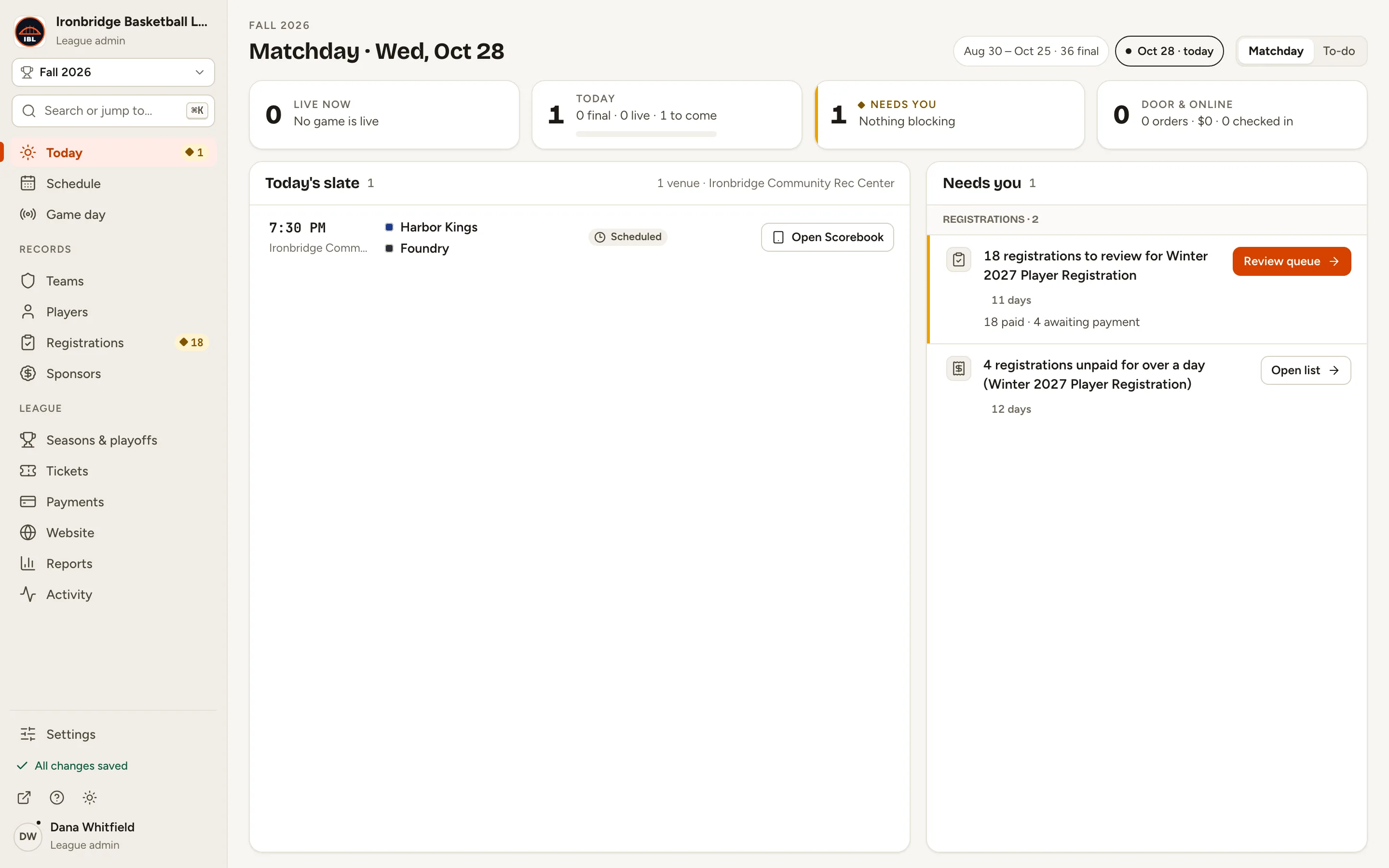
Fig. 1Game day, in the left menu. -
Step 2: At the top of Game day, click Live events.
Your live events are listed: live first, then scheduled, drafts and ended.
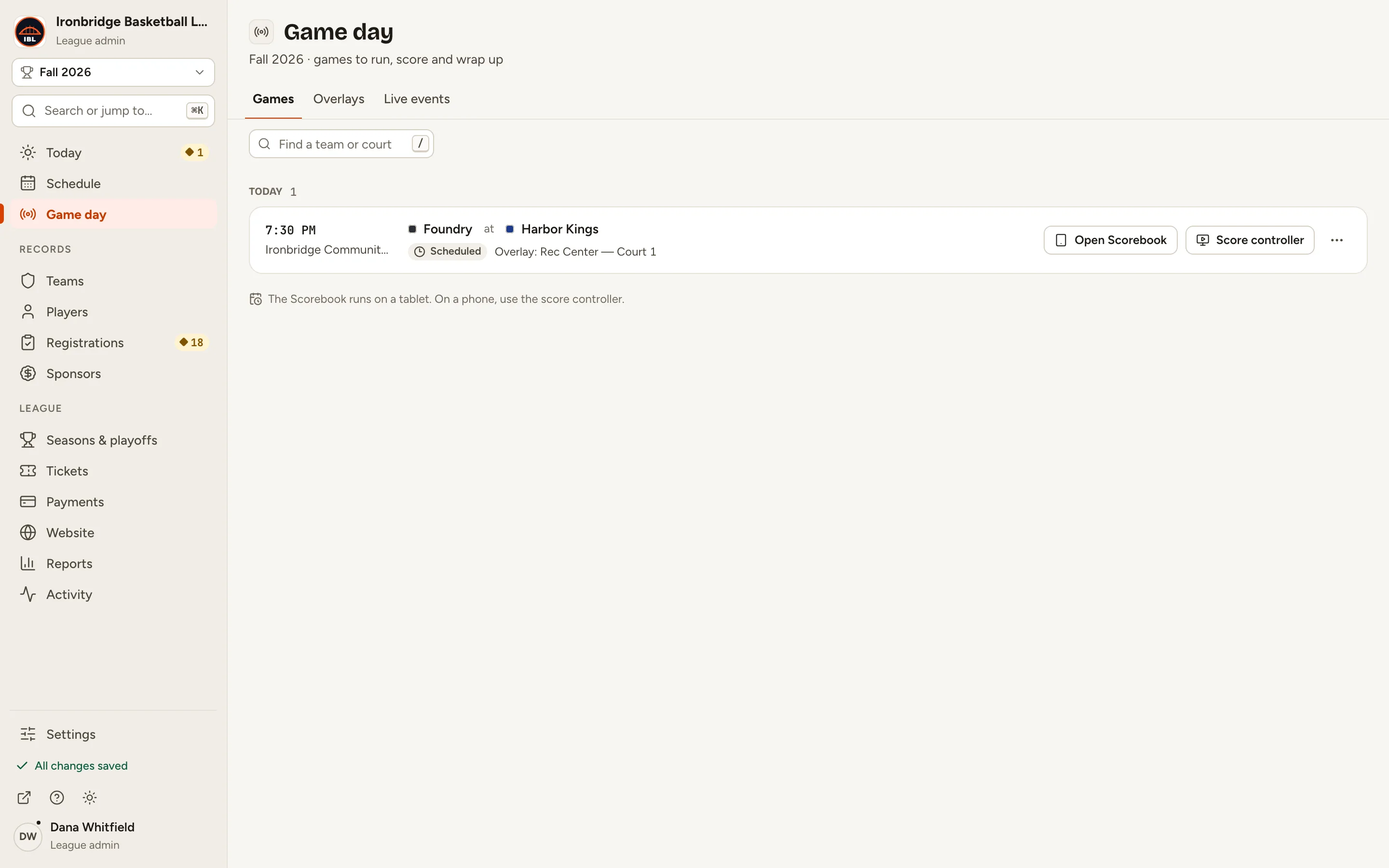
Fig. 2Live events, at the top of Game day. -
Step 3: Click New live event.
The New live event form opens.
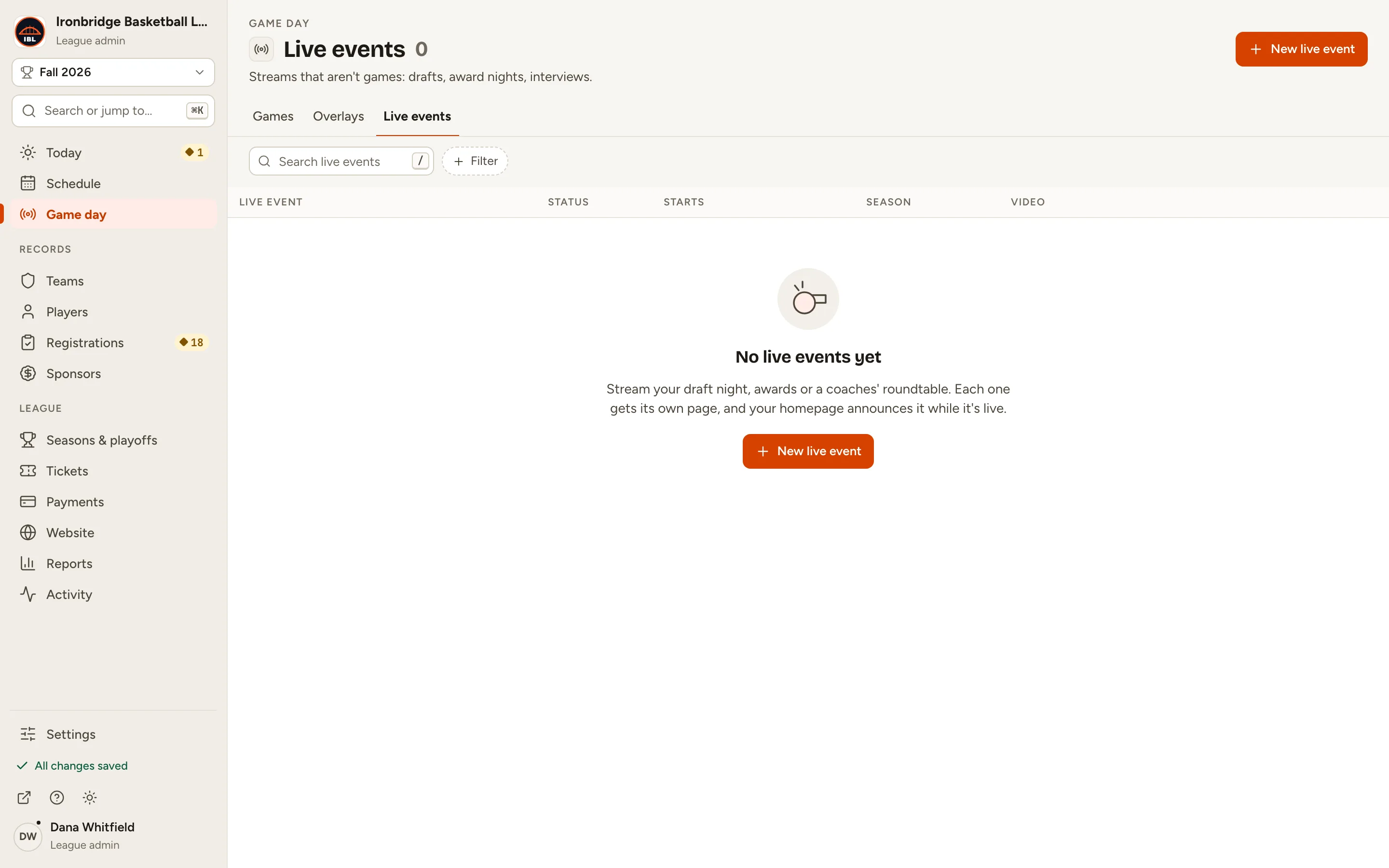
Fig. 3New live event, at the top right. -
Step 4: Type a Title, like 2026 Ironbridge Draft Night.
The Web address fills in from the title: fans open /live/2026-ironbridge-draft-night.
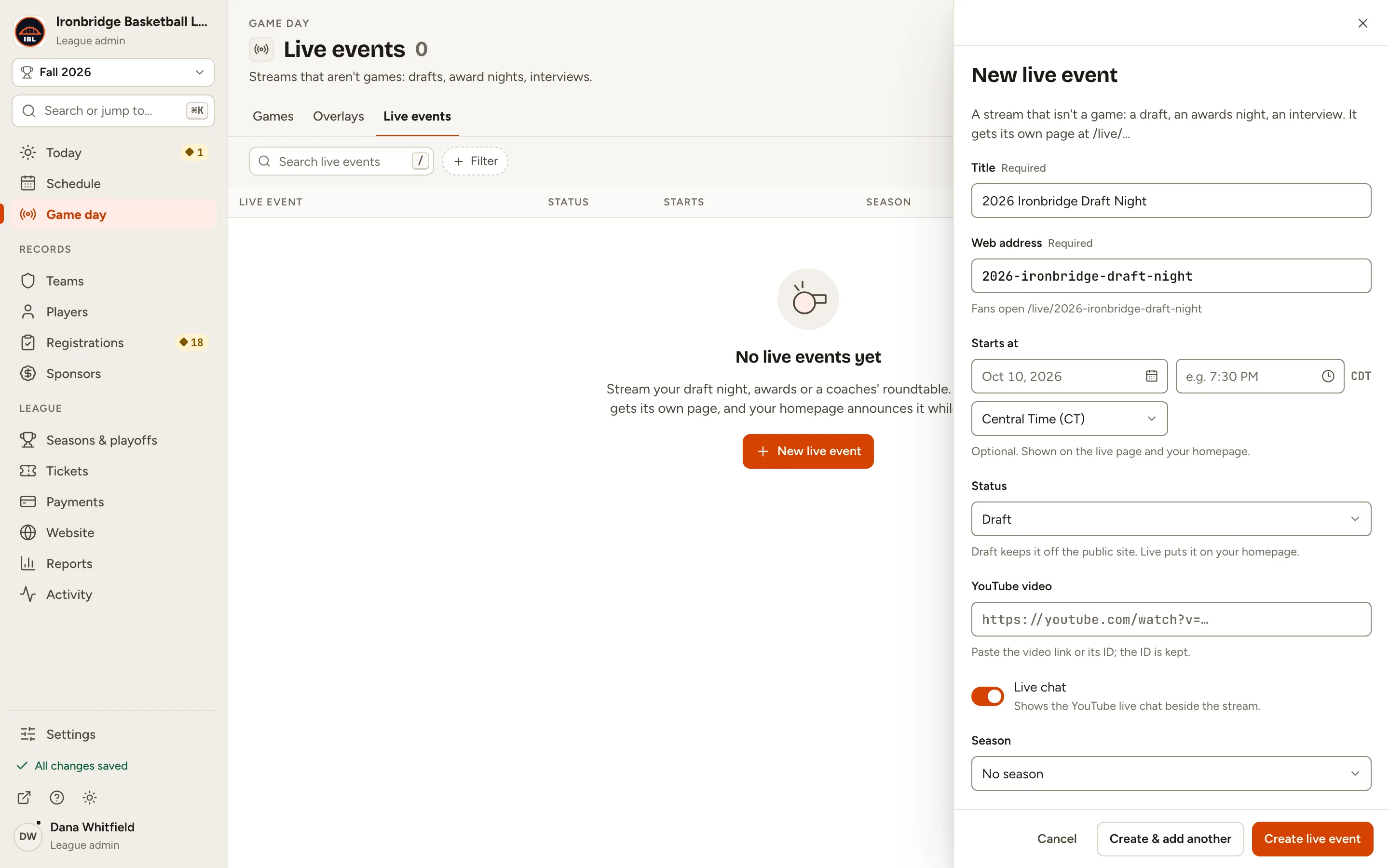
Fig. 4The title, and the web address made from it. -
Step 5: Under Starts at, enter the date and time.
Fans see the time on the live page and your homepage. It’s optional.
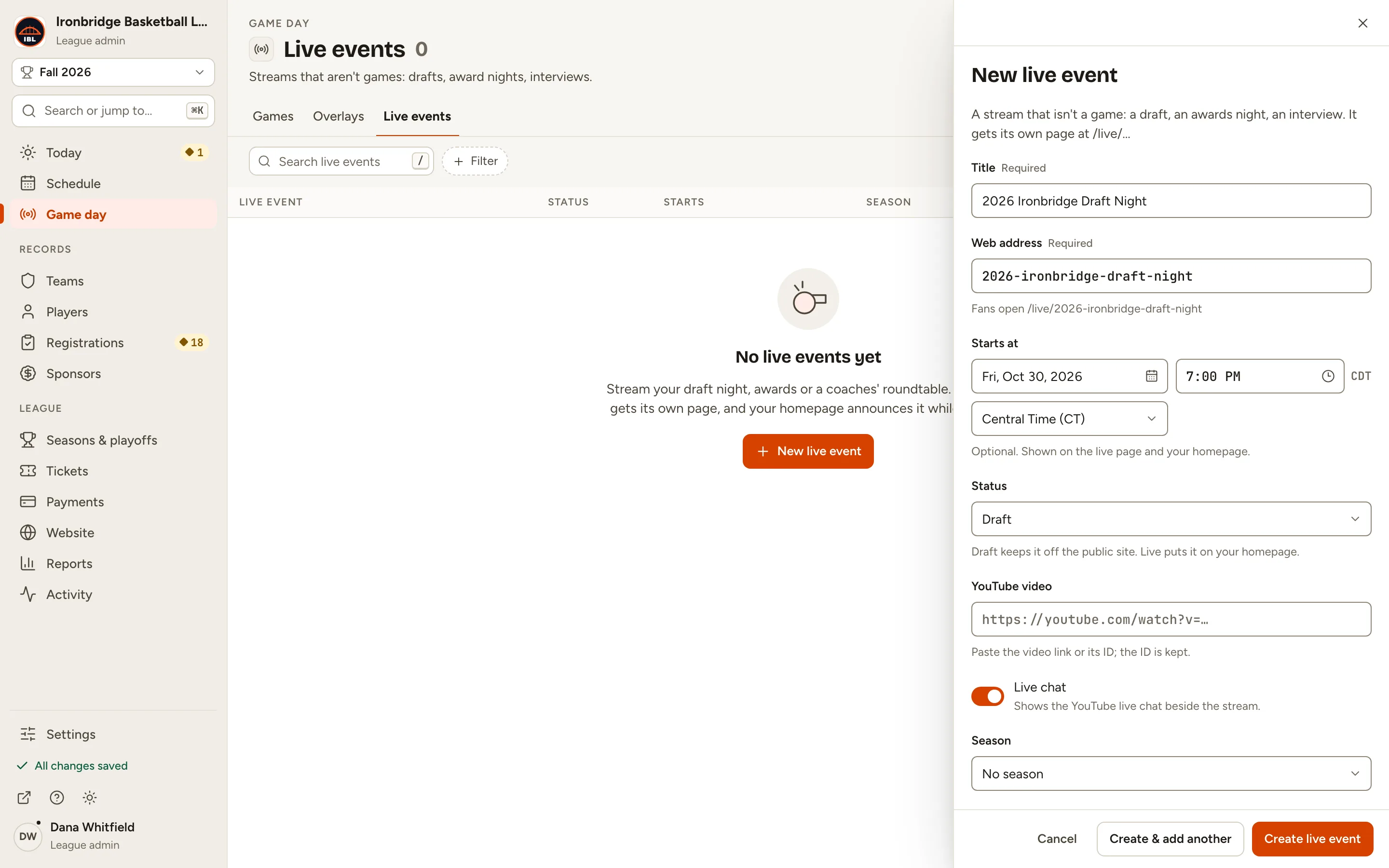
Fig. 5When the stream starts. -
Step 6: Under Status, choose Scheduled.
Scheduled puts it on your website’s live events page (/live), with its time. Draft keeps it off the public site.
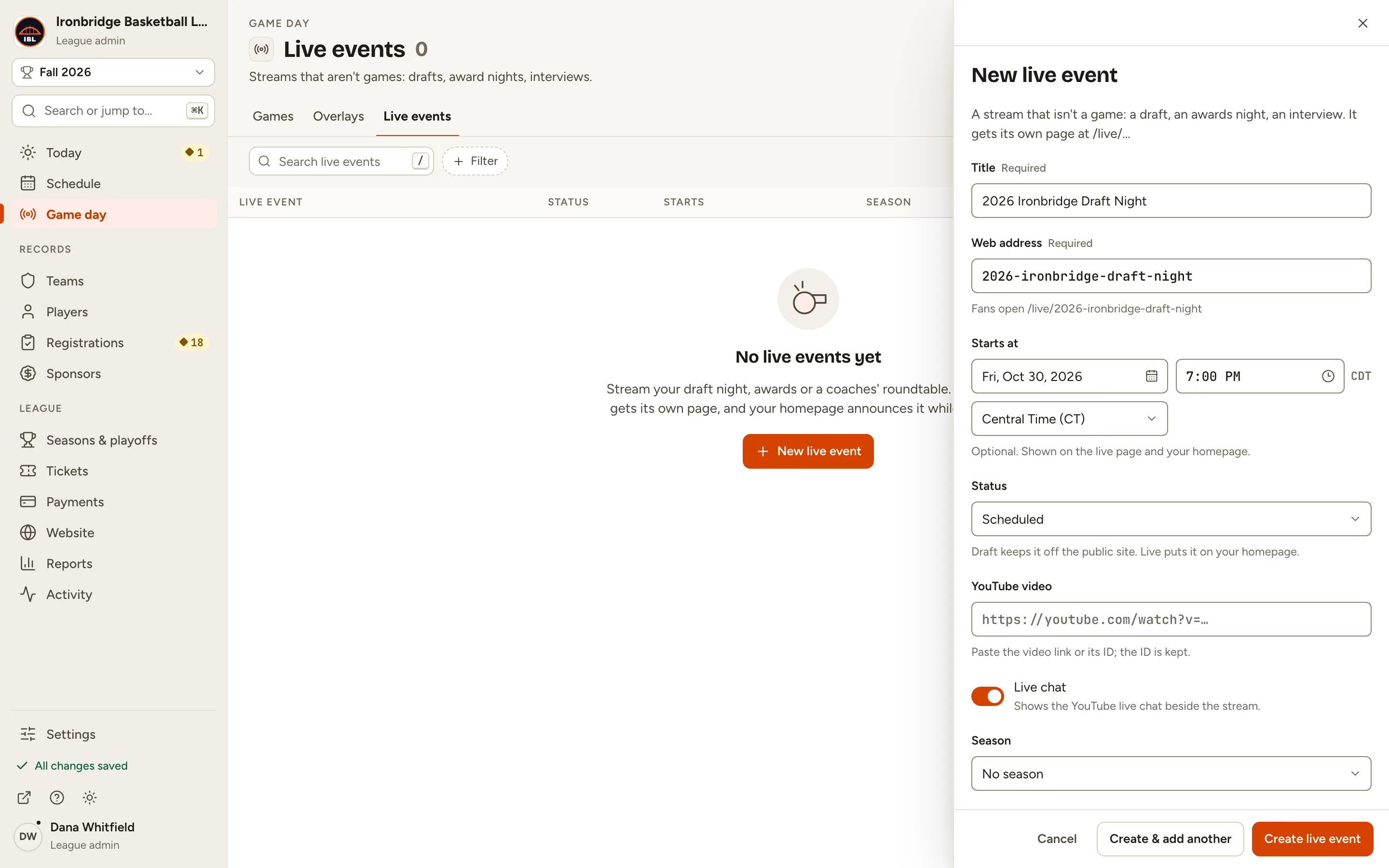
Fig. 6Status: Scheduled. -
Step 7: Under YouTube video, paste your stream’s YouTube link.
The live page plays this stream. Only the video’s ID is kept.
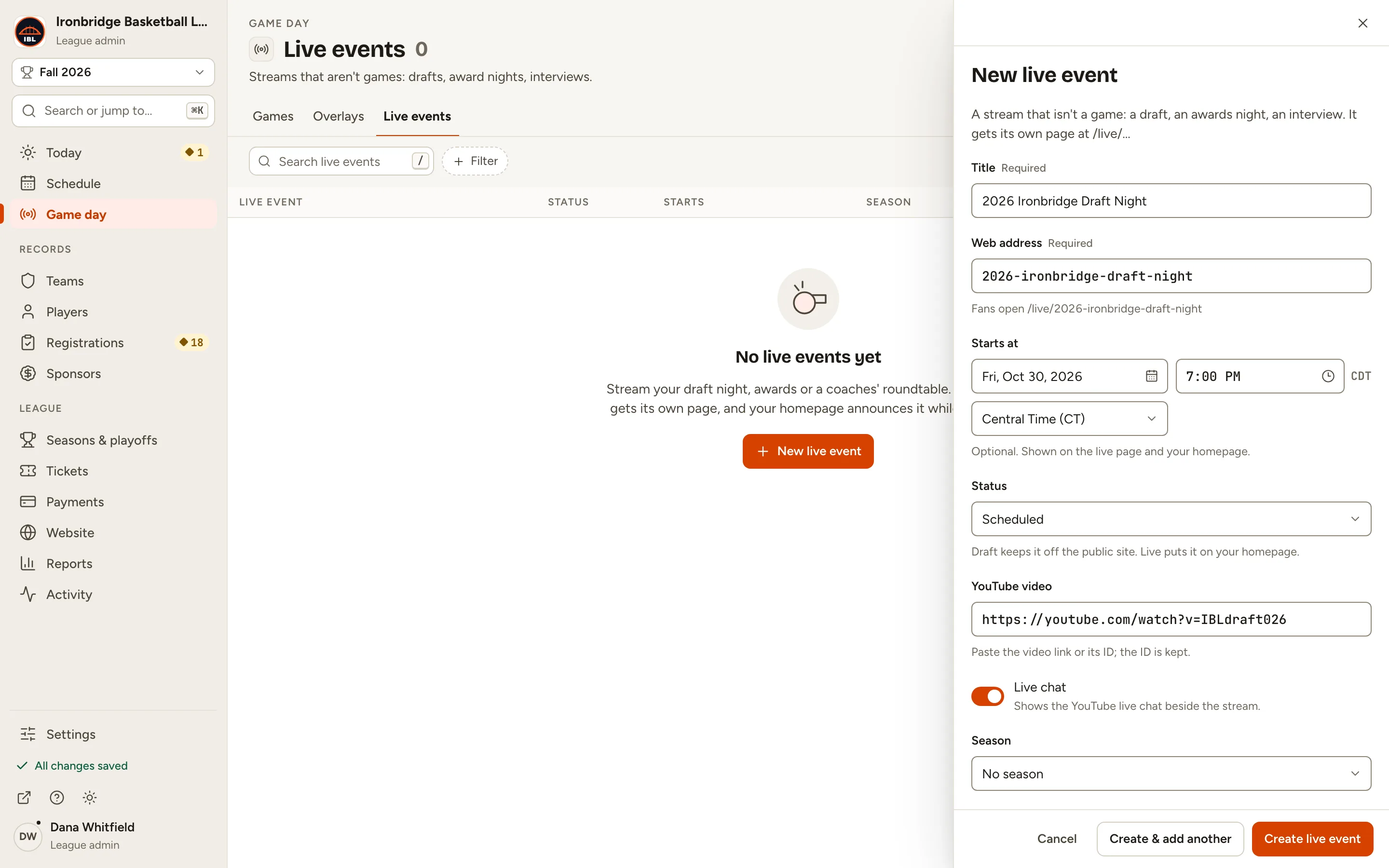
Fig. 7Your stream’s YouTube link. -
Step 8: Click Create live event.
The live event opens beside the list, Scheduled.
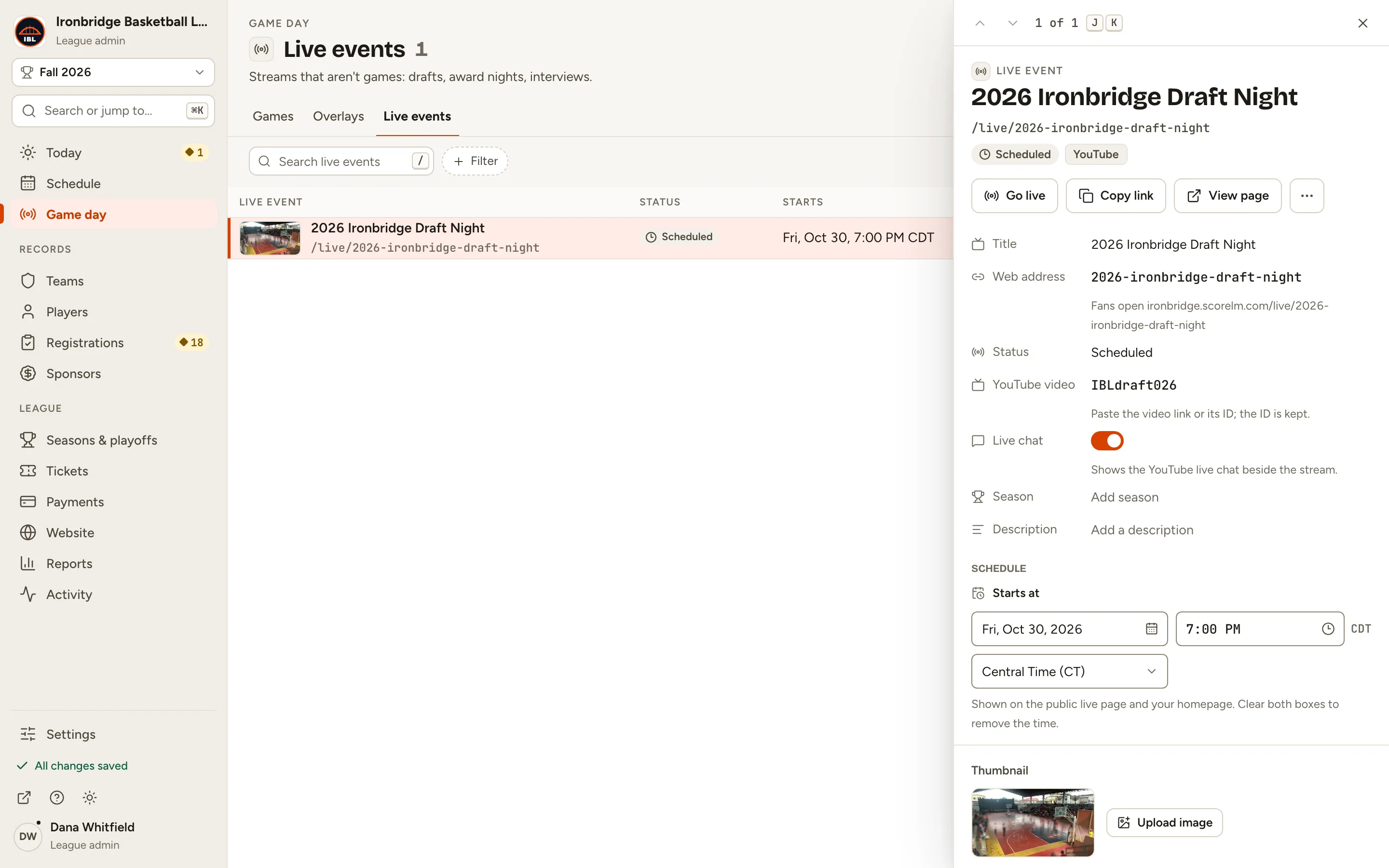
Fig. 8The new live event, beside the list. -
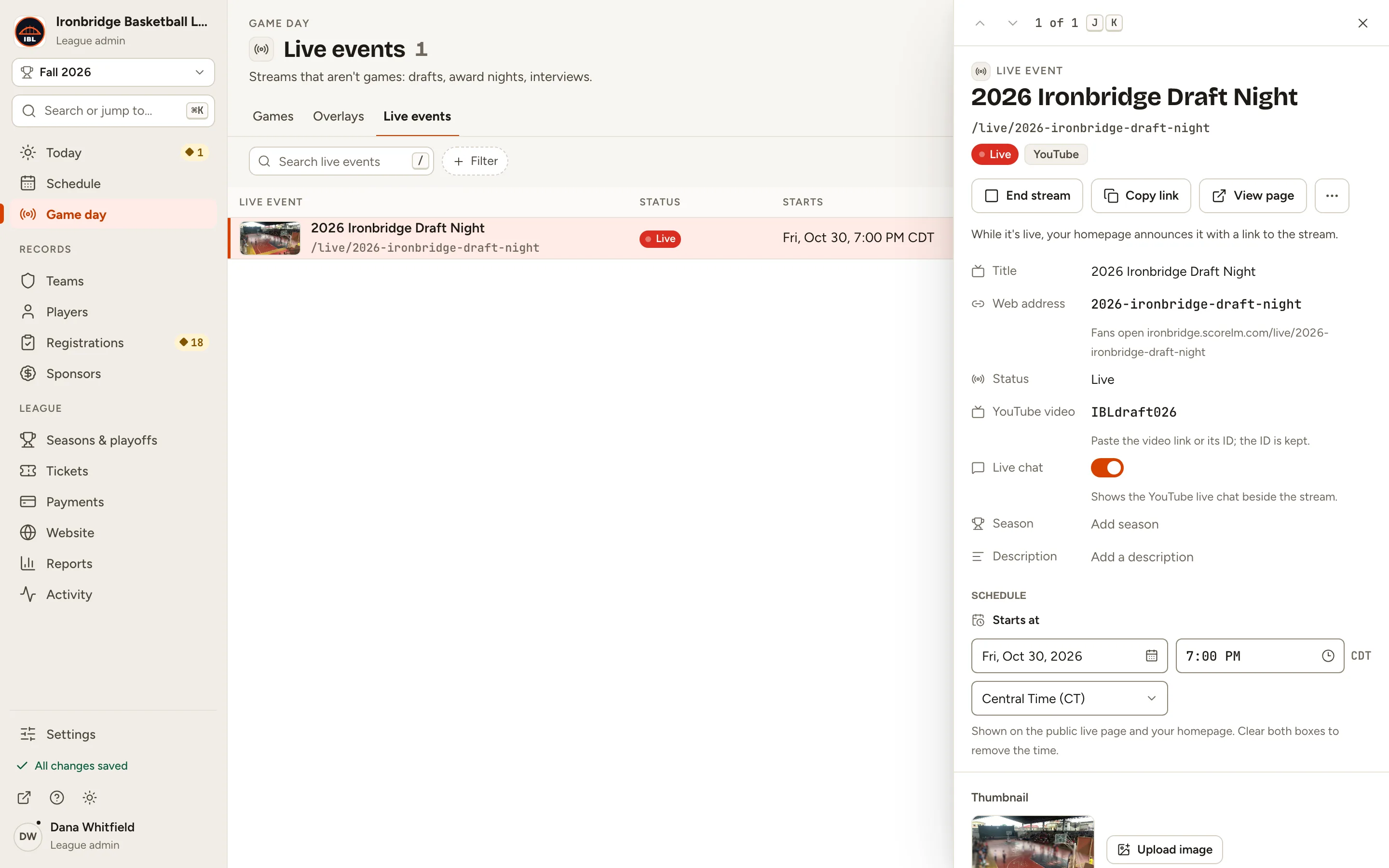
Step 9: When your stream starts, click Go live.
It’s Live, and your homepage announces it with a link to the stream.
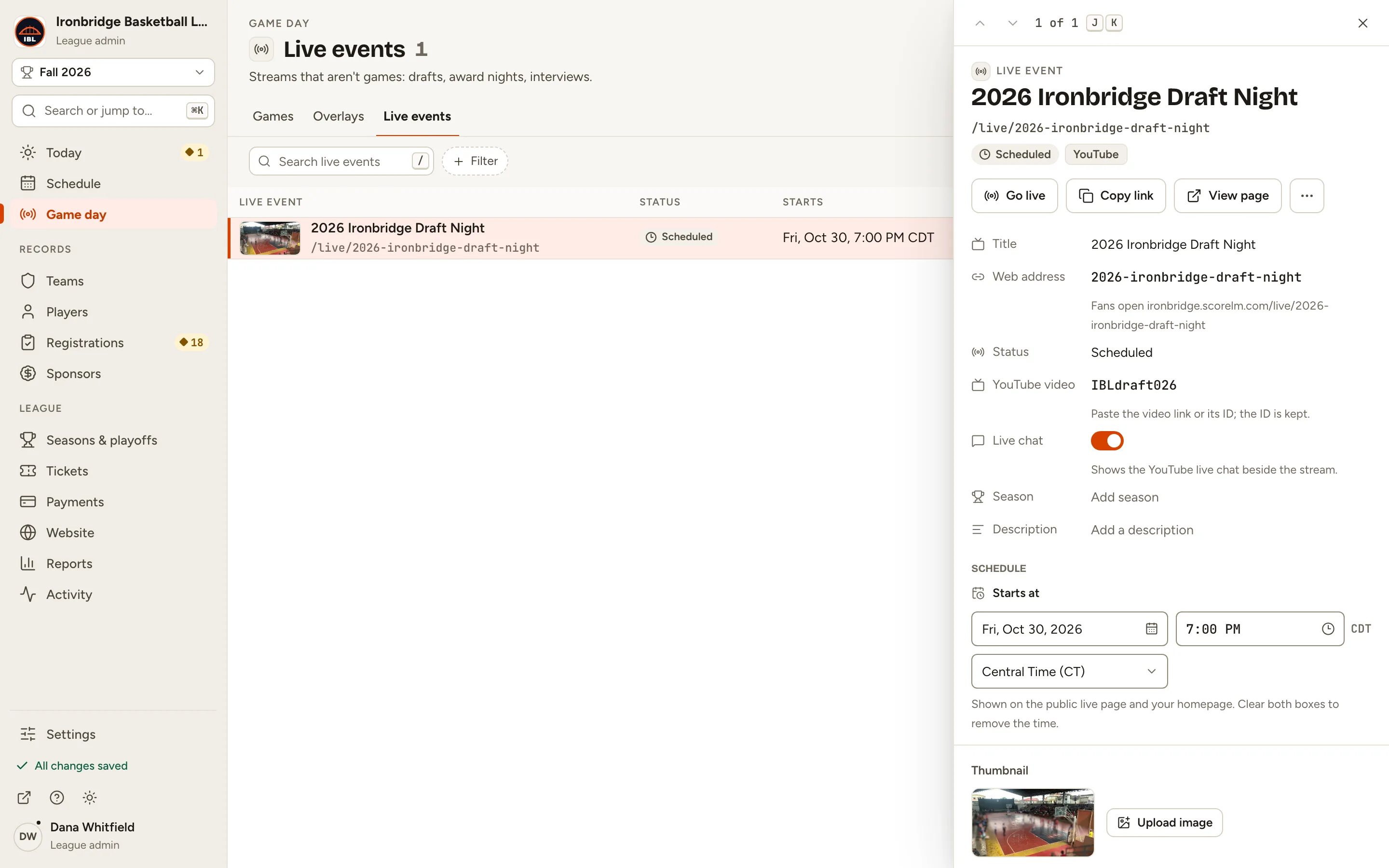
Fig. 9Go live, when the stream starts. -
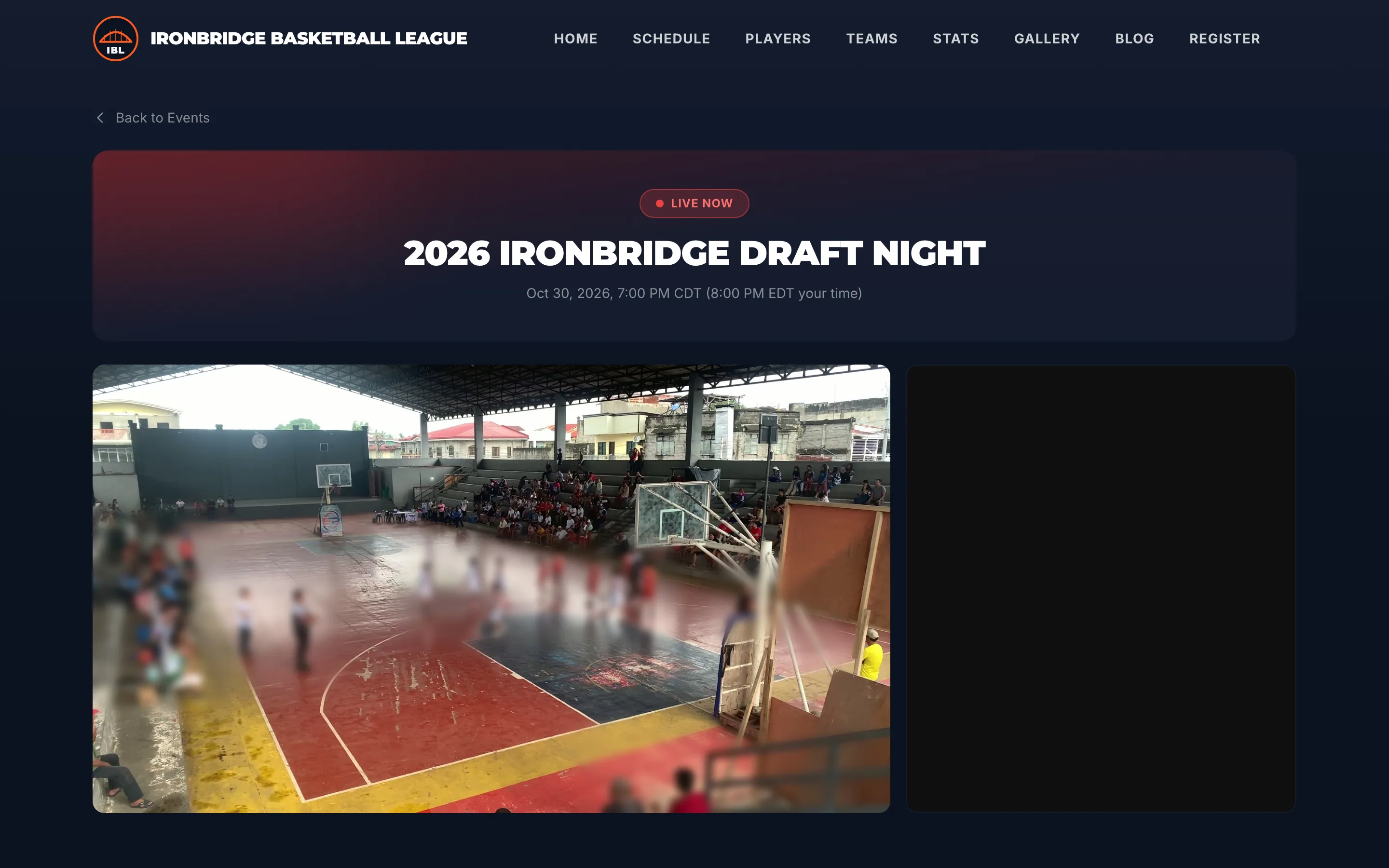
Step 10: Open your website and click the live event under Announcements.
From the admin, click ↗ (View public site) at the bottom of the sidebar; your website opens in a new tab. The live page plays your YouTube stream, with YouTube’s live chat beside it.
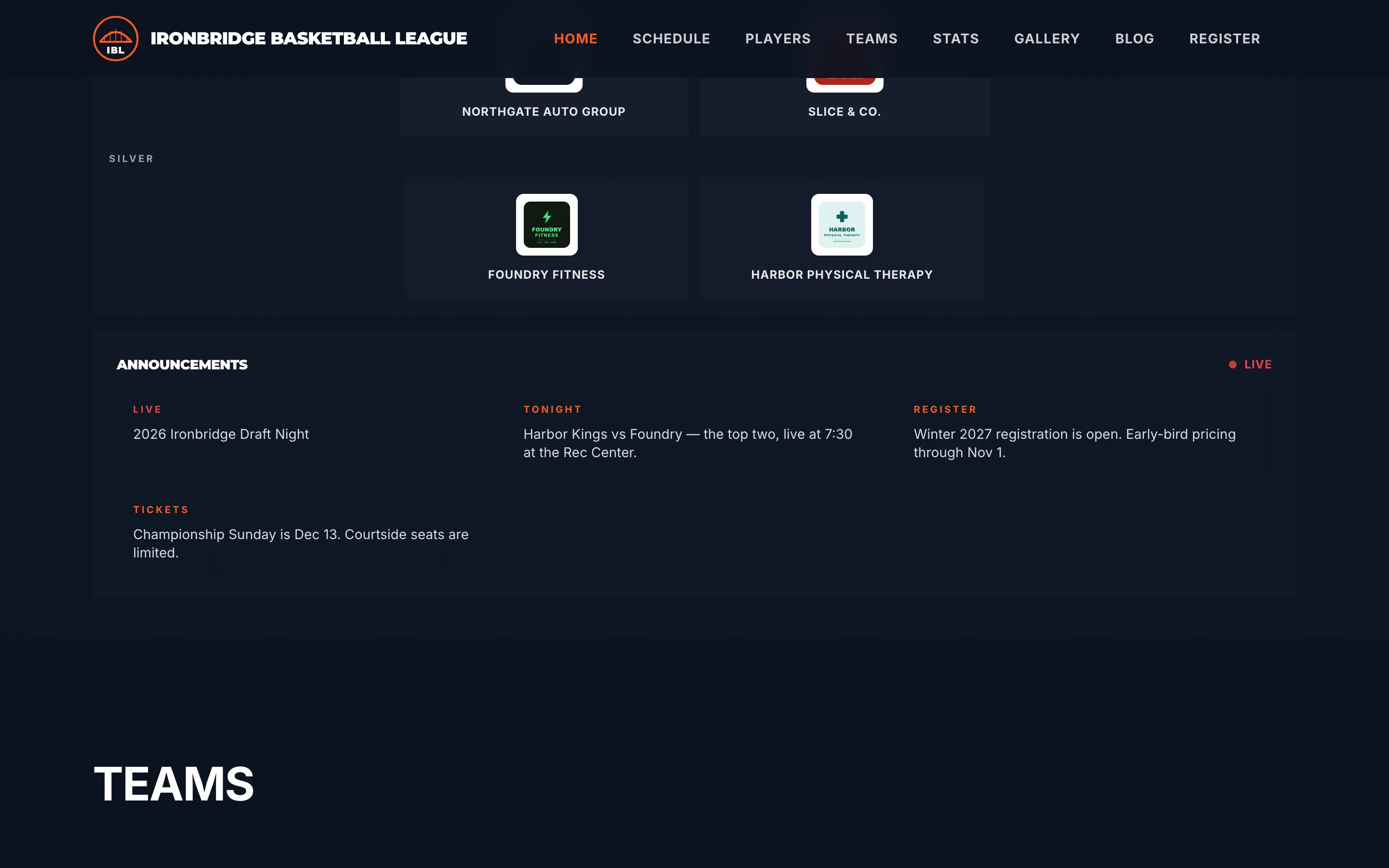
Fig. 10Your homepage announces the live event.
What you’ll see
Your live event is Live: its page plays the stream, and your homepage links to it until you click End stream.