
Register teams and invite captains
By the end you’ll have a team registration with a team fee, your first team registered with its captain invited, and a team code players can join with.
Before you start
- You need the season the teams are playing in. Teams you already have in your league can be added by name.
- To charge a team fee, your league needs Stripe connected under Payments. See Connect Stripe to take payments.
- If you don’t see Registrations in the left menu, ask ScoreLM to turn it on for your league.
Steps
-
Step 1: In the left menu, click Registrations, then New registration.
The New registration sheet opens.
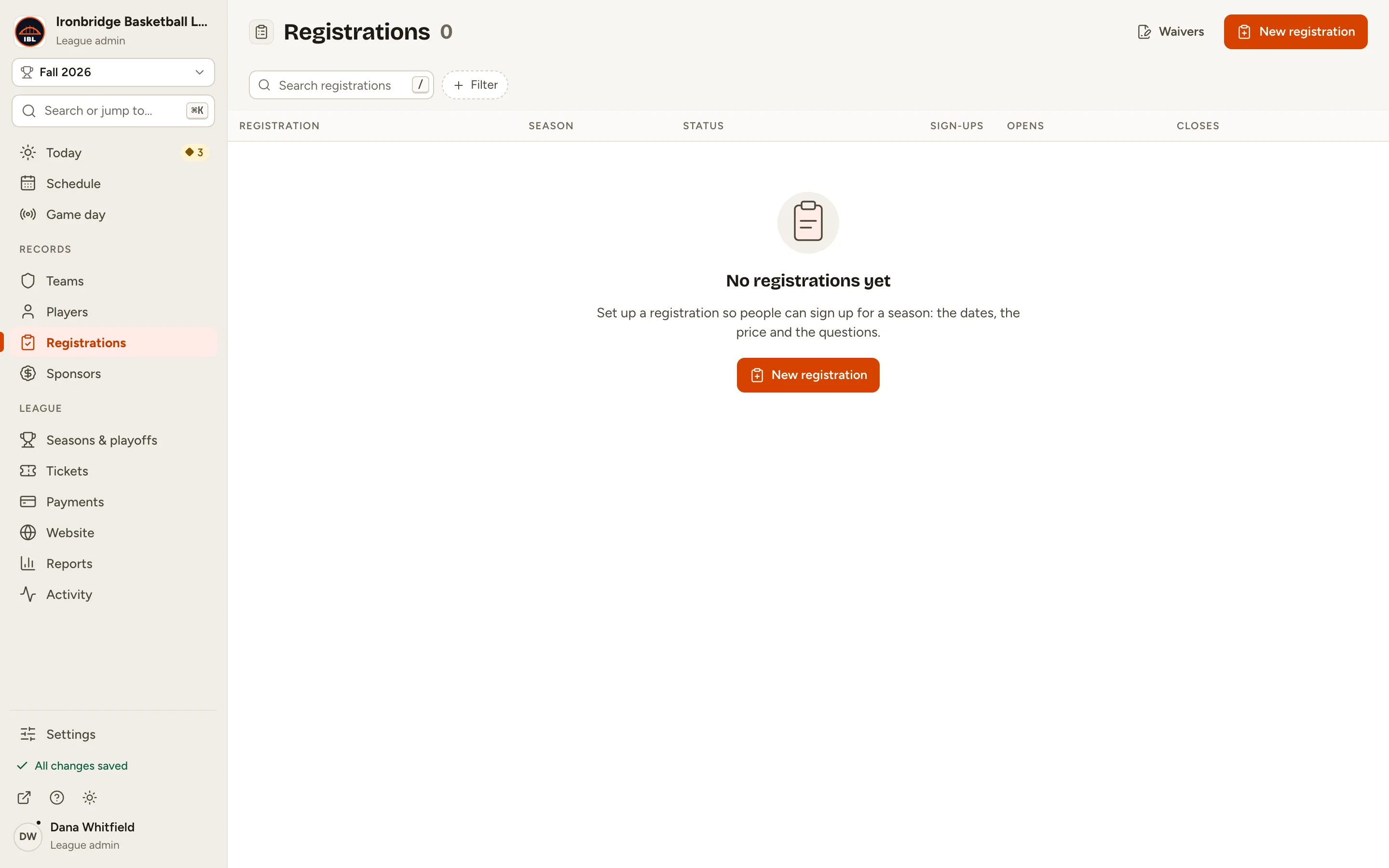
Fig. 1New registration. -
Step 2: Type a Name, like Winter 2027 team registration, choose the Season and choose Teams under Who signs up.
Players sign up on teams. You add the teams and their players yourself, or invite captains to help.
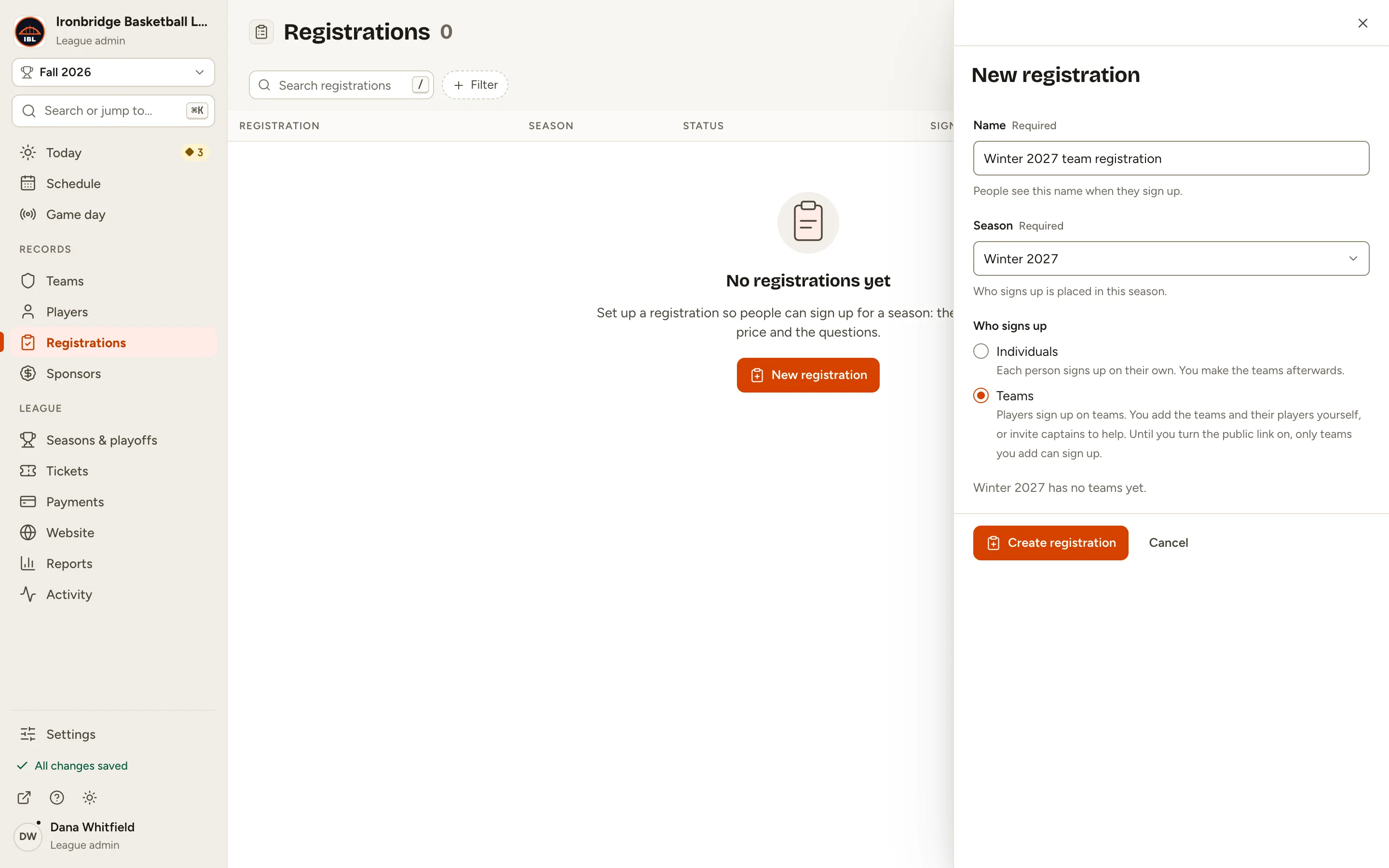
Fig. 2A team registration for Winter 2027. -
Step 3: Click Create registration.
The registration opens on its Setup tab as a Draft. A team registration adds Teams and Review tabs, and the checklist gets Add the teams and Register the teams.
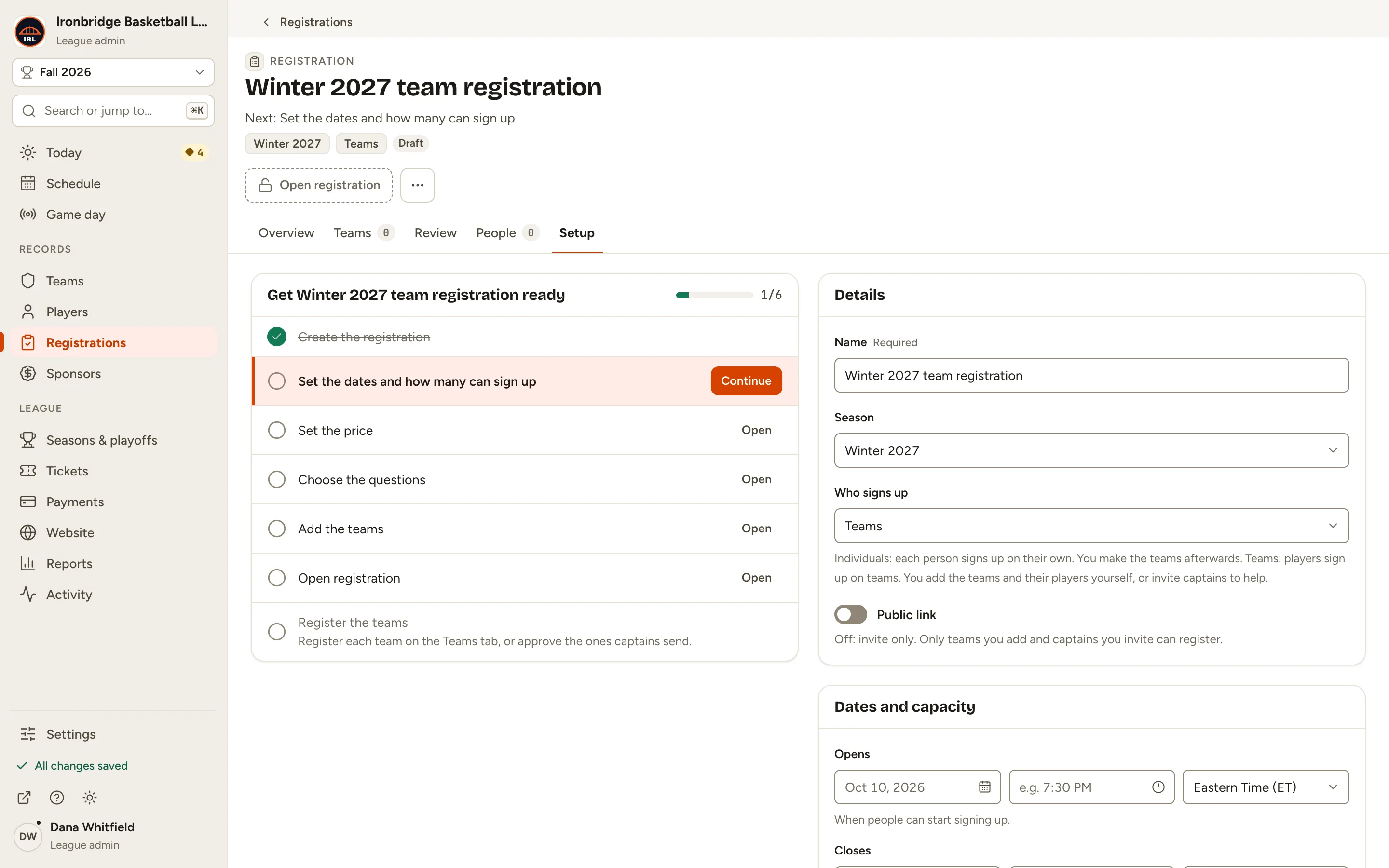
Fig. 3The team registration’s checklist. -
Step 4: Under Dates and capacity, set when it Opens and Closes.
Give each a date and a time; until both are in, the field says Choose a time too. Teams and players can sign up between these times.
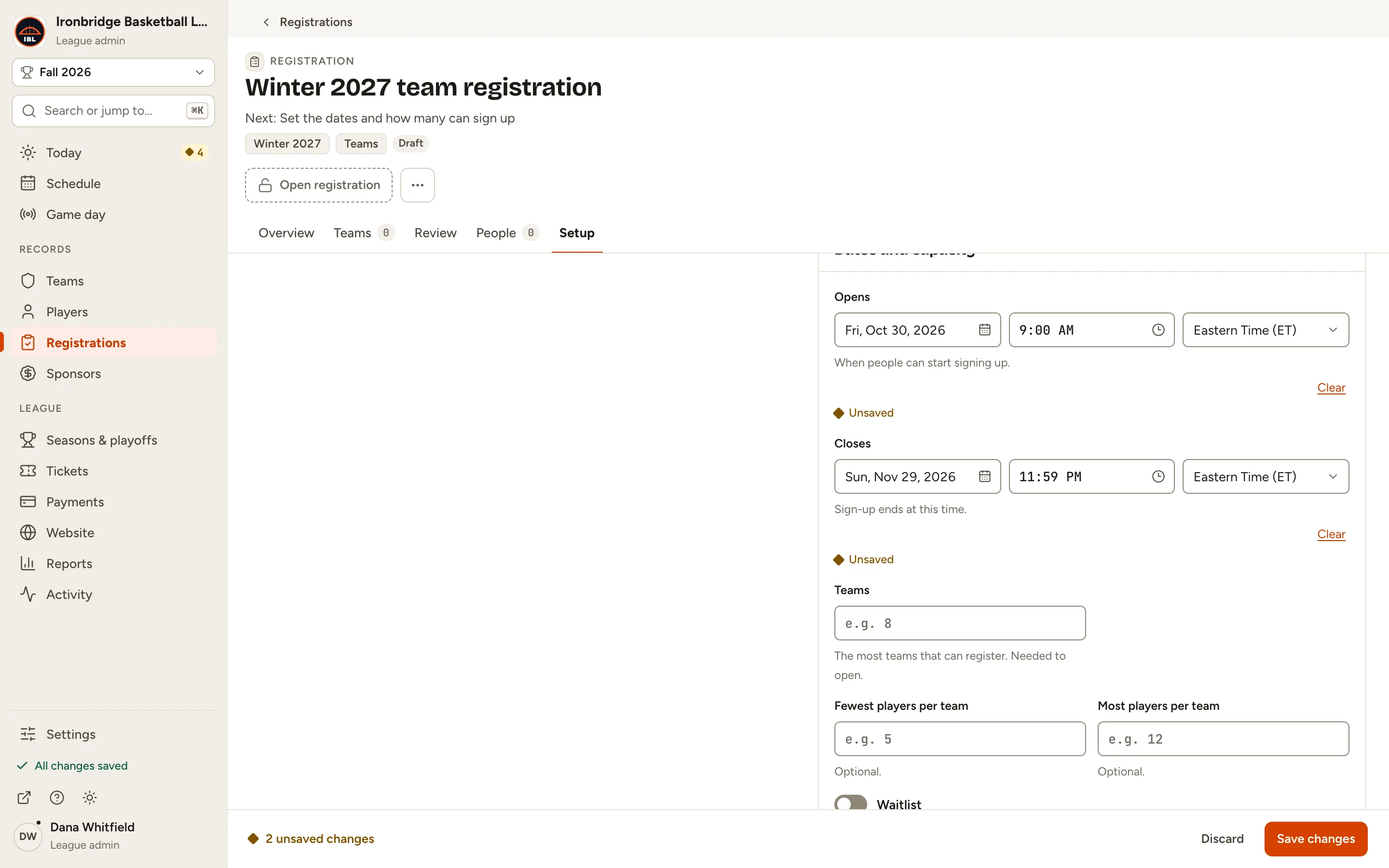
Fig. 4When sign-up opens and closes. -
Step 5: Type how many Teams can register, like 8, and the Most players per team, like 12.
The Teams limit is needed to open. Once a team has 12 players, its team code and invitations stop adding people.
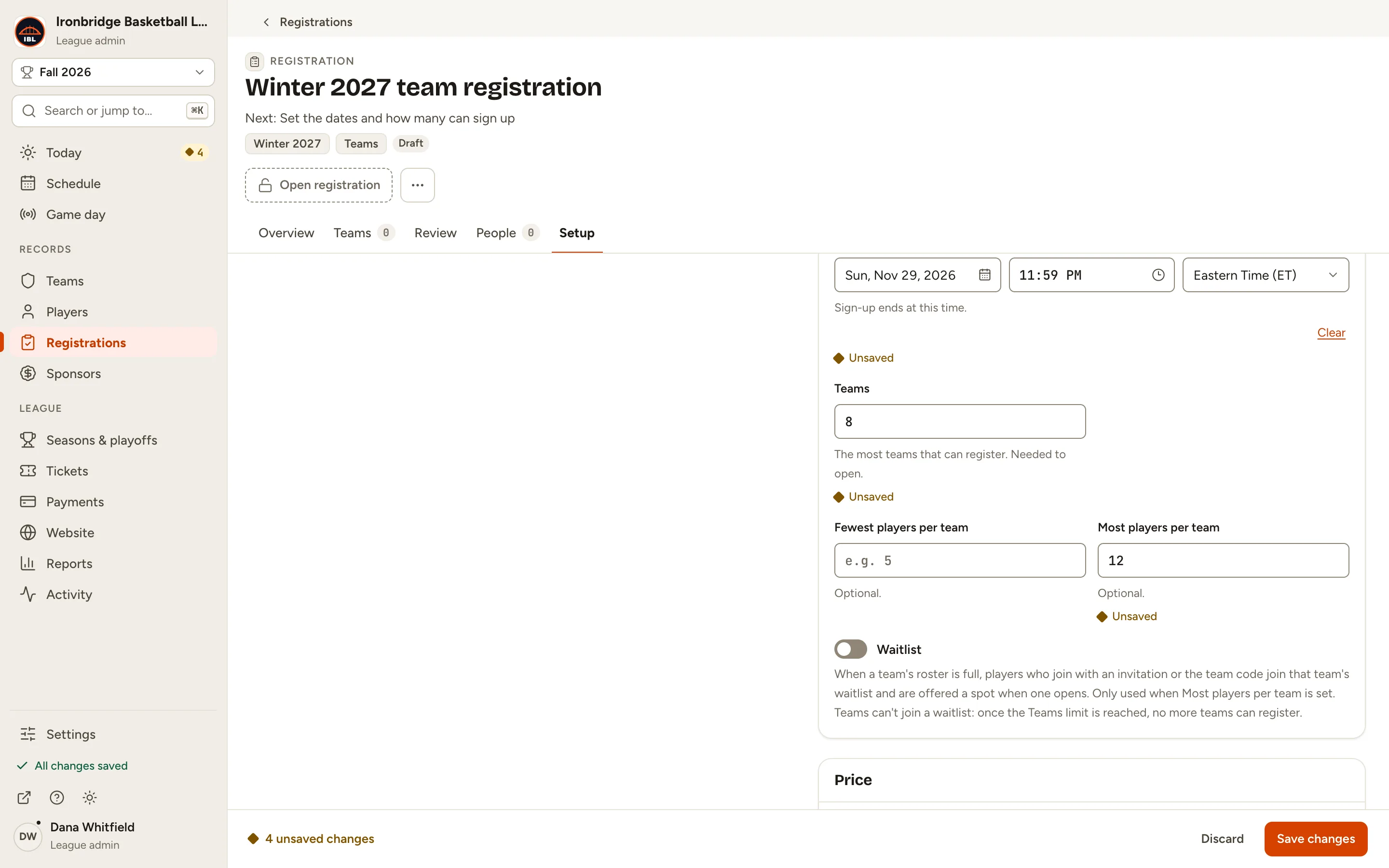
Fig. 5Up to 8 teams of 12 players. -
Step 6: Under Price, choose Charge a price and The captain pays one team fee, then type a Team fee (USD), like 500.
One payment covers the whole team and players don’t pay. The preview shows the captain pays $540.99 with the service fee and you receive $500.00.
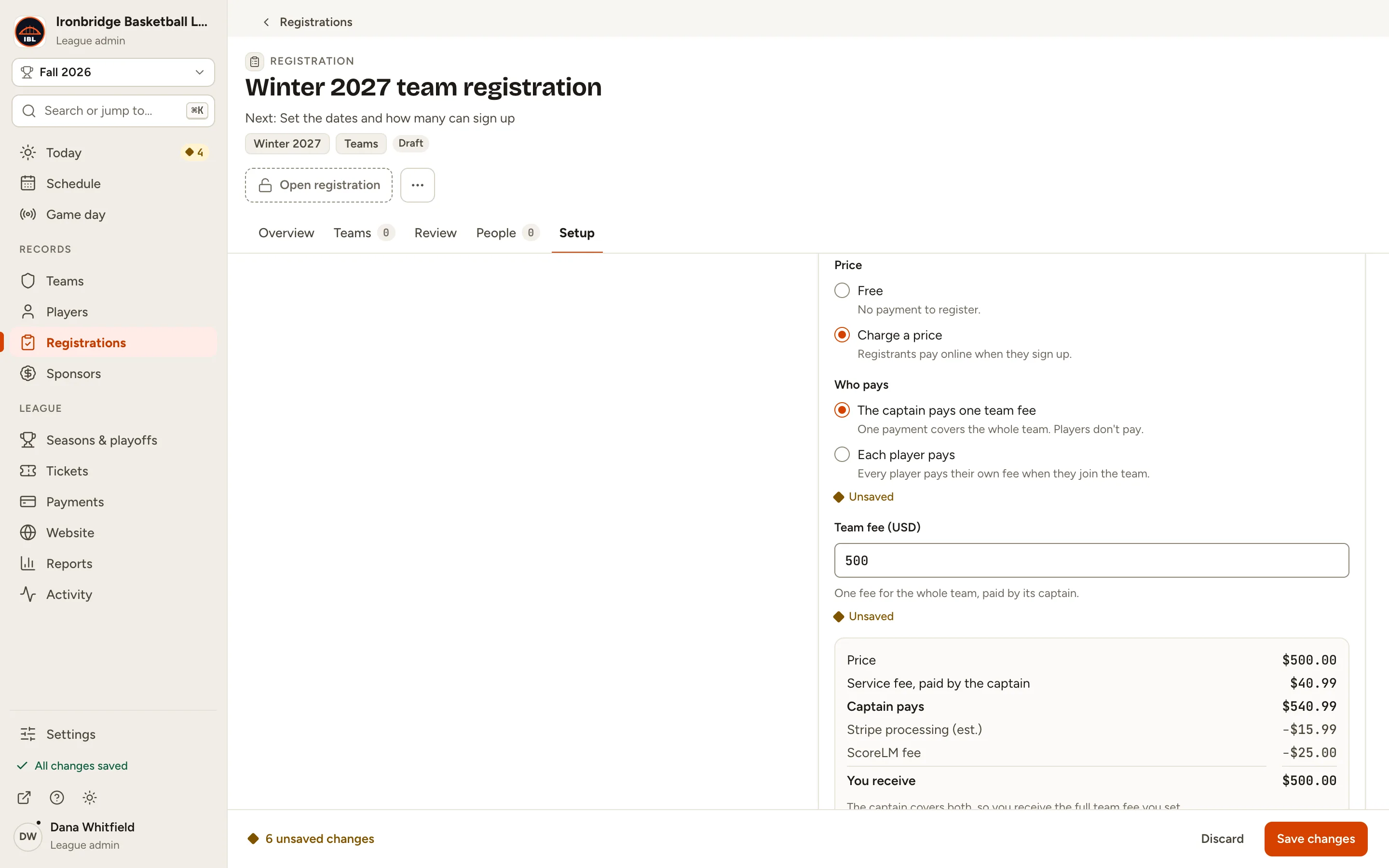
Fig. 6A $500 team fee, paid by the captain. -
Step 7: Under Questions, click Use the standard questions.
Every player gives their first name, last name, email and phone. Click Add question instead to ask more.
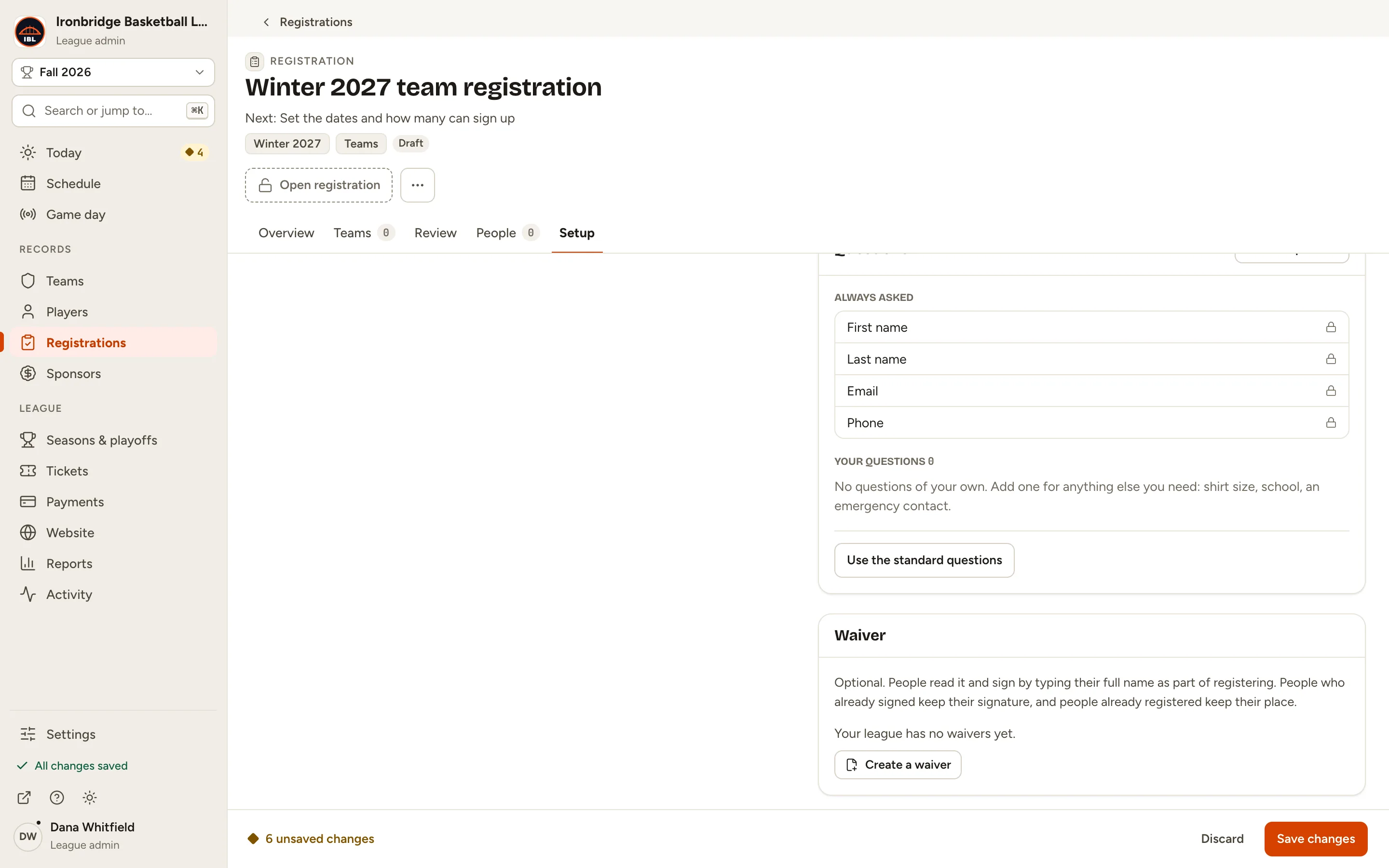
Fig. 7Only the standard questions. -
Step 8: Under Details, turn on Public link.
Anyone with the link can now register a new team from your website. Leave it off to take only the teams you add.
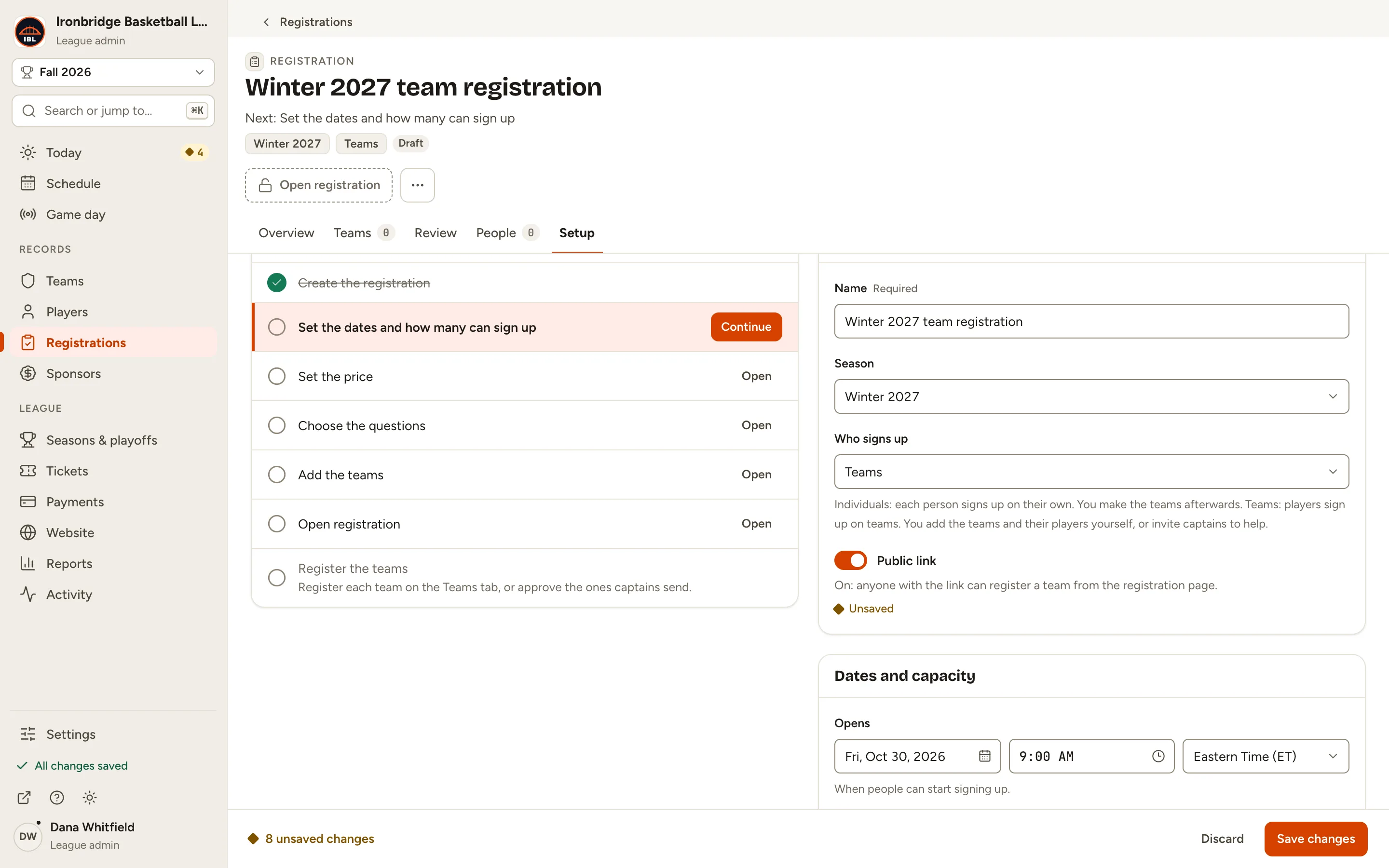
Fig. 8The public link, on. -
Step 9: Click Save changes in the bar at the bottom.
Nothing on the Setup tab is saved until you do.
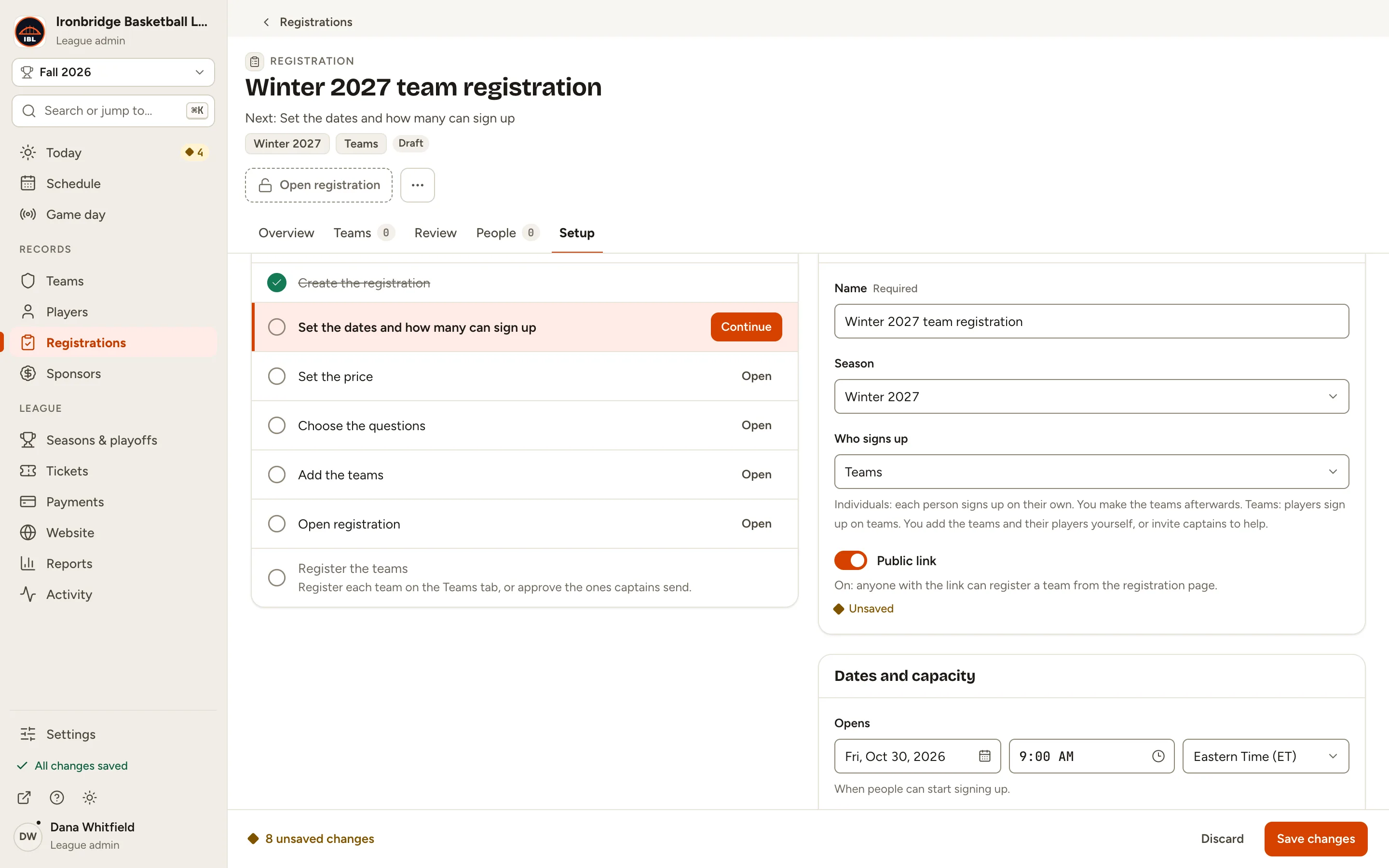
Fig. 9Save changes, in the bar at the bottom. -
Step 10: Click the Teams tab, then Add team.
The Add team sheet asks how the team is named.
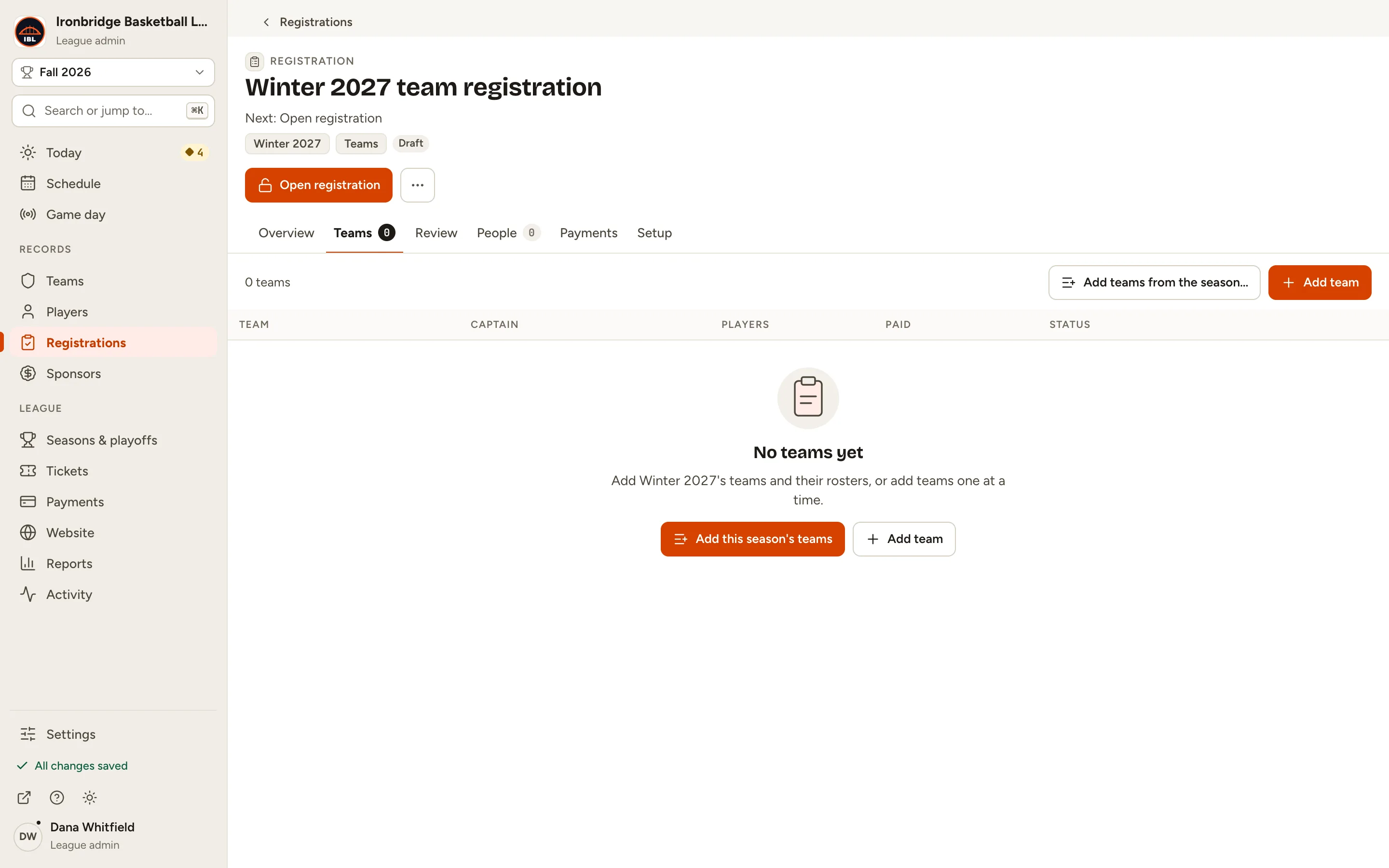
Fig. 10Add team, on the Teams tab. -
Step 11: Choose Use a team you already have, pick the Team, like Harbor Kings, and type the Captain’s email (optional).
The captain gets an email invitation to help run the team. Leave the email blank to run the team yourself.
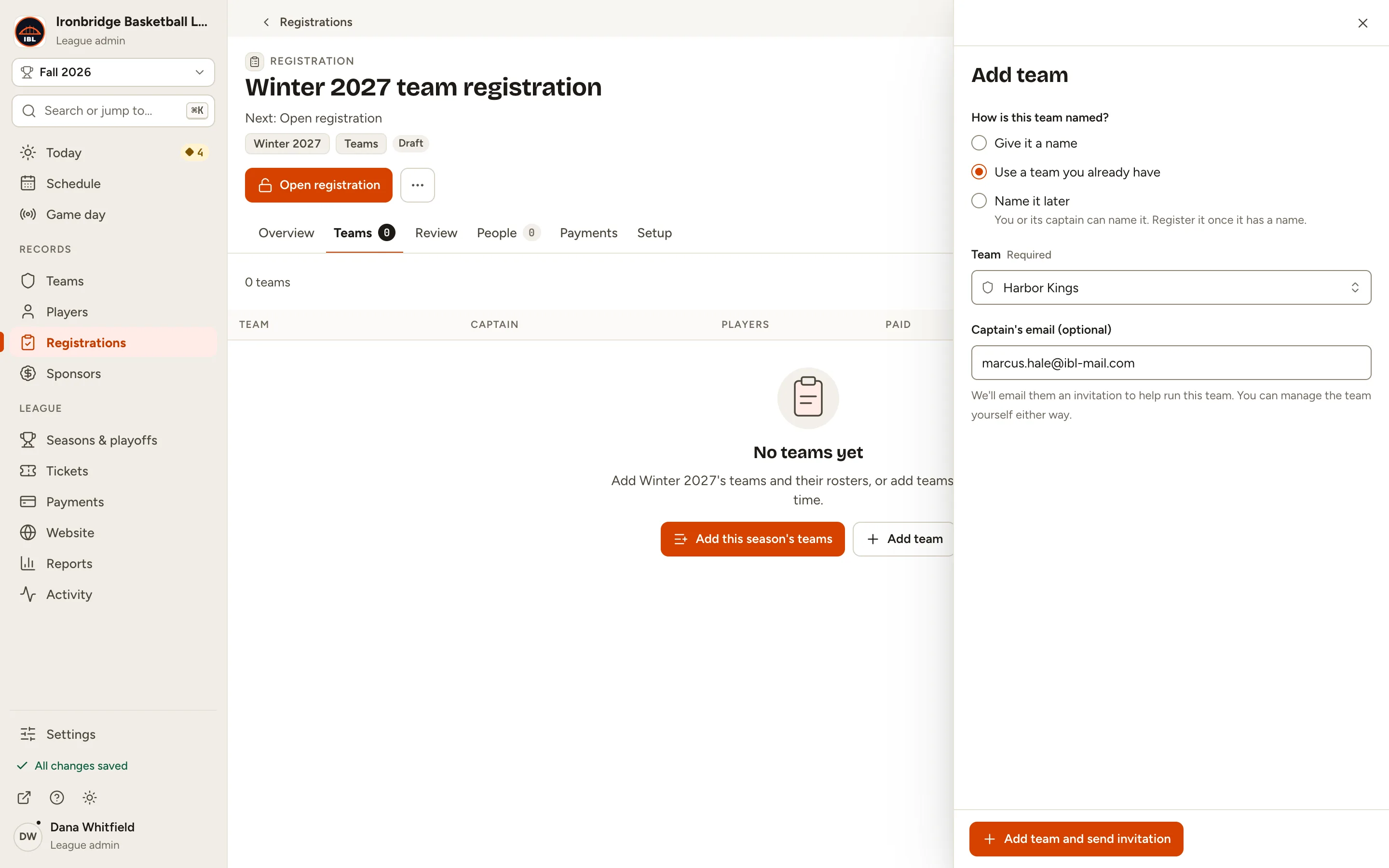
Fig. 11Harbor Kings, with its captain’s email. -
Step 12: Click Add team and send invitation.
Harbor Kings is Registered for Winter 2027 and the invitation is Sent. The team’s sheet opens with its team fee, players, team code and captains.
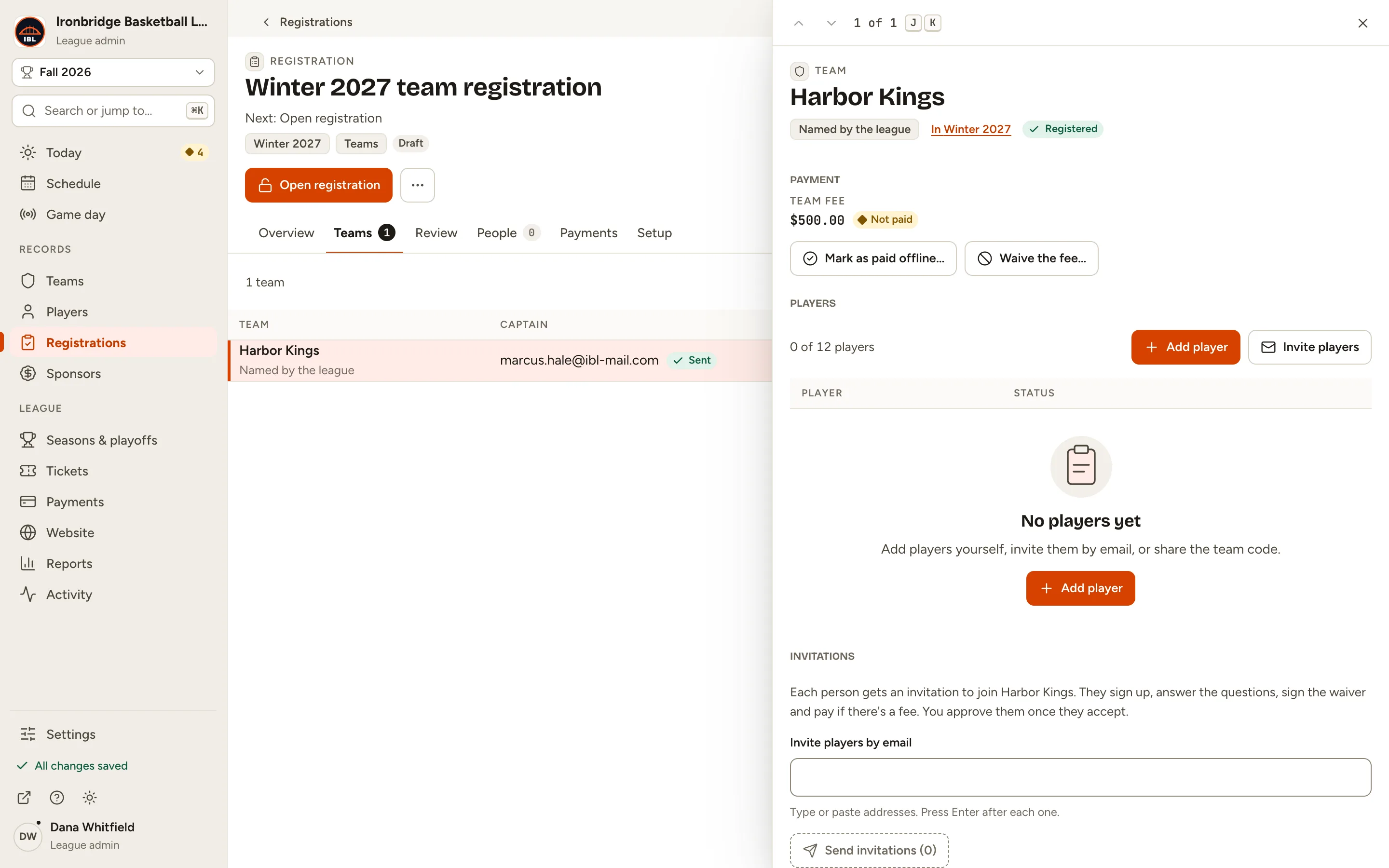
Fig. 12The team, registered. 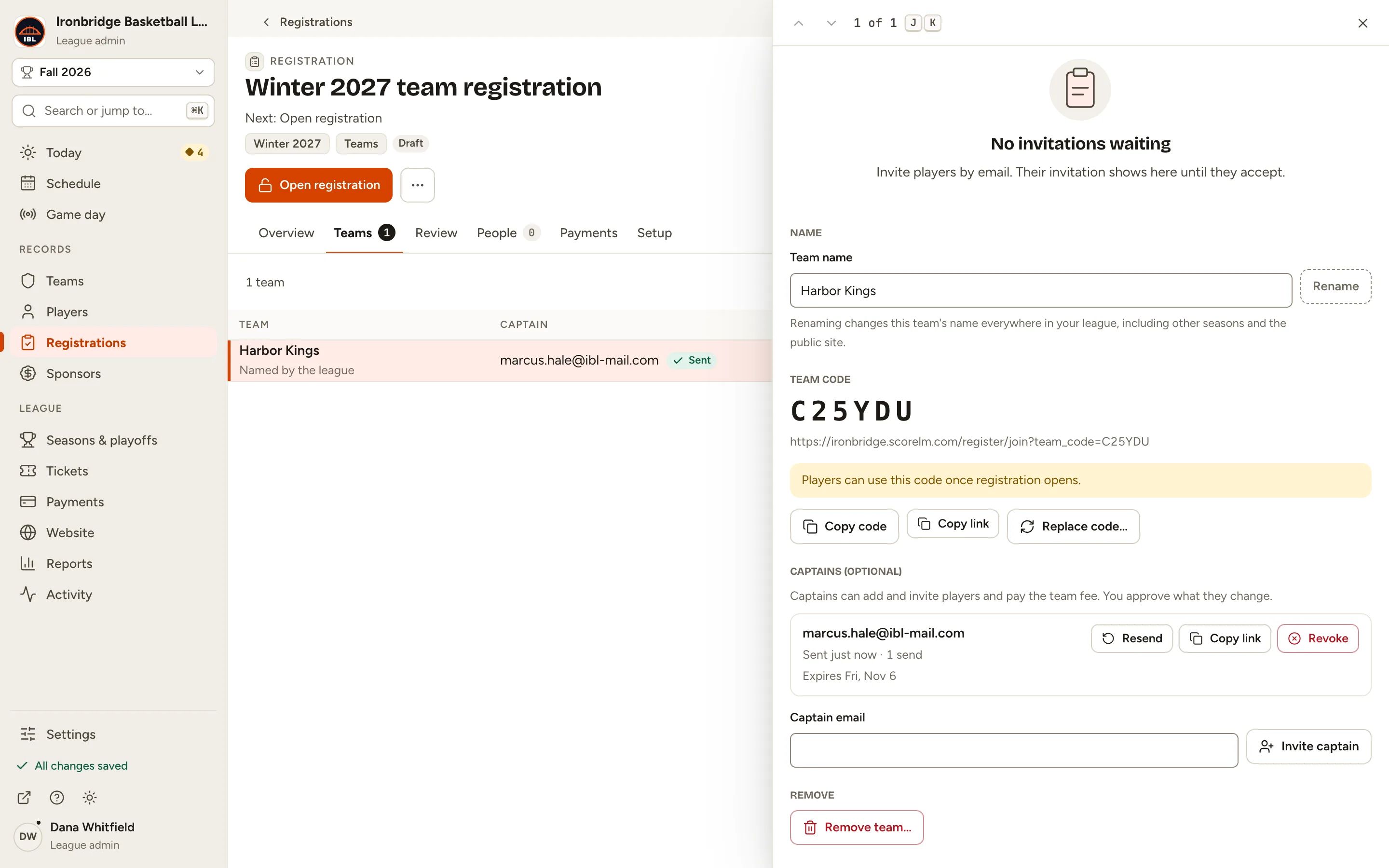
Fig. 12bThe captain’s invitation, Sent. -
Step 13: Under Team code, click Copy code.
Share the code with the team. Anyone who enters it on the registration page joins Harbor Kings once registration is open, and you approve each player on the Review tab.
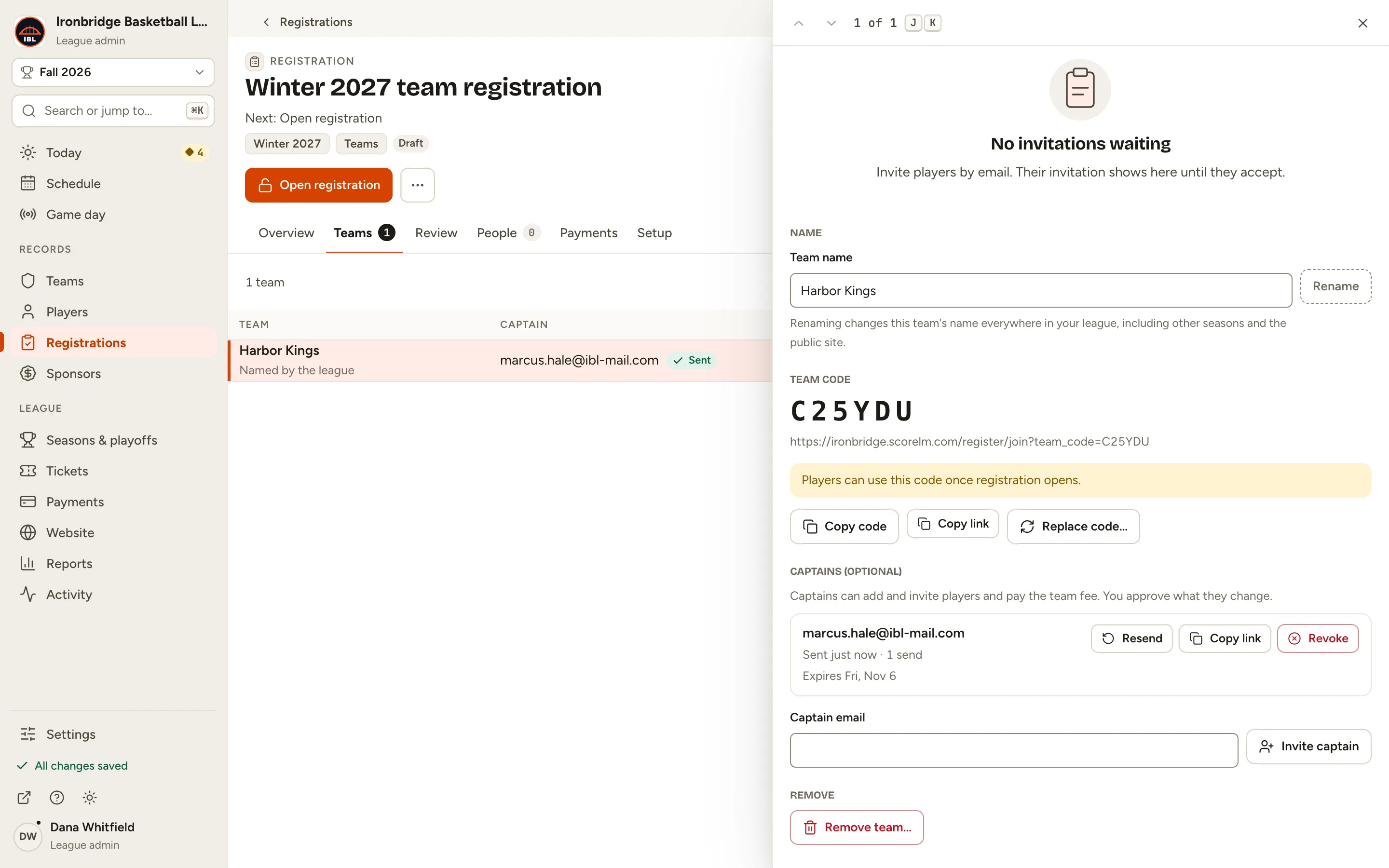
Fig. 13The team’s code. -
Step 14: Click Open registration at the top.
The status changes to Open. Teams and players can sign up until it closes.
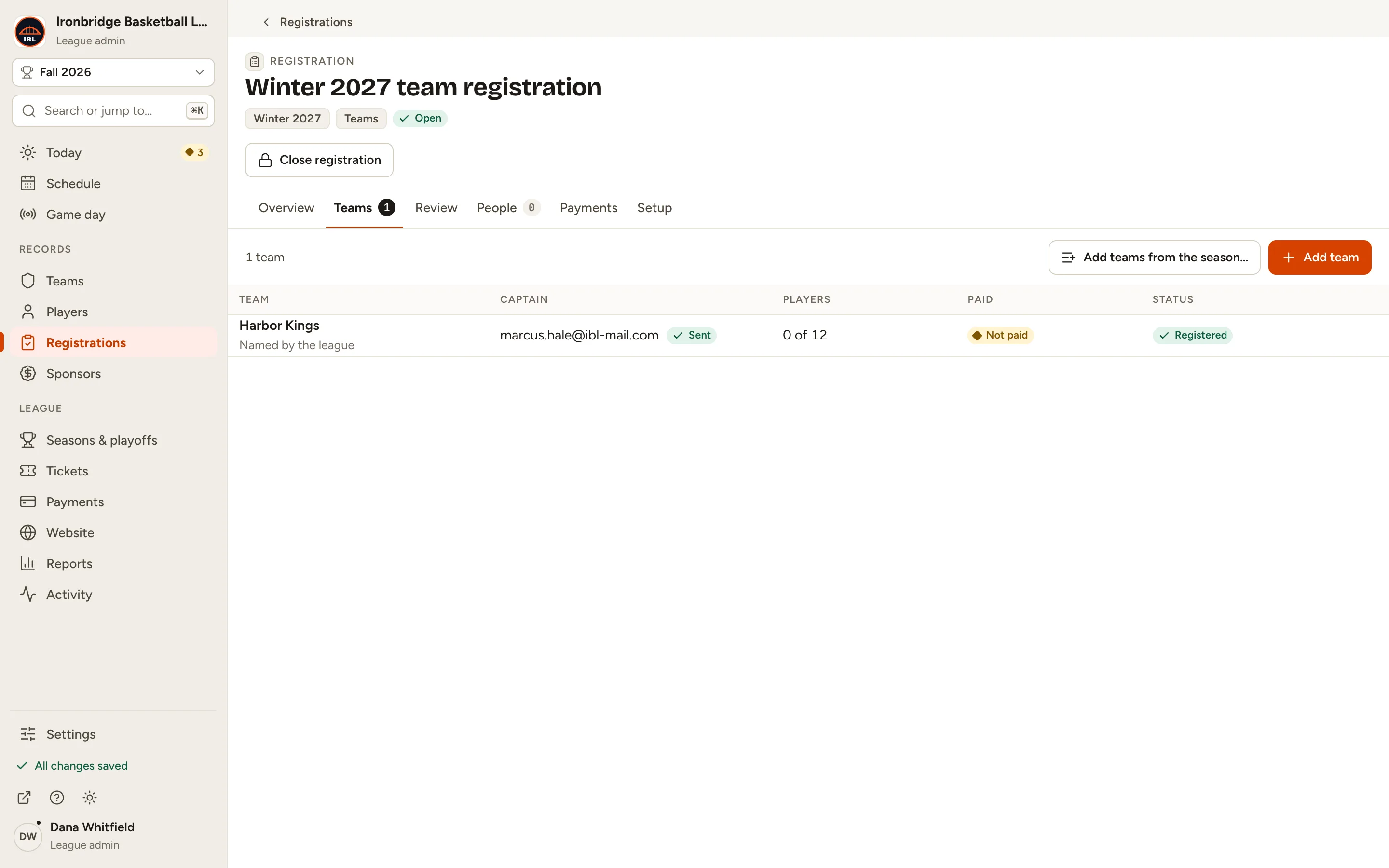
Fig. 14The registration is Open. -
Step 15: Open your website and click Register, then the team registration.
From the admin, click ↗ (View public site) at the bottom of the sidebar; your website opens in a new tab. Players type their code under Have a team code?. Under Register a team, a new captain enters a team name and their email and gets an email to confirm.
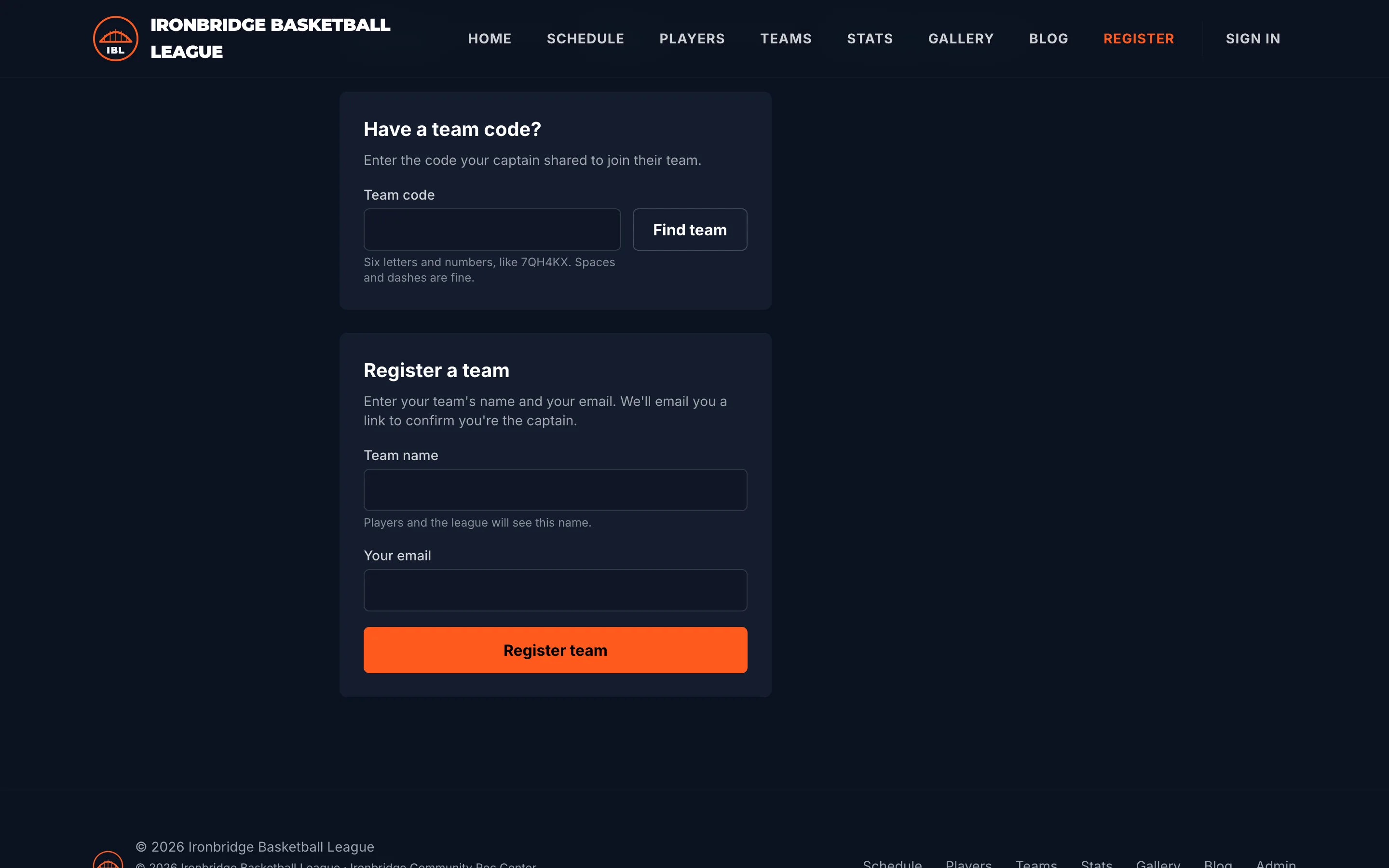
Fig. 15The team registration on your website.
What you’ll see
Your team registration is open with Harbor Kings registered. Add more teams the same way. Each team’s sheet on the Teams tab shows its players, fee, code and captains. Everything a captain or a joining player sends waits for you on the Review tab.