You stream with OBS, vMix, Streamlabs or any tool that can add a browser source.
Steps
1
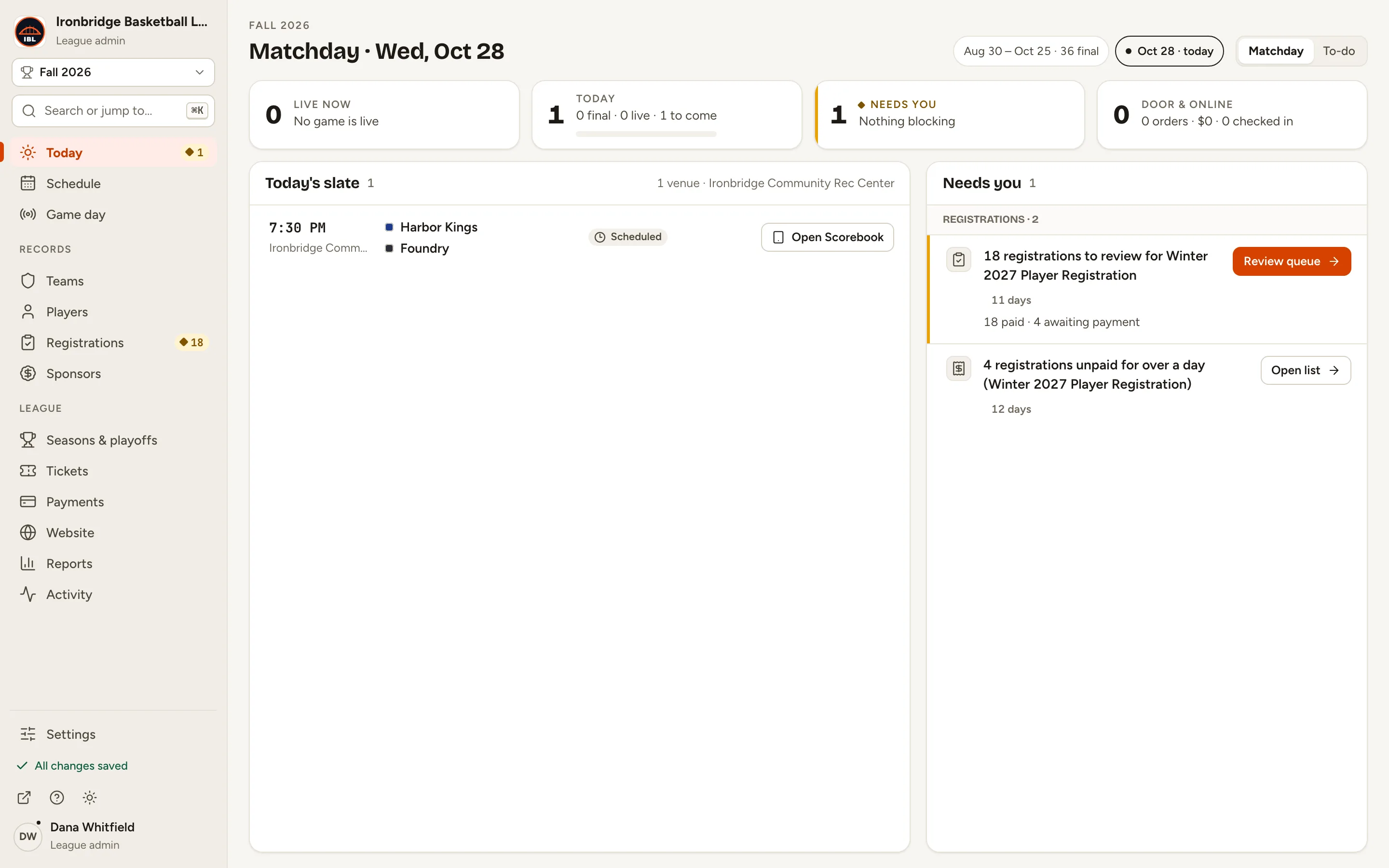
Step 1: In the left menu, click Game day.
Game day opens on its Games tab.
Fig. 1Game day, in the left menu.
2
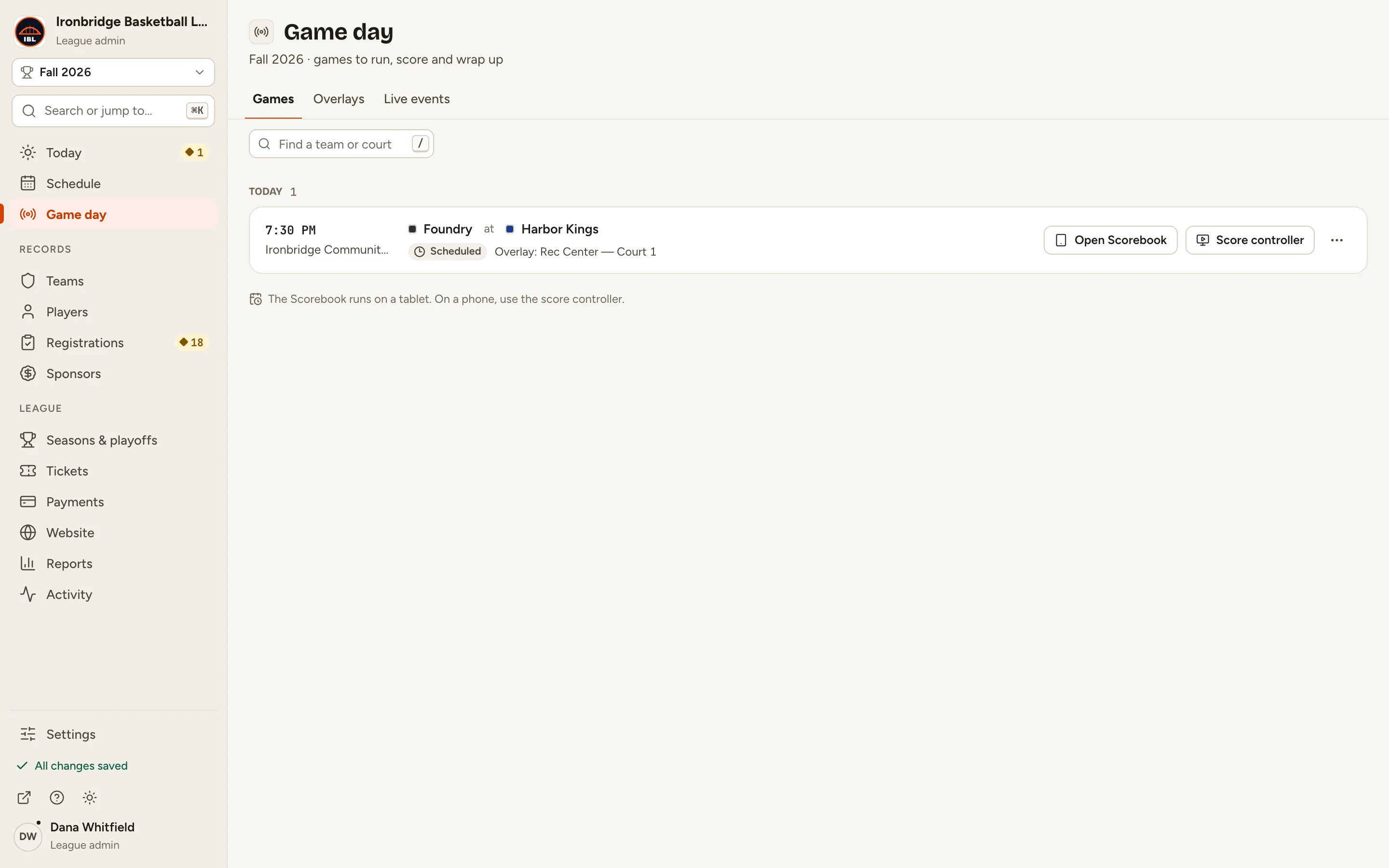
Step 2: At the top of Game day, click Overlays.
Your overlays are listed: one per stream, with its game and template.
Fig. 2Overlays, at the top of Game day.
3
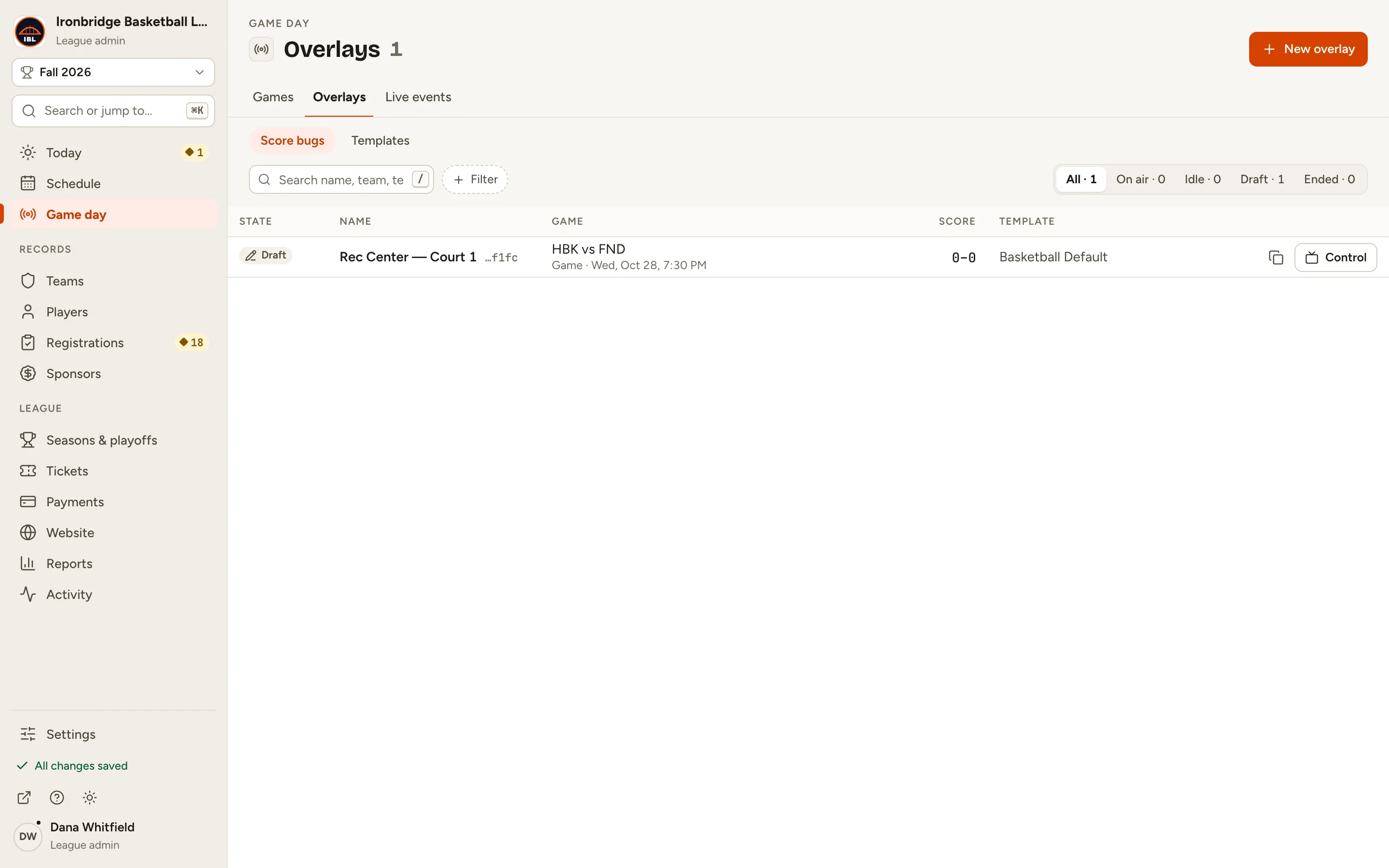
Step 3: Click New overlay.
The New overlay form opens.
Fig. 3New overlay, at the top right.
4
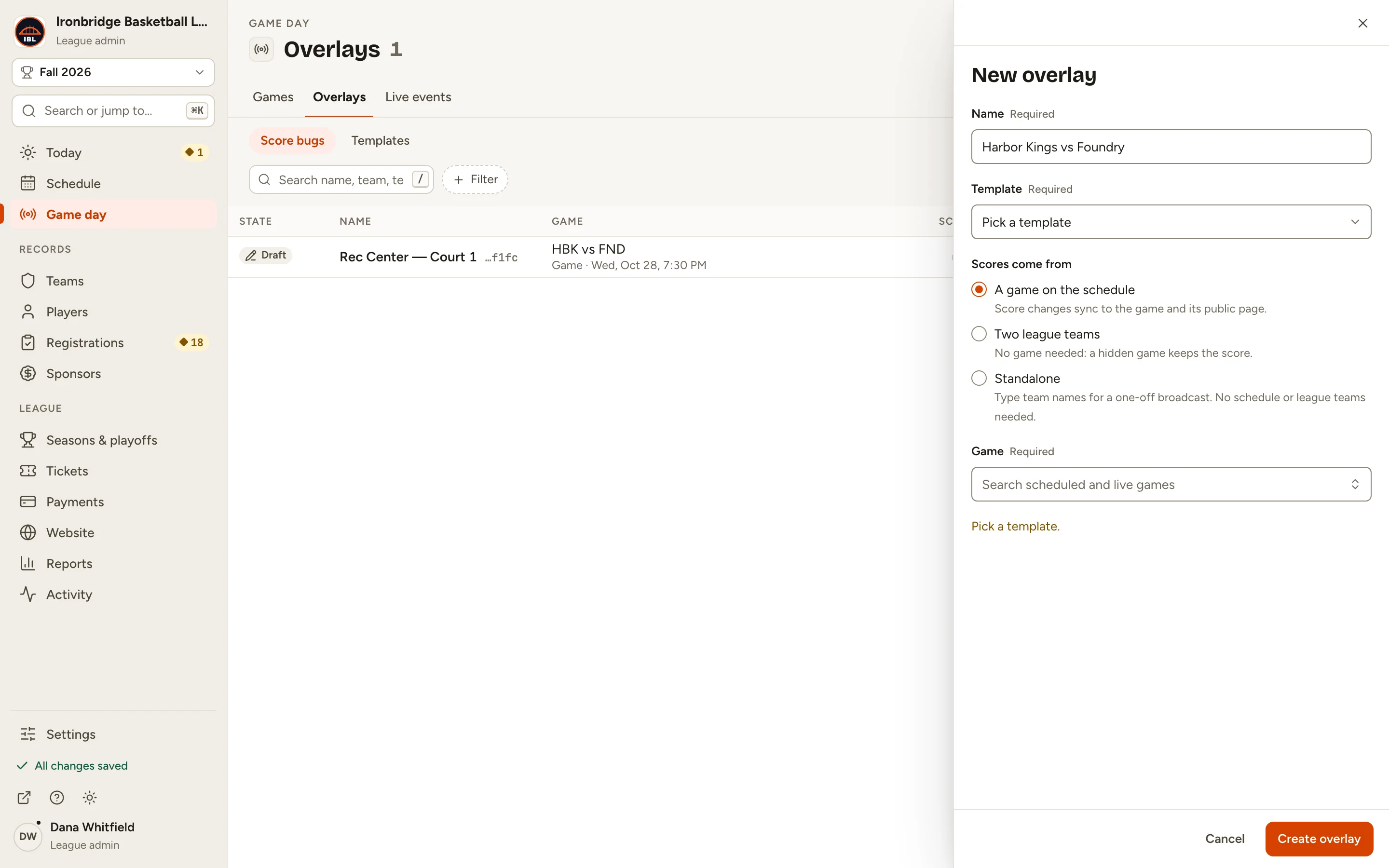
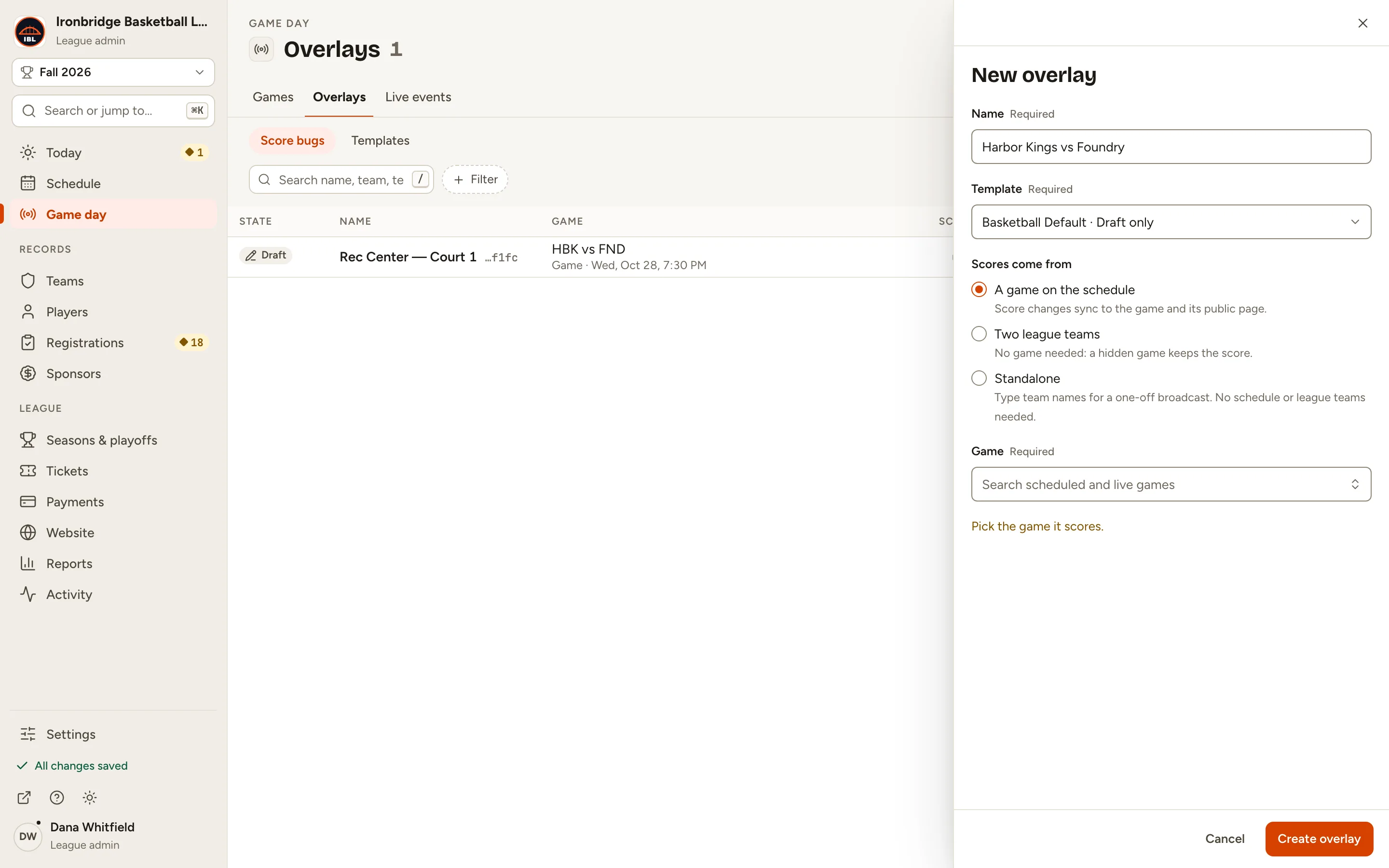
Step 4: Type a Name for it, like Harbor Kings vs Foundry.
Use a name you’ll recognise on game night.
Fig. 4Name the overlay.
5
Step 5: Click Template and choose one, like Basketball Default.
The template sets how the score bug looks.
Fig. 5Pick a template.
6
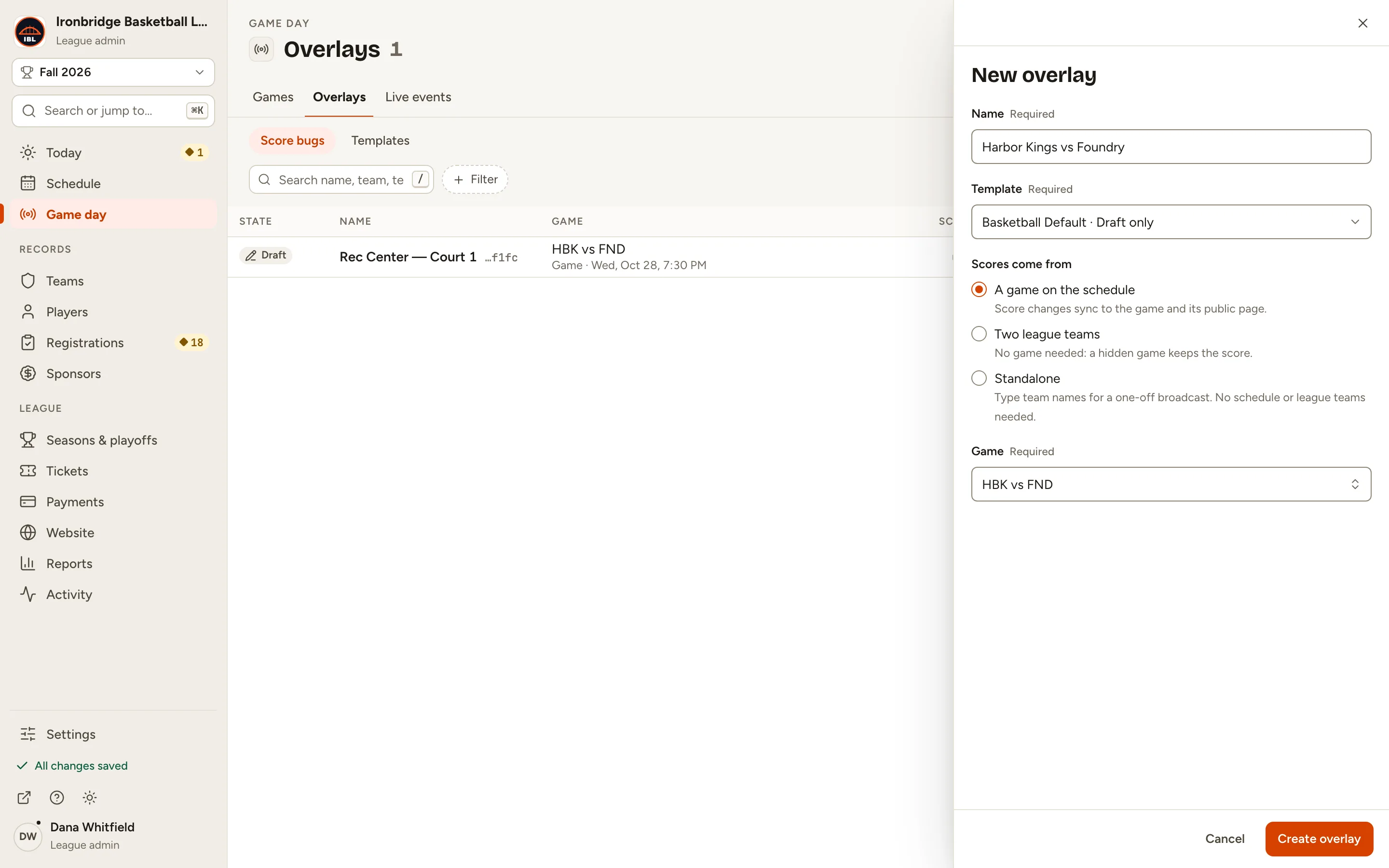
Step 6: Keep A game on the schedule, then pick your game under Game.
Search by team code (HBK). Score changes sync to the game and its public page.
Fig. 6Link the overlay to your game.
7
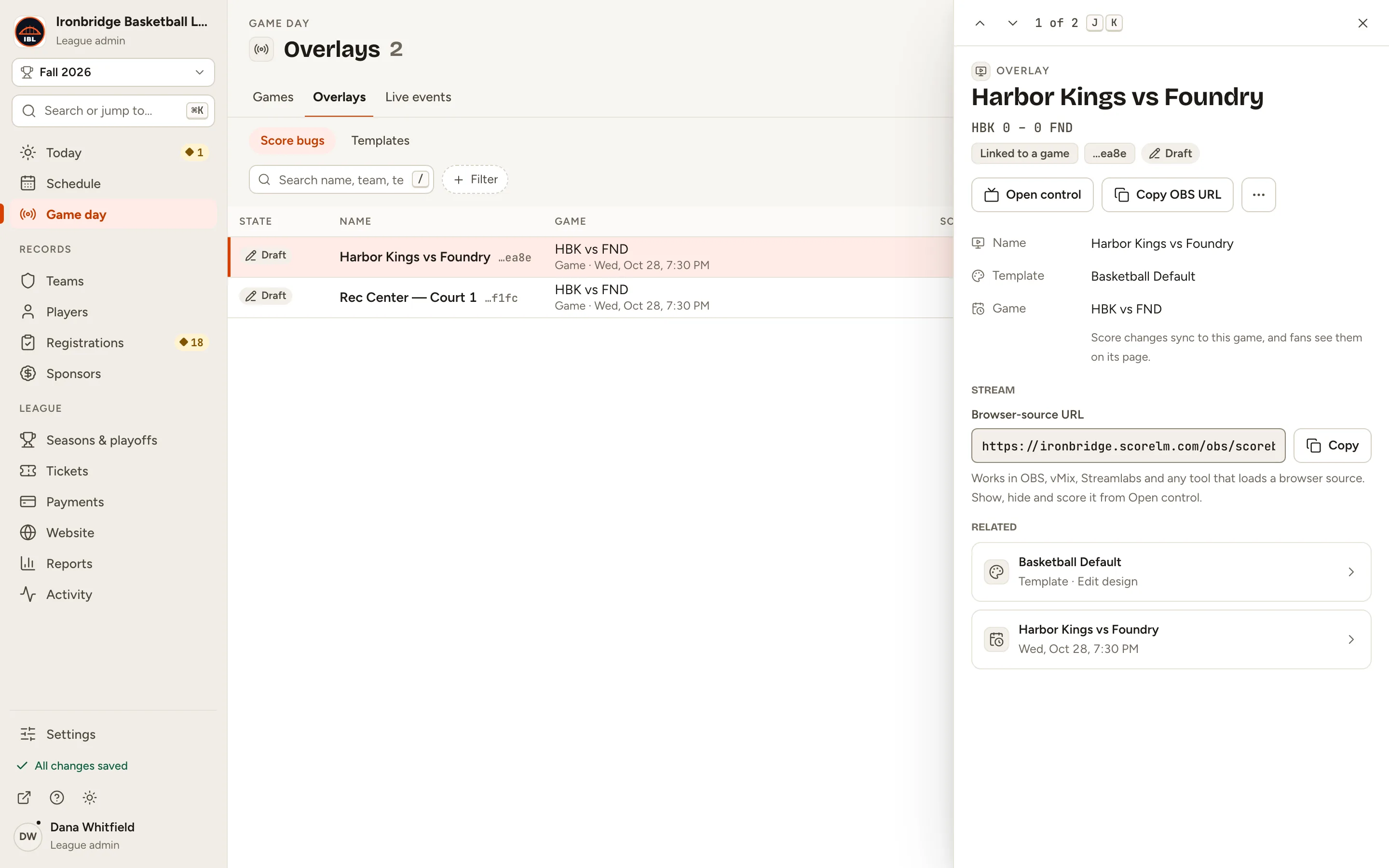
Step 7: Click Create overlay.
The overlay is created, with its settings open beside the list.
Fig. 7The new overlay, beside the list.
8
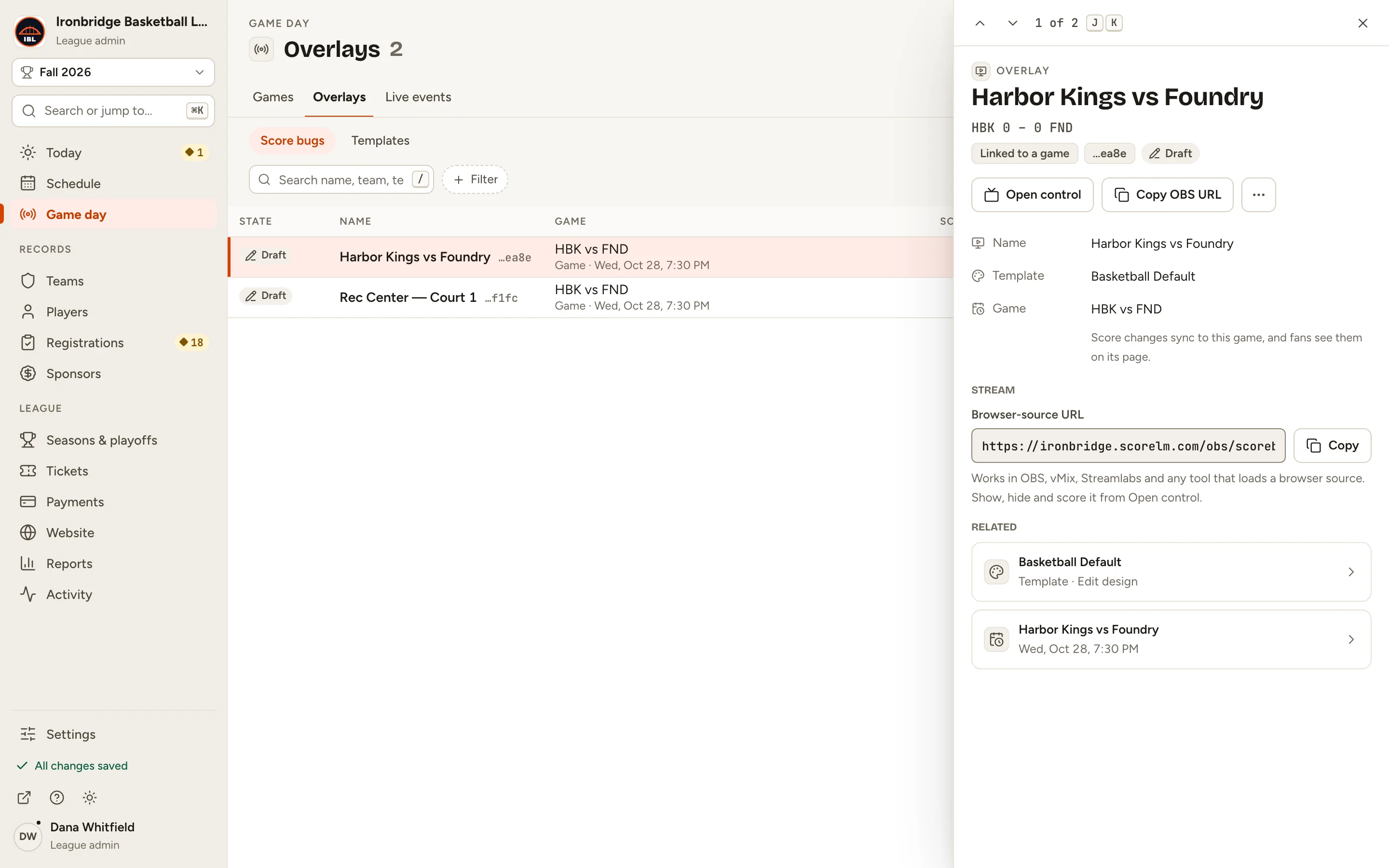
Step 8: Click Copy OBS URL.
The overlay’s browser-source URL is copied. It’s also under Stream, below.
Fig. 8Copy OBS URL copies the browser-source URL.
9
Step 9: In OBS, vMix or Streamlabs, add a Browser source and paste the URL.
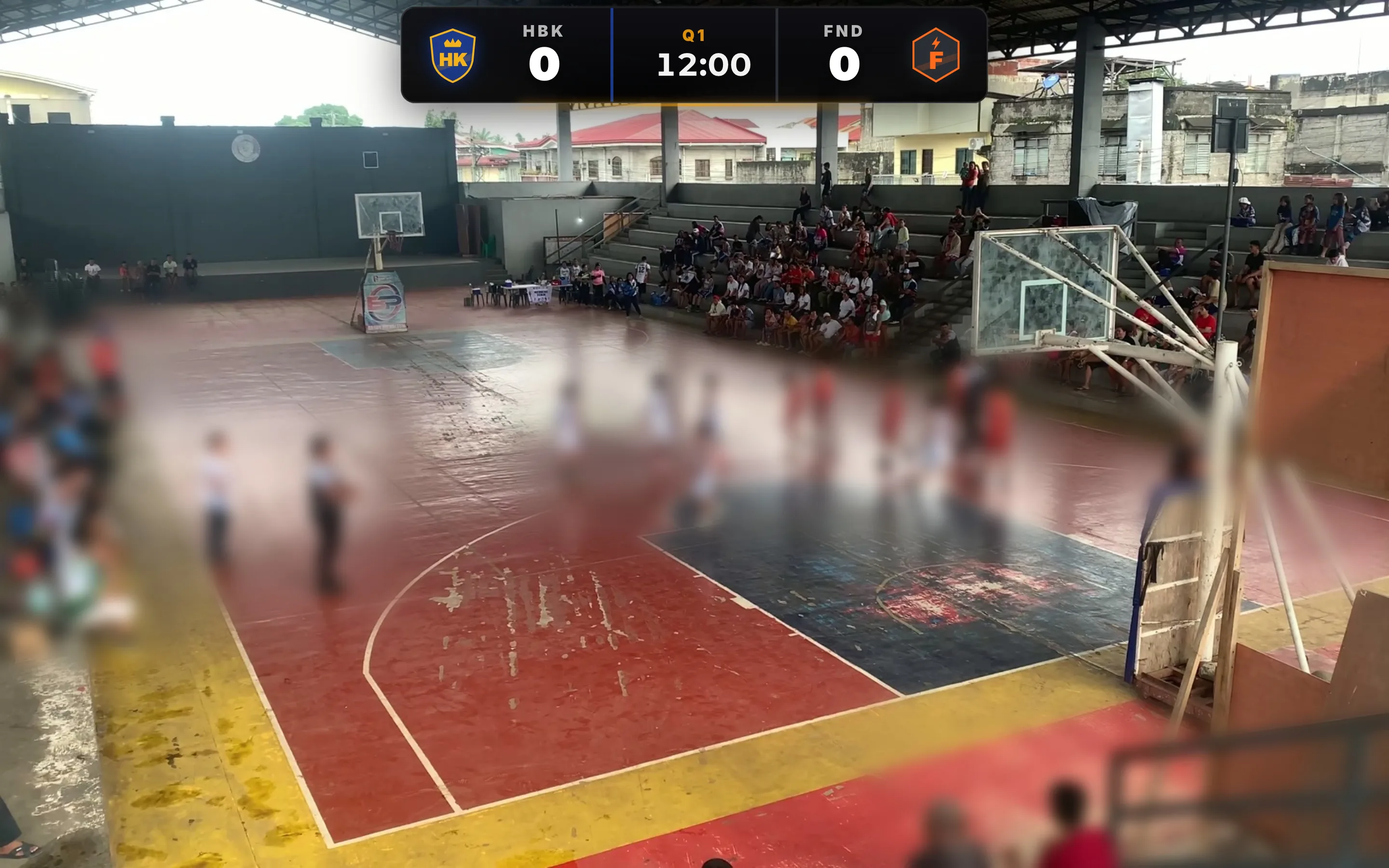
Your stream shows the camera. The score bug stays hidden until you show it.
Fig. 9The stream with the overlay added, still hidden.
10
Step 10: Click Open control.
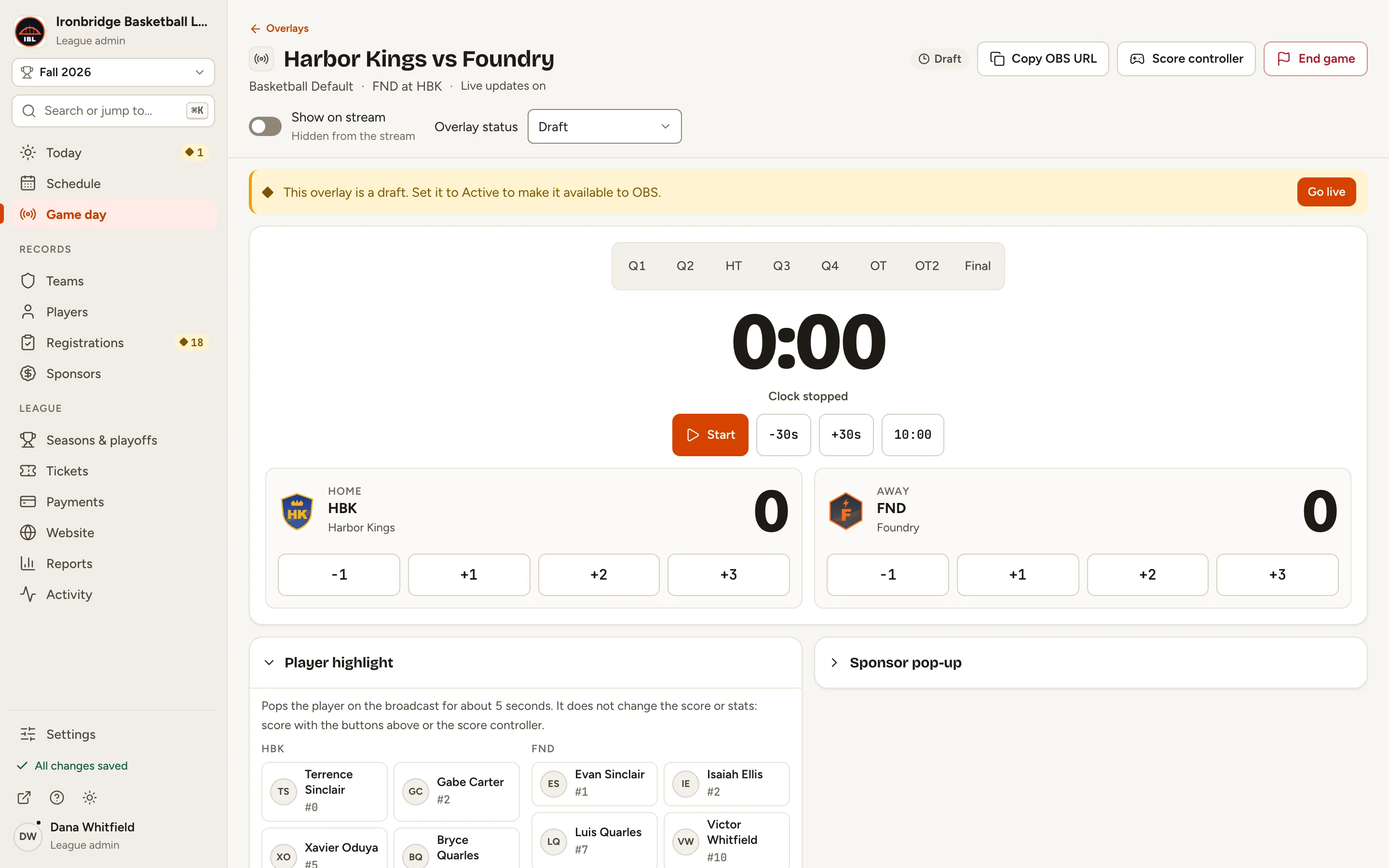
The overlay’s control page opens, with its scoreboard. It’s still a Draft.
Fig. 10The overlay’s control page.
11
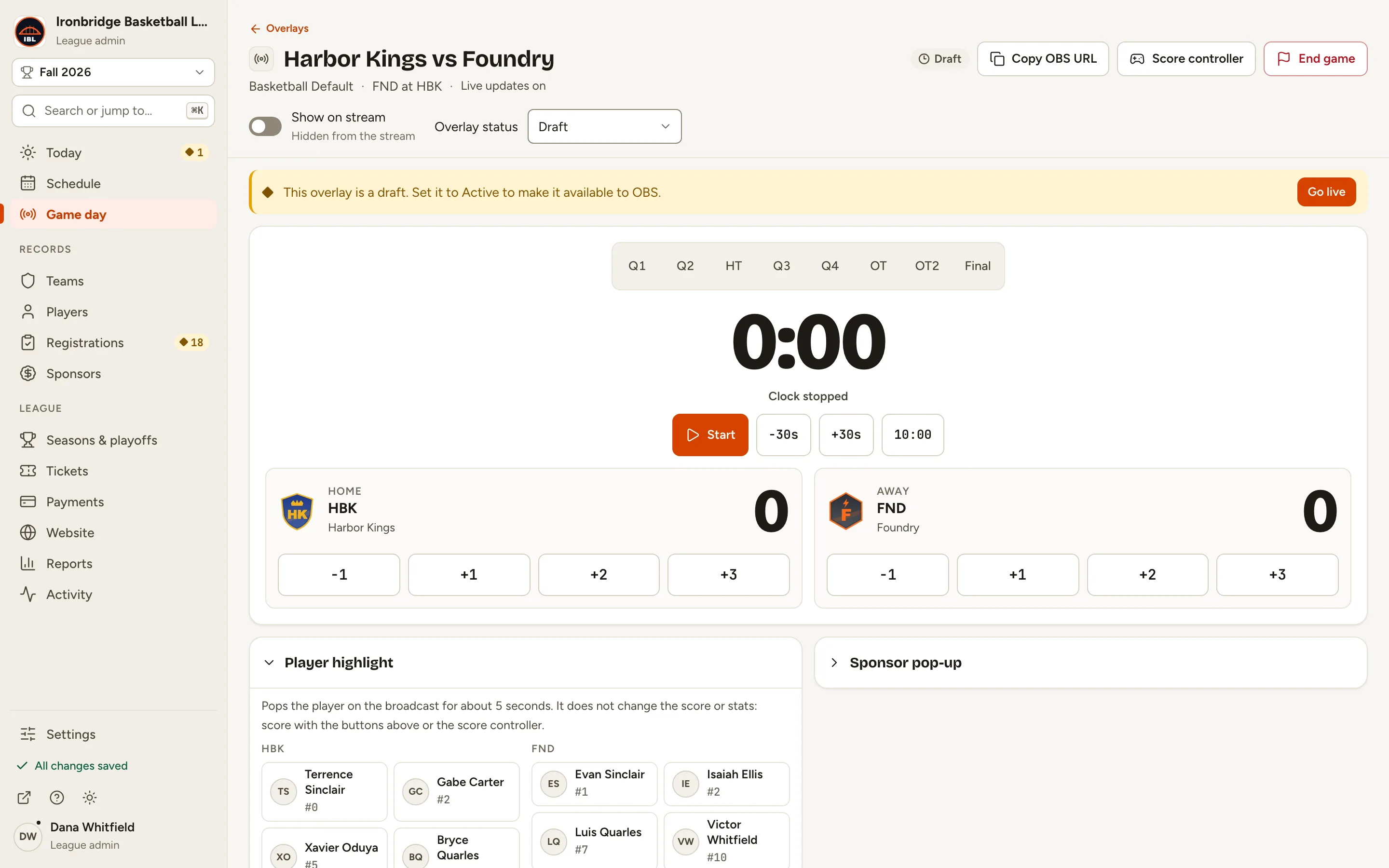
Step 11: Click Go live.
Overlay status is now Active, ready for your stream.
Fig. 11Go live sets the overlay to Active.
12
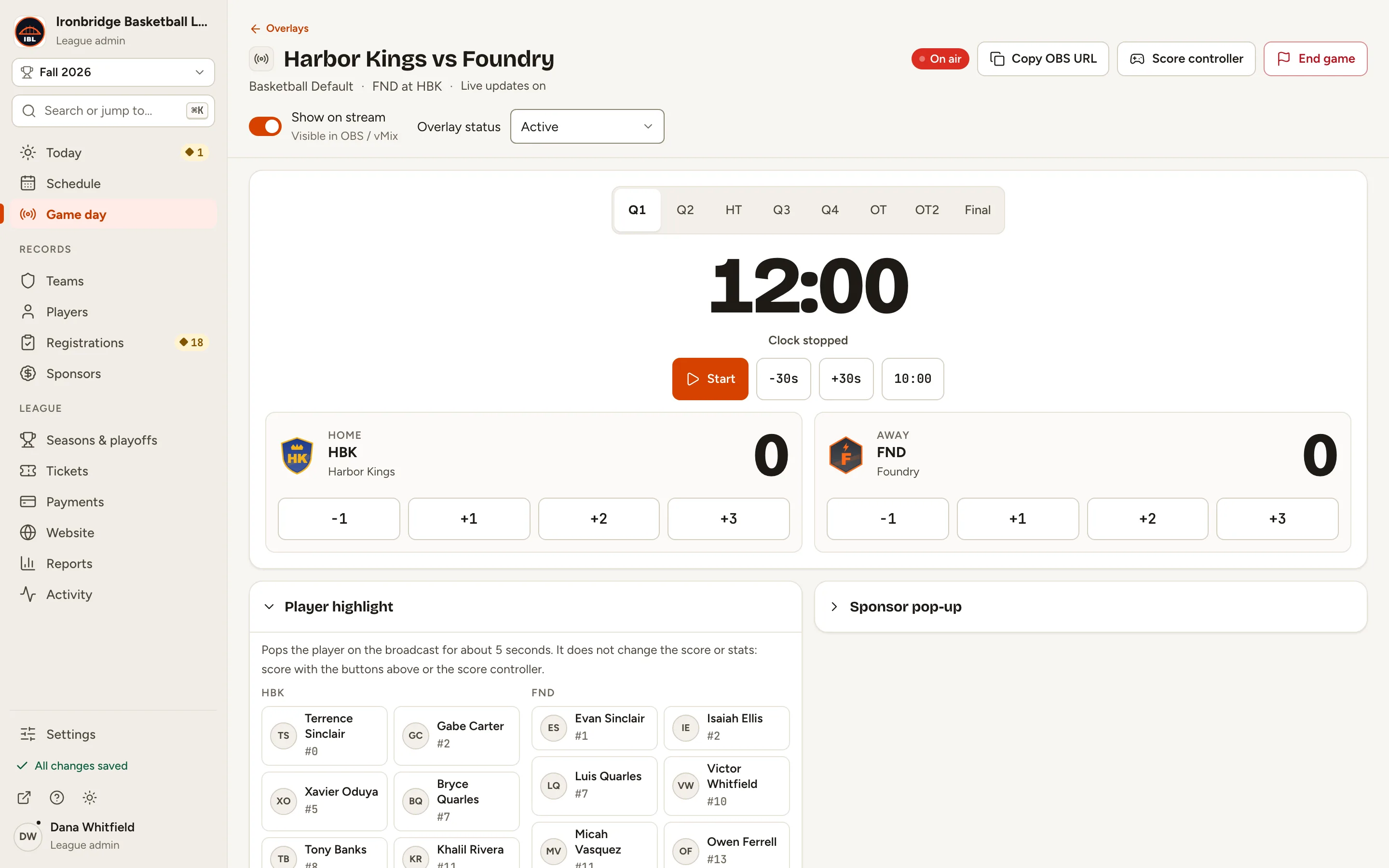
Step 12: Turn on Show on stream.
The score bug is on your stream, and it follows the game’s score and clock as you keep score.
Fig. 12Show on stream, turned on.
What you’ll see
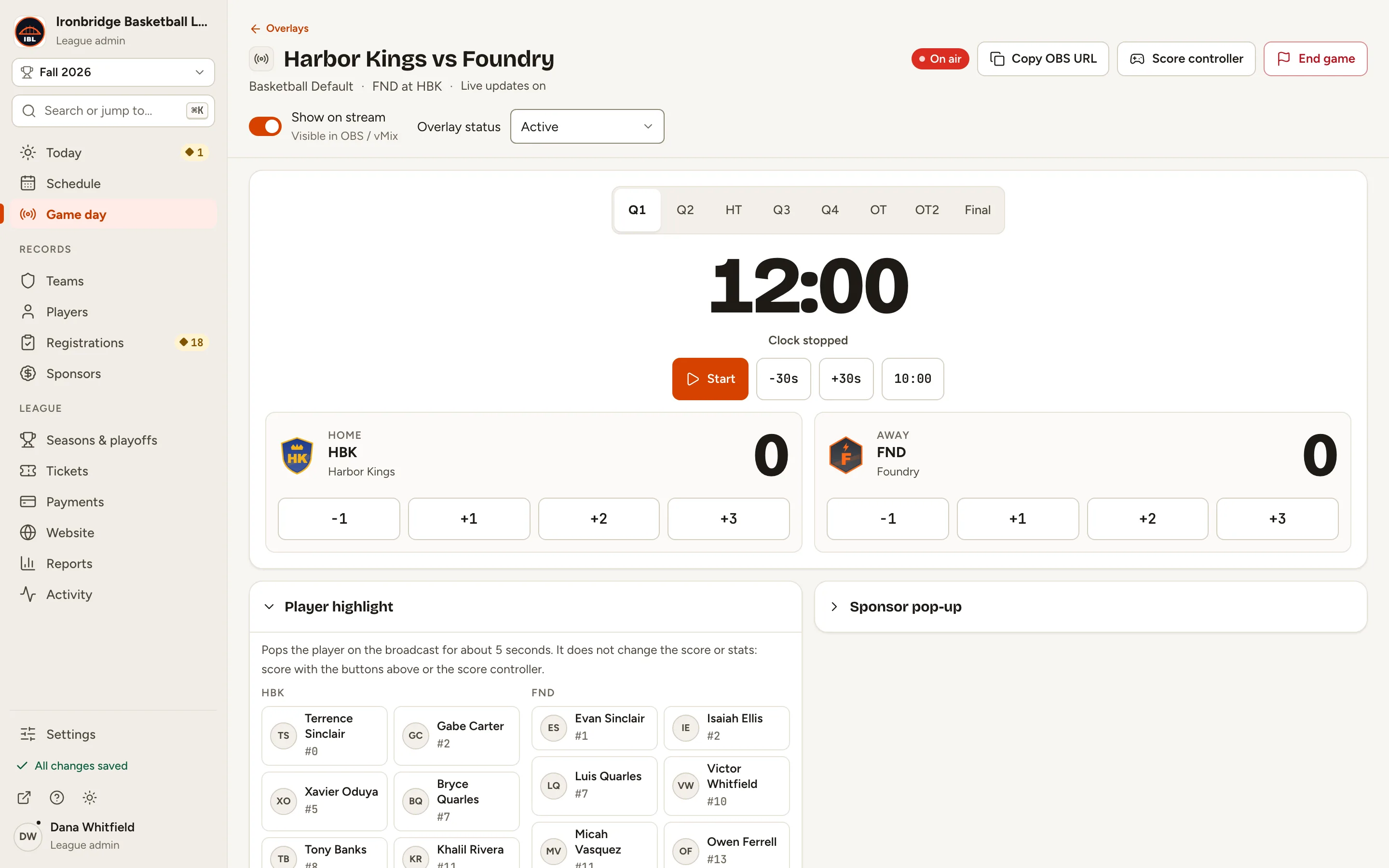
The overlay is On air. Keep score in the score controller or on this control page: both update the game, its public page and your stream together.
1 of 2
2 of 2
Fig. 13The overlay is on air.
Fig. 14The score bug on your stream.
Common questions
Which streaming tools work?
Any tool that loads a browser source: OBS, vMix, Streamlabs and others. Paste the URL from Copy OBS URL as a browser source over your camera.
How do I take the score bug off the stream?
On the control page, turn off Show on stream. When the game ends, the overlay changes to Ended but stays on air until you click Hide overlay.
Can I keep score from the control page?
Yes. Its clock, periods and +1, +2, +3 buttons control the same game as the score controller, so both stay in step.
How do I change how the score bug looks?
Go to Game day › Overlays › Templates, open the template, change it and click Publish. Your stream shows the published design, so refresh the browser source in your streaming tool afterwards.
Can I make an overlay for a game that isn’t on the schedule?
Yes. Under Scores come from, choose Two league teams (a hidden game keeps the score) or Standalone (type team names for a one-off broadcast).
Can stat keepers use overlays?
They can see the overlays list. Creating an overlay and opening its control page are for league admins and editors.