Ticketing
Selling tickets, scanning at the door, and getting paid
ScoreLM's ticketing runs the whole loop: online checkout via Stripe, cash + card + comp at the door, a built-in QR code scanner that works on any phone, partial refunds, and a monthly invoice for the platform fees on your cash sales. Money lands in your bank, not ours.
Before you start
- A ScoreLM account on a plan that includes the Ticketing feature
- A Stripe account for your league (free to create) -- needed for online sales, door card sales, and refunds
- A phone with a back camera for the gate scanner (any device on iOS 15+ / Android 10+ works)
- If running door card sales: stable cell signal at the gate (the fan pays on their own phone via a QR)
Connect Stripe and set your platform fee
Before your first sale you need to plug in a Stripe account. Open Admin → League → Payments and click Connect with Stripe. You'll sign into your own Stripe account -- payouts land directly in your bank, not ours. The default platform fee is 10% of every paid ticket; this can be adjusted per league if needed. Cash and comp door sales skip Stripe entirely, but you still need Stripe for online sales and door card payments.

Create a ticket sale
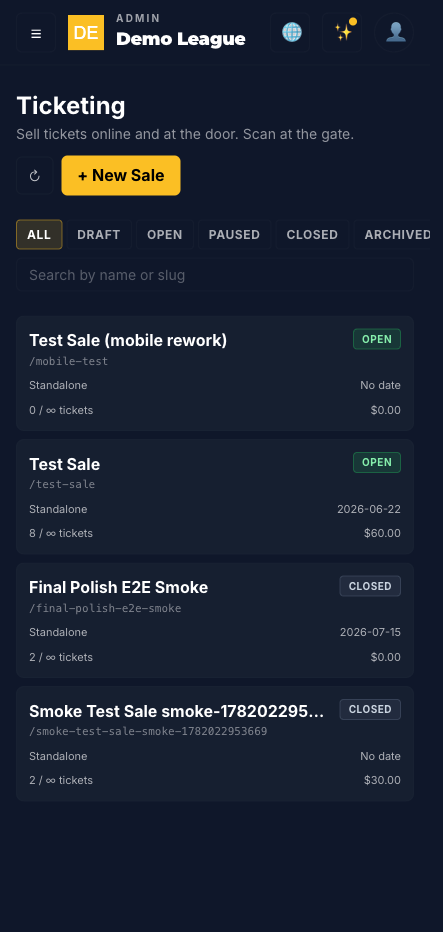
Go to Admin → Ticketing and tap New Sale. Give it a name, a slug (this becomes the public URL: /tickets/<slug>), and pick a scope -- a single game, a whole season, a tournament, or Standalone for things that aren't on the schedule (fundraiser dinner, raffle night). Fill in the event date, time, timezone, and a venue. The sale starts in draft so nothing is public yet.
Add ticket types and capacity
Open the sale, switch to the Ticket types tab, and add tiers -- Adult, Student, VIP, whatever you sell. Each type has a name, a price, and an optional max capacity. Leave max blank for unlimited. The sold counter is live: every checkout reserves seats the moment a fan starts paying, and a failed payment releases the reservation automatically.

Open the sale and share the public URL
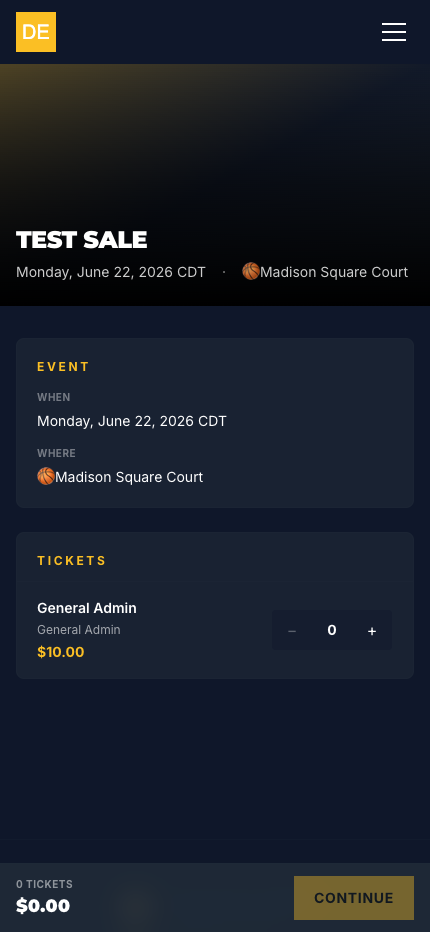
Hit Open sales in the header. The status flips from draft to open and the public page at /tickets/<slug> goes live. Copy the URL from the Overview tab and drop it in an announcement, an Instagram bio, an email blast -- anywhere. Fans pick quantities, enter their name, email, and phone (text-message delivery is opt-in), and get sent to Stripe Checkout to pay. Tickets are emailed and texted the moment Stripe confirms.
Run door sales on game day
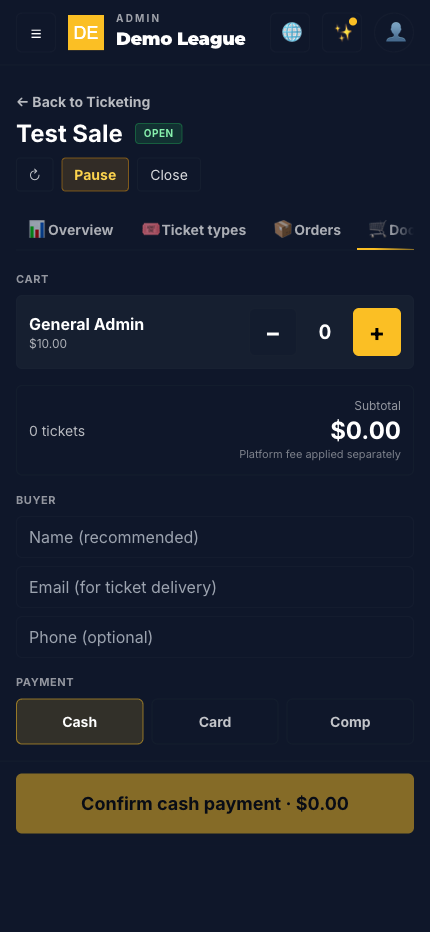
On the sale's Door sale tab you'll find a cart-style screen sized for a phone at the gate. Add quantities with big +/- buttons, type the buyer's name and email, and pick a channel: Cash, Card, or Comp. Cash and comp issue tickets instantly. Card pops up a QR code -- the fan scans it with their phone and pays on their own device, so you never handle a card or store any payment info. The screen flips green the moment payment lands, and warns you if you try to navigate away mid-payment.
Scan tickets at the gate
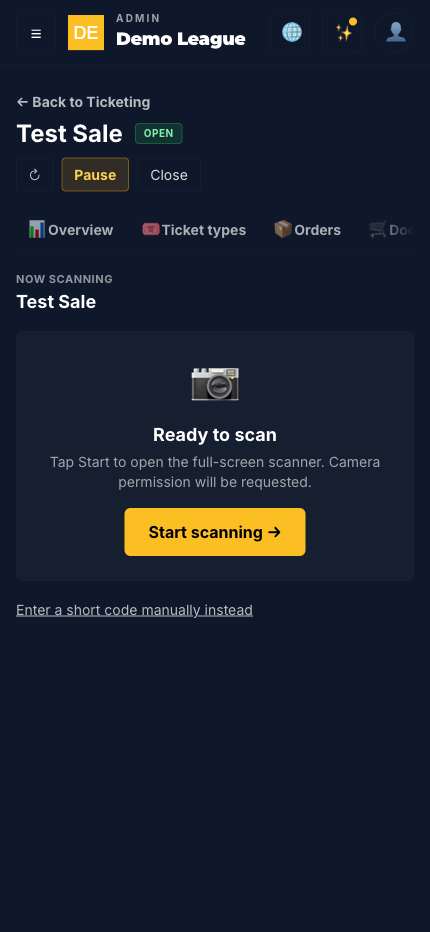
Switch to the Scanner tab and tap Start scanning. The view goes full-screen kiosk mode -- big camera, corner-bracket reticle, a top bar showing the sale name plus a running tally of Valid / Duplicate / Invalid scans. Point the camera at a fan's QR. A valid first scan beeps high and shows a green VALID card with the attendee's name; duplicates and invalids beep low and show a red error. The viewport doubles as a manual-entry sheet for when the QR is smudged -- the 4-letter-4-digit short code under every QR types in fine.
Process refunds when they come up
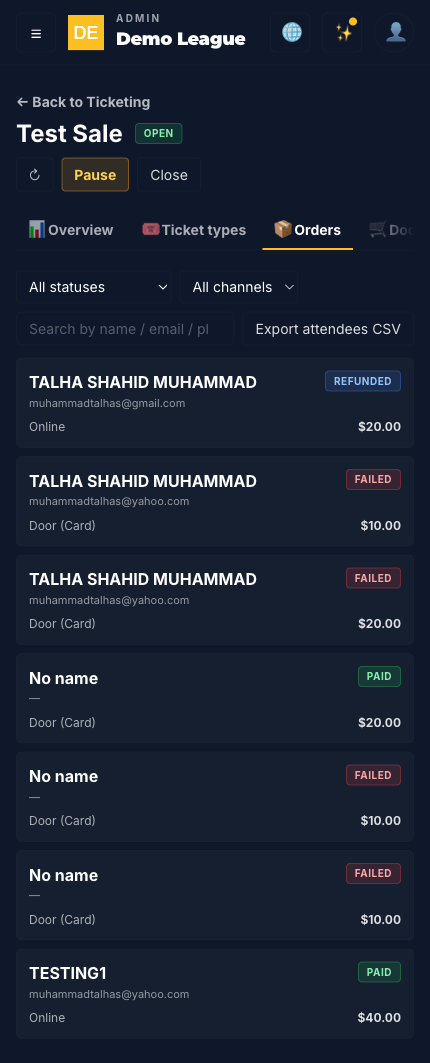
Open the Orders tab, click into the order, and hit Refund. You can refund the full remaining balance or a partial amount. Online and door-card refunds go back through Stripe (your fee is refunded too). Cash and comp refunds happen outside Stripe -- the order is marked refunded and the tickets are voided so they fail the next scan. A full refund also releases the reserved capacity back to the ticket type.
Reconcile your monthly cash-fee invoice
Every cash sale records a platform fee but leaves it unbilled. Once a month we sum your unbilled cash fees and create a single Stripe invoice against the card on your subscription. The invoice description lists the order count so you can match it against your door receipts. Online and door-card fees are taken at sale time, so they don't appear on this invoice -- it's cash-only.

Pro Tips
Tips from running real door operations
What we and our pilot leagues figured out after the first few games.
Test with a $1 ticket before game day
Create a hidden sale (status: draft) with a $1 ticket, run one full online purchase from your own phone, then refund it. You'll know your Stripe connection is alive, your email and text-message delivery works, and your scanner happily reads your own QR code -- all without risking a real customer at tip-off.
Print the manual-entry short codes
Every ticket has a 4-letter-4-digit short code under the QR code (e.g. ABCD-1234). Print a list of issued codes from the Orders CSV export and keep it at the gate as a paper fallback. When a fan's phone is dead or their screen is cracked, the volunteer types the code and admits them in five seconds.
Pre-print a Comp roster
Sponsors, board members, family of the championship-game MVP -- they all show up expecting a free seat. Bulk-issue Comp tickets the day before with the recipient's name in the buyer field. They get an email and a text message, the QR code scans like any other ticket, and the order notes give your auditor a paper trail.
Have one tablet just for the QR scanner
Don't share the door-sale device with the scanner. A volunteer trying to ring up a cash sale while another fan is waving a QR code creates collisions -- the kiosk view takes over the whole screen so you can't do both at once. One phone for sales, one phone for scans.
Watch the cash fees ticker between games
Cash door sales add to your monthly invoice but don't move money out of your pocket on the spot. If you're running a tournament weekend with $5k in cash door, you're looking at $500 owed to ScoreLM at month-end. The Overview tab's Fees withheld line shows what's accruing -- budget for it before payday.
Refund partial, void the seat, keep the ticket
A common request: 'two of the four seats I bought can't make it.' Don't refund the whole order -- the buyer still wants the other two. Use partial refund (the price of two seats) and individually void the specific tickets that aren't attending. The remaining two QR codes keep working and the buyer keeps the order in their email.
How door cash is billed monthly
Online and card sales settle in real time -- our fee comes off the top of every Stripe charge and the rest hits your bank. Cash is different: the money is in your pocket the moment the fan walks through the gate, so we sweep up the fees in a single invoice once a month.
Each order is only ever billed once -- no chance of being charged twice for the same cash sale. The invoice description lists the order count so you can match it line-for-line against your door receipts.
That's the whole ticketing loop
Connect Stripe, create a sale, open the gate. Online checkout, cash + card + comp at the door, QR scanning, refunds, and a single monthly invoice -- no extra software, no extra hardware.