Live Scoring
Scoring a live game from your phone
This walks through running live scoring courtside -- updating the score, clock, and period in real time from your phone. Every tap shows up on your stream's score overlay AND your league's fan page within about a second.
Before you start
- An admin or scorekeeper account on your league
- A phone or tablet with a modern browser (any iPhone / Android from the last 5 years is fine)
- A game on today's schedule -- create it on the Schedule page first if it isn't there
- A stable network connection (gym WiFi or LTE -- the controller falls back to your device's connection automatically)
Open Live Scoring and pick the game
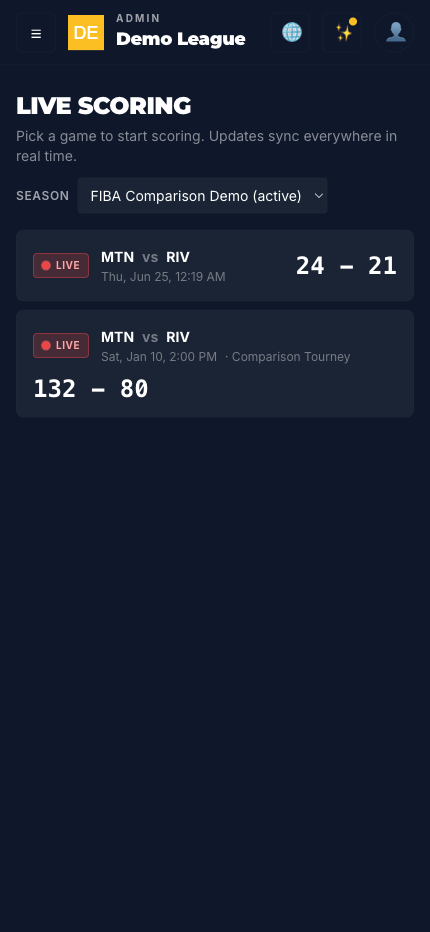
Sign in to the admin on your phone and tap Live Scoring in the sidebar. You'll see every in-progress and scheduled game for the active sport -- live games sit on top with a pulsing red Live pill, upcoming ones queue underneath. Tap the matchup you're about to score. If you keep multiple seasons going at once, use the Season dropdown to narrow the list.
Set the period before tip-off
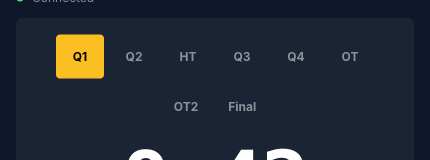
The period strip runs across the top of the controller -- Q1 / Q2 / HT / Q3 / Q4 / OT for basketball, and whatever your sport uses for everything else. Tap Q1 to start. The active period is highlighted; tapping a new one updates fans and the score overlay on your stream instantly. The strip pulses yellow when the clock hits 0:00 to remind you to advance.
Start the clock
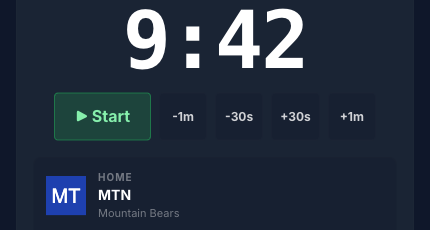
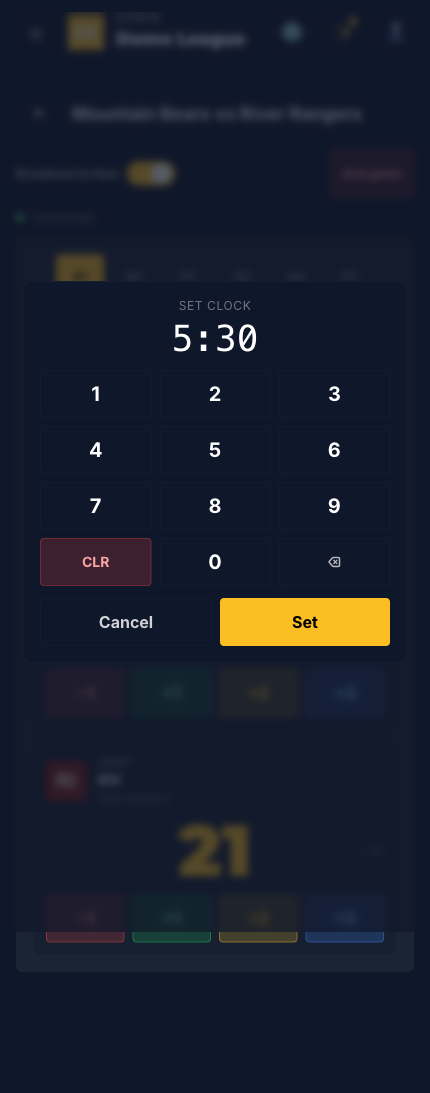
The big mono clock sits front and center. Tap Start to begin -- you'll see a green RUNNING pulse below the readout. Tap Pause for timeouts, fouls, or anything else that stops play. The timer stays in sync everywhere -- it never drifts, and reconnecting on a different device picks up exactly where you left off. Tap the clock readout itself to open a numpad if you need to set a specific time (e.g. correcting an officials' clock).
Score with +1 / +2 / +3 (and -1 for fixes)
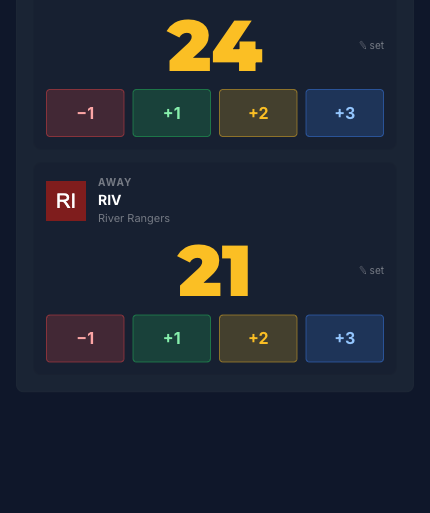
Each team panel has a four-button row: -1, +1, +2, +3. Tap +2 for a field goal, +3 from beyond the arc, +1 for a free throw. Made a mistake? -1 backs it out. The score updates instantly on your screen, so fast-fingered scorekeepers don't outrun the UI. If you need to set an absolute value (correcting a 10-point error after a long discussion with the table), tap the big score number itself and a numeric input opens.
Adjust the clock when officials stop it
Inevitably the table clock and your clock will drift by a couple seconds during a fast period. The -30s / +30s / -1m / +1m buttons under the clock let you nudge without re-entering the time. For bigger corrections, tap the clock readout, key the exact value (e.g. 1000 = 10:00, 530 = 5:30, 45 = 0:45), and tap Set. Basketball auto-pauses at 0:00 so you don't have to remember -- the period strip pulses yellow as a hint to advance.
Toggle Broadcast to fans when you're ready
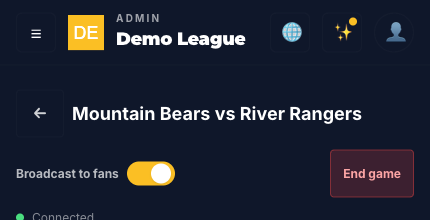
By default a game's live state isn't streamed to the public site -- you can rehearse without anyone seeing. When you're ready, flip the Broadcast to fans switch in the header. The fan-facing game page lights up with a LIVE NOW pill, the score animates with each update, and the clock ticks in sync. Flip it off again at halftime if you want to hide the score for a moment. This toggle has no effect on your stream's score overlay -- the overlay always renders what you tell it to.
End the game
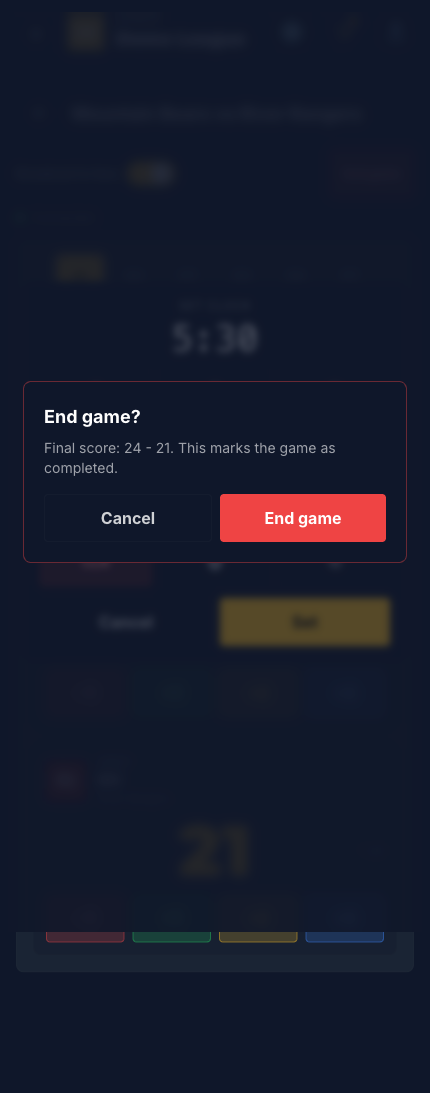
Final buzzer? Tap End game in the top right. A confirmation modal shows the final score so you can double-check before committing. Confirm and the game gets marked completed, the fan-side LIVE pill drops, and you're bounced back to the Live Scoring list. The box-score entry workflow takes over from here -- stats stay editable, but the live controller is closed out.
Pro Tips
Tips from running live games
Things we learned from volunteers scoring real games on real Saturdays.
Score from a phone, not a laptop
The controller is laid out for one-handed thumb use -- buttons are 48px+ tap targets, the period strip and score buttons sit within thumb reach. Trying to score from a laptop on a folding chair is slower and more error-prone. A cheap Android works fine.
Two people can score the same game
Updates flow live to every connected device. If your primary scorekeeper's battery dies, anyone else with admin access can pull up the game on their phone and pick up scoring mid-period without missing a possession.
Keep Broadcast to fans off during warm-up
Open the controller, set the period, and run through a couple of test taps before tip-off -- but leave Broadcast to fans off. Nothing leaks to the public site. Flip it on right before the opening tip and the fan page lights up at the same moment as the gym.
Use -30s for table-clock drift
Refs stop the clock late, table operators stop it early -- you'll be 1-3 seconds off by the end of any quarter played at speed. -30s / +30s is faster than opening the numpad. Save the numpad for end-of-period corrections where the time needs to be exact.
OT periods are already in the strip
OT is built into basketball by default. If a game goes to overtime, just tap OT in the period strip when Q4 ends -- no setup, no extra modal. Soccer, futsal, and other sports have their own period sequences ready to go.
The clock survives a phone reboot
If your phone dies or crashes mid-game, the game keeps running on the fan site. Reopen the controller on any device and the clock picks up exactly where it left off -- no resync button to press.
Everything stays in sync
Your controller, your fan page, and your stream's score overlay all show the same clock and score. A fan loading the page mid-quarter sees the same time as the scorekeeper courtside. If a device drops off and reconnects, it snaps right back to the live state -- no resync needed.
That's the whole game
Pick a game, tap a couple buttons, flip the broadcast toggle. Your fans get the same experience as the people in the gym.